 Meet the new
 Active Directory

Version: 1.3
Updated: Dec 19, 2023
Utilize user, group, and system information from Active Directory.
Actions
- System Attributes (Enrichment) - Gather system attributes.
- User Attributes (Enrichment) - Gather user attributes.
- Group Attributes (Enrichment) - Gather group attributes.
- Users Groups (Enrichment) - Gather user's groups.
- Create User (*Containment) - Create a new user.
- Reset Password (Containment) - Reset a user's password.
- Set Password (Containment) - Set a new password.
- Set System Attributes (Containment) - Set a system's attribute.
- Set User Attributes (Containment)- Set a user's attributes.
- Change System OU (Containment) - Change a system's organizational unit (OU).
- Enable User (Containment) - Enable a user account.
- Disable User (Containment) - Disable a user's account.
- Remove Users From Groups (Containment) - Remove users from AD group.
- Get Groups Members (Containment) - retrieve users from AD group.
- Add Users To Groups (Containment) - Add a user to a group.
- User Attributes V2 (Enrichment) - Gather user attributes v2.
External Libraries
Configure Active Directory in Automation Service and Cloud SOAR
Before you can use this automation integration, you must configure its authentication settings so that the product you're integrating with can communicate with Sumo Logic. For general guidance, see Configure Authentication for Automation Integrations.
How to open the integration's configuration dialog
- Access App Central and install the integration. (You can configure at installation, or after installation with the following steps.)
- Go to the Integrations page.
Classic UI. In the main Sumo Logic menu, select Automation and then select Integrations in the left nav bar.
New UI. In the main Sumo Logic menu, select Automation > Integrations. You can also click the Go To... menu at the top of the screen and select Integrations. - Select the installed integration.
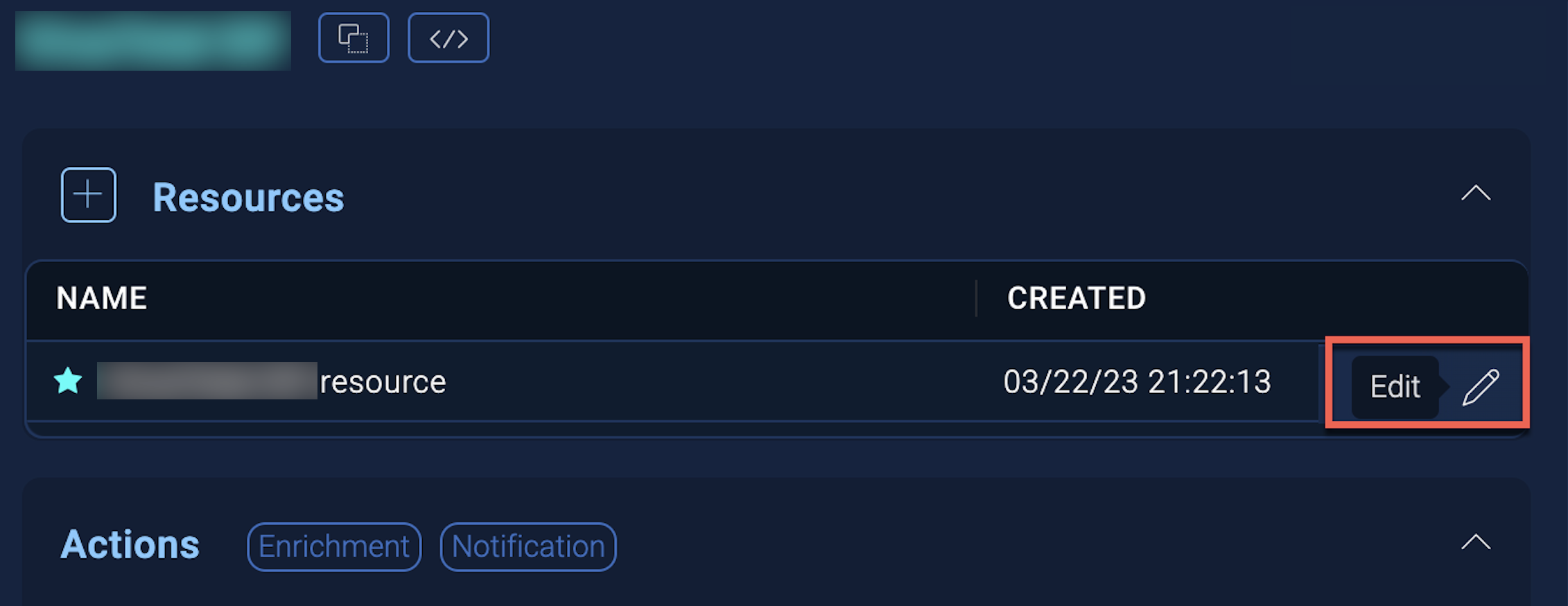
- Hover over the resource name and click the Edit button that appears.
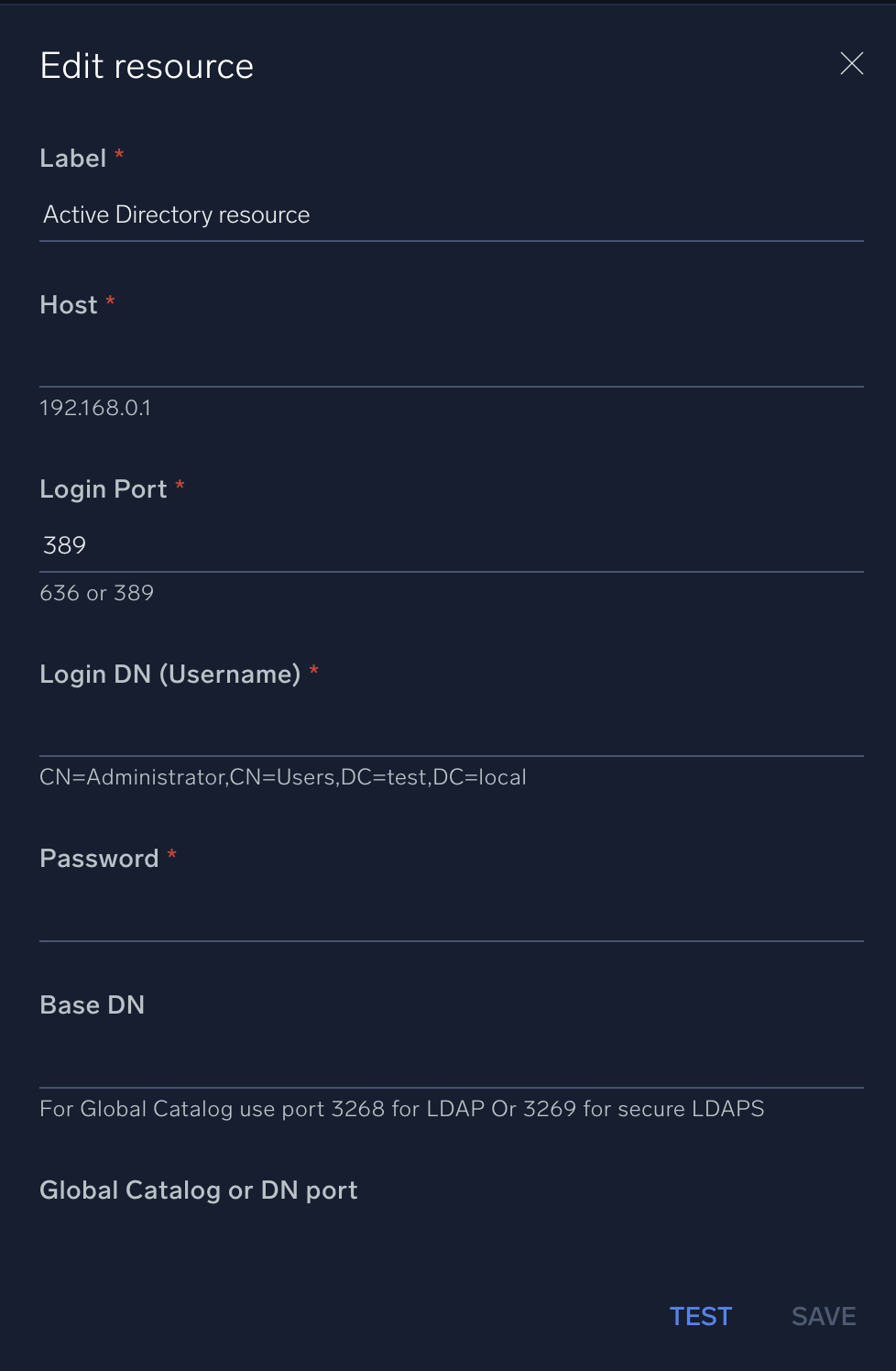
In the configuration dialog, enter information from the product you're integrating with. When done, click TEST to test the configuration, and click SAVE to save the configuration:
-
Label. Enter the name you want to use for the resource.
-
Host. The hostname or IP address of the AD server.
-
Login Port. The port used for LDAP authentication. The default is
389for LDAP and636for LDAPS. -
Login DN (Username). Enter the distinguished name format (for example,
CN=Administrator,CN=Users,DC=csoar,DC=com). See the following sections for information about how to get the login DN. -
Password. The corresponding password for the provided username.
-
Base DN. Enter the Base Distinguished Name.
-
Global Catalog or DN Port. Select the catalog or port. For global catalog, select port 3268 for LDAP or 3269 for secure LDAP.
For information about Active Directory, see Active Directory documentation.
Change Log
| Version | Date | Description |
|---|---|---|
| v1.3 | December 19, 2023 | Updated the User Attributes V2 action so users can now be filtered based on their distinguishedName (DN). |
| v1.2 | July 7, 2023 |
|
| June 07, 2022 | Updated the User Attributes V2 action to update the output. | |
| October 27, 2021 | Added new actions. | |
| November 9, 2020 | Added new actions. | |
| December 19, 2019 | Initial release of the Active Directory integration. |