 Meet the new
 AWS Lambda

Version: 1.0
Updated: Aug 14, 2026
Interact with AWS Lambda functions, including listing, inspecting, and invoking them directly from automation playbooks.
Actions
- Get Function (Enrichment). Retrieves configuration and code details for a specific Lambda function, including runtime, handler, memory, and state.
- Invoke Function (Custom). Invokes a Lambda function synchronously or asynchronously with an optional JSON payload and returns the status code and response.
- List Functions (Enrichment). Lists Lambda functions in the configured region with optional pagination and Lambda@Edge filtering.
External Libraries
Configure AWS Lambda in Automation Service and Cloud SOAR
Before you can use this automation integration, you must configure its authentication settings so that the product you're integrating with can communicate with Sumo Logic. For general guidance, see Configure Authentication for Automation Integrations.
How to open the integration's configuration dialog
- Access App Central and install the integration. (You can configure at installation, or after installation with the following steps.)
- Go to the Integrations page.
Classic UI. In the main Sumo Logic menu, select Automation and then select Integrations in the left nav bar.
New UI. In the main Sumo Logic menu, select Automation > Integrations. You can also click the Go To... menu at the top of the screen and select Integrations. - Select the installed integration.
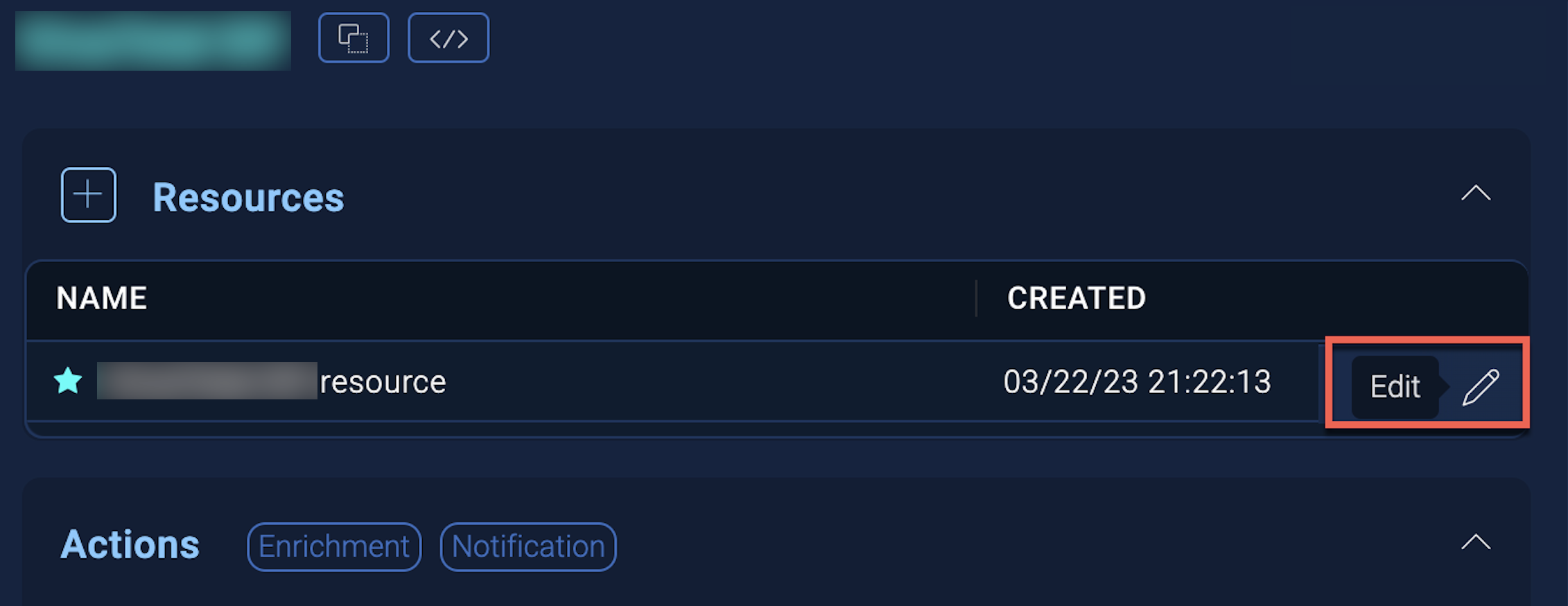
- Hover over the resource name and click the Edit button that appears.
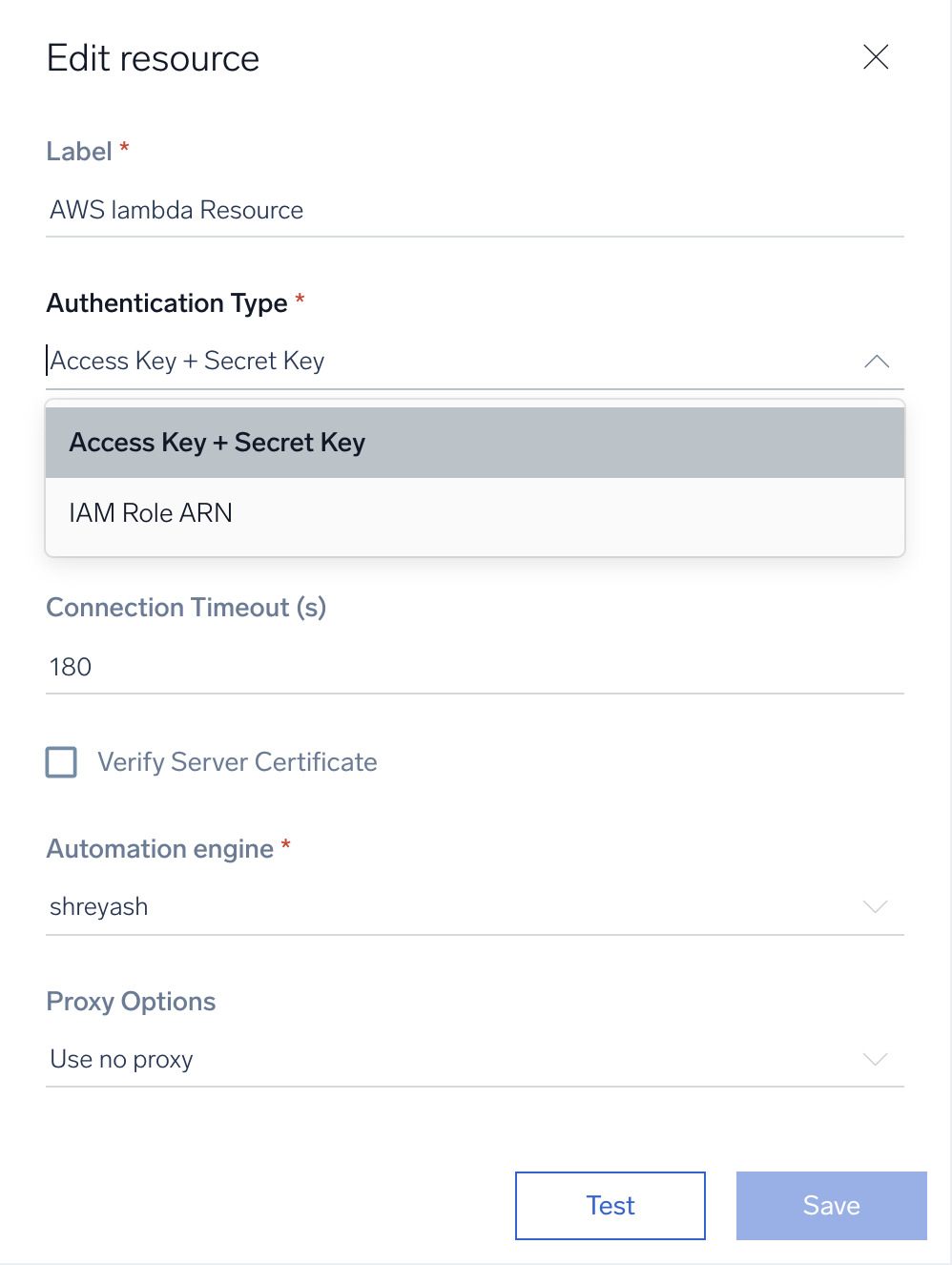
In the configuration dialog, enter information from the product you're integrating with. When done, click TEST to test the configuration, and click SAVE to save the configuration:
-
Label. Enter the name you want to use for the resource.
- Authentication Type. Select the authentication method: Access Key + Secret Key or IAM Role ARN.
-
Access Key ID. Enter an AWS access key ID to provide authentication. (Although AWS recommends using IAM roles with temporary security credentials instead of access keys.)
-
Secret Access Key. Enter the secret access key associated with the access key ID.
- Session Token. Enter the session token if you are using temporary credentials.
-
IAM Role ARN. Enter an AWS IAM Role ARN to provide authentication. See the AWS documentation on IAM identifiers for more information.
-
AWS Region. Enter your AWS region.
-
Connection Timeout (s). Set the maximum amount of time the integration will wait for a server's response before terminating the connection. Enter the connection timeout time in seconds (for example,
180). -
Verify Server Certificate. Select to validate the server’s SSL certificate.
-
Automation Engine. Select Cloud execution for this certified integration. Select a bridge option only for a custom integration. See Cloud or Bridge execution.
-
Proxy Options. Select whether to use a proxy. (Applies only if the automation engine uses a bridge instead of cloud execution.)
- Use no proxy. Communication runs on the bridge and does not use a proxy.
- Use default proxy. Use the default proxy for the bridge set up as described in Using a proxy.
- Use different proxy. Use your own proxy service. Provide the proxy URL and port number.
For configuration information specific to AWS integrations, see the AWS integrations section.
AWS IAM role-based access
To enable AWS IAM role-based authentication without sharing access keys and secrets, follow the steps below:
-
Create an IAM role in your AWS account. Follow AWS’s guide to create a new IAM role.
-
Attach required policies to the role depending on the AWS services you want to allow access to (for example,
AmazonEC2ReadOnlyAccess,AWSWAFFullAccess, etc.). -
Update the trust policy to allow Sumo Logic’s AWS account to assume this role. This involves editing the trust relationship JSON to include Sumo Logic’s AWS account ID as a trusted principal. Example trust policy:
{"Version": "2012-10-17","Statement": [{"Effect": "Allow","Principal": {"AWS": "arn:aws:iam::926226587429:role/<dep>-csoar-automation-awsiam"},"Action": "sts:AssumeRole"}]}Replace
<dep>with the prefix that corresponds to your Sumo Logic deployment:Prefix Deployment prodUS1 (Production) us2US2 dubEU (Dublin) fraEU (Frankfurt) zrhEU (Zurich) fedUS Federal sydAU (Sydney) tkyJP (Tokyo) korKR (Seoul) monCA (Montreal)
Required Permissions
lambda:ListFunctions
lambda:GetFunction
lambda:InvokeFunction
Change Log
| Version | Date | Description |
|---|---|---|
| v1.0 | August 14, 2026 | Initial release of the AWS Lambda integration. |
Additional resources
For AWS Lambda, Sumo Logic offers the AWS Lambda app to visualize your AWS Lambda data.