AWS Security Hub V2

Version: 1.0
Updated: Dec 11, 2025
Interact with AWS Security Hub V2 through Insights and Findings.
Actions
- Import Single Finding (Enrichment) - Import a single finding.
- Create Insight (Containment) - Create a new insight with the specified information.
- Delete Insight (Containment) - Delete the specified insight.
- Get Findings (Enrichment) - Get findings matching the specified query.
- Get Insight Results (Enrichment) - Get results for the specified insight.
- Get Insights (Enrichment) - Get insights matching the specified query.
- List Enabled Products (Enrichment) - Get a list of SecurityHub enabled products.
- Update Finding (Containment) - Update a finding with the specified information.
- Update Insight (Containment) - Update the specified insight.
Configure AWS Security Hub in Automation Service and Cloud SOAR
Before you can use this automation integration, you must configure its authentication settings so that the product you're integrating with can communicate with Sumo Logic. For general guidance, see Configure Authentication for Automation Integrations.
How to open the integration's configuration dialog
- Access App Central and install the integration. (You can configure at installation, or after installation with the following steps.)
- Go to the Integrations page.
Classic UI. In the main Sumo Logic menu, select Automation and then select Integrations in the left nav bar.
New UI. In the main Sumo Logic menu, select Automation > Integrations. You can also click the Go To... menu at the top of the screen and select Integrations. - Select the installed integration.
- Hover over the resource name and click the Edit button that appears.
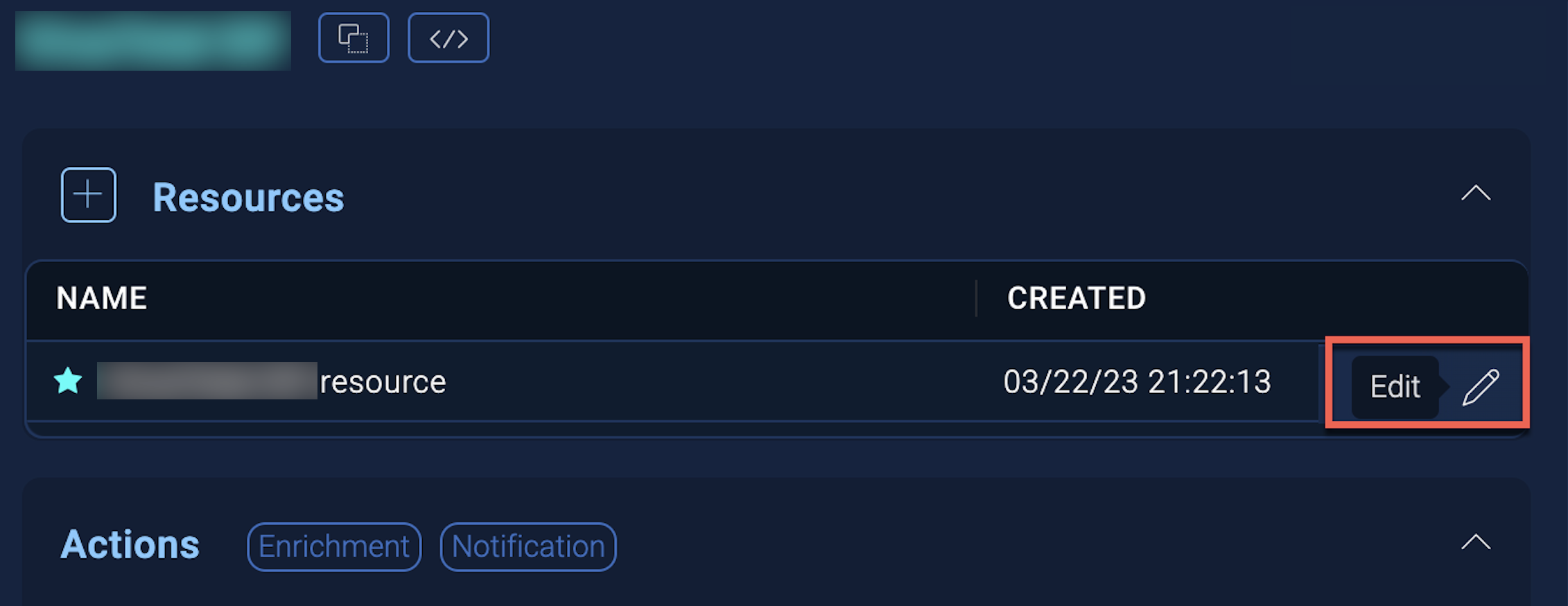
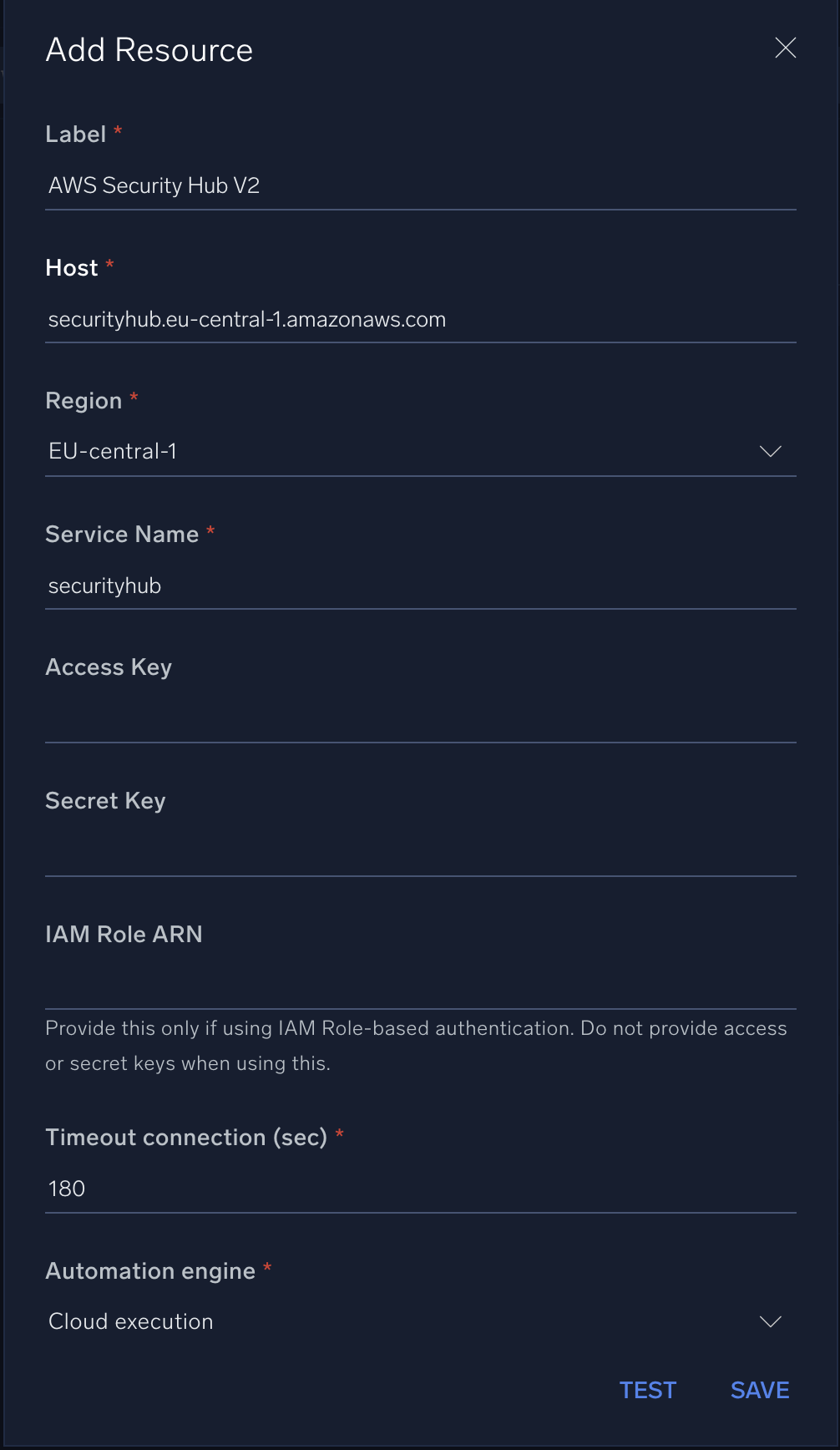
In the configuration dialog, enter information from the product you're integrating with. When done, click TEST to test the configuration, and click SAVE to save the configuration:
-
Label. Enter the name you want to use for the resource.
- Host. Enter your Security Hub URL, for example,
securityhub.us-east-1.amazonaws.com. -
AWS Region. Enter your AWS region.
- Service Name. Enter
securityhub. -
Access Key ID. Enter an AWS access key ID to provide authentication. (Although AWS recommends using IAM roles with temporary security credentials instead of access keys.)
-
Secret Access Key. Enter the secret access key associated with the access key ID.
-
IAM Role ARN. Enter an AWS IAM Role ARN to provide authentication. See the AWS documentation on IAM identifiers for more information.
-
Connection Timeout (s). Set the maximum amount of time the integration will wait for a server's response before terminating the connection. Enter the connection timeout time in seconds (for example,
180). -
Automation Engine. Select Cloud execution for this certified integration. Select a bridge option only for a custom integration. See Cloud or Bridge execution.
-
Proxy Options. Select whether to use a proxy. (Applies only if the automation engine uses a bridge instead of cloud execution.)
- Use no proxy. Communication runs on the bridge and does not use a proxy.
- Use default proxy. Use the default proxy for the bridge set up as described in Using a proxy.
- Use different proxy. Use your own proxy service. Provide the proxy URL and port number.
For configuration information specific to AWS integrations, see the AWS integrations section.
For information about AWS Security Hub, see AWS Security Hub documentation.
AWS IAM role-based access
To enable AWS IAM role-based authentication without sharing access keys and secrets, follow the steps below:
- Create an IAM role in your AWS account. Follow AWS’s guide to create a new IAM role.
- Attach required policies to the role depending on the AWS services you want to allow access to (for example,
AmazonEC2ReadOnlyAccess,AWSWAFFullAccess, etc.). - Update the trust policy to allow Sumo Logic’s AWS account to assume this role. This involves editing the trust relationship JSON to include Sumo Logic’s AWS account ID as a trusted principal.
Example trust policy:
{
  "Version": "2012-10-17",
  "Statement": [
    {
      "Effect": "Allow",
      "Principal": {
        "AWS": "arn:aws:iam::926226587429:root"
      },
      "Action": "sts:AssumeRole"
    }
  ]
}
Limitations
Local Automation Bridge is not supported in this version.
Change Log
- December 11, 2025 - First upload