 Meet the new
 Google Cloud Armor

Version: 1.0
Updated: Jun 11, 2026
Google Cloud Armor helps you protect your applications and websites against denial of service and web attacks.
Actions
- Get Rule (Enrichment) - Retrieve details of a specific security policy rule.
- Get Rule Hits Daemon (Daemon) - Periodically monitor and retrieve rule hit counts for a security policy.
- Get Security Policy (Enrichment) - Retrieve the configuration and details of a specific security policy.
- List Security Policies (Enrichment) - List all security policies available in the specified project.
- Update Rule (Containment) - Update an existing security policy rule.
Required IAM roles
The following table lists the required IAM roles for each action:
| Action | Required Role | Permission |
|---|---|---|
| Get Rule | Security Admin (roles/iam.securityAdmin) | compute.securityPolicies.getRule |
| Get Rule Hits Daemon | Security Admin (roles/iam.securityAdmin) | compute.securityPolicies.get |
| Get Security Policy | Security Admin (roles/iam.securityAdmin) | compute.securityPolicies.get |
| List Security Policies | Security Admin (roles/iam.securityAdmin) | compute.securityPolicies.list |
| Update Rule | Compute Security Admin (roles/compute.securityAdmin) | compute.securityPolicies.patchRule |
For read-only actions (Get Rule, Get Rule Hits Daemon, Get Security Policy, List Security Policies), the Security Admin role is sufficient. For write actions (Update Rule), the Compute Security Admin role is required.
Google Cloud Armor configuration
The Google Cloud Armor integration supports two types of authentication: Service Account and WIF (Workload Identity Federation). We recommend using WIF since it is more secure and easier to manage. For more information, see Workload Identity Federation.
Required AWS details from Sumo Logic
To configure the Google Cloud Armor integration using WIF authentication, you need the following AWS details from Sumo Logic. These details are essential for setting up the Workload Identity Federation (WIF) credentials in Google Workspace:
- Deployment name is the unique name of your Sumo Logic deployment, for example,
dub,fra, etc. - Sumo Logic AWS account ID:
926226587429 - Sumo Logic AWS role:
<deployment_name>-csoar-automation-gcparmor - Sumo Logic AWS Lambda function:
<deployment_name>-csoar-automation-gcparmor - Full ARN:
arn:aws:sts::926226587429:assumed-role/<deployment_name>-csoar-automation-gcparmor/<deployment_name>-csoar-automation-gcparmor
Workload Identity Federation (WIF) authentication
To create WIF credentials in Google Workspace needed to configure the Google Cloud Armor integration, follow these steps:
- Log in to the Google Cloud portal.
- Select a Google Cloud project (or create a new one).
- Go to the API&Services.
- In the same page click on ENABLED API AND SERVICES and search for Compute Engine API, Cloud Resource Manager API, IAM Service Account Credentials API, Identity and Access Management (IAM) API, Security Token Service API and enable them all.
- Go to the IAM & Admin > Service Accounts page.
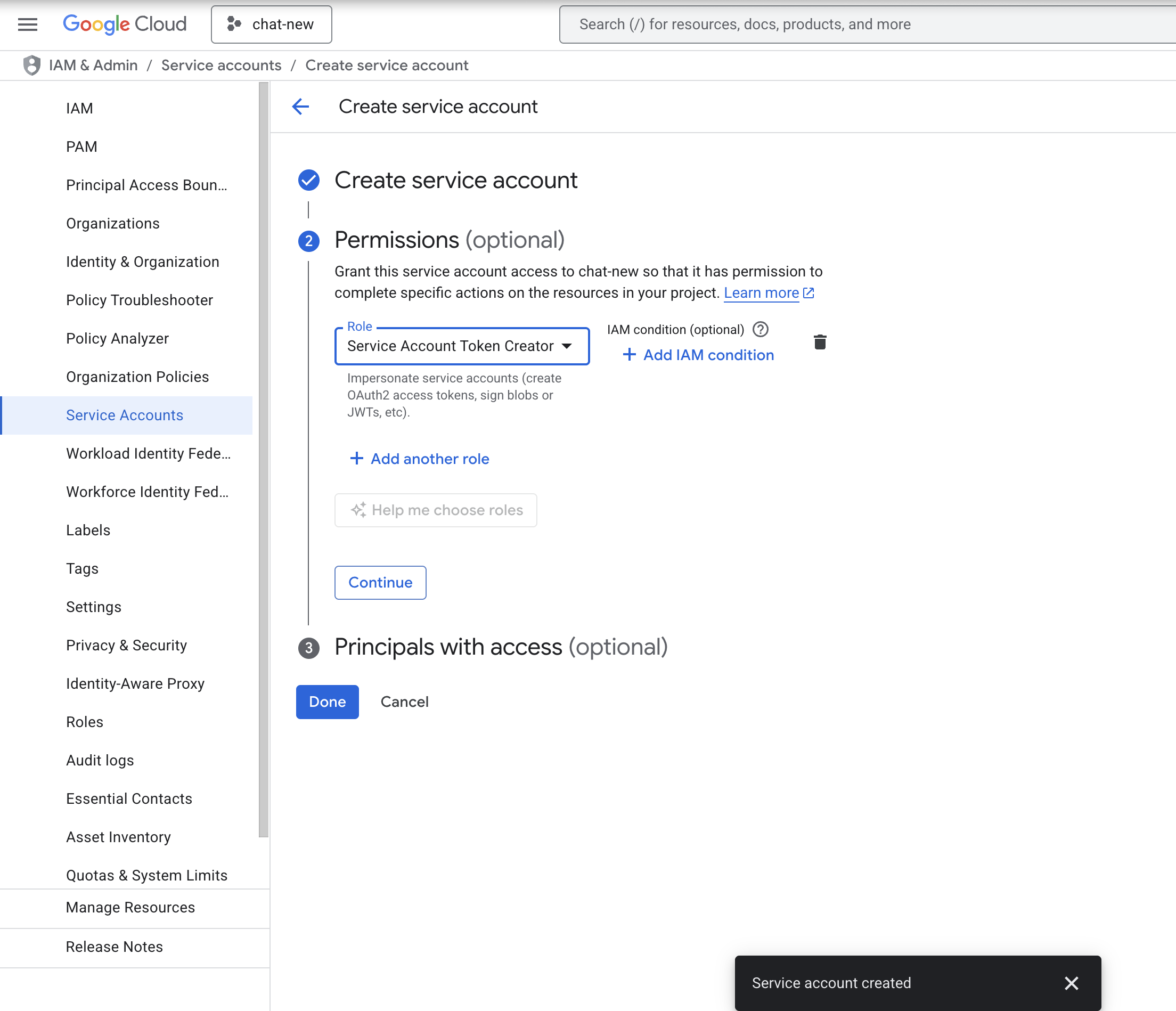
- Click CREATE SERVICE ACCOUNT. A Service Account is required to access Google Cloud Armor.
- While creating the service account, in Permissions add the role Service Account Token Creator and click on DONE.
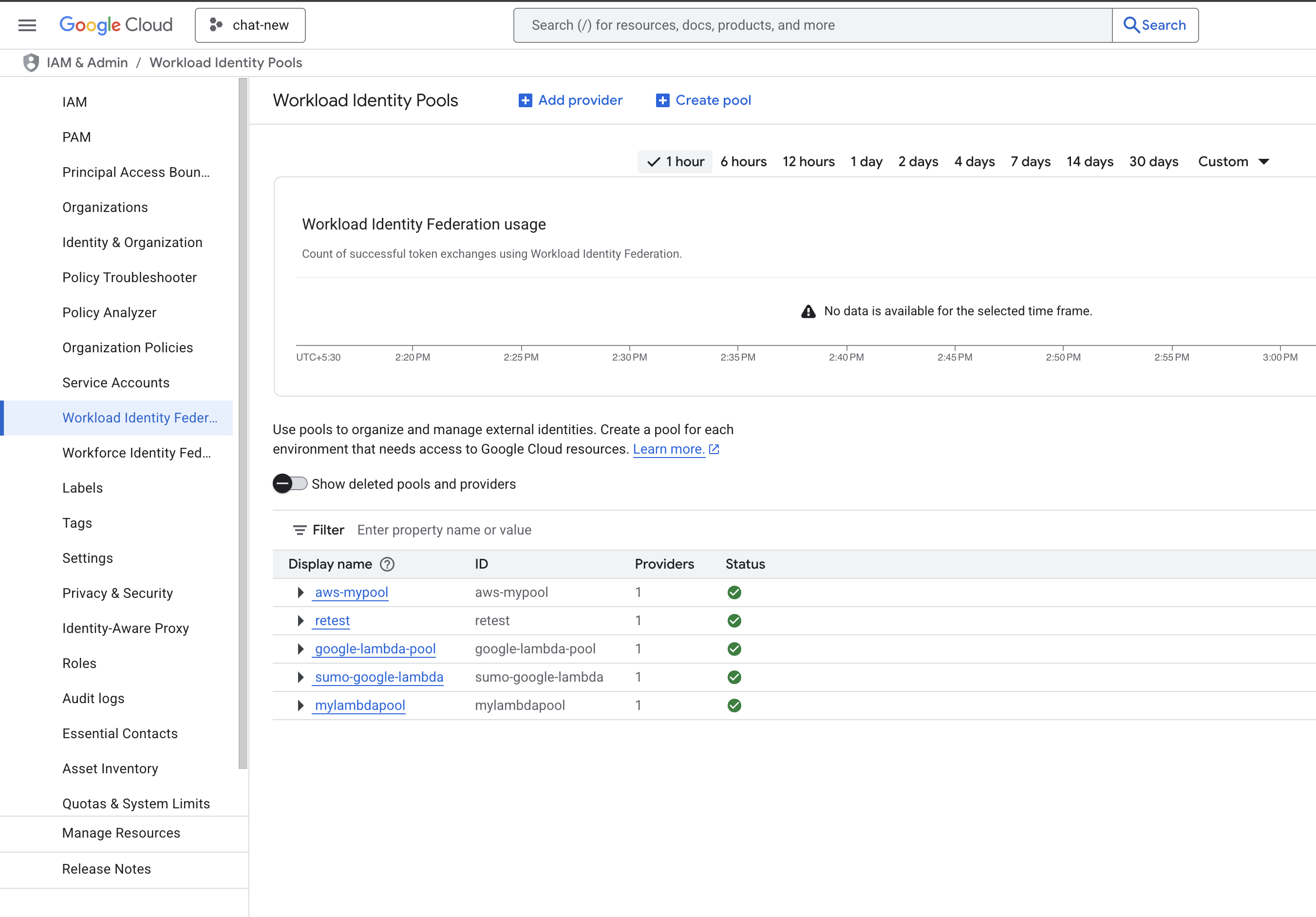
- Go to the IAM & Admin > Workload Identity Federation page.
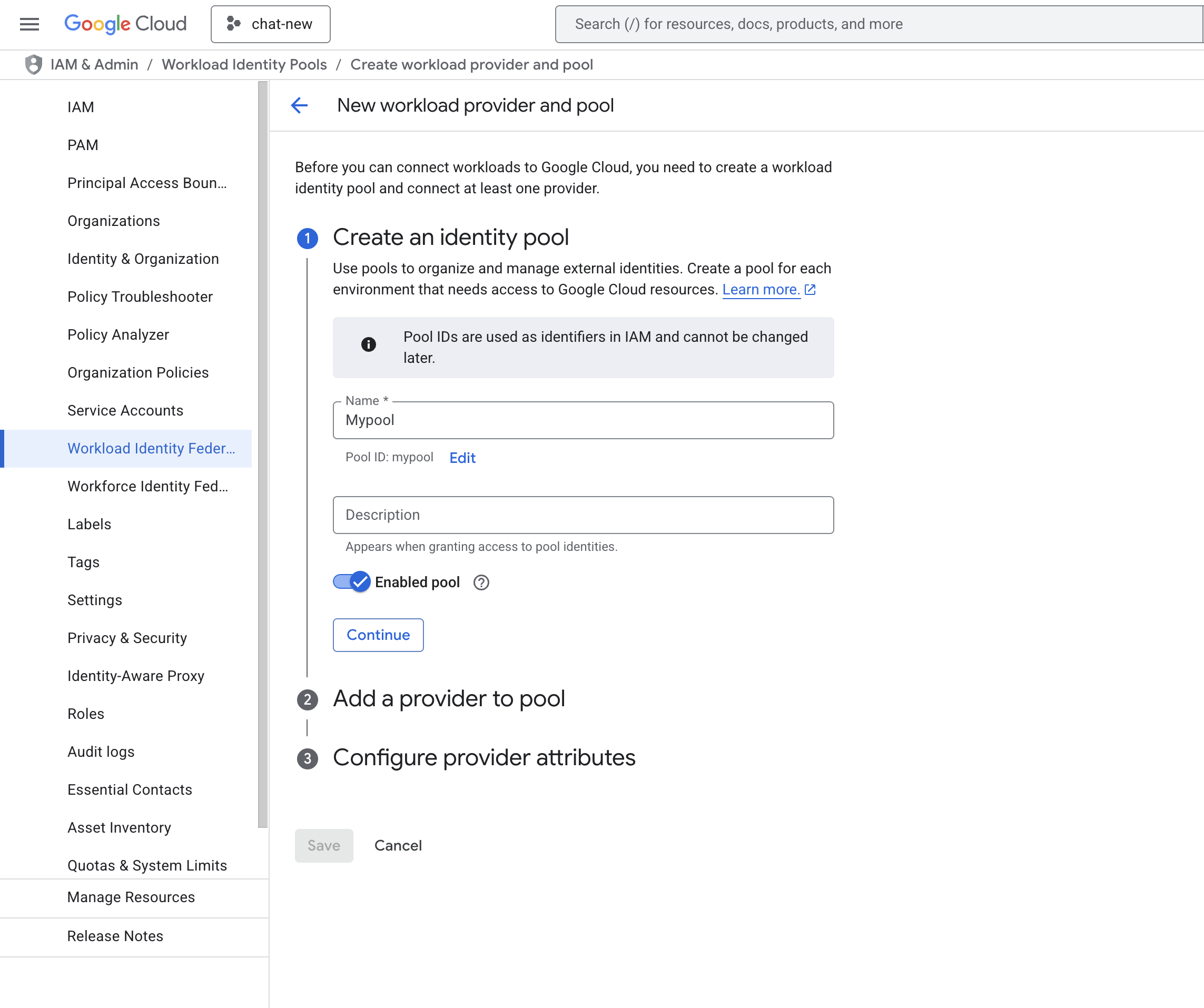
- Click CREATE POOL, provide the details, and click on CONTINUE.
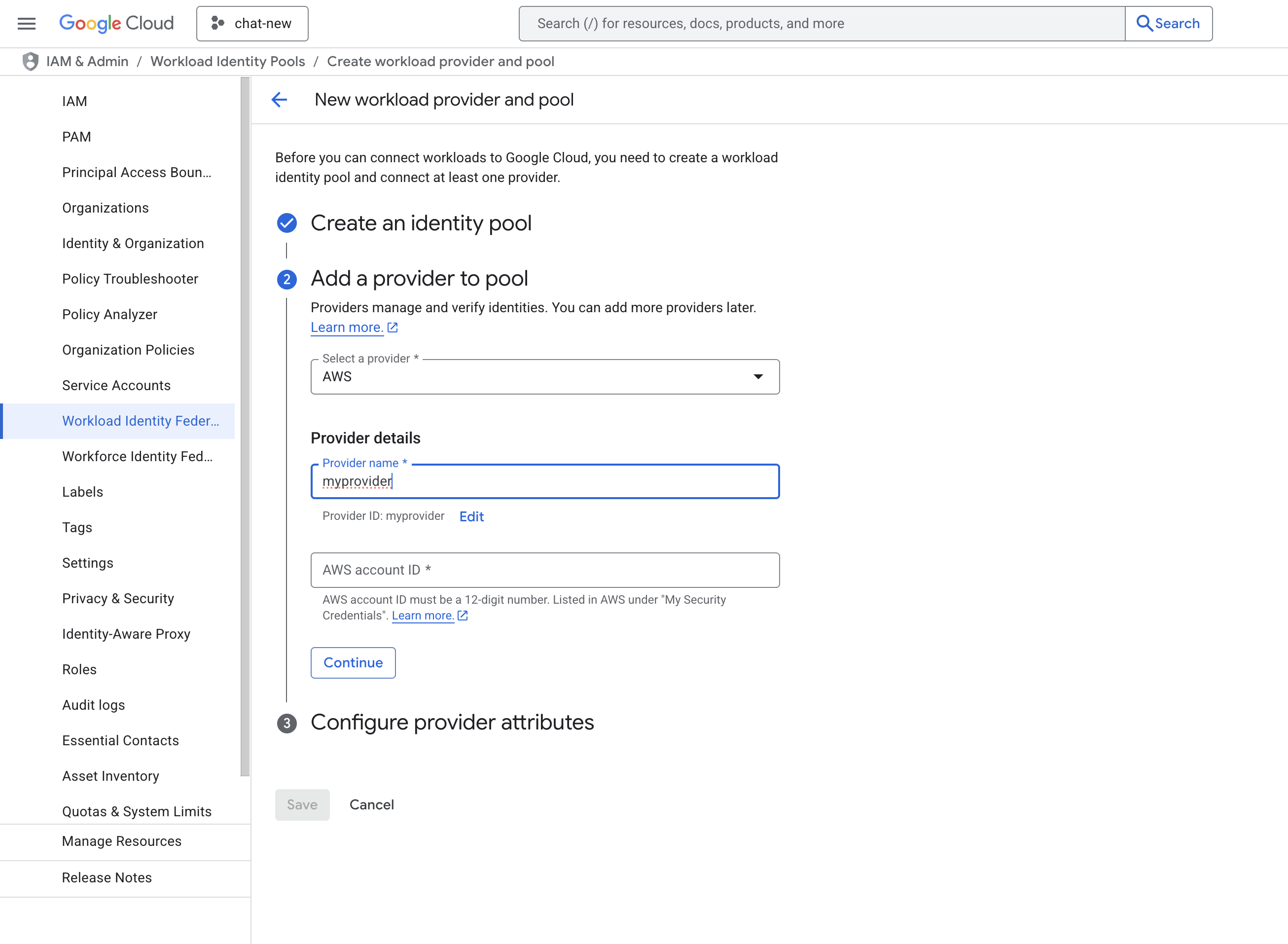
- Add Provider details. Select AWS as the provider type and provide the details of the AWS Account ID which is provided by Sumo Logic. Click on CONTINUE and SAVE.
- Now you will see the created pool and provider.
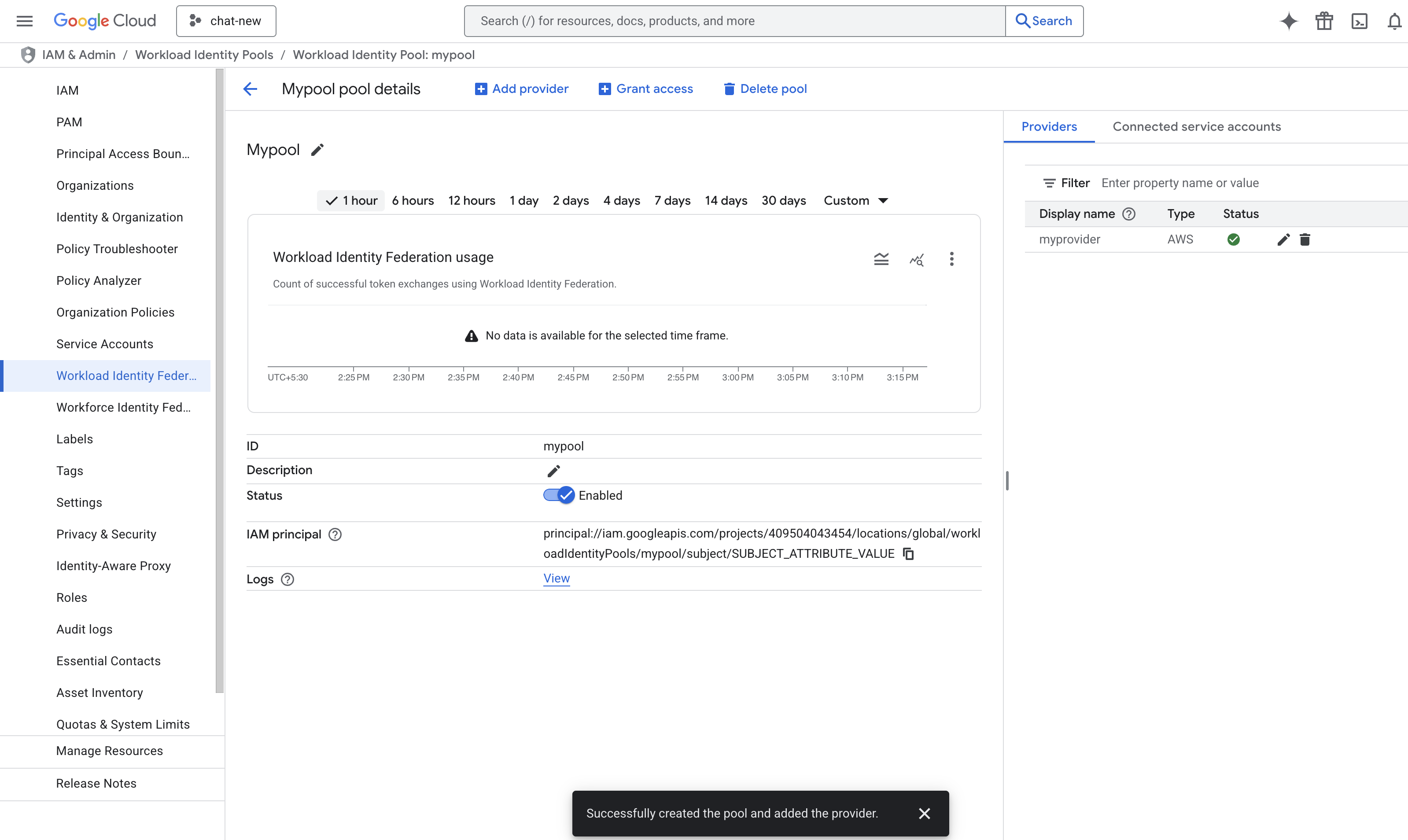
- Now we have to build a principal name to configure in Sumo Logic. The format of the principal name is:
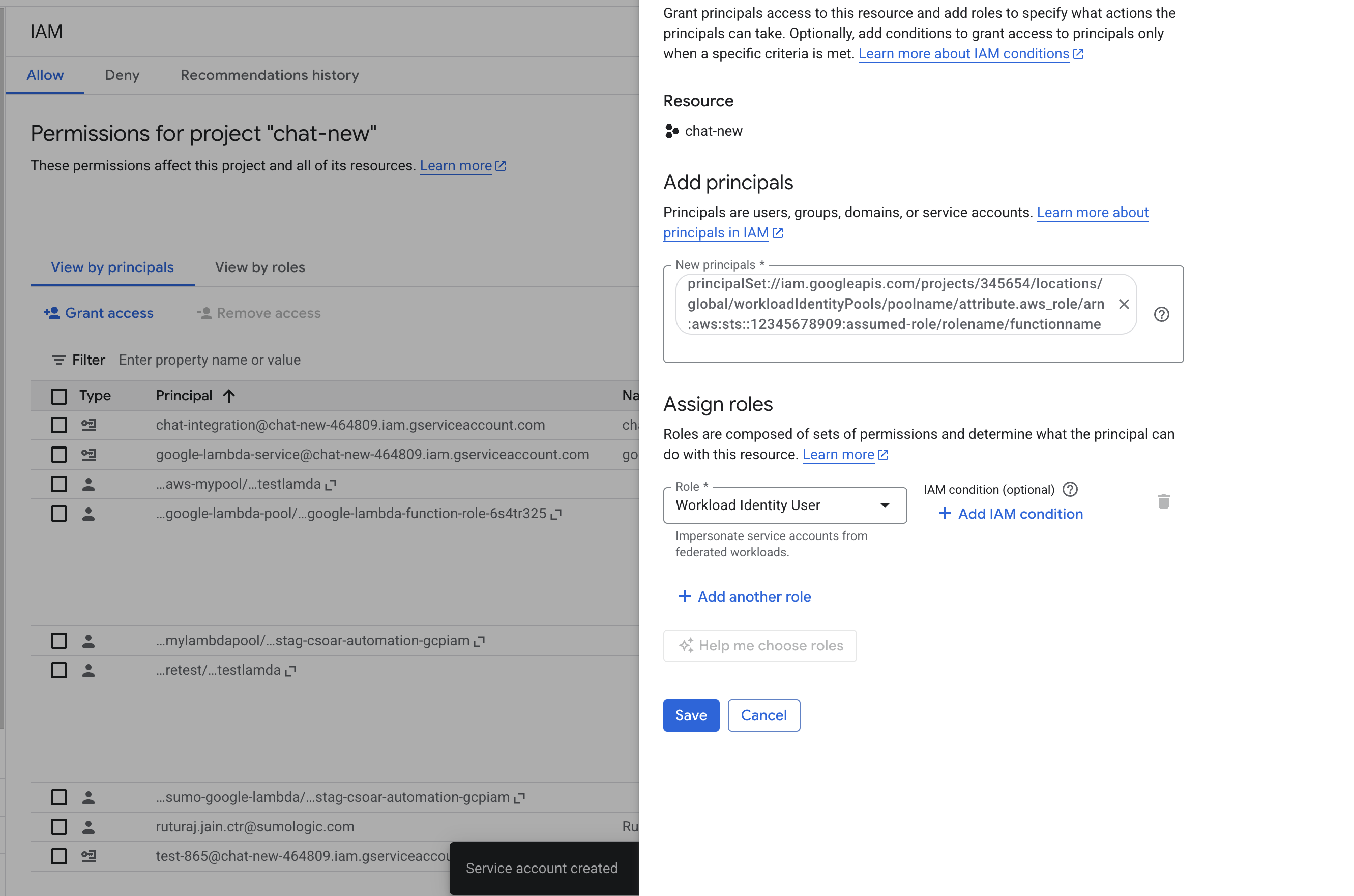
principalSet://iam.googleapis.com/projects/{YourProjectID}/locations/global/workloadIdentityPools/{YourPoolName}/attribute.aws_role/arn:aws:sts::{SumoAWSAccountID}:assumed-role/{SumoAWSRole}/{SumoAWSLambdaFunction}. - Go to the IAM & Admin > IAM page and click on Grant Access to add a new principal.
- In the New principals field, provide the above principal name and select the role Workload Identity User. Click on SAVE.
- Go to the IAM & Admin > Workload Identity Federation page and select the pool which was created above.
- Click on Grant Access > Grant access using service account impersonation.
- Select the service account which created above, select the principle as aws_role and provide the arn
arn:aws:sts::{SumoAWSAccountID}:assumed-role/{SumoAWSRole}and click on SAVE.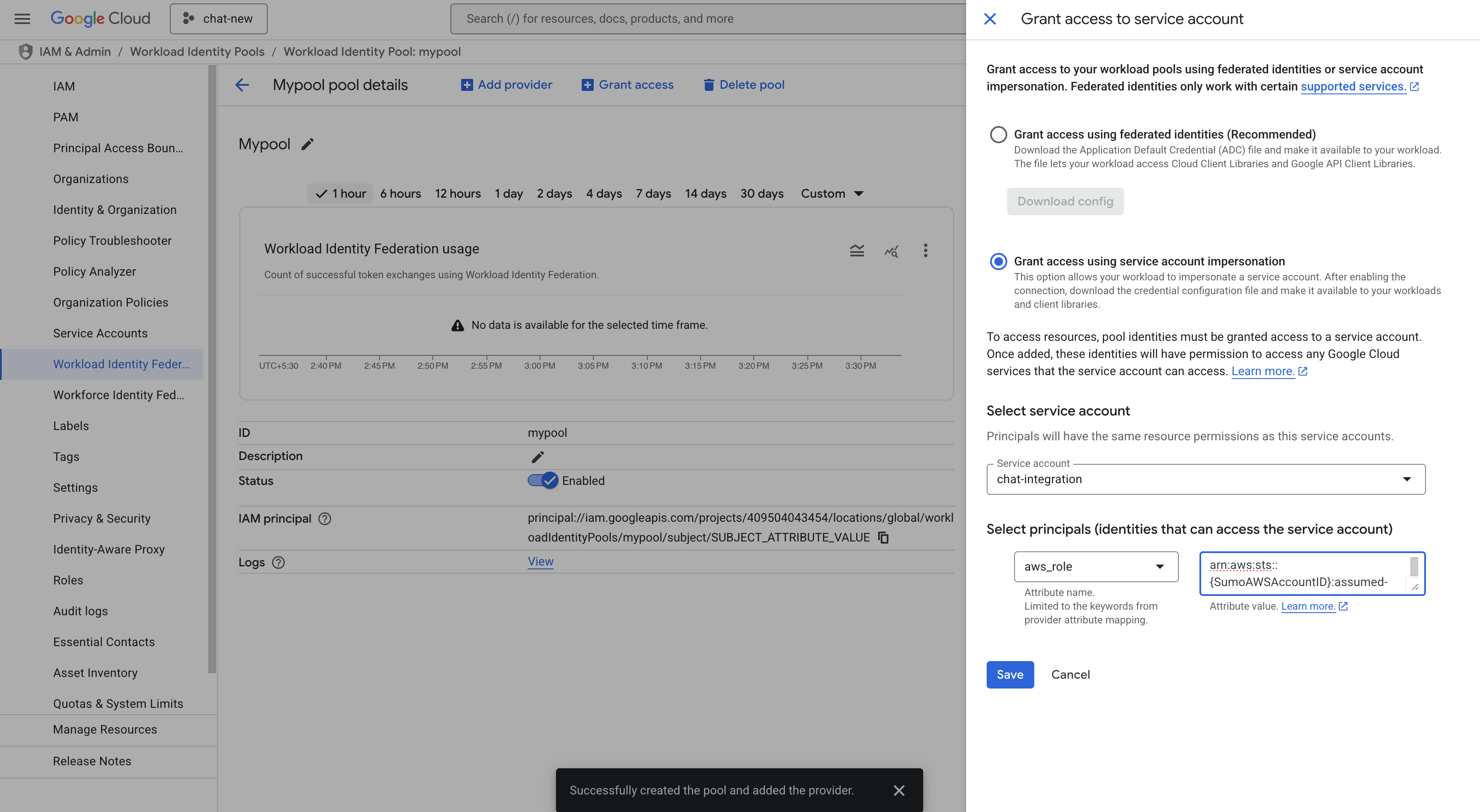
- Again go to Grant Access > Grant access using service account impersonation. Select the service account which was created above. Select the principle as
aws_roleand provide the arnarn:aws:sts::{SumoAWSAccountID}:assumed-role/{SumoAWSRole}/{SumoAWSLambdaFunction}. Click on SAVE. - Download the WIF
conf.jsonfile. Make sure you save it in a safe place. Use the JSON content to configure the Google Cloud Armor integration to use WIF authentication in Automation Service and Cloud SOAR.
Service Account authentication
To create service account credentials in Google Workspace needed to configure the Google Cloud Armor integration, follow these steps:
- Log in to the Google Cloud portal.
- Select a Google Cloud project (or create a new one).
- Go to the API&Services > Credentials page.
- In the same page click on ENABLED API AND SERVICES and search for Compute Engine API, Cloud Resource Manager API, IAM Service Account Credentials API, Identity and Access Management (IAM) API, Security Token Service API and enable them.
- Click CREATE CREDENTIALS and select Service Account.
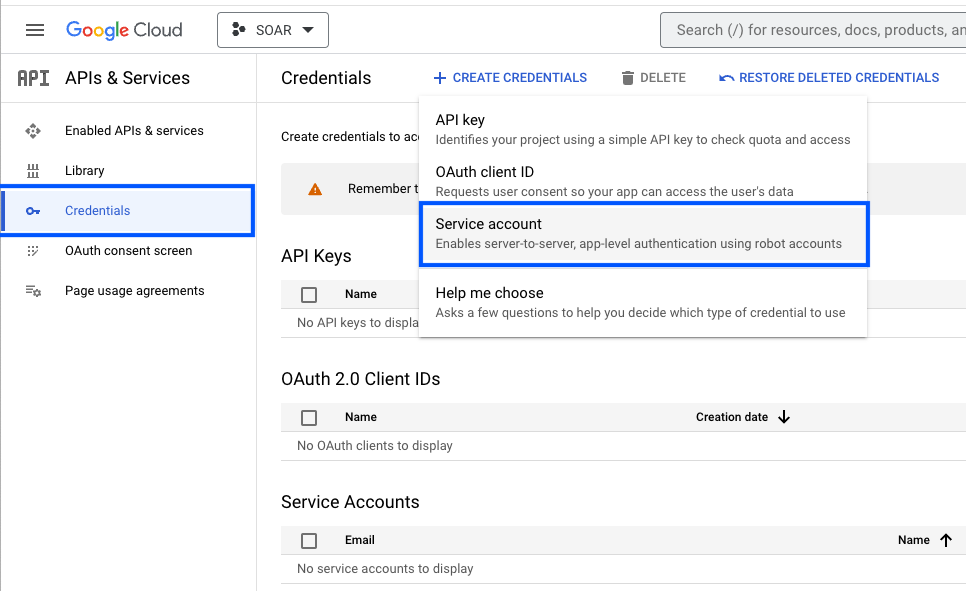
- Enter a service account name to display in the Google Cloud console. The Google Cloud console generates a service account ID based on this name.
- (Optional) Enter a description of the service account.
- Skip two optional grant permissions steps and click Done to complete the service account creation.
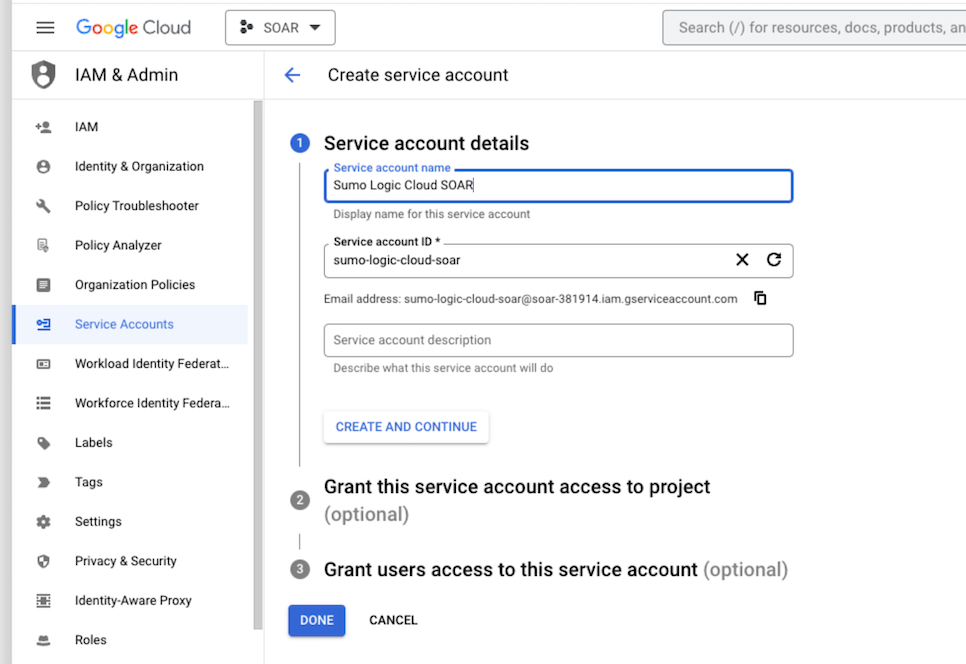
- Click on the generated service account to open the details.
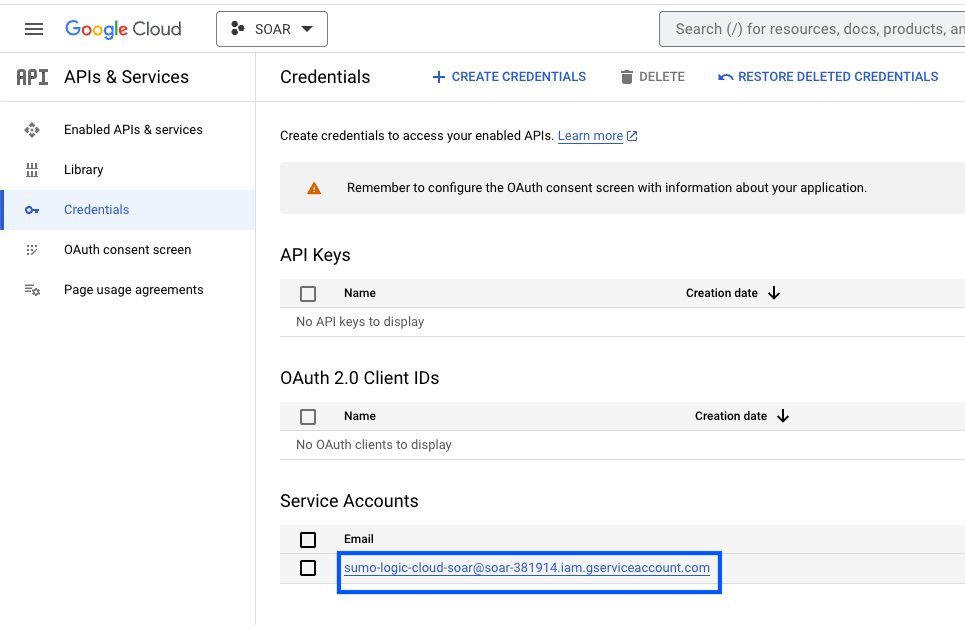
- Under the KEYS tab, click ADD KEY and choose Create new key.
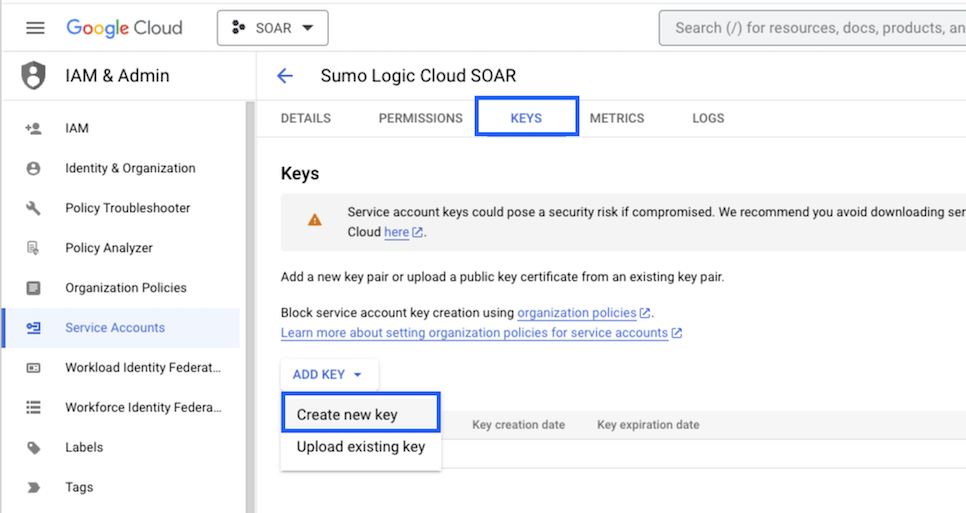
- Click on CREATE (make sure JSON is selected).
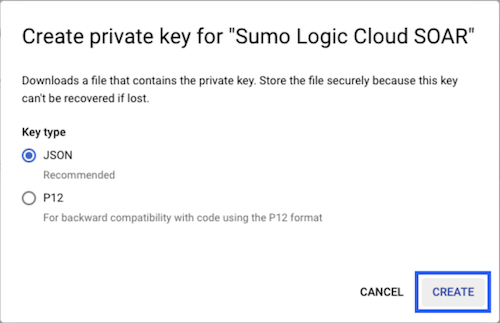
- The JSON file is downloaded. Make sure you save it in a safe place.
Configure Google Cloud Armor in Automation Service and Cloud SOAR
Before you can use this automation integration, you must configure its authentication settings so that the product you're integrating with can communicate with Sumo Logic. For general guidance, see Configure Authentication for Automation Integrations.
How to open the integration's configuration dialog
- Access App Central and install the integration. (You can configure at installation, or after installation with the following steps.)
- Go to the Integrations page.
Classic UI. In the main Sumo Logic menu, select Automation and then select Integrations in the left nav bar.
New UI. In the main Sumo Logic menu, select Automation > Integrations. You can also click the Go To... menu at the top of the screen and select Integrations. - Select the installed integration.
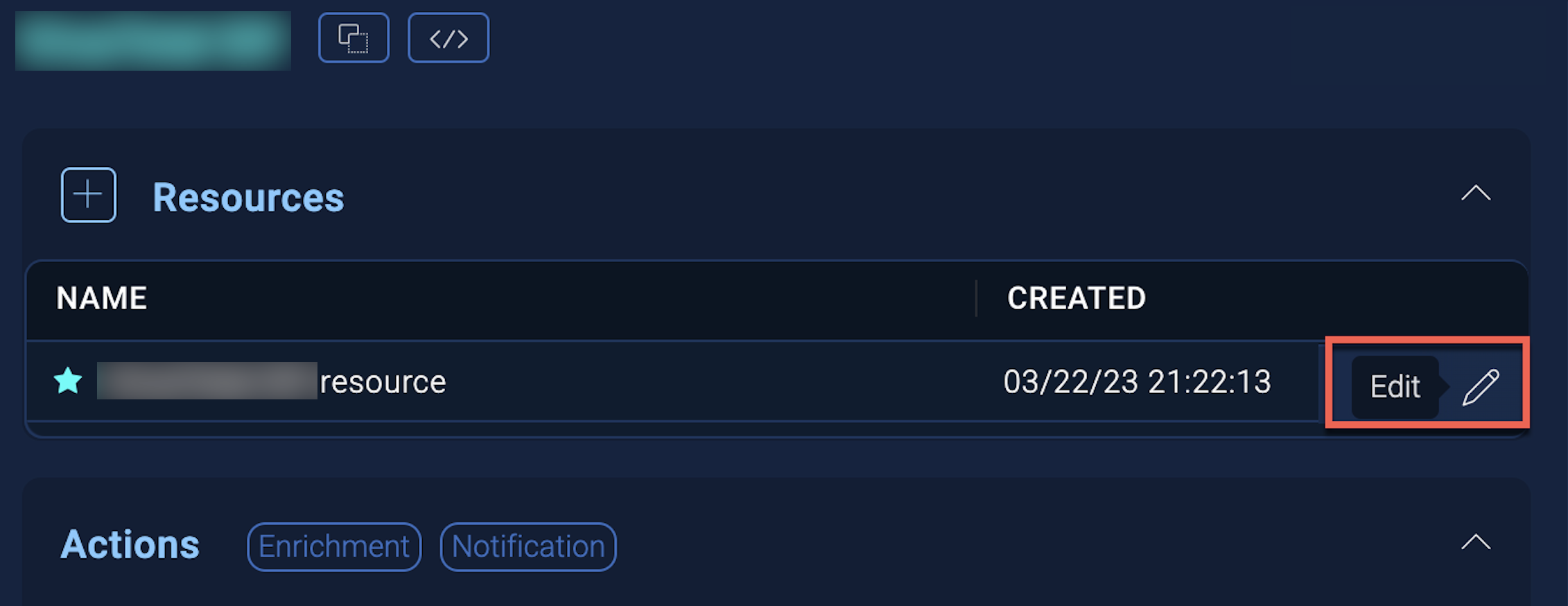
- Hover over the resource name and click the Edit button that appears.
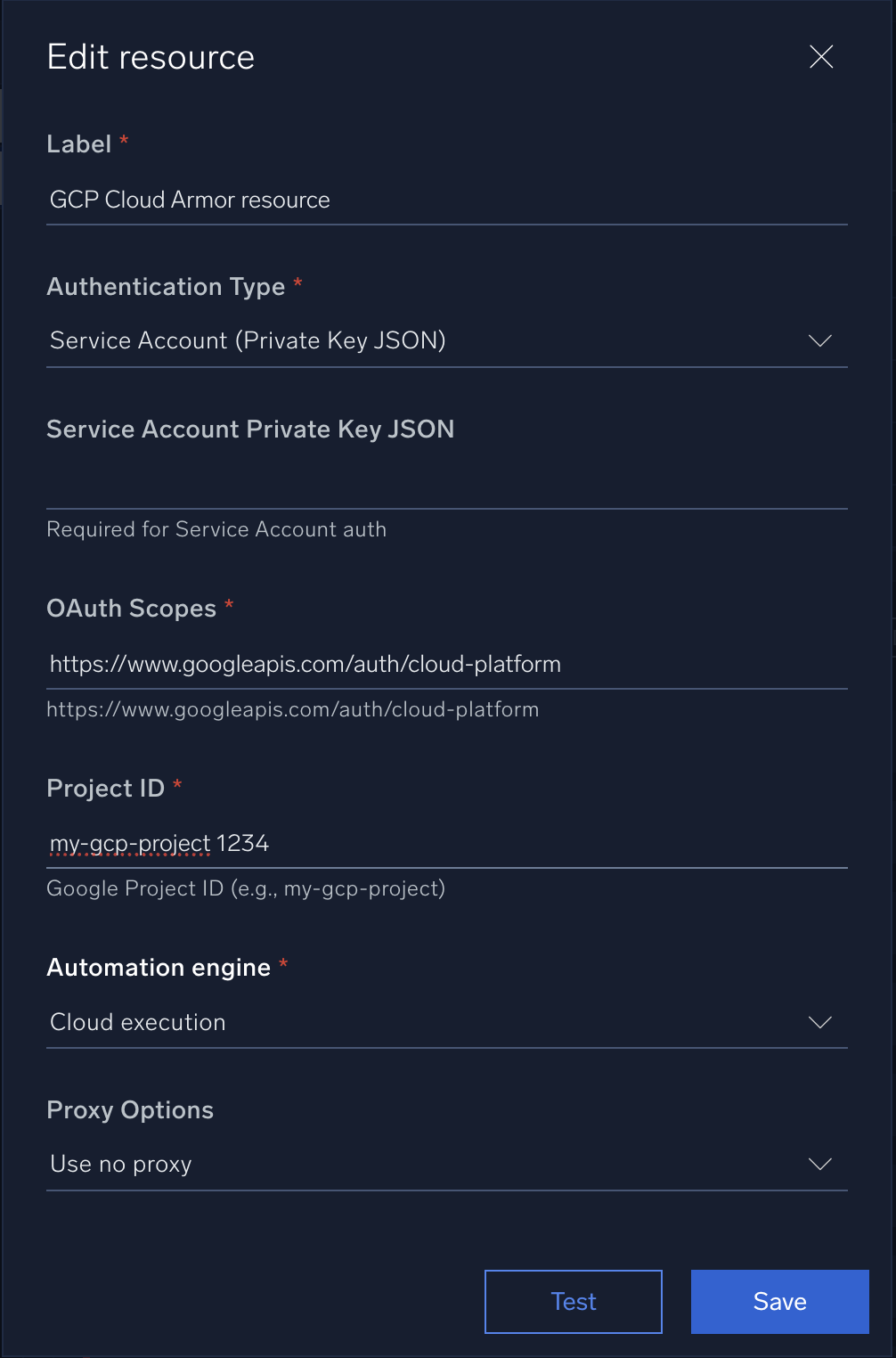
In the configuration dialog, enter information from the product you're integrating with. When done, click TEST to test the configuration, and click SAVE to save the configuration:
-
Label. Enter the name you want to use for the resource.
- Authentication Type. Select the authentication type: Service Account Private Key Json or Workload Identity Federation Private Key Json and provide the selected type JSON content.
- Scopes. Default scope is already added as
https://www.googleapis.com/auth/cloud-platform, if not then add this scope. - Project ID. Provide the Google Cloud Project ID where the Cloud Armor actions will be performed.
-
Automation Engine. Select Cloud execution for this certified integration. Select a bridge option only for a custom integration. See Cloud or Bridge execution.
-
Proxy Options. Select whether to use a proxy. (Applies only if the automation engine uses a bridge instead of cloud execution.)
- Use no proxy. Communication runs on the bridge and does not use a proxy.
- Use default proxy. Use the default proxy for the bridge set up as described in Using a proxy.
- Use different proxy. Use your own proxy service. Provide the proxy URL and port number.
For information about Google Cloud Armor, see Google Cloud Armor documentation.
Change Log
| Version | Date | Description |
|---|---|---|
| v1.0 | June 11, 2026 | Initial release of the Google Cloud Armor integration. |