 Meet the new
 Google Cloud Functions

Version: 1.1
Updated: Aug 28, 2026
Google Cloud Functions is a serverless execution environment for building and connecting cloud services. This integration supports 2nd-generation functions backed by Cloud Run v2 service APIs. Use this integration to inventory deployed functions, trigger executions, monitor logs, and manage access controls as part of automated response workflows.
Actions
-
List Functions (Enrichment) - List all Cloud Functions in a project to inventory what is currently deployed.
-
Get Function (Enrichment) - Retrieve configuration and metadata for a specific Cloud Function, including its service URL, revision, and status.
-
Enable Function (Containment) - Enable a Cloud Function to restore its availability during incident response.
-
Disable Function (Containment) - Disable a Cloud Function to restrict its availability during incident response.
-
Trigger Function (Notification) - Invokes a 2nd-gen Cloud Function by automatically resolving its Cloud Run v2 service URL from the function name and region, then calling it with a signed OIDC identity token obtained from the configured credentials (Service Account or WIF). No manual token handling is required.
Inputs:
Field Required Description Service Name Yes Cloud Run service name backing the function (e.g., my-function)Location Yes GCP region where the function is deployed (e.g., us-central1)Payload No JSON body to send to the function. Defaults to {}if not provided.Outputs:
function_name,function_url(resolved Cloud Run URL),status(HTTP status),received(response body).The caller principal must have
roles/run.invokeron the underlying Cloud Run service. -
Monitor Function Logs (Daemon) - Continuously monitor execution logs for a Cloud Function to detect anomalies.
-
Update Function IAM Policy (Containment) - Modify the IAM policy on a Cloud Function to restrict or expand invoker access.
Google Cloud Functions configuration
Our Google Cloud Functions integration supports two types of authentication: Service Account and WIF (Workload Identity Federation). We recommend using WIF since it is more secure and easier to manage. For more information, see Workload Identity Federation.
Required Sumo Logic details for WIF authentication
To configure the Google Cloud Functions integration using WIF authentication, you need the following AWS details from Sumo Logic. These details are essential for setting up the Workload Identity Federation (WIF) credentials in Google Cloud:
- Deployment name is the unique name of your Sumo Logic deployment, for example,
dub,fra, etc. - Sumo Logic AWS account ID:
926226587429 - Sumo Logic AWS role:
<deployment_name>-csoar-automation-gcpiam - Sumo Logic AWS Lambda function:
<deployment_name>-csoar-automation-gcpiam - Full ARN:
arn:aws:sts::926226587429:assumed-role/<deployment_name>-csoar-automation-gcpiam/<deployment_name>-csoar-automation-gcpiam
Workload Identity Federation (WIF) authentication
To create WIF credentials in Google Cloud needed to configure the Google Cloud Functions integration, follow these steps:
- Log in to the Google Cloud portal.
- Select a Google Cloud project (or create a new one).
- Go to API & Services.
- Click ENABLED APIs AND SERVICES and search for Cloud Functions API, Cloud Run API, Cloud Resource Manager API, IAM Service Account Credentials API, Identity and Access Management (IAM) API, Security Token Service API, and Cloud Logging API, and enable them all.
- Go to IAM & Admin > Service Accounts page.
- Click CREATE SERVICE ACCOUNT. A Service Account is required to access Google Cloud Functions.
- While creating the service account, in Permissions add the roles Service Account Token Creator and Cloud Functions Admin, then click DONE. If your organization prefers least-privilege access, you can create a custom role with only the following permissions instead of Cloud Functions Admin:
cloudfunctions.functions.list,cloudfunctions.functions.get,cloudfunctions.functions.invoke,cloudfunctions.functions.update,run.services.getIamPolicy,run.services.setIamPolicy, andlogging.logEntries.list.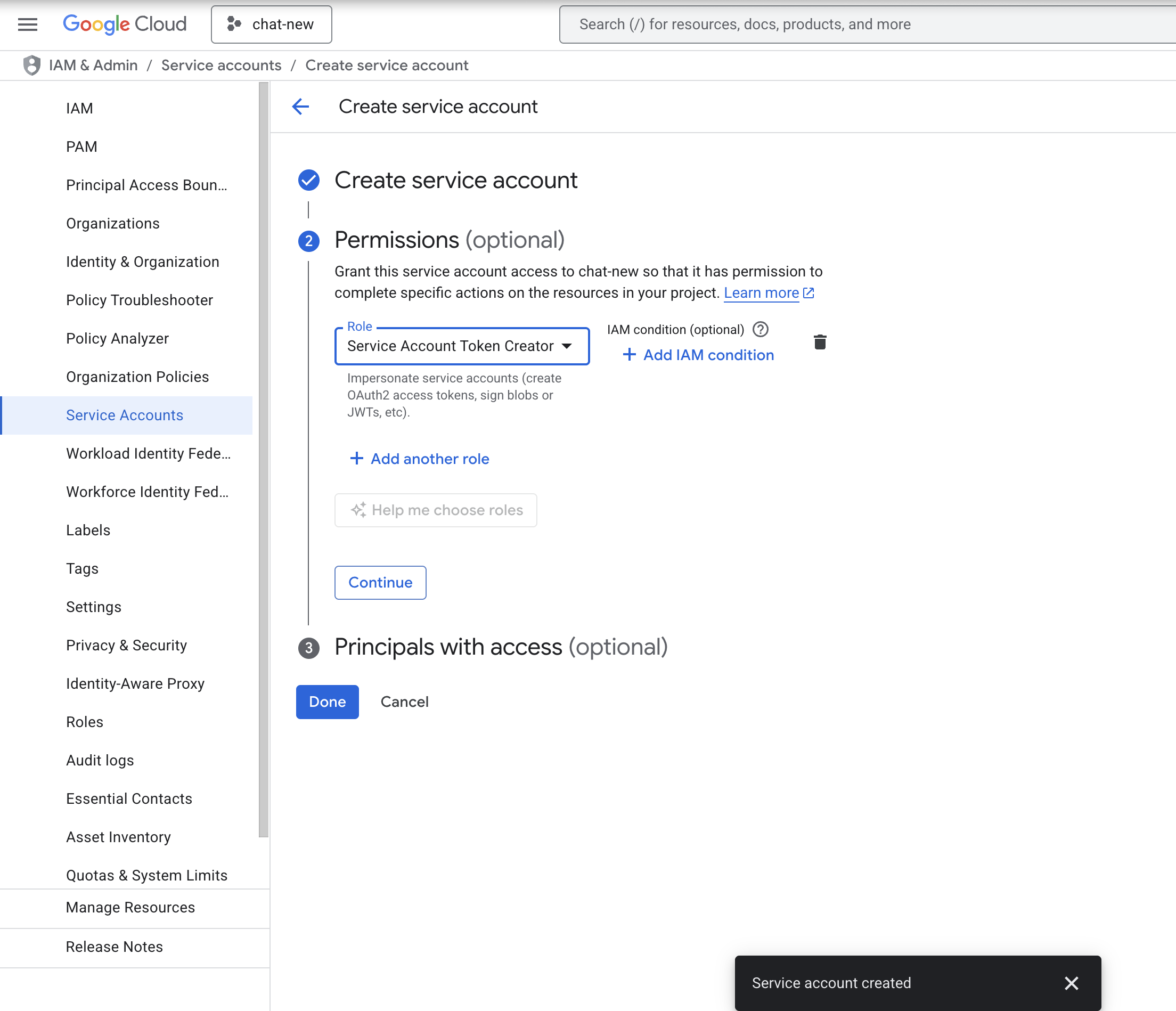
- Go to IAM & Admin > Workload Identity Federation page.
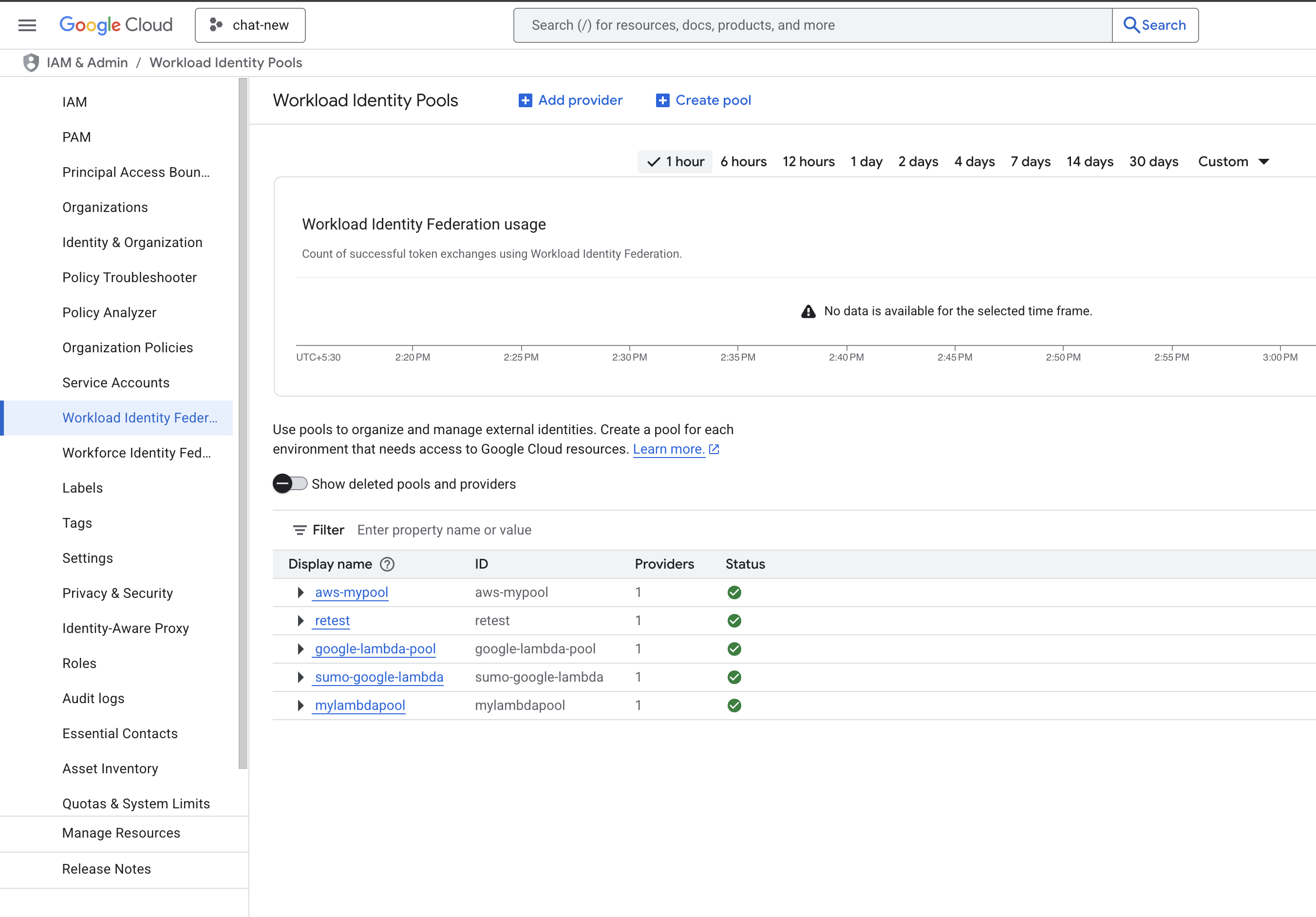
- Click CREATE POOL, provide the details, and click CONTINUE.
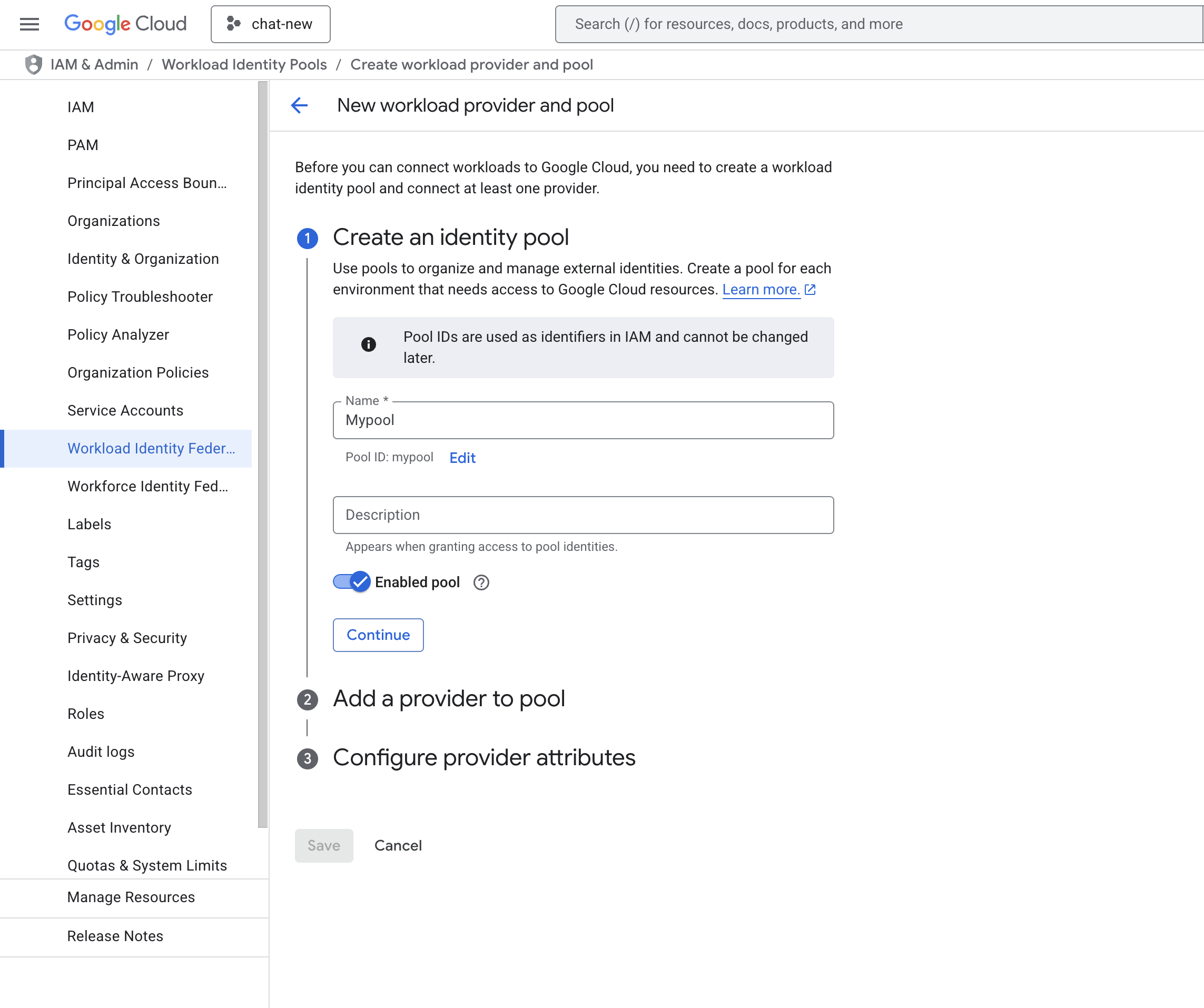
- Add Provider details. Select AWS as the provider type and provide the AWS Account ID supplied by Sumo Logic. Click CONTINUE and SAVE.
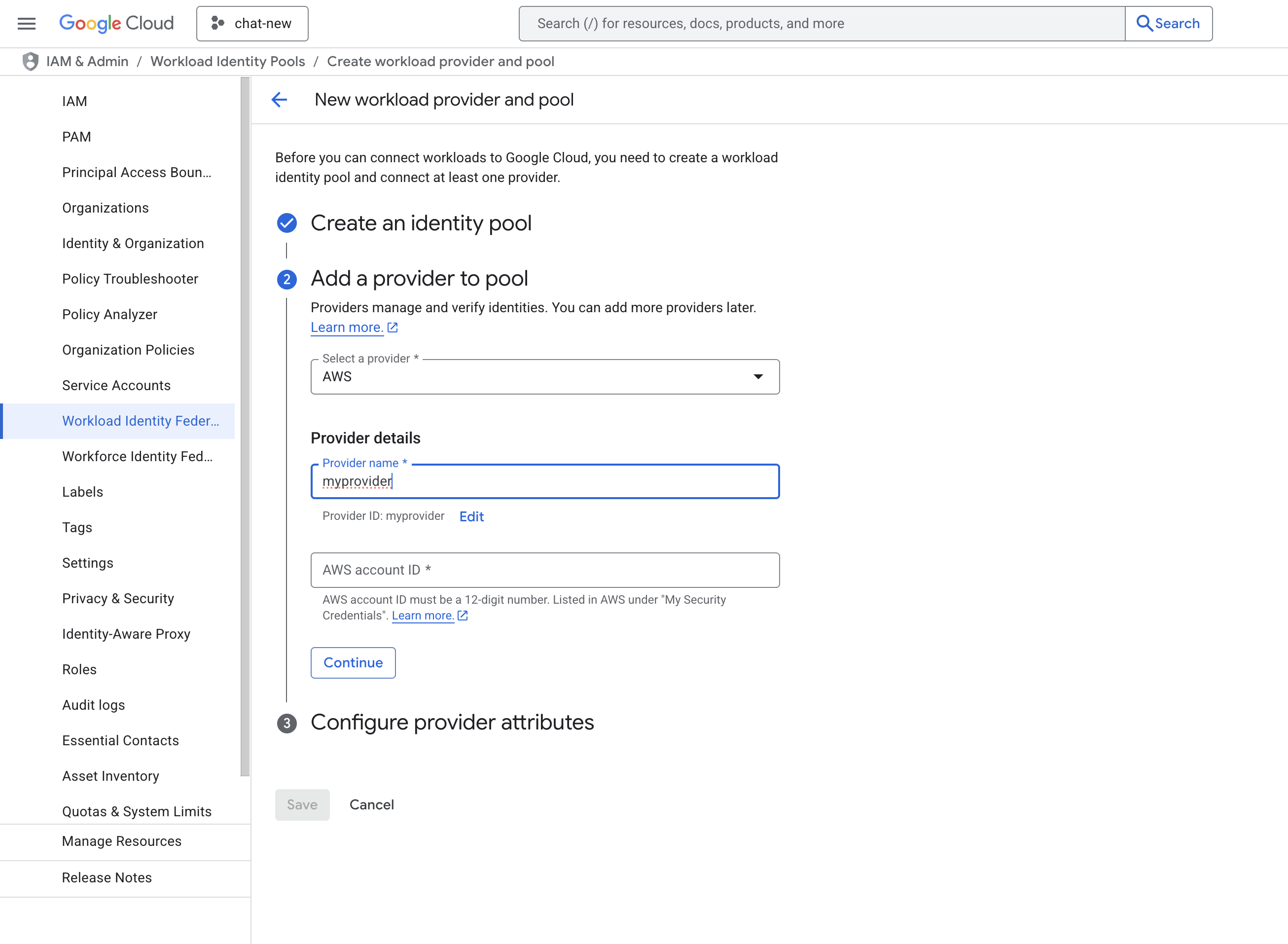
- You will now see the created pool and provider.
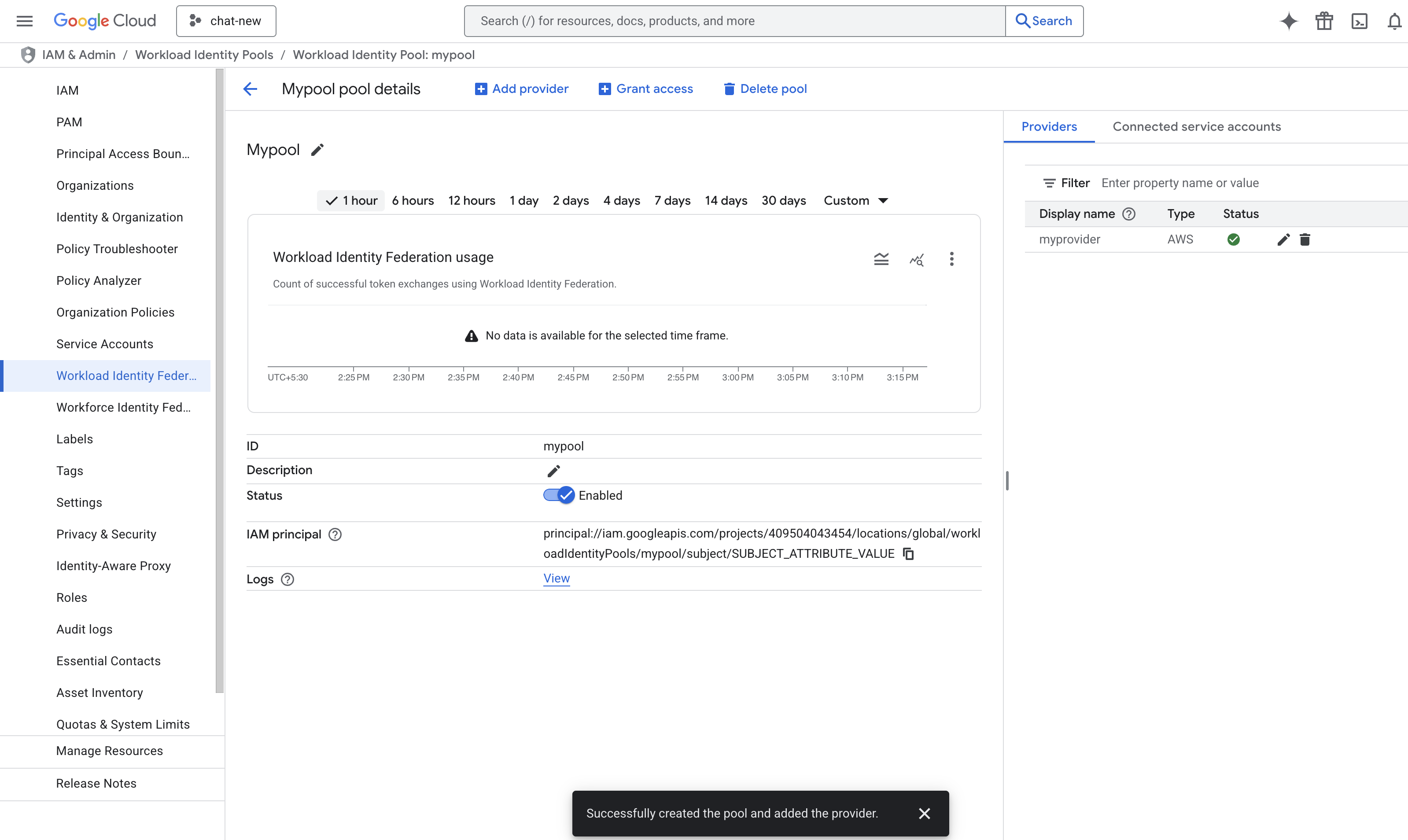
- Build a principal name to configure in Sumo Logic. The format is:
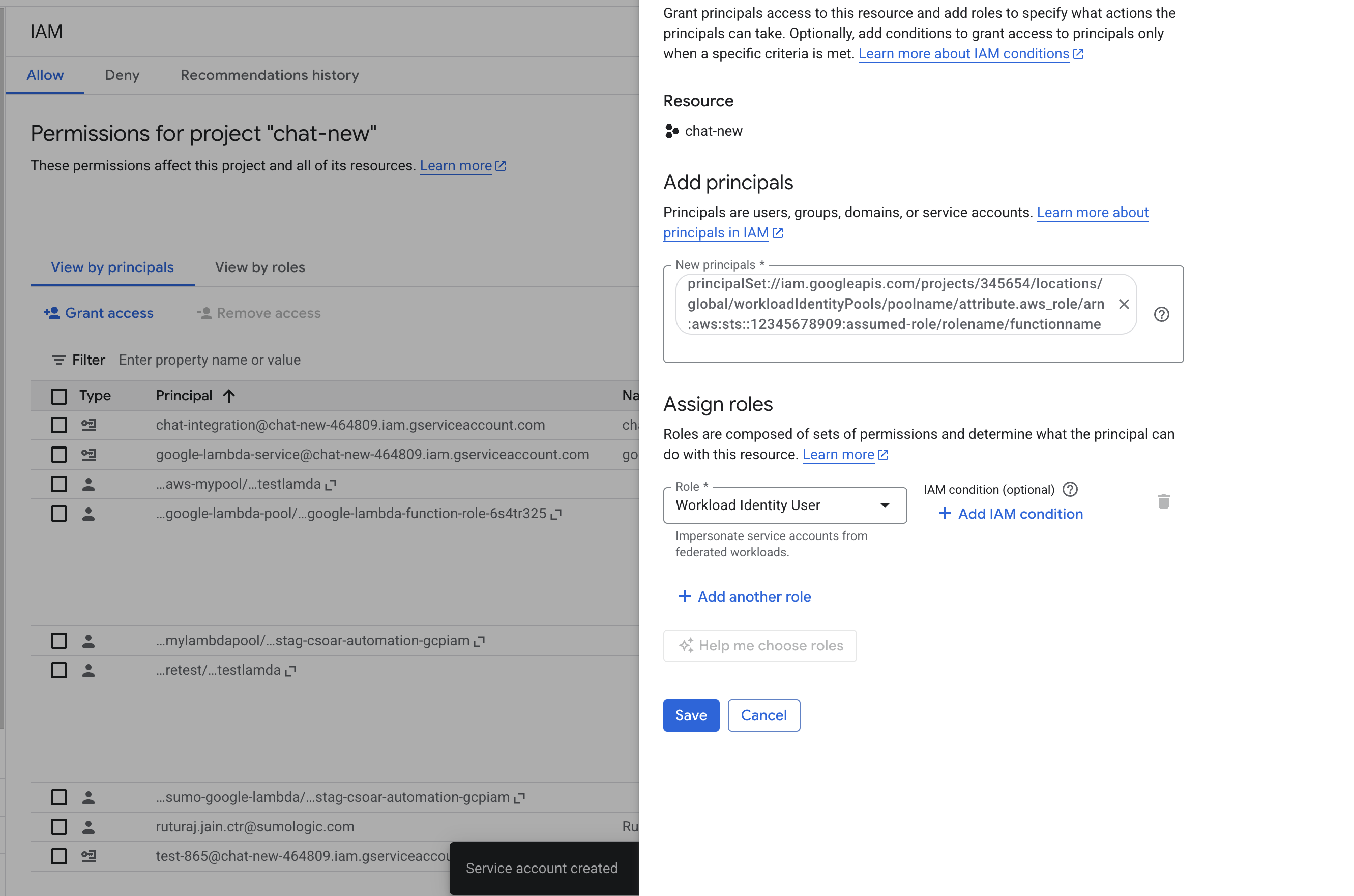
principalSet://iam.googleapis.com/projects/{YourProjectID}/locations/global/workloadIdentityPools/{YourPoolName}/attribute.aws_role/arn:aws:sts::{SumoAWSAccountID}:assumed-role/{SumoAWSRole}/{SumoAWSLambdaFunction}. - Go to IAM & Admin > IAM page and click Grant Access to add a new principal.
- In the New principals field, provide the principal name from the previous step and select the role Workload Identity User. Click SAVE.
- Go to IAM & Admin > Workload Identity Federation page and select the pool created above.
- Click Grant Access > Grant access using service account impersonation.
- Select the service account created above, select the principle as
aws_role, and provide the ARNarn:aws:sts::{SumoAWSAccountID}:assumed-role/{SumoAWSRole}, then click SAVE.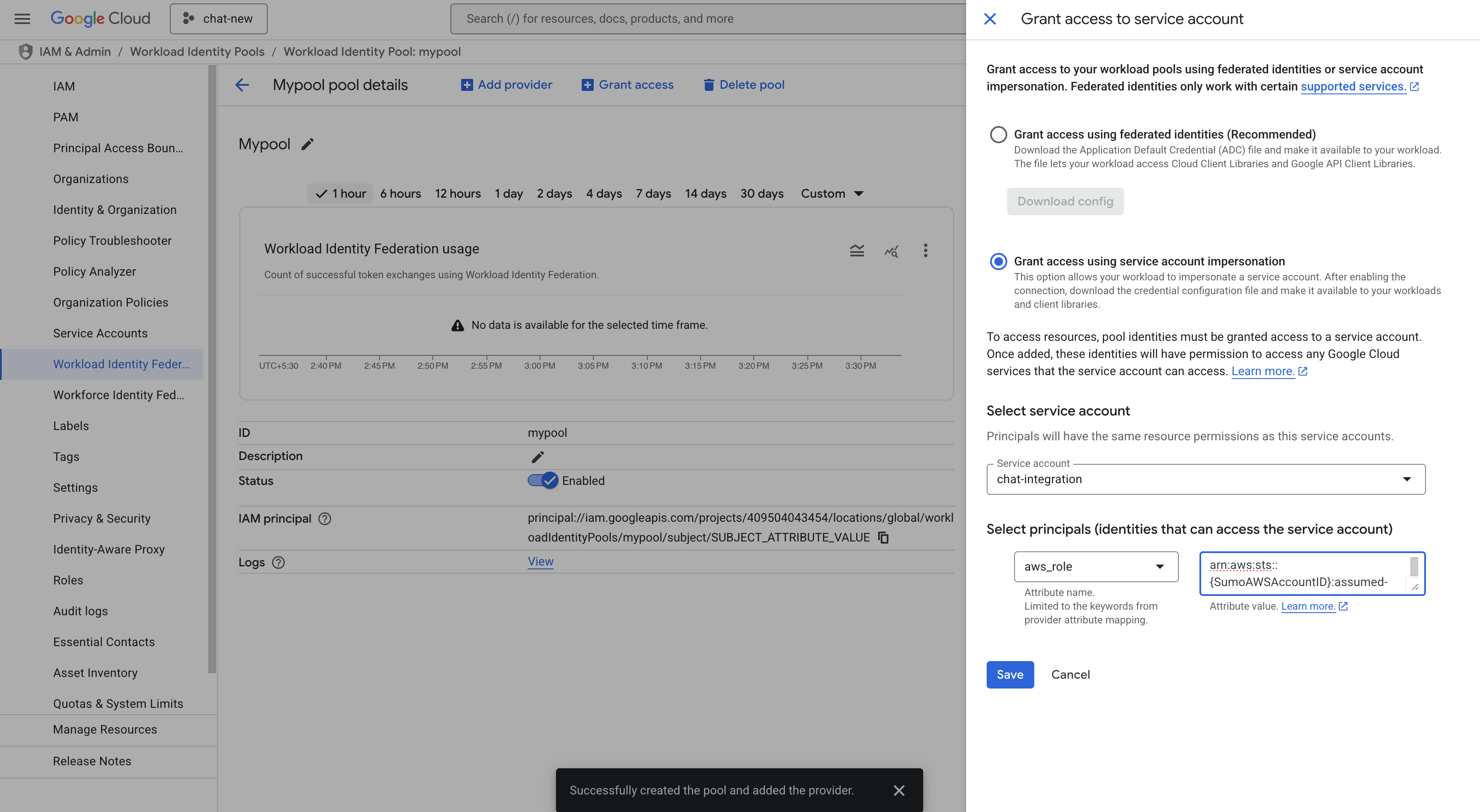
- Again go to Grant Access > Grant access using service account impersonation. Select the service account created above. Select the principle as
aws_roleand provide the ARNarn:aws:sts::{SumoAWSAccountID}:assumed-role/{SumoAWSRole}/{SumoAWSLambdaFunction}. Click SAVE. - Download the WIF
conf.jsonfile. Make sure you save it in a safe place. Use the JSON content to configure the Google Cloud Functions integration to use WIF authentication in Automation Service and Cloud SOAR.
Service Account authentication
To create service account credentials in Google Cloud needed to configure the Google Cloud Functions integration, follow these steps:
- Log in to the Google Cloud portal.
- Select a Google Cloud project (or create a new one).
- Go to API & Services > Credentials page.
- Click ENABLED APIs AND SERVICES and search for Cloud Functions API, Cloud Run API, Cloud Resource Manager API, IAM Service Account Credentials API, Identity and Access Management (IAM) API, Security Token Service API, and Cloud Logging API, and enable them.
- Click CREATE CREDENTIALS and select Service Account.
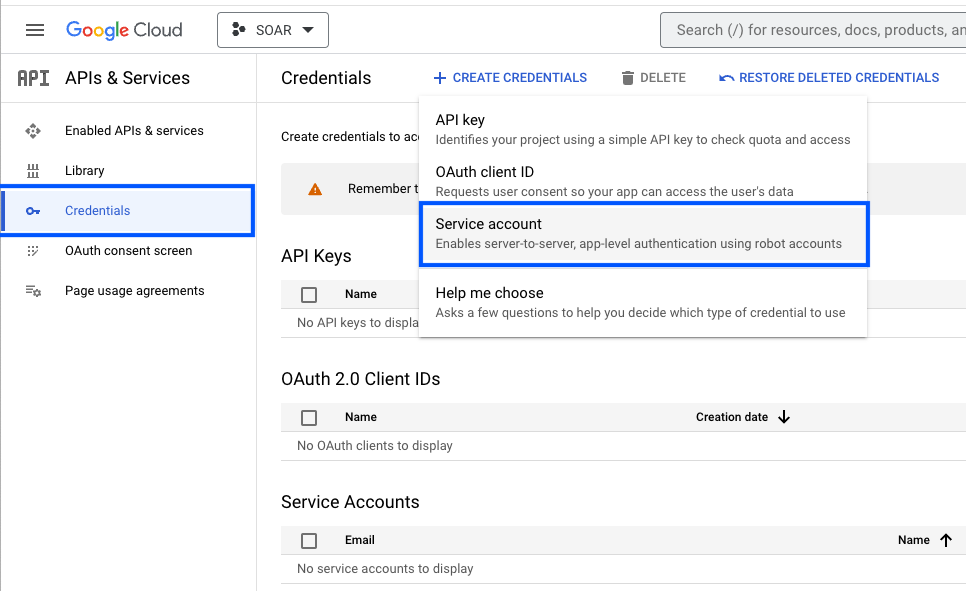
- Enter a service account name to display in the Google Cloud console. The Google Cloud console generates a service account ID based on this name.
- (Optional) Enter a description of the service account.
- In the Grant this service account access to project step, add the role Cloud Functions Admin, then click DONE to complete the service account creation. If your organization prefers least-privilege access, you can create a custom role with only the following permissions instead of Cloud Functions Admin:
cloudfunctions.functions.list,cloudfunctions.functions.get,cloudfunctions.functions.invoke,cloudfunctions.functions.update,run.services.getIamPolicy,run.services.setIamPolicy, andlogging.logEntries.list.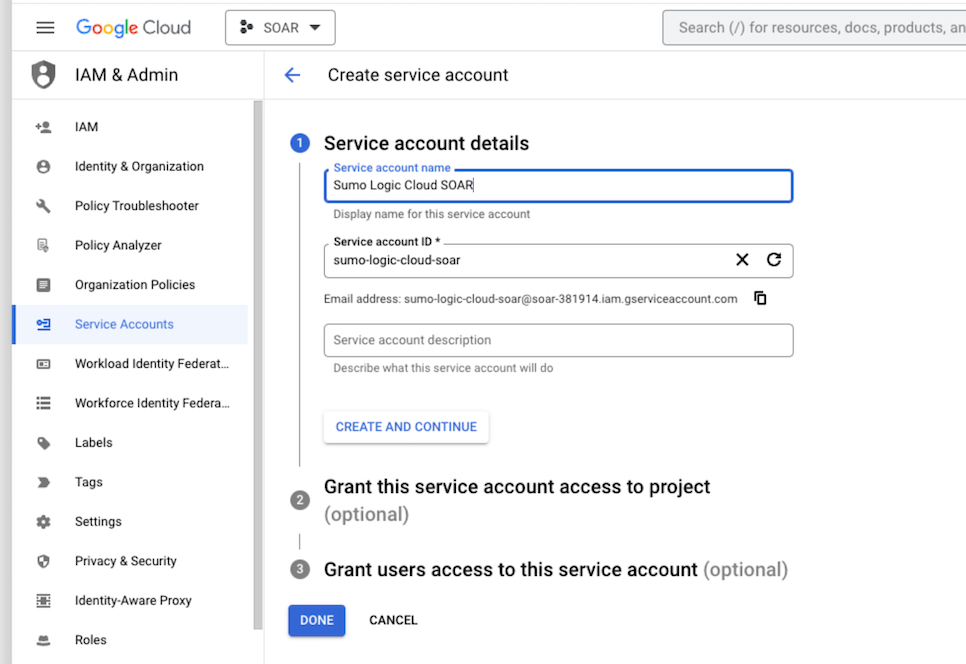
- Click on the generated service account to open the details.
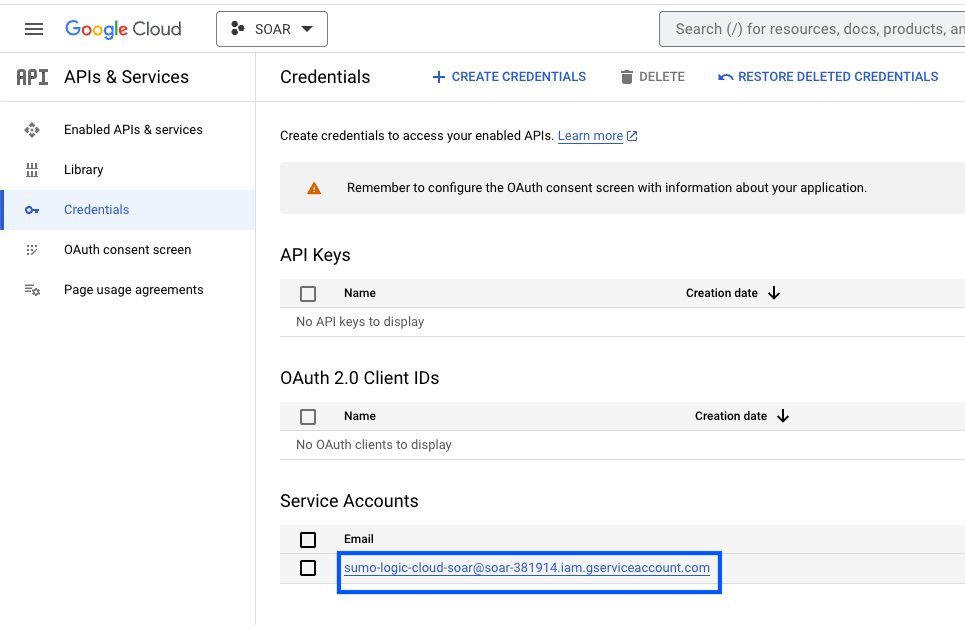
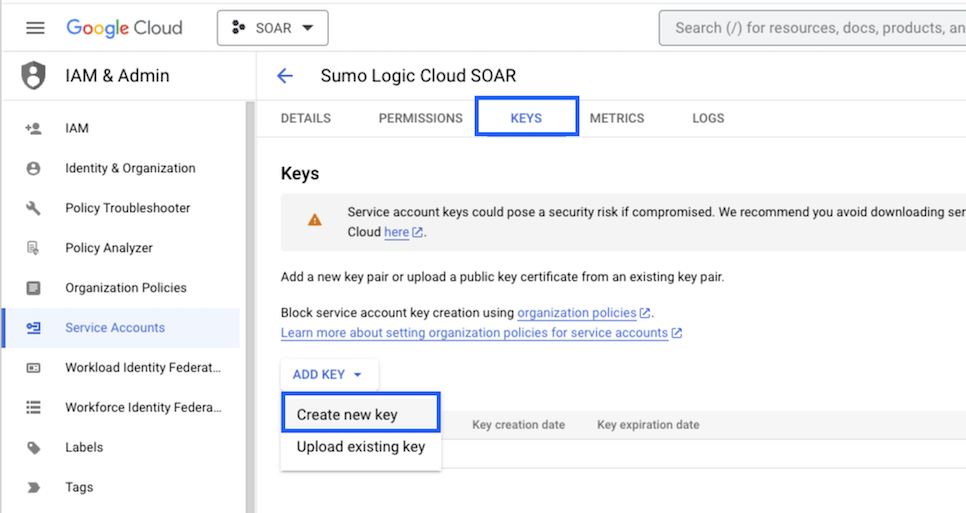
- Under the KEYS tab, click ADD KEY and choose Create new key.
- Click CREATE (make sure JSON is selected).
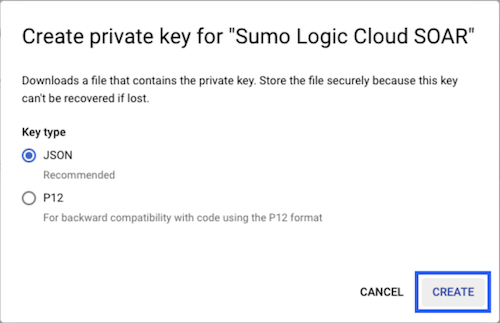
- The JSON file is downloaded. Make sure you save it in a safe place.
Configure Google Cloud Functions in Automation Service and Cloud SOAR
Before you can use this automation integration, you must configure its authentication settings so that the product you're integrating with can communicate with Sumo Logic. For general guidance, see Configure Authentication for Automation Integrations.
How to open the integration's configuration dialog
- Access App Central and install the integration. (You can configure at installation, or after installation with the following steps.)
- Go to the Integrations page.
Classic UI. In the main Sumo Logic menu, select Automation and then select Integrations in the left nav bar.
New UI. In the main Sumo Logic menu, select Automation > Integrations. You can also click the Go To... menu at the top of the screen and select Integrations. - Select the installed integration.
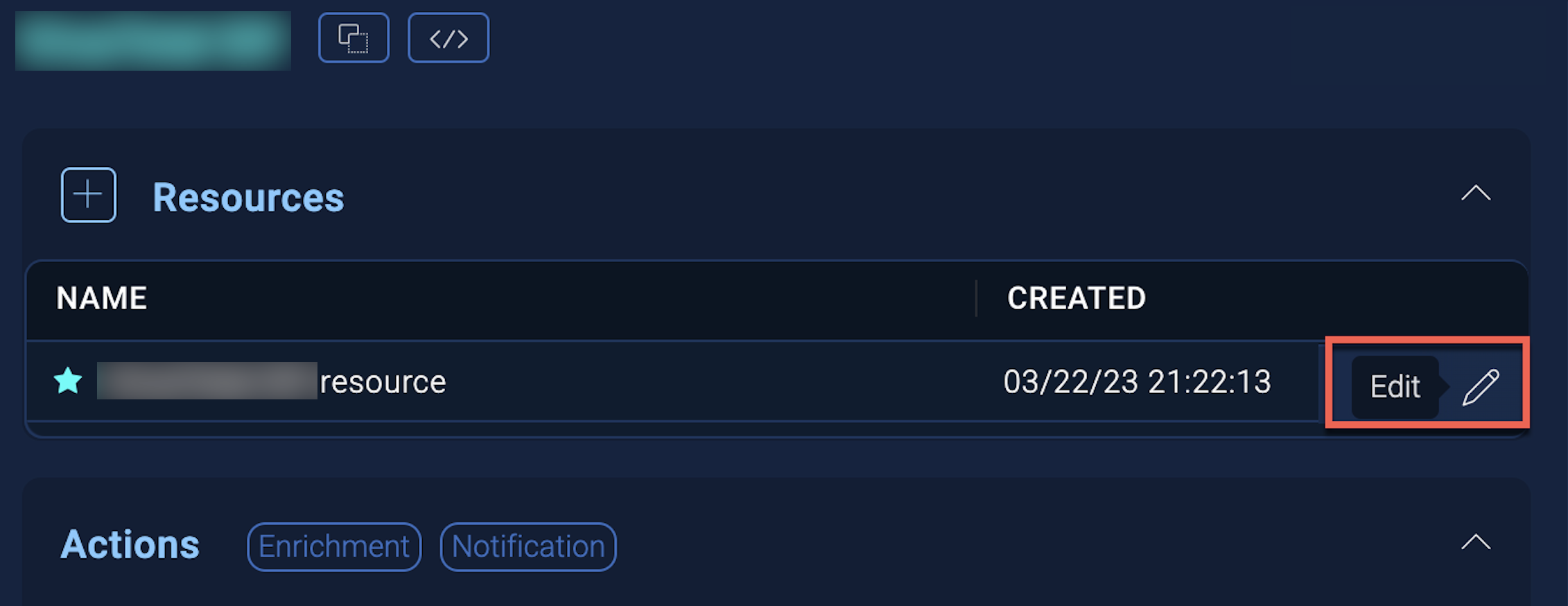
- Hover over the resource name and click the Edit button that appears.
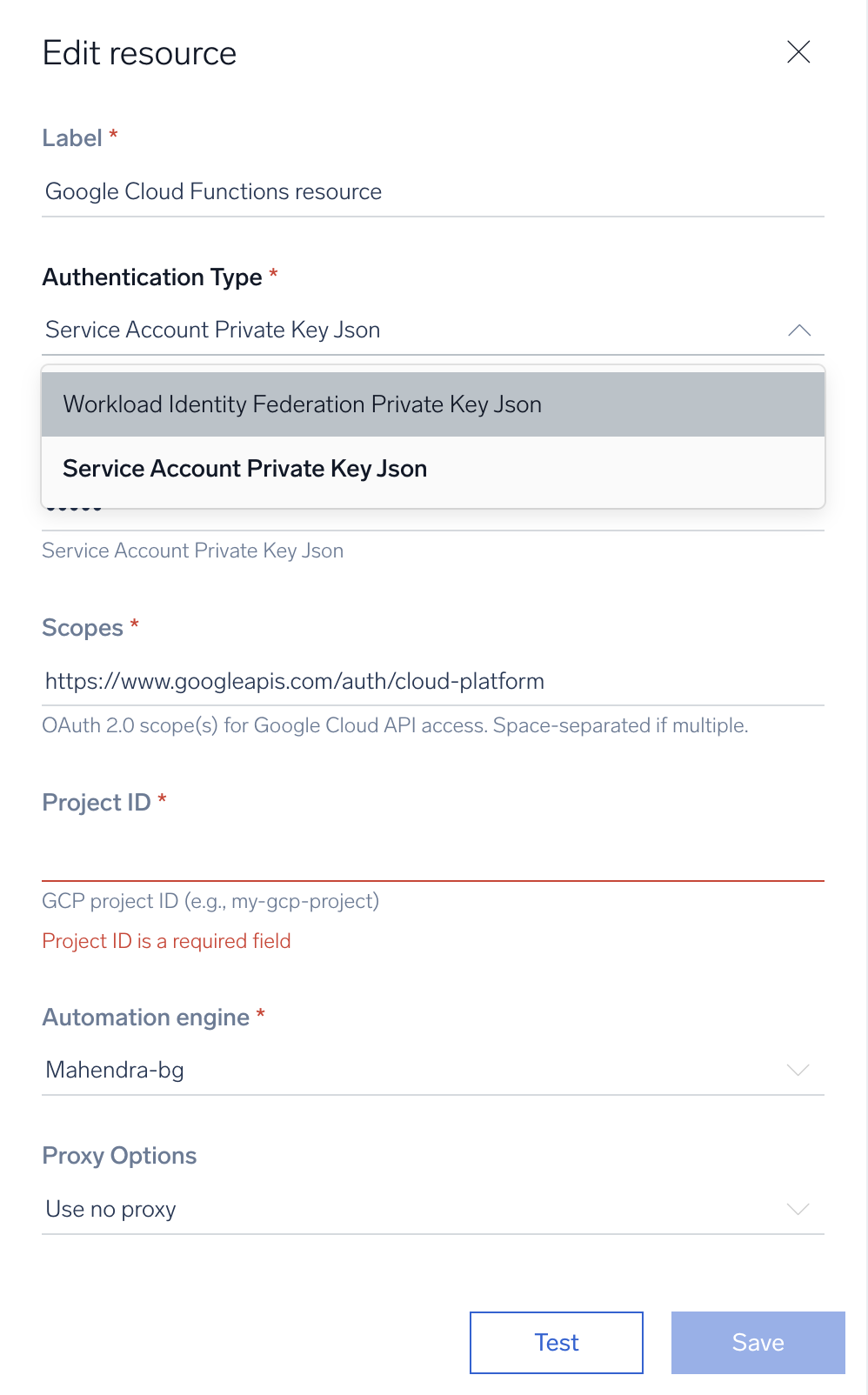
In the configuration dialog, enter information from the product you're integrating with. When done, click TEST to test the configuration, and click SAVE to save the configuration:
-
Label. Enter the name you want to use for the resource.
-
Authentication Type. Select the authentication type: Service Account Private Key Json or Workload Identity Federation Private Key Json and provide the selected type JSON content.
-
Scopes. Default scope is already added as
https://www.googleapis.com/auth/cloud-platform. If not, add this scope. -
Project ID. Provide the Google Cloud Project ID where the Cloud Functions actions will be performed.
-
Automation Engine. Select Cloud execution for this certified integration. Select a bridge option only for a custom integration. See Cloud or Bridge execution.
-
Proxy Options. Select whether to use a proxy. (Applies only if the automation engine uses a bridge instead of cloud execution.)
- Use no proxy. Communication runs on the bridge and does not use a proxy.
- Use default proxy. Use the default proxy for the bridge set up as described in Using a proxy.
- Use different proxy. Use your own proxy service. Provide the proxy URL and port number.
For information about Google Cloud Functions, see Google Cloud Functions documentation.
Troubleshooting
Permission denied (401/403) on run.services.getIamPolicy or run.services.setIamPolicy
Cause: The service account used by the integration (or the impersonated account via WIF) lacks the required permissions.
Fix: Grant the service account Cloud Functions Admin or a custom role containing cloudfunctions.functions.get, cloudfunctions.functions.invoke, run.services.getIamPolicy, and run.services.setIamPolicy. For invocations, ensure roles/run.invoker is granted to the caller principal.
WIF pool or provider misconfiguration
Cause: Incorrect AWS account ID, wrong aws_role ARN, or principal format mismatch in the Workload Identity Pool provider.
Fix: Verify the provider is set to AWS, the Sumo Logic AWS account ID and role ARN are exact, and the principal is built as:
principalSet://iam.googleapis.com/projects/{PROJECT_ID}/locations/global/workloadIdentityPools/{POOL_NAME}/attribute.aws_role/arn:aws:sts::{SUMO_AWS_ACCOUNT_ID}:assumed-role/{SUMO_AWS_ROLE}/{SUMO_AWS_LAMBDA}
Also confirm attribute mappings and audience settings in the pool match what Sumo Logic expects.
Missing Google APIs (calls fail or setup steps not available)
Cause: Required APIs are not enabled.
Fix: Enable Cloud Functions API, Cloud Run API, Cloud Resource Manager API, IAM Service Account Credentials API, Security Token Service API, and Cloud Logging API for the project.
Token or identity errors when invoking private services
Cause: Using an expired or incorrect identity/OIDC token, or not impersonating the correct service account.
Fix: Generate a fresh identity token (for example, gcloud auth print-identity-token when testing locally), or ensure the integration uses the configured WIF or service account credentials to obtain tokens automatically.
Service ingress or network issues (function unreachable)
Cause: Function or service ingress is restricted (internal VPC) or protected by IAM/ingress rules.
Fix: Check Cloud Run/Function ingress settings, VPC connector configuration, and any firewall rules. For private services, ensure the caller has network access or use an authorized path.
Diagnostic commands
Check Cloud Logging for Cloud Run and Cloud Functions logs to see error details. The following commands are useful for diagnosing issues:
- Verify service IAM policy:
gcloud run services get-iam-policy <SERVICE> --region=<REGION>
- Test invocation with an identity token:
TOKEN=$(gcloud auth print-identity-token)curl -H "Authorization: Bearer $TOKEN" https://<SERVICE_URL> -d '{}'
If using WIF, check the Workload Identity Pool and provider logs to confirm that the token exchange succeeds.
If the issue persists, confirm the integration configuration JSON matches the selected authentication type (WIF vs. service account). See Workload Identity Federation, Cloud Run IAM, and Cloud Functions authentication for deeper troubleshooting.
Change Log
| Version | Date | Description |
|---|---|---|
| v1.1 | August 28, 2026 | Initial release of the Google Cloud Functions integration. |
Additional resources
- For Google Cloud Functions, Sumo Logic offers the Google Cloud Functions app to collect and visualize your Google Cloud Functions data.