 Meet the new
 Hybrid Analysis

Version: 1.7
Updated: April 29, 2026
Submit malware for free analysis with Falcon Sandbox and Hybrid Analysis technology.
Actions
- File Reputation (Enrichment) - Get reputation information for a file hash.
- Domain Reputation (Enrichment) - Get reputation information for a Domain.
- IP Reputation (Enrichment) - Get reputation information for an IP address.
- URL Reputation (Enrichment) - Get reputation information for an URL.
- Scan File (Enrichment) - Submit a file to the sandbox for analysis.
- Scan URL (Enrichment) - Submit a URL to the sandbox for analysis.
- Get Report Summary (Enrichment) - Get the summary report for a sandbox execution.
- Get File Analysis Overview (Enrichment) - Return overview for the hash and related information.
Hybrid Analysis configuration
To obtain an API Key visit your profile page at the top right menu and navigate to the API key tab. Then press the 'Create API key' button as following: 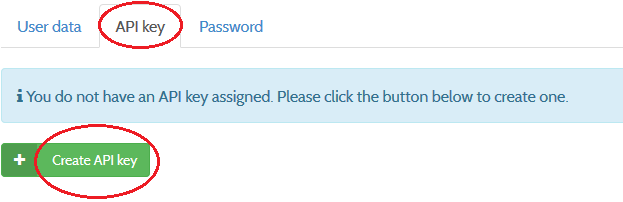
Configure Hybrid Analysis in Automation Service and Cloud SOAR
Before you can use this automation integration, you must configure its authentication settings so that the product you're integrating with can communicate with Sumo Logic. For general guidance, see Configure Authentication for Automation Integrations.
How to open the integration's configuration dialog
- Access App Central and install the integration. (You can configure at installation, or after installation with the following steps.)
- Go to the Integrations page.
Classic UI. In the main Sumo Logic menu, select Automation and then select Integrations in the left nav bar.
New UI. In the main Sumo Logic menu, select Automation > Integrations. You can also click the Go To... menu at the top of the screen and select Integrations. - Select the installed integration.
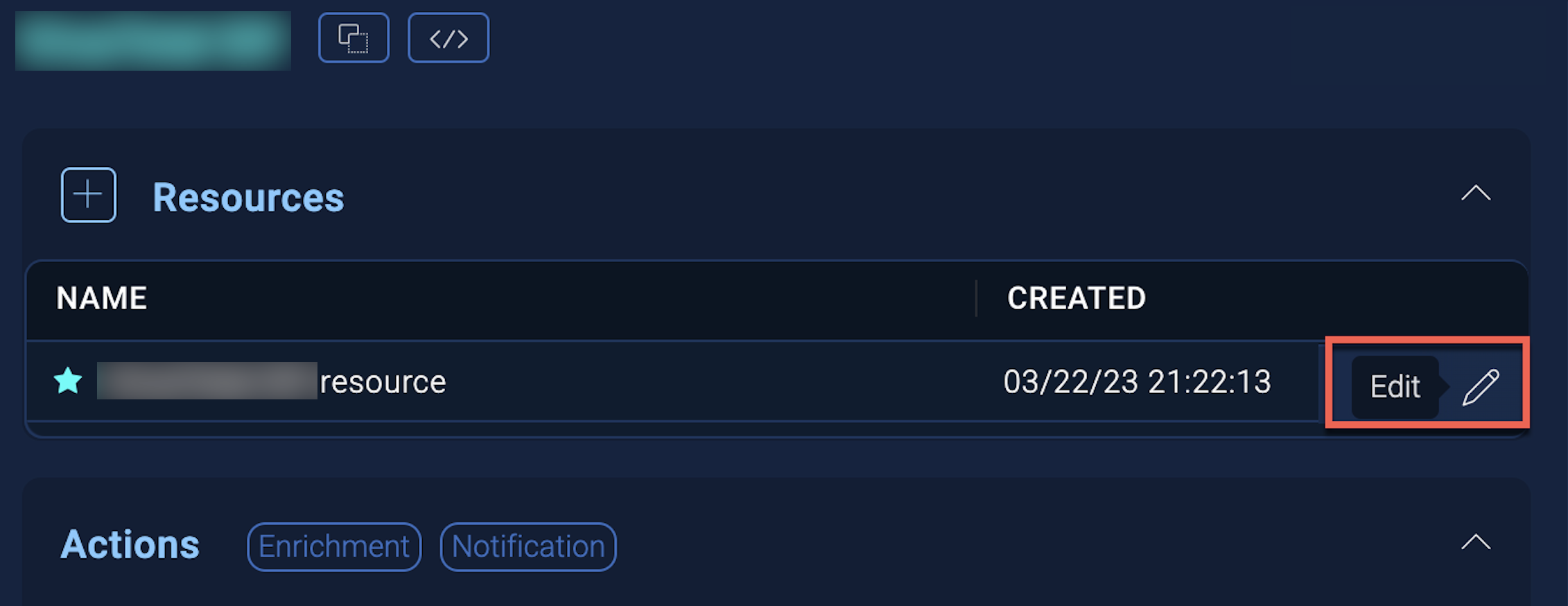
- Hover over the resource name and click the Edit button that appears.
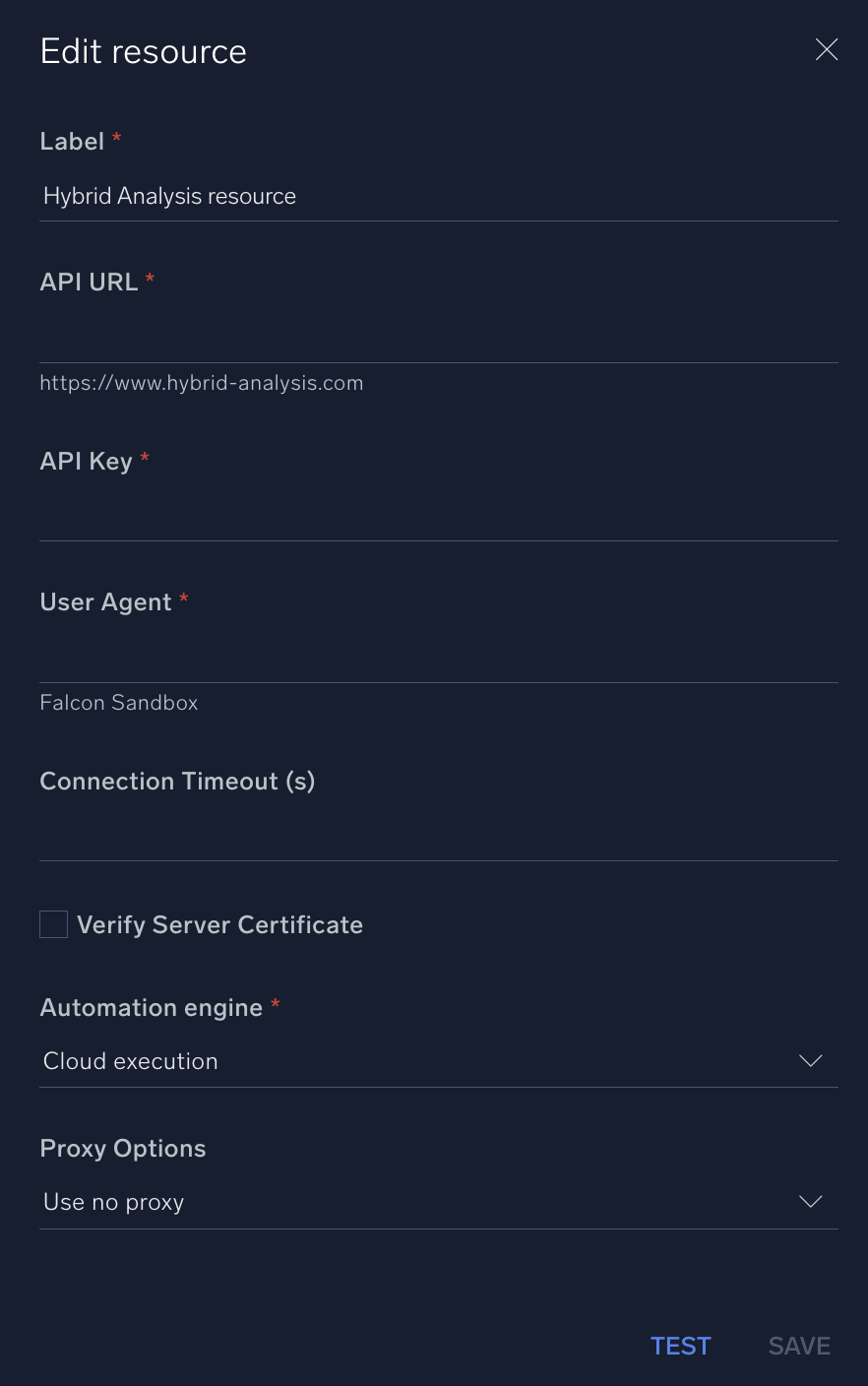
In the configuration dialog, enter information from the product you're integrating with. When done, click TEST to test the configuration, and click SAVE to save the configuration:
-
Label. Enter the name you want to use for the resource.
-
API URL. Enter your Hybrid Analysis API URL, for example,
https://www.hybrid-analysis.com -
API Key. Insert the API key that you previously copied.
-
User Agent. Enter the user agent, for example,
Falcon. -
Connection Timeout (s). Set the maximum amount of time the integration will wait for a server's response before terminating the connection. Enter the connection timeout time in seconds (for example,
180). -
Verify Server Certificate. Select to validate the server’s SSL certificate.
-
Automation Engine. Select Cloud execution for this certified integration. Select a bridge option only for a custom integration. See Cloud or Bridge execution.
-
Proxy Options. Select whether to use a proxy. (Applies only if the automation engine uses a bridge instead of cloud execution.)
- Use no proxy. Communication runs on the bridge and does not use a proxy.
- Use default proxy. Use the default proxy for the bridge set up as described in Using a proxy.
- Use different proxy. Use your own proxy service. Provide the proxy URL and port number.
For information about Hybrid Analysis, see Hybrid Analysis documentation.
Category
SANDBOX
Change Log
| Version | Date | Description |
|---|---|---|
| v1.7 | April 29, 2026 | Upgraded the python3_generic Docker image (Python 3.8) to python3_12_generic (Python 3.12) to address Python 3.8 end-of-life and improve security and performance. |
| v1.6 | June 14, 2023 | Improved the integration. |
| v1.5 | April 4, 2023 |
|
| November 22, 2022 |
| |
| May 23, 2022 | Updated the integration documentation. | |
| May 20, 2022 | Updated the integration. Added new actions: Domain Reputation, IP Reputation, and URL Reputation. | |
| June 26, 2020 | Updated the Get Report Summary action. | |
| January 31, 2020 | Updated the Get Report Summary action. | |
| July 24, 2019 | Fixed an SSL verification issue. | |
| June 4, 2019 | Updated the Scan URL action. | |
| May 7, 2019 | Initial release of the Hybrid Analysis integration. |