 Meet the new
 Microsoft OneDrive

Version: 1.10
Updated: March 31, 2026
Utilize and manipulate files for incident investigation using OneDrive.
Actions
- List Files (Enrichment) - List all available files in OneDrive.
- List File Changes (Enrichment) - List file changes in OneDrive.
- Download File (Enrichment) - Download a file from OneDrive.
- Delete File (Containment) - Delete a file from OneDrive.
- Upload File (Containment) - Upload a file to OneDrive.
Configure Microsoft OneDrive in Automation Service and Cloud SOAR
Before you can use this automation integration, you must configure its authentication settings so that the product you're integrating with can communicate with Sumo Logic. For general guidance, see Configure Authentication for Automation Integrations.
How to open the integration's configuration dialog
- Access App Central and install the integration. (You can configure at installation, or after installation with the following steps.)
- Go to the Integrations page.
Classic UI. In the main Sumo Logic menu, select Automation and then select Integrations in the left nav bar.
New UI. In the main Sumo Logic menu, select Automation > Integrations. You can also click the Go To... menu at the top of the screen and select Integrations. - Select the installed integration.
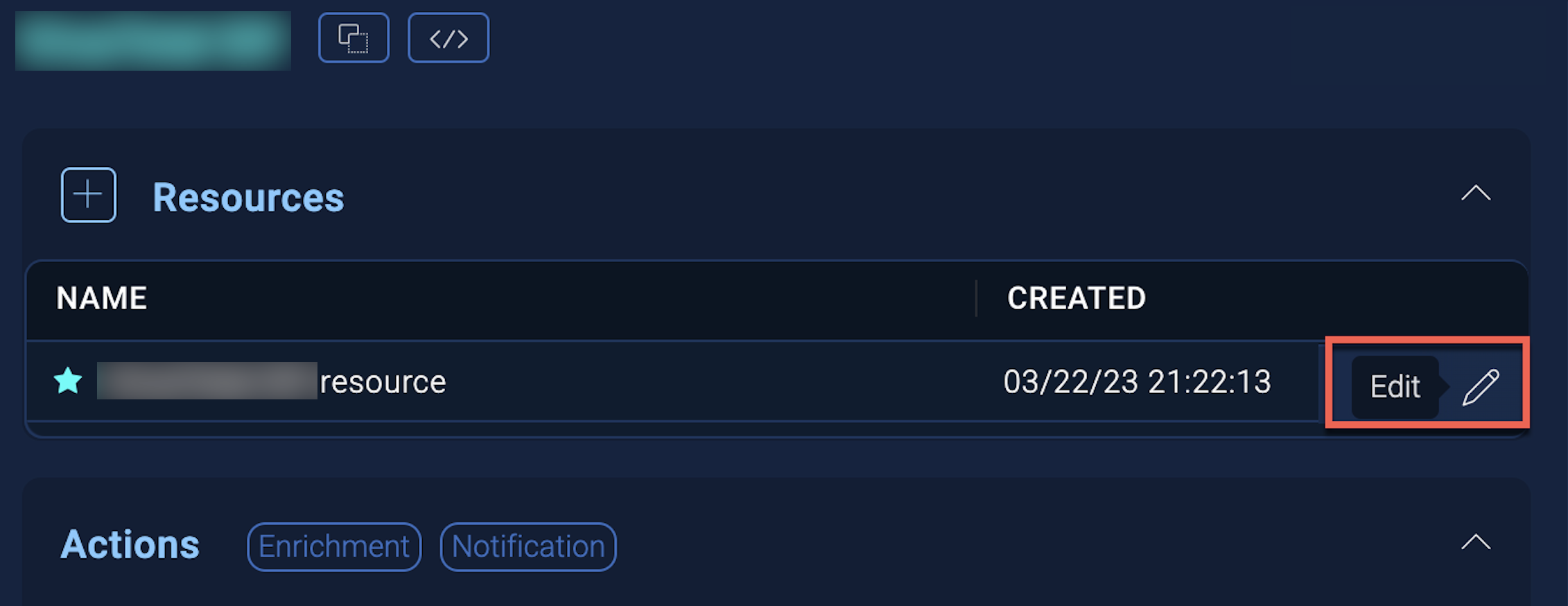
- Hover over the resource name and click the Edit button that appears.
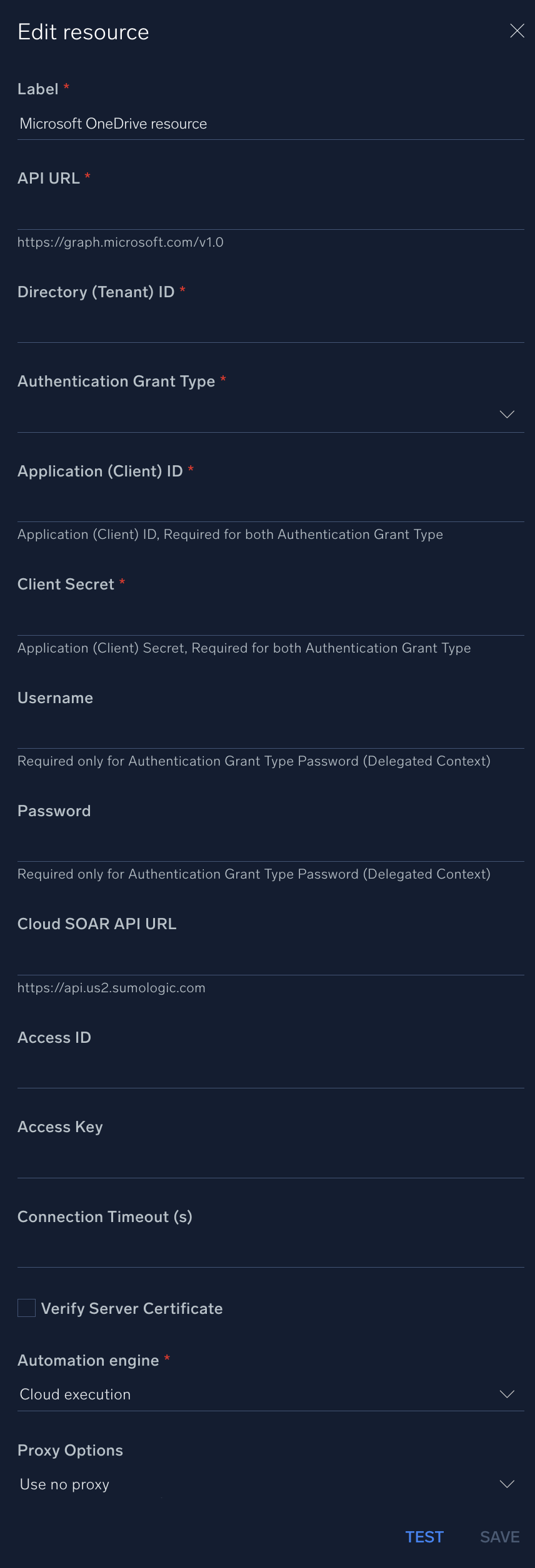
In the configuration dialog, enter information from the product you're integrating with. When done, click TEST to test the configuration, and click SAVE to save the configuration:
-
Label. Enter the name you want to use for the resource.
-
API URL. Enter your OneDrive API URL, for example,
https://graph.microsoft.com/v1.0 -
Directory (Tenant) ID. Enter the tenant ID of the AAD directory in which you created the application. (You can check from your app registration page).
-
Authentication Grant Type. Choose one of the following according to the permissions you add to your app:
- Password (Delegated Context)
- Client Credentials (Application Context)
-
Application (Client) ID. Enter your application ID. (You can check from your app registration page). This is required for both authentication grant types.
-
Client Secret. Enter your client secret. This is required for both authentication grant types.
-
Username. Enter the username of an admin user authorized to authenticate the integration. This is required only if you set the authentication grant type as Password (Delegated Context). Leave this field empty if you set the authentication grant type as Client Credentials (Application Context).
-
Password. Enter the password for the admin user. This is required only if you set the authentication grant type as Password (Delegated Context). Leave this field empty if you set the authentication grant type as Client Credentials (Application Context).
-
Cloud SOAR API URL. Enter your Sumo Logic API URL (for example,
https://api.us2.sumologic.com). Enter the API endpoint URL for your region. -
Access ID. Enter the access ID for your Sumo Logic access key. Select Default as the scope when generating access keys.
-
Access Key. Enter the access key corresponding to your Sumo Logic access ID.
-
Connection Timeout (s). Set the maximum amount of time the integration will wait for a server's response before terminating the connection. Enter the connection timeout time in seconds (for example,
180). -
Verify Server Certificate. Select to validate the server’s SSL certificate.
-
Automation Engine. Select Cloud execution for this certified integration. Select a bridge option only for a custom integration. See Cloud or Bridge execution.
-
Proxy Options. Select whether to use a proxy. (Applies only if the automation engine uses a bridge instead of cloud execution.)
- Use no proxy. Communication runs on the bridge and does not use a proxy.
- Use default proxy. Use the default proxy for the bridge set up as described in Using a proxy.
- Use different proxy. Use your own proxy service. Provide the proxy URL and port number.
For information about Microsoft OneDrive, see OneDrive documentation.
Change Log
| Version | Date | Description |
|---|---|---|
| v1.10 | March 31, 2026 | Upgraded the python3_generic Docker image (Python 3.8) to python3_12_generic (Python 3.12) to address Python 3.8 end-of-life and improve security and performance. |
| v1.9 | November 28, 2025 |
|
| v1.8 | October 10, 2025 |
|
| v1.7 | August 14, 2025 | Set required=False for the username and password parsers in all actions. |
| v1.6 | April 25, 2025 | Set required=False for the username and password parsers in the integration file. |
| v1.5 | July 02, 2024 |
|
| v1.4 | September 19, 2023 | Updated the integration's versioning. |
| v1.3 | September 4, 2023 | Fixed a bug where if the timeout was not specified, an error would occur. |
| v1.2 | August 17, 2023 | Updated the integration with Environmental Variables. |
| March 10, 2022 | Updated the logo in Microsoft OneDrive integration. | |
| August 5, 2019 | Initial release of the Microsoft OneDrive integration. |