 Meet the new
 Mimecast V2

Version: 1.2
Updated: Sep 8, 2026
Mimecast V2 is a cloud-based cybersecurity and risk management platform designed to protect enterprise email infrastructure from viruses, malware, phishing, and emerging deepfake attacks. It employs a layered cyber resilience solution to prevent email-borne threats and minimise data loss through secure email archiving.
Actions
- Get Account (Enrichment) - Get the details about the used Mimecast account.
- Create Remediation Incident (Containment) - Create a new remediation incident to trigger email purge/removal from user mailboxes.
- Get TTP URL Click Logs (Enrichment) - Retrieve click tracking and URL events, including who clicked a URL, which URL was clicked, and when.
- Get Remediation Incident (Enrichment) - Get the details of a remediation incident, including containment and audit logs confirming whether a domain was blocked and emails were removed from user mailboxes.
- Get Audit Events (Enrichment) - Get the attacks that have already occurred or are in progress.
- Get Internal Domain (Enrichment) - Get the internal domain inside the account.
- Get Internal Users (Enrichment) - Get the internal users inside a specific account domain.
- Permit Block Emails (Containment) - Permit and block sending email.
- Send Email (Notification) - Send an email for end-user notification.
Mimecast configuration
To configure Mimecast V2, see Mimecast API v2.0 documentation.
Configure Mimecast V2 in Automation Service and Cloud SOAR
Before you can use this automation integration, you must configure its authentication settings so that the product you're integrating with can communicate with Sumo Logic. For general guidance, see Configure Authentication for Automation Integrations.
How to open the integration's configuration dialog
- Access App Central and install the integration. (You can configure at installation, or after installation with the following steps.)
- Go to the Integrations page.
Classic UI. In the main Sumo Logic menu, select Automation and then select Integrations in the left nav bar.
New UI. In the main Sumo Logic menu, select Automation > Integrations. You can also click the Go To... menu at the top of the screen and select Integrations. - Select the installed integration.
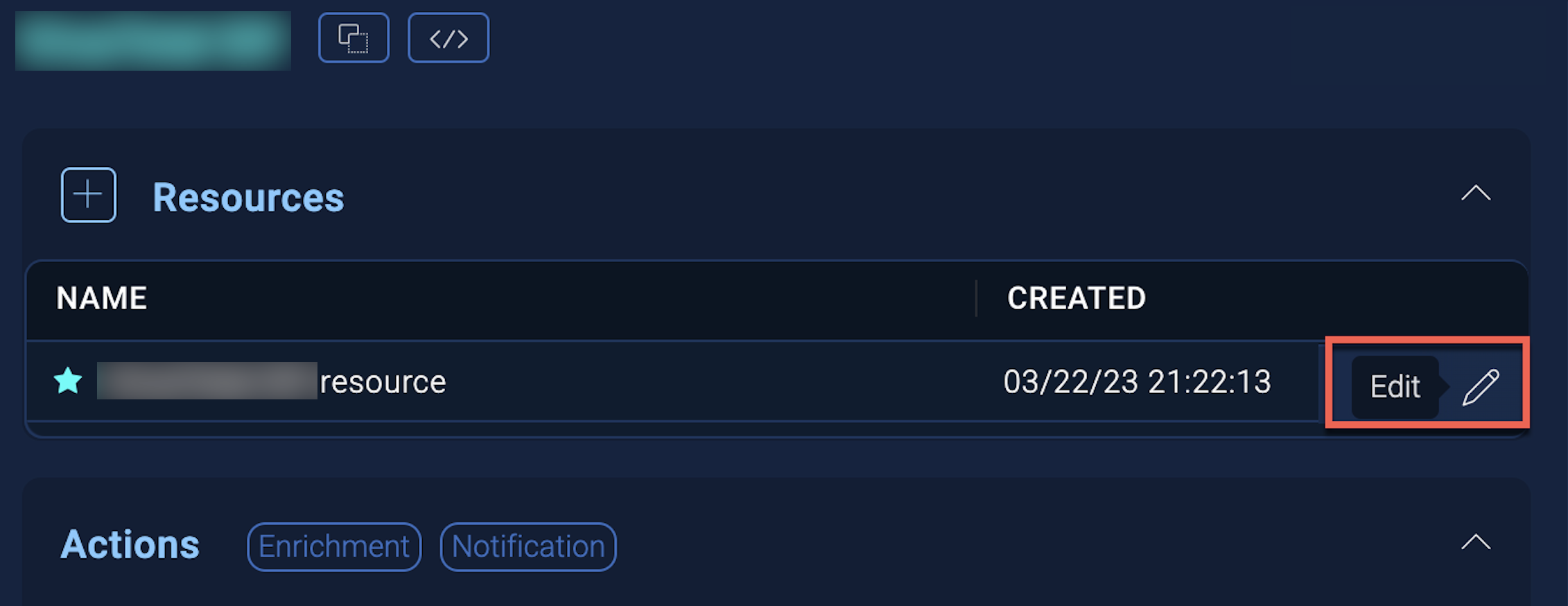
- Hover over the resource name and click the Edit button that appears.
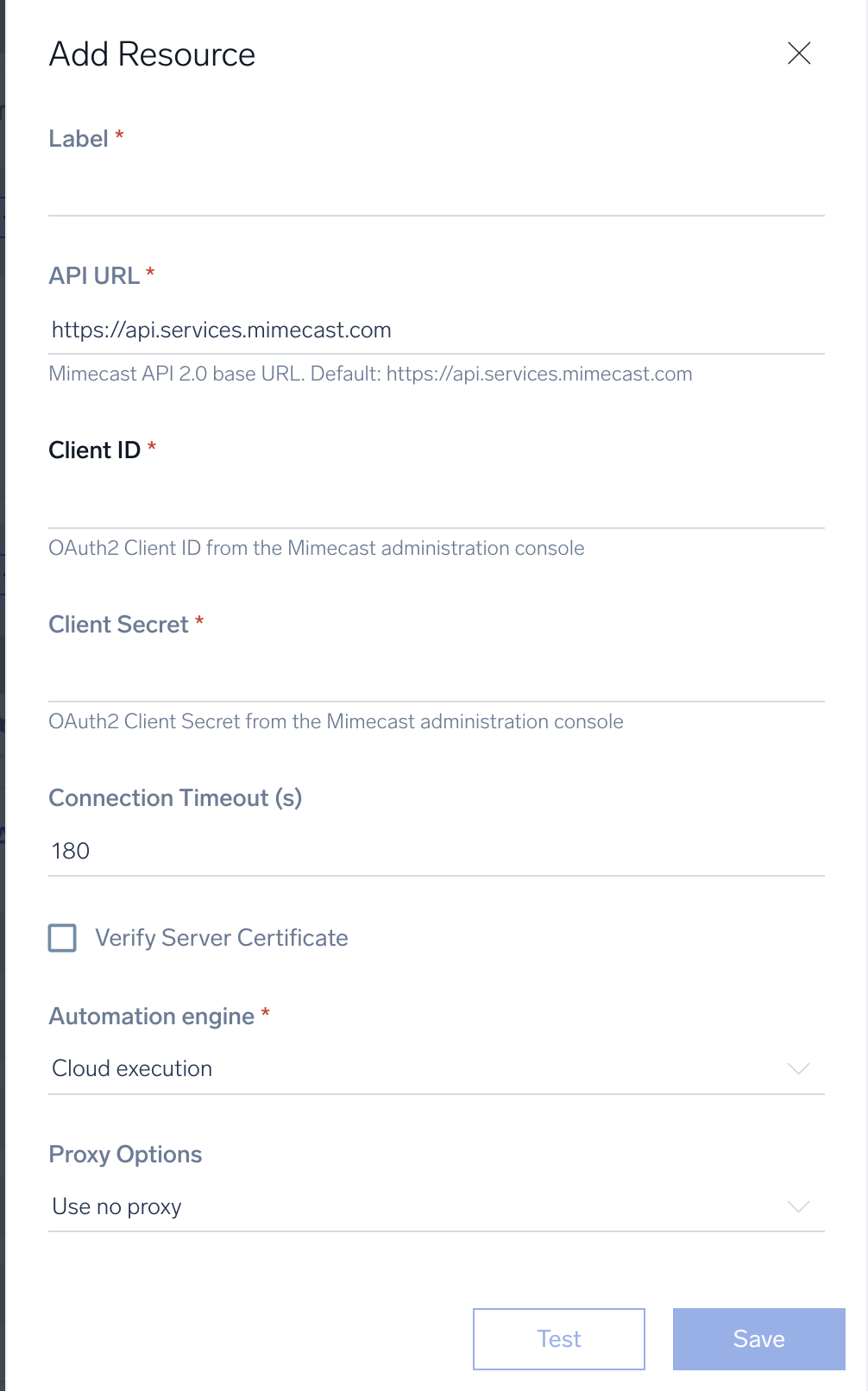
In the configuration dialog, enter information from the product you're integrating with. When done, click TEST to test the configuration, and click SAVE to save the configuration:
-
Label. Enter the name you want to use for the resource.
-
URL. Enter the Mimecast base URL including region. For example,
https://us-api.mimecast.com -
Client ID. Enter the Mimecast client ID obtained from your Mimecast API v2.0 application.
-
Client Secret. Enter the Mimecast client secret associated with the client ID.
-
Connection Timeout (s). Set the maximum amount of time the integration will wait for a server's response before terminating the connection. Enter the connection timeout time in seconds (for example,
180). -
Verify Server Certificate. Select to validate the server’s SSL certificate.
-
Automation Engine. Select Cloud execution for this certified integration. Select a bridge option only for a custom integration. See Cloud or Bridge execution.
-
Proxy Options. Select whether to use a proxy. (Applies only if the automation engine uses a bridge instead of cloud execution.)
- Use no proxy. Communication runs on the bridge and does not use a proxy.
- Use default proxy. Use the default proxy for the bridge set up as described in Using a proxy.
- Use different proxy. Use your own proxy service. Provide the proxy URL and port number.
For information about Mimecast, see Mimecast documentation.
Change Log
| Version | Date | Description |
|---|---|---|
| v1.2 | Sep 8, 2026 | Initial release of the Mimecast V2 integration. |
Additional resources
For Mimecast, Sumo Logic offers the Mimecast source and the Mimecast app to collect and visualize your Mimecast data.