 Meet the new
 Sumo Logic Cloud SIEM

Version: 1.20.0
Updated: October 19, 2026
This automation integration utilizes Cloud SIEM entities to correlate signals and insights. This integration requires authentication. (Because the Sumo Logic Cloud SIEM Internal integration operates internally with Sumo Logic, no additional authentication is needed.)
For information about Cloud SIEM, see Get Started with Cloud SIEM.
Actions
- Add Comment To Insight (Notification) - Add a comment to an existing Insight.
- Add Enrichment Entity (Notification) - Add enrichments to Entity.
- Add Enrichment Insight (Notification) - Add enrichments to Insights.
- Add Enrichment Signal (Notification) - Add enrichments to Signal.
- Add Match List Item (Notification) - Add item to Match List.
- Add Network Block (Containment) - Add an address into the Network Blocks.
- Add Tag To Insight (Notification) - Add tags to the Insight.
- Assign User To Insight (Notification) - Add specific user to an Insight.
- Check Insight Status Schedule (Scheduled) - Schedule action that periodically checks if the Insight is closed.
- Check Insight Triage Schedule (Scheduled) - Scheduled action that periodically polls the triage status of an Insight until a terminal verdict is reached.
- Close Insight Trigger (Trigger) - Trigger action that is executed whenever an Incident is closed.
- Create Insight From Signals (Notification) - Create Insight From Signal IDs.
- Get Entity (Enrichment) - Get Entity details.
- Get Insight (Enrichment) - Get Insight details.
- Get Insight Comments (Enrichment) - Get comments for an Insight.
- Get Insight Triage (Enrichment) - Get triage details for an Insight.
- Get Insight V2 (Enrichment) - Get Insight details v2.
- Get Signal (Enrichment) - Get Signal details.
- List Entities (Enrichment) - List Entities.
- List Indicators (Enrichment) - List all Indicators.
- List Insights (Enrichment) - List all Insights.
- List Network Block (Enrichment) - List all Blocked Networks.
- List Signals (Enrichment) - List all Signals.
- List Users (Enrichment) - Get a list of users.
- Sumo Logic Insights Daemon (Daemon) - Daemon to retrieve the latest Insights.
- Sumo Logic Insights Daemon Extended (Daemon) - Daemon to retrieve the latest Insights, extended version.
- Sumo Logic Signals Daemon (Daemon) - Daemon to retrieve the latest Signals.
- Update Insight (Notification) - Update the insight Assignee, Status, Severity, and Tags.
- Update Insight Status (Enrichment) - Update the insight status.
- Update Insight Tag Trigger (Trigger) - Trigger action that is executed whenever an Incident is edited.
- Get Match List (Enrichment) - Get a Match List.
- List Match List Items (Enrichment) - Get a list of Match List Items.
- List Match List (Enrichment) - Get the list of Match Lists.
- Sumo Logic Match List Items Daemon (Daemon) - Automatically pull a list of Match List Items.
Sumo Logic Cloud SIEM configuration
Create an access key and copy the resulting Access ID and Access Key. Store the ID and access key (temporarily) into a text editor.
The ID and key won't be available again once you close the confirmation screen.
Configure Sumo Logic Cloud SIEM in Automation Service and Cloud SOAR
Before you can use this automation integration, you must configure its authentication settings so that the product you're integrating with can communicate with Sumo Logic. For general guidance, see Configure Authentication for Automation Integrations.
How to open the integration's configuration dialog
- Access App Central and install the integration. (You can configure at installation, or after installation with the following steps.)
- Go to the Integrations page.
Classic UI. In the main Sumo Logic menu, select Automation and then select Integrations in the left nav bar.
New UI. In the main Sumo Logic menu, select Automation > Integrations. You can also click the Go To... menu at the top of the screen and select Integrations. - Select the installed integration.
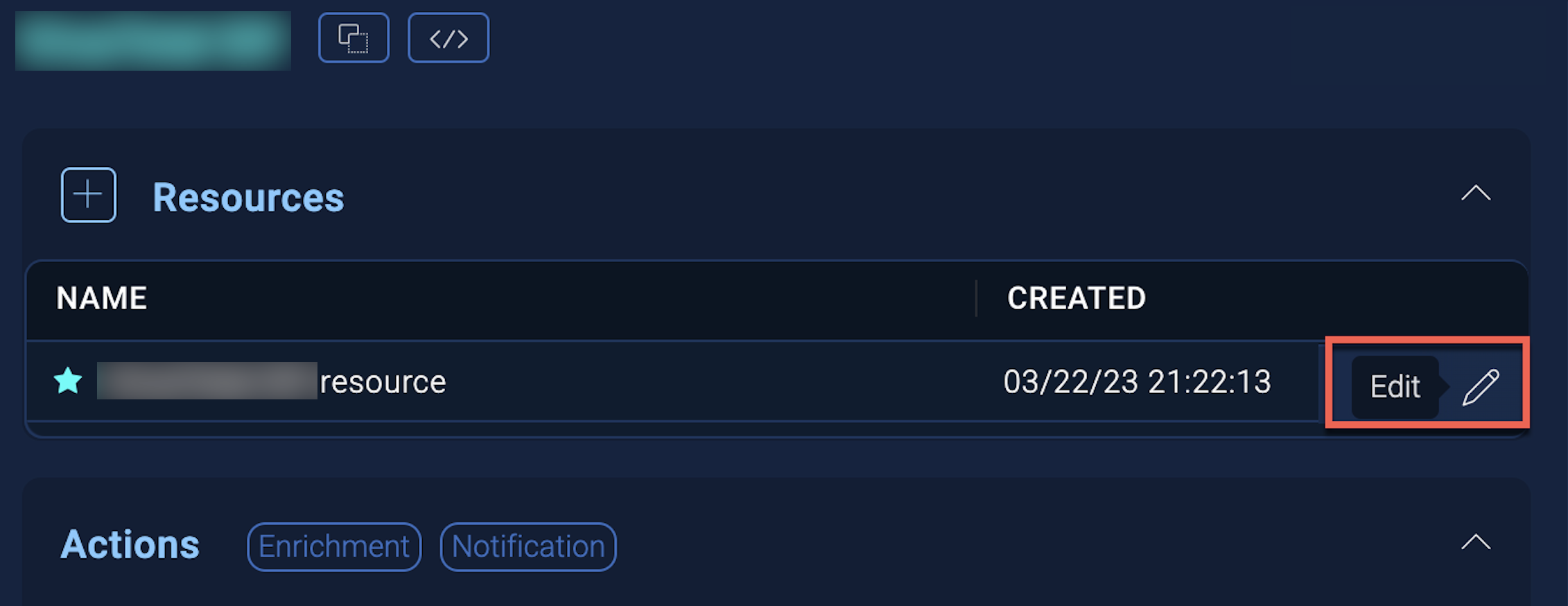
- Hover over the resource name and click the Edit button that appears.
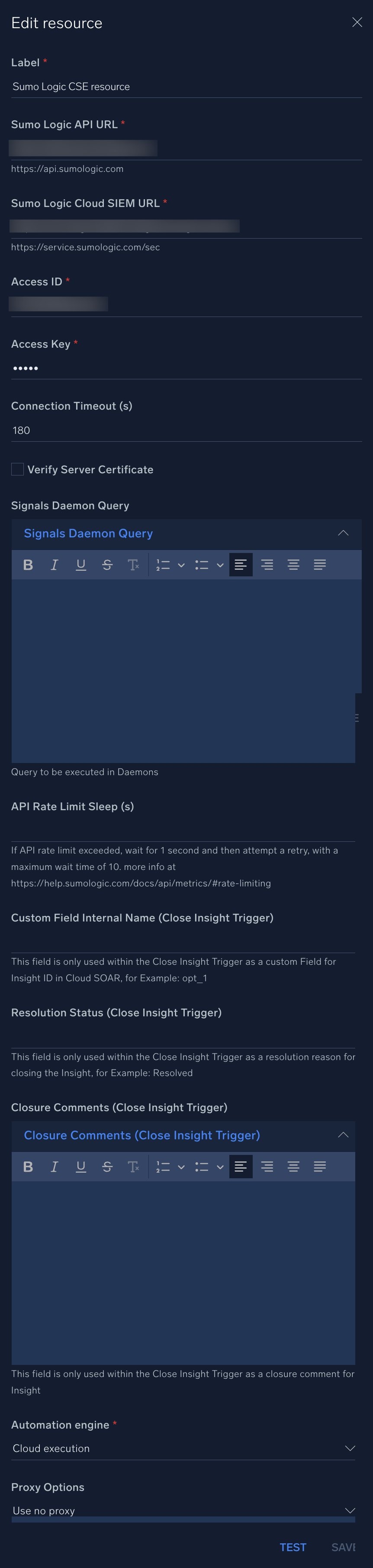
In the configuration dialog, enter information from the product you're integrating with. When done, click TEST to test the configuration, and click SAVE to save the configuration:
-
Label. Enter the name you want to use for the resource.
-
Sumo Logic API URL. Enter the API endpoint URL for your region (for example,
https://api.sumologic.com). -
Sumo Logic Cloud SIEM URL. URL to the Cloud SIEM instance (for example,
https://service.sumologic.com/sec). -
Access ID. Enter the access ID for your Sumo Logic access key. Select Default as the scope when generating access keys.
-
Access Key. Enter the access key corresponding to your Sumo Logic access ID.
-
Connection Timeout (s). Set the maximum amount of time the integration will wait for a server's response before terminating the connection. Enter the connection timeout time in seconds (for example,
180). -
Verify Server Certificate. Select to validate the server’s SSL certificate.
-
Signals Daemon Query. Enter the query to be executed in daemons.
-
API Rate Limit Sleep (s). Enter the API rate limit in seconds. If the API rate limit is exceeded, wait for 1 second and then attempt a retry, with a maximum wait time of 10. More info at Rate limiting.
-
Custom Field Interval Name (Close Insight Trigger). This field is only used within the Close Insight Trigger as a custom field for insight ID in Cloud SOAR, for example,
opt_1. -
Resolution Status. This field is only used within the Close Insight Trigger as a resolution reason for closing the insight, for example,
Resolved. -
Closure Comments (Close Insight Trigger). This field is only used within the Close Insight Trigger as a closure comment for insight.
-
Automation Engine. Select Cloud execution for this certified integration. Select a bridge option only for a custom integration. See Cloud or Bridge execution.
-
Proxy Options. Select whether to use a proxy. (Applies only if the automation engine uses a bridge instead of cloud execution.)
- Use no proxy. Communication runs on the bridge and does not use a proxy.
- Use default proxy. Use the default proxy for the bridge set up as described in Using a proxy.
- Use different proxy. Use your own proxy service. Provide the proxy URL and port number.
For detailed API documentation, see Sumo Logic APIs.
Category
SIEM
Change Log
| Version | Date | Description |
|---|---|---|
| v1.20.0 | October 19, 2026 | Enhanced the Get Insight V2 action by adding summary, sub-resolution, and confidence to its output schema and updating the involved entity field. |
| v1.19 | September 21, 2026 | Added new actions: Get Insight Triage and Check Insight Triage Schedule. |
| v1.18 | July 22, 2026 |
|
| v1.17 | April 30, 2026 | Upgraded the python3_generic Docker image (Python 3.8) to python3_12_generic (Python 3.12) to address Python 3.8 end-of-life and improve security and performance. |
| v1.16 | April 3, 2026 | Fixed output field mapping for nested fields with dots in field names in the Get Signal and List Signals actions. |
| v1.15 | January 6, 2025 | Added a new action: Add Match List Item. |
| v1.14 | July 3, 2024 | Updated check_not_null_field in the Close Insight Trigger. |
| v1.13 | April 8, 2024 | Updated the resource field name from "Sumo Logic CSE URL" to "Sumo Logic Cloud SIEM URL." |
| v1.12 | April 5, 2024 |
|
| v1.11 | March 4, 2024 | Updated code for compatibility with Python 3.12. |
| v1.10 | February 7, 2024 | Fixed an issue in the Add Comment To Insight action where line breaks in the Insight Comment field were removed upon submission. |
| v1.9 | December 12, 2023 |
|
| v1.8 | November 24, 2023 |
|
| v1.7 | October 4, 2023 | Updated the Sumo Logic Insights Daemon. |
| v1.6 | October 3, 2023 | Updated the Sumo Logic Insights Daemon Extended. |
| v1.5 | September 26, 2023 | Updated the Sumo Logic Signals Daemon. |
| v1.4 | September 19, 2023 | Updated the integration with environmental variables. |
| v1.3 | February 17, 2023 | Updated the Sumo Logic Insights Daemon Extended. |
| March 17, 2022 | Added a new action: Update Insight. | |
| October 27, 2021 | Added new actions. | |
| October 18, 2021 | Added new actions. | |
| October 1, 2021 | Added new actions. | |
| April 6, 2021 | Added new actions. | |
| March 26, 2021 | Initial release of the Sumo Logic Cloud SIEM integration. |