Sumo Logic Lookup Table

Version: 1.0
Updated: Mar 27, 2026
The Lookup Table Management API allows you to manage lookup tables from HTTP endpoints. Lookup tables enable you to enrich your log data with contextual information from external sources. For more information, see Lookup Tables.
Actions
- Create Lookup Table (Notification) - Create a new lookup table in your Sumo Logic environment.
- Delete Lookup Table (Containment) - Delete an existing lookup table by its identifier.
- Delete Row (Containment) - Delete a specific row from a lookup table.
- Edit Lookup Table (Notification) - Update the configuration or metadata of an existing lookup table.
- Empty Lookup Table (Containment) - Remove all rows from a lookup table while keeping the table structure.
- Get Async Job Status (Enrichment) - Check the status of an asynchronous lookup table operation.
- Get Lookup Table (Enrichment) - Retrieve details and metadata of a specific lookup table.
- Insert Or Update Row (Notification) - Add a new row or update an existing row in a lookup table.
- Upload CSV File (Notification) - Bulk upload data to a lookup table from a CSV file.
Sumo Logic Lookup Table configuration
Create an access key and copy the resulting Access ID and Access Key. Store the ID and access key (temporally) into a text editor.
The ID and key won't be available again once you close the confirmation screen.
Configure Sumo Logic Lookup Table in Automation Service and Cloud SOAR
Before you can use this automation integration, you must configure its authentication settings so that the product you're integrating with can communicate with Sumo Logic. For general guidance, see Configure Authentication for Automation Integrations.
How to open the integration's configuration dialog
- Access App Central and install the integration. (You can configure at installation, or after installation with the following steps.)
- Go to the Integrations page.
Classic UI. In the main Sumo Logic menu, select Automation and then select Integrations in the left nav bar.
New UI. In the main Sumo Logic menu, select Automation > Integrations. You can also click the Go To... menu at the top of the screen and select Integrations. - Select the installed integration.
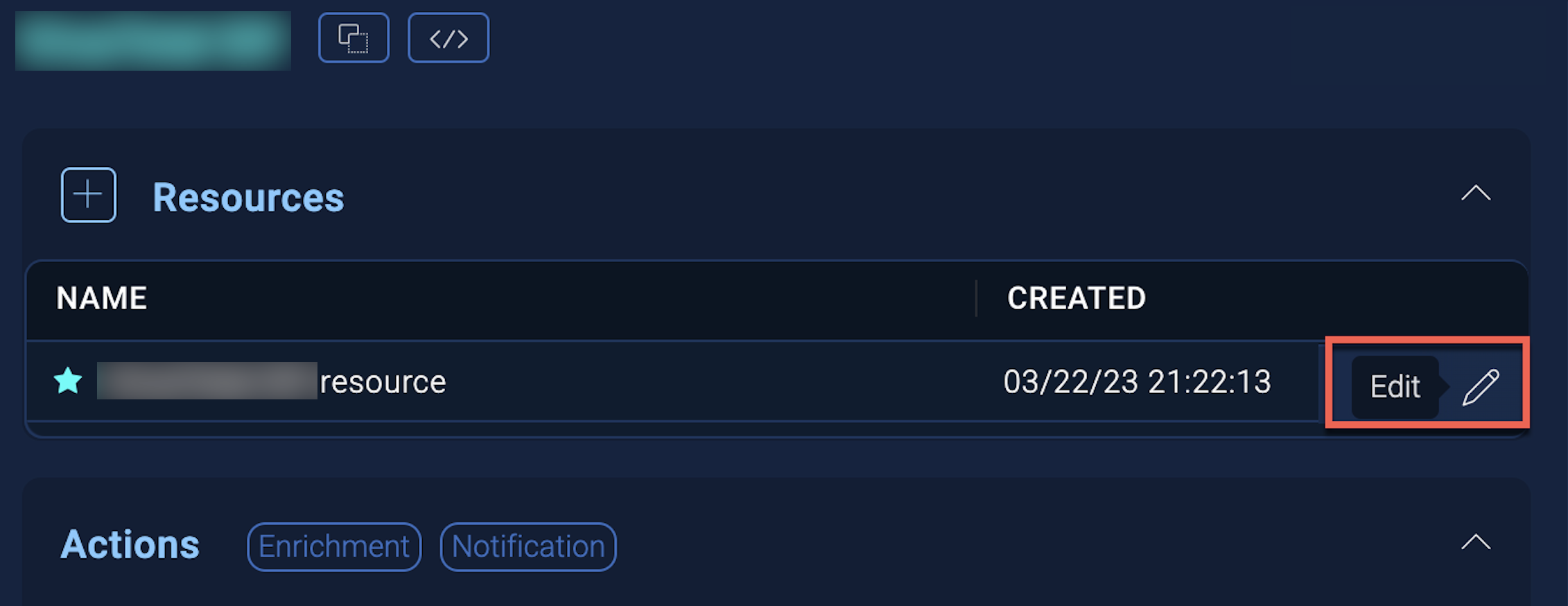
- Hover over the resource name and click the Edit button that appears.
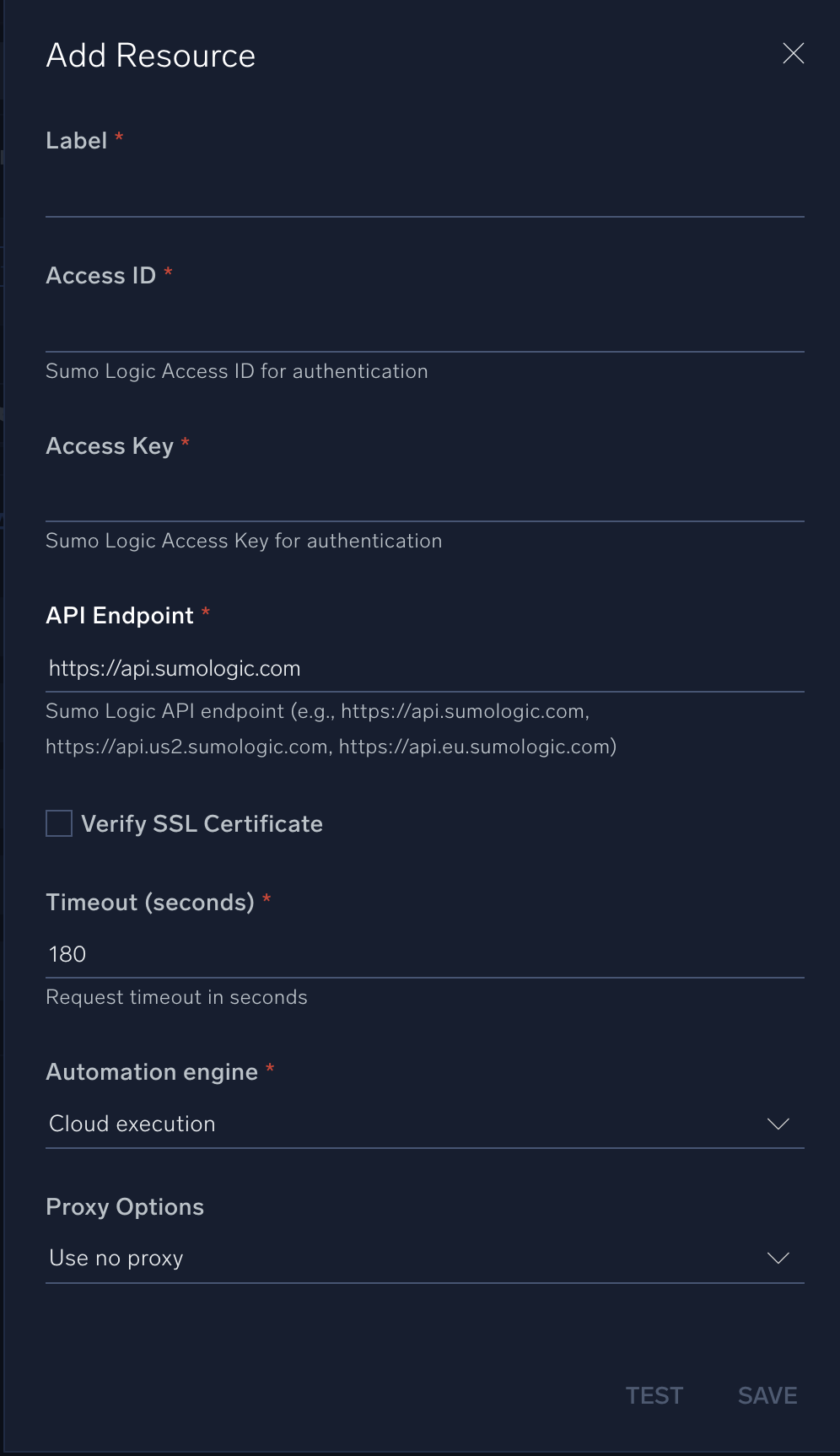
In the configuration dialog, enter information from the product you're integrating with. When done, click TEST to test the configuration, and click SAVE to save the configuration:
-
Label. Enter the name you want to use for the resource.
-
Sumo Logic API URL. Enter the API endpoint URL for your region (for example,
https://api.sumologic.com). -
Access ID. Enter the access ID for your Sumo Logic access key. Select Default as the scope when generating access keys.
-
Access Key. Enter the access key corresponding to your Sumo Logic access ID.
-
Connection Timeout (s). Set the maximum amount of time the integration will wait for a server's response before terminating the connection. Enter the connection timeout time in seconds (for example,
180). -
Verify Server Certificate. Select to validate the server’s SSL certificate.
-
Automation Engine. Select Cloud execution for this certified integration. Select a bridge option only for a custom integration. See Cloud or Bridge execution.
-
Proxy Options. Select whether to use a proxy. (Applies only if the automation engine uses a bridge instead of cloud execution.)
- Use no proxy. Communication runs on the bridge and does not use a proxy.
- Use default proxy. Use the default proxy for the bridge set up as described in Using a proxy.
- Use different proxy. Use your own proxy service. Provide the proxy URL and port number.
For detailed API documentation, see Sumo Logic APIs.
Notes
- Upload CSV File action will be available in Cloud SOAR only.
Category
SIEM
Change Log
- March 27, 2026 - First Upload