 Meet the new
 Create Playbooks with Mobot
Mobot enables you to create playbooks using natural language. Mobot is the AI Playbook Assistant built into the Playbooks editor. Instead of manually wiring up nodes, you describe what you want in plain language, and Mobot proposes a plan, asks clarifying questions, and builds the playbook for you.
Conversational Playbook prompts have their own daily limit, separate from the standard Mobot prompt limit: up to 50 prompts per user, per Sumo Logic Org ID, per day.
Create and manage playbooks using Mobot
Prerequisites
Playbooks automate response actions for monitors, Cloud SIEM insights, entities, and Cloud SOAR incidents. Before building a new one, check whether an existing playbook (or one from App Central) already does what you need.
Follow the steps below to create a playbook using Mobot:
- New UI. In the main Sumo Logic menu, select Automation > Playbooks. You can also click the Go To... menu at the top of the screen and select Playbooks.
Classic UI. In the main Sumo Logic menu, select Automation.
Previously-created playbooks display. - Click the + Create Playbook button.
- Click the untitled playbook and rename it.
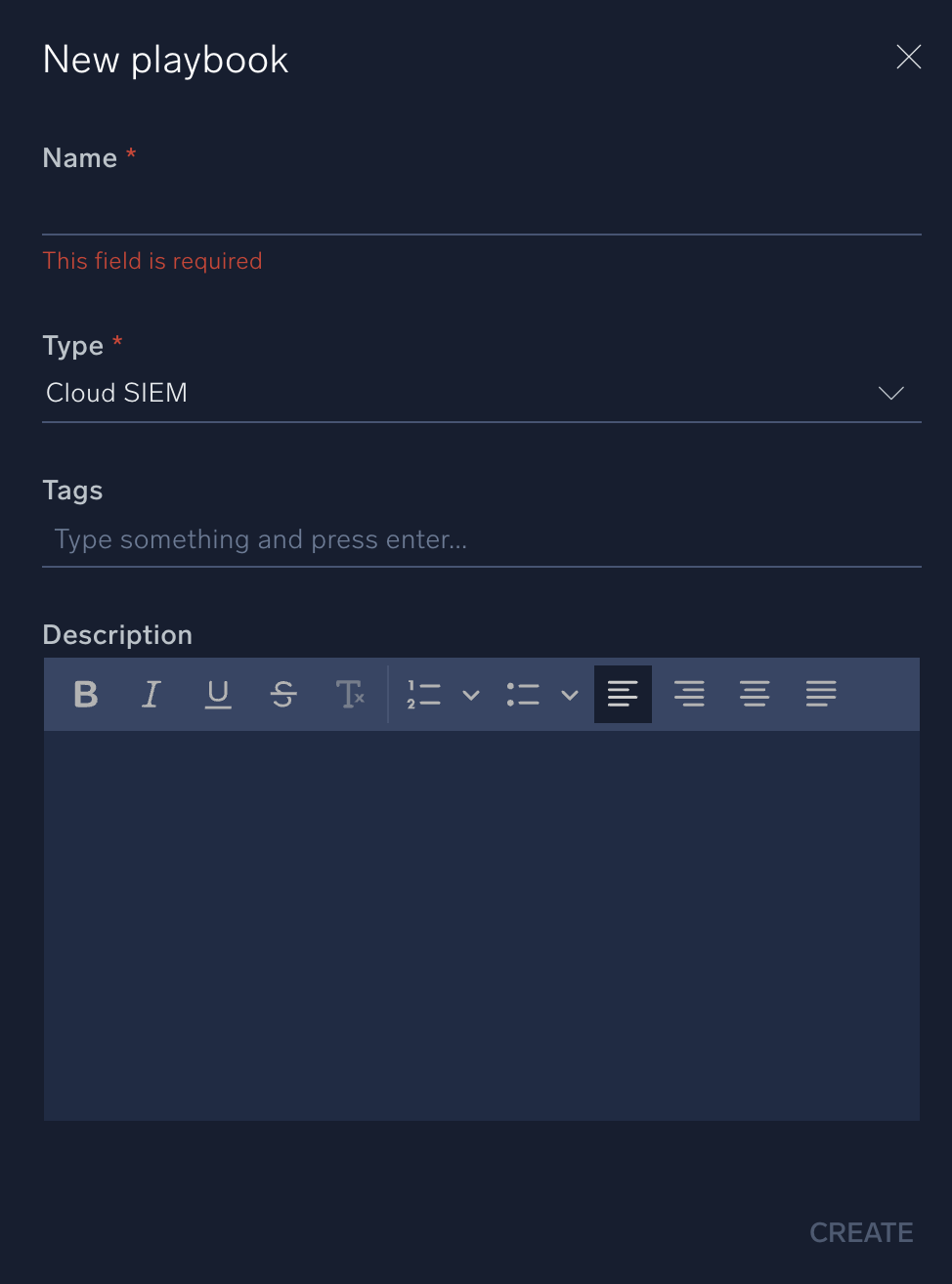
- Enter a Description of the playbook to help others understand how to use it.
- Select the incident Type. (For example, for Cloud SIEM automations, select Cloud SIEM. For playbooks run from inside another playbook, you can select another incident type to associate with it, for example, Denial of Service, Malware, Phishing, and so on.)
- In the chat box, describe the automation you want in plain language. For example,
Create a playbook that creates tickets and sends notifications.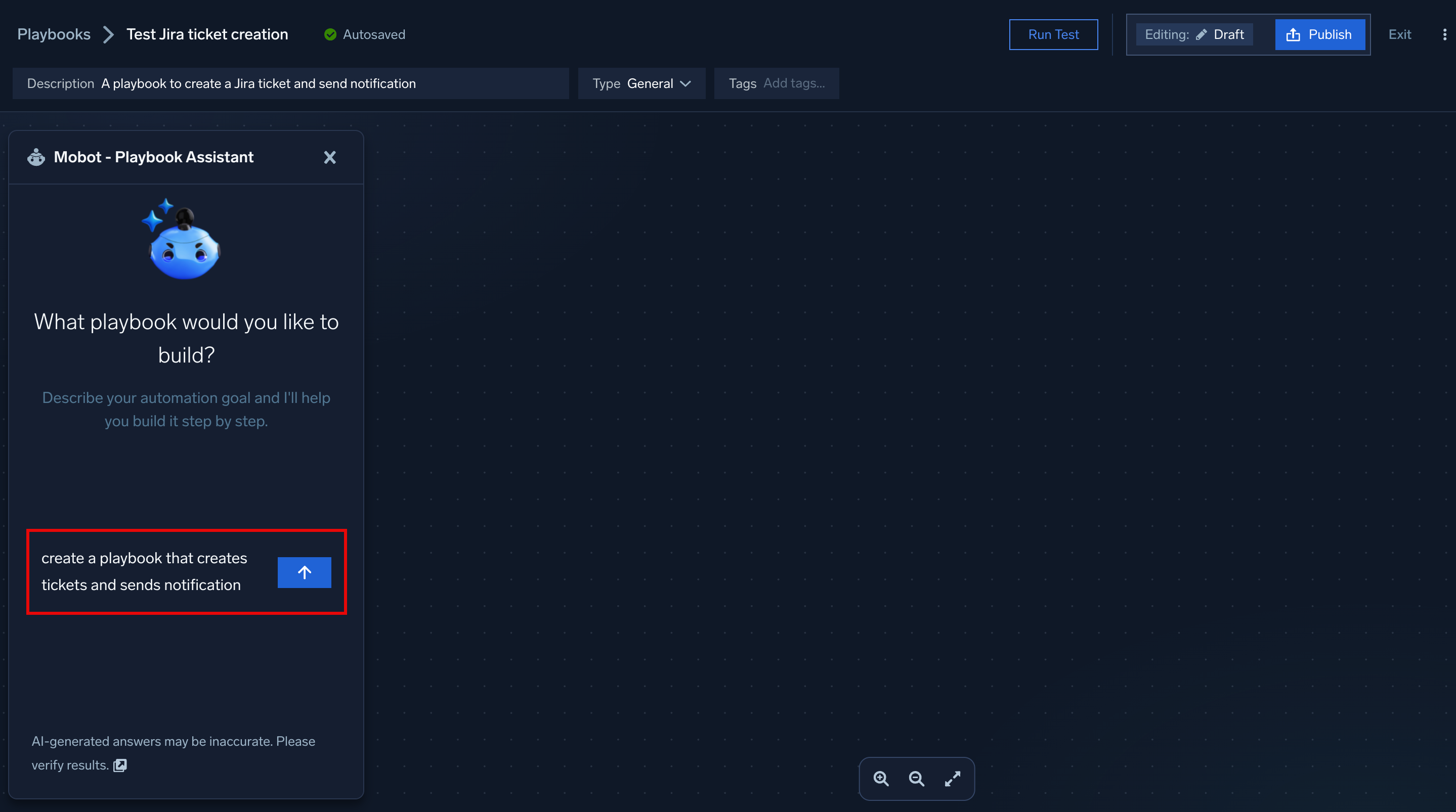
- Answer Mobot's clarifying questions. Mobot checks your org's available integrations, asks which ones you'd like to use, then walks through each action node one at a time to gather the configuration details it needs.
- Review and approve the plan Mobot proposes, including the trigger, steps, and flow between them.
- Once every step is confirmed, Mobot saves the playbook as a draft and posts a summary table of what was built (Step / Action / Details).
- To make changes, send a follow-up request describing the edit.
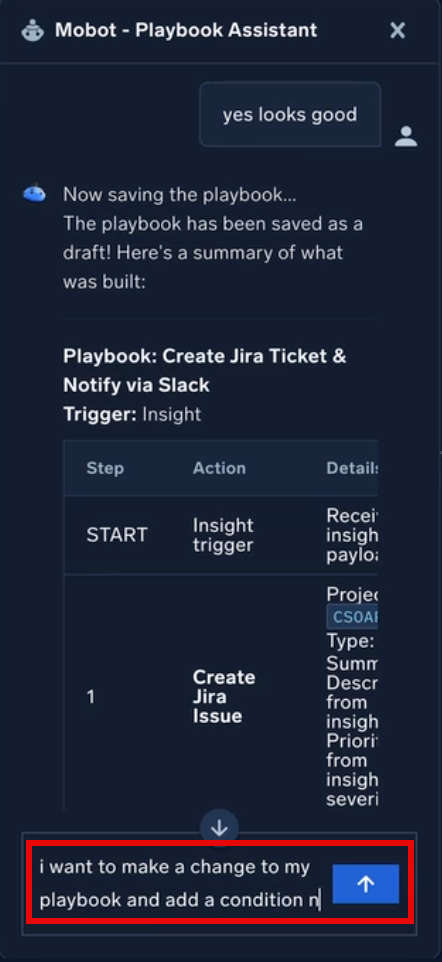
Mobot returns an updated plan reflecting the new flow. - Reply
Yes(or similar) to approve, and Mobot rebuilds and resaves the playbook. - Click any node on the canvas to verify the details Mobot filled in, such as the integration, resource, and field mappings pulled from the trigger payload.
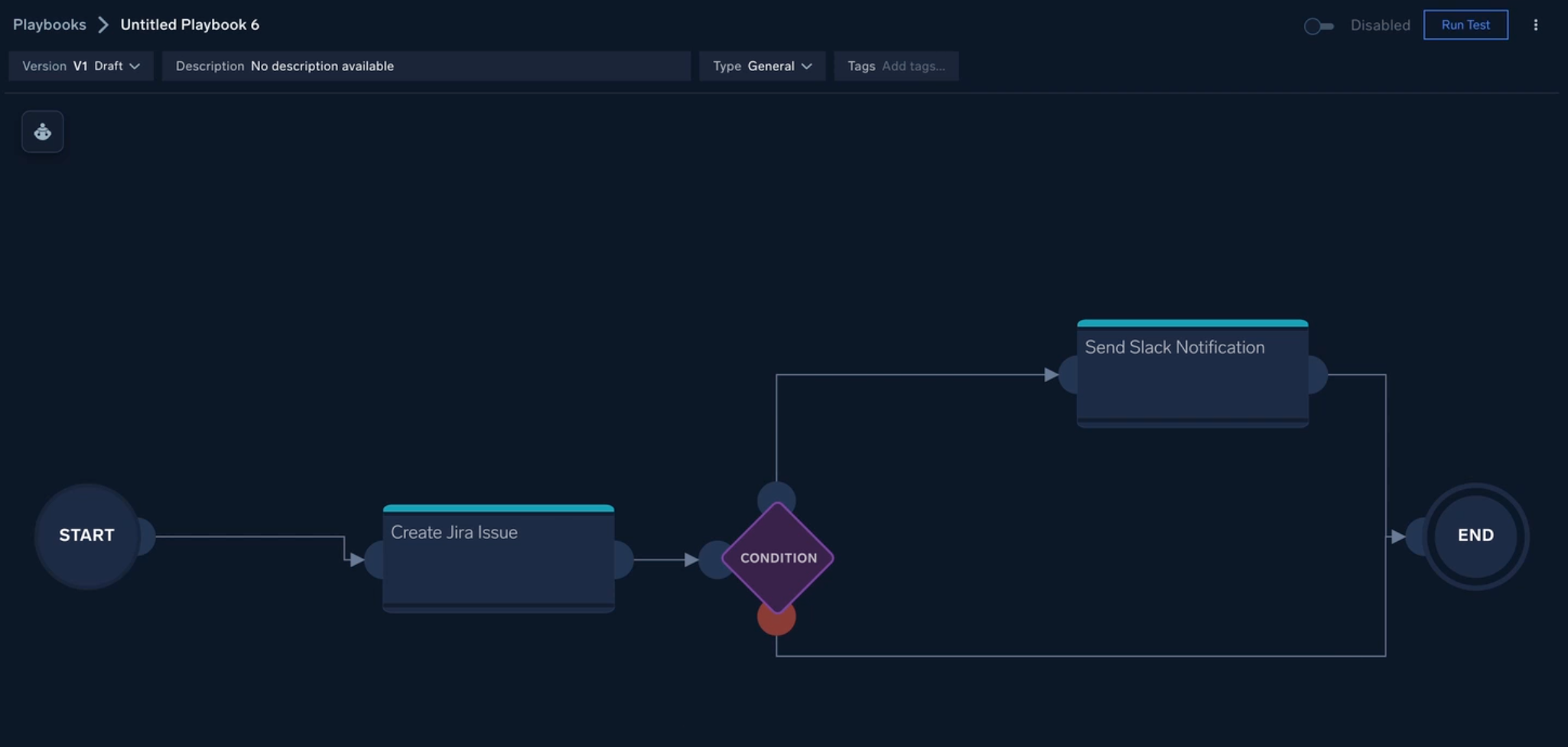
- Click Publish to make the playbook available for use in automations.