 Meet the new
 Dynamic Parsing (Auto Parse)
Dynamic Parsing (Auto Parse) allows automatic field extraction from your JSON log messages when you run a search. This allows you to view fields from JSON logs without having to manually specify parsing logic.
Dynamic Parsing and Auto Parse refer to the same feature. Dynamic Parsing is the term used frequently in documentation and the API; Auto Parse is what you'll see in the UI.
How it works
Dynamic Parsing happens at search time, also called run time, and can be thought of as a Run Time field extraction rule (FER). By default, your account is given one Run Time FER that encompasses all of your data.

With this FER defined, any search on JSON data will automatically parse out its JSON fields, which you can then use within your search query, exactly like any other field.
Key benefits
- Unlike Ingest Time FERs, where fields are persistent even when the FERs are edited or deleted, Run Time FERs and their corresponding parsed fields can be updated or removed at any given time.
- Dynamic Parsing is helpful when your log schema changes frequently, like if fields are added or removed frequently, which is especially true for custom application logs. Sumo Logic automatically detects the change in your schema and is able to adjust the output accordingly.
Enabling Auto Parse mode
You can enable Auto Parse mode in three ways:
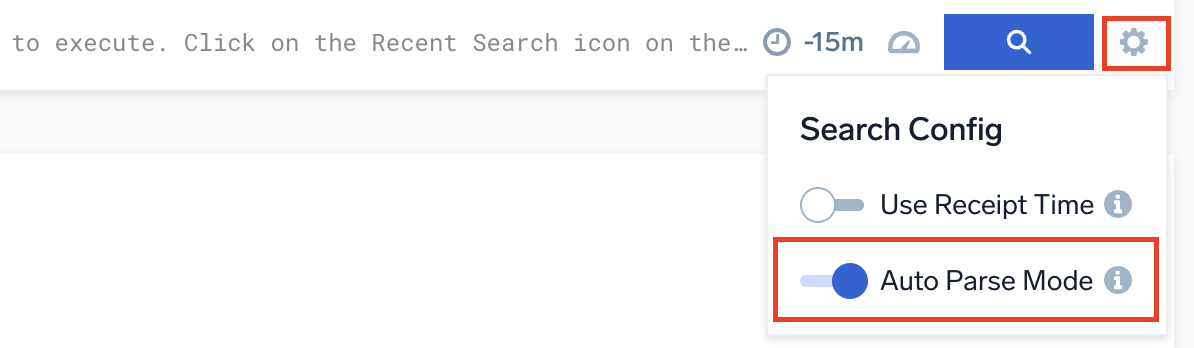
- Log Search page (UI). Click the search config ⚙️ gear icon and toggle on Auto Parse mode, as described below.
- Parses out all fields detected in your JSON data source, regardless of whether you are using them in your query or not.
- Supports aggregate scheduled searches. This mode is only applicable when searching JSON data sources that have been properly set up in a Run Time FER.
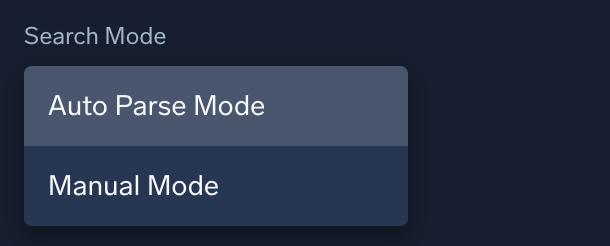
- Scheduled Views (UI). Set the Search Mode field to Auto Parse Mode when you add a Scheduled View.
- Search Job API. Set the
autoParsingModeparameter toAutoParsewhen you create a search job. This is the API equivalent of the Log Search page toggle.
Manual mode
To disable Auto Parse, set your search mode to Manual.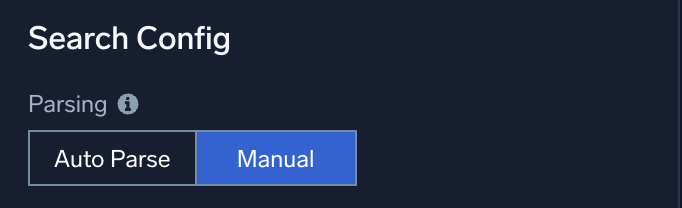
This mode is best suited for advanced users who want full control over parsing. Fields won't be parsed automatically unless defined by an Ingest Time FER, and you'll need to add parsing logic manually.
Set up a Custom Run Time FER (optional)
You can set up a Run Time FER using either the UI or the Dynamic Parsing Management API's createDynamicParsingRule operation.
By default, your account is configured with a Run Time FER that is applied to all of your data. The default Run Time FER, JSON Auto Parsing - All Sources, cannot be edited or deleted. With this FER configured, you do not have to set up anything to use Dynamic Parsing. However, having one FER applied to all of your data may not be optimal for your needs as it would be applied for every search query (including ones that may not query any JSON logs). Further details can be found in Best Practices for Designing Rules.
To optimize search performance you can manually set up Dynamic Parsing by defining your own Run Time FERs.
Run Time FERs have a scope, exactly like an Ingest Time FER, that defines which searches are applicable to Dynamic Parsing Auto Parse Mode. For Dynamic Parsing to work your query needs to have a scope that is defined in a Run Time FER, otherwise Auto Parse Mode will not be applicable.
To create a Run Time FER, follow Creating a new Field Extraction Rule and select Run Time for Applied At.
You may see a warning that this will create a duplicate rule. This is expected: your account already has a default Run Time FER (JSON Auto Parsing - All Sources) applied to all data. Narrowing the Scope to a specific Partition, sourceCategory, or other metadata resolves this.
Now that you have created at least one Run Time FER, you can start querying your JSON data and the fields inside those JSON payloads will be automatically extracted.
Reference parsed JSON fields
The field browser and search results (Messages table) have a few helpful features. Parsed fields are available in:
Field browser
- Search for fields by name.
- JSON structures are grouped using nested field groupings.
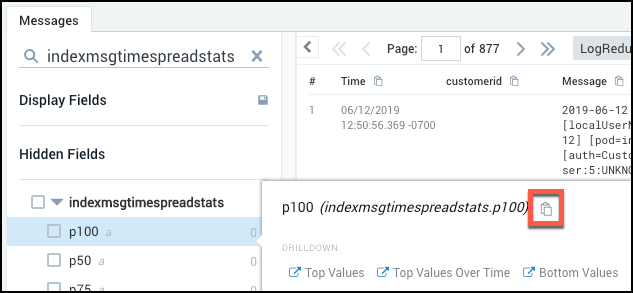
- Click the copy button to the right of each field to copy its name.
Search results table
- You can copy field names from JSON structures. After selecting (click and highlight) a JSON key in your results, right click and select Copy field name. See modifying a search from the messages tab for details on the other provided options.
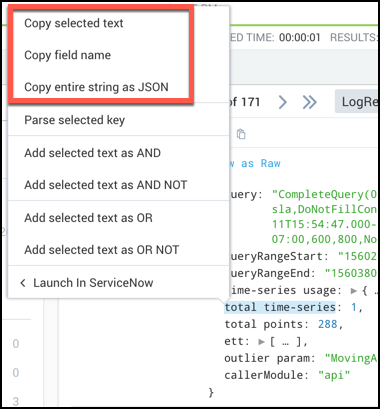
- Copying a field name using this option will automatically format field names that have special characters. For example, the field name shown in the screenshot, total time-series, is automatically formatted to %"total time-series" to work properly in a search query.
- Click the copy button to the right of each column (field) name to copy its name.

Rules and behavior
- FER scope matching. Run Time FERs are only applied to logs that match the scope of the query. When a search query is run, it is first determined if any of the Run Time FERs match the scope of the query. Those Run Time FERs with a matching scope are applied. Run Time FERs are applied per log line only if the log contains a JSON element.
- For example, a Run Time FER with the scope:
_sourceCategory = A- The query
_sourceCategory = Bis not applied since the scope does not overlap with the Run Time FER scope. - The query
_sourceCategory = A or _sourceCategory = Bis applied, only within the log lines that fall within_sourceCategory = A, while the remaining log lines are not parsed by this Run Time FER.
- The query
- For example, a Run Time FER with the scope:
- Null field handling. If a field does not exist in the schema of the log message, null results are displayed for the field (instead of erroring out).
note
When a field contains null values, dynamic parsing attempts to interpret those values and assigns them a string data type. This can create issues if you expect different data types for that field. To resolve the issue, use
field=*in the source expression to eliminate null values. - Ingest-time FER priority. Ingest Time FERs take precedence for field assignments. A Run Time FER will not override a field assignment from an Ingest Time FER. Conflicts between Ingest and Run Time fields are evaluated by each log line in the following ways:
- If the Ingest Time field has a valid value or is empty, and a Run Time field does not exist, the value from the Ingest Time field is applied.
- If the Ingest Time field does not exist or is empty and a Run Time field has a valid value or is empty, the value from the Run Time field is applied.
- If both an Ingest and Run Time field have valid values, the value from the Ingest Time field is applied.
- Special character formatting. Spaces in field names are automatically reformatted to underscores.
Limitations
- Dynamic Parsing extracts up to 100 fields per message. This 100 field count includes all built-in and parsed fields.
- Total fields shown in the field browser consist of all the fields extracted across log lines.
- The field browser displays the count of the fields as well as the distribution of values of each field. These calculations are done for the first 200 fields parsed by a Run Time FER and 100 dynamically parsed fields.
- Non-aggregate queries in Scheduled Views and Scheduled Searches aren't supported.
- Different messages may contain different sets of parsed fields when the number of parsed fields exceeds the dynamic parsing limit. This is expected behavior caused by batched and distributed message processing.