 Meet the new
Set the Time Range of a Search
note
This page covers how to set the time period a search looks at. By default, that period is measured against message time. To measure it against a different timestamp field instead, see Use Receipt Time or Use Searchable Time.
To set the time range for searches or metrics visualizations, click the time area.
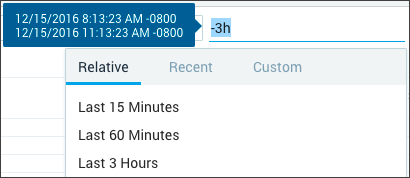
The current time range is displayed, along with the following options to set the time:
- Relative. Select an interval relative to the current time. The display is updated as soon as you make a selection. You can enter absolute time and dates.

- Custom. Click a date to select it as the start date, then move your cursor to the desired end date and click to select it. The date settings shown below the calendar are updated. You can scroll to navigate between months or click to go to a specific month. To specify the time, highlight the portion of the time value you want to change, and modify the entry.
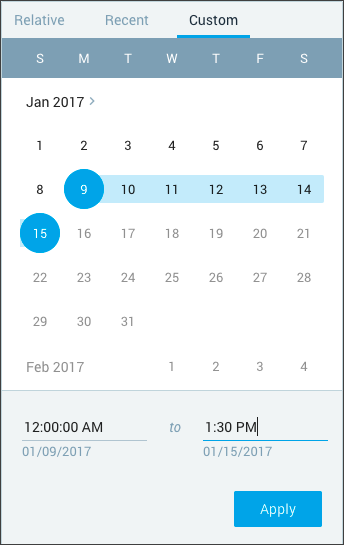
- Recent. If you have specified any relative or custom time ranges during your current login session, they are available for selection under Recent.
Display details
- Time ranges use either the default timezone set in your web browser, or the Default Timezone setting on the Preferences page, if you have set it.
- The timezone offset is displayed in the time range selector pop-up dialog. For example, in the previous screenshot, +1100 is added to display the offset for Australia, including DST.
- The timezone offset is also displayed in the Time column of the Messages tab in search results.
For the syntax rules for typing relative and absolute time range expressions directly into the time range field, see Time Range Expressions.