Use Searchable Time
Searchable Time refers to the additional processing time required to make logs available for search after they are received by the Sumo Logic system. This processing includes enrichment, indexing, and storage, all of which contribute to the overall searchable time.
This resolves the inconsistent error messages due to variable ingestion latency and non-linear receipt time indexing issues by marking the time only when the data is truly searchable. This ensures running queries with non-overlapping but exhaustive time ranges will prevent any gaps or duplication in the data.
Currently, Searchable Time is only available for the Log Search UI page, Schedule Searches, Saved Searches, Dashboards, and Search Job API queries.
Via UI
Run a search using Searchable Time
Follow the below steps to run a search by searchable time:
- Enter your query in the search text box.
- Choose the time range for the query.
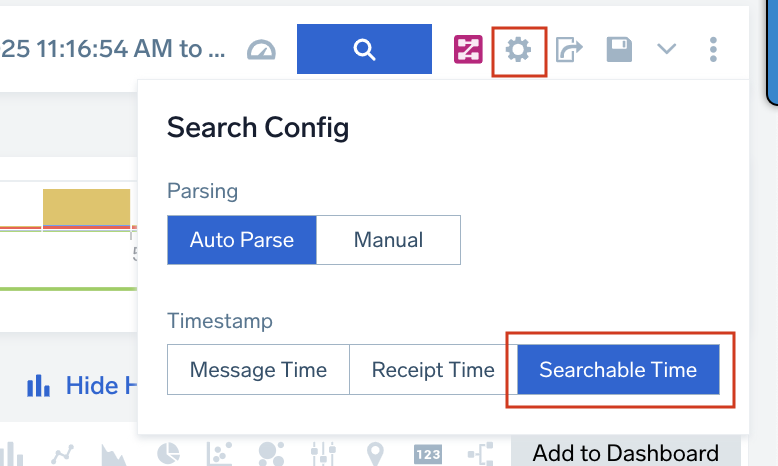
- Click the gear icon to open the Search Config menu and select Searchable Time timestamp option.
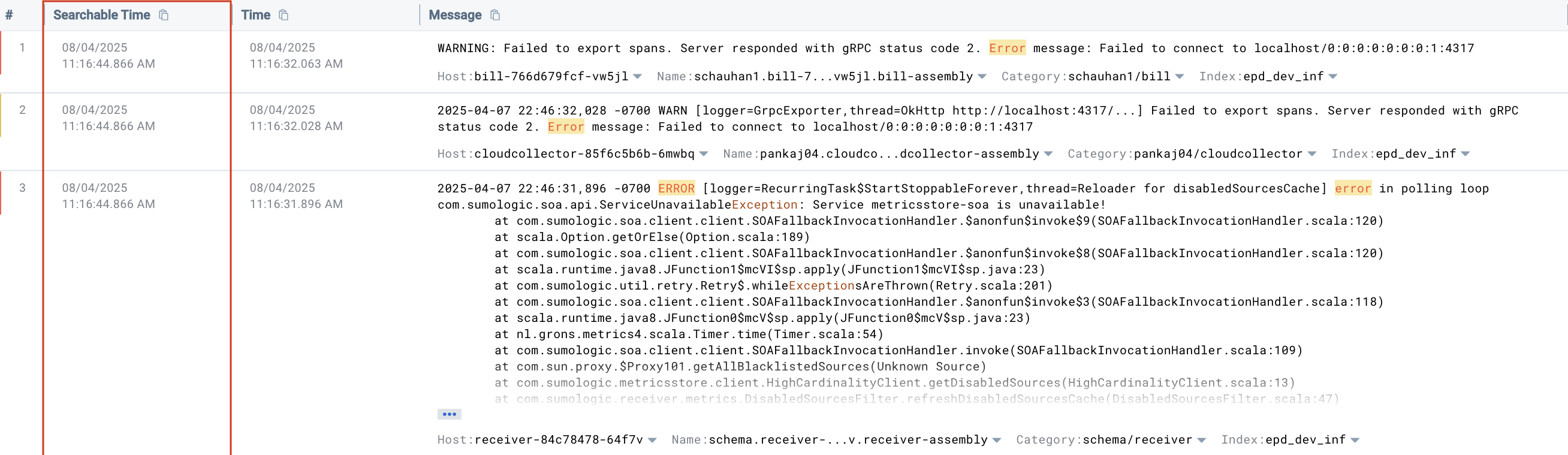
- Review the search results for wide discrepancies between message time, receipt time, and searchable time.
Run a scheduled search using Searchable Time
Follow the below steps to run a scheduled search by searchable time:
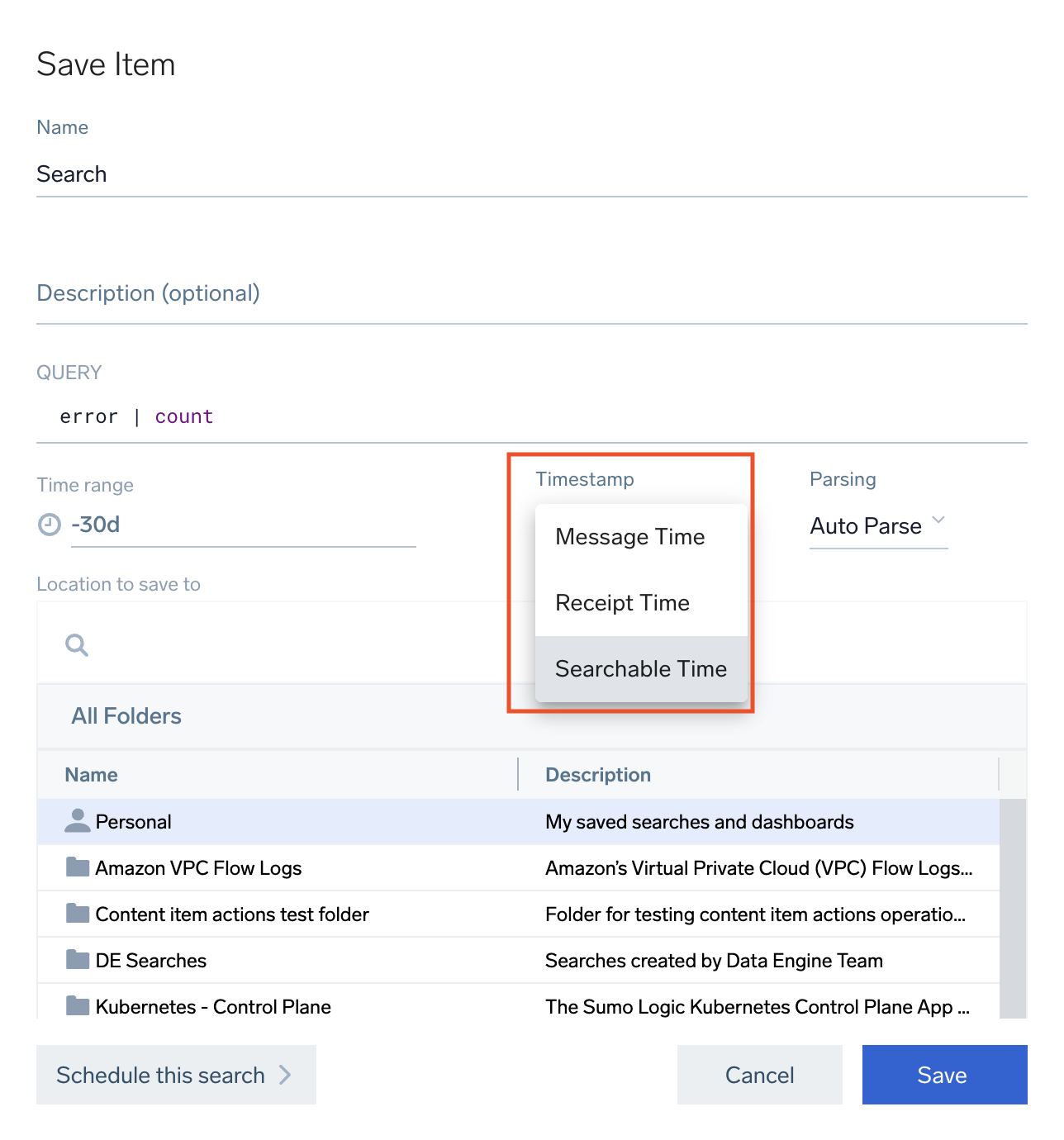
- Enter your query in the search text box and click Save As...
- In the Save Item pop-up, select Searchable Time from the timestamp dropdown.
Create a dashboard using Searchable Time
Searchbale Time will not be available for Metrics or Spans query.
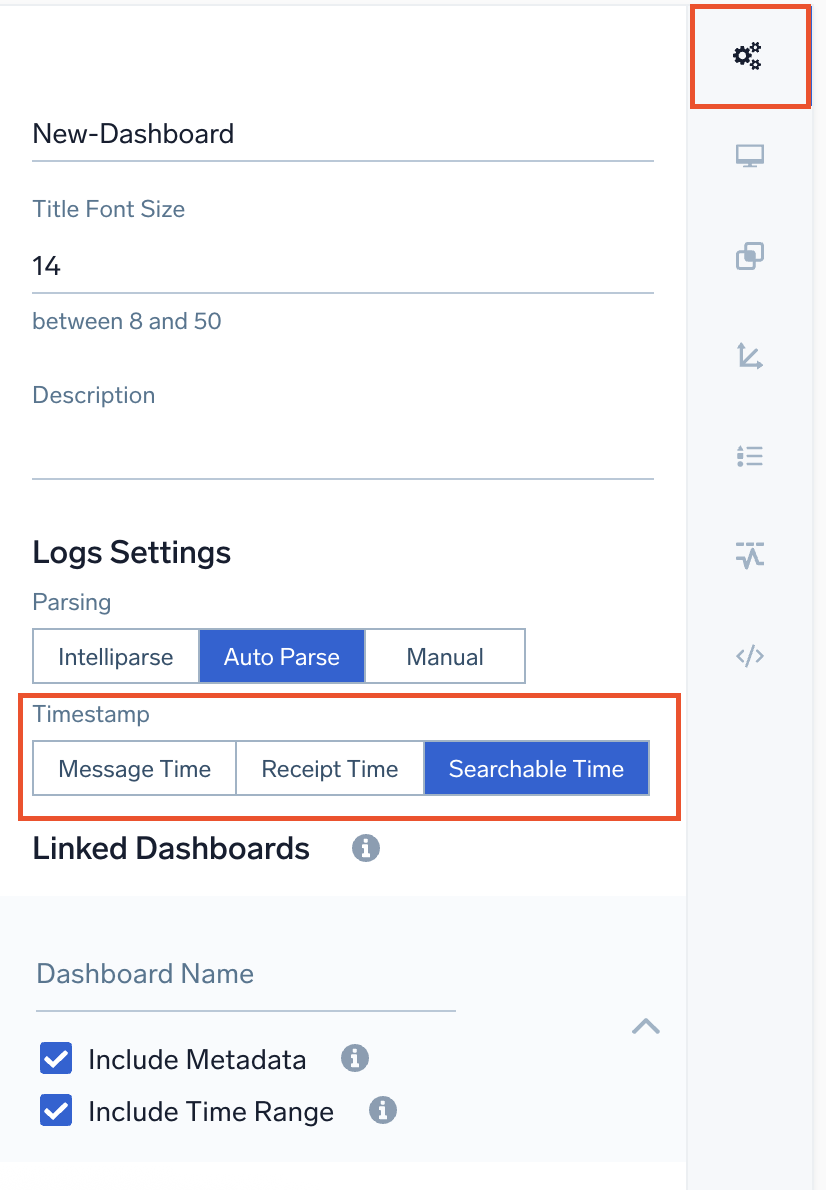
Follow the below steps to run a search using the searchable time in the dashboard:
- New UI. In the main Sumo Logic menu, select Dashboards > New Dashboard. You can also click the Go To... menu at the top of the screen and select New Dashboard.
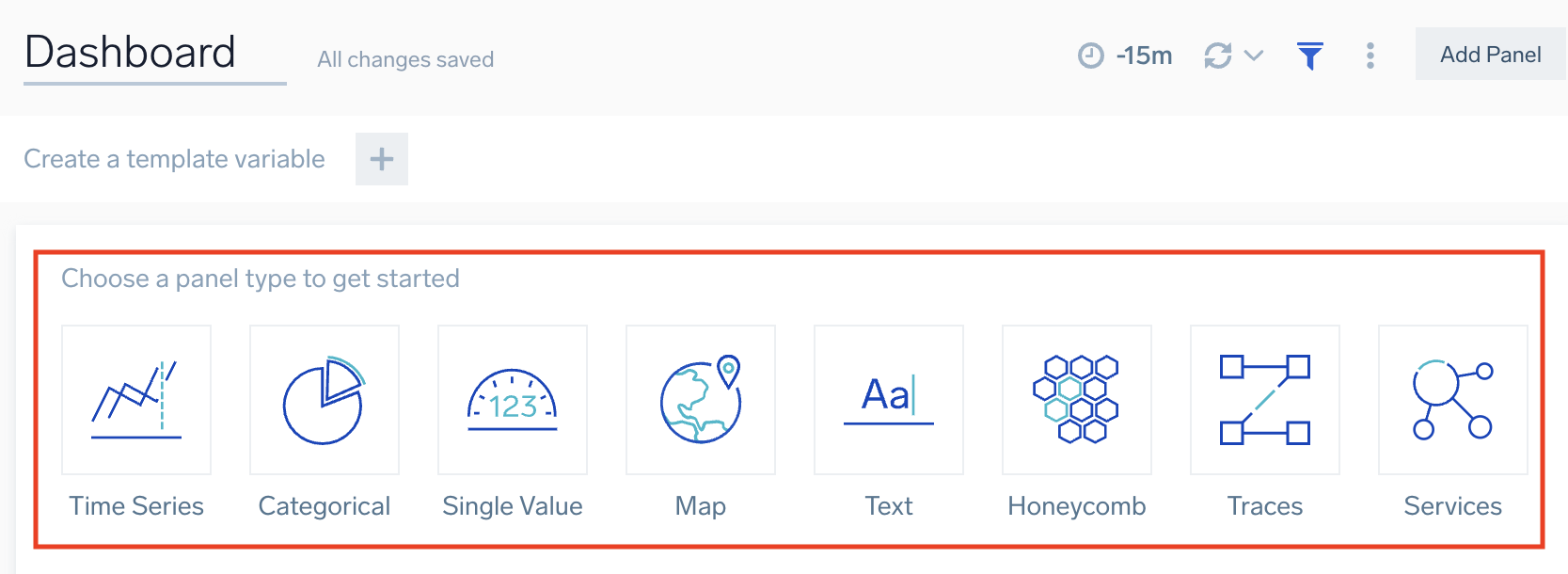
Classic UI. Go to the Home screen and select Dashboard. - Select a panel type by clicking the corresponding icon.
- You are prompted to provide a log query.
- Navigate to General configuration.
- Go to Logs Settings section and select Searchbale Time as the timestamp.
Via API
Run a search by Searchable Time using Search Job API
To create a search, refer to the Search Job API Documentation. Below mentioned parameter has been updated due to addition of searchable time feature:
| Parameter | Type | Required | Description |
|---|---|---|---|
intervalTimeType | String | Yes | This parameter defines whether you want to run the search by messageTime, receiptTime, or searchableTime. By default, the search will run by messageTime. |
If both runByReceiptTime and intervalTimeType parameters are present then the preference will be given to the intervalTimeType.
Create a dashboard with Searchable Time
To create a dashboard, refer to the Search Job API Documentation. Below mentioned parameter has been updated due to addition of searchable time feature:
| Parameter | Type | Required | Description |
|---|---|---|---|
timeSource | String | Yes | This parameter defines the time source of the query. Possible values are Message, Receipt, or Searchable. By default, Message will be used as the time source. Message. Uses the timestamp on the message. Receipt. Timestamp when the logs were received by Sumo Logic. Searchable. Timestamp when the logs are available for search. |
time_source field in the terraform supports Searchable value for dashboards.
Limitations
- Subqueries are not supported for Searchable Time.