 Meet the new
 Search Autocomplete
Search autocomplete enhances the query-building experience in Sumo Logic by providing real-time syntax suggestions, schema prompts, and partial query predictions on the Search page. These suggestions simplify query writing for users at all skill levels, making it easier to discover relevant fields, minimize errors, and write accurate, efficient queries. Suggestions comply with your role-based access control restrictions.
Search autocomplete is also supported in Dashboards, Scheduled Searches, and on the Manage > Users page in the New Role dialog's Query String section.
Mobot, Sumo Logic's AI-powered conversational assistant, turns your questions into log search results, no query expertise required. Instead of iterating on query syntax, ask in plain language and get an answer in a single conversational turn.
How to get started
- Start a log search. From the New UI or the Classic UI, go to Log Search and begin typing your query.
- Leverage syntax and schema suggestions. As you type, watch for real-time suggestions for fields and operators. Use the arrow keys to navigate suggestions and press
Tabto select a highlighted suggestion. - Take advantage of predictions. Use partial query predictions to build queries faster and more accurately.
- Review and correct errors. Address flagged errors before running your query to ensure it executes as intended.
- Edit queries with Mobot. If you're using Mobot, modify your query directly in the code editor field and use autocomplete suggestions there for further refinement.
Features
Token-by-token prediction and autocomplete
Get real-time suggestions for query completion as you type, with token-by-token predictions that help you quickly finish your queries.
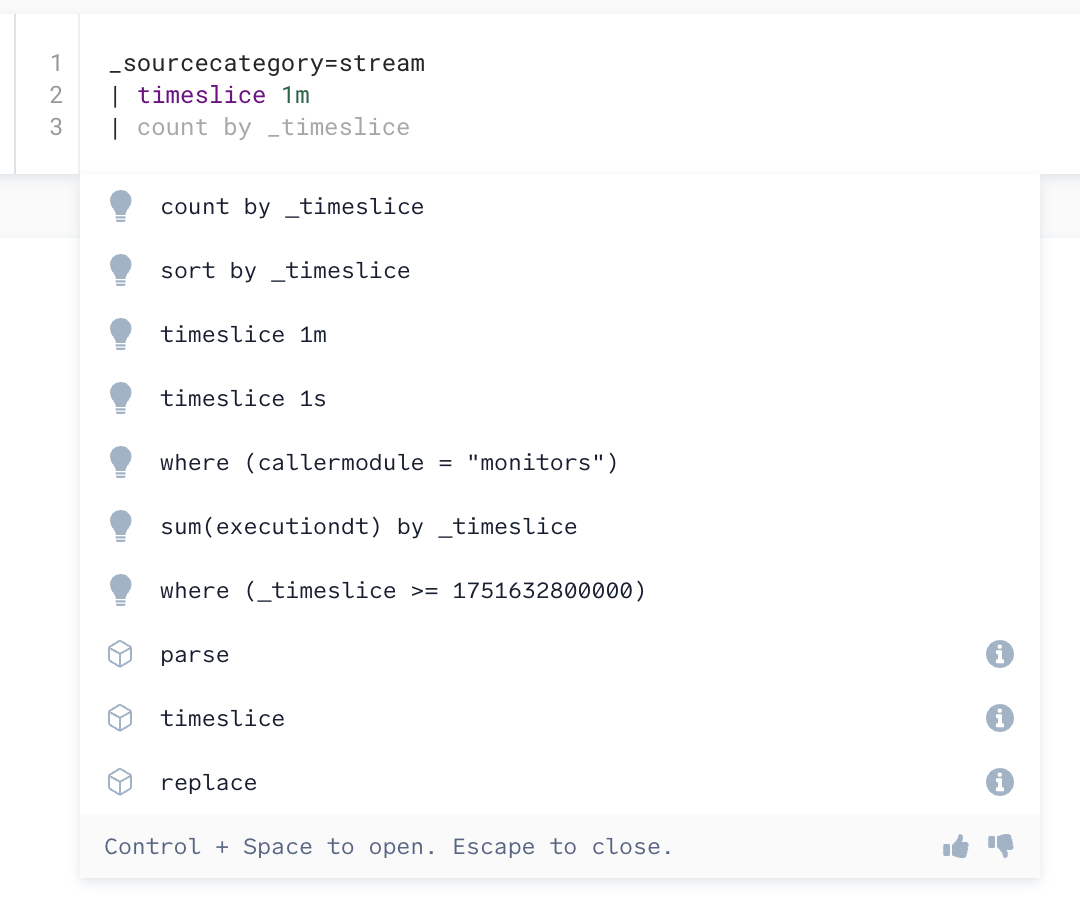
- Operator suggestions. When typing the first letters of an operator, the system displays all matching operators related to those letters, helping you quickly find and select the appropriate one. For example, typing
comight suggestcount,count_distinct,count_frequent,compare,compose, or other related operators. - Metadata key-value suggestions. When you start typing a source expression (for example,
_sourceCategory=), you are provided with relevant metadata key options to help autocomplete your query. Once you select a key, it displays the available values for that metadata. This includes built-in metadata fields as well as custom fields configured in your system. - Clause suggestions. When you start typing an operator, you are provided with the entire clause to complete the remaining portion. Clause suggestions are currently restricted to the
where,count,min,max,count_distinct,avg,first,last,stddev,sum,if,sort,limit,timeslice, andfieldsoperators.
Press the Tab key to accept a suggestion.
Schema discovery and field suggestions
Automatically receive suggestions for relevant Sumo Logic fields in structured data like JSON logs, making field discovery much easier. It also offers the names of Collectors, Sources, and Partitions, which are automatically configured in your system when you create them.
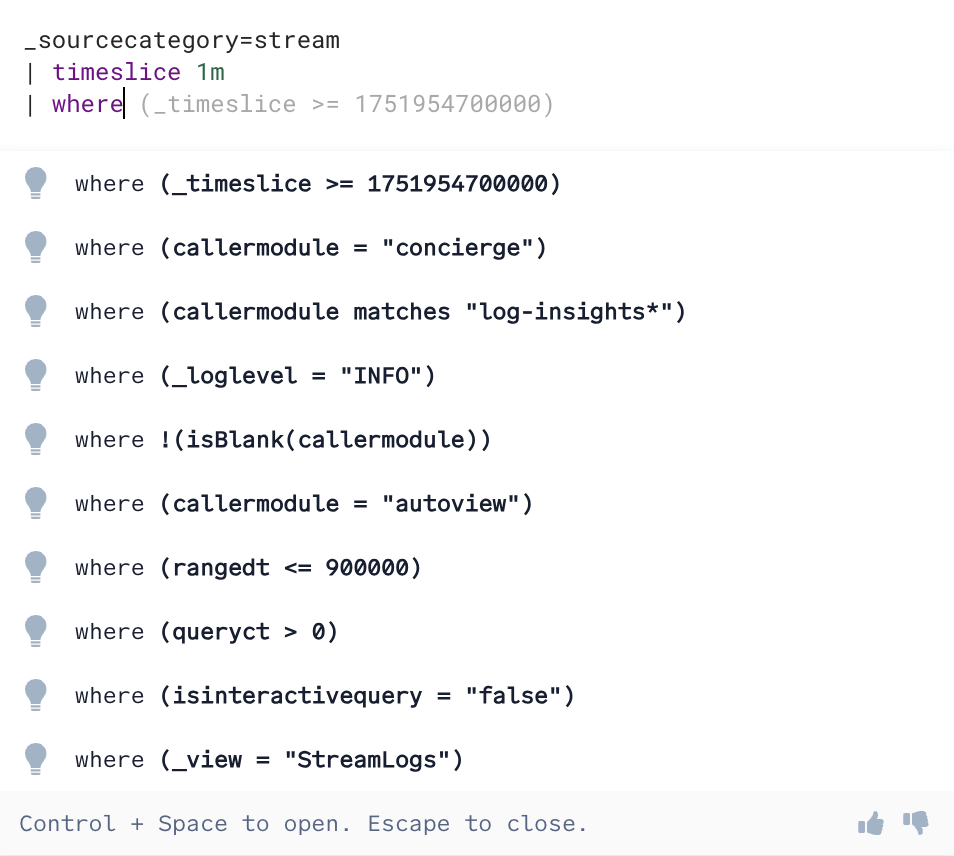
- Field suggestions. For structured logs, the system automatically suggests relevant fields such as
userID,eventType, ortimestampas you type. This eliminates the need for manual inspection of logs, making it easier to filter and aggregate data. - Inline suggestions. An inline suggestion is a real-time, context-aware recommendation within the search editor. By default, the first item in the dropdown is treated as an inline suggestion, but you can use the keyboard to navigate other suggestions, which are also shown inline. Press
Tabto apply an inline suggestion.
Next operator prediction
The system intelligently predicts the next search operator or offers partial query suggestions based on your input, reducing manual effort. For example, typing a query such as source=logs | where status="error" prompts suggestions like count by employeeID or other common fields, aligning your query with standard patterns.
Contextual autocomplete and field discovery
Suggestions are ranked based on your organization's common queries, making query completion smarter and more relevant. This ensures that autocomplete options are not only relevant but also contextually accurate, speeding up the query-writing process. If no suggestions appear, this could be because there is no relevant data available to offer a contextual suggestion.
Typo detection and links
As you type, search autocomplete underlines possible typos in your query and suggests corrections, and colorizes parts of your query for easier detection. Suggestions also link to documentation for search operators and other Sumo Logic features. Click the info icon tooltip to open the page for that topic.
Settings
Enable or disable search autocomplete
By default, search autocomplete is enabled.
- New UI. In the top menu, select the person silhouette icon
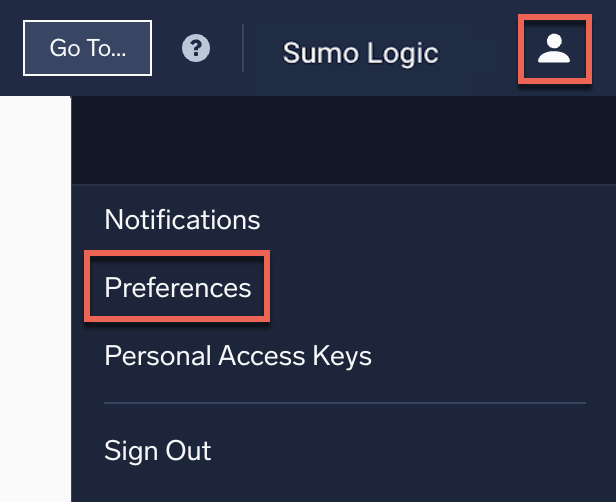 and then Preferences.
Classic UI. In the main Sumo Logic menu, select your username and then Preferences. - Access your Preferences.
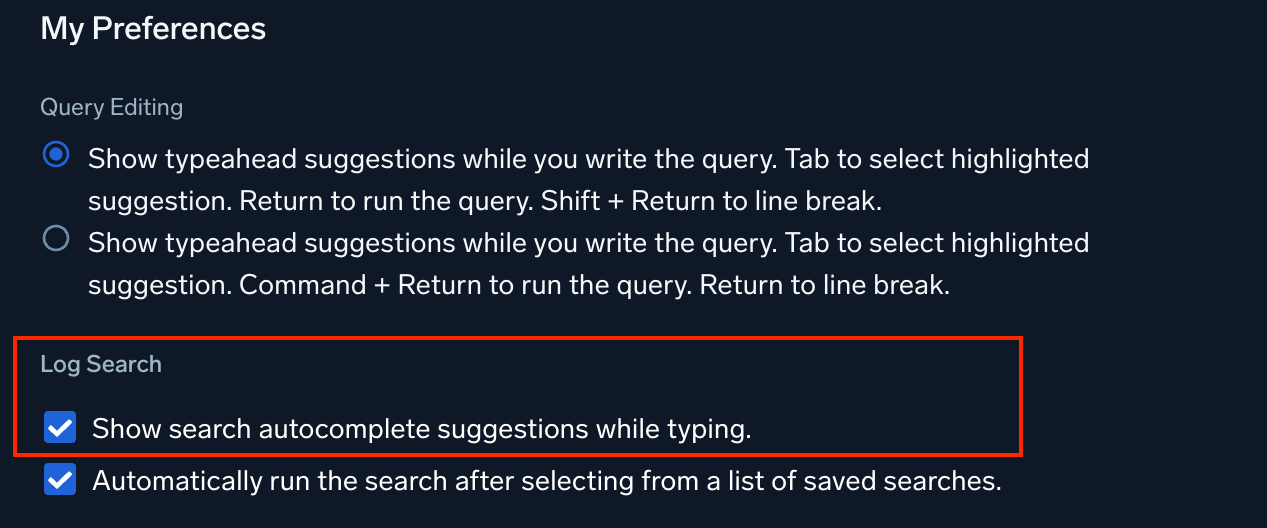
- Under My Preferences, go to the Log Search section and check or uncheck Show search autocomplete suggestions while typing to turn suggestions on or off.
Keyboard shortcuts
On a Mac, use Option in place of Alt.
Alt + SpaceorEsc. Open or close the suggestions dropdown.Alt + Esc. Stop the dropdown from opening while you type, for the current session. To turn suggestions off permanently, use the Show search autocomplete suggestions while typing preference above.
For how Return and Shift + Return behave in the query box, see Typeahead suggestions below.
Typeahead suggestions
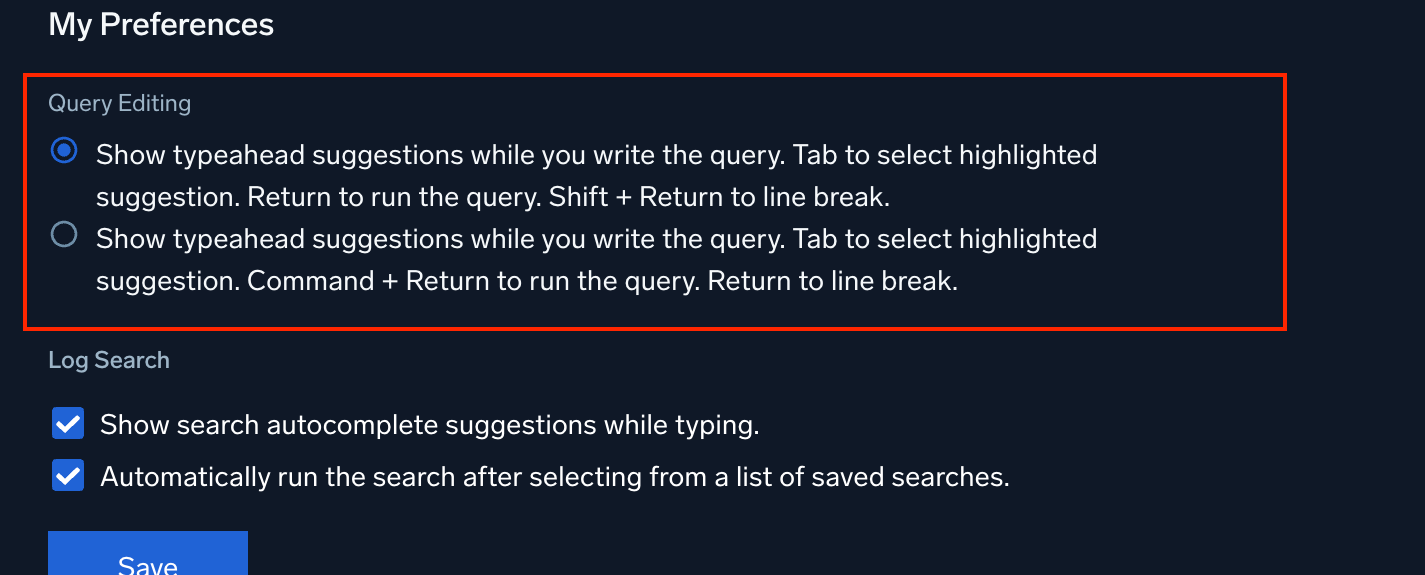
Under My Preferences > Query Editing, you can control how Return and Shift + Return behave while typing a query. By default, Return runs the query and Shift + Return adds a line break. Switch to the alternate option to use Command + Return to run the query and Return to add a line break instead. Tab always selects the highlighted suggestion regardless of which option you choose.
Limitations
- Suggestions are predictive in nature and may not be comprehensive or completely accurate in every circumstance.
- Search autocomplete does not suggest all available Sumo Logic keywords, metadata terms, and search operators. For full details on what is supported, see Search Operators.
- Search autocomplete does not show Field Extraction Rules or values from HTTP headers.
Related AI-assisted search features
Search autocomplete is a passive, built-in part of the query text box; it isn't presented as a standalone named feature in the UI. Do not confuse it with:
- AI Parse Assist. A UI action you trigger from the right-click menu on selected log text to generate a
parsestatement. - Mobot. A conversational assistant that writes and runs entire queries from a plain-language question, rather than suggesting completions as you type.
This capability shipped in release notes as Logs Query Assist (Preview, November 2024) and Query Assist (full release, July 2025). It's documented here as Search Autocomplete to match the terminology used in the product UI.