 Meet the new
 Pin a Search
The pinned search feature allows you to start a search, then "pin" it, so it will continue running in the background independent of the browser session. Then, you can close the Search page or log out and find your results later. To see your pinned searches:
- New UI. In the main Sumo Logic menu, select Logs > Pinned searches.
- Classic UI. In the main Sumo Logic menu, select Recent > Pinned Searches.
There are two ways to pin a search and run it in the background:
- If a search completes in under about a minute, you can pin it yourself from the search bar menu. See Pin and unpin a search.
- If a search's elapsed time exceeds about a minute, Sumo Logic prompts you to run it in the background automatically and emails you a link to the results when it's done. See Run a slow search in the background automatically.
Once pinned, a search will run in the background for up to 24 hours. If it has not finished by then, it will be paused. There is no notification when your search is paused, but you can just restart the search to continue the query. Search results are available for three days. Once a search is pinned, you can easily unpin it, or remove it from the Pinned searches list.
Limitations:
- There is a limit of ten pinned searches per user.
- Queries that use the save operator cannot be pinned.
- There is a known issue that may cause pinned searches to be lost when Sumo Logic performs an upgrade. For information on scheduled maintenance for your deployment, see Sumo Logic status.
Pin and unpin a search
If a search completes in under about a minute, pin it manually so you can find it later.
- Enter a query in the search box and click Start Search.
- After the search completes, click the three-dot kebab icon and click Run in Background (Pin) from the provided options.
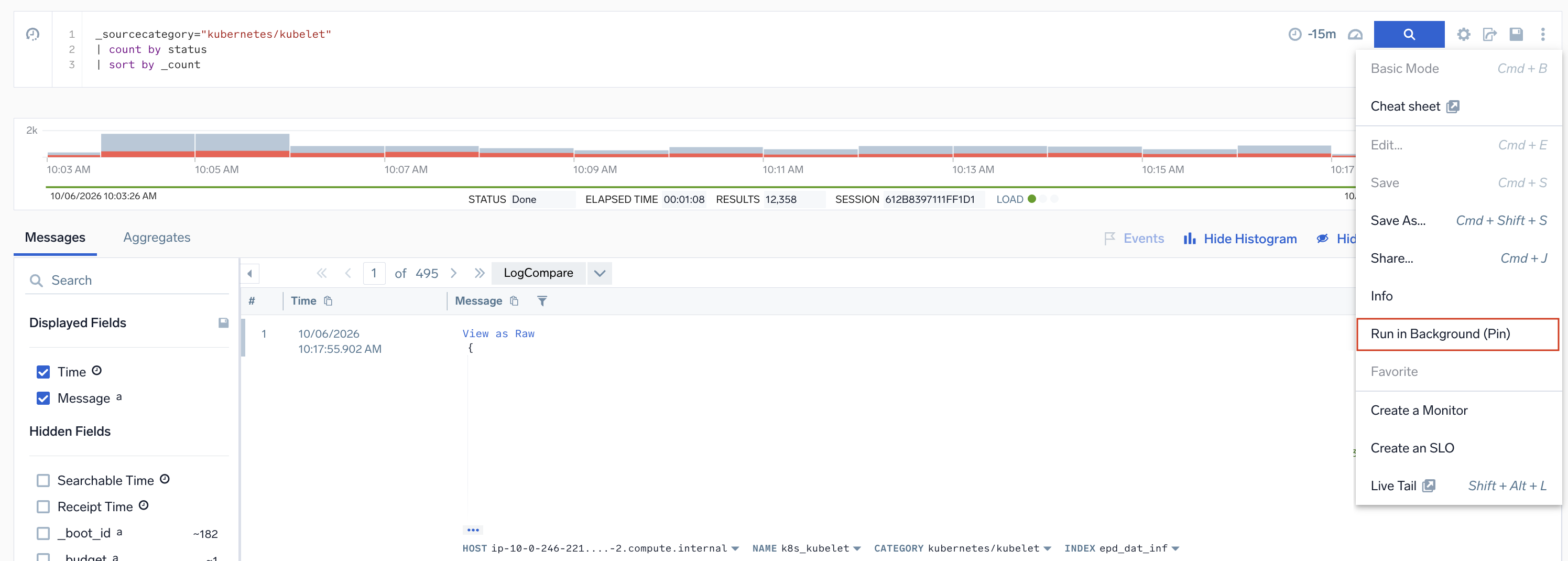
- A message confirms where you can find the pinned search later. Since the search already finished, you will not receive an email notification. The pinned search is named by default with the name of the search.

- To change the name of the pinned search, double-click the Search tab to activate the name field and enter a new name.
- To preserve the pinned search, follow the steps in Save a pinned search.
- To unpin the search, click the three-dot kebab icon and click Unpin from the provided options.
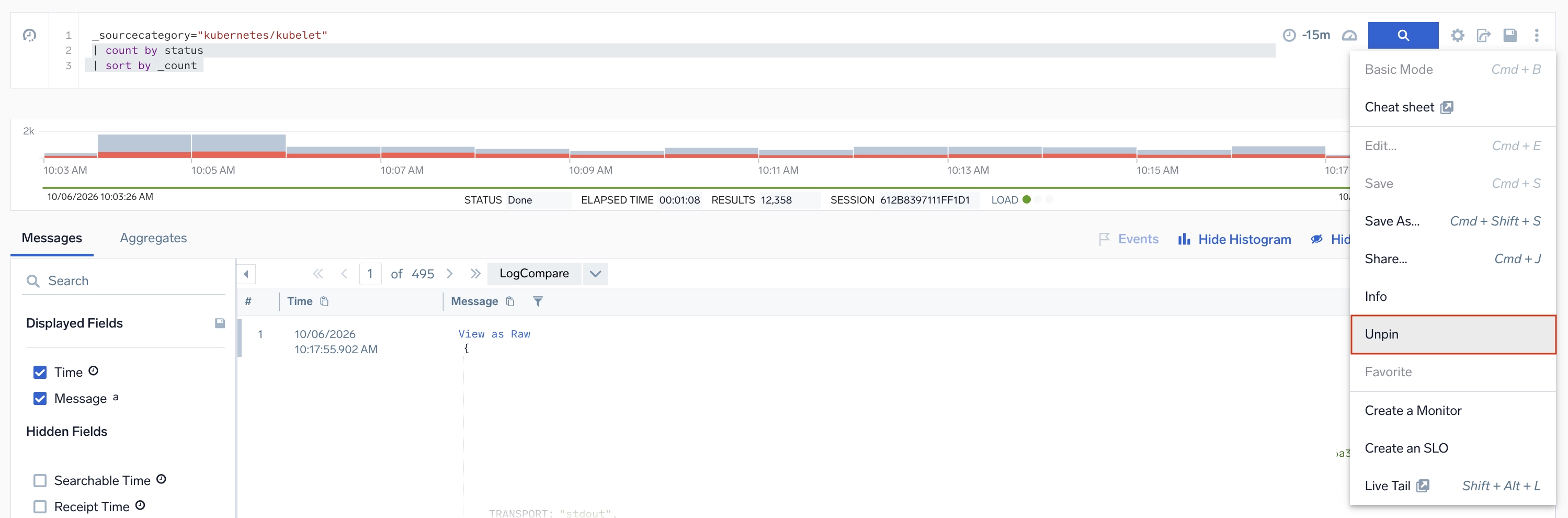
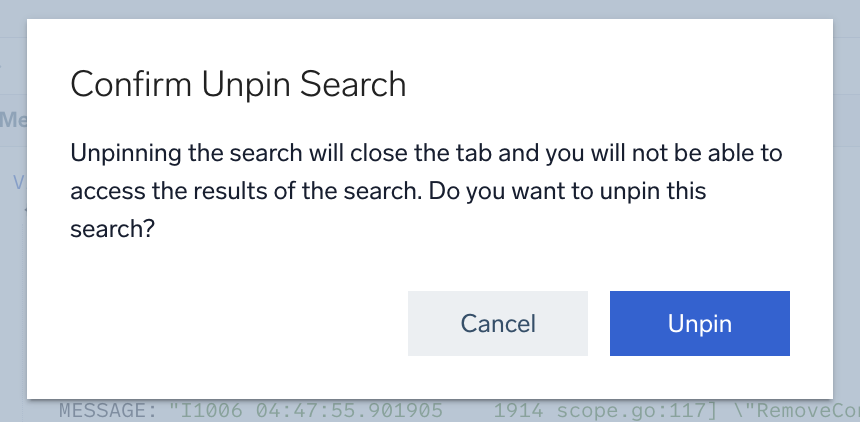
- A confirmation dialog appears, since unpinning closes the tab and you will not be able to access the results. Click Unpin to confirm. The search is removed from the Pinned searches list. (Removing an instance of a saved search from the Pinned searches list does not delete the saved search from your Personal folder.)
Run a slow search in the background automatically
If a log search's elapsed time exceeds about one minute, a banner appears below the log query bar with the message "This search is taking longer than expected" and a Run in Background link.
Click Run in Background to pin the search, the same as pinning a search manually. Because the search is still running, a message confirms where you can find the search later, and that you'll receive an email notification when it completes.
Once pinned, the search appears in your Pinned searches list, and when it completes, you receive an email notification with a link to the results, so you do not need to keep the Search page open while you wait.
Limitations:
- This automatic prompt only applies to log searches. It does not appear for metrics searches.
- The banner does not appear if you have already reached the limit of ten pinned searches for your user.
- The banner does not appear while you're using Emulate log search to test a role's or user's log access rights, since emulated searches use a different permission flow.
Save a pinned search
When you save a pinned search, it appears in your Pinned searches list.
- Click the name of the search to open it in the Search tab.
- In the Search tab, click the three-vertical dot icon and click Save As from the provided options. The Save Item dialog appears.
- Enter a unique Name in the text field. In our example below, we entered "Invoke Frequency".
- Optionally, enter a Description.
- Click Save.
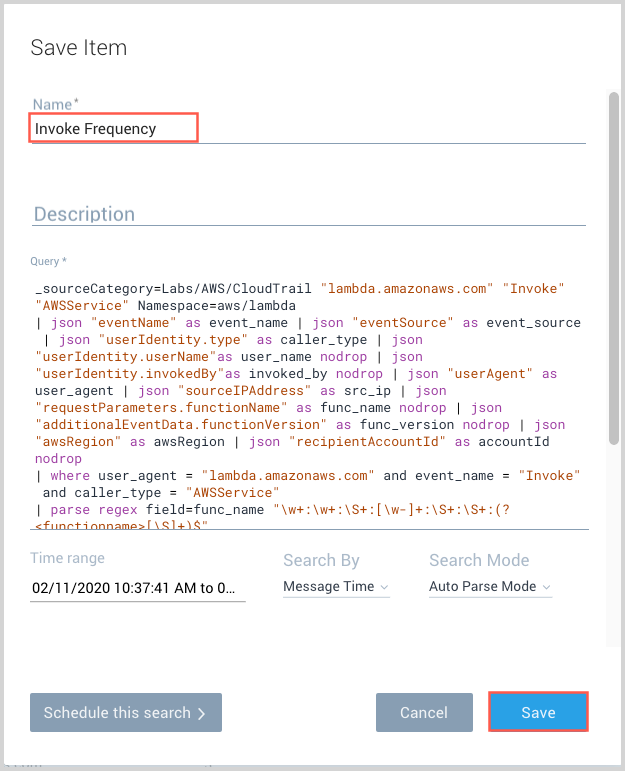
The search is saved to your Personal folder.
Manage pinned searches
To open a previously pinned search:
- In the Pinned searches list, click the name of the search.
- The search query and any existing results are displayed in the Search tab.
- To run a new instance of the search, change the time range expression and click Start Search.
To rename a pinned search:
- In the Pinned searches list, click the name of the search.
- The search query and any existing results are displayed in the Search tab.
- Double-click the Search tab to reactivate the name field.
- Enter a new name and press Enter.