 Meet the new
 Sumo Logic Mobot

Mobot is Sumo Logic's AI-powered conversational assistant for security analysts, on-call engineers, administrators, and other Sumo Logic users. Ask questions in plain language to investigate log data or learn how to use the platform without selecting an agent or writing queries from scratch.
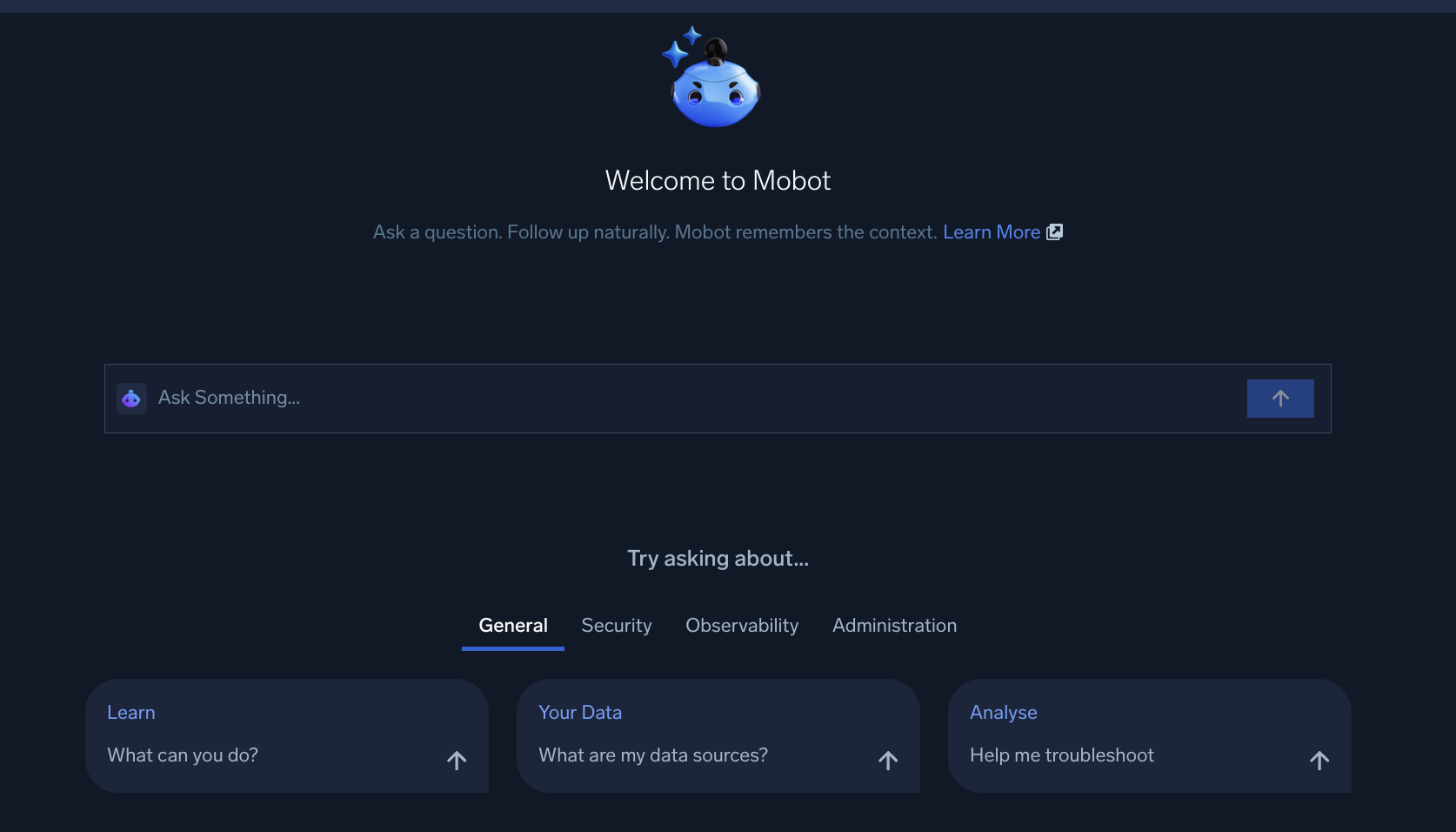
In a single conversation, Mobot determines whether you have a log data or a how-to question and responds accordingly. For log data questions, it identifies relevant sources, correlates information across logs, and returns inline results with anomaly callouts and suggested next steps. For how-to questions, it provides structured answers and reference links from Sumo Logic documentation. Conversation context lets you refine, pivot, and dig deeper without starting over.
Use cases
- Security. Investigate login attempts, data exfiltration, and threat intelligence matches. For example,
Have any IPs or domains in my logs been flagged by threat intelligence?See Security investigations for more examples. - Observability. Spot error spikes, latency anomalies, and timeouts. For example,
Are there any error spikes happening in the last 15 minutes?See Observability investigations for more examples. - Platform administration. Check on Collectors, data sources, and data usage. For example,
Any collectors that have gone silent in the last few hours?See Platform administration for more examples. - Data volume and billing. Ask about ingest volume by collector, source category, tier, or time range and get answers in any unit, without writing a query against the Data Volume Index directly. Useful for admins tracking noisy sources and finance teams attributing spend. For example,
What are my top 10 source categories by daily ingest volume?See Data volume for more examples. - How-to questions. Get setup guidance and answers about the platform, sourced from official Sumo Logic documentation. For example,
How do I configure OpenTelemetry for my service?See Sumo Logic how-to questions for more examples.
Key capabilities
- Unified conversation. Investigate logs and ask how-to questions without switching tools or losing context.
- Guided analysis. Mobot asks targeted questions when your intent is ambiguous and identifies missing sources or partitions when required data is not configured.
- Context-aware analysis. Mobot plans multi-step analyses and considers relevant data sources, schemas, lookup tables, historical queries, and time ranges. It also uses queries from dashboards opened in your organization in the last 90 days through retrieval-augmented generation (RAG) to better understand your intent and data structure.
- Documentation-grounded answers. How-to responses include information and reference links from official Sumo Logic documentation.
- Inline findings and visualizations. Mobot returns structured results, highlights notable findings, recommends next steps, and generates charts that you can add to dashboards.
- Content creation and management. Create and manage monitors, dashboards, and playbooks through conversation, with a human in the loop before anything is deployed or activated. See Create and manage content.
- Cloud SIEM investigations. On a Cloud SIEM insight, click Ask Mobot to continue a SOC Analyst Agent investigation in Mobot with the insight's evidence-backed verdict and context loaded. You start this from the insight, not from Mobot directly.
- Conversation history. Saved conversations let you resume, revisit, or branch previous investigations.
At a glance
- Response time. Typically under 2 seconds for most queries. See response time FAQ for details.
- Compatible log types. Structured, semi-structured, and unstructured logs. Unstructured logs already used in dashboards do not require Field Extraction Rules. See Compatible log formats for details.
- AI provider. Amazon Bedrock (no customer data used for training). See Security and compliance for details.
Sumo Logic Academy offers free training courses covering these concepts that allow you to practice in a lab environment and level up your knowledge. Check out self-paced and free live instructor-led offerings today! (To access our self-paced courses, first sign in to our learning portal.)
- Self-paced. Hands on with Mobot and Dojo AI.
- Instructor-led virtual classes. Workshops: Hands on with Mobot and Dojo AI.
Watch this micro lesson to learn what Mobot is, its key capabilities, and how its AI-powered, unified conversational interface accelerates your investigations.
Get started
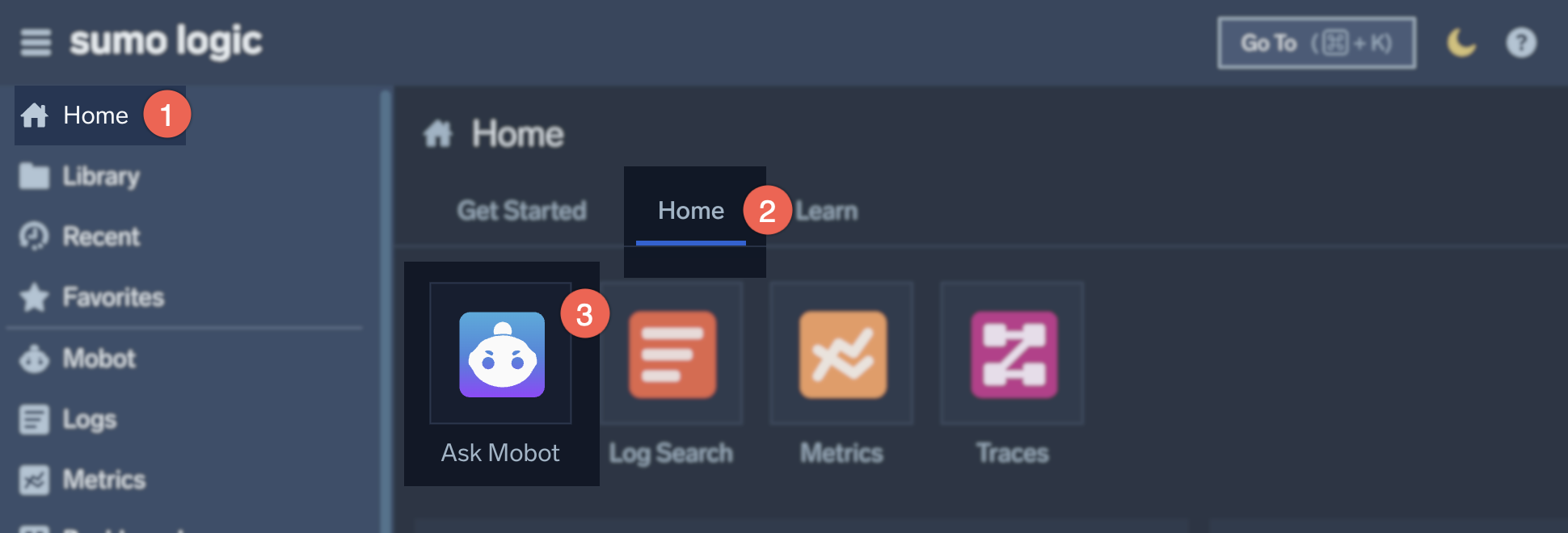
- Open Mobot. Click the Mobot tile on your Home tab or left nav.
 note
noteIf you have Cloud SIEM, you can also open Mobot from an Insight's Details page with the Ask Mobot button to continue an investigation with the insight's context already loaded. See SOC Analyst Agent.
- Type a question in the text field and press Enter or click the send button.
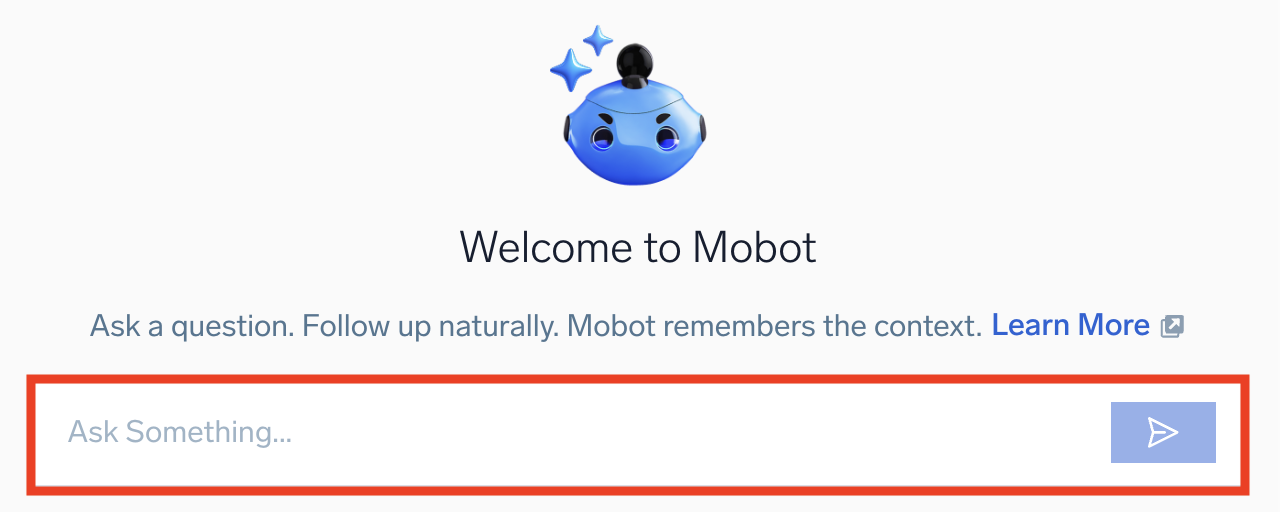
You can ask something about your log data (for example, Show me logs from last 15 minutes) or a how-to question (for example, How do I set up an OTel Collector?). See How Mobot responds for what happens next, or jump to Example end-to-end conversation to see it in action.
How Mobot responds
Clarification prompts
If your question is ambiguous or does not match a specific source, Mobot asks a targeted follow-up question before running the analysis. The clarification message explains what additional information is needed and provides inline examples you can reference or type directly.
For example, asking Show me logs from last 15 minutes without specifying a source prompts Mobot to ask which application, service, or log source you are interested in, with inline examples such as kubernetes, nginx, or auth_logs.
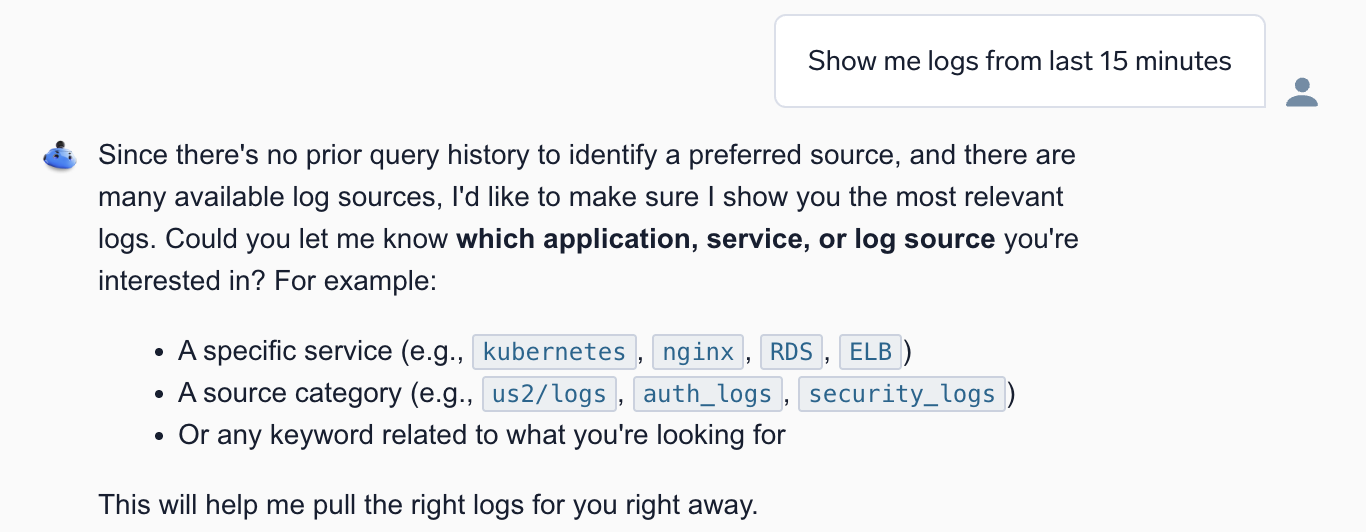
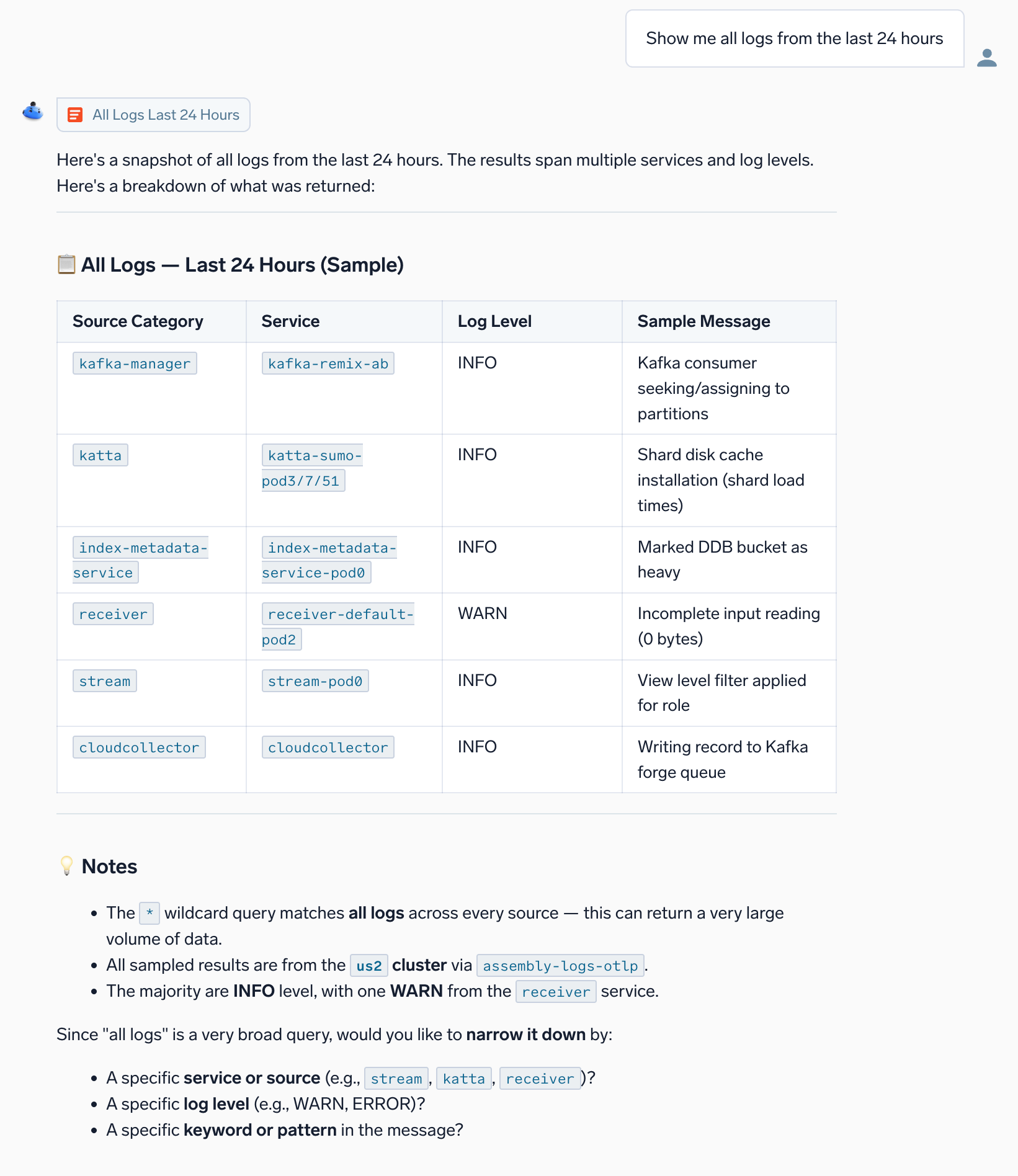
In this scenario, you'd respond with a source name, source category expression, or any keyword related to what you are looking for.
Execution steps and inline results
After you respond, Mobot displays a Thinking... or Planning... indicator while it identifies relevant data sources and analyzes the problem. Results render as a structured table directly in the conversation, along with an option to open the query in Log Search.
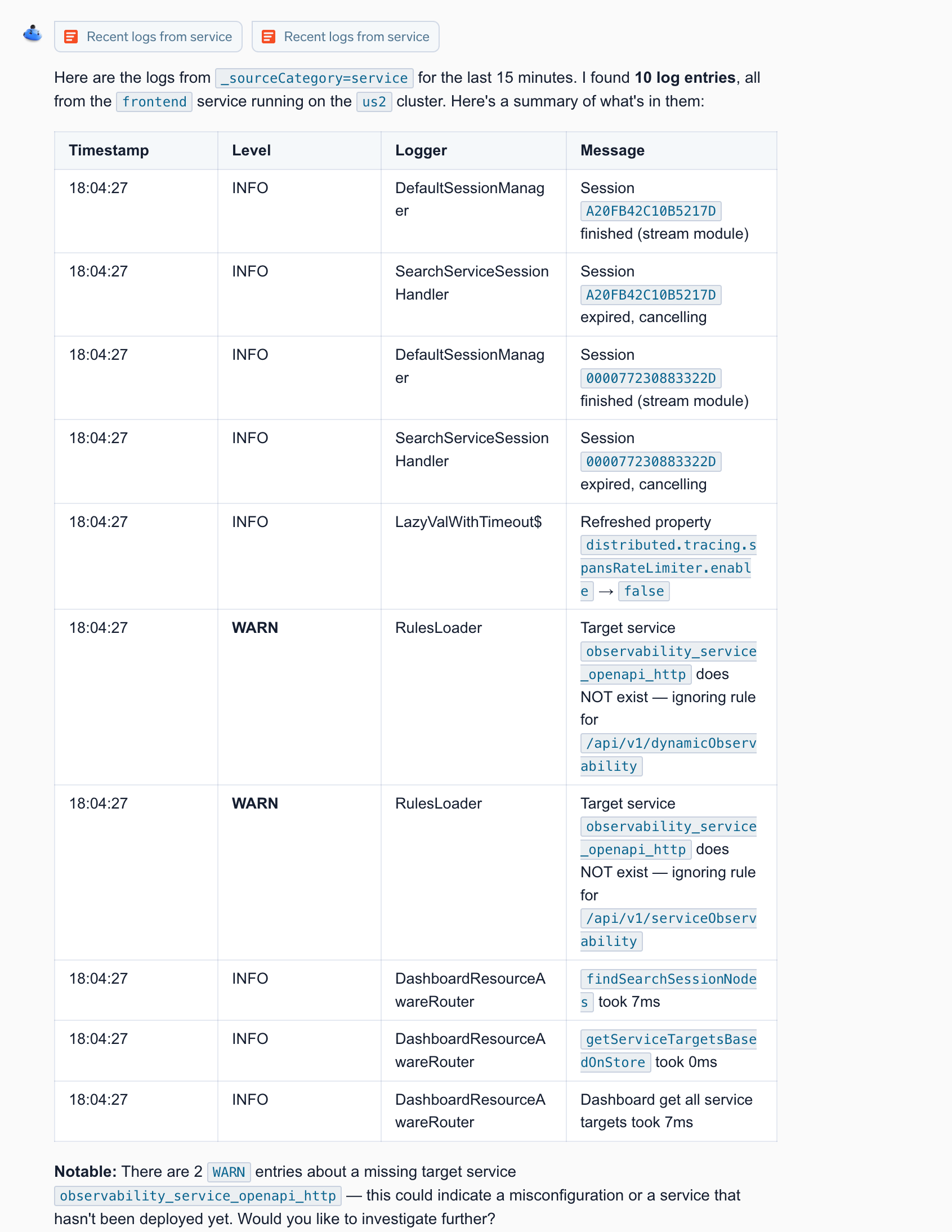
Notable findings
After returning results, Mobot summarizes anything that stands out at the bottom of the response, labeled Notable. For example, if two WARN entries share an unusual pattern, Mobot flags them, explains what they may indicate, and asks whether you want to investigate further.
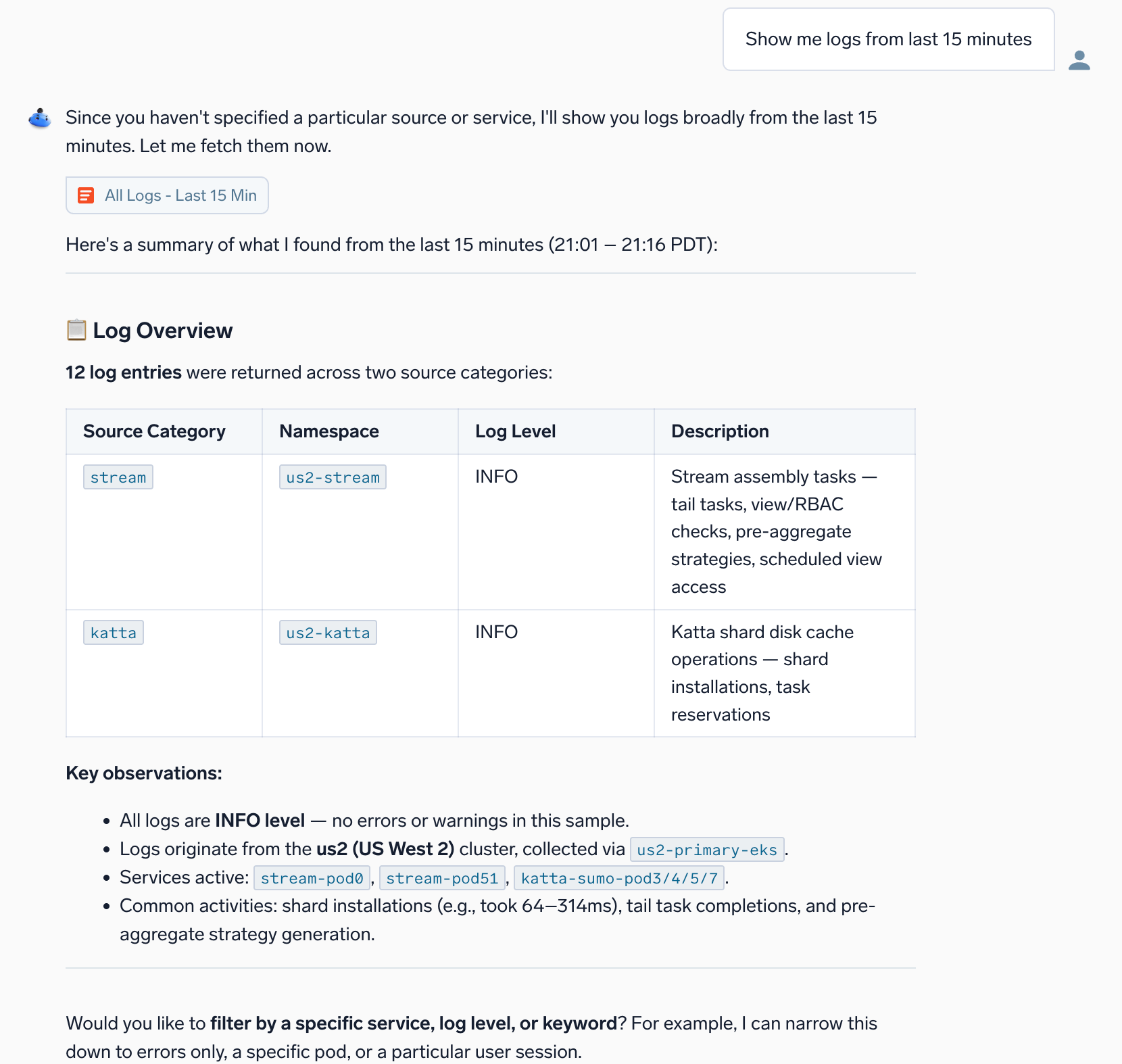
Follow-up guidance
Mobot suggests follow-up questions to guide you through the next steps of your investigation. These suggestions appear in the interface and help you explore the data without needing to formulate queries from scratch. You can click a suggestion or type your own question to continue the conversation.
Example end-to-end conversation
The following conversations show how you can investigate a problem through multiple conversational turns. For quick starting points grouped by task, see Mobot Example Prompts.
Log analysis
Prompt: I'm getting reports that users can't log in. Is auth-service having issues?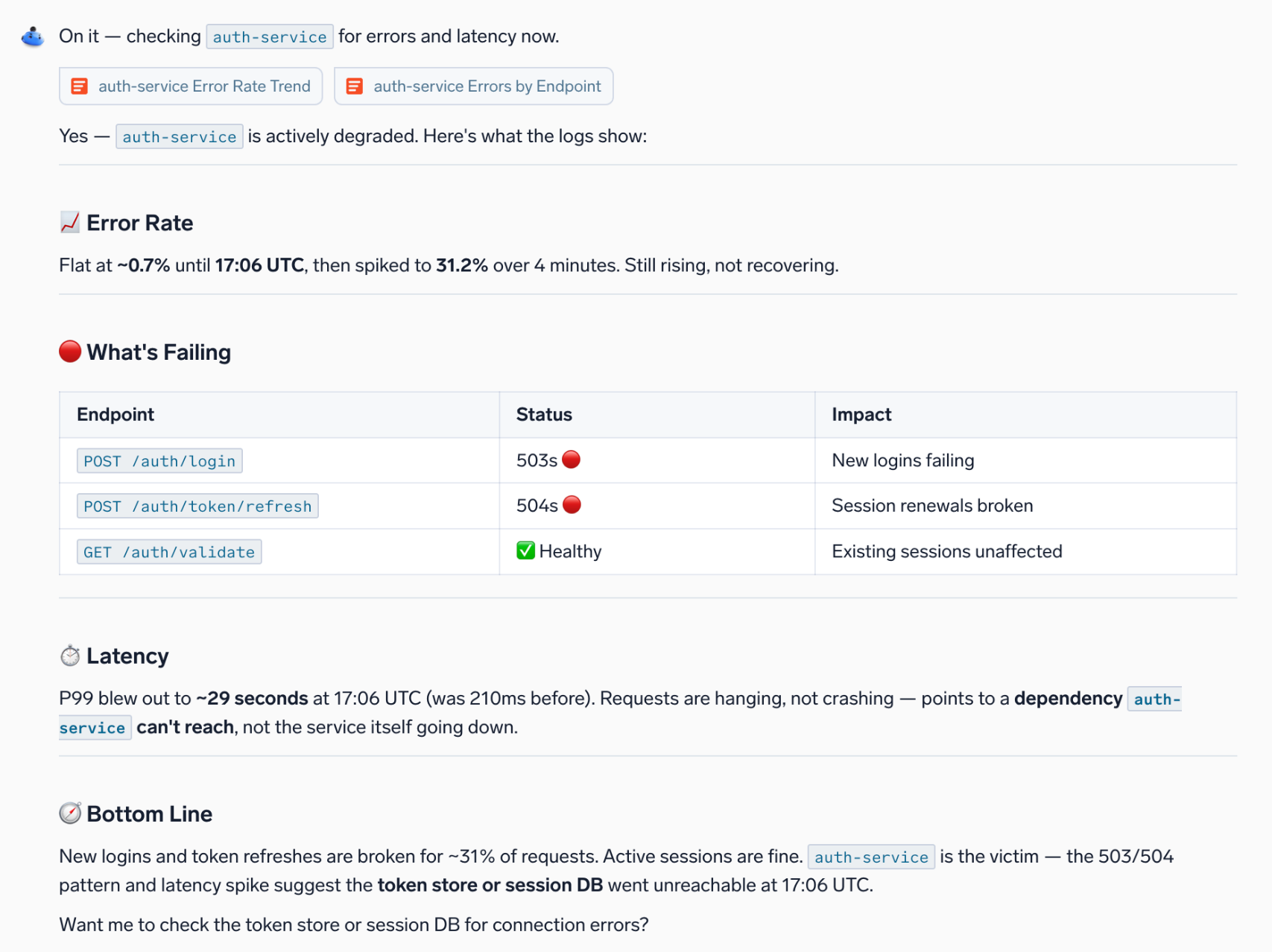
Prompt: What does the error trend look like for my service over the past 24 hours?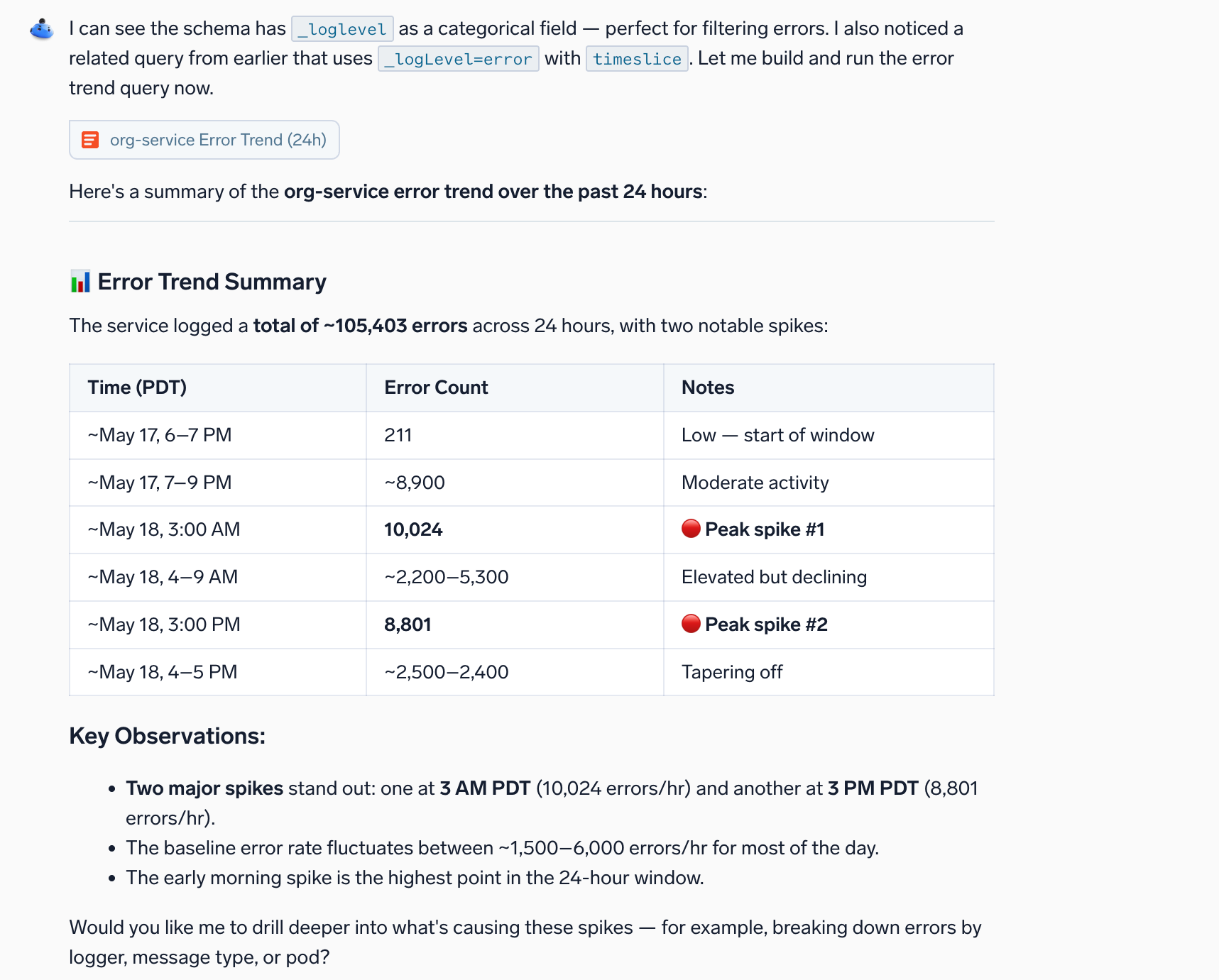
Watch this micro lesson to learn how to use Mobot for log analysis — investigate issues, interpret findings, and identify recommended next steps.
Security investigation
You're a SecOps engineer using Cloud SIEM and receive an alert about suspicious network activity. Here's how to investigate using natural language.
Review network activity
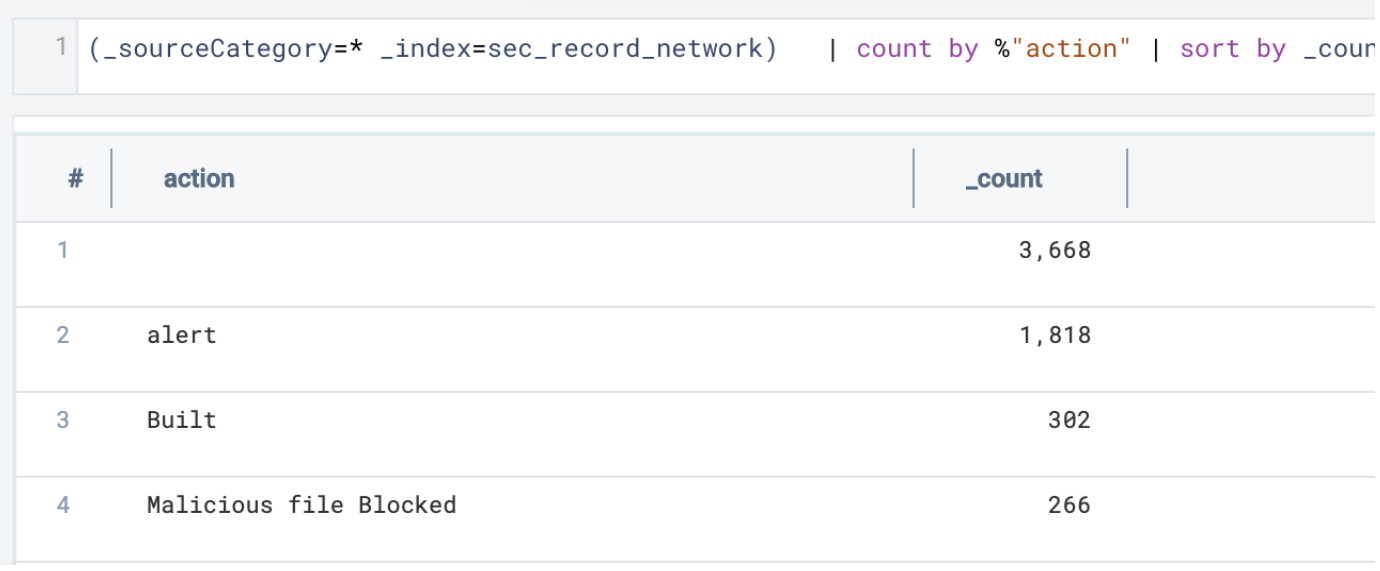
Prompt: Show me Cloud SIEM network records grouped by action
Mobot returns network activity categorized by action type (Allowed, Blocked, Malicious, etc.). Notice Malicious appears in the results.
Focus on malicious events
Prompt: Show me only the malicious activity
Mobot filters to show just the malicious network events.

If your search doesn't return results, try using a wildcard (Malicious*). Searches are case-sensitive.
Identify affected resources
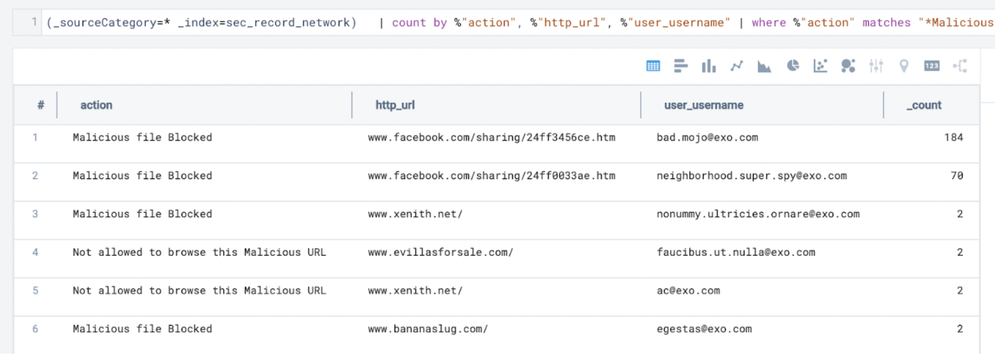
Prompt: Which URLs and users are involved?
Mobot breaks down the malicious activity by target URLs and affected user accounts, helping you identify attack patterns and compromised credentials.
Next steps
In three conversational turns, you went from a general alert to:
- Reviewing all network activity types
- Isolating malicious events
- Identifying specific URLs targeted and users affected
Even if the activity was blocked, investigate the affected users in Cloud SIEM's endpoint records to check for lateral movement or other indicators of compromise.
How-to answers
For how-to questions, Mobot returns a structured answer sourced from our official Sumo Logic documentation.
For example, asking How do I set up an OTel Collector? returns:
- A brief explanation of what the OTel Collector is and what it collects.
- Numbered installation steps with navigation paths for both the new UI and Classic UI.
- A table of supported platforms and installation methods.
- A key features summary.
- Reference links to the relevant documentation pages.
For more questions you can try, see Sumo Logic how-to questions.
Working with log results
Query syntax
If you'd rather work with explicit query syntax, Mobot recognizes these patterns too:
Count logs by [fields]andGroup logs by [fields]produce the same result.Sort by [fields] [in descending order].Percentage by [field] values.Find [statistic] for [field] (max, min, standard deviation, and so on).Apply logreduce to logs.Filter by [field] contains [keyword].
Time range
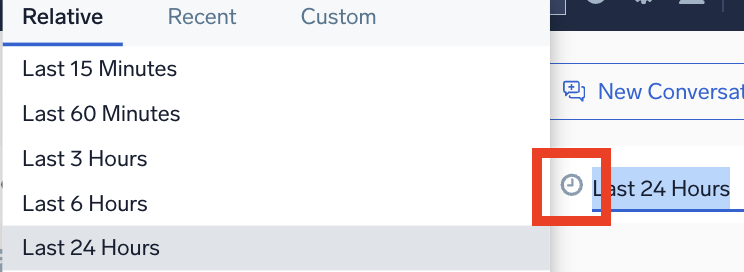
By default, searches run with a 15-minute time range. If a search does not return results, expand the time range.
Click the clock icon and select your desired time range from the drop-down, then click the blue search button.
Mobot understands relative time expressions. Use last X or past X with time units for rolling time windows:
within the last 60 minutesin the last 6 monthsover the last 7 daysin the last 24 hourslast 48 hours,last 90 days,last 12 monthslast week,last month,last night(as rolling ranges)
Chart type
Mobot automatically visualizes data results, or you can change it to a different chart type, such as Table, Bar, Column, Line, Area, Pie, Scatter, Map, or Bubble. In this example, we convert the table data to a map visualization.
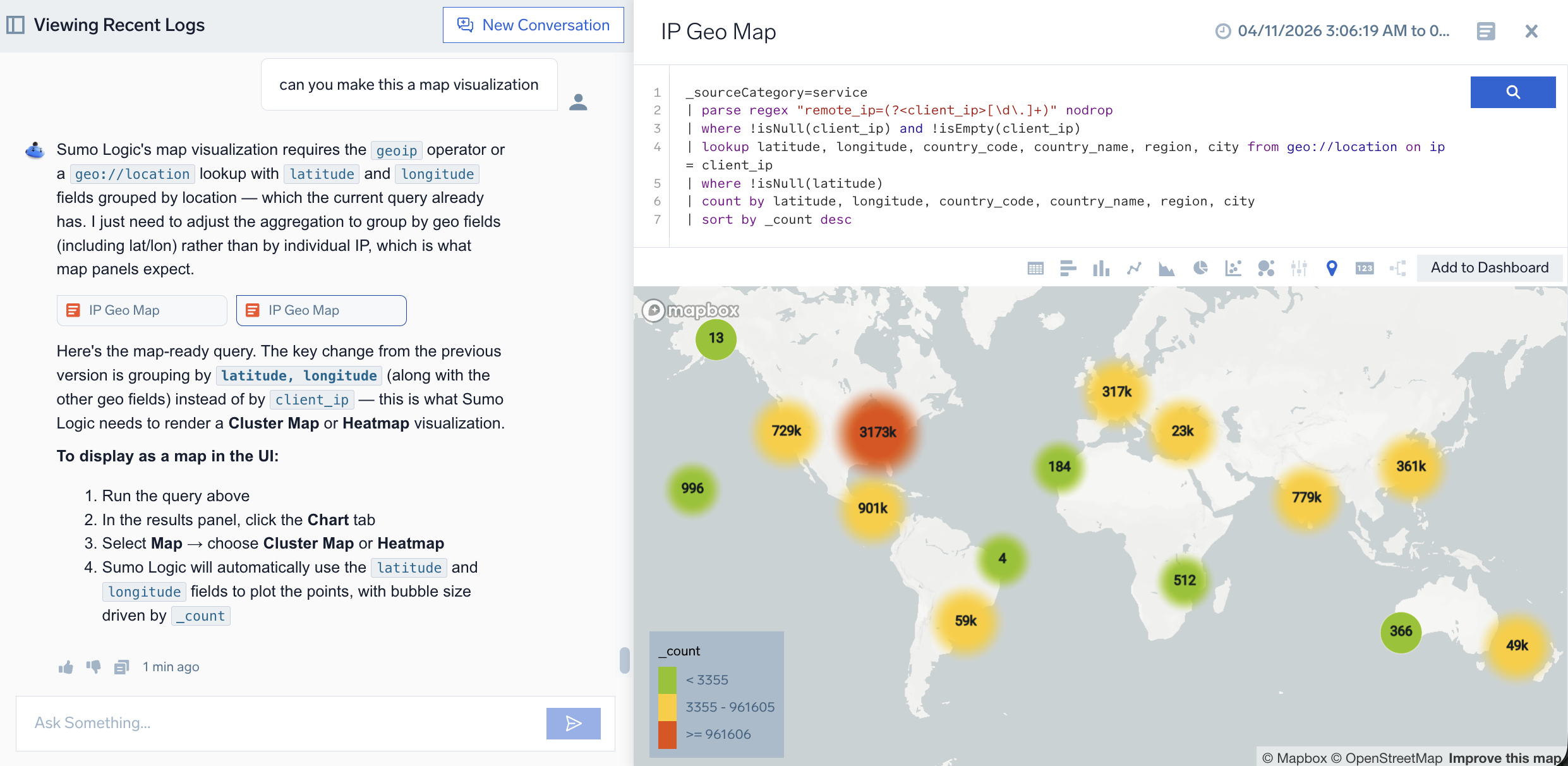
Mobot uses the following rules to deduce chart type automatically:
- If both latitude and longitude fields exist, it returns a Map chart.
- If there is only one field and one record, it returns a single value panel.
- If a
sortoperator is present and there are string fields, it returns a Table. - If there is a
_timeslicefield, it returns a Line chart if there are numeric fields, or a Table if there are string fields. - If there is one string field, one numeric field, and the record count is less than 6, it returns a Pie chart.
- If there is one string field, less than 3 numeric fields, and the record count is less than 20, it returns a Line chart.
- If none of the above conditions are met, it defaults to a Table.
Click Add to Dashboard to export an AI-generated dashboard for root cause analysis.

Edit query code
You can manually change the log search query generated by Mobot by clicking in the code editor field, editing your query, then clicking the blue search button (magnifying glass).

New to Sumo Logic query language? Learn more.
Open in Log Search
Open your query in Log Search to access full search functionality, take action, or save the search for later. There are two ways to do this:
From your conversation, click on a results bubble.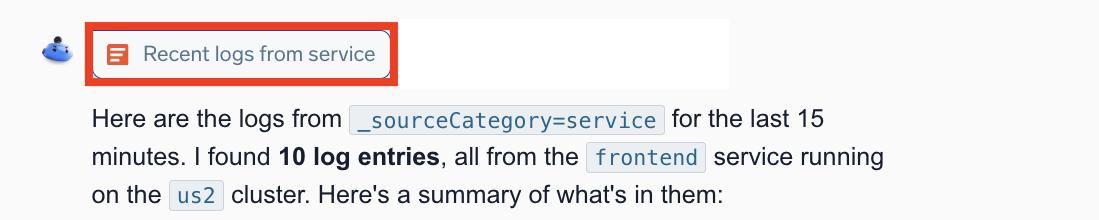
Or, from the query section, click Open in Log Search.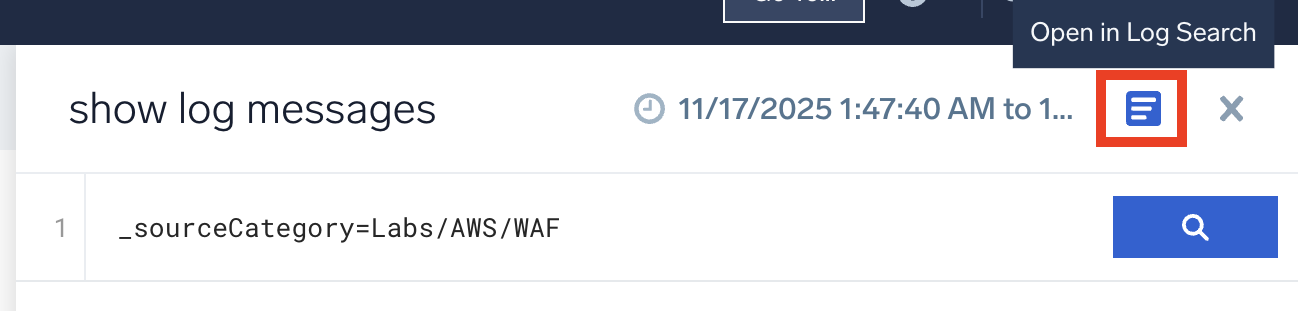
Audit Mobot queries
- You need to be an account administrator.
- The search audit index needs to be enabled for your organization.
Administrators can audit Mobot's actions using the Audit Event Index, and the queries it generates using the Search Audit Index.
To audit Mobot's actions and user prompts:
- Open Log Search.
- Use the following query:
=sumologic_audit_events| where invocationdetails.agentname in ("mobot")
- Set your time range to cover the period when prompts were executed (for example, last 24 hours).
To view queries run by Mobot:
- Open Log Search.
- Use the following query for Mobot Log Search:
="sumologic_search_usage_per_query"| where query_type contains "Mobot"| count user_name, query
- Use the following query for Mobot SOC Analyst Agent:
="sumologic_search_usage_per_query"| where query_type contains "Agent"| count user_name, query
- Set your time range to cover the period when queries were run (for example, last 24 hours).
Create and manage content
Beyond analyzing logs, Mobot can create, edit, and summarize Sumo Logic content through natural language. Describe what you want and review Mobot's draft before you act on it. Mobot keeps a human in the loop: it does not deploy a monitor or activate a playbook without your explicit approval, and your existing role-based access control permissions apply to everything it does.
Conversational Monitors
Create and update log-based monitors from plain-language prompts, instead of writing queries and configuring thresholds by hand. Mobot supports static, anomaly, and outlier detection for logs monitors only — not metrics or SLO monitors — and keeps a human in the loop: no monitor goes live until you confirm it.
For the full walkthrough, including example prompts, known limitations, and FAQ, see Create a Monitor with Mobot.
Conversational Dashboards
Create dashboard panels through conversation instead of writing queries and configuring panels by hand. Describe what you want to see (for example, Create a line chart showing API latency spikes for the checkout service over the last 3 hours), and Mobot writes the query, selects the panel type, and builds the panel. For the full walkthrough, including supported visualization types and current limitations, see Create Dashboard Panels with Mobot.
Conversational Playbooks
Create and edit Automation Service playbooks through natural language, using the Mobot chat box built into the Playbooks editor, instead of building node by node on the visual canvas. Describe the automation you want, and Mobot proposes a plan, asks clarifying questions, and builds the playbook for you. The visual canvas is unchanged and remains fully available for manual edits.
For the full walkthrough, see Create Playbooks with Mobot.
Conversational Playbook prompts have their own daily limit, separate from the standard Mobot prompt limit: up to 50 prompts per user, per Sumo Logic Org ID, per day.
Managing conversations
My conversations
Your past conversations live in the My Conversations panel. There is no button labeled My Conversations. To open (or hide) the panel, click the panel icon to the left of the conversation title at the top of Mobot.
To resume a conversation, open the My Conversations panel and click the one you want.
Mobot automatically titles conversations based on your first question. You can rename a conversation by hovering over it in the panel and clicking the pencil icon.
Conversation history is useful when working on multiple incidents at the same time. Revisit earlier turns to compare or branch analyses without repeating prior steps.
New conversation
To start a fresh session, click New Conversation in the top right. This clears the current session and starts with a clean slate.
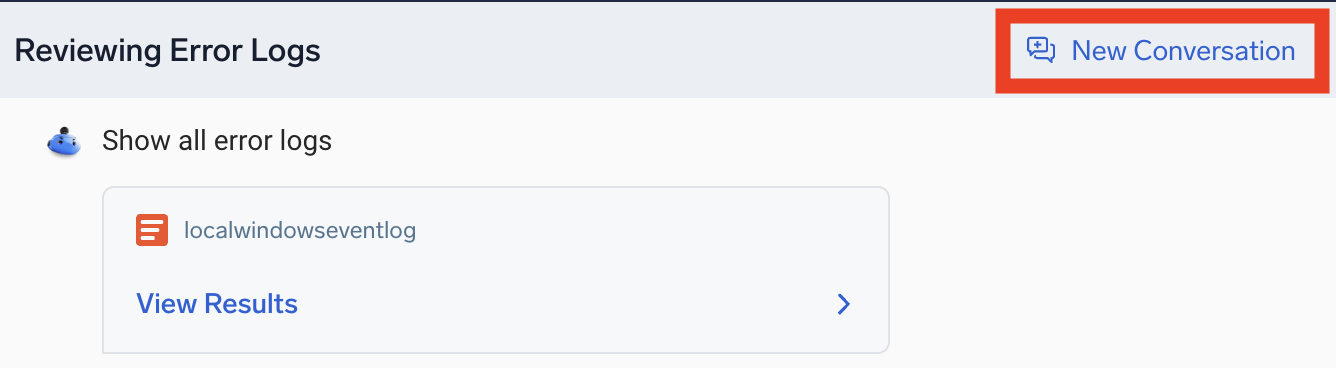
Start a new conversation when you:
- Switch to a completely different topic or use case.
- Find the current thread has gone in the wrong direction or is based on incorrect assumptions.
- Want to reset context so prior constraints do not influence new results.
Continue the same conversation when you:
- Refine or dig deeper into the same question.
- Want Mobot to build on prior results or context.
- Explore a problem through multiple follow-up questions.
If you find yourself re-explaining the problem or correcting earlier assumptions, it's usually better to start fresh.
Share conversation
You can share a specific conversation with other users, which can be useful for reporting issues or sharing examples with your team.
- Click the Share icon.

- In the Share Conversation dialog:
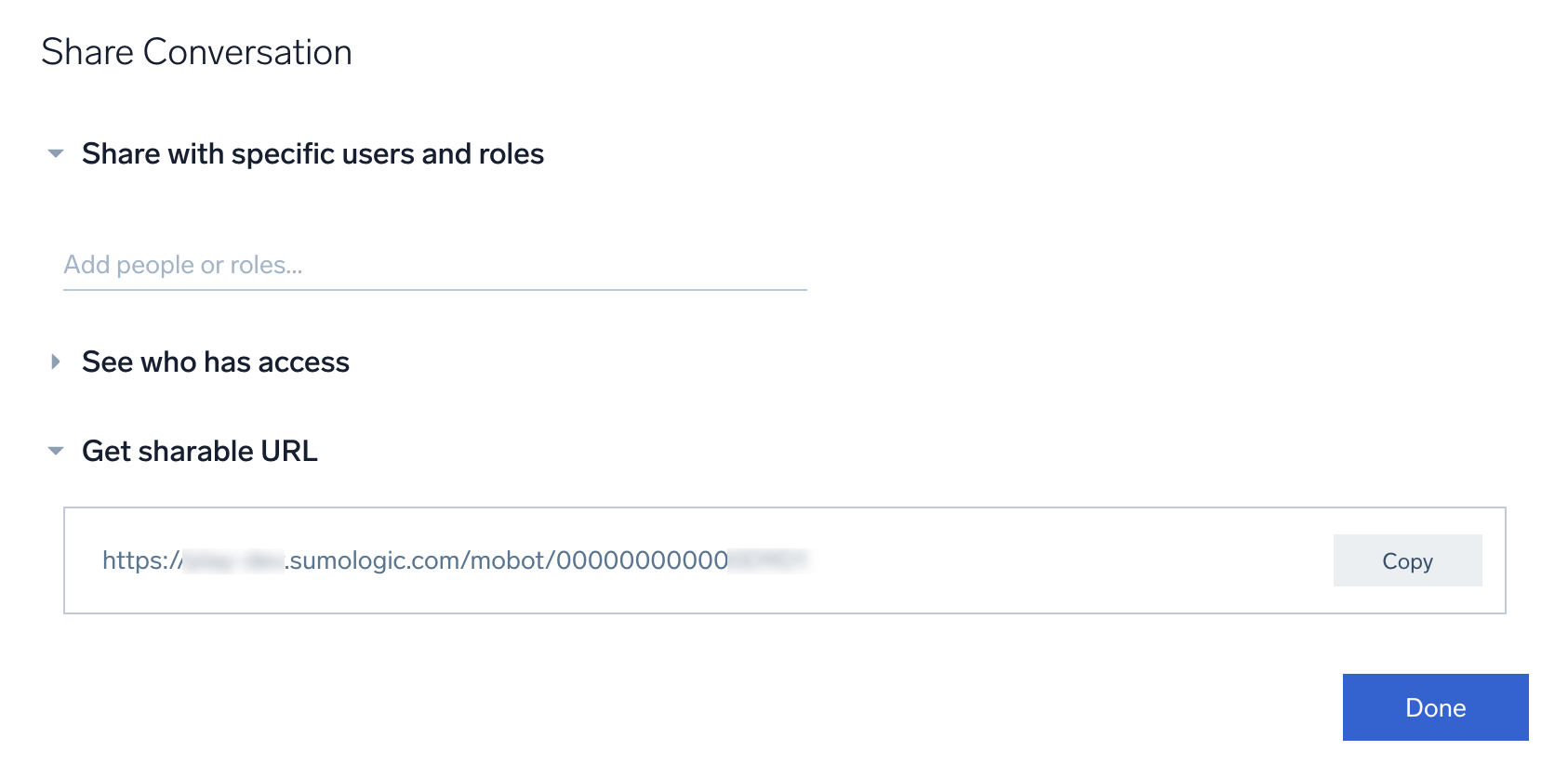
- Share with specific users and roles. Enter names, roles, or your entire organization in Add people or roles... to grant them access to the conversation.
- See who has access. Expand to view a list of everyone who currently has access to the conversation.
- Get sharable URL. Copy a URL that opens the conversation for anyone with access.
- Click Done.
Tips for better results
Start with a clear question
- Describe the outcome. Start with a business question instead of query syntax. For example, ask
Are API errors increasing?instead of starting with operators and fields. - Include relevant context. Specify a service, source, time range, unit, or field name when you know it.
Show me 500 errors from the API service, grouped by status codeprovides more context thanShow me errors. - Start broad when exploring unfamiliar data. Ask
Show me the most recent logsto learn which fields are available, then refine the result. - Ask complete how-to questions. Instead of typing
Collectors, askHow do I install a Collector on Windows?
Refine the conversation
- Layer refinements. Start with
Show me API errors, then follow up withGroup by status codeandShow the last 6 hoursinstead of rewriting the entire question. - Correct unexpected results. Tell Mobot what to change. For example, ask
Do not filter by namespace. Group by error type insteadorUse P90 instead of P50. - Clarify field names. If similar names cause confusion, specify the field explicitly, such as
<field_name>. - Change units. Ask Mobot to
Convert GB to bytesorShow in milliseconds.
Improve log results
- Reference dashboards. Try using the name or description of a dashboard panel that uses the relevant data source.
- Change the chart type. When results appear in a table, switch to a time-series chart to see trends more clearly.
- Modify an existing query. Ask Mobot to add or remove fields or to add
where,sort, oravg()clauses. - Fix a broken query. Paste a query with invalid syntax and ask Mobot to correct it.
Improve how-to answers
- Provide troubleshooting details. For example, ask
I'm getting a 403 error when setting up an AWS integration. What could be wrong? - Reference specific features. Use product names when you know them.
How do I use Field Extraction Rules?provides more context thanHow do I extract fields? - Follow up naturally. If the initial answer is close, refine it with a question such as
What about Azure instead of AWS?
Additional considerations
Compatible log formats
Mobot works with JSON logs, partial JSON logs, and unstructured logs. It cannot query metrics or trace telemetry.
Mobot applies parsing logic to unstructured logs (raw, text-based log data that doesn't follow a structured format like JSON) without requiring Field Extraction Rules (FERs). It prioritizes unstructured logs that are already used in dashboards, so it may not interpret every raw log source right away—support continues to expand beyond dashboards over time.
- Broader coverage. Mobot parses and generates insights from unstructured log formats, even without FERs, making it useful for environments with custom or inconsistent log types.
- Performance and reliability. Response times and suggestion accuracy are consistent with Mobot's structured log experience.
- Security and compliance. The same strict data handling and privacy standards apply.
If a log file contains a mix of JSON and non-JSON formatting, isolate the JSON portion by adding a left curly brace ({) to the source expression: (_sourceCategory=monitor-manager "{") | count by %"customerid"
Role-based access control
Role-based access control (RBAC) is not supported for contextual suggestions and autocompletions. A user blocked by log search RBAC may see suggestions for unpermitted source expressions, but those searches will not execute.
Search behavior and data tier access
Mobot follows the same search behavior as standard log search and respects your account's data configuration.
- Flex pricing. If you are on Flex pricing, all data is stored in a single intelligent layer and pricing is based on the volume of data scanned.
- Tiered pricing. If you are on a tiered pricing plan, Mobot searches across continuous data tiers only, unless you specify otherwise. To query a specific tier, include the
_dataTierfield in your prompt. For example:=Infrequent
Known limitations
Mobot continues to evolve. Current limitations include:
Use cases
- Log analysis only. Metrics, traces, and other telemetry types are not supported.
- Capabilities are constrained by available skills. Domain intelligence and planning capabilities are still evolving.
Access and actions
- Read-only for your data. Mobot can query and analyze data but cannot modify, delete, or ingest it. It can create monitors, dashboards, and playbooks through conversation. See Create and manage content.
- Content creation is limited to log-based monitors, dashboards, and playbooks. Mobot cannot create scheduled searches, and it cannot create metric- or SLO-based monitors.
- No access to external systems (for example, CRM, databases, APIs, PagerDuty, Jira, or Splunk).
Data and query constraints
- Only works with data that has been ingested and is still within your retention window.
- Large time ranges (30 or more days) may be slow or time out.
- Very complex or deeply nested queries may hit platform limits.
Experience
- Performance and latency vary depending on query complexity.
- Responses may not always be fully accurate or complete.
- Ambiguous questions may require clarification (for example, "search performance" could have multiple meanings).
- No memory across sessions. Each conversation starts fresh.
Guardrails
- Responses are based only on available log data.
- Legal, safety, and content guardrails are in progress and will continue to be strengthened.
Security and compliance
Mobot leverages foundational models provided by Amazon Bedrock, inheriting their compliance and security posture. For detailed information, refer to:
All aspects of the Sumo Logic service, including Mobot, adhere to the security and compliance requirements outlined in our service agreement or in individually negotiated contracts.
- Customer data privacy. No customer data or PII is used to train the AI models. Context for AI processing is limited to schema and field samples, reviewed for legal and compliance purposes.
- Rolling data expiration. Some features may store conversation history temporarily for performance, but data is expired on a rolling basis.
- AI provider. Mobot uses a foundation model served by Amazon Bedrock. The provider has no access to your data.
FAQ
What is Sumo Logic Mobot?
Mobot is an AI-powered conversational assistant integrated into the Sumo Logic Log Analytics Platform. It enables natural language log analysis and how-to answers, helping you extract actionable insights from logs and learn the platform without switching tools. Mobot does not process or share your log data with any third party.
Do I need to select an agent or mode?
No. Mobot determines whether your prompt is a log data question or a how-to question and responds accordingly. You interact with a single conversational interface.
Is there a limit to how many prompts I can send?
Yes. Each user can send up to 10 prompts to Mobot per day, per Sumo Logic Org ID. A prompt is any single message you type and send to Mobot; every message counts, including follow-up replies within a conversation.
As you approach the limit, Mobot shows a heads-up banner with the time remaining until your limit resets. When you reach the limit, Mobot stops responding to new prompts and shows a "try again in X hours" message.
Limits reset daily at midnight US Pacific Time. The "try again in X hours" message is calculated from this reset time, converted to your local time zone.
If you need a higher limit, contact your account team.
Is there a character limit for a Mobot prompt?
Yes. A single prompt can be up to 40,000 characters.
Is there a cost to use Mobot?
No. Mobot is included at no additional cost for any Sumo Logic customer on an active credit-based subscription (Flex or tiered). There is no upfront consumption charge, and each account receives a fair-use capacity designed to cover the vast majority of use cases.
When Mobot runs a log analysis, the underlying data scan is charged the same way as a user-initiated search. See Search behavior and data tier access.
If your organization previously turned off Sumo Logic AI or an earlier version of Mobot, an administrator needs to turn it back on before you can use it. See Opting out.
What happened to Query Agent and Knowledge Agent?
They're still here, working behind the scenes, but renamed and repositioned as their capabilities have evolved. As with the original agents, you do not select between them; Mobot routes your prompt to the right one automatically.
- Query Agent → Log Analysis Agent. The original Query Agent helped users write Sumo Logic queries. The Log Analysis Agent goes further, interpreting intent, guiding investigations, and surfacing relevant data through natural language.
- Knowledge Agent → Platform Optimization Agent. The original Knowledge Agent answered how-to questions from product documentation. The Platform Optimization Agent expands on that, helping users troubleshoot issues, optimize queries, understand data usage, and generally get more from the platform.
- Summary Agent → part of SOC Analyst Agent. The Summary Agent is no longer a separate agent. Its signal summarization is now a core part of how the SOC Analyst Agent contextualizes and presents its findings.
Log Analysis Agent and Platform Optimization Agent aren't names you'll see anywhere in the UI; you always interact with them through Mobot's single chat interface. Don't confuse the Log Analysis Agent with search autocomplete or AI Parse Assist, which are UI features you use directly on the Search page rather than through a conversation.
Can Mobot detect what sources or integrations I don't have set up?
Mobot can detect missing sources or partitions reactively. When you ask a question that requires a specific data source, Mobot attempts the query and detects if the partition or data doesn't exist, then lets you know. Mobot cannot proactively scan your environment and generate a list of all unconfigured integrations.
Can I use Mobot to analyze unstructured logs?
Yes. Mobot can extract relevant insights from unstructured logs, including those without Field Extraction Rules (FERs) applied, prioritizing sources already used in dashboards. It also supports semi-structured logs (JSON with unstructured payloads).
Can I use Mobot in a language other than English?
Mobot's underlying model natively supports multiple languages, and many customers use it successfully in their preferred language. However, Sumo Logic does not actively develop or formally support non-English languages at this time.
Does Mobot save search history?
Yes. Mobot retains conversation and search history for 60 days, allowing you to resume investigations with context and continuity.
What role does AI play in Mobot?
Mobot is an ensemble of Generative AI (GenAI) and classical machine learning (ML) techniques. GenAI interprets natural language questions and generates responses. Classical ML is used for capabilities such as anomaly detection in alerts.
Does Mobot access customer log data?
Mobot does not process or analyze customer log content. Schema and field samples are used to provide context to the AI model, but your log content is not read or stored by the model.
What types of customer data or PII does Mobot process?
Mobot processes schema and field samples to provide context to the AI. While field values can contain PII or confidential data (for example, email addresses or IP addresses), these values are used solely to enable insights and are protected under strict compliance and security reviews.
Is customer data used to train AI models?
No. Customer data and PII are not used to train AI models. Mobot operates using a foundation model served via Amazon Bedrock, ensuring your data remains private and secure.
How long does Mobot store customer data or PII?
Certain features rely on conversation history stored on a rolling basis for performance optimization. Data is systematically expired to maintain privacy.
Is any user or org data sent outside our environment?
No. All processing happens within your region's cluster. RAG context is scoped to dashboards in your own org with no cross-org data leakage.
Does a fourth party have access to Mobot customer data?
No. Mobot uses foundation models securely hosted through Amazon Bedrock. See our AI and Machine Learning FAQ for more information.
Does Mobot use any open-source libraries, GenAI providers, or cloud providers?
For Generative AI, Mobot uses a foundation model served by Amazon Bedrock. Classical ML features leverage open-source Python libraries approved by Sumo Logic.
Is there a human in the loop for Mobot?
Yes. The on-call developer or security engineer troubleshooting an incident is the expected user. They interact with Mobot using natural language questions.
Does Sumo Logic hold any AI-specific certifications or accreditations?
See our AI and Machine Learning FAQ for more information.
Which Mobot capabilities are available in FED deployments?
Current GA versions of Mobot are available in the FED deployment. Contact your account team for details on specific capability availability.
What is the typical Mobot response time?
Typical end-to-end response time remains under two seconds for most queries. Very large result sets or percentile calculations over broad ranges may take up to five seconds. Very complex queries may take longer or trigger a structured fallback response.
How do I handle a failed or unexpected result?
If a result is not what you expected, use natural language to correct it. Common approaches:
- No or delayed results. Give Mobot a few seconds to process. Expand the time range if needed.
- Output too broad. Add more context (for example, specify a service or namespace).
- Unexpected numbers. Be more explicit. For example, "show in milliseconds" or "use P90 instead of P50."
- Wrong query logic. Tell Mobot what to change. For example, "Do not filter by namespace, group by error type instead."
Why doesn't Mobot always give the same answer to a similar question?
AI is not deterministic. Mobot generates responses based on probability, context, and intent rather than retrieving fixed answers, so phrasing may vary between similar questions. The core guidance and accuracy stay consistent, and Mobot grounds how-to answers in official Sumo Logic documentation to help ensure reliability. If an answer seems incorrect or unclear, use the feedback buttons to help us improve quality.
What are the RAG limitations for dashboard-aware translations?
For dashboard-aware translations via RAG, Mobot's source expression needs to share at least one common key-value pair with your dashboard queries. For example, _sourcecategory=abcd "error" matches a dashboard query like _sourcecategory=abcd | count, but does not match _source=abcd | count because there is no shared key-value pair. RAG only considers dashboards that have been opened in the last 90 days.
How do I opt out of Mobot?
An administrator can turn Mobot off for your organization from the Feature Management page. See Opting out.
Feedback
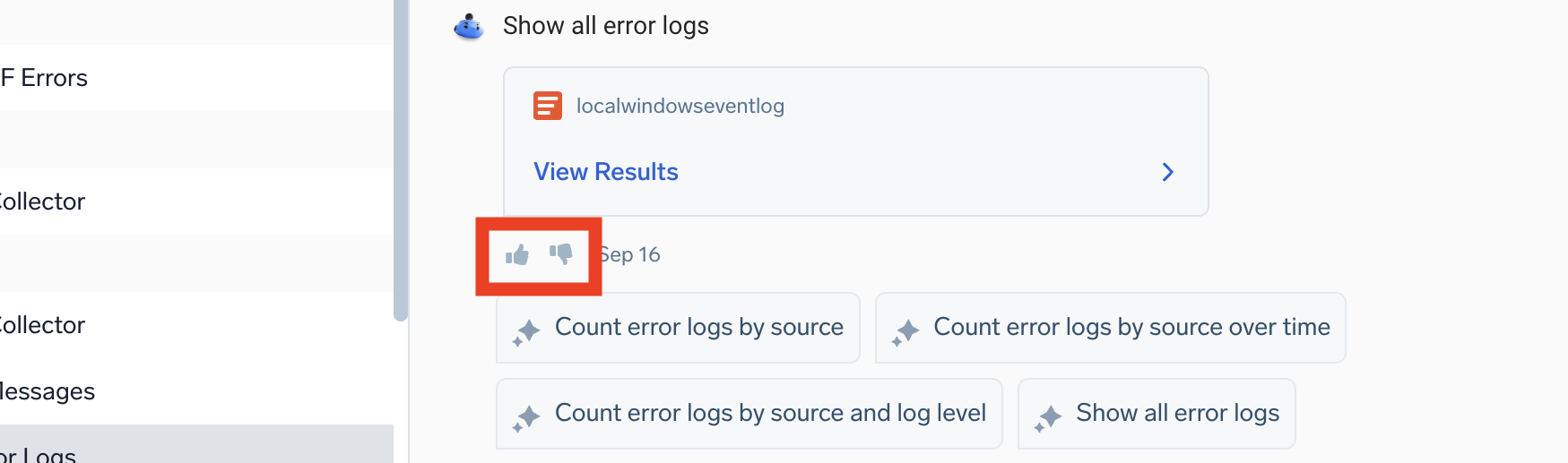
Let us know what you think by clicking the thumbs up icon to confirm a useful result, or the thumbs down icon to tell us how to improve.
Opting out
Feature Management
An administrator can turn Mobot off for your entire organization from the Feature Management page (Administration > Feature Management). This page is available to all paid customers (not free or trial accounts) to any user with the Administrator role or the Manage Organization Settings permission.
Mobot shares a single AI features toggle with Parse Assist — turning it off disables both together. The SOC Analyst Agent has its own independent SOC Analyst Agent toggle and is not affected by the AI features toggle.
Parent and child orgs have AI features enabled by default. A parent org administrator can toggle AI features for the parent org and for its child orgs. Child org administrators cannot toggle AI features for their own org or for other child orgs.
MSSP parent orgs don't see these settings on their own Feature Management page. Manage them per child org instead. See Manage features for details.
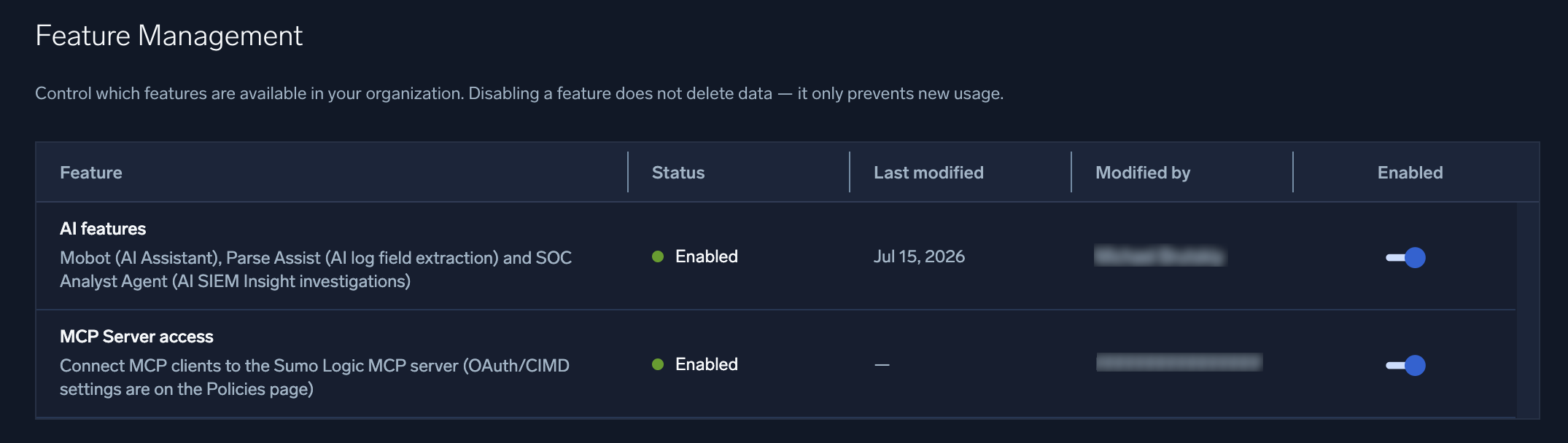
If you previously opted out of Mobot, you'll need to opt back in from this page to regain access at GA, or contact your account team. Trial accounts do not have Mobot enabled by default.
For help, contact our Support team.
Additional resources
- AI and Machine Learning with Sumo Logic
- Self-paced. Hands on with Mobot and Dojo AI.
- Mobot Instructor-Led Virtual Workshops.
- Dojo AI Overview. Learn about Dojo AI, the multi-agent platform Mobot is part of, alongside the SOC Analyst Agent and other specialized agents.