 Meet the new
DojoAI Recommendations
This feature is in Extended Preview. For more information, contact your Sumo Logic account representative.
Recommendations is a DojoAI capability powered by the DojoAI agents. It continuously monitors your environment and surfaces performance issues, such as slow queries and dashboard sprawl, before they affect your workflows.
Use Recommendations to find opportunities to work faster and run your environment better. These proactive insights live on the Recommendations page: a single list of issues to review and fix, each with a plain-language explanation and a previewable fix. Practitioners, admins, and power users, such as dashboard owners and query and monitor authors, can act on individual recommendations.
Recommendation types
Recommendations fall into two operational areas, matching the Category you see in the Recommendations list: speeding up slow queries and dashboards, and closing telemetry gaps. More are planned for future releases.
- Performance
- Query optimization. Identifies inefficient, resource-heavy searches and suggests a rewritten query for faster results and lower compute load. Shown in the UI as Reduce Query Latency.
- Dashboard layout optimization. Highlights slow-loading or bloated dashboards and suggests structural fixes to speed up page load times. Shown in the UI as Reduce Dashboard Load Time.
- Reliability
- Data source gaps. Scans your telemetry environment to pinpoint missing sources, so you have complete observability across critical infrastructure and services. Shown in the UI as Add Missing Telemetry.
View your recommendations
- In the left nav, click DojoAI > Recommendations.
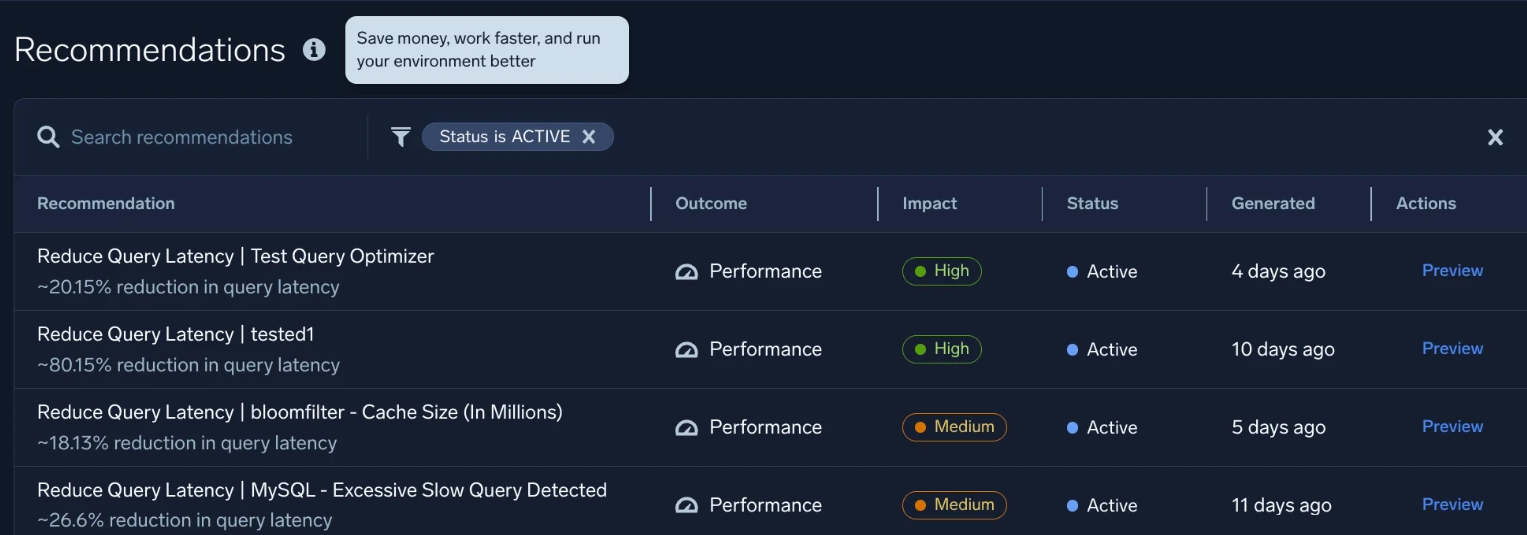
The list is ranked automatically by confidence, impact, and relevance to you, and each row shows:- Recommendation. The issue and the specific resource it affects, for example Reduce Query Latency | MySQL - Excessive Slow Query Detected, with a short description of the expected outcome, such as a percentage reduction in query latency.
- Category. Performance or Reliability. See Recommendation types.
- Impact. The expected impact of applying the fix, based on improvement percentage: High or Medium.
- Status. Active, Applied, or Rejected.
- Generated. How long ago the recommendation was generated.
- Actions. Click Preview to see the fix before applying it.
- Use the Search recommendations field or Status filter to narrow the list. You can also sort or filter by type, category, and impact.
Dashboard layout optimization recommendations also surface directly on the affected dashboard: an optimization icon appears in the dashboard toolbar, and clicking it opens the same preview, with Accept and Reject controls, without leaving the page.
How recommendations are selected and ranked
Not every detected issue is worth surfacing. Before a recommendation reaches your account, it is evaluated against the following criteria:
- Enough data to be confident. A minimum amount of usage history is required before a recommendation is eligible to generate.
- Meaningful impact. Only recommendations above a certain confidence and impact threshold are shown, so your list does not fill with noise.
All active recommendations across types are ranked by a single, unified score that combines confidence, expected impact, and relevance. You do not need to compare, for example, a query optimization recommendation with a telemetry gap. The highest-value recommendations for your account appear first, regardless of type.
Review a recommendation
Click Preview in the Actions column, or click anywhere on a recommendation, to open its detail panel.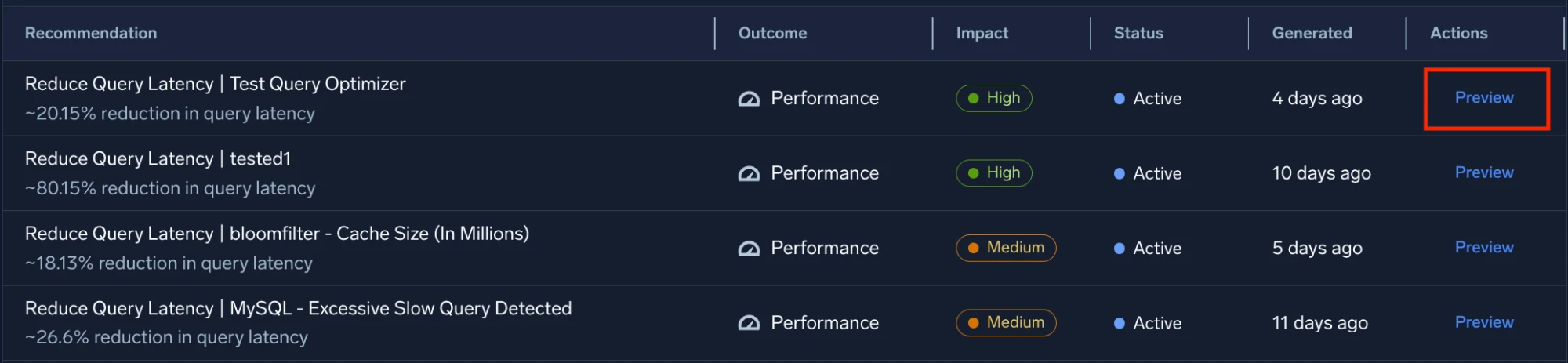
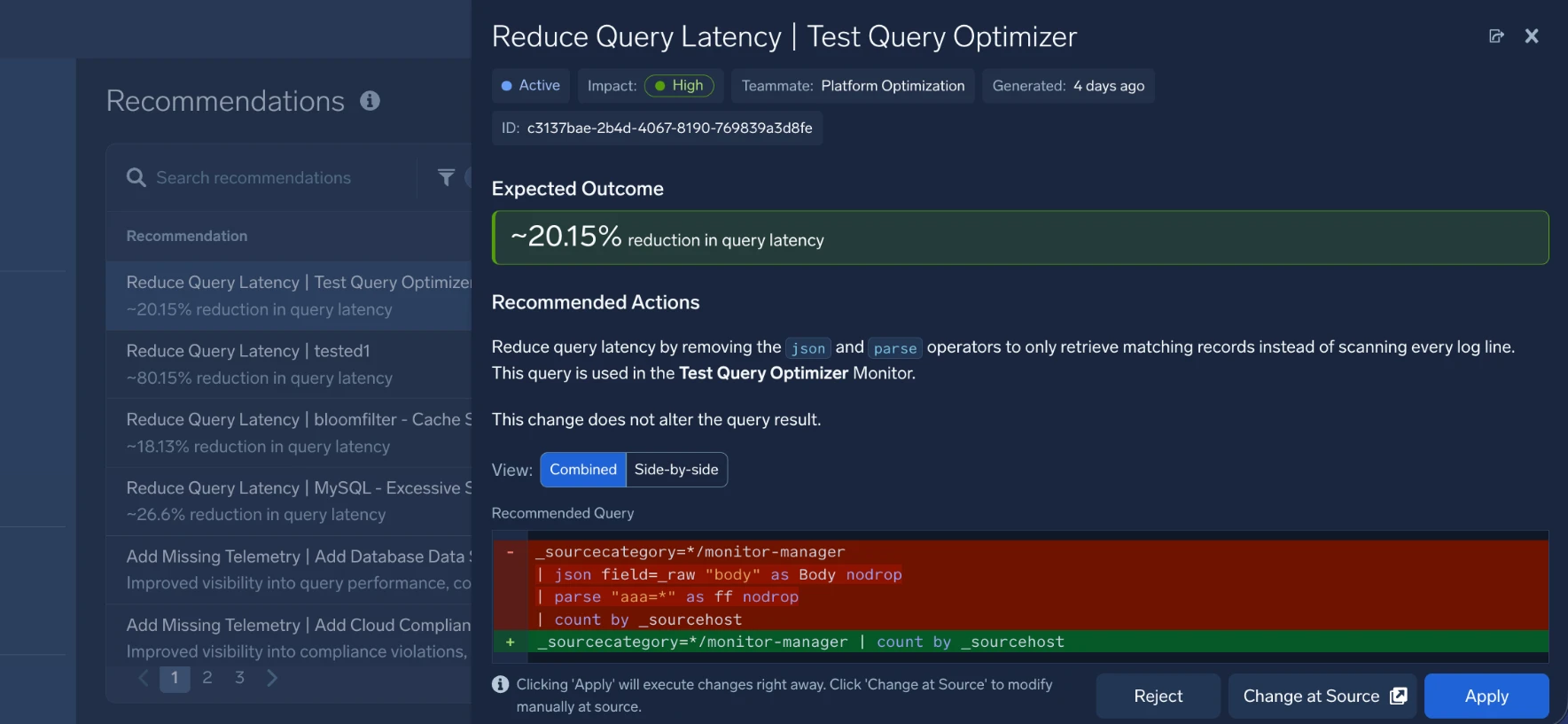
The panel shows:
- Status chips. Repeats the status, impact, and generated-time from the list, plus the agent that generated it (shown as Teammate).
- Expected Outcome. The measurable benefit of applying the fix.
- Recommended Actions. A plain-language explanation of what the fix changes and why, including which monitor, dashboard, or other resource it affects, and whether applying it changes query results.
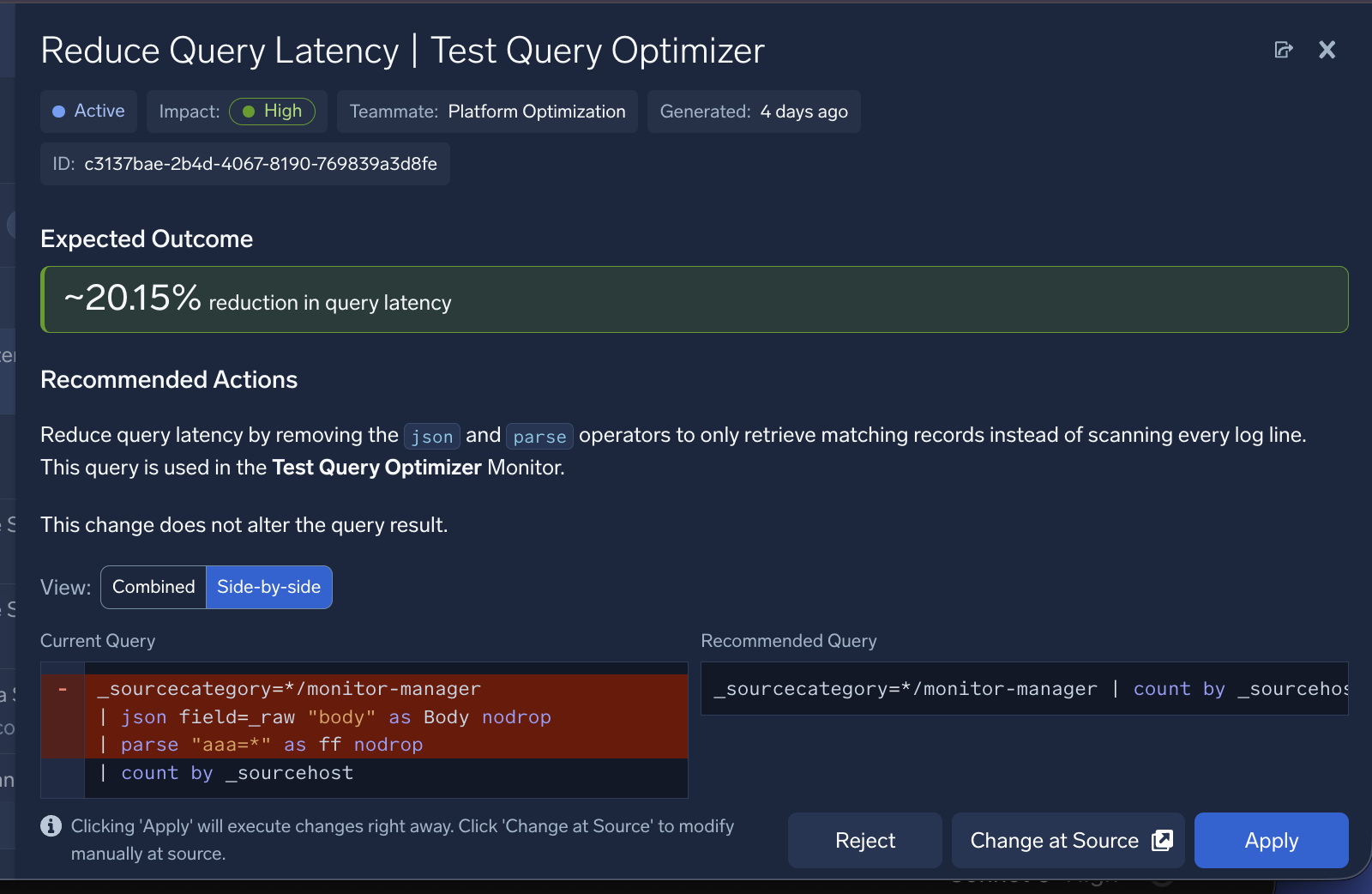
- Recommended Query or Dashboard Layout. A diff of the current query and the recommended view that you toggle between.
- Combined. One query, with removed lines in red and added lines in green.
- Side-by-side. The Current Query and Recommended Query shown in separate columns.
- Click Copy Recommended Query to copy it without applying it.
- Combined. One query, with removed lines in red and added lines in green.
Apply a recommendation fix
What you can do from the panel depends on your permissions on the affected resource:
If you have edit access, you see Apply and Change at Source buttons:
-
Apply button. Executes the change right away.
-
Change at Source button. Opens the underlying resource's own edit page. For query recommendations, such as a monitor's Trigger Conditions step, the query field is pre-filled with the recommended query and flagged by an info banner ("This query is filled with Recommended query"). Press Enter in the query editor to execute the query, then click Save to apply it from there.
Recommendation Resource Where Change at Source takes you Reduce Dashboard Load Time Dashboard layout The dashboard in edit mode, where you can adjust the layout. Reduce Query Latency Dashboard query The dashboard panel's query editor, with the recommended query filled in. Reduce Query Latency Monitor The monitor's Trigger Conditions step, with the recommended query filled in. Reduce Query Latency Scheduled search The scheduled search's edit page, with the recommended query filled in.
If you do not have edit access, you see Contact Owner instead, which shows the name of the resource's owner so you can ask them to apply the fix.
Everyone, regardless of permissions, can click Reject. This opens a confirmation dialog where you can optionally select a reason (Not relevant, Already handled, Incorrect recommendation, Don't want this change, or Other) before clicking Confirm Rejection.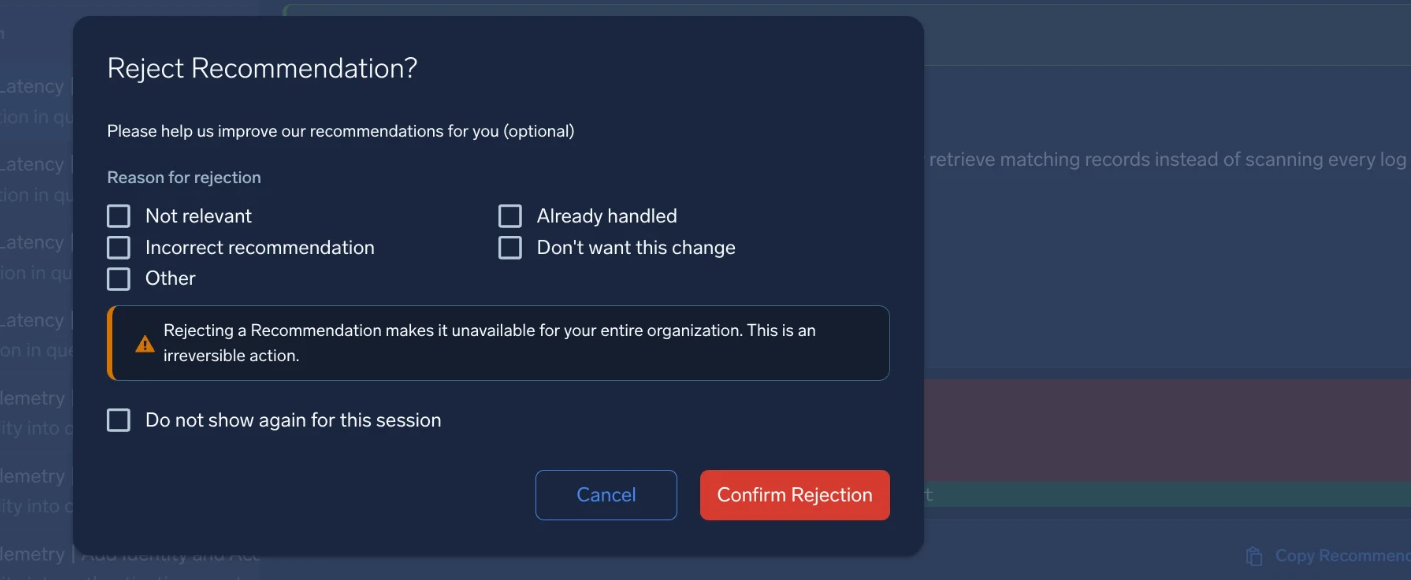
Rejecting a recommendation makes it unavailable for your entire organization, not just for you. This action is irreversible.
The recommendation lifecycle
A recommendation has one of the following statuses:
- Active. The recommendation has been generated and is awaiting your review.
- Applied. The fix has been committed, either through one-click Apply or after you make the change yourself and it is verified.
- Rejected. You dismissed the recommendation. See Apply a recommendation fix.
Limitations
The following apply during Extended Preview:
- No real-time alerts or email notifications. Recommendations are generated during a daily background run and surfaced in-product only. Email summaries and real-time alerts are being considered for a future release.
- No cross-org rollup view. Admins and FinOps users see the same Recommendations page as practitioners, with standard view and edit permissions. A dedicated executive-level, cross-org rollup view is planned for a future release.
FAQ
Is the Recommendations page available to me?
Recommendations is rolling out in phases. It is currently available to a curated set of preview customers. Contact your Sumo Logic account team to ask about access.
Will Recommendations make changes to my environment automatically?
No. Every recommendation requires your explicit review and action: apply the fix directly, change it at the source yourself, or reject it. Nothing changes without your sign-off.
What happens if I reject a recommendation and someone else on my team wants it?
Rejecting a recommendation applies across your organization, not just to you. If your team disagrees with a rejection, you can revisit the recommendation's underlying issue and address it through the normal product workflow.
How often do recommendations update?
Recommendations are generated during a daily background analysis. If you apply or reject a recommendation, it clears from your active queue on the next refresh.
What if I do not have permission to apply a fix?
You still see the recommendation and its expected impact. Instead of Apply, you see a Contact Owner option that names the person who can make the change, so you can flag it to them directly.
Can I access Recommendations from Mobot?
Not yet. During Extended Preview, you can only view and act on recommendations from the Recommendations page or the in-context entry point on the Dashboard page. Viewing and acting on recommendations directly inside Mobot is planned for a future release.
Can I turn off DojoAI Recommendations?
Yes. Contact your Sumo Logic account team or open a support ticket to opt out, the same way you can for other DojoAI capabilities. See Can I opt out of AI features?
Additional resources
- Platform Optimization Agent. Learn about the DojoAI agent that generates recommendations.
- AI and Machine Learning with Sumo Logic. How DojoAI Recommendations fits alongside Mobot, the Root Cause Agent, the SOC Analyst Agent, and the Sumo Logic MCP server.