 Meet the new
 Parse Predictable Patterns Using an Anchor
The parse operator parses strings according to specified start and stop anchors, and then labels them as fields for use in subsequent aggregation functions in the query such as sorting, grouping, or other functions.
This topic describes how to use the parse anchor UI tool to add parsing to a query and provides details on the structure of the parse anchor operator.
Syntax
| parse "<start_anchor>*<stop_anchor>" as <field>| parse "<start_anchor>*<stop_anchor>" as <field> [nodrop]| parse [field=<field_name>] "<start_anchor>*<stop_anchor>" as <field>
Options
- The
nodropoption forces results to also include messages that do not match any segment of the parse term. For details, see Parse nodrop. - The
field=fieldnameoption allows you to specify a field to parse other than the default message. For details, see Parse field.
Rules
- User-created fields, such as extracted or parsed fields, can be named using alphanumeric characters and underscores (
_). Fields must start with an alphanumeric character. - If no field is specified, the entire text of incoming messages is used.
- A wildcard is used as a placeholder for the extracted field. Wildcards must be separated by a space or other character.
**is not valid. Use a different parse operator, like parse regex instead. - The number of wildcards in the pattern string must match the number of variables.
- Multiple extractions are allowed for a single parse operator.
- Characters quoted with double quotes (not single quotes) are string literals. Use a backslash to escape double quotes in the string. For example:
| parse "\"tier\" : *," as tier
Parse anchor UI tool
You can use the parse anchor UI tool to highlight message text and add a parse operation to your query. Two parsing methods are available:
- Manual parse. Highlight text in a log message, select the values to extract, and label them as fields using the Parse Text dialog.
- AI Parse Assist. Highlight text in a log message and let AI automatically generate the parse statement and field names for you.
Manual parse
-
Run a search.
-
In the search results, find a message with the text you want to parse.
-
Highlight the text, right-click, and select Parse Selected Text.
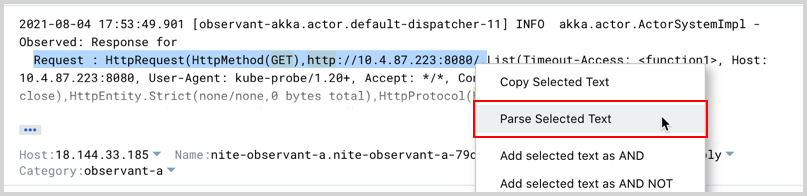
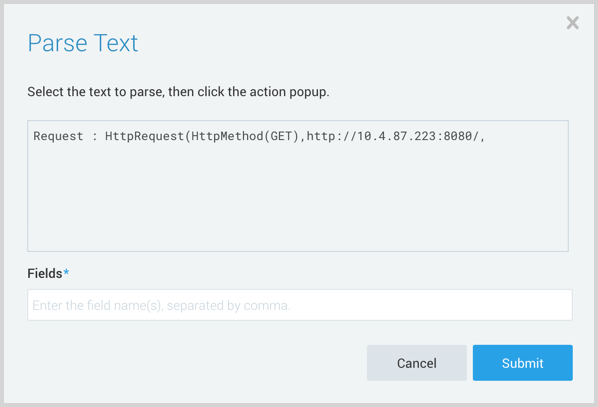
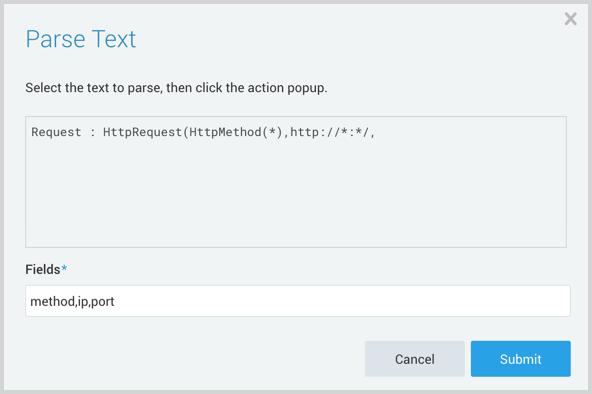
The Parse Text dialog box opens and displays the text you highlighted.
-
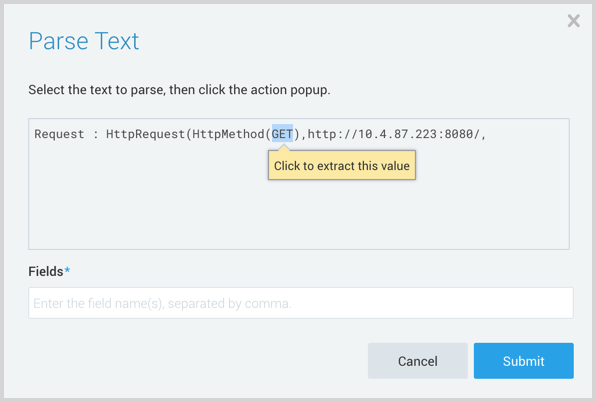
Select the text for the first parsing field, and click Click to extract this value. The text you highlighted is replaced by an asterisk (*).
-
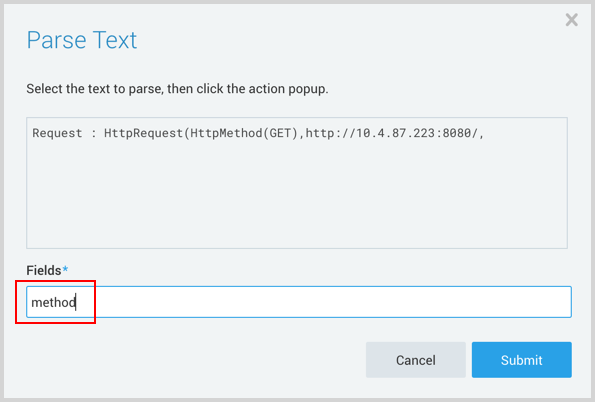
Enter a name (no spaces) for the parsing field in the Fields area.
-
If you want to parse additional fields, add a comma after the field name, and repeat the parsing action. The following screenshot shows three parsed fields: method, ip, and port (in that order). Notice that the three fields correspond to the three asterisks in the parse text.
-
Click Submit. The query is updated with the parse operation you constructed.

-
Click Start to display the search results, which now show the parsed message.

AI Parse Assist
AI Parse Assist automatically generates a parse statement from the text you select, without requiring you to manually identify and label fields.
- Run a search.
- In the search results, find a message with the text you want to parse.
- Highlight the text, right-click, and select AI Parse Assist.
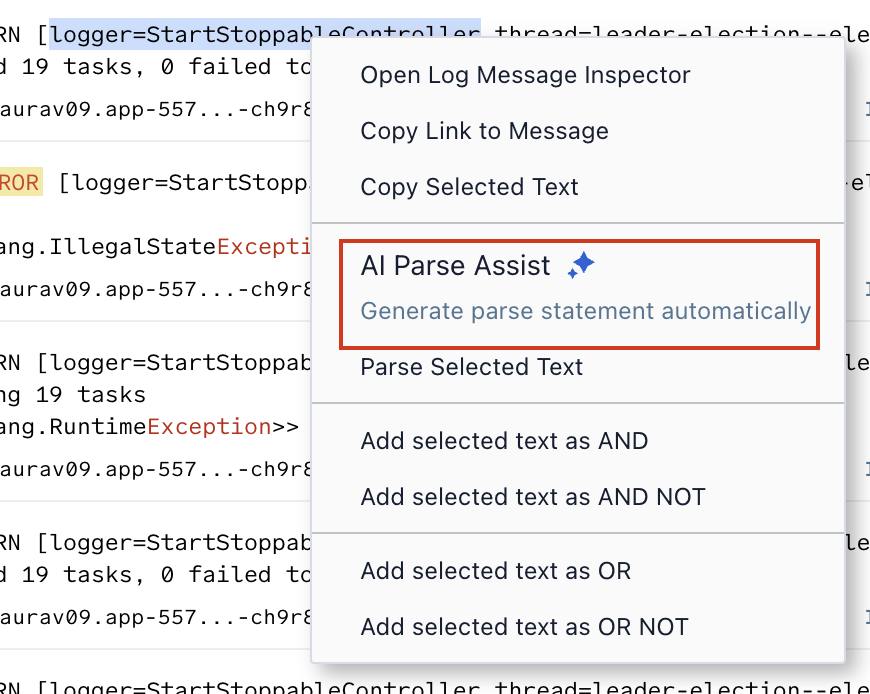
- The AI Parse Assistant pop-up appears, showing the AI-generated parse statement and the suggested field name and value extracted from your selected text.

- Review the suggested field. Click Accept to add the parse statement to your query, or Cancel to dismiss.
AI Parse Assist is one of several AI-assisted search capabilities. For how it differs from search autocomplete and Mobot, see Related AI-assisted search features.
AI Parse Assist limitations
- Works only on the raw log message (the Messages column). It does not work on parsed fields or JSON key/value sub-menus.
- Not supported for logs with nested JSON objects or arrays in the raw JSON view.
- Requires more than a single word. A field name without a value, such as
backup_id, does not generate a parse statement. - Selected text cannot exceed 600 characters.
Examples
Sample log message:
Aug 2 04:06:08: host=10.1.1.124: local/ssl2 notice mcpd[3772]: User=jsmith@demo.com: severity=warning: 01070638:5: Pool member 172.31.51.22:0 monitor status down.
In the following examples, the start_anchor is "user=" and the stop_anchor is ":", which ends the email address. The asterisk (*) is the glob representing the parsed term. The examples create a new field for each message named "user" and that field will contain the value of the email address, in this case jsmith@demo.com.
... | parse "user=*:" as user
The parse operator also allows you to extract multiple fields in one command:
... | parse "user=*: severity=*:" as user, severity | ...
This example creates two fields from the sample log message: user=jsmith@demo.com and severity``=warning.
Name Fields with Special Characters
You can create field names that contain special characters, for example, spaces, dashes, and backslashes or forward slashes, using the following syntax:
... | parse \<string\>" as %\<field name with special character\>"
For example, this query will allow you to parse the phrase "Class ID", including the space:
... | parse "[Classification:*]" as %"Class ID"
Special characters in field names are not permitted with Regex parsing. You must rename the field after parsing.
Example: extract "\[Classification:(?<class_id>.*)\]" | class_id as %"Class ID"
Use Line Breaks as an Anchor
If your logs are delivered in a multi-line format, you may want to parse up until a line break in the message. In order to do so, use the following regular expressions as a stop anchor on the line break:
Linux logs: \n
Windows logs: \r
For example, if we have the following message in our logs:
12:08:10,651 INFO sample_server ReportEmailer:178 - DEBUG SENDING MESSAGE:
    To: example@sumologic.com
    Subject: New line Breaks in Message
to get the "To:" address, you can use the following queries:
... | parse "To: *\n" as toAddress
or
... | parse "To: *\r" as toAddress
which returns example@sumologic.com in the toAddress column.