 Meet the new
About Sumo Logic Threat Intelligence
Threat intelligence, often abbreviated as threat intel, is information that helps you prevent or mitigate cyber attacks. Threat intelligence indicators are individual data points about threats that are gathered from external sources about various entities such as host names, file hashes, IP addresses, and other known possible sources of attack and compromise.
Threat intelligence indicators can help security analysts leverage a large body of information to surface potential threats. For example, say that a threat intelligence database has an indicator that correlates a certain IP address with known malicious activity. Because of this correlation, analysts can assume log messages with that IP address are more likely to be part of a real cyber attack. You can view and search the indicators in your threat intelligence data store on the Indicators tab of the Threat Intelligence page.
Only active indicators are available for search and enrichment.
Cybersecurity professionals often use multiple threat intelligence feeds to supply them with indicators. Having a wide net allows them to catch more threats. See our blog Threat intelligence feeds: essential arsenal in cybersecurity.
The Threat Intelligence page has two sections:
- Sources. Lists the sources that supply threat intelligence indicators, including Sumo Logic-managed sources and custom sources you configure.
- Indicators. Lists the individual indicators from your custom threat intelligence sources so you can search, filter, sort, and inspect them. Indicators from Sumo Logic global feeds are not available on this tab.
Threat intelligence sources
In Sumo Logic, threat intelligence indicators are supplied by sources listed on the Sources tab of the Threat Intelligence page, including Sumo Logic-managed sources and custom sources you configure.
To access Threat Intelligence in Sumo Logic,
- New UI. In the main Sumo Logic menu, navigate to Data Management > Threat Intelligence. You can also click the Go To... menu at the top of the screen and select Threat Intelligence.
- Classic UI. In the main Sumo Logic menu, select Manage Data > Threat Intelligence.
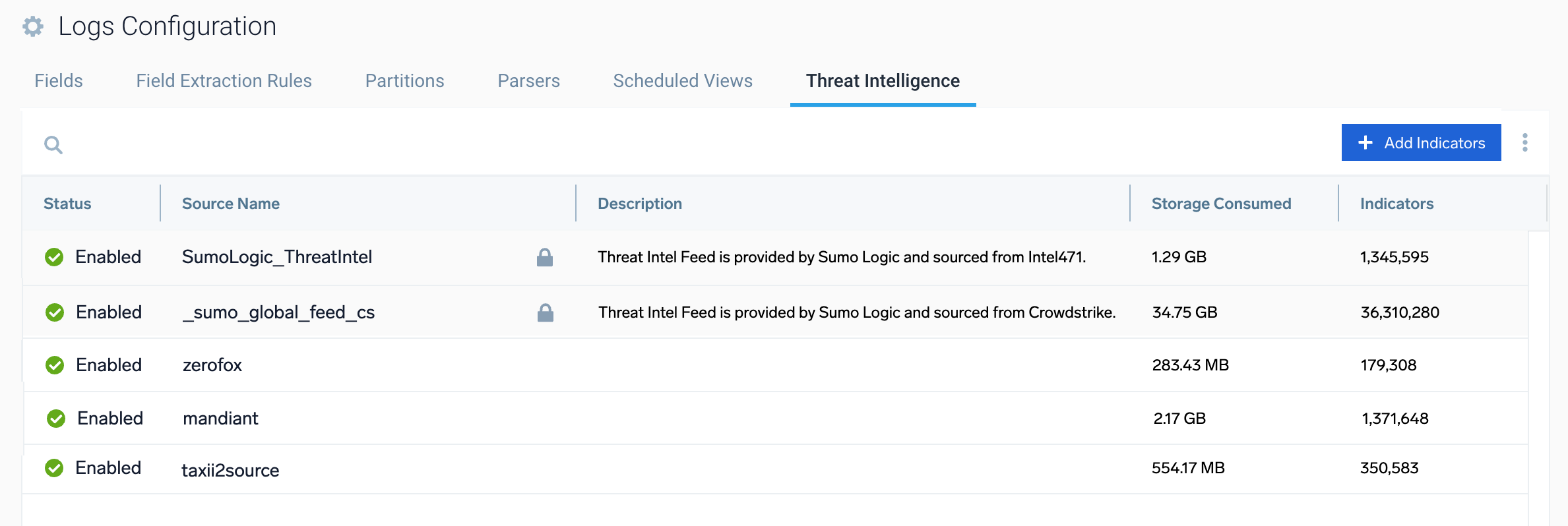
Access to the Threat Intelligence tab requires Cloud SIEM. Without Cloud SIEM, you will not see this menu option, but can still use Sumo Logic's global threat intelligence feeds in log searches.
To learn how to add threat intelligence sources to your datastore, see Add a source.
Cloud SIEM analysts can use all sources shown in the Sources tab of the Threat Intelligence page to find threats (see Find Threats with Cloud SIEM). All Sumo Logic users can also run log search queries against the indicators in their threat intelligence sources using the threatlookup search operator, or against the Sumo Logic threat intelligence sources using the lookup and threatip operators. For more information, see Find Threats with Log Queries.
Only Cloud SIEM administrators can add threat intelligence indicators to the datastore.
The Threat Intelligence sources include:
- Sumo Logic sources. Out-of-the-box default sources of threat indicators supplied by third-party intel vendors and maintained by Sumo Logic. You cannot edit these sources. See Sumo Logic threat intelligence sources below.
- Other sources. The other sources are imported by Cloud SIEM administrators so that Cloud SIEM analysts can use them to find threats. See Ingest threat intelligence indicators to learn how to add other sources.
Sumo Logic threat intelligence sources
Sumo Logic provides the following out-of-the-box default sources of threat indicators supplied by third-party intel vendors and maintained by Sumo Logic. You cannot edit these sources:
- SumoLogic_ThreatIntel. This source incorporates threat indicators supplied by Intel 471. For more information, see Sumo Logic Threat Intel Source.
- _sumo_global_feed_cs. This is a source of threat indicators supplied by CrowdStrike. For more information, see Sumo Logic Global Feed from CrowdStrike.
Ingest threat intelligence indicators
A Cloud SIEM administrator must first ingest the indicators before they can be used to uncover threats. Indicators can be ingested using one of the following methods:
- Add Source. This flow lets you create a hosted collector, select from available threat intelligence sources given below, and complete configuration in a streamlined workflow.
-
info
Sumo Logic provides the following vendor-specific sources, based on the STIX/TAXII 2 Client Source, to simplify setup:
- CISA TAXII Client
- Dragos TAXII Client
- Nozomi TAXII Client
- Recorded Future TAXII Client
- Unit42 TAXII Client
- Upload. Manually upload files that add threat intelligence indicators. See Add indicators in Threat Intelligence. See Upload formats for the format to use when uploading indicators using this option or APIs.
- The API. See the following APIs in the Threat Intel Ingest Management API resource:
After threat indicator sources are ingested, they appear on the Threat Intelligence Sources tab and are ready to be used in Cloud SIEM rules. You can view the individual indicators on the Indicators tab.
Only Cloud SIEM administrators can add threat intelligence indicators to the datastore.
- Sumo Logic's threat intelligence data store only ingests simple threat indicators, not complex indicators that outline a series of steps or entities that make up an attack. Nor does it ingest actors, malware, or other object types.
- The limit of the number of indicators that can be uploaded in one API call is 100.
- When you add indicators, the event is recorded in the Audit Event Index. See Audit logging for threat intelligence.
Threat intelligence indicators
Use the Indicators tab to view, search, and filter the individual indicators in your threat intelligence data store. For example, you can confirm that an indicator was ingested, check which source supplied it, or verify that a source is delivering data. For details, see View and search indicators.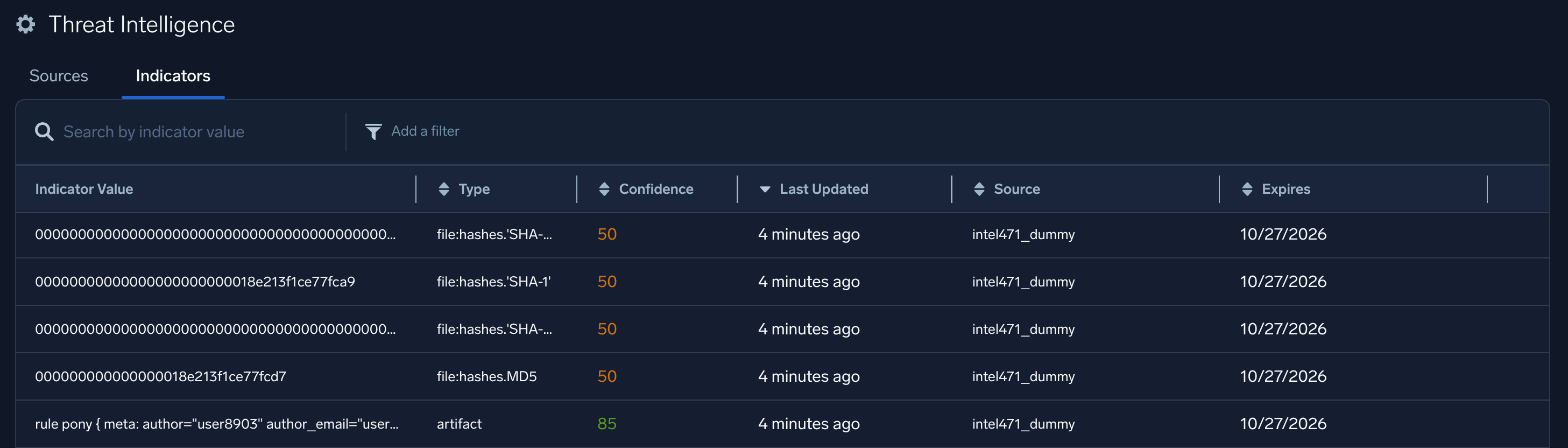
Prerequisites
Role capabilities
To view and manage threat intelligence indicators, a Cloud SIEM administrator must have the correct role capabilities.
- New UI. In the main Sumo Logic menu, select Administration, and then under Users and Roles select Roles. You can also click the Go To... menu at the top of the screen and select Roles.
Classic UI. In the main Sumo Logic menu, select Administration > Users and Roles. - Click the Roles tab.
- Click Add Role to create a new role. Alternatively, you can select an existing role in the Roles tab and click Edit.
Add the following capabilities:
- Threat Intel
- View Threat Intel Data Store
- Manage Threat Intel Data Store
- Threat Intel
You do not need to be assigned these role capabilities to find threats with log queries.
Role capabilities alone do not make the Threat Intelligence tab visible. The tab also requires Cloud SIEM.
Allowlist Sumo Logic static IP addresses
Set firewall rules to allowlist the Sumo Logic IPs listed in Static IP addresses. This allows threat indicators in your Sumo Logic threat intelligence data store to be used without being blocked on your network.
Typical workflow
Here is the typical workflow to set up and use threat intelligence indicators:
- A system administrator ingests threat intelligence indicators and adds them to the threat intelligence data store. For example, create a hosted collector and configure the source such as the STIX/TAXII 2 Client Source to obtain indicators from Federal, vendor, or open services. Ingested indicators appear on the Threat Intelligence Sources tab. You can manually add more indicators as needed, such as your own private indicators, using the Threat Intelligence Sources tab or the Threat Intel Ingest Management APIs.
- Analysts use the threat indicators data to uncover threats using Cloud SIEM rules.
- A system administrator occasionally checks to see why a connector is not ingesting data, or to see how much storage all the indicators are using. They can use the Indicators tab to search for and examine indicators, and then if needed, delete indicators.
Audit logging for threat intelligence
Use the Audit Event Index to view events for threat indicators, such as adding indicators or removing indicators.
Use a search like the following:
=sumologic_audit_events =threatIntelligence