 Meet the new
 Find Threats with Cloud SIEM
You can use threat intelligence indicators in Cloud SIEM to find possible threat activity, either by matching them against records with the hasThreatMatch rule function or by viewing indicator labels directly in the Cloud SIEM UI.
You can no longer add custom threat intelligence sources in Cloud SIEM. To add new sources, ingest threat intelligence indicators using the Sumo Logic threat intelligence framework.
How to use the hasThreatMatch function to detect threat indicators
Use the hasThreatMatch function in Cloud SIEM rules to analyze incoming records for matches to threat intelligence indicators.
For example, use the function to match all records with a srcDevice_ip attribute correlated to a threat indicator with a high confidence level (greater than 50):
hasThreatMatch([srcDevice_ip], confidence > 50)
For more information, see hasThreatMatch.
How to view threat indicator labels in the Cloud SIEM UI
Entities are automatically enriched with indicator data from all threat intelligence sources and the legacy custom intelligence sources. (However, after initial enrichment, any subsequent changes to indicators in the default Sumo Logic threat intelligence sources will not be reflected in the already-enriched entities.)
Enrichment only considers active (non-expired) indicators. Expired ones are never used to enrich entities.
When a match to a threat indicator in sources is found, labels showing the entity's "reputation" will be displayed throughout the Cloud SIEM UI:
| Reputation value | Label | Icon |
|---|---|---|
| Malicious |  |  |
| Suspicious |  |  |
| Not Flagged |  |  |
Not Flagged is not the default value (which is no indicator at all). Cloud SIEM does not automatically assign an indicator value; enrichments must explicitly define it.
Cloud SIEM automatically enriches signals with information from your sources in the Sumo Logic threat intelligence datastore. However, unlike custom intelligence sources, it does not enrich records. Even if a match occurs based on the rule expression, the indicator body is not attached to the record. Instead, the signal should contain a list of matched indicator IDs, and the indicators are visible on the matched entities.
Example of a label in the UI
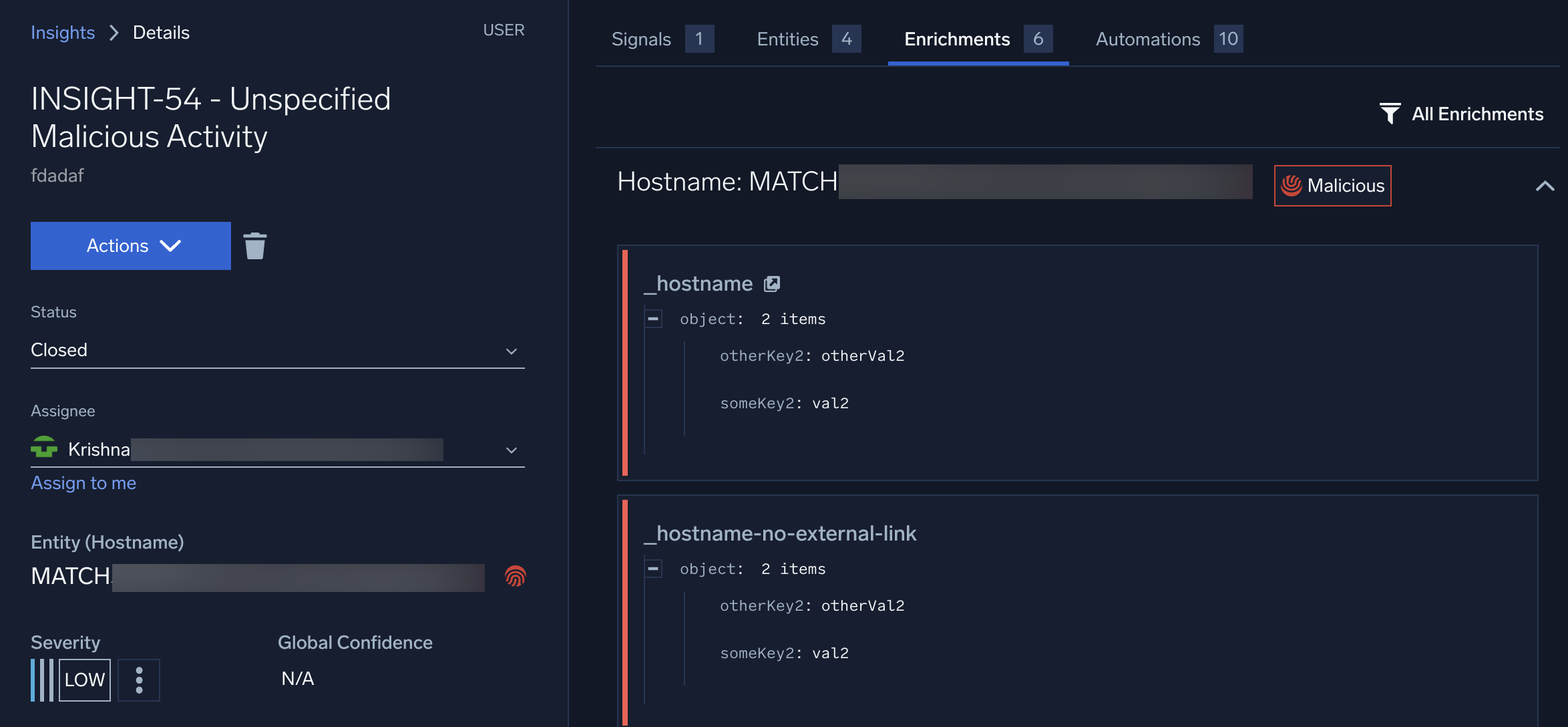
In the following screenshot, the Malicious icon displays on the entity in the insight details, and the Malicious label displays on the Enrichments tab.
Labels for sources
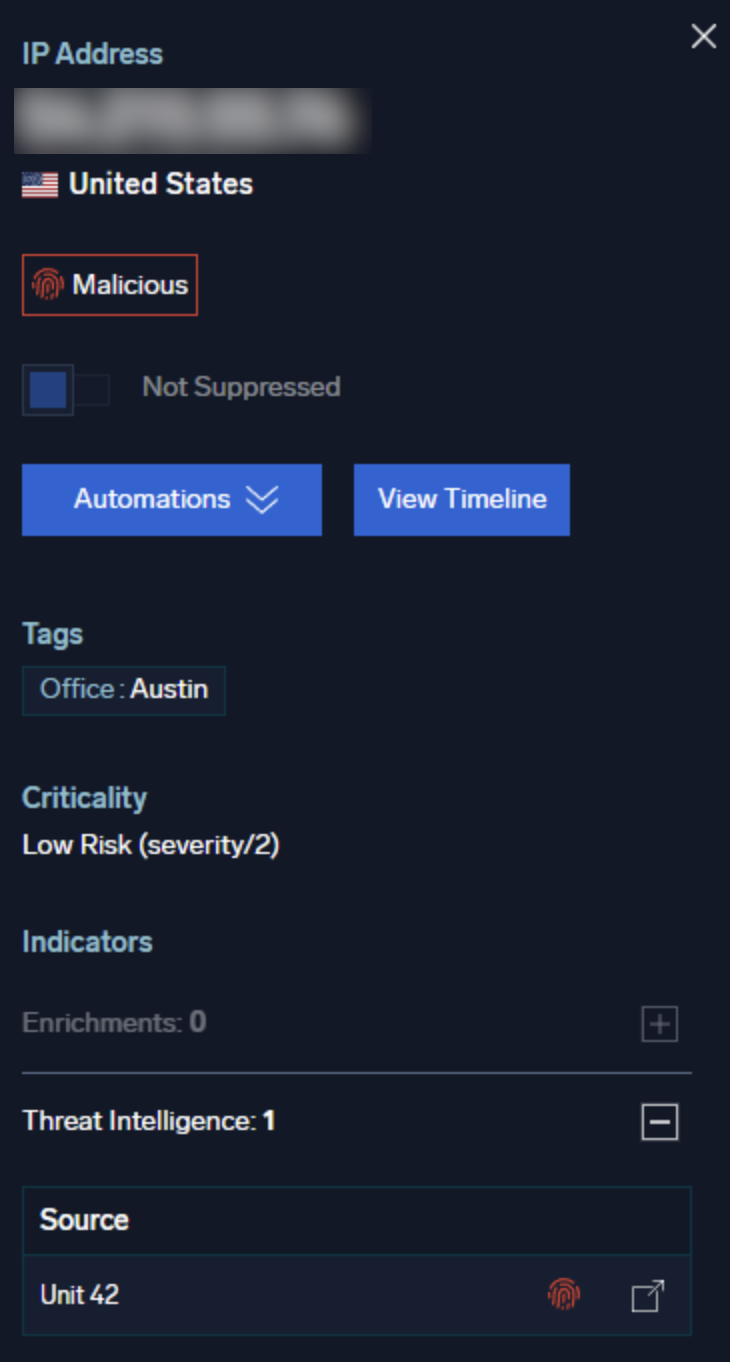
Since different sources can report different reputations, each source has a reputation icon on its row in the Cloud SIEM UI. In the following example, an indicator from the Palo Alto Networks Unit 42 source returned a reputation of Malicious, hence the red icon. The link to the right would open a log search window showing the matching indicators in detail.
Threat type mapping to reputation
Following is the mapping of threat type fields in indicators to reputation labels in the Cloud SIEM UI:
| Threat type value | Reputation label in the Cloud SIEM UI |
|---|---|
anomalous-activity | Suspicious |
anonymization | Suspicious |
benign | Not Flagged |
compromised | Malicious |
malicious-activity | Malicious |
attribution | (None) |
| Unknown (or not set) | Suspicious |
If the mapping produces a threat indicator level of Malicious, but the confidence is less than 60, the entity's reputation will be set to Suspicious instead. If there are multiple reputation values for a given entity (potentially from threat intel and enrichment), Cloud SIEM will show the most severe indicator.
How to add verified indicators to match lists
To prevent entities that are verified as safe from resulting in signals being fired from threat intelligence indicators, add the verified entities to the appropriate standard match lists:
For example, if you have a list of allowed IP addresses, add them to the verified_ips match list. Any rules whose expressions state to ignore IPs in that match list will not fire signals for those IPs when the rules run. Following are some of the standard Cloud SIEM threat intel rules whose expressions are configured to ignore IPs in the verified_ips match list:
Threat Intel - Destination IP Address (Low Confidence)Threat Intel - Destination IP Address (Medium Confidence)Threat Intel - Device IP Matched Threat Intel Domain NameThreat Intel - Device IP Matched Threat Intel URLThreat Intel - Inbound Traffic from Threat Feed IP (High Confidence)Threat Intel - Inbound Traffic from Threat Feed IP (Medium Confidence)Threat Intel Match - IP AddressThreat Intel - Successful Authentication from Threat Feed IP
FAQ
What is a threat intelligence indicator in Cloud SIEM?
A threat intelligence indicator is a known indicator of compromise, such as an IP address, domain, or hash, sourced from threat intelligence feeds. Cloud SIEM automatically enriches signals with matching indicators and displays a reputation label, such as Malicious, Suspicious, or Not Flagged.
Can I still add custom threat intelligence sources in Cloud SIEM?
No. You can no longer add custom threat intelligence sources. To add new sources, ingest threat intelligence indicators using the Sumo Logic threat intelligence framework instead.
Does Cloud SIEM enrich records or only signals with threat indicators?
Cloud SIEM automatically enriches signals with threat intelligence information. Unlike custom intelligence sources, it does not enrich records directly, even when a match occurs based on the rule expression.
What reputation labels can Cloud SIEM assign to entities?
Cloud SIEM can label entities as Malicious, Suspicious, or Not Flagged based on matching threat intelligence indicators. Not Flagged isn't the default value; Cloud SIEM only assigns it when an enrichment explicitly defines it.
How does Cloud SIEM map threat types to reputation labels?
Cloud SIEM maps threat type values from indicators to reputation labels: malicious-activity and compromised map to Malicious, anomalous-activity and anonymization map to Suspicious, benign maps to Not Flagged, and unknown or unset values default to Suspicious.