 Meet the new
 Manage Threat Intelligence Indicators
The Threat Intelligence page displays the indicators added to your threat intelligence datastore. Use this documentation to add and manage your threat intelligence indicators. You can add indicators from several sources (see Ingest threat intelligence indicators). Threat intelligence indicators imported to Sumo Logic not only integrate with your existing core Sumo Logic deployment, but also Cloud SIEM and Cloud SOAR.
Threat Intelligence overview
To access Threat Intelligence in Sumo Logic,
- New UI. In the main Sumo Logic menu, navigate to Data Management > Threat Intelligence. You can also click the Go To... menu at the top of the screen and select Threat Intelligence.
Classic UI. In the main Sumo Logic menu, select Manage Data > Threat Intelligence.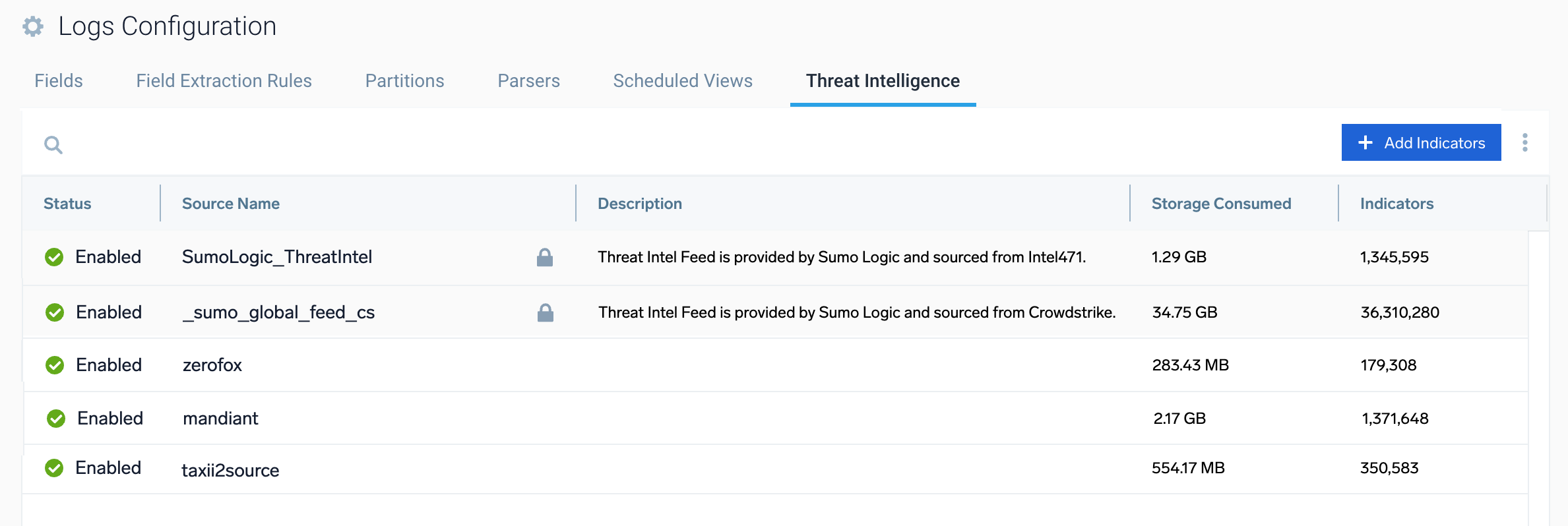
- Click +Add Source to add threat intelligence sources to your datastore:
- New Source. This flow lets you create a hosted collector, select from available threat intelligence sources and complete configuration in a streamlined workflow.
- Upload. Manually upload files that add threat intelligence indicators.
- Status. The current status of the indicator source (Enabled or Disabled).
- Source Name. The name of the threat intelligence indicator file. The name usually indicates the supplier of the indicators.
- Description. The description of the threat intelligence indicator.
- Number of Indicators. The total count of threat intelligence indicators provided by the source.
- The
SumoLogic_ThreatInteland_sumo_global_feed_cssources are default sources and cannot be changed or deleted. - The default storage limit is 10 million total indicators (not including any indicators provided by Sumo Logic such as in the
SumoLogic_ThreatInteland_sumo_global_feed_cssources). - By default the page only displays active indicators.
Add a source
Use the +Add Source button in the Sources tab to add threat intelligence sources to your datastore. You can connect to an external threat intelligence feed or manually upload indicators from a file. For information on the other methods, see Ingest threat intelligence indicators.
Only Cloud SIEM administrators can add threat intelligence indicators to the datastore.
New source
- Click + Add Source and then select New Source from the dropdown menu.
- Select a collector from the Collector dropdown list and a source (for example, CrowdStrike Threat Intel) from the available integrations grid.
- Click Next.
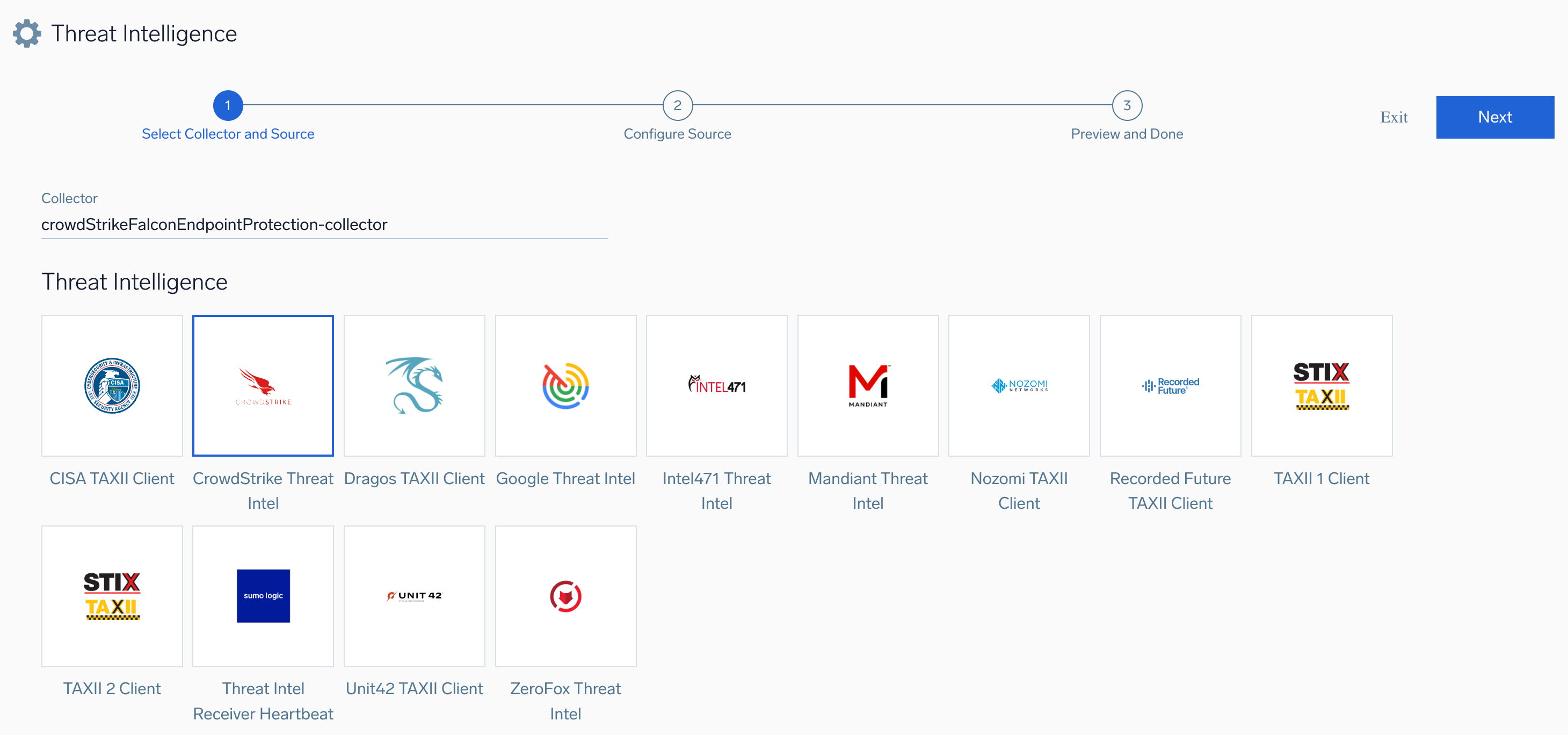
- Enter the following details to configure the source:
note
The fields are source-specific and vary by integration.
- Enter a Name for the source. The description is optional.
- (Optional) For Source Category, enter any string to tag the output collected from the Source. Category metadata is stored in a searchable field called
_sourceCategory. - (Optional) Fields. Click the +Add Field link to define the fields you want to associate. Each field needs a name (key) and a value.
 A green circle with a check mark is shown when the field exists and is enabled in the Fields table schema.
 An orange triangle with an exclamation point is shown when the field does not exist in the Fields table schema. In this case, you'll see an option to automatically add or enable the nonexistent fields to the Fields table schema. If a field is sent to Sumo Logic but is not present or enabled in the schema, it’s ignored and marked as Dropped.
- Region. Select the region of your account from the dropdown.
- Client ID: Provide the client ID you want to use to authenticate collection requests.
- Client Secret. Provide the client secret key you want to use to authenticate collection requests.
- Sumo Logic Threat Intel Source ID. Provide your own threat intel source ID for organizing multiple sources.
note
If no Application ID is provided, a random ID is generated. Any time this ID is changed, the Source will re-read the data stream starting at the beginning.
- (Optional) Malicious Confidence. Select the confidence level of the threat type from the dropdown list as High, Medium, Low, Unverified, or leave it empty for all types.
- When you are finished configuring the Source, click Next.
- Once you have reviewed all the details, click Done. A confirmation message appears when the source is successfully configured.
Upload
To manually upload threat intelligence indicators from a file:
- Click + Add Source and then select Upload from the dropdown menu. The upload dialog displays.
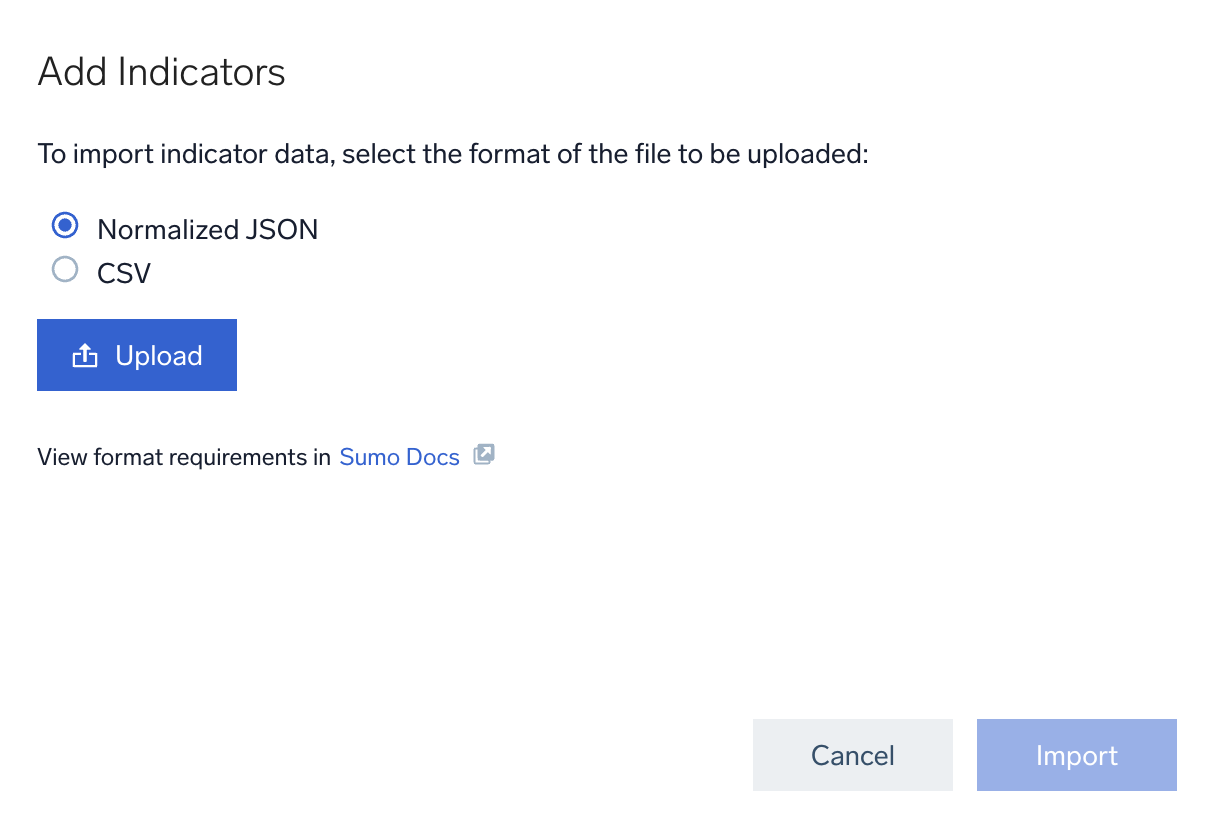
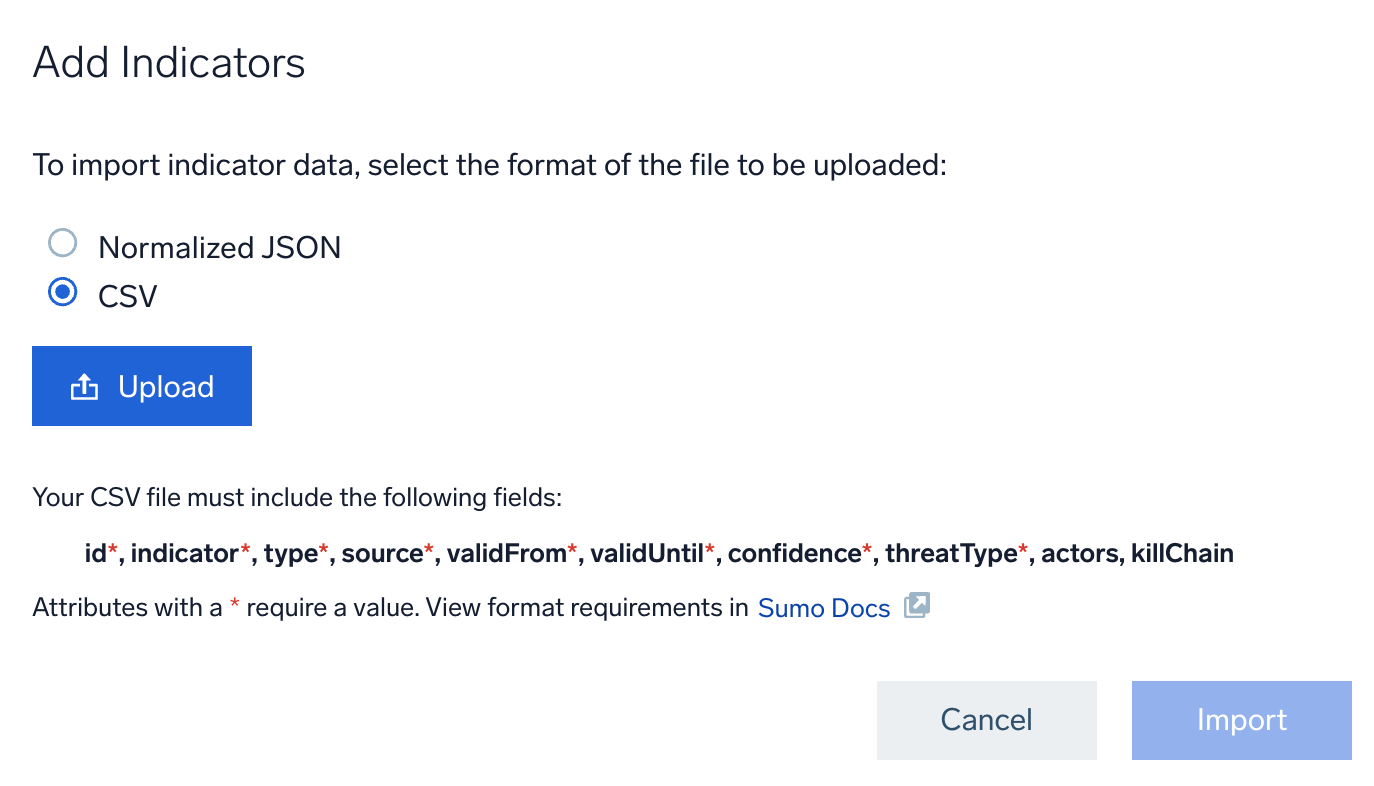
- Select the format of the file to upload (see Upload formats for the format to use in the file):
- Normalized JSON. A normalized JSON file.
- CSV. A comma-separated value (CSV) file.
- Normalized JSON. A normalized JSON file.
- Click Upload to upload the file.
- Click Import.
When you add indicators, the event is recorded in the Audit Event Index. See Audit logging for threat intelligence.
Edit a source
Follow the steps below to edit a source:
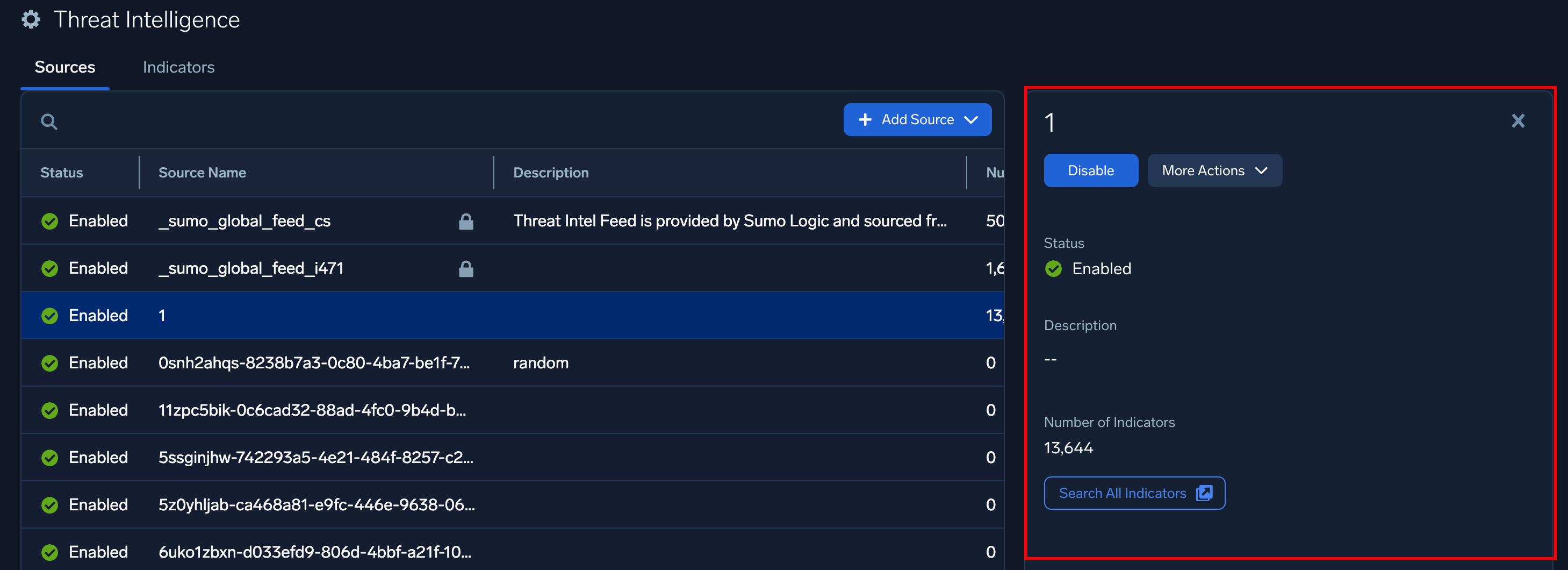
- Select a source in the list of sources. The source details appear in a sidebar.
- Click the More Actions dropdown and then select Edit.

Or, click the ellipsis icon and select Edit from the source details page.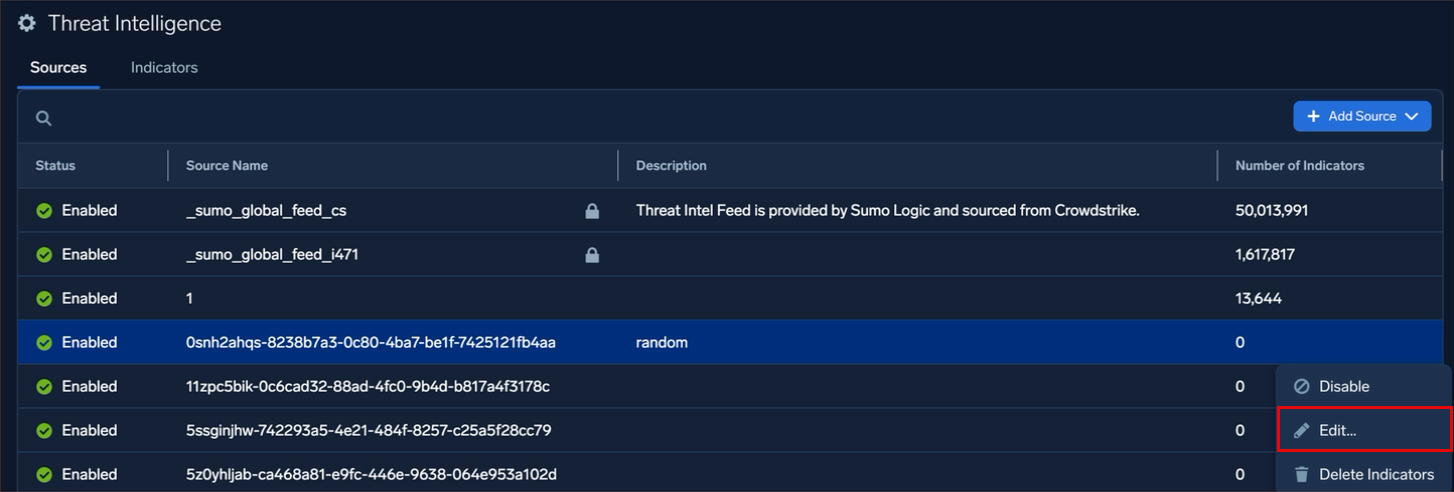
- You can edit the description of the source.
- You can click the Search All Indicators button to view all the active indicators associated with that source.
- Click Save. A Source updated successfully confirmation message appears.
View and search indicators
Follow the steps below to open the Indicators tab:
- New UI. In the main Sumo Logic menu, navigate to Data Management > Threat Intelligence. You can also click the Go To... menu at the top of the screen and select Threat Intelligence.
Classic UI. In the main Sumo Logic menu, select Manage Data > Threat Intelligence. - Click the Indicators tab.

- The Indicators tab shows only active indicators. Expired indicators and indicators from deleted sources are not listed.
- After a source ingests an indicator, it can take up to 10 minutes to appear on the Indicators tab. Search results are eventually consistent, so an indicator you just added may not be visible right away.
The table lists indicators with the following details:
| Column | Description |
|---|---|
| Indicator Value | The value of the indicator, such as an IP address, URL, domain, or file hash. Long values are truncated in the table. Select a row to see the full value. |
| Type | The indicator type, such as ipv4-addr, url, artifact, file:hashes.MD5, or file:hashes.'SHA-256'. |
| Confidence | The confidence score for the indicator, as a number. |
| Last Updated | How long ago the indicator was last updated, for example "9 minutes ago". |
| Source | The threat intelligence source that supplied the indicator. |
| Expires | The date the indicator expires. |
Search indicators
To find indicators by value, enter text in the Search by indicator value box. The search is case-sensitive.
You can combine a search with filters. The table updates to show only indicators that match both.
Filter indicators
To narrow the list, click Add a filter and choose a field. You can add more than one filter.
You can filter by:
- Source. Select one or more sources. The list shows only sources that have at least one indicator.
- Type. Select one or more indicator types. The list shows only types present in your indicators.
- Confidence. Specify a range of confidence scores.
View indicator details
To see more about an indicator, click its row. A details panel opens on the right side of the page with the following information:
| Field | Description |
|---|---|
| Indicator Value | The full indicator value. |
| Type | The indicator type. |
| Confidence | The confidence score. |
| Source | The source that supplied the indicator. |
| Last Updated | When the indicator was last updated. |
| Expires | The date the indicator expires. |
| Raw IOC Data | The original indicator record in JSON format, as ingested. This is read-only. |
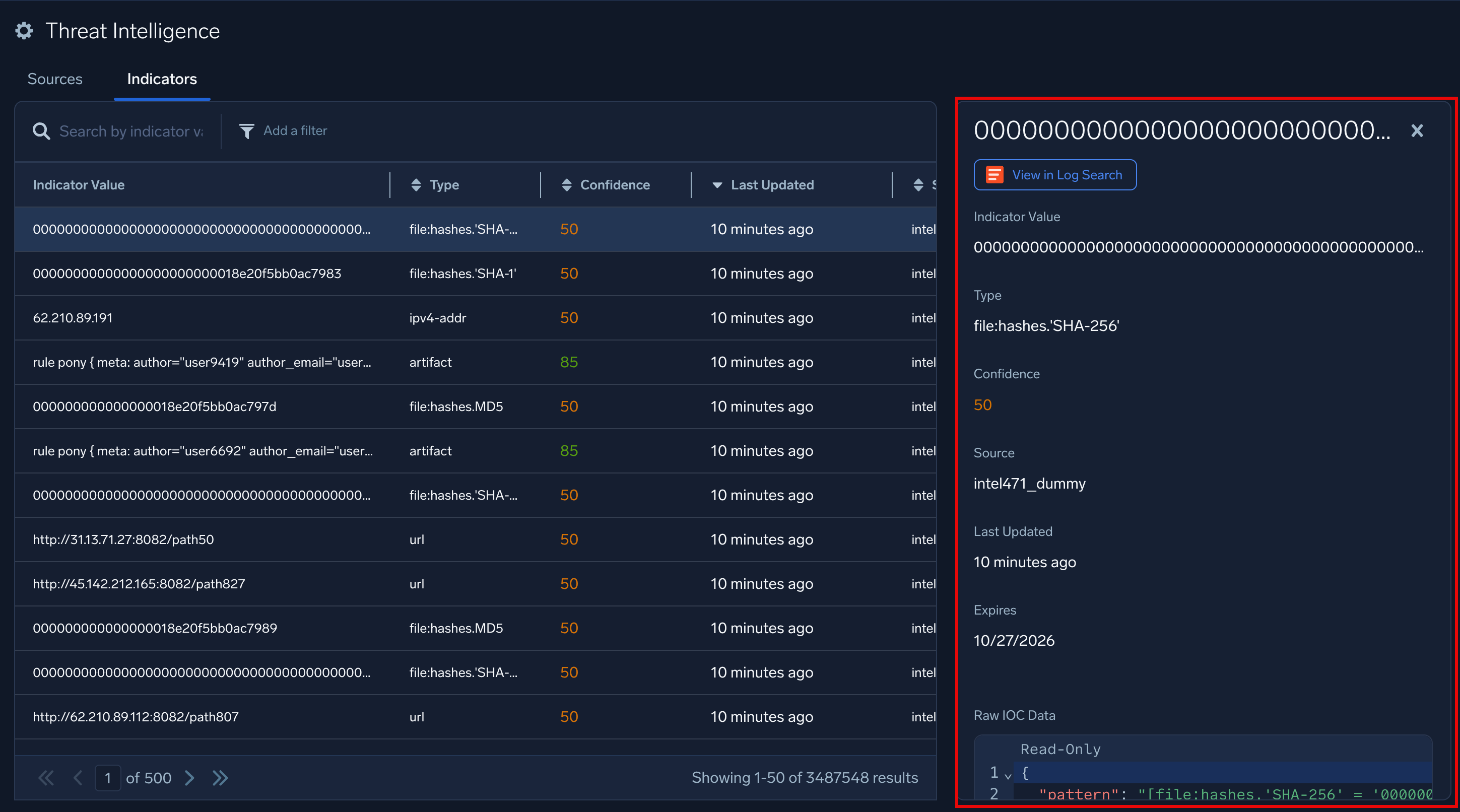
To search your logs for activity related to an indicator, click View in Log Search at the top of the panel.
Delete threat intelligence indicators
- New UI. In the main Sumo Logic menu, navigate to Data Management > Threat Intelligence. You can also click the Go To... menu at the top of the screen and select Threat Intelligence.
Classic UI. In the main Sumo Logic menu, select Manage Data > Threat Intelligence. - Select a source in the list of sources. Details of the source appear in a sidebar.
- Click the More Actions dropdown and then selecting Delete Indicators to delete all indicators for that source.

- Click Delete in the confirmation dialog to delete the indicators.

You can delete indicators from the Sources tab in the Threat Intelligence page, as well as use the APIs in the Threat Intel Ingest Management API resource.
When you remove indicators, the event is recorded in the Audit Event Index. See Audit logging for threat intelligence.