 Meet the new
 Using the Sumo Logic Collection UI
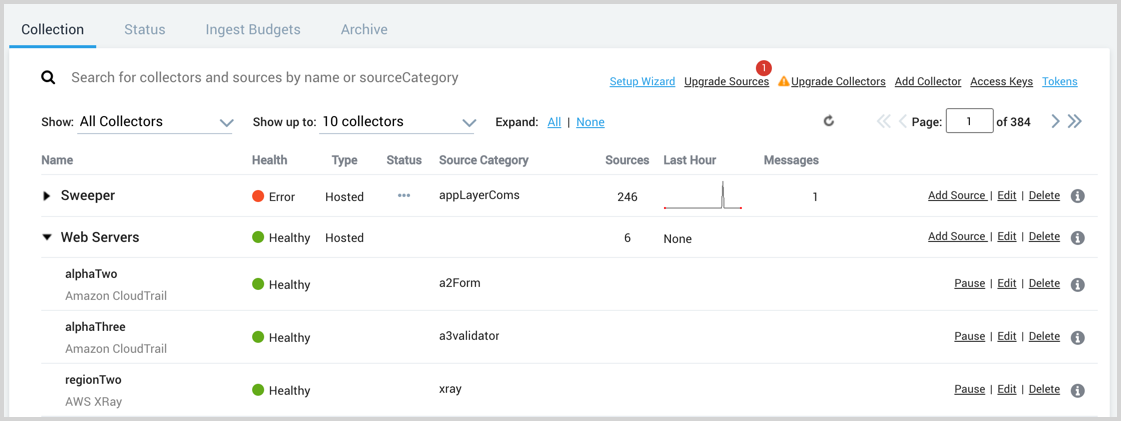
This page provides an overview of the Sumo Logic Collection page UI, where you can manage all of your Collectors and Sources.
New UI. To access the Collection page, In the Sumo Logic main menu select Data Management, and then under Data Collection select Collection. You can also click the Go To... menu at the top of the screen and select Collection.
Classic UI. To access the Collection page, in the main Sumo Logic menu select Manage Data > Collection > Collection.
Prerequisites
You'll need the Manage or View Collectors role capability to manage or view Collection.
Collection Page Features
- Search for a Collector or Source
- View the health of Collectors and Sources
- Upgrade Sources from the Cloud-to-Cloud Integration Framework
- Upgrade Collectors
- Add an Installed Collector or a Hosted Collector
- Use the Show options to filter the list
- Use the Expand options to show or hide information about the Sources
- Use the paging controls to navigate the list of Collectors
Collector Actions
- Add a Source
- Edit a Collector
- Delete a Collector
- Download a JSON configuration file for scripting or backup
- Restart a Collector
Source Actions
- Edit a Source
- Delete a Source
- Download a JSON configuration file for scripting or backup
- Pause or resume a Source (cloud polling Sources only)
- Show or regenerate a Source URL (HTTP Sources only)
- Show or regenerate a Source token (cloud syslog Source only)
View Information about Collectors and Sources
- Name. Displays the name of the Collector, and any Sources that are configured under it. It also displays the type of Source (HTTP, Local File, Local Windows Event Log, etc.)
- Open in Search. Hover over the Name of the Collector or Source and click the Open in Search icon to start a search in the Search page.
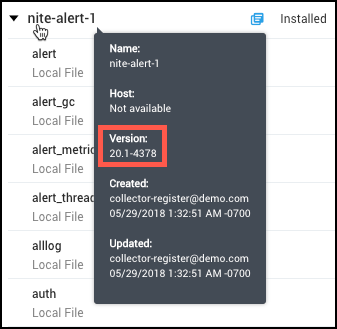
- Tooltip. Hover over a Collector or Source name to display an informational tool tip. The Collector's version is provided in the tooltip.
- Health. Shows color-coded healthy, error, and warning states for Collectors and Sources so you can quickly determine the health of your Collectors and Sources. If an Installed Collector appears offline try restarting the service and testing connectivity.
- Type. Displays whether the Collector is an Installed or Hosted Collector.
- Status. Shows the status of Sources manually paused by users.
- Source Category. Displays the name of the configured Source Category for this Collector or Source.
- Sources. Displays the number of Sources configured under a Collector.
- Last Hour. Displays a graph of the total number of log messages ingested per minute over the past hour.
- Messages. Displays the total number of log messages ingested over the past hour.
Guide contents
In this section, we'll introduce the following concepts:
Search for a Collector or Source
Search for a collector or source on the manage collection page.
Start or Stop a Collector using Scripts
Start/stop a collector and check collector status.
Edit a Collector
Edit collector characteristics.
Edit a Source
Edit source characteristics.
Pause and Resume a Source
Pause sources from sending data to Sumo Logic.
Delete a Collector or Source
Delete a collector or source.
Set a Collector CPU Usage Target
Limit the amount of CPU processing a collector uses.
Upgrade a Collector
Deploy an upgrade to one or more collectors.
Collector Logs
Use log events to troubleshoot collection issues.
Processing Rules
Processing rules can help filter and forward data.