 Meet the new
 Box Source

The Box API integration ingests events from the Get Events API. It securely stores the required authentication, scheduling, and state tracking information.
Data collected
| Polling Interval | Data |
|---|---|
| 5 min | Events |
Setup
Vendor configuration
- Login into the Box Account.
- Create and register a new app from the App Console. To register the App with Box follow these steps. Select Server Authentication (with JWT) as the authentication method. Note that use of a key pair requires 2-step verification to be enabled on Box.
- Generate
public private key pairas described in the following steps Key Pair and download the JSON file. - Go to the Configuration and change App Access Level to App + Enterprise Access and enable Manage Enterprise properties in Application Scopes and save changes as shown below.
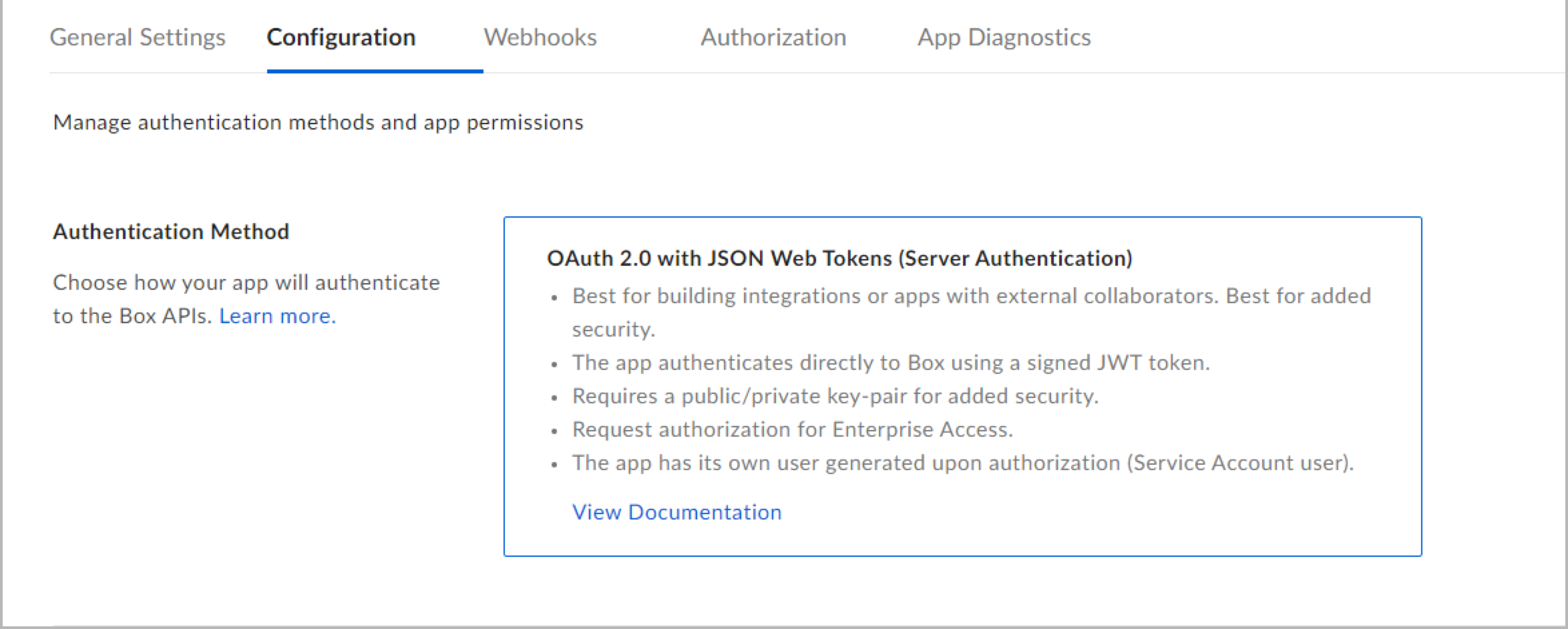
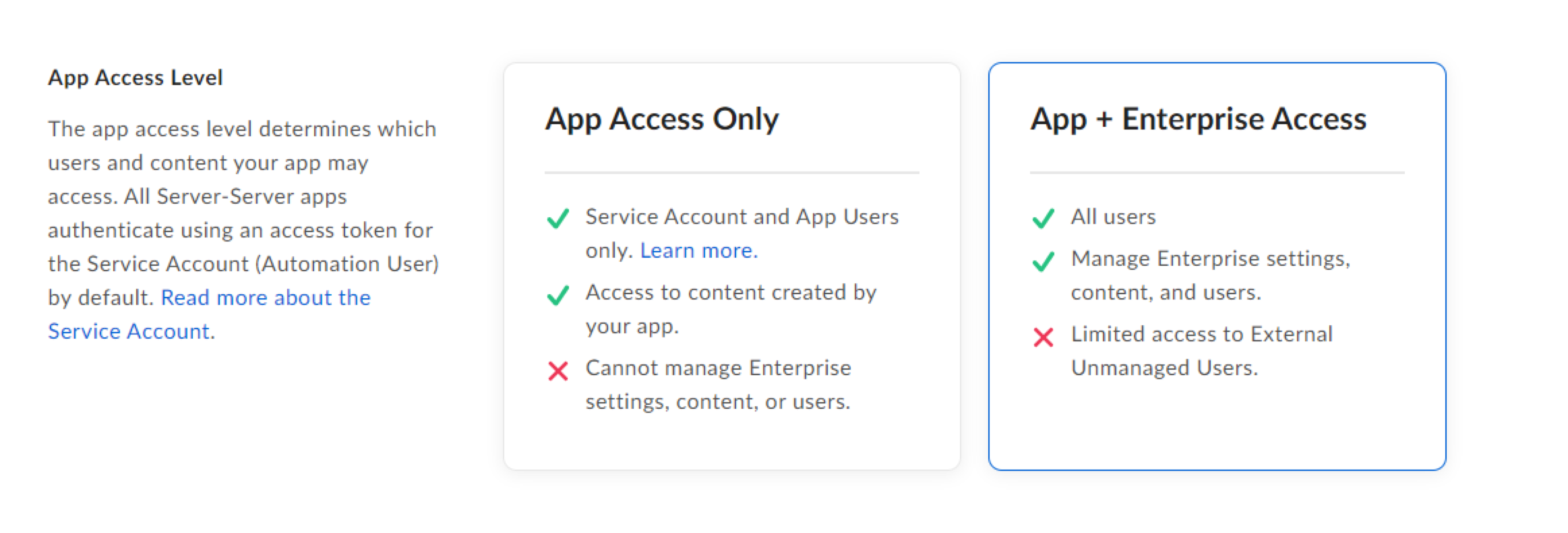
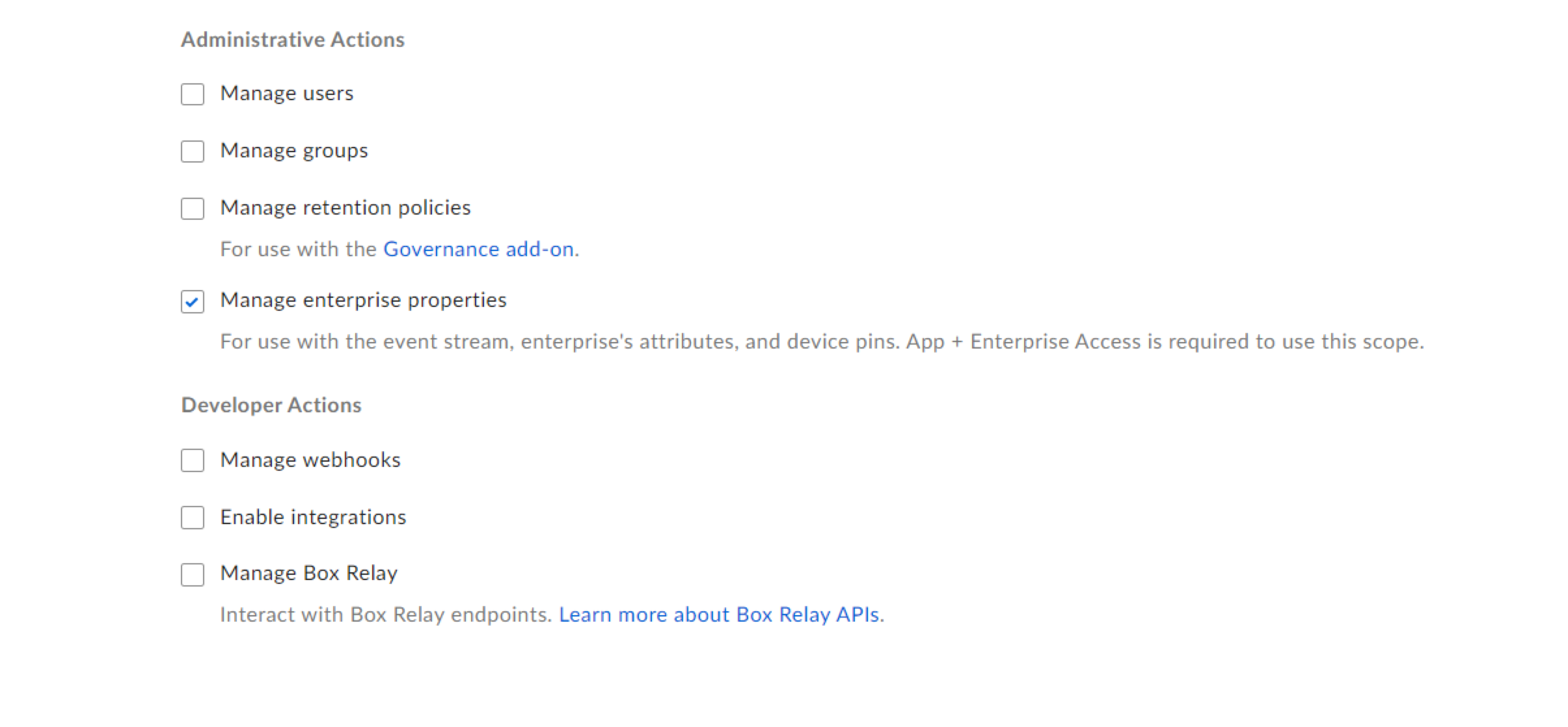
- Authorize your app by following the steps in App Authorization.
Source configuration
When you create a Box Source, you add it to a Hosted Collector. Before creating the Source, identify the Hosted Collector you want to use or create a new Hosted Collector. For instructions, see Create a Hosted Collector.
To configure a Box Source:
- New UI. In the Sumo Logic main menu select Data Management, and then under Data Collection select Collection. You can also click the Go To... menu at the top of the screen and select Collection.
Classic UI. In the main Sumo Logic menu, select Manage Data > Collection > Collection. - On the Collectors page, click Add Source next to a Hosted Collector.
- Search for and select Box.
- Enter a Name for the Source. The description is optional.
- (Optional) For Source Category, enter any string to tag the output collected from the Source. Category metadata is stored in a searchable field called
_sourceCategory. - Forward to SIEM. Check the checkbox to forward your data to Cloud SIEM. note
- The Forward to SIEM checkbox is only available if Cloud SIEM is installed.
- For C2C sources where the checkbox is already provided, there's no need to add
_siemForward=true(case-sensitive), since the checkbox alone handles forwarding to SIEM.
- (Optional) Fields. Click the +Add link to add custom log metadata Fields.
- Define the fields you want to associate, each field needs a name (key) and value.
 A green circle with a check mark is shown when the field exists and is enabled in the Fields table schema.
 An orange triangle with an exclamation point is shown when the field doesn't exist, or is disabled in the Fields table schema. In this case, you'll see an option to automatically add or enable the nonexistent fields to the Fields table schema. If a field is sent to Sumo Logic but isn’t present or enabled in the schema, it’s ignored and marked as Dropped.
- Define the fields you want to associate, each field needs a name (key) and value.
- Upload the JSON file.
- Processing Rules. Configure any desired filters, such as allowlist, denylist, hash, or mask, as described in Create a Processing Rule.
- When you are finished configuring the Source, click Submit.
After configuring the Box source, consider installing the Sumo Logic app for Box to visualize and analyze the collected data using prebuilt dashboards and monitor alerts.
Metadata fields
| Field | Value | Description |
|---|---|---|
_siemVendor | Box | Set when Forward To SIEM is checked. |
_siemProduct | Enterprise Events | Set when Forward To SIEM is checked. |
_siemFormat | JSON | Set when Forward To SIEM is checked. |
_siemEventID | event_type | Set when Forward To SIEM is checked. |
JSON schema
Sources can be configured using UTF-8 encoded JSON files with the Collector Management API. See how to use JSON to configure Sources for details.
| Parameter | Type | Value | Required | Description |
|---|---|---|---|---|
| schemaRef | JSON Object | {"type":"Box"} | Yes | Define the specific schema type. |
| sourceType | String | "Universal" | Yes | Type of source. |
| config | JSON Object | Configuration object | Yes | Source type specific values. |
Configuration Object
| Parameter | Type | Required | Default | Description | Example |
|---|---|---|---|---|---|
| name | String | Yes | null | Type a desired name of the source. The name must be unique per Collector. This value is assigned to the metadata field _source. | "mySource" |
| description | String | No | null | Type a description of the source. | "Testing source" |
| category | String | No | null | Type a category of the source. This value is assigned to the metadata field _sourceCategory. See best practices for details. | "mySource/test" |
| fields | JSON Object | No | null | JSON map of key-value fields (metadata) to apply to the Collector or Source. Use the boolean field _siemForward to enable forwarding to SIEM. | {"_siemForward": false, "fieldA": "valueA"} |
| credentialsJson | String | Yes | null | JAuthentication credentials to access Box platform. |
JSON example
loading...
Terraform example
loading...
Troubleshooting
After you configure your source, check the status of the source on the Collection page. If the source is not functioning as expected, you may see an error in the Status column, as shown below:
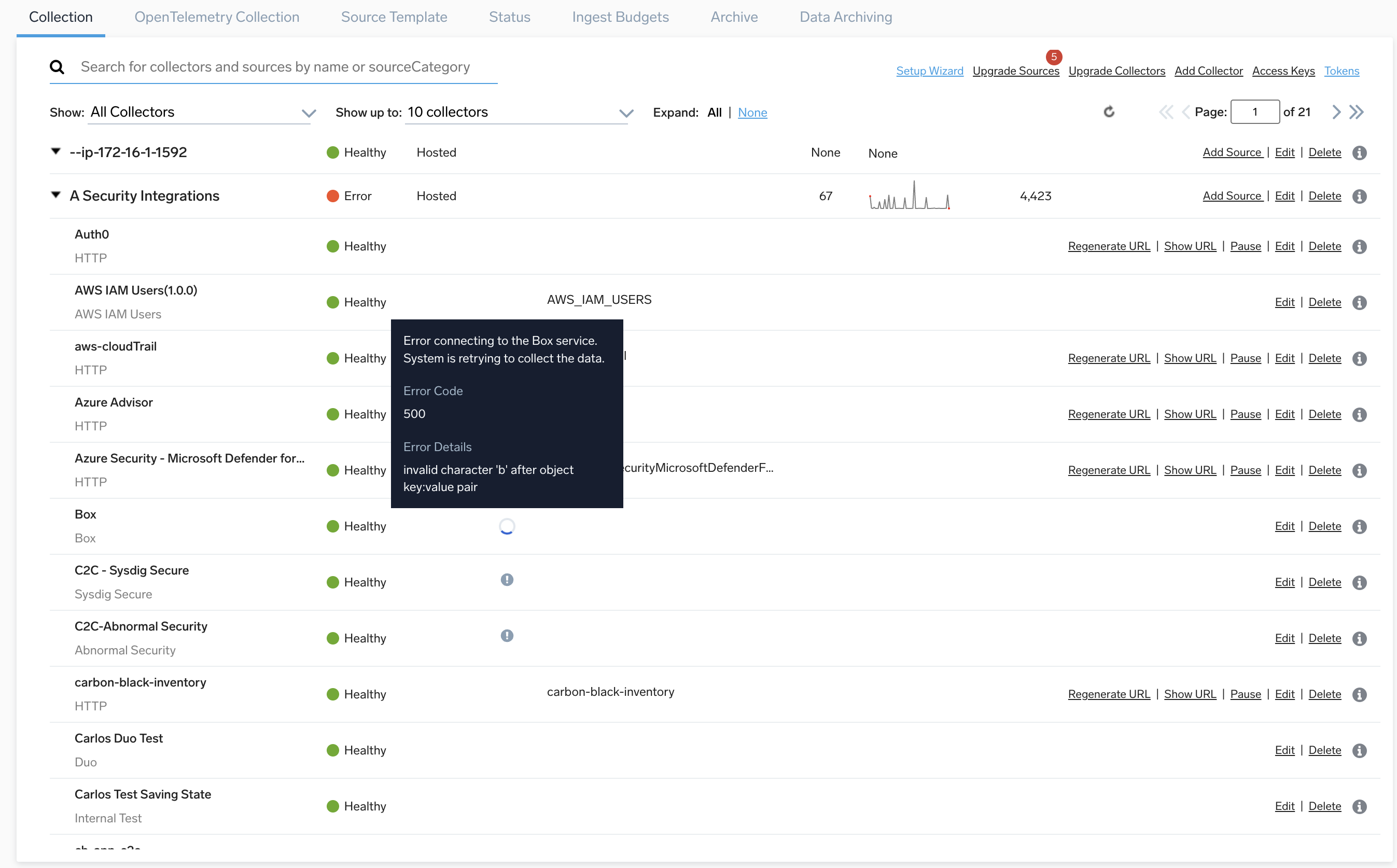
The following sections detail how you can resolve various errors.
Invalid or missing grant type
Error: {"error":"invalid_grant","error_description":"Invalid grant_type parameter or parameter missing"}. This error usually indicates that the OAuth token request is invalid or the app is not fully configured for Server Authentication (JWT).
Solution: Verify JWT app setup, re-upload a fresh credentials JSON file, and confirm the app is authorized and enabled in the Box Admin Console.
Server unavailable
Error: {"error":"temporarily_unavailable","error_description":"The server is currently unable to handle the request due to a temporary overloading of the server"}. This indicates a temporary Box service-side issue.
Solution: Retry after a short wait, check Box Status, and contact Box Support if the issue persists.
Connection error
Error: {"error_description":"read: connection reset by peer"}. This indicates a network interruption between Sumo Logic and Box.
Solution: Retry the Source and verify that your network and security controls allow outbound HTTPS access to required Box API endpoints.
Invalid request
Error: {"error":"invalid_request","error_description":"A request parameter was invalid"}. This means one or more Box API request parameters are invalid, unsupported, or malformed.
Solution: Verify the query parameter names and values in the Box API request, then retry with supported parameters only.
Unauthorized client
Error: {"error":"unauthorized_client","error_description":"This app is not authorized by the enterprise admin"}. This means the Box enterprise admin has not approved the app for your org.
Solution: Have your Box enterprise admin authorize and enable the app in Admin Console > Integrations > Platform Apps Manager, then retry the source.
FAQ
Click here for more information about Cloud-to-Cloud sources.