 Meet the new
 Google Workspace Activities Source

This topic has information about the Google Workspace Activities Cloud-to-Cloud Source, part of Sumo Logic's Cloud-to-Cloud Integration Framework.
Data collected
| Polling Interval | Data |
|---|---|
| 5 minutes | Activities data |
Google may deliver activity data with a delay for few apps. A 10 minute delay is already configured in the source, but that buffer may not be sufficient for some of the applications. For details, see Google's document.
Setup
Vendor configuration
Follow the steps below to create Google Workspace Activities service account credentials:
- From Google Cloud console, select your project or create a new one.
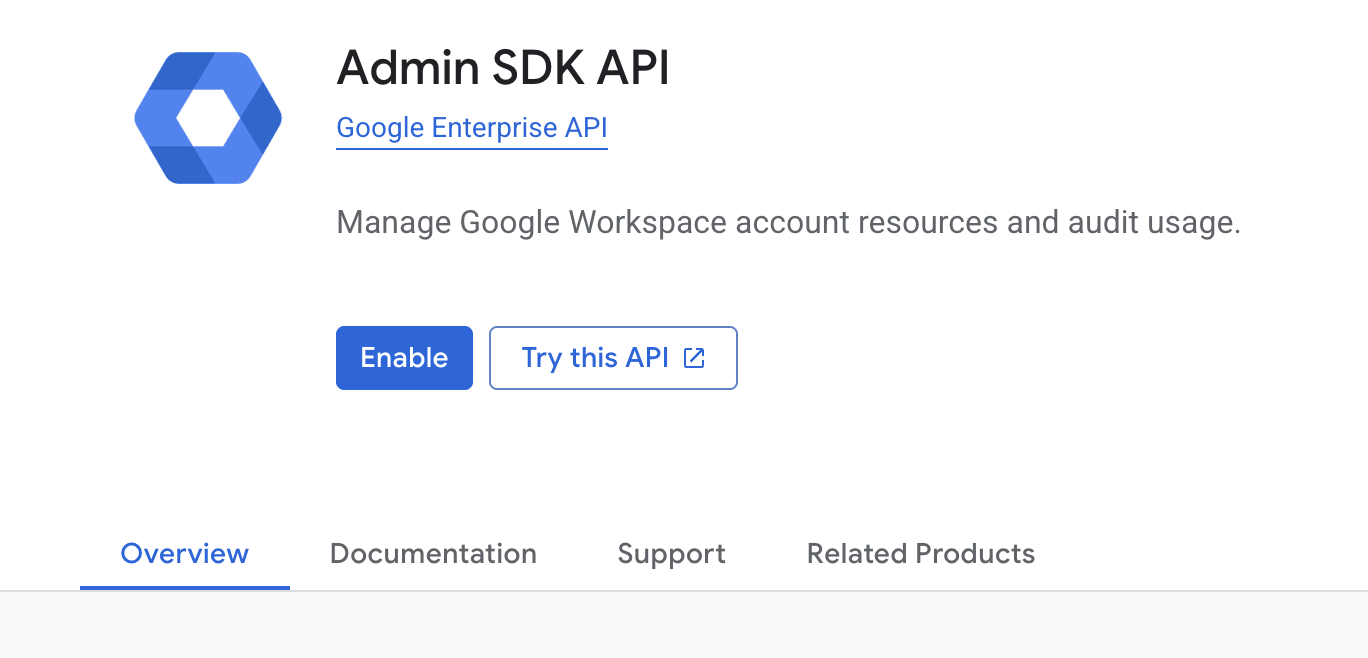
- Enable Admin SDK API for the Activities API. To locate this setting, you can search for "Admin SDK API" in the search bar. Then select the Enable button.
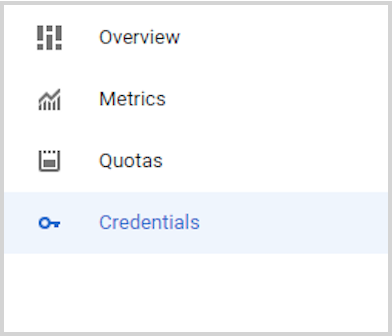
- You will be redirected to the dashboard page. Select the Credentials tab in the left panel.
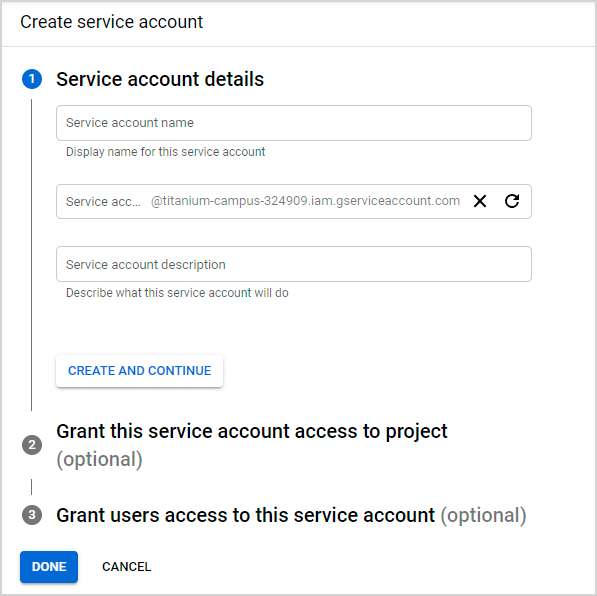
- Click Create Credentials, and select Service Account to create service account credentials. Later, you'll supply the account details and click Done to create a service account.
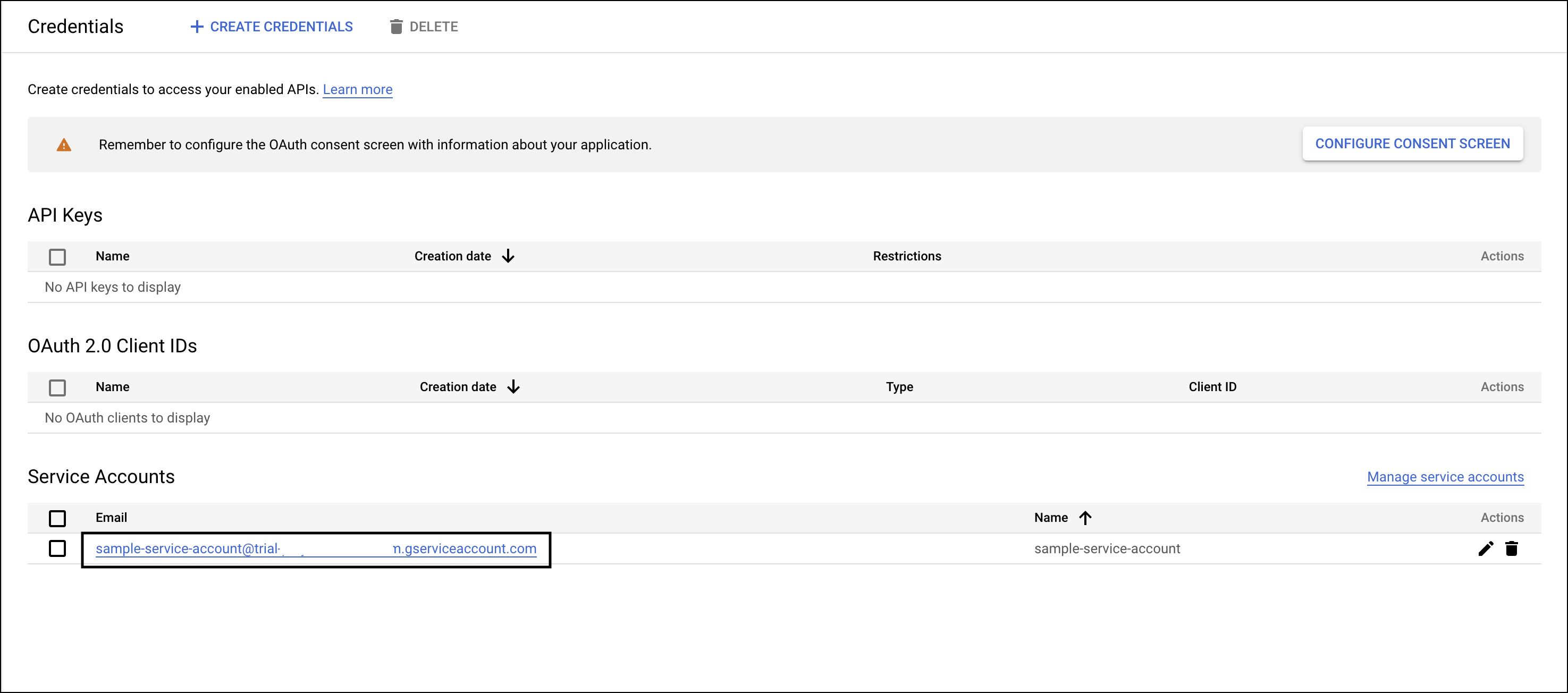
- To create JSON for the service account, you must create a key. Click the service account email to navigate to the Keys tab.
- Click Add key and select Create new key. At the prompt, select JSON and click Create to create a key.
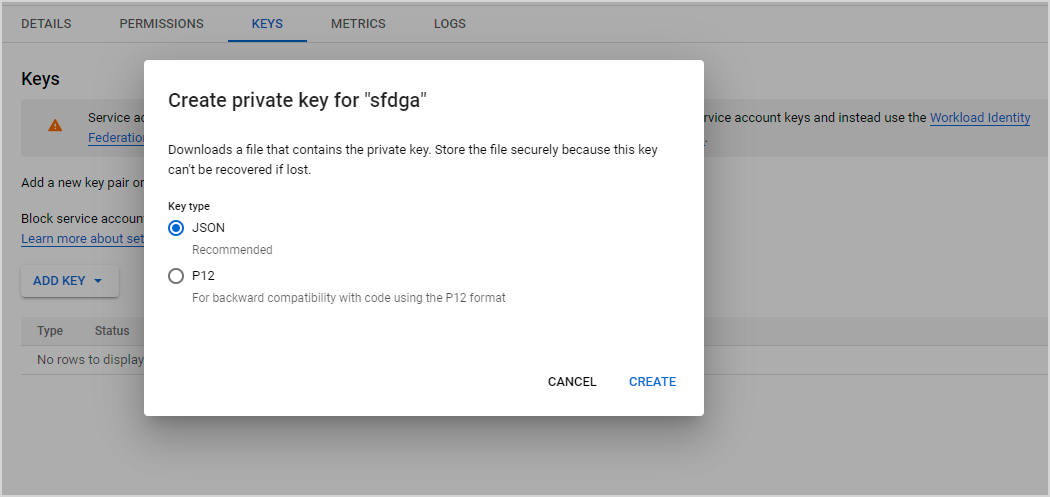
- JSON for the service account is automatically downloaded. To see what the JSON looks like and how the JSON fields map to the fields you'll configure, see the service account JSON example below.
- Add domain-wide delegation to your service account using the client ID generated in step 5.
- From the Google Admin console, add your OAuth scope to the service account using the instructions here and select it in the input form. The OAuth scope for the Activity API is:
https://www.googleapis.com/auth/admin.reports.audit.readonlynote
If you do not add an OAuth scope to your Google Workspace service account, you won't be authorized to fetch activity details. Learn more about OAuth scopes:
- For delegated user email, you need to add the email of the user whom you want to delegate for API calls.
- (Optional) For the
vaultapplication only. If you want to collect Google Vault audit logs, complete these additional steps for the delegated user account:- Assign a Vault admin role. In the Google Workspace Admin console, go to Directory > Users, open the delegated user, and assign a role that includes the Access All Logs privilege under the Vault section. You can use the built-in Vault Super Admin role or a custom Vault admin role that contains this privilege.
- Ensure an active Vault license. The delegated user must hold an active Google Vault license.
If you do not need Vault audit logs, addnoteIf either requirement is missing, only the
vaultapplication returns an HTTP 401authError(Access denied. You are not authorized to read activity records.).vaultto the Exclude Application Names field in the source configuration to continue working with other applications.
Source configuration
-
New UI. In the Sumo Logic main menu, select Data Management, and then under Data Collection select Collection. You can also click the Go To... menu at the top of the screen and select Collection.
Classic UI. In the main Sumo Logic menu, select Manage Data > Collection > Collection. -
On the Collectors page, click Add Source next to a Hosted Collector.
-
Search for and select Google Workspace Activities.
-
Name. Enter a name for the Source.
-
Description. (Optional). Enter the description of the Source.
-
Source Category. Enter a string to tag the output collected from the Source. Category metadata is stored in a searchable field called
_sourceCategory. -
Fields. (Optional) Click +Add Field to define the fields you want to associate. Each field needs a name (key) and value. For more information, see Fields.
 A green circle with a checkmark is shown when the field exists in the Fields table schema.
 An orange triangle with an exclamation point is shown when the field doesn't exist in the Fields table schema. In this case, you'll see an option to automatically add or enable the nonexistent fields to the Fields table schema. If a field is sent to Sumo Logic but isn’t present or enabled in the schema, it’s ignored and marked as Dropped.
-
Delegated User Email. Enter the admin email address for the domain. This email should be the address that is configured for the specific service account in the Google Cloud console.
-
Google Workspace Activities Credentials. You can authenticate your service account credentials directly by uploading a JSON file, rather than breaking it into separate sections for the UI schema. Click Upload and select the JSON file that you downloaded in the Service Account Credentials section.
-
Exclude Application Names. (Optional) Enter the application names and scopes that you do not want to send to Sumo Logic.
noteAll application names are selected by default unless you exclude some in the config JSON schema. The source collects activity events for the following Google Workspace applications:
access_transparency,admin,calendar,chat,drive,gcp,gmail,gplus,groups,groups_enterprise,jamboard,login,meet,mobile,rules,saml,token,user_accounts,context_aware_access,chrome,data_studio,keep,gemini_in_workspace_apps,classroom,assignments,cloud_search,tasks,data_migration,meet_hardware,directory_sync,ldap,profile,access_evaluation,admin_data_action,contacts,takeout,graduation, andvault.The
vaultapplication requires the delegated user to have a Vault admin role with the Access All Logs privilege and an active Vault license, in addition to the standard reports-admin setup. See the Vendor configuration section for details. -
Processing Rules for Logs. (Optional) Configure any desired filters, such as allowlist, denylist, hash, or mask, as described in Create a Processing Rule.
-
When you are finished configuring the Source, click Submit.
JSON schema
Sources can be configured using UTF-8-encoded JSON files via the Collector Management API. See how to use JSON to configure Sources for details.
| Parameter | Type | Value | Required | Description |
|---|---|---|---|---|
| schemaRef | JSON Object | {"type":"Google Workspace Activities"} | Yes | Define the specific schema type. |
| sourceType | String | "Universal" | Yes | Type of source. |
| config | JSON Object | Configuration object | Yes | Source type specific values. |
Configuration Object
| Parameter | Type | Required | Default | Description | Example |
|---|---|---|---|---|---|
| name | String | Yes | null | Type a desired name of the source. The name must be unique per Collector. This value is assigned to the metadata field _source. | "mySource" |
| description | String | No | null | Type a description of the source. | "Testing source" |
| category | String | No | null | Type a category of the source. This value is assigned to the metadata field _sourceCategory. See best practices for details. | "mySource/test" |
| fields | JSON Object | No | null | JSON map of key-value fields (metadata) to apply to the Collector or Source. Use the boolean field _siemForward to enable forwarding to SIEM. | {"_siemForward": false, "fieldA": "valueA"} |
| delegatedUserEmail | String | Yes | null | Provide the super-administrator email address for the domain that granted access to the service account you created. | xyz@domain.com |
| credentialsJson | String | Yes | null | Authentication service account's credentials to access Google Workspace Platform. | |
| excludedApplicationNames | Array of Strings | No | Defines the application names that the user wants to exclude. | ["admin", "login"] | |
| pollingInterval | String | Yes | 5m | Time interval after which the source will check for new data. | 5m |
JSON example
loading...
Terraform example
loading...
FAQ
Click here for more information about Cloud-to-Cloud sources.