Convert Installed Collector Local File Sources to OpenTelemetry Source Templates
This guide walks you through converting Installed Collector (IC) local file sources to OpenTelemetry (OTEL) source templates and highlights important behaviors, limitations, and best practices. Understanding these details in advance can help prevent conversion issues, unexpected data changes, and post-conversion surprises.
Pre-conversion checklist (recommended)
Before starting conversion, ensure that:
- No source templates exist with the same names as IC sources.
- Timestamp parsing settings are reviewed and understood.
- You accept that
Disable timestamp parsingbecomes automatic parsing. - Fallback timezone settings are documented (they will be lost).
Ignore timezoneusage is identified (behavior will change).- Source host values are documented (OTEL auto-populates them).
- All IC source configuration updates are completed.
Follow the steps below to convert Installed Collector Local File Sources to OpenTelemetry Source Templates:
- New UI. In the Sumo Logic main menu select Data Management, and then under Data Collection select Collection. You can also click the Go To... menu at the top of the screen and select Collection.
Classic UI. In the main Sumo Logic menu, select Manage Data > Collection > Collection. - Find the Installed Collector Local File Source which you'd like to convert to OpenTelemetry Source Template.
- Click Create ST.
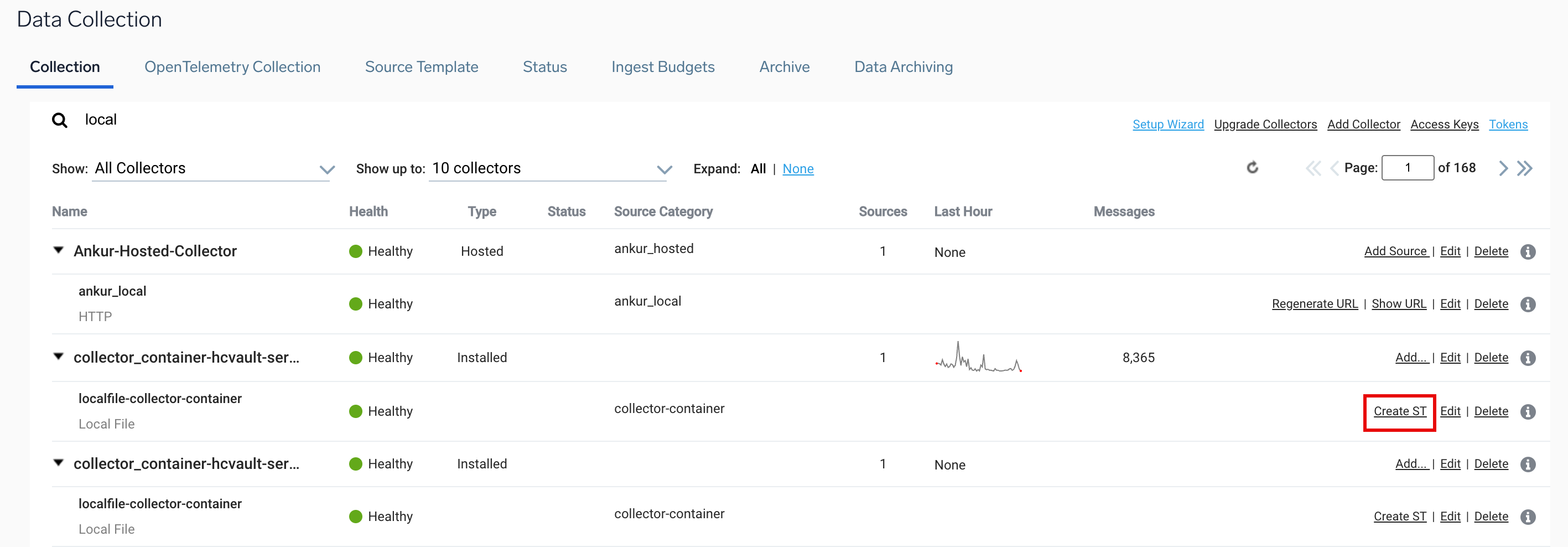
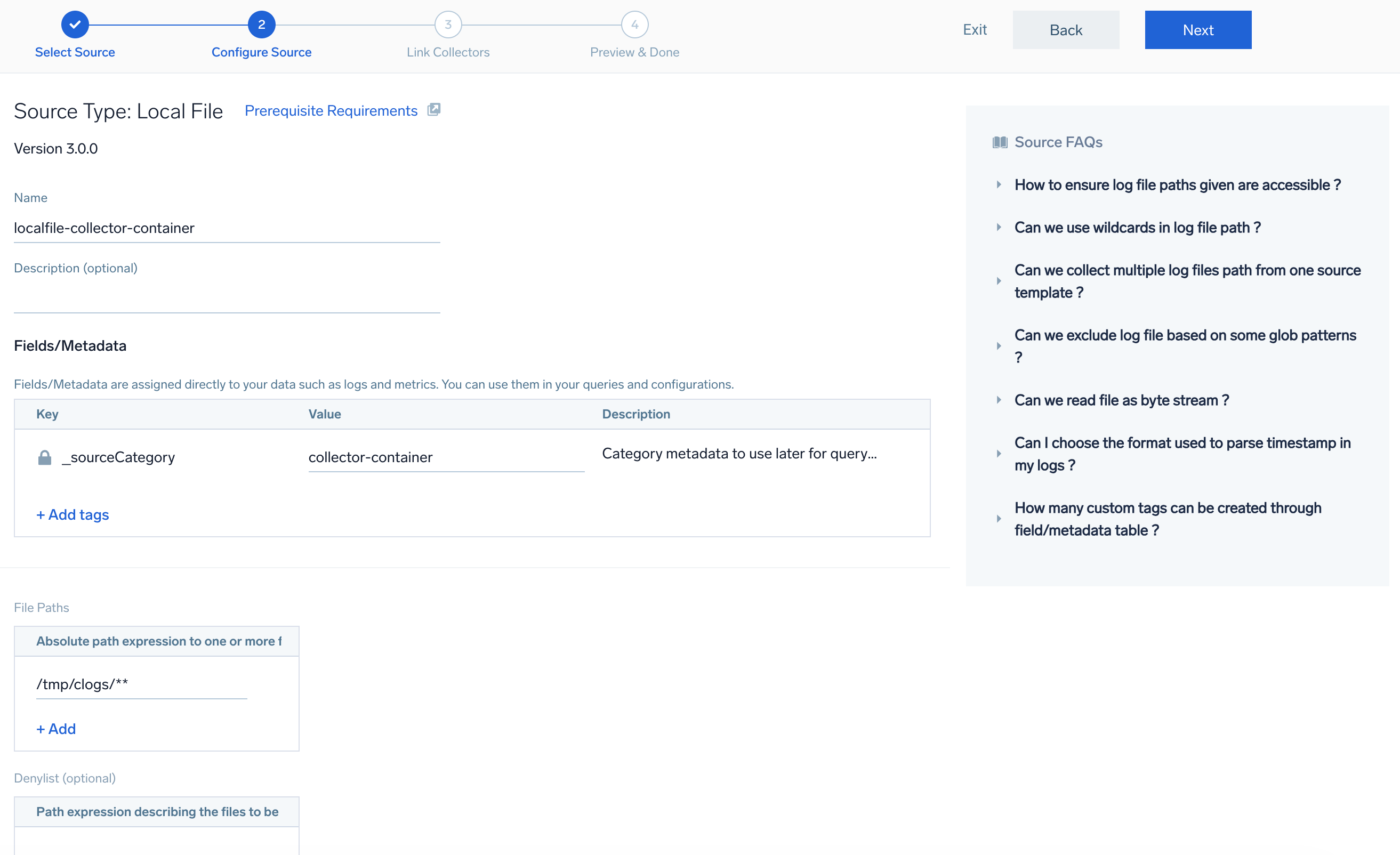
- You’ll be redirected to the OpenTelemetry local file source template configuration page, where you can configure the local file source template for a remotely managed OpenTelemetry Collector. Learn more.
Limitations and behaviors
Source template name conflicts
Conversion will fail if a source template with the same name as your IC source already exists. The conversion process cannot overwrite or update an existing source template.
Error you’ll see
Pre-existing Source Template already exists
Best practices
- Ensure no Source Template exists with the same name before conversion.
- Rename or delete the existing template if needed.
Re-running conversion on the same source
If you attempt to convert the same Installed Collector (IC) source more than once, the conversion will fail because the initial conversion has already created a Source Template with that name, and the conversion process cannot update or overwrite an existing template.
Best practices
Delete or rename the previously created source template and rerun the conversion.
Update vs conversion workflow limitation
Updating an IC source after conversion is not supported.
Best practices
- Create an IC file source named source1.
- Convert it to a Source Template named source1.
- Update the IC source configuration.
- Attempt conversion again.
Complete all IC source configuration updates before conversion and do not re-run conversion on an already converted source unless the existing template is handled first.
Timestamp parsing limitations
This happens because OTEL supports only a single timestamp format, while IC sources support multiple timestamp formats as fallbacks. During conversion, only the first (primary) timestamp format is carried over, and any additional fallback formats are not converted.
Best practices
- Review timestamp configurations before converting.
- Ensure the primary format matches your most common log pattern.
- Validate data after conversion if multiple formats were previously used.
Disable timestamp parsing limitations
In IC sources, timestamp parsing can be completely disabled. In contrast, OTEL sources always parse timestamps. Timestamp parsing in OTEL is either performed automatically through detection or manually using a specified timestamp format, pattern locator, and timezone.
For example, if you create an IC source with timestamp parsing disabled, the collector does not extract timestamps from the log messages. Even if the logs contain timestamps, IC sets messageTime to the time the log is received by the collector, rather than the timestamp present in the log.
With OpenTelemetry, timestamp parsing cannot be disabled. The collector always attempts to extract the timestamp from the log content. As a result, messageTime is set to the parsed timestamp from the log, while receiptTime reflects when the collector actually received the log.
Fallback timezone settings are lost
Timezone behavior may change after conversion because OpenTelemetry relies only on the timezone information present in the log itself. If a log does not explicitly include a timezone, any fallback timezone that was configured in the Installed Collector is ignored during conversion, which can lead to different timestamp interpretation.
Best practices
To avoid unexpected timestamp shifts after conversion, ensure that your log messages always include explicit timezone information in the timestamp. While IC sources can fall back to a configured timezone when none is detected, OTEL sources rely entirely on the timezone present in the log itself. Before converting, review your log formats and update them, if necessary, to include timezone details so that OTEL can consistently parse timestamps as expected.
Ignore timezone option is not supported
For IC sources, you can choose to ignore the timezone in your log messages and force all timestamps to use a selected timezone, even if the logs already include one. With OTEL, this level of control is not available and timestamps and timezones are parsed automatically from the log data, and you can’t override or force a different timezone during parsing.
Source host is not explicitly converted (expected behavior)
During conversion, the source host is not manually carried over, and that’s expected. In IC, you can explicitly set the source host, but in OTEL, the agent automatically collects host metadata, so there’s no need to configure or convert it separately.
OTEL source templates include default attributes with host information as shown below:
"default_attributes": [
      {
          "key": "host.name",
          "value": "host"
      },
      {
          "key": "host.id",
          "value": "hostid"
      },
      {
          "key": "log.file.path",
          "value": "filePath"
      }
  ]
- The OTEL collector automatically fetches the host details from the agent and populates as
_sourceHost. - No explicit conversion of Source Host is needed .
Best practices
After conversion, confirm that _sourceHost is correctly populated in your ingested data.
Post-conversion validation checklist
After conversion, validate the following:
- Data ingestion. Logs are flowing as expected.
- Timestamps. Parsed correctly and align with expectations.
- Timezone handling. No unintended shifts.
- Source host.
_sourceHostis correctly populated. - Search queries. Existing queries still return correct results.