Custom YAML Source Template

The Custom YAML source template lets you create and manage source templates through a streamlined YAML editor, offering a flexible and efficient way to define how data is collected and ingested into Sumo Logic. It generates an OpenTelemetry configuration from a provided YAML file and pushes it to a remotely managed OpenTelemetry collector (abbreviated as otelcol). This enables you to directly manage collector configurations in YAML format and seamlessly ingest OpenTelemetry data into Sumo Logic.
This source template works with sumo remotely managed OpenTelemetry collector version >= 0.136.0
Learn how to configure the Custom YAML source template.
Use cases
- You can ingest data and remotely manage ingestion for services that do not have a supported source template by using the Custom YAML editor to supply your own OpenTelemetry YAML configurations. To learn about the available components supported by Sumo Logic, see Sumo Logic OpenTelemetry Collector Components.
- You can easily copy and paste an existing source template YAML to create a similar configuration, or use the Custom YAML dropdown to automatically override and customize the configuration.
Configuring the source template
Follow these steps to set up and deploy the source template to a remotely managed OpenTelemetry collector.
Step 1: Set up remotely managed OpenTelemetry collector
In this step, we'll install the collector and add a uniquely identifiable tag to these collectors.
- Classic UI. In the main Sumo Logic menu, select Manage Data > Collection > OpenTelemetry Collection.
New UI. In the Sumo Logic main menu select Data Management, and then under Data Collection select OpenTelemetry Collection. You can also click the Go To... menu at the top of the screen and select OpenTelemetry Collection. - On the OpenTelemetry Collection page, click + Add Collector.
- In the Set up Collector step:
- Choose your platform (for example, Linux).
- Enter your Installation Token.
- Under Tag data on Collector level, add a new tag to identify these collectors for their corresponding use case (for example, if you are running Apache, set
application = Apache). - Leave the Collector Settings at their default values to configure collectors as remotely managed.
- Under Generate and run the command to install the collector, copy and run the installation command in your system terminal where the collector needs to be installed.
- After installation is complete, click Next to proceed.
- Select the CustomYaml source template and proceed with the data configuration.
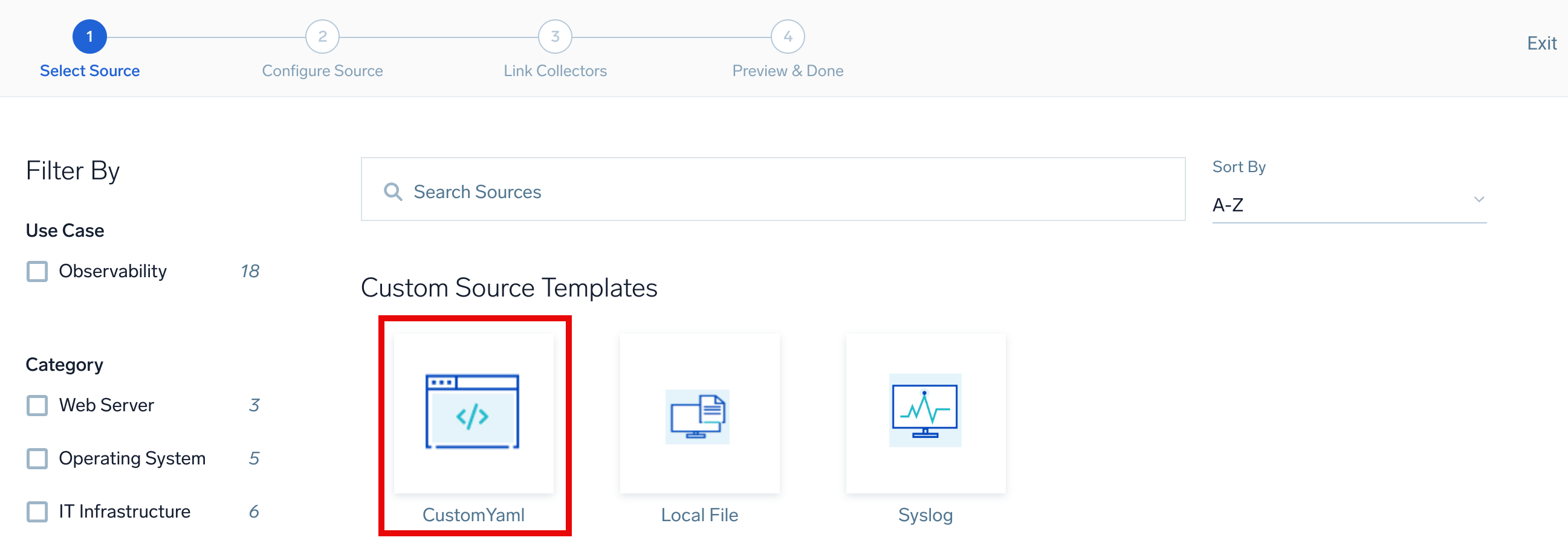
To revisit this screen later: From the Classic UI, select Manage Data > Collection > Source Template. From the New UI, select Data Management and under Data Collection select Source Template.
Step 2: Configure the source template
Follow the steps below to configure the Custom YAML source template required for data collection:
- Enter the Name of the source template.
- (Optional) Enter the Description for the source template.
- Under YAML Configuration, provide your OpenTelemetry configurations in YAML format or select an existing file from the Select YAML Template dropdown.
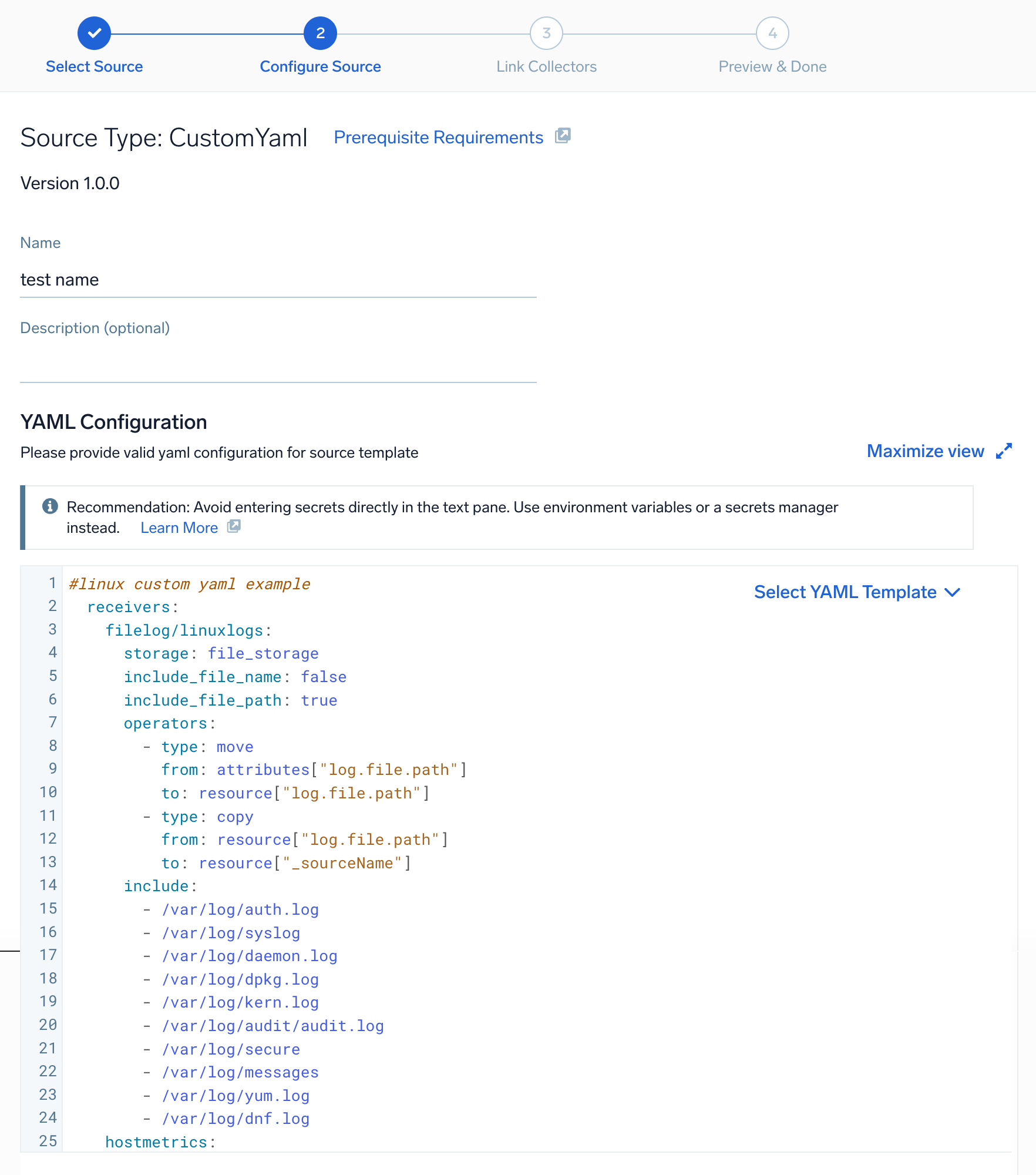
Step 3: Push the source template to the remotely managed collectors
A new source template will always be created with the latest version of the source template.
Follow the below steps to create a data collection configuration to gather the required logs and link them to all the collectors with the help of collector tags.
- Under Link Collectors, you will have the option to link the collectors using the collector name or by adding collector tags to find the group of collectors (for example,
application = Apache).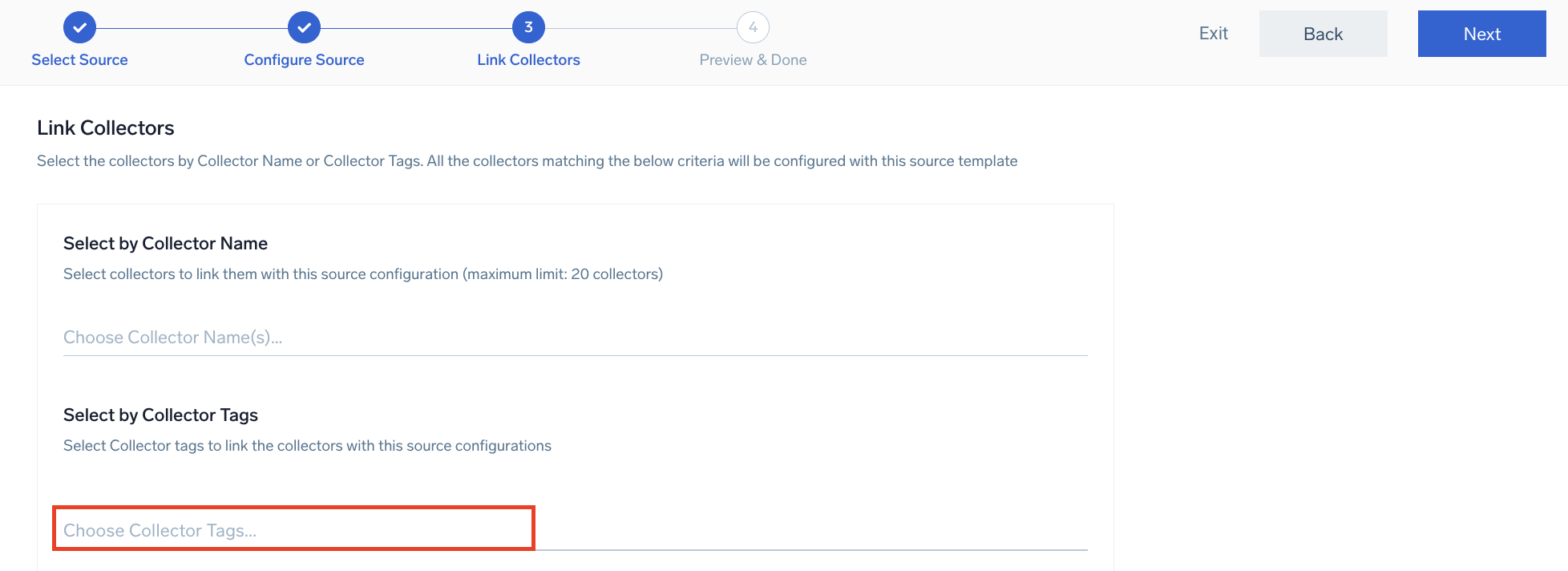
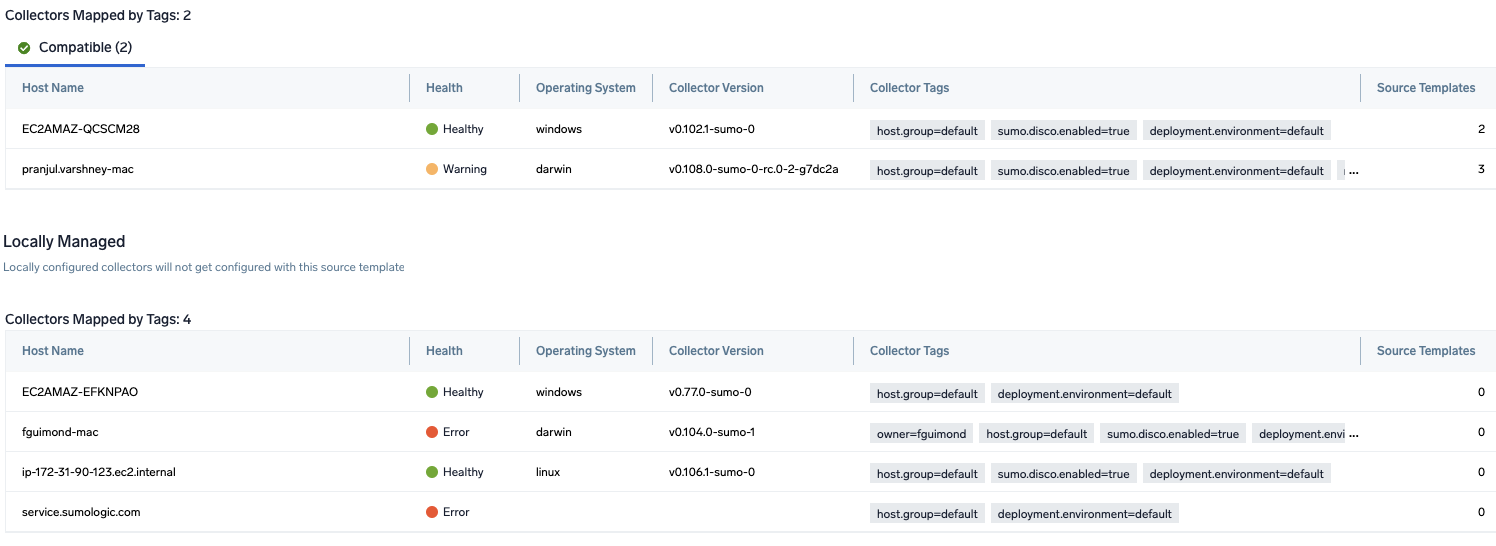
- Navigate to Preview Collector(s) to view collector compatibility details and see which collectors will be linked to the newly created source template.
If collectors are mapped using both Collector Name and Collector Tags, separate preview sections will be shown for each mapping type.
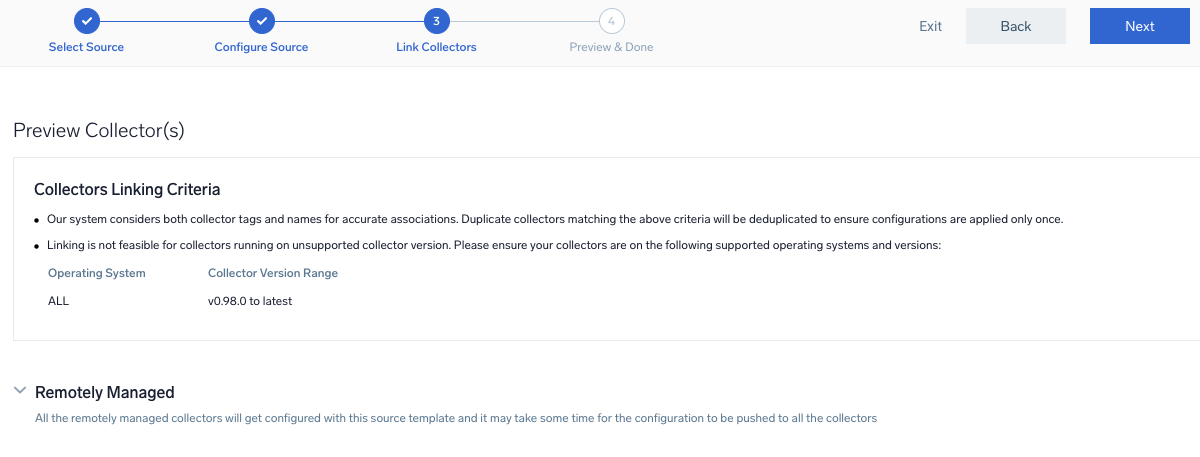
 note
noteIncompatible version conflict will be found if your collectors cannot be linked to the source template due to version incompatibility or unsupported operating system. To move to the next step, make sure you update the collect version of the incompatible collector.

- Click Next to complete source template creation. In the background, the system will apply the configuration to all the compatible linked collectors and starts collecting the respective telemetry data from the remote host.
- Apply the source template to the linked collectors and manage or update it as needed.
- Click the Log Search or Metrics Search links to search for and analyze your data collected for this source template.
Refer to the changelog for information on periodic updates to this source template.