 Meet the new
 View Details About an OpenTelemetry Collector
Overview
To view details about an OpenTelemetry Collector:
- New UI. In the main Sumo Logic menu, select Data Management, and then under Collection select OpenTelemetry Collector. You can also click the Go To... menu at the top of the screen and select OpenTelemetry Collector.
Classic UI. In the main Sumo Logic menu, select Manage Data > Collection > OpenTelemetry Collector.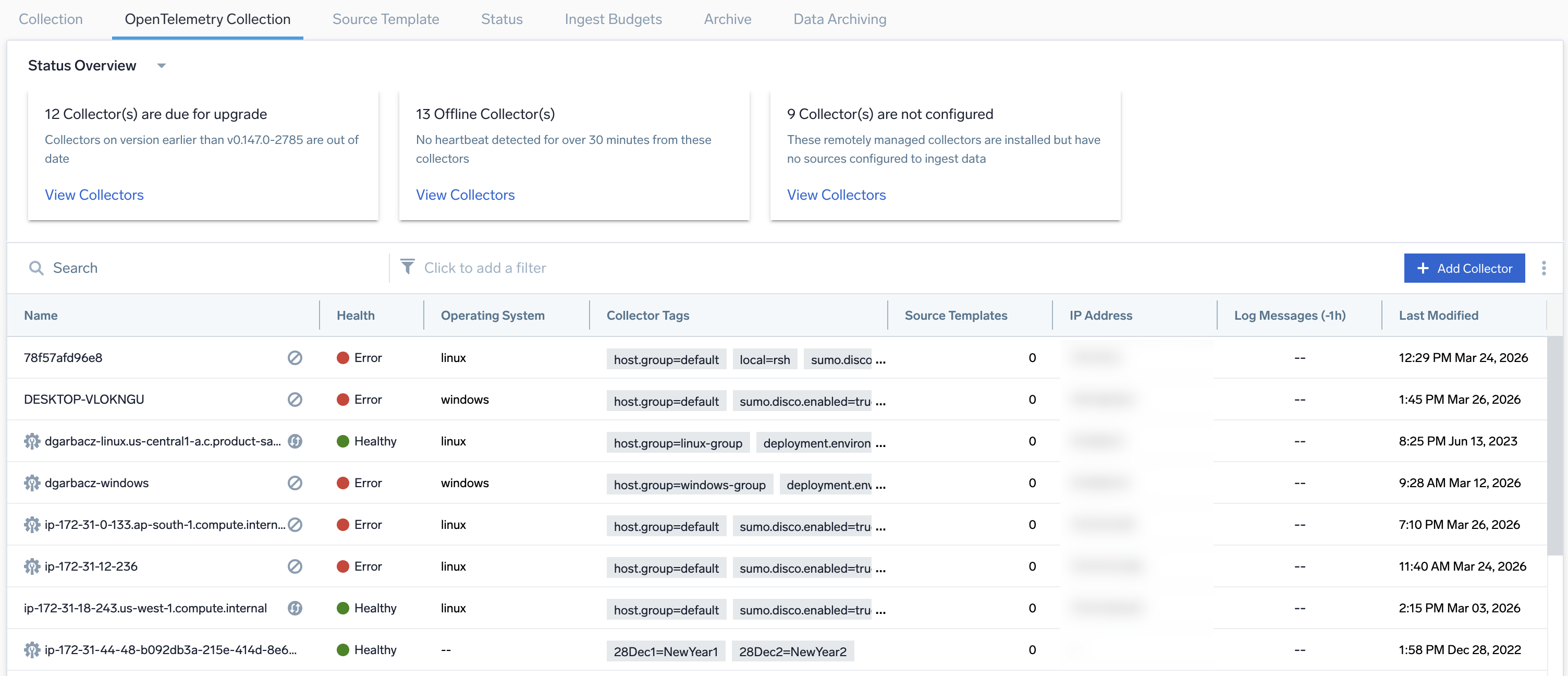
- Name. Name of the OpenTelemetry Collector.
- Health. Displays the collector's health status.
- Operating System. Displays the operating system where the collector is installed.
- Collector Tags. Displays the tags linked to the selected collector, which helps with searching for and managing the collector.
- Source Templates. Shows the number of source templates linked with the selected collector.
- IP Address. Displays the IP address where the collector is running.
- Log Messages (-1h). Displays the histogram of log messages ingested in the last hour.
- Metrics (-1h). Displays the histogram of metrics ingested in the last hour.
- Traces (-1h). Displays the histogram of traces ingested in the last hour.
info
The dashed line indicates there was no data ingestion in the last hour.
- Last Modified. Timestamp when the collector was last modified.
- Click on the desired collector.
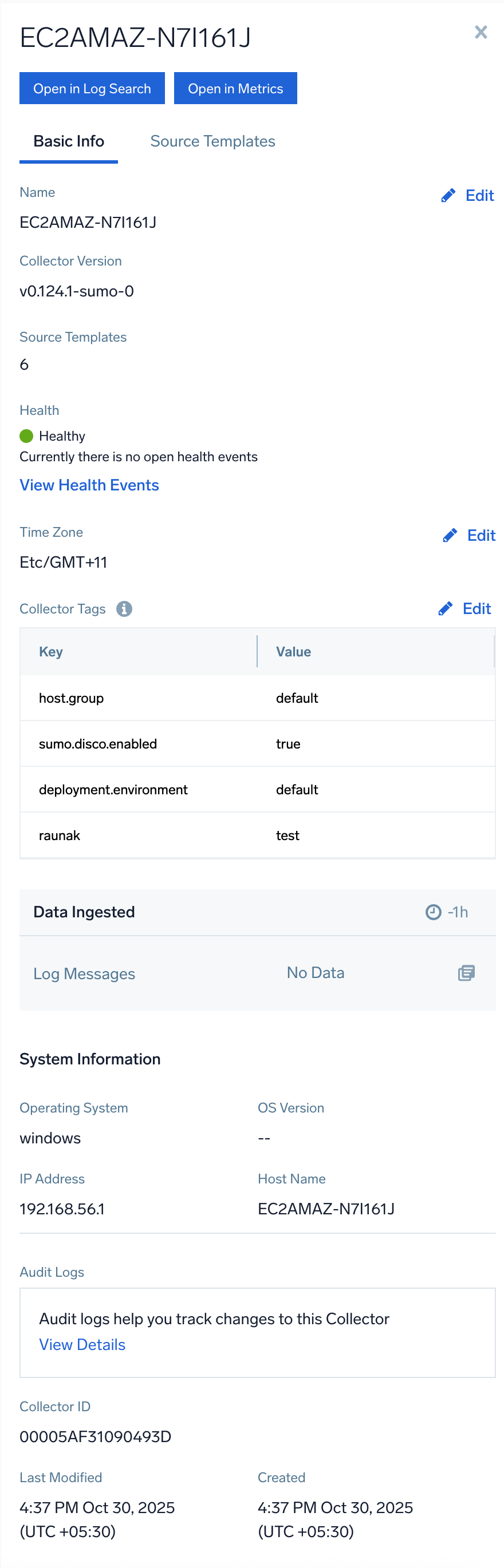
- Basic Info
- Name. Name of the OpenTelemetry Collector. To edit the collector name, refer to the Collector Name.
- Collector Version. The collector version used to create the collector.
- Source Templates. Displays the number of source templates.
- Health. Displays the collector's health status.
- Time Zone. Displays the selected time zone or the default timezone (
(UTC) Etc/UTC). - Collector Tags. Displays the tags linked to the selected collector, which helps with searching for and managing the collector. To add or edit the tags, refer to the Collector Tags.
- Data Ingested. Displays the histogram showing data ingested (logs, metrics, and traces) in the last hour. This histogram timeline reflects the data ingestion timestamp as closely as possible, but minor variations may occur.
note
If there is a mismatch between the log count in the histogram and the log search, switch the log search timestamp to receiptTime for accurate results.
- System Information. Displays the operating system, OS version, IP Address, and hostname of the user who created the collector.
- Audit Logs. Records the collector changes. Click on View Details to view the changes.
- Collector ID. Unique ID for the selected collector.
- Last Modified. Timestamp when the collector was last modified.
- Created. Timestamp when the collector was created.
- Source Templates. Displays all source configurations linked to the collector.
- Basic Info
Status Overview
The Status Overview panels provide a centralized, high-level health view of OpenTelemetry collectors. Each panel displays the count of collectors affected by its specific condition and includes a View Collectors button to filter and display the corresponding collectors.
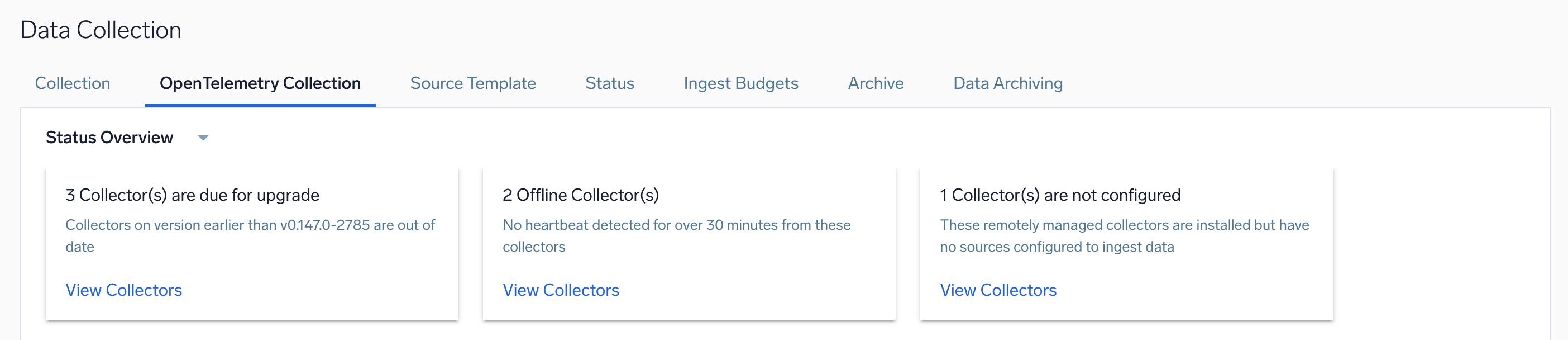
Collector(s) are due for upgrade
Displays the total number of collectors that require upgrades. Click the View Collectors button to filter for collectors older than the current version that need upgrading.
Offline collectors
Displays collectors that are offline for over 30 minutes in the last 24 hours. Click the View Collectors button to filter for the affected collectors.
Collector(s) are not configured
Displays the remotely managed collectors with no sources configured to ingest data. Click the View Collectors button to filter for the affected collectors.
To configure a source template, see Create a new source template.
Find the OpenTelemetry collectors using filters
Filters help you quickly narrow down OpenTelemetry collectors by criteria such as Collector Type, Collector Tag, Status, and Upgrade Available, so you can efficiently locate the most relevant collectors without manually browsing the entire catalog, saving time and effort.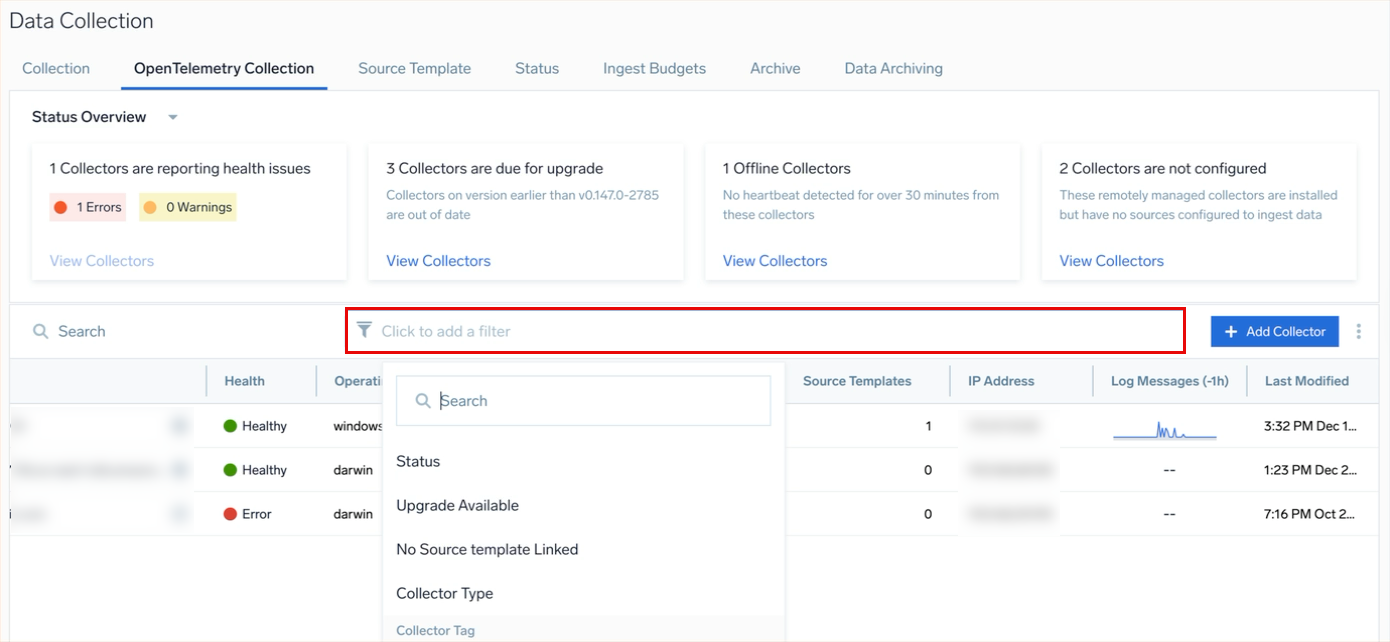
Collector Type
Follow the steps below to filter OpenTelemetry collectors based on their type:
- On the OpenTelemetry Collection page, click the Click to add a filter bar and then select Collector Type from the dropdown.
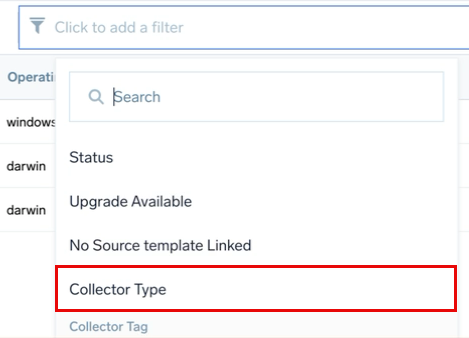
- Select one of the following collector types:
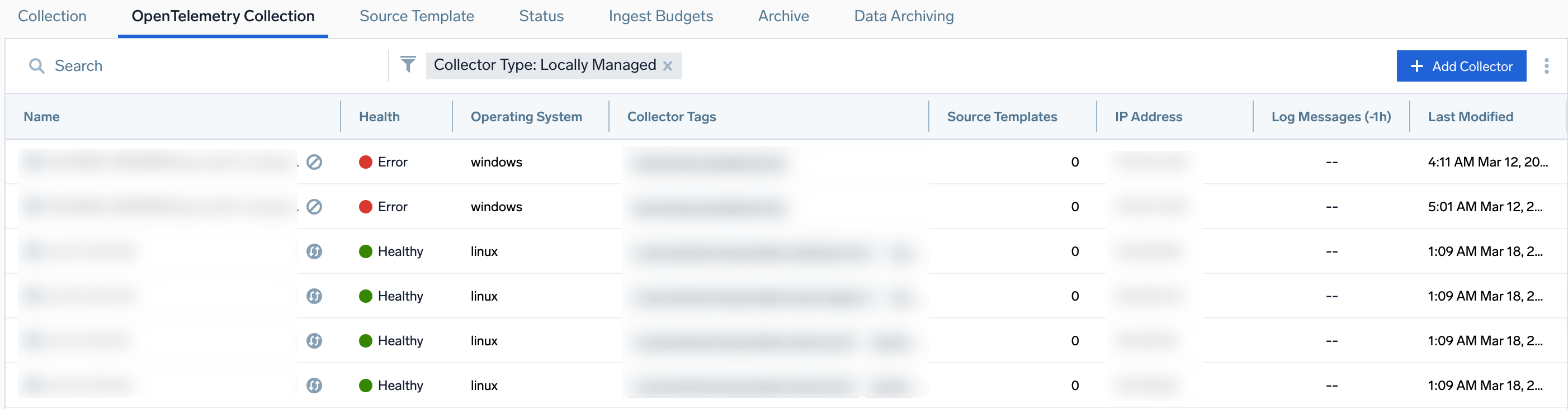
- Locally Managed
- Remotely Managed
- Based on the selected collector type, you can view a list of either locally managed collectors or remotely managed collectors.
Collector Tag
Follow the steps below to filter OpenTelemetry collectors based on the collector tags:
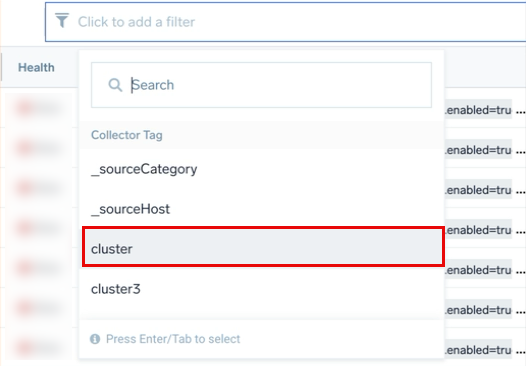
- On the OpenTelemetry Collection page, click the Click to add a filter bar.
- Under Collector Tag, select the required collector tag.
- Select the value assigned to the collector tag.
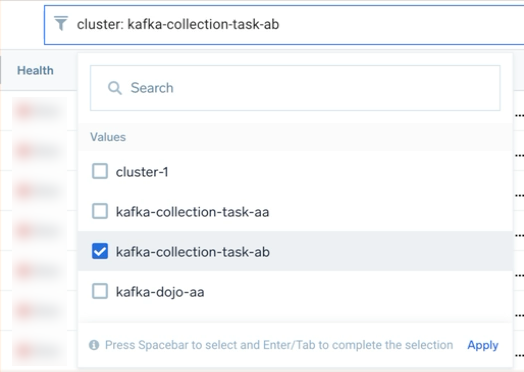
- Click Apply.
Status
Follow the steps below to filter OpenTelemetry collectors based on their status:
- On the OpenTelemetry Collection page, click the Click to add a filter bar and then select Status from the dropdown.
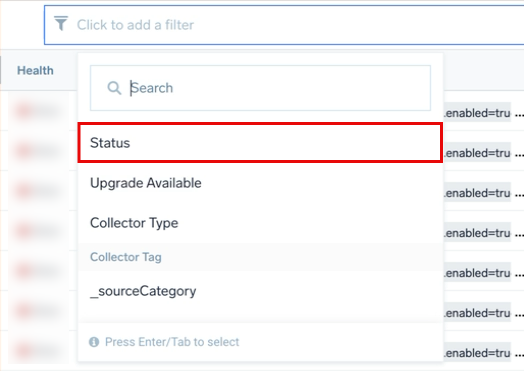
- Select one of the following statuses:
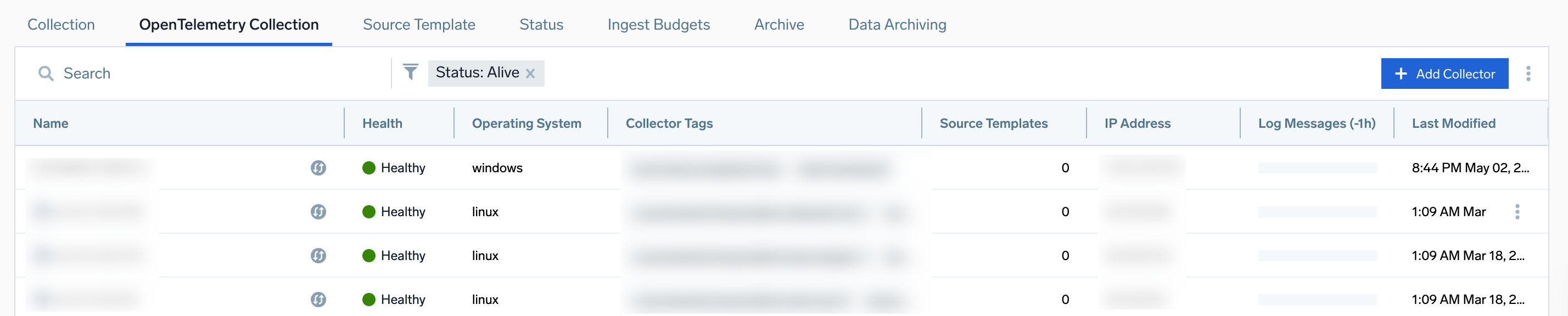
- Alive
- Stopped
- Based on the selected status, you can view a list of either alive collectors or stopped collectors.
Upgrade Available
Follow the steps below to filter OpenTelemetry collectors that have a newer version available to upgrade:
- On the OpenTelemetry Collection page, click the Click to add a filter bar and then select Upgrade Available.
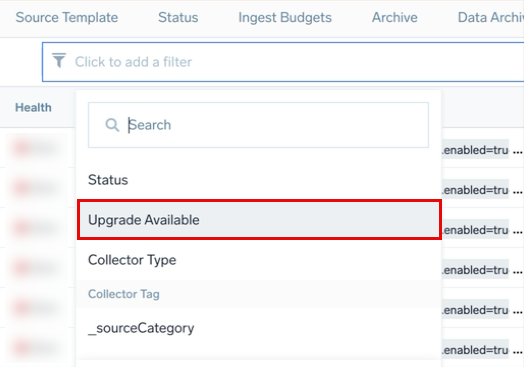
- You can view a list of OpenTelemetry collectors that need or support an upgrade.
Enable data inactivity health events for OpenTelemetry Collectors
Sumo Logic evaluates all alive OpenTelemetry Collectors and emits a dedicated health event whenever a collector has no data ingestion (logs, metrics, or traces) for a configured period.
Follow the steps below to enable this feature:
- New UI. In the main Sumo Logic menu, select Administration > Account Security Settings > Policies. You can also click the Go To... menu at the top of the screen and select Policies.
Classic UI. In the main Sumo Logic menu, select Administration > Account Security Settings > Policies.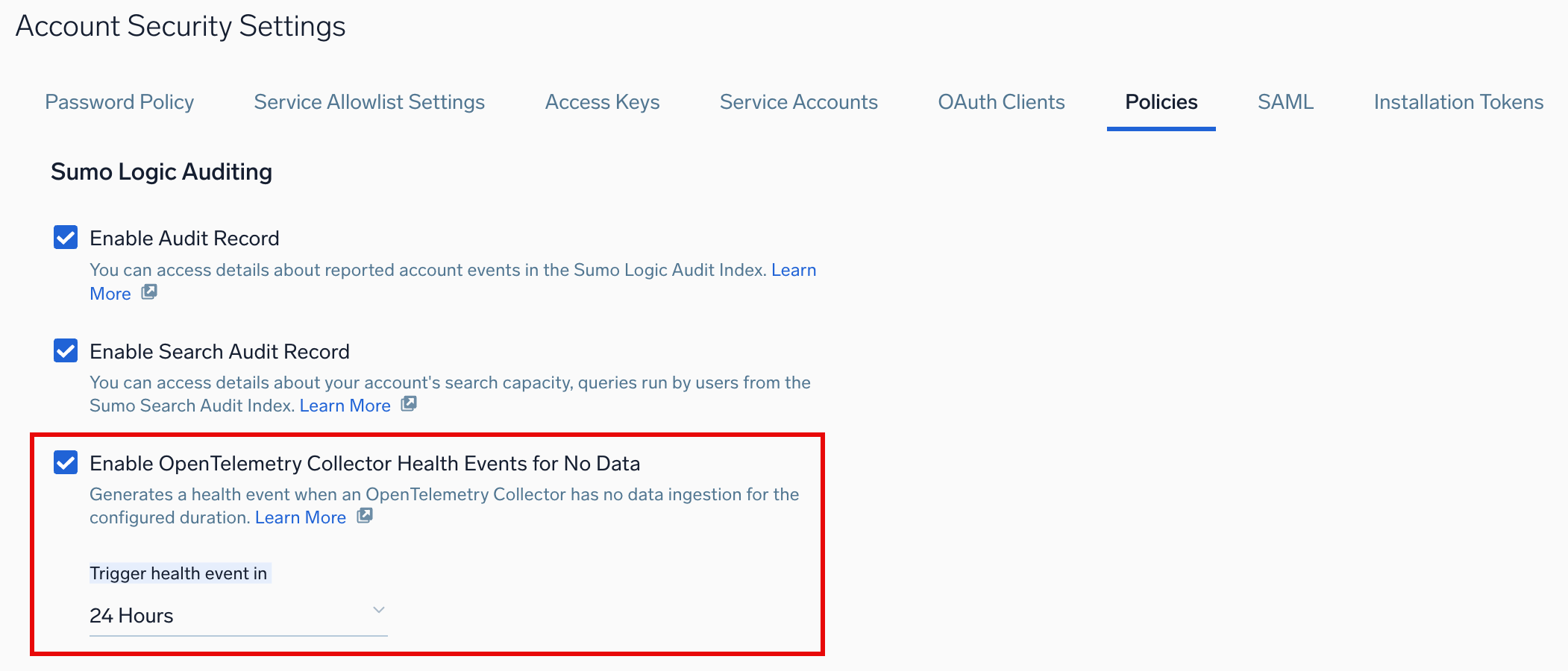
- Check the Enable OpenTelemetry Collector Health Events for No Data box.
- Click the Trigger health event in dropdown to select an inactivity threshold. This detection is enabled by default with a 24-hour inactivity threshold. You can adjust the threshold from 1 to 24 hours.