---
id: create-rules-with-mobot
title: Create Rules with Mobot
sidebar_label: Create Rules with Mobot ✨
description: Create and edit Cloud SIEM rules in Mobot from plain-language prompts, without writing rule expressions manually.
keywords:
- mobot
- cloud siem
- rules
- detection engineering
- dojoai
slug: /help/docs/cse/rules/create-rules-with-mobot/
canonical: https://www.sumologic.com/help/docs/cse/rules/create-rules-with-mobot/
---
import useBaseUrl from '@docusaurus/useBaseUrl';
[Mobot](/docs/search/mobot) enables you to create and edit Cloud SIEM rules using natural language. Instead of writing a rule expression and configuring each field manually, you describe the detection you want in plain language, and Mobot proposes a rule, asks clarifying questions, and builds it for you.
### Supported rule types
Mobot can create and edit all [Cloud SIEM rule types](/docs/cse/rules/about-cse-rules/), including:
- [Match rules](/docs/cse/rules/write-match-rule/)
- [Threshold rules](/docs/cse/rules/write-threshold-rule/)
- [Chain rules](/docs/cse/rules/write-chain-rule/)
- [Outlier rules](/docs/cse/rules/write-outlier-rule/)
- [Aggregation rules](/docs/cse/rules/write-aggregation-rule/)
- [First Seen rules](/docs/cse/rules/write-first-seen-rule/)
### Limitations
Mobot has the following limitations when working with Cloud SIEM rules:
- Mobot can't create Legacy rules.
- Mobot can't interact with the following features that support rules:
- [Rule tuning expressions](/docs/cse/rules/rule-tuning-expressions/)
- [Match lists](/docs/cse/match-lists-suppressed-lists/create-match-list/)
- [Network blocks](/docs/cse/administration/create-use-network-blocks/)
- [Tag schemas](/docs/cse/administration/create-a-custom-tag-schema/)
- [Suppressed lists](/docs/cse/match-lists-suppressed-lists/suppressed-lists/)
### Prerequisites
- A Cloud SIEM license.
- A role with the [capability](/docs/cse/administration/cse-user-accounts-and-roles) to create and edit rules.
### Create a rule with Mobot
1. [**New UI**](/docs/get-started/sumo-logic-ui). In the main Sumo Logic menu, select **Cloud SIEM > Rules**.
[**Classic UI**](/docs/get-started/sumo-logic-ui-classic). In the main Sumo Logic menu, click **Cloud SIEM** in the left menu, then select **Rules**.
1. Click the **Ask Mobot** on the Rules page.
1. In the chat box, describe the rule you want in plain language. For example, `Create a threshold rule that fires when a single IP address has 10 failed logins within 5 minutes`.
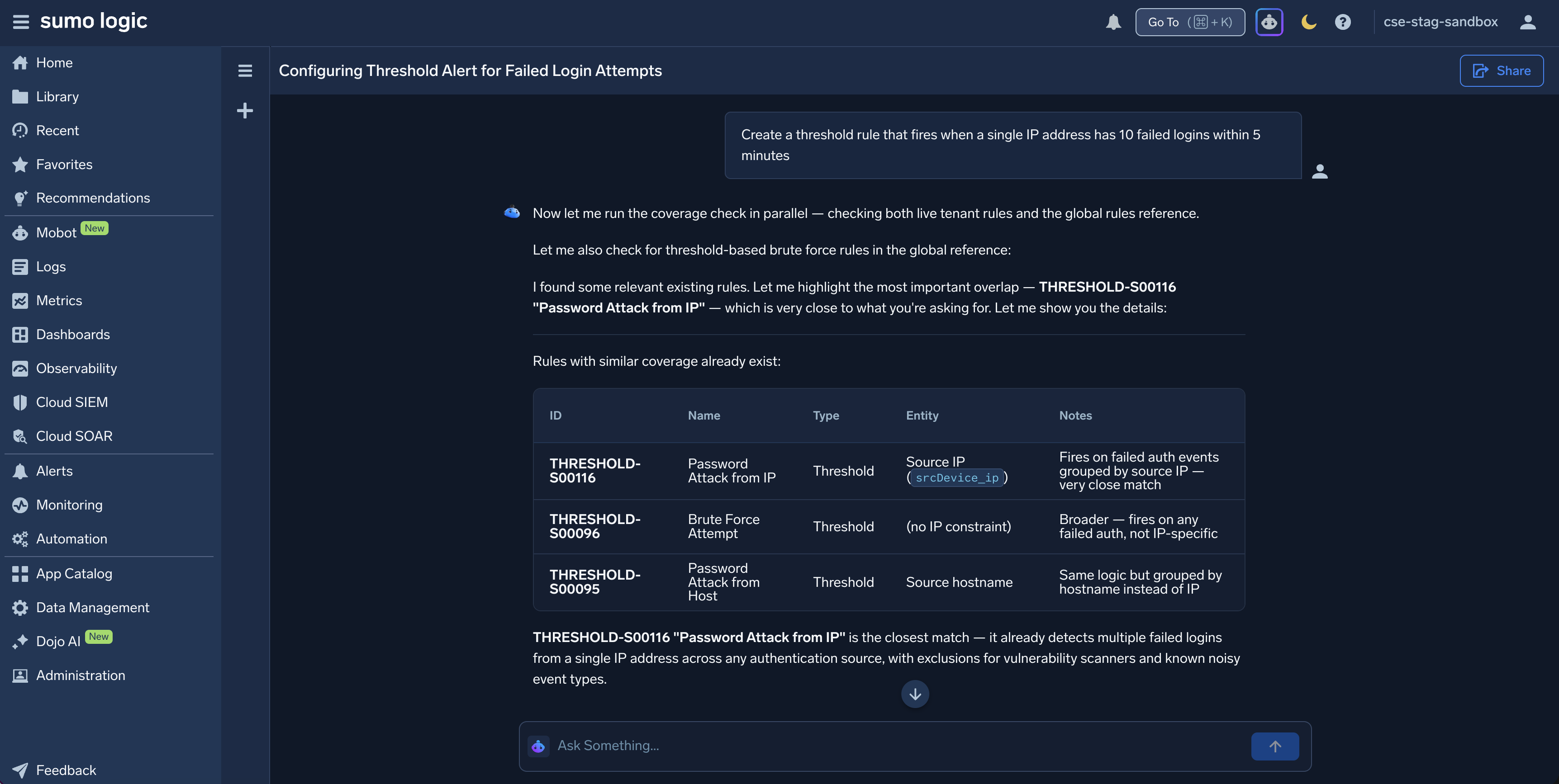 1. Answer Mobot's clarifying questions. For example, rule type, record fields, thresholds, time windows, severity, and MITRE ATT&CK tags.
1. Review the rule Mobot proposes. For example, name, description, rule type, expression, severity, and tags.
1. Describe the confirmation step. For example, reply `Yes` to approve, or send a follow-up request to change the proposal.
1. Describe the result. For example, Mobot saves the rule as a draft or creates it enabled, and posts a summary. Confirm whether the rule is enabled by default.
1. Review the rule on the **Rules** page to verify the details Mobot filled in. Confirm where to find the new rule and how to enable it if it isn't enabled by default.
:::note
Review every rule before enabling it in production. Test it against your data to confirm that it detects what you expect and doesn't generate excessive signals.
:::
### Edit a rule with Mobot
1. Open Mobot and reference the rule by name.
1. Describe the change in plain language. For example, `Change the severity of this rule from Medium to High`.
1. Describe the confirmation step before Mobot applies the change.
1. Describe how to verify the change, for example by checking the rule's version or expression.
### Tips for writing effective prompts
- Name the rule type you want, for example `match rule` or `threshold rule`. Otherwise, Mobot may ask you to choose one.
- Specify the data source or record type, such as AWS CloudTrail, Okta, or Windows event logs.
- Include thresholds and time windows, such as `10 failed logins in 5 minutes`.
- Include a severity if you have one in mind, such as `High`.
- Refine the result with follow-up prompts instead of starting over.
For more examples, see [Mobot Example Prompts](/docs/search/mobot/example-prompts/#rule-creation).
### Related resources
- [Mobot](/docs/search/mobot)
- [Mobot Example Prompts](/docs/search/mobot/example-prompts/#rule-creation)
- [About Cloud SIEM Rules](/docs/cse/rules/about-cse-rules/)
- [Before You Write a Custom Rule](/docs/cse/rules/before-writing-custom-rule/)
- [Write a Match Rule](/docs/cse/rules/write-match-rule/)
1. Answer Mobot's clarifying questions. For example, rule type, record fields, thresholds, time windows, severity, and MITRE ATT&CK tags.
1. Review the rule Mobot proposes. For example, name, description, rule type, expression, severity, and tags.
1. Describe the confirmation step. For example, reply `Yes` to approve, or send a follow-up request to change the proposal.
1. Describe the result. For example, Mobot saves the rule as a draft or creates it enabled, and posts a summary. Confirm whether the rule is enabled by default.
1. Review the rule on the **Rules** page to verify the details Mobot filled in. Confirm where to find the new rule and how to enable it if it isn't enabled by default.
:::note
Review every rule before enabling it in production. Test it against your data to confirm that it detects what you expect and doesn't generate excessive signals.
:::
### Edit a rule with Mobot
1. Open Mobot and reference the rule by name.
1. Describe the change in plain language. For example, `Change the severity of this rule from Medium to High`.
1. Describe the confirmation step before Mobot applies the change.
1. Describe how to verify the change, for example by checking the rule's version or expression.
### Tips for writing effective prompts
- Name the rule type you want, for example `match rule` or `threshold rule`. Otherwise, Mobot may ask you to choose one.
- Specify the data source or record type, such as AWS CloudTrail, Okta, or Windows event logs.
- Include thresholds and time windows, such as `10 failed logins in 5 minutes`.
- Include a severity if you have one in mind, such as `High`.
- Refine the result with follow-up prompts instead of starting over.
For more examples, see [Mobot Example Prompts](/docs/search/mobot/example-prompts/#rule-creation).
### Related resources
- [Mobot](/docs/search/mobot)
- [Mobot Example Prompts](/docs/search/mobot/example-prompts/#rule-creation)
- [About Cloud SIEM Rules](/docs/cse/rules/about-cse-rules/)
- [Before You Write a Custom Rule](/docs/cse/rules/before-writing-custom-rule/)
- [Write a Match Rule](/docs/cse/rules/write-match-rule/)