---
id: api-gateway
title: AWS API Gateway
description: Amazon API Gateway service allows you to create RESTful APIs, HTTP APIs, and WebSocket APIs for real-time two-way communication applications in containerized and serverless environments, as well as web applications.
slug: /help/docs/integrations/amazon-aws/api-gateway/
canonical: https://www.sumologic.com/help/docs/integrations/amazon-aws/api-gateway/
---
import useBaseUrl from '@docusaurus/useBaseUrl';
}) AWS API Gateway service allows you to create RESTful APIs, HTTP APIs, and WebSocket APIs for real-time two-way communication applications in containerized and serverless environments, as well as web applications.
The Sumo Logic AWS API Gateway app provides insights into API Gateway tasks while accepting and processing concurrent API calls throughout your infrastructure, including traffic management, CORS support, authorization and access control, throttling, monitoring, and API version management.
## Log and metrics types
The AWS API Gateway app uses the following logs and metrics:
* Amazon API Gateway metrics:
* [REST APIs](https://docs.aws.amazon.com/apigateway/latest/developerguide/api-gateway-metrics-and-dimensions.html)
AWS API Gateway service allows you to create RESTful APIs, HTTP APIs, and WebSocket APIs for real-time two-way communication applications in containerized and serverless environments, as well as web applications.
The Sumo Logic AWS API Gateway app provides insights into API Gateway tasks while accepting and processing concurrent API calls throughout your infrastructure, including traffic management, CORS support, authorization and access control, throttling, monitoring, and API version management.
## Log and metrics types
The AWS API Gateway app uses the following logs and metrics:
* Amazon API Gateway metrics:
* [REST APIs](https://docs.aws.amazon.com/apigateway/latest/developerguide/api-gateway-metrics-and-dimensions.html)  * [HTTP APIs](https://docs.aws.amazon.com/apigateway/latest/developerguide/http-api-metrics.html)
* [WebSocket APIs](https://docs.aws.amazon.com/apigateway/latest/developerguide/apigateway-websocket-api-logging.html)
* [CloudTrail API Gateway Data Event](https://docs.aws.amazon.com/apigateway/latest/developerguide/cloudtrail.html)
* Amazon API Gateway access logs:
* [REST APIs](https://docs.aws.amazon.com/apigateway/latest/developerguide/api-gateway-mapping-template-reference.html#context-variable-reference)
* [HTTP APIs](https://docs.aws.amazon.com/apigateway/latest/developerguide/http-api-logging-variables.html)
* [WebSocket APIs](https://docs.aws.amazon.com/apigateway/latest/developerguide/websocket-api-logging.html)
### Sample log messages
```json title="Sample CloudTrail Log Message"
{
"eventVersion":"1.05",
"userIdentity":{
"type":"IAMUser",
"principalId":"A12445W32RZN24HABCD12",
"arn":"arn:aws:iam::123408221234:user/bob",
"accountId":"123408221234",
"accessKeyId":"ASIAZ123456Y3IMWK7X5",
"userName":"bob",
"sessionContext":{
"sessionIssuer":{
},
"webIdFederationData":{
},
"attributes":{
"mfaAuthenticated":"true",
"creationDate":"2020-02-17T08:08:01Z"
}
},
"invokedBy":"signin.amazonaws.com"
},
"eventTime":"2020-02-17T08:08:01Z",
"eventSource":"apigateway.amazonaws.com",
"eventName":"GetRestApi",
"awsRegion":"us-east-1",
"sourceIPAddress":"149.236.17.11",
"userAgent":"signin.amazonaws.com",
"requestParameters":{
"restApiId":"w1234nsgjxf",
"template":false
},
"responseElements":null,
"requestID":"1234169e-e70a-44a1-a691-3cd3f857092a",
"eventID":"051572b0-83ef-49a3-82f6-bbef1ac8c488",
"readOnly":true,
"eventType":"AwsApiCall",
"recipientAccountId":"123408221234"
}
```
```json title="Sample Access Log Message"
{
"requestId": "bf04adbf-eacc-4601-8c14-94605f242e1a",
"extendedRequestId": "Sca3bFUQgi0EYeA=",
"identitySourceIp": "103.108.207.58",
"identityCaller": "-",
"identityUser": "-",
"requestTime": "01/Feb/2024:06:47:49 +0000",
"status": "500",
"authorizerProperty": "-",
"routeKey": "-",
"apiId": "9iljix61i7",
"authorizeError": "-",
"authorizeLatency": "-",
"authorizeStatus": "-",
"authorizerError": "-",
"authorizerIntegrationStatus": "-",
"authorizerIntegrationLatency": "-",
"authorizerLatency": "-",
"authorizerPrincipalId": "-",
"authorizerRequestId": "-",
"authorizerStatus": "-",
"authenticateError": "-",
"authenticateLatency": "-",
"authenticateStatus": "-",
"connectedAt": "-",
"connectionId": "-",
"domainName": "9iljix61i7.execute-api.eu-north-1.amazonaws.com",
"errorMessage": "Internal server error",
"errorResponseType": "DEFAULT_5XX",
"errorValidationErrorString": "-",
"eventType": "-",
"identityAccountId": "-",
"identityCognitoAuthenticationProvider": "-",
"identityCognitoAuthenticationType": "-",
"identityCognitoIdentityId": "-",
"identityCognitoIdentityPoolId": "-",
"identityPrincipalOrgId": "-",
"identityUserAgent": "Mozilla/5.0 (Macintosh; Intel Mac OS X 10_15_7) AppleWebKit/537.36 (KHTML, like Gecko) Chrome/121.0.0.0 Safari/537.36",
"identityUserArn": "-",
"identityApiKey": "-",
"identityApiKeyId": "-",
"integrationError": "Execution failed due to configuration error: PKIX path building failed: sun.security.provider.certpath.SunCertPathBuilderException: unable to find valid certification path to requested target",
"integrationIntegrationStatus": "-",
"integrationLatency": "258",
"integrationRequestId": "-",
"integrationStatus": "-",
"contextIntegrationLatency": "258",
"requestTimeEpoch": "1706770069673",
"stage": "test",
"messageId": "-",
"wafError": "-",
"wafLatency": "10",
"wafStatus": "200"
}
```
### Sample queries
```sql title="Average Latency by API Name (Metric-based)"
Namespace=aws/apigateway metric=Latency statistic=Average account=* region=* apiname=* | avg by apiname, namespace, region, account
```
```sumo title="Top Error Codes (CloudTrail Log-based)"
"\"eventSource\":\"apigateway.amazonaws.com\"" errorCode account=dev Namespace=aws/apigateway region=us-east-1
| json "eventName", "eventSource", "awsRegion", "userAgent", "recipientAccountId", "userIdentity", "requestParameters", "responseElements", "sourceIPAddress", "errorCode", "errorMessage", "requestID" as event_name, event_source, Region, user_agent, accountId1, userIdentity, requestParameters, responseElements, src_ip, errorCode, errorMessage, requestID nodrop
| where event_source = "apigateway.amazonaws.com" and !isEmpty(errorCode)
| json field=userIdentity "accountId", "arn", "userName", "type" as accountId2, arn, username, type nodrop | parse field=arn ":assumed-role/*" as user nodrop | parse field=arn "arn:aws:iam::*:*" as accountId, user nodrop
| json field=requestParameters "basePath", "domainName" as basePath, domainName nodrop | json field=responseElements "name" as ApiName nodrop // CreateRestApi, CreateApiKey, CreateUsagePlan, CreateUsagePlanKey, CreateUsagePlanKey, ImportApi, ImportRestApi, UpdateRestApi, UpdateUsagePlan provides ApiName
| where (tolowercase(ApiName) matches tolowercase("*")) or isBlank(apiname)
| if (isEmpty(errorCode), "Success", "Failure") as eventStatus
| if (!isEmpty(accountId1), accountId1, accountId2) as accountId
| if (isEmpty(userName), user, userName) as user
| count as eventCount by errorCode
| top 10 errorCode by eventCount, errorCode asc
```
```sumo title="Distribution by User Agent (Access Log-based)"
account=dev region=us-east-1 namespace=aws/apigateway apiname=* apiid stage domainname requestId identityUserAgent
| json "requestId", "apiId", "authorizerError", "errorMessage", "errorResponseType", "status", "integrationLatency", "domainName", "identitySourceIp", "identityUserAgent", "stage", "integrationStatus" as requestId, apiId, authorizerError, errorMessage, errorResponseType, status, integrationLatency, domainName, identitySourceIp, identityUserAgent, stage, integrationStatus
| json "wafLatency", "responseLatency", "responseLength", "path", "httpMethod", "protocol" as wafLatency, responseLatency, responseLength, path, httpMethod, protocol nodrop
| parse field=domainName "*.execute-api.*.amazonaws.com" as apiid, region
| where account matches "dev" and region matches "us-east-1" and apiid matches "*" and apiname matches "*"
| where !(identityUserAgent=="-")
| count as Frequency by identityUserAgent
| sort by Frequency, identityUserAgent asc
```
## Collecting logs and metrics for AWS API Gateway
### Fields in field schema
1. [**New UI**](/docs/get-started/sumo-logic-ui). In the main Sumo Logic menu select **Data Management**, and then under **Logs** select **Fields**. You can also click the **Go To...** menu at the top of the screen and select **Fields**.
* [HTTP APIs](https://docs.aws.amazon.com/apigateway/latest/developerguide/http-api-metrics.html)
* [WebSocket APIs](https://docs.aws.amazon.com/apigateway/latest/developerguide/apigateway-websocket-api-logging.html)
* [CloudTrail API Gateway Data Event](https://docs.aws.amazon.com/apigateway/latest/developerguide/cloudtrail.html)
* Amazon API Gateway access logs:
* [REST APIs](https://docs.aws.amazon.com/apigateway/latest/developerguide/api-gateway-mapping-template-reference.html#context-variable-reference)
* [HTTP APIs](https://docs.aws.amazon.com/apigateway/latest/developerguide/http-api-logging-variables.html)
* [WebSocket APIs](https://docs.aws.amazon.com/apigateway/latest/developerguide/websocket-api-logging.html)
### Sample log messages
```json title="Sample CloudTrail Log Message"
{
"eventVersion":"1.05",
"userIdentity":{
"type":"IAMUser",
"principalId":"A12445W32RZN24HABCD12",
"arn":"arn:aws:iam::123408221234:user/bob",
"accountId":"123408221234",
"accessKeyId":"ASIAZ123456Y3IMWK7X5",
"userName":"bob",
"sessionContext":{
"sessionIssuer":{
},
"webIdFederationData":{
},
"attributes":{
"mfaAuthenticated":"true",
"creationDate":"2020-02-17T08:08:01Z"
}
},
"invokedBy":"signin.amazonaws.com"
},
"eventTime":"2020-02-17T08:08:01Z",
"eventSource":"apigateway.amazonaws.com",
"eventName":"GetRestApi",
"awsRegion":"us-east-1",
"sourceIPAddress":"149.236.17.11",
"userAgent":"signin.amazonaws.com",
"requestParameters":{
"restApiId":"w1234nsgjxf",
"template":false
},
"responseElements":null,
"requestID":"1234169e-e70a-44a1-a691-3cd3f857092a",
"eventID":"051572b0-83ef-49a3-82f6-bbef1ac8c488",
"readOnly":true,
"eventType":"AwsApiCall",
"recipientAccountId":"123408221234"
}
```
```json title="Sample Access Log Message"
{
"requestId": "bf04adbf-eacc-4601-8c14-94605f242e1a",
"extendedRequestId": "Sca3bFUQgi0EYeA=",
"identitySourceIp": "103.108.207.58",
"identityCaller": "-",
"identityUser": "-",
"requestTime": "01/Feb/2024:06:47:49 +0000",
"status": "500",
"authorizerProperty": "-",
"routeKey": "-",
"apiId": "9iljix61i7",
"authorizeError": "-",
"authorizeLatency": "-",
"authorizeStatus": "-",
"authorizerError": "-",
"authorizerIntegrationStatus": "-",
"authorizerIntegrationLatency": "-",
"authorizerLatency": "-",
"authorizerPrincipalId": "-",
"authorizerRequestId": "-",
"authorizerStatus": "-",
"authenticateError": "-",
"authenticateLatency": "-",
"authenticateStatus": "-",
"connectedAt": "-",
"connectionId": "-",
"domainName": "9iljix61i7.execute-api.eu-north-1.amazonaws.com",
"errorMessage": "Internal server error",
"errorResponseType": "DEFAULT_5XX",
"errorValidationErrorString": "-",
"eventType": "-",
"identityAccountId": "-",
"identityCognitoAuthenticationProvider": "-",
"identityCognitoAuthenticationType": "-",
"identityCognitoIdentityId": "-",
"identityCognitoIdentityPoolId": "-",
"identityPrincipalOrgId": "-",
"identityUserAgent": "Mozilla/5.0 (Macintosh; Intel Mac OS X 10_15_7) AppleWebKit/537.36 (KHTML, like Gecko) Chrome/121.0.0.0 Safari/537.36",
"identityUserArn": "-",
"identityApiKey": "-",
"identityApiKeyId": "-",
"integrationError": "Execution failed due to configuration error: PKIX path building failed: sun.security.provider.certpath.SunCertPathBuilderException: unable to find valid certification path to requested target",
"integrationIntegrationStatus": "-",
"integrationLatency": "258",
"integrationRequestId": "-",
"integrationStatus": "-",
"contextIntegrationLatency": "258",
"requestTimeEpoch": "1706770069673",
"stage": "test",
"messageId": "-",
"wafError": "-",
"wafLatency": "10",
"wafStatus": "200"
}
```
### Sample queries
```sql title="Average Latency by API Name (Metric-based)"
Namespace=aws/apigateway metric=Latency statistic=Average account=* region=* apiname=* | avg by apiname, namespace, region, account
```
```sumo title="Top Error Codes (CloudTrail Log-based)"
"\"eventSource\":\"apigateway.amazonaws.com\"" errorCode account=dev Namespace=aws/apigateway region=us-east-1
| json "eventName", "eventSource", "awsRegion", "userAgent", "recipientAccountId", "userIdentity", "requestParameters", "responseElements", "sourceIPAddress", "errorCode", "errorMessage", "requestID" as event_name, event_source, Region, user_agent, accountId1, userIdentity, requestParameters, responseElements, src_ip, errorCode, errorMessage, requestID nodrop
| where event_source = "apigateway.amazonaws.com" and !isEmpty(errorCode)
| json field=userIdentity "accountId", "arn", "userName", "type" as accountId2, arn, username, type nodrop | parse field=arn ":assumed-role/*" as user nodrop | parse field=arn "arn:aws:iam::*:*" as accountId, user nodrop
| json field=requestParameters "basePath", "domainName" as basePath, domainName nodrop | json field=responseElements "name" as ApiName nodrop // CreateRestApi, CreateApiKey, CreateUsagePlan, CreateUsagePlanKey, CreateUsagePlanKey, ImportApi, ImportRestApi, UpdateRestApi, UpdateUsagePlan provides ApiName
| where (tolowercase(ApiName) matches tolowercase("*")) or isBlank(apiname)
| if (isEmpty(errorCode), "Success", "Failure") as eventStatus
| if (!isEmpty(accountId1), accountId1, accountId2) as accountId
| if (isEmpty(userName), user, userName) as user
| count as eventCount by errorCode
| top 10 errorCode by eventCount, errorCode asc
```
```sumo title="Distribution by User Agent (Access Log-based)"
account=dev region=us-east-1 namespace=aws/apigateway apiname=* apiid stage domainname requestId identityUserAgent
| json "requestId", "apiId", "authorizerError", "errorMessage", "errorResponseType", "status", "integrationLatency", "domainName", "identitySourceIp", "identityUserAgent", "stage", "integrationStatus" as requestId, apiId, authorizerError, errorMessage, errorResponseType, status, integrationLatency, domainName, identitySourceIp, identityUserAgent, stage, integrationStatus
| json "wafLatency", "responseLatency", "responseLength", "path", "httpMethod", "protocol" as wafLatency, responseLatency, responseLength, path, httpMethod, protocol nodrop
| parse field=domainName "*.execute-api.*.amazonaws.com" as apiid, region
| where account matches "dev" and region matches "us-east-1" and apiid matches "*" and apiname matches "*"
| where !(identityUserAgent=="-")
| count as Frequency by identityUserAgent
| sort by Frequency, identityUserAgent asc
```
## Collecting logs and metrics for AWS API Gateway
### Fields in field schema
1. [**New UI**](/docs/get-started/sumo-logic-ui). In the main Sumo Logic menu select **Data Management**, and then under **Logs** select **Fields**. You can also click the **Go To...** menu at the top of the screen and select **Fields**.
[**Classic UI**](/docs/get-started/sumo-logic-ui-classic). In the main Sumo Logic menu, select **Manage Data > Logs > Fields**.
1. Search for the below fields:
* `apiname`
* `account`
* `namespace`
* `region`
* `accountid`
1. If not present, create it. To learn how to create and manage fields, see [Fields](/docs/manage/fields.md#manage-fields).
### Field extraction rules
To learn how to create field extraction rules, [Create a Field Extraction Rules](/docs/manage/field-extractions/create-field-extraction-rule).
Create a field extraction rule for cloudTrail logs:
```sumo
Rule Name: AwsObservabilityApiGatewayCloudTrailLogsFER
Applied at: Ingest Time
Scope (Specific Data):
account=* eventname eventsource "apigateway.amazonaws.com"
Parse Expression:
| json "eventSource", "awsRegion", "responseElements", "recipientAccountId" as eventSource, region, responseElements, accountid nodrop
| where eventSource = "apigateway.amazonaws.com"
| "aws/apigateway" as namespace
| json field=responseElements "name" as ApiName nodrop
| tolowercase(ApiName) as apiname
| fields region, namespace, apiname, accountid
```
Create a field extraction rule for access logs:
```sumo
Rule Name: AwsObservabilityApiGatewayAccessLogsFER
Applied at: Ingest Time
Scope (Specific Data):
account=* region=* apiId domainName stage requestId status
Parse Expression:
json "apiId", "domainName", "stage" as apiId, domainName, stage
| "aws/apigateway" as namespace
| apiId as apiName
| fields apiName, namespace, apiId
```
Create/Update field extraction rule(s) for cloudwatch logs:
```sumo
Rule Name: AwsObservabilityGenericCloudWatchLogsFER
Applied at: Ingest Time
Scope (Specific Data):
account=* region=* (_sourceHost=/aws/* or _sourceHost=API*Gateway*Execution*Logs*)
Parse Expression:
if (isEmpty(namespace),"unknown",namespace) as namespace
| if (_sourceHost matches "/aws/lambda/*", "aws/lambda", namespace) as namespace
| if (_sourceHost matches "/aws/rds/*", "aws/rds", namespace) as namespace
| if (_sourceHost matches "/aws/ecs/containerinsights/*", "aws/ecs", namespace) as namespace
| if (_sourceHost matches "/aws/kinesisfirehose/*", "aws/firehose", namespace) as namespace
| if (_sourceHost matches "/aws/apigateway/*", "aws/apigateway", namespace) as namespace
| if (_sourceHost matches "API-Gateway-Execution-Logs*", "aws/apigateway", namespace) as namespace
| parse field=_sourceHost "/aws/lambda/*" as functionname nodrop | tolowercase(functionname) as functionname
| parse field=_sourceHost "/aws/rds/*/*/" as f1, dbidentifier nodrop
| parse field=_sourceHost "/aws/apigateway/*/*" as apiid, stage nodrop
| parse field=_sourceHost "API-Gateway-Execution-Logs_*/*" as apiid, stage nodrop
| apiid as apiName
| tolowercase(dbidentifier) as dbidentifier
| fields namespace, functionname, dbidentifier, apiid, apiName
```
### Metrics rules
Create the following metrics rule for the AWS API Gateway app, if not already created. To learn how to create a metrics rule, see [Metrics Rules Editor](/docs/metrics/metric-rules-editor#create-a-metrics-rule).
```sql
Rule name: AwsObservabilityApiGatewayApiNameMetricsEntityRule
Metric match expression: Namespace=AWS/ApiGateway apiid=*
Variable name: apiname
Tag sequence: $apiid._1
Save it
```
### Configure Hosted Collector
In Sumo Logic, configure a [Hosted Collector](/docs/send-data/hosted-collectors/configure-hosted-collector/).
### Collect metrics for AWS API Gateway
Sumo Logic supports collecting metrics using two source types:
* Configure an [AWS Kinesis Firehose for Metrics Source](/docs/send-data/hosted-collectors/amazon-aws/aws-kinesis-firehose-metrics-source) (**recommended**); or
* Configure an [Amazon CloudWatch Source for Metrics](/docs/send-data/hosted-collectors/amazon-aws/amazon-cloudwatch-source-metrics)
:::note
Namespace for **AWS API Gateway** Service is **AWS/ApiGateway**.
:::
For **Metadata**, add an **account** field to the source and assign it a value that is a friendly name/alias to your AWS account from which you are collecting metrics. This name will appear in the [AWS Observability view](/docs/dashboards/explore-view/#aws-observability). Metrics can be queried via the “account” field.
#### Enable cache metrics
To collect `CacheHitCount` and `CacheMissCount` metrics, make sure you [enable caching](https://docs.aws.amazon.com/apigateway/latest/developerguide/api-gateway-caching.html) for a specific stage.
#### Enable enhanced metrics
API Gateway will not send these metrics unless you have explicitly enabled detailed CloudWatch metrics. Enabling such metrics will incur additional charges to your account. For pricing information, see [Amazon CloudWatch Pricing](https://aws.amazon.com/cloudwatch/pricing/). Follow the below instructions for your respective API types.
##### Enable enhanced metrics for REST APIs
1. Open the [Amazon API Gateway console](https://aws.amazon.com/api-gateway), then click on your REST API.
1. Select `stages` section, then select your stage..
1. Navigate to the **Logs and tracing** section, then click **Edit**.
1. Select the **Detailed metrics** checkbox.
1. Click **Save changes**.
}) By default, methods inherit stage-level settings. You can customize settings for a method, by configuring `Method overrides`.
By default, methods inherit stage-level settings. You can customize settings for a method, by configuring `Method overrides`.
}) ##### Enable enhanced metrics for HTTP APIs
1. Open the [Amazon API Gateway console](https://aws.amazon.com/api-gateway/), and click on your HTTP API.
1. Under the **Monitor** section, click **Metrics**.
1. Select the stage, and click **Edit**.
1. Toggle the **enabled** button to enable the **Detailed route metrics**.
1. Click **Save**.
1. Click **Deploy**.
##### Enable enhanced metrics for HTTP APIs
1. Open the [Amazon API Gateway console](https://aws.amazon.com/api-gateway/), and click on your HTTP API.
1. Under the **Monitor** section, click **Metrics**.
1. Select the stage, and click **Edit**.
1. Toggle the **enabled** button to enable the **Detailed route metrics**.
1. Click **Save**.
1. Click **Deploy**.
}) ##### Enable enhanced metrics for WebSocket APIs
The below steps require AWS CLI, refer [install](https://docs.aws.amazon.com/cli/latest/userguide/getting-started-install.html) and [configure](https://docs.aws.amazon.com/cli/latest/userguide/cli-chap-configure.html) documentation, if you do not have it installed and configured in your local machine.
Call the [UpdateStage](https://docs.aws.amazon.com/apigatewayv2/latest/api-reference/apis-apiid-stages-stagename.html) action of the API Gateway V2 REST API to update the `detailedMetricsEnabled` property to true. Alternatively, you can call the [update-stage](https://docs.aws.amazon.com/cli/latest/reference/apigatewayv2/update-stage.html) AWS CLI command to update the `DetailedMetricsEnabled` property to true as shown below:
```sh
aws apigatewayv2 update-stage --api-id --stage-name --default-route-settings --output --region
```
```sh title="Example"
aws apigatewayv2 update-stage --api-id 9pk1qlmpci --stage-name $default --default-route-settings "{\"DetailedMetricsEnabled\":true}" --output json --region eu-north-1
```
### Collect access logs for AWS API Gateway
1. To your Hosted Collector, add an [AWS Kinesis Firehose for Logs Source](/docs/send-data/hosted-collectors/amazon-aws/aws-kinesis-firehose-logs-source/).
1. **Name**. Enter a name to display the new Source.
2. **Description**. Enter an optional description.
3. **Enable S3 Replay**. Do not check this option.
4. **Source Category**. Enter `aws/apigateway/accesslogs`.
5. **Fields**. Add below fields in it:
1. Add an **account** field and assign it a value that is a friendly name/alias to your AWS account from which you are collecting logs. This name will appear in the [AWS Observability view](/docs/dashboards/explore-view/#aws-observability). Logs can be queried via the `account` field.
2. Add **region** and **accountid** fields and assign their respective values.
6. **Enable Timestamp Parsing**. Select the **Extract timestamp information from log file entries** check box.
7. **Time Zone**. Select **Use time zone from log file. If none is detected use**, and select **Use Collector Default** from the dropdown.
8. **Timestamp Format.** Select **Automatically detect the format**.
9. **Enable Multiline Processing**. Select the **Detect messages spanning multiple lines** check box, and select **Infer Boundaries**.
10. Click **Save**.
11. Save the given URL of the source for next step.
2. [Create Stack](/docs/send-data/hosted-collectors/amazon-aws/aws-kinesis-firehose-logs-source/#cloudformation-template) in AWS console with given CloudFormation Template.
3. Create a log group in CloudWatch Logs by referring to the [AWS documentation](https://docs.aws.amazon.com/AmazonCloudWatch/latest/logs/Working-with-log-groups-and-streams.html). Make sure to set your log group name convention as `/aws/apigateway//`.
4. Follow the below steps to enable access logs for each respective API type:
:::note
Make sure to remove `:*` from the end while adding Access log destination ARN.
:::
* Enable Access logs for REST APIs by referring to the [AWS documentation](https://docs.aws.amazon.com/apigateway/latest/developerguide/set-up-logging.html#set-up-access-logging-using-console). When you specify the `Log format` field, use the below JSON.
##### Enable enhanced metrics for WebSocket APIs
The below steps require AWS CLI, refer [install](https://docs.aws.amazon.com/cli/latest/userguide/getting-started-install.html) and [configure](https://docs.aws.amazon.com/cli/latest/userguide/cli-chap-configure.html) documentation, if you do not have it installed and configured in your local machine.
Call the [UpdateStage](https://docs.aws.amazon.com/apigatewayv2/latest/api-reference/apis-apiid-stages-stagename.html) action of the API Gateway V2 REST API to update the `detailedMetricsEnabled` property to true. Alternatively, you can call the [update-stage](https://docs.aws.amazon.com/cli/latest/reference/apigatewayv2/update-stage.html) AWS CLI command to update the `DetailedMetricsEnabled` property to true as shown below:
```sh
aws apigatewayv2 update-stage --api-id --stage-name --default-route-settings --output --region
```
```sh title="Example"
aws apigatewayv2 update-stage --api-id 9pk1qlmpci --stage-name $default --default-route-settings "{\"DetailedMetricsEnabled\":true}" --output json --region eu-north-1
```
### Collect access logs for AWS API Gateway
1. To your Hosted Collector, add an [AWS Kinesis Firehose for Logs Source](/docs/send-data/hosted-collectors/amazon-aws/aws-kinesis-firehose-logs-source/).
1. **Name**. Enter a name to display the new Source.
2. **Description**. Enter an optional description.
3. **Enable S3 Replay**. Do not check this option.
4. **Source Category**. Enter `aws/apigateway/accesslogs`.
5. **Fields**. Add below fields in it:
1. Add an **account** field and assign it a value that is a friendly name/alias to your AWS account from which you are collecting logs. This name will appear in the [AWS Observability view](/docs/dashboards/explore-view/#aws-observability). Logs can be queried via the `account` field.
2. Add **region** and **accountid** fields and assign their respective values.
6. **Enable Timestamp Parsing**. Select the **Extract timestamp information from log file entries** check box.
7. **Time Zone**. Select **Use time zone from log file. If none is detected use**, and select **Use Collector Default** from the dropdown.
8. **Timestamp Format.** Select **Automatically detect the format**.
9. **Enable Multiline Processing**. Select the **Detect messages spanning multiple lines** check box, and select **Infer Boundaries**.
10. Click **Save**.
11. Save the given URL of the source for next step.
2. [Create Stack](/docs/send-data/hosted-collectors/amazon-aws/aws-kinesis-firehose-logs-source/#cloudformation-template) in AWS console with given CloudFormation Template.
3. Create a log group in CloudWatch Logs by referring to the [AWS documentation](https://docs.aws.amazon.com/AmazonCloudWatch/latest/logs/Working-with-log-groups-and-streams.html). Make sure to set your log group name convention as `/aws/apigateway//`.
4. Follow the below steps to enable access logs for each respective API type:
:::note
Make sure to remove `:*` from the end while adding Access log destination ARN.
:::
* Enable Access logs for REST APIs by referring to the [AWS documentation](https://docs.aws.amazon.com/apigateway/latest/developerguide/set-up-logging.html#set-up-access-logging-using-console). When you specify the `Log format` field, use the below JSON.
}) ```json title="JSON Log Format for REST API"
{
"accountId": "$context.accountId",
"requestId": "$context.requestId",
"authorizerClaimsProperty": "$context.authorizer.claims.property",
"extendedRequestId": "$context.extendedRequestId",
"identitySourceIp": "$context.identity.sourceIp",
"identityCaller": "$context.identity.caller",
"identityUser": "$context.identity.user",
"requestTime": "$context.requestTime",
"status": "$context.status",
"routeKey": "$context.routeKey",
"apiId": "$context.apiId",
"domainPrefix": "$context.domainPrefix",
"httpMethod": "$context.httpMethod",
"identityClientCertSerialNumber": "$context.identity.clientCert.serialNumber",
"identityUserAgent": "$context.identity.userAgent",
"path": "$context.path",
"protocol": "$context.protocol",
"resourceId": "$context.resourceId",
"responseOverrideStatus": "$context.responseOverride.status",
"authorizeError": "$context.authorize.error",
"resourcePath": "$context.resourcePath",
"authorizeLatency": "$context.authorize.latency",
"authorizeStatus": "$context.authorize.status",
"authorizerError": "$context.authorizer.error",
"authorizerIntegrationStatus": "$context.authorizer.integrationStatus",
"authorizerIntegrationLatency": "$context.authorizer.integrationLatency",
"authorizerLatency": "$context.authorizer.latency",
"authorizerPrincipalId": "$context.authorizer.principalId",
"authorizerRequestId": "$context.authorizer.requestId",
"authorizerStatus": "$context.authorizer.status",
"authenticateError": "$context.authenticate.error",
"authenticateLatency": "$context.authenticate.latency",
"authenticateStatus": "$context.authenticate.status",
"connectedAt": "$context.connectedAt",
"connectionId": "$context.connectionId",
"domainName": "$context.domainName",
"errorMessage": "$context.error.message",
"errorResponseType": "$context.error.responseType",
"errorValidationErrorString": "$context.error.validationErrorString",
"eventType": "$context.eventType",
"identityAccountId": "$context.identity.accountId",
"identityPrincipalOrgId": "$context.identity.principalOrgId",
"identityUserArn": "$context.identity.userArn",
"identityApiKey": "$context.identity.apiKey",
"identityApiKeyId": "$context.identity.apiKeyId",
"integrationError": "$context.integration.error",
"integrationIntegrationStatus": "$context.integration.integrationStatus",
"integrationLatency": "$context.integration.latency",
"integrationRequestId": "$context.integration.requestId",
"integrationStatus": "$context.integration.status",
"contextIntegrationLatency": "$context.integrationLatency",
"responseLatency": "$context.responseLatency",
"responseLength": "$context.responseLength",
"xrayTraceId": "$context.xrayTraceId",
"requestTimeEpoch": "$context.requestTimeEpoch",
"stage": "$context.stage",
"messageId": "$context.messageId",
"wafResponseCode": "$context.wafResponseCode",
"wafError": "$context.waf.error",
"wafLatency": "$context.waf.latency",
"wafStatus": "$context.waf.status",
"webaclArn": "$context.webaclArn"
}
```
* Enable Access logs for HTTP APIs by referring to [AWS documentation](https://docs.aws.amazon.com/apigateway/latest/developerguide/http-api-logging.html#http-api-enable-logging) and when you specify the `Log format` field use the below JSON.
```json title="JSON Log Format for REST API"
{
"accountId": "$context.accountId",
"requestId": "$context.requestId",
"authorizerClaimsProperty": "$context.authorizer.claims.property",
"extendedRequestId": "$context.extendedRequestId",
"identitySourceIp": "$context.identity.sourceIp",
"identityCaller": "$context.identity.caller",
"identityUser": "$context.identity.user",
"requestTime": "$context.requestTime",
"status": "$context.status",
"routeKey": "$context.routeKey",
"apiId": "$context.apiId",
"domainPrefix": "$context.domainPrefix",
"httpMethod": "$context.httpMethod",
"identityClientCertSerialNumber": "$context.identity.clientCert.serialNumber",
"identityUserAgent": "$context.identity.userAgent",
"path": "$context.path",
"protocol": "$context.protocol",
"resourceId": "$context.resourceId",
"responseOverrideStatus": "$context.responseOverride.status",
"authorizeError": "$context.authorize.error",
"resourcePath": "$context.resourcePath",
"authorizeLatency": "$context.authorize.latency",
"authorizeStatus": "$context.authorize.status",
"authorizerError": "$context.authorizer.error",
"authorizerIntegrationStatus": "$context.authorizer.integrationStatus",
"authorizerIntegrationLatency": "$context.authorizer.integrationLatency",
"authorizerLatency": "$context.authorizer.latency",
"authorizerPrincipalId": "$context.authorizer.principalId",
"authorizerRequestId": "$context.authorizer.requestId",
"authorizerStatus": "$context.authorizer.status",
"authenticateError": "$context.authenticate.error",
"authenticateLatency": "$context.authenticate.latency",
"authenticateStatus": "$context.authenticate.status",
"connectedAt": "$context.connectedAt",
"connectionId": "$context.connectionId",
"domainName": "$context.domainName",
"errorMessage": "$context.error.message",
"errorResponseType": "$context.error.responseType",
"errorValidationErrorString": "$context.error.validationErrorString",
"eventType": "$context.eventType",
"identityAccountId": "$context.identity.accountId",
"identityPrincipalOrgId": "$context.identity.principalOrgId",
"identityUserArn": "$context.identity.userArn",
"identityApiKey": "$context.identity.apiKey",
"identityApiKeyId": "$context.identity.apiKeyId",
"integrationError": "$context.integration.error",
"integrationIntegrationStatus": "$context.integration.integrationStatus",
"integrationLatency": "$context.integration.latency",
"integrationRequestId": "$context.integration.requestId",
"integrationStatus": "$context.integration.status",
"contextIntegrationLatency": "$context.integrationLatency",
"responseLatency": "$context.responseLatency",
"responseLength": "$context.responseLength",
"xrayTraceId": "$context.xrayTraceId",
"requestTimeEpoch": "$context.requestTimeEpoch",
"stage": "$context.stage",
"messageId": "$context.messageId",
"wafResponseCode": "$context.wafResponseCode",
"wafError": "$context.waf.error",
"wafLatency": "$context.waf.latency",
"wafStatus": "$context.waf.status",
"webaclArn": "$context.webaclArn"
}
```
* Enable Access logs for HTTP APIs by referring to [AWS documentation](https://docs.aws.amazon.com/apigateway/latest/developerguide/http-api-logging.html#http-api-enable-logging) and when you specify the `Log format` field use the below JSON.
}) ```json title="JSON Log Format for HTTP API"
{
"requestId": "$context.requestId",
"extendedRequestId": "$context.extendedRequestId",
"identitySourceIp": "$context.identity.sourceIp",
"identityCaller": "$context.identity.caller",
"identityUser": "$context.identity.user",
"requestTime": "$context.requestTime",
"httpMethod": "$context.httpMethod",
"resourcePath": "$context.resourcePath",
"status": "$context.status",
"protocol": "$context.protocol",
"responseLength": "$context.responseLength",
"accountId": "$context.accountId",
"authorizerProperty": "$context.authorizer.property",
"routeKey": "$context.routeKey",
"responseLatency": "$context.responseLatency",
"integrationErrorMessage": "$context.integrationErrorMessage",
"apiId": "$context.apiId",
"authorizerClaimsProperty": "$context.authorizer.claims.property",
"authorizerError": "$context.authorizer.error",
"authorizerPrincipalId": "$context.authorizer.principalId",
"awsEndpointRequestId": "$context.awsEndpointRequestId",
"awsEndpointRequestId2": "$context.awsEndpointRequestId2",
"customDomainBasePathMatched": "$context.customDomain.basePathMatched",
"dataProcessed": "$context.dataProcessed",
"domainName": "$context.domainName",
"domainPrefix": "$context.domainPrefix",
"errorMessage": "$context.error.message",
"errorResponseType": "$context.error.responseType",
"identityAccountId": "$context.identity.accountId",
"identityCognitoAuthenticationProvider": "$context.identity.cognitoAuthenticationProvider",
"identityCognitoAuthenticationType": "$context.identity.cognitoAuthenticationType",
"identityCognitoIdentityId": "$context.identity.cognitoIdentityId",
"identityCognitoIdentityPoolId": "$context.identity.cognitoIdentityPoolId",
"identityPrincipalOrgId": "$context.identity.principalOrgId",
"identityClientCertClientCertPem": "$context.identity.clientCert.clientCertPem",
"identityClientCertSubjectDN": "$context.identity.clientCert.subjectDN",
"identityClientCertIssuerDN": "$context.identity.clientCert.issuerDN",
"identityClientCertSerialNumber": "$context.identity.clientCert.serialNumber",
"identityClientCertValidityNotBefore": "$context.identity.clientCert.validity.notBefore",
"identityClientCertValidityNotAfter": "$context.identity.clientCert.validity.notAfter",
"identityUserAgent": "$context.identity.userAgent",
"identityUserArn": "$context.identity.userArn",
"integrationError": "$context.integration.error",
"integrationIntegrationStatus": "$context.integration.integrationStatus",
"integrationLatency": "$context.integration.latency",
"integrationRequestId": "$context.integration.requestId",
"integrationStatus": "$context.integration.status",
"contextIntegrationLatency": "$context.integrationLatency",
"contextIntegrationStatus": "$context.integrationStatus",
"path": "$context.path",
"requestTimeEpoch": "$context.requestTimeEpoch",
"stage": "$context.stage"
}
```
* Enable Access logs for WebSocket APIs by referring to [AWS documentation](https://docs.aws.amazon.com/apigateway/latest/developerguide/set-up-logging.html#set-up-access-logging-using-console) and when you specify the `Log format` field use the below JSON.
```json title="JSON Log Format for HTTP API"
{
"requestId": "$context.requestId",
"extendedRequestId": "$context.extendedRequestId",
"identitySourceIp": "$context.identity.sourceIp",
"identityCaller": "$context.identity.caller",
"identityUser": "$context.identity.user",
"requestTime": "$context.requestTime",
"httpMethod": "$context.httpMethod",
"resourcePath": "$context.resourcePath",
"status": "$context.status",
"protocol": "$context.protocol",
"responseLength": "$context.responseLength",
"accountId": "$context.accountId",
"authorizerProperty": "$context.authorizer.property",
"routeKey": "$context.routeKey",
"responseLatency": "$context.responseLatency",
"integrationErrorMessage": "$context.integrationErrorMessage",
"apiId": "$context.apiId",
"authorizerClaimsProperty": "$context.authorizer.claims.property",
"authorizerError": "$context.authorizer.error",
"authorizerPrincipalId": "$context.authorizer.principalId",
"awsEndpointRequestId": "$context.awsEndpointRequestId",
"awsEndpointRequestId2": "$context.awsEndpointRequestId2",
"customDomainBasePathMatched": "$context.customDomain.basePathMatched",
"dataProcessed": "$context.dataProcessed",
"domainName": "$context.domainName",
"domainPrefix": "$context.domainPrefix",
"errorMessage": "$context.error.message",
"errorResponseType": "$context.error.responseType",
"identityAccountId": "$context.identity.accountId",
"identityCognitoAuthenticationProvider": "$context.identity.cognitoAuthenticationProvider",
"identityCognitoAuthenticationType": "$context.identity.cognitoAuthenticationType",
"identityCognitoIdentityId": "$context.identity.cognitoIdentityId",
"identityCognitoIdentityPoolId": "$context.identity.cognitoIdentityPoolId",
"identityPrincipalOrgId": "$context.identity.principalOrgId",
"identityClientCertClientCertPem": "$context.identity.clientCert.clientCertPem",
"identityClientCertSubjectDN": "$context.identity.clientCert.subjectDN",
"identityClientCertIssuerDN": "$context.identity.clientCert.issuerDN",
"identityClientCertSerialNumber": "$context.identity.clientCert.serialNumber",
"identityClientCertValidityNotBefore": "$context.identity.clientCert.validity.notBefore",
"identityClientCertValidityNotAfter": "$context.identity.clientCert.validity.notAfter",
"identityUserAgent": "$context.identity.userAgent",
"identityUserArn": "$context.identity.userArn",
"integrationError": "$context.integration.error",
"integrationIntegrationStatus": "$context.integration.integrationStatus",
"integrationLatency": "$context.integration.latency",
"integrationRequestId": "$context.integration.requestId",
"integrationStatus": "$context.integration.status",
"contextIntegrationLatency": "$context.integrationLatency",
"contextIntegrationStatus": "$context.integrationStatus",
"path": "$context.path",
"requestTimeEpoch": "$context.requestTimeEpoch",
"stage": "$context.stage"
}
```
* Enable Access logs for WebSocket APIs by referring to [AWS documentation](https://docs.aws.amazon.com/apigateway/latest/developerguide/set-up-logging.html#set-up-access-logging-using-console) and when you specify the `Log format` field use the below JSON.
}) ```json title="JSON Log Format for WebSocket API"
{
"apiId": "$context.apiId",
"authorizeError": "$context.authorize.error",
"authorizeLatency": "$context.authorize.latency",
"authorizeStatus": "$context.authorize.status",
"authorizerError": "$context.authorizer.error",
"authorizerIntegrationLatency": "$context.authorizer.integrationLatency",
"authorizerIntegrationStatus": "$context.authorizer.integrationStatus",
"authorizerLatency": "$context.authorizer.latency",
"authorizerRequestId": "$context.authorizer.requestId",
"authorizerStatus": "$context.authorizer.status",
"authorizerPrincipalId": "$context.authorizer.principalId",
"authorizerProperty": "$context.authorizer.property",
"authenticateError": "$context.authenticate.error",
"authenticateLatency": "$context.authenticate.latency",
"authenticateStatus": "$context.authenticate.status",
"connectedAt": "$context.connectedAt",
"connectionId": "$context.connectionId",
"domainName": "$context.domainName",
"errorMessage": "$context.error.message",
"errorResponseType": "$context.error.responseType",
"errorValidationErrorString": "$context.error.validationErrorString",
"eventType": "$context.eventType",
"extendedRequestId": "$context.extendedRequestId",
"identityAccountId": "$context.identity.accountId",
"identityApiKey": "$context.identity.apiKey",
"identityApiKeyId": "$context.identity.apiKeyId",
"identityCaller": "$context.identity.caller",
"identityCognitoAuthenticationProvider": "$context.identity.cognitoAuthenticationProvider",
"identityCognitoAuthenticationType": "$context.identity.cognitoAuthenticationType",
"identityCognitoIdentityId": "$context.identity.cognitoIdentityId",
"identityCognitoIdentityPoolId": "$context.identity.cognitoIdentityPoolId",
"identityPrincipalOrgId": "$context.identity.principalOrgId",
"identitySourceIp": "$context.identity.sourceIp",
"identityUser": "$context.identity.user",
"identityUserAgent": "$context.identity.userAgent",
"identityUserArn": "$context.identity.userArn",
"integrationError": "$context.integration.error",
"integrationIntegrationStatus": "$context.integration.integrationStatus",
"integrationLatency": "$context.integrationLatency",
"integrationRequestId": "$context.integration.requestId",
"integrationStatus": "$context.integration.status",
"messageId": "$context.messageId",
"requestId": "$context.requestId",
"requestTime": "$context.requestTime",
"requestTimeEpoch": "$context.requestTimeEpoch",
"routeKey": "$context.routeKey",
"stage": "$context.stage",
"status": "$context.status",
"wafError": "$context.waf.error",
"wafLatency": "$context.waf.latency",
"wafStatus": "$context.waf.status"
}
```
5. To Export logs, refer to [Manually subscribe AWS Kinesis Firehose stream to an existing CloudWatch Log Group](/docs/send-data/hosted-collectors/amazon-aws/aws-kinesis-firehose-logs-source/#manually-subscribeaws-kinesis-firehose-stream-to-an-existing-cloudwatch-log-group).
### Collect AWS API Gateway CloudTrail logs
To your Hosted Collector, add an [AWS CloudTrail Source](/docs/send-data/hosted-collectors/amazon-aws/aws-cloudtrail-source.md) using the instructions below.
#### Collect CloudTrail Lambda data events
To configure a CloudTrail Source, perform these steps:
1. [Grant Sumo Logic access](/docs/send-data/hosted-collectors/amazon-aws/grant-access-aws-product) to an Amazon S3 bucket.
2. [Create a trail for your AWS account](https://docs.aws.amazon.com/awscloudtrail/latest/userguide/cloudtrail-create-and-update-a-trail.html). For more information on what events are logged, refer to the [API Gateway API calls documentation](https://docs.aws.amazon.com/apigateway/latest/developerguide/cloudtrail.html).
3. Confirm that logs are being delivered to the Amazon S3 bucket.
4. Add an [AWS CloudTrail Source](/docs/send-data/hosted-collectors/amazon-aws/aws-cloudtrail-source.md) to Sumo Logic. While configuring the source, add an **account** field and assign it a value that is a friendly name/alias to your AWS account from which you are collecting logs. This name will appear in the [AWS Observability view](/docs/dashboards/explore-view/#aws-observability). Logs can be queried via the `account` field.
```json title="JSON Log Format for WebSocket API"
{
"apiId": "$context.apiId",
"authorizeError": "$context.authorize.error",
"authorizeLatency": "$context.authorize.latency",
"authorizeStatus": "$context.authorize.status",
"authorizerError": "$context.authorizer.error",
"authorizerIntegrationLatency": "$context.authorizer.integrationLatency",
"authorizerIntegrationStatus": "$context.authorizer.integrationStatus",
"authorizerLatency": "$context.authorizer.latency",
"authorizerRequestId": "$context.authorizer.requestId",
"authorizerStatus": "$context.authorizer.status",
"authorizerPrincipalId": "$context.authorizer.principalId",
"authorizerProperty": "$context.authorizer.property",
"authenticateError": "$context.authenticate.error",
"authenticateLatency": "$context.authenticate.latency",
"authenticateStatus": "$context.authenticate.status",
"connectedAt": "$context.connectedAt",
"connectionId": "$context.connectionId",
"domainName": "$context.domainName",
"errorMessage": "$context.error.message",
"errorResponseType": "$context.error.responseType",
"errorValidationErrorString": "$context.error.validationErrorString",
"eventType": "$context.eventType",
"extendedRequestId": "$context.extendedRequestId",
"identityAccountId": "$context.identity.accountId",
"identityApiKey": "$context.identity.apiKey",
"identityApiKeyId": "$context.identity.apiKeyId",
"identityCaller": "$context.identity.caller",
"identityCognitoAuthenticationProvider": "$context.identity.cognitoAuthenticationProvider",
"identityCognitoAuthenticationType": "$context.identity.cognitoAuthenticationType",
"identityCognitoIdentityId": "$context.identity.cognitoIdentityId",
"identityCognitoIdentityPoolId": "$context.identity.cognitoIdentityPoolId",
"identityPrincipalOrgId": "$context.identity.principalOrgId",
"identitySourceIp": "$context.identity.sourceIp",
"identityUser": "$context.identity.user",
"identityUserAgent": "$context.identity.userAgent",
"identityUserArn": "$context.identity.userArn",
"integrationError": "$context.integration.error",
"integrationIntegrationStatus": "$context.integration.integrationStatus",
"integrationLatency": "$context.integrationLatency",
"integrationRequestId": "$context.integration.requestId",
"integrationStatus": "$context.integration.status",
"messageId": "$context.messageId",
"requestId": "$context.requestId",
"requestTime": "$context.requestTime",
"requestTimeEpoch": "$context.requestTimeEpoch",
"routeKey": "$context.routeKey",
"stage": "$context.stage",
"status": "$context.status",
"wafError": "$context.waf.error",
"wafLatency": "$context.waf.latency",
"wafStatus": "$context.waf.status"
}
```
5. To Export logs, refer to [Manually subscribe AWS Kinesis Firehose stream to an existing CloudWatch Log Group](/docs/send-data/hosted-collectors/amazon-aws/aws-kinesis-firehose-logs-source/#manually-subscribeaws-kinesis-firehose-stream-to-an-existing-cloudwatch-log-group).
### Collect AWS API Gateway CloudTrail logs
To your Hosted Collector, add an [AWS CloudTrail Source](/docs/send-data/hosted-collectors/amazon-aws/aws-cloudtrail-source.md) using the instructions below.
#### Collect CloudTrail Lambda data events
To configure a CloudTrail Source, perform these steps:
1. [Grant Sumo Logic access](/docs/send-data/hosted-collectors/amazon-aws/grant-access-aws-product) to an Amazon S3 bucket.
2. [Create a trail for your AWS account](https://docs.aws.amazon.com/awscloudtrail/latest/userguide/cloudtrail-create-and-update-a-trail.html). For more information on what events are logged, refer to the [API Gateway API calls documentation](https://docs.aws.amazon.com/apigateway/latest/developerguide/cloudtrail.html).
3. Confirm that logs are being delivered to the Amazon S3 bucket.
4. Add an [AWS CloudTrail Source](/docs/send-data/hosted-collectors/amazon-aws/aws-cloudtrail-source.md) to Sumo Logic. While configuring the source, add an **account** field and assign it a value that is a friendly name/alias to your AWS account from which you are collecting logs. This name will appear in the [AWS Observability view](/docs/dashboards/explore-view/#aws-observability). Logs can be queried via the `account` field.
}) ### Centralized AWS CloudTrail log collection
In case you have a centralized collection of CloudTrail logs and are ingesting them from all accounts into a single Sumo Logic CloudTrail log source, create the following field extraction rule to map proper AWS account(s) friendly name/alias. You'll need to create it if not already present or update it as required.
```sumo
Rule Name: AWS Accounts
Applied at: Ingest Time
Scope (Specific Data):
_sourceCategory=aws/observability/cloudtrail/logs
```
#### Parse Expression
Enter a parse expression to create an `account` field that maps to the alias you set for each sub account. For example, if you used the `“dev”` alias for an AWS account with ID `"528560886094"` and the `“prod”` alias for an AWS account with ID `"567680881046"`, your parse expression would look like this:
```sumo
| json "recipientAccountId"
// Manually map your aws account id with the AWS account alias you setup earlier for individual child account
| "" as account
| if (recipientAccountId = "528560886094", "dev", account) as account
| if (recipientAccountId = "567680881046", "prod", account) as account
| fields account
```
## Installing the AWS API Gateway app
Now that you have set up a collection for the **AWS API gateway**, install the Sumo Logic app to use the pre-configured dashboards that provide visibility into your environment for real-time analysis of overall usage.
import AppInstall from '../../reuse/apps/app-install.md';
## Viewing AWS API Gateway dashboards
import FilterDashboards from '../../reuse/filter-dashboards.md';
### Overview
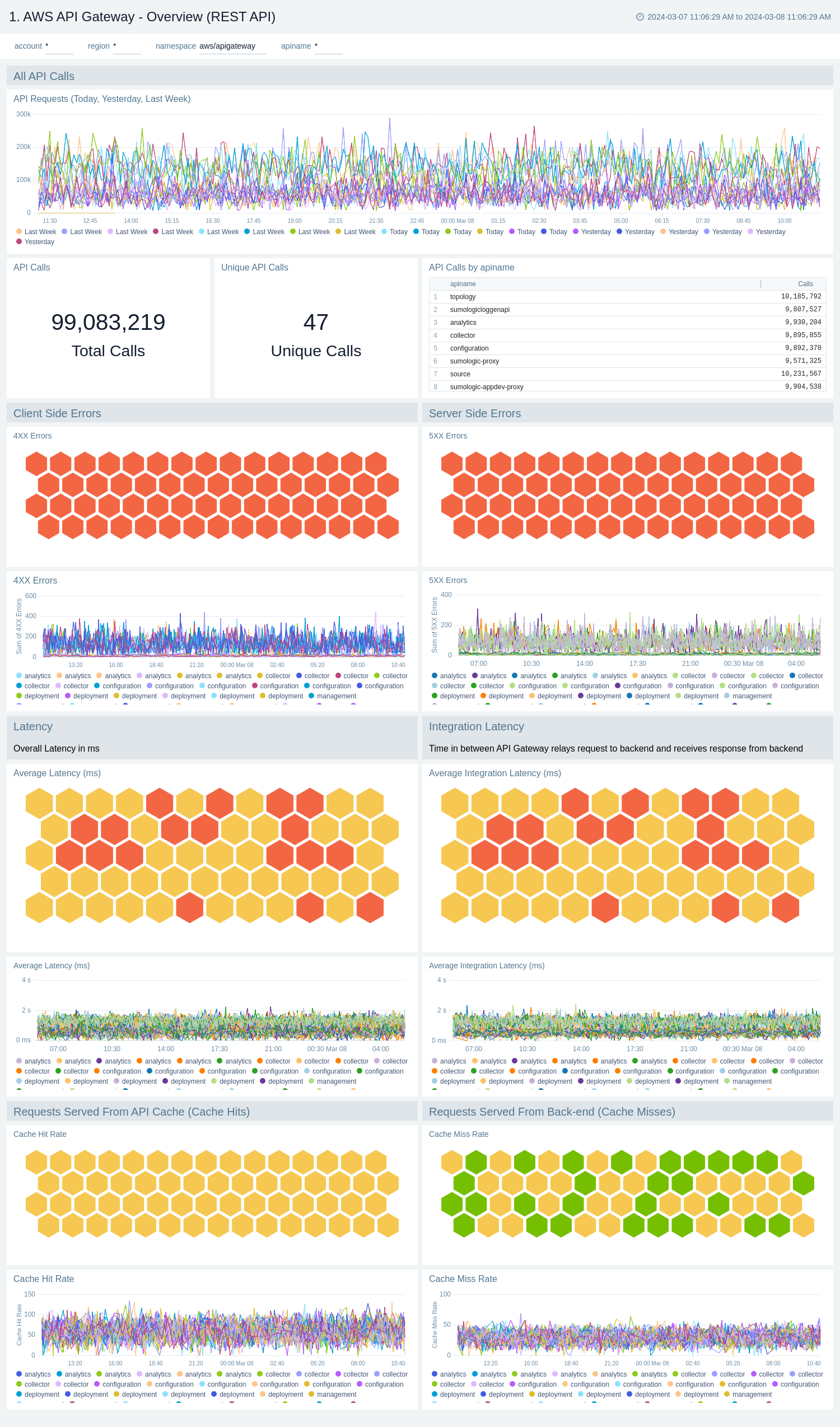
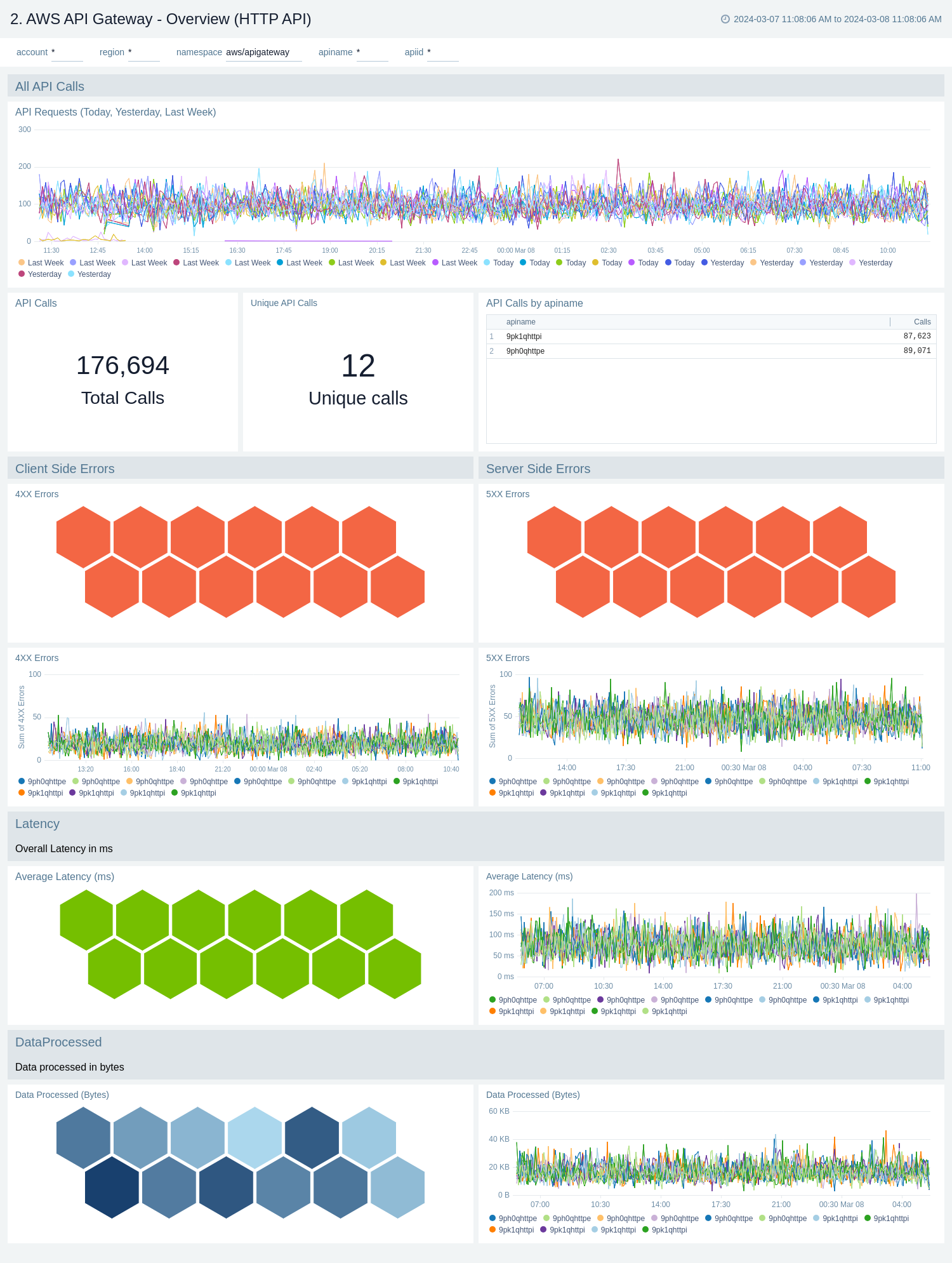
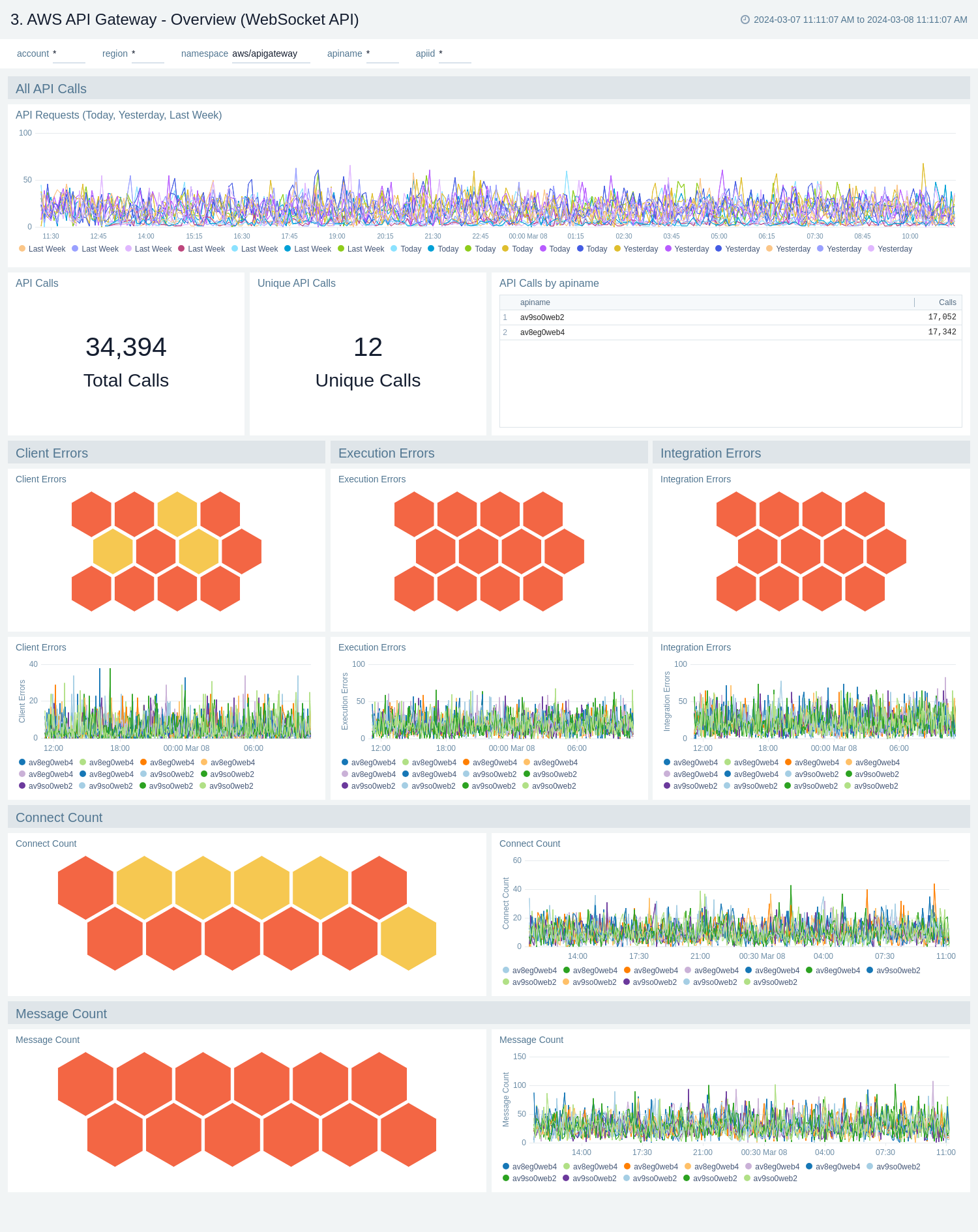
The **AWS API Gateway - Overview** dashboards provides insights into API Gateway performance throughout your infrastructure, including API calls, latency, client and server-side errors, connect and message count, data processed, API cache hits, and back-end cache misses.
There are three overview dashboards: **AWS API Gateway - Overview (REST API)**, **AWS API Gateway - Overview (HTTP API)**, and **AWS API Gateway - Overview (WebSocket API)**.
Use these dashboards to:
* Get a high-level overview of your API Gateway infrastructure.
* Compare API requests made today, yesterday, and last week to identify any abnormal deviations in load
* Get quick statistics on the number of requests and frequently used APIs.
* Monitor the number of client-side and server-side errors processed by API Gateway instances.
* Monitor relative, backend, and overall API responsiveness
* Monitor API cache hits and misses by API Gateway across your infrastructure to optimize cache capacities and achieve desired performance.
#### AWS API Gateway - Overview (REST API)
### Centralized AWS CloudTrail log collection
In case you have a centralized collection of CloudTrail logs and are ingesting them from all accounts into a single Sumo Logic CloudTrail log source, create the following field extraction rule to map proper AWS account(s) friendly name/alias. You'll need to create it if not already present or update it as required.
```sumo
Rule Name: AWS Accounts
Applied at: Ingest Time
Scope (Specific Data):
_sourceCategory=aws/observability/cloudtrail/logs
```
#### Parse Expression
Enter a parse expression to create an `account` field that maps to the alias you set for each sub account. For example, if you used the `“dev”` alias for an AWS account with ID `"528560886094"` and the `“prod”` alias for an AWS account with ID `"567680881046"`, your parse expression would look like this:
```sumo
| json "recipientAccountId"
// Manually map your aws account id with the AWS account alias you setup earlier for individual child account
| "" as account
| if (recipientAccountId = "528560886094", "dev", account) as account
| if (recipientAccountId = "567680881046", "prod", account) as account
| fields account
```
## Installing the AWS API Gateway app
Now that you have set up a collection for the **AWS API gateway**, install the Sumo Logic app to use the pre-configured dashboards that provide visibility into your environment for real-time analysis of overall usage.
import AppInstall from '../../reuse/apps/app-install.md';
## Viewing AWS API Gateway dashboards
import FilterDashboards from '../../reuse/filter-dashboards.md';
### Overview
The **AWS API Gateway - Overview** dashboards provides insights into API Gateway performance throughout your infrastructure, including API calls, latency, client and server-side errors, connect and message count, data processed, API cache hits, and back-end cache misses.
There are three overview dashboards: **AWS API Gateway - Overview (REST API)**, **AWS API Gateway - Overview (HTTP API)**, and **AWS API Gateway - Overview (WebSocket API)**.
Use these dashboards to:
* Get a high-level overview of your API Gateway infrastructure.
* Compare API requests made today, yesterday, and last week to identify any abnormal deviations in load
* Get quick statistics on the number of requests and frequently used APIs.
* Monitor the number of client-side and server-side errors processed by API Gateway instances.
* Monitor relative, backend, and overall API responsiveness
* Monitor API cache hits and misses by API Gateway across your infrastructure to optimize cache capacities and achieve desired performance.
#### AWS API Gateway - Overview (REST API)
 #### AWS API Gateway - Overview (HTTP API)
 #### AWS API Gateway - Overview (WebSocket API)
 ### Access Logs
Access logs contains information about who has accessed your API and how the caller accessed the API.
To populate the dashboards, you must explicitly [enable access logs](#collect-access-logs-for-aws-api-gateway).
#### AWS API Gateway - Access Logs - Overview
The **AWS API Gateway - Access Logs - Overview** dashboard provides insights on Request's latency, Request trend, Distribution of requests by Method, Stage, and Protocol, Client's location, Request status code trend, and slowest requests.
Use this dashboard to:
* Monitor Latency across your infrastructure for all kind of APIs.
* Monitor total API call, average response size, and length and request trend.
* Monitor API requests trend by stage, HTTP method, user agent and protocol.
### Access Logs
Access logs contains information about who has accessed your API and how the caller accessed the API.
To populate the dashboards, you must explicitly [enable access logs](#collect-access-logs-for-aws-api-gateway).
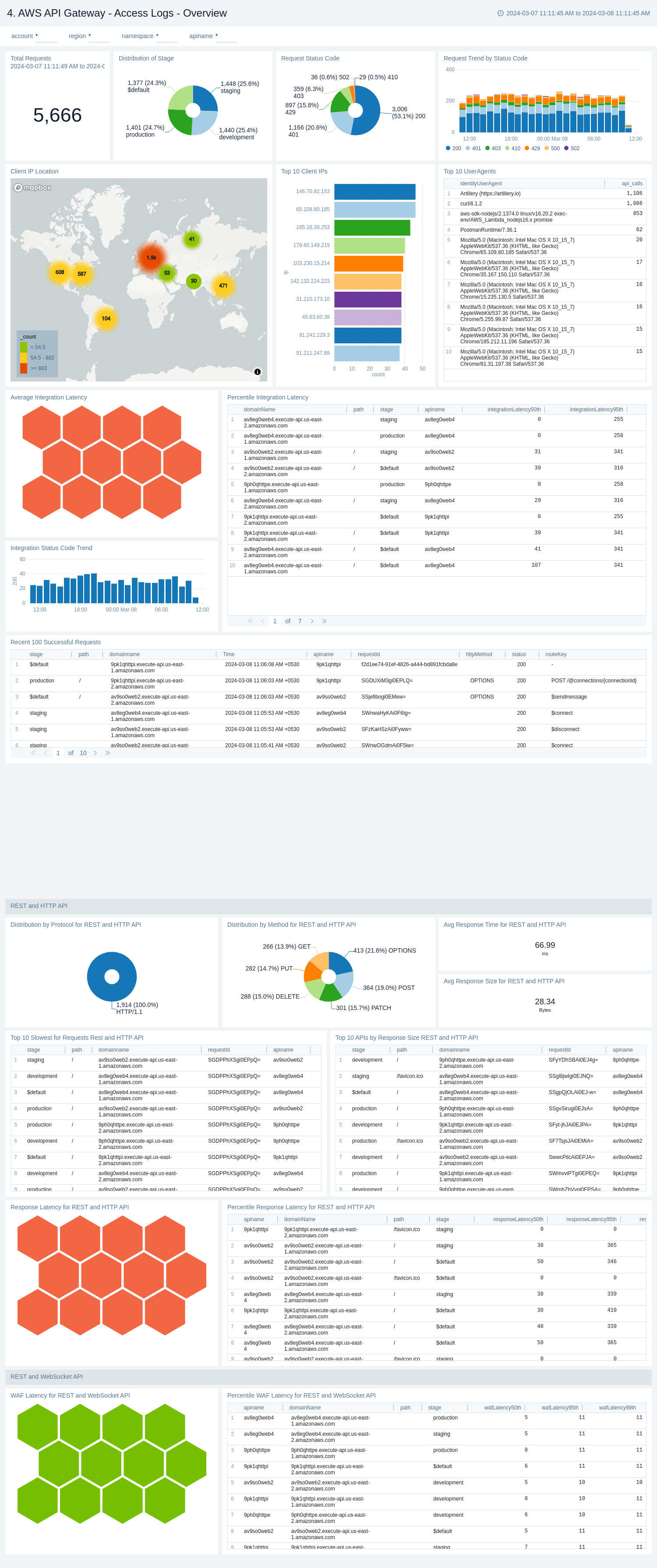
#### AWS API Gateway - Access Logs - Overview
The **AWS API Gateway - Access Logs - Overview** dashboard provides insights on Request's latency, Request trend, Distribution of requests by Method, Stage, and Protocol, Client's location, Request status code trend, and slowest requests.
Use this dashboard to:
* Monitor Latency across your infrastructure for all kind of APIs.
* Monitor total API call, average response size, and length and request trend.
* Monitor API requests trend by stage, HTTP method, user agent and protocol.
 #### AWS API Gateway - Access logs - Errors
The **AWS API Gateway - Access logs - Errors** dashboard provides insights on statistics of the top 20 failed requests, error messages trends, client's location, errors by response type, recent authorizer errors, missing authentication token errors, and WAF errors.
Use this dashboard to:
* Monitor all the failed requests, error messages, and their trends.
* Monitor failed requests with their distribution by response type and client IP.
* Monitor recent authorizer and missing authentication token errors.
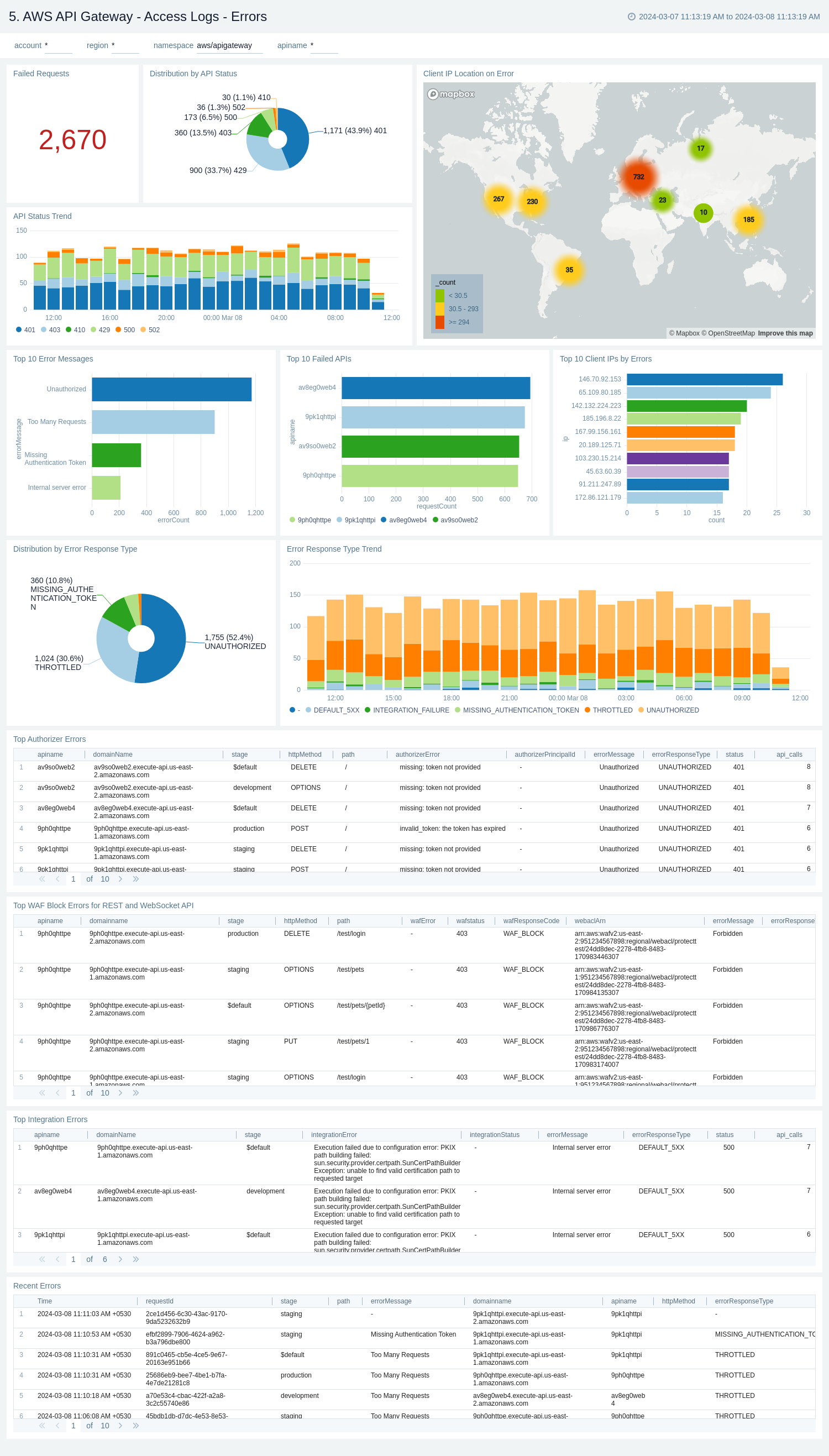
#### AWS API Gateway - Access logs - Errors
The **AWS API Gateway - Access logs - Errors** dashboard provides insights on statistics of the top 20 failed requests, error messages trends, client's location, errors by response type, recent authorizer errors, missing authentication token errors, and WAF errors.
Use this dashboard to:
* Monitor all the failed requests, error messages, and their trends.
* Monitor failed requests with their distribution by response type and client IP.
* Monitor recent authorizer and missing authentication token errors.
 ### Audit Events
The **AWS API Gateway - Audit Events** dashboard provides detailed audit insights into API Gateway events by various dimensions including event names, trends, regions, user agents, and recipient account IDs.
Use these dashboards to:
* Monitor all API Gateway-related audit logs available via CloudTrail events
* Monitor incoming user activity locations for both successful and failed events to ensure the activity matches with expectations
* Monitor successful and failed API Gateway events, users and user agents / fail activities, and failure reasons
* Monitor requests coming in from known malicious IP addresses detected via Sumo Logic [threat intelligence](/docs/security/threat-intelligence/)
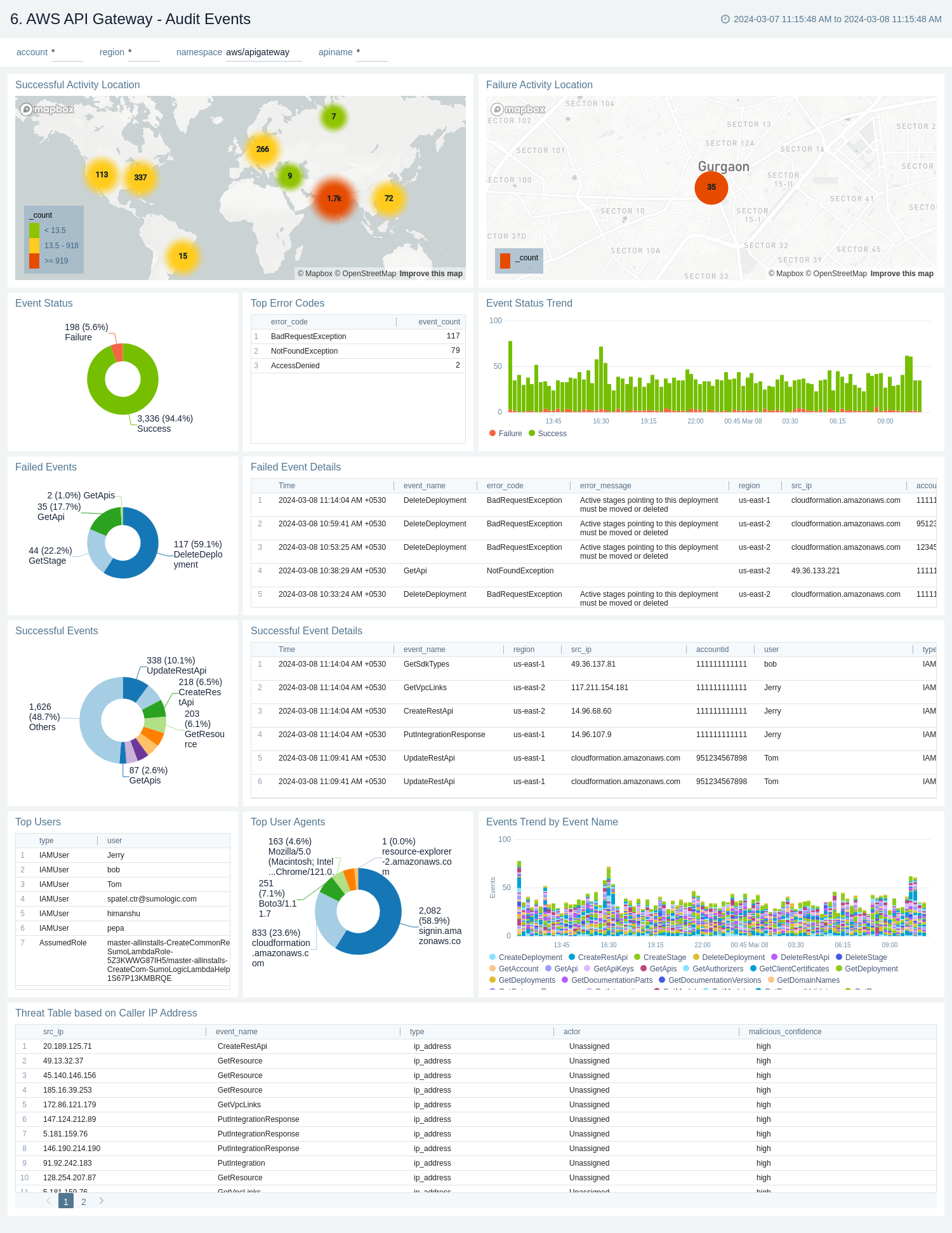
### Audit Events
The **AWS API Gateway - Audit Events** dashboard provides detailed audit insights into API Gateway events by various dimensions including event names, trends, regions, user agents, and recipient account IDs.
Use these dashboards to:
* Monitor all API Gateway-related audit logs available via CloudTrail events
* Monitor incoming user activity locations for both successful and failed events to ensure the activity matches with expectations
* Monitor successful and failed API Gateway events, users and user agents / fail activities, and failure reasons
* Monitor requests coming in from known malicious IP addresses detected via Sumo Logic [threat intelligence](/docs/security/threat-intelligence/)
 ### Latency and Cache
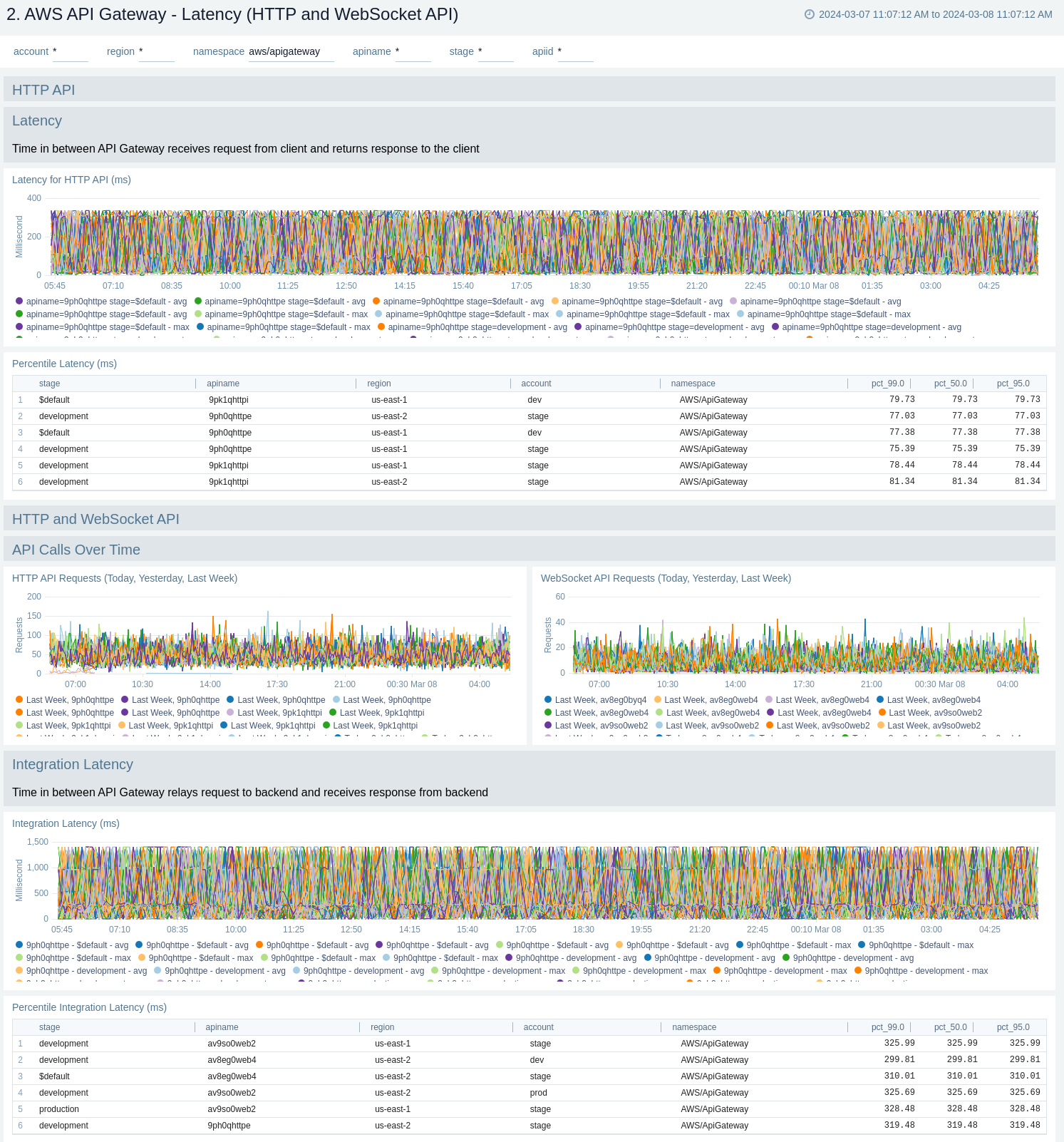
The **AWS API Gateway - Latency, Cache** dashboards provides insights into API Gateway performance including API requests, latency, integration latency, and its statistics, API cache hits, and back-end cache misses.
Cache related panels will populate for apis which have [cache enabled](#enable-cache-metrics).
There are two dashboards related to latency and cache: **AWS API Gateway - Latency, Cache (REST API)** and **AWS API Gateway - Latency (HTTP and WebSocket API)**.
Use these dashboards to:
* Monitor the overall responsiveness of API calls (latency), comparing times (in milliseconds) between receiving a request from and returning a response to a client.
* Monitor the responsiveness of the backend (integration latency), comparing times (in milliseconds) between API Gateway relay requests to and receiving a response back from the backend.
* Monitor API cache hits and misses to optimize cache capacities across your infrastructure and achieve desired performance.
* Compare API requests made today, yesterday, and last week to identify any abnormal deviations.
#### AWS API Gateway - Latency, Cache (REST API)
### Latency and Cache
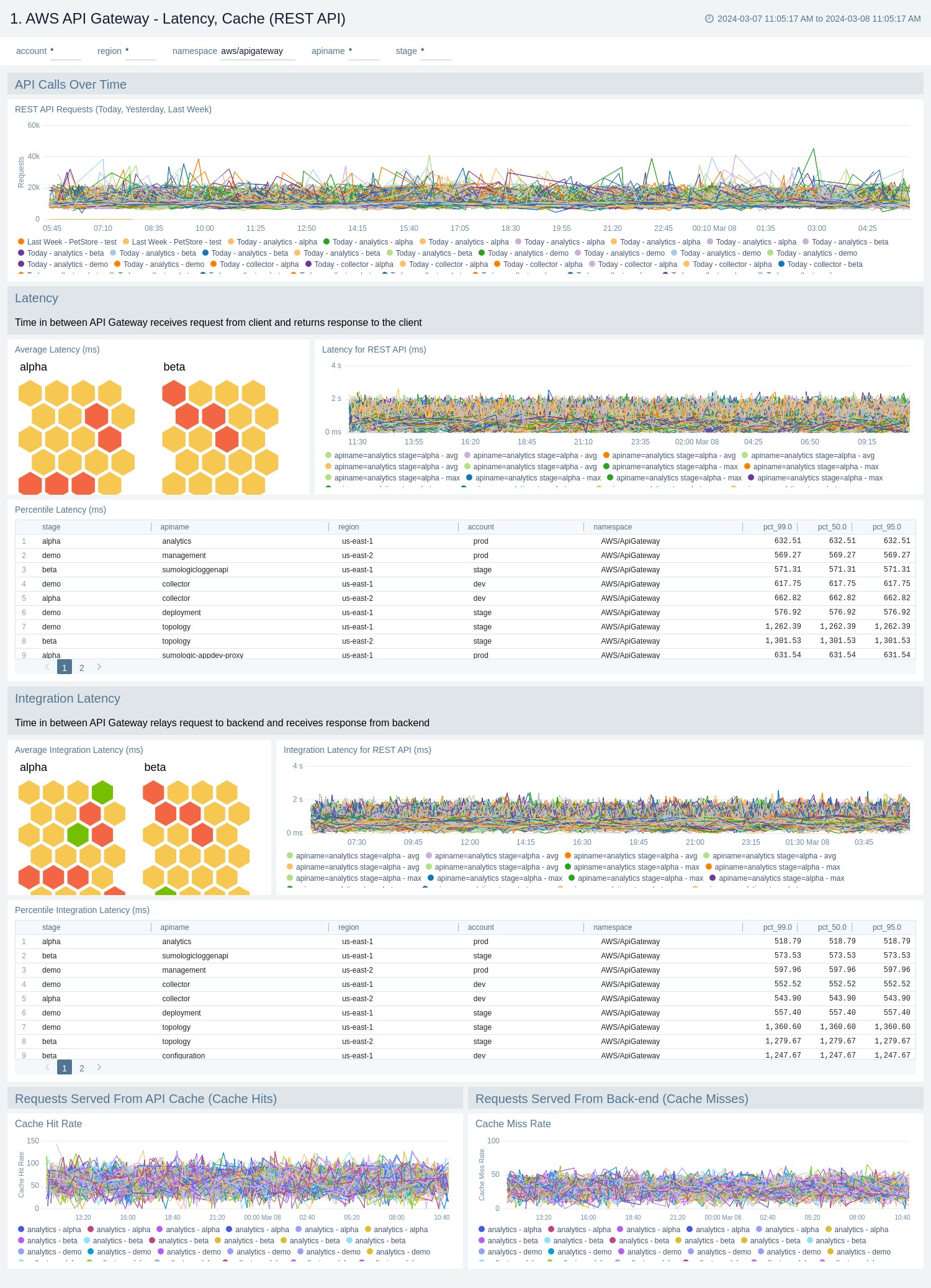
The **AWS API Gateway - Latency, Cache** dashboards provides insights into API Gateway performance including API requests, latency, integration latency, and its statistics, API cache hits, and back-end cache misses.
Cache related panels will populate for apis which have [cache enabled](#enable-cache-metrics).
There are two dashboards related to latency and cache: **AWS API Gateway - Latency, Cache (REST API)** and **AWS API Gateway - Latency (HTTP and WebSocket API)**.
Use these dashboards to:
* Monitor the overall responsiveness of API calls (latency), comparing times (in milliseconds) between receiving a request from and returning a response to a client.
* Monitor the responsiveness of the backend (integration latency), comparing times (in milliseconds) between API Gateway relay requests to and receiving a response back from the backend.
* Monitor API cache hits and misses to optimize cache capacities across your infrastructure and achieve desired performance.
* Compare API requests made today, yesterday, and last week to identify any abnormal deviations.
#### AWS API Gateway - Latency, Cache (REST API)
 #### AWS API Gateway - Latency (HTTP and WebSocket API)
 ### Errors
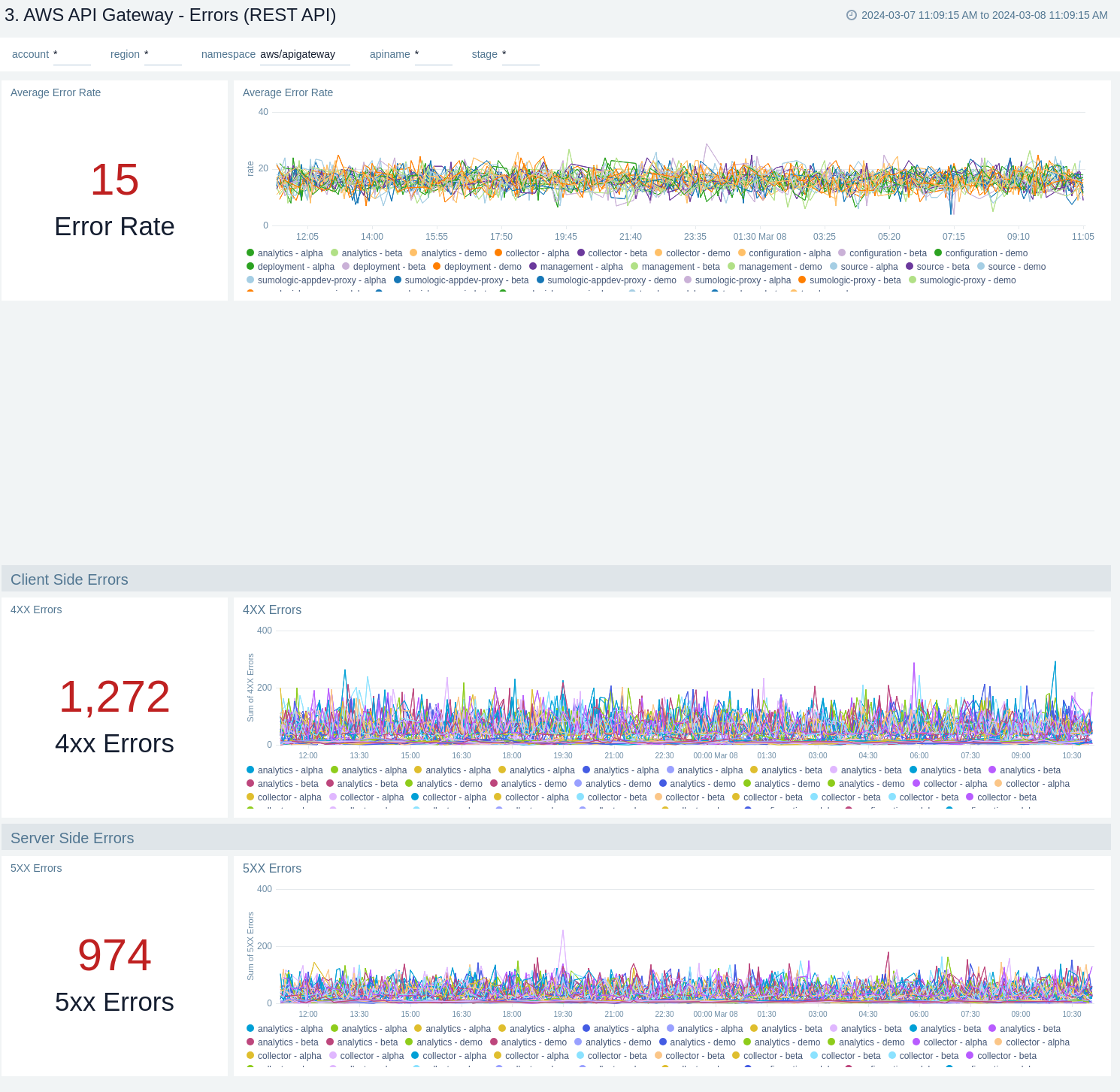
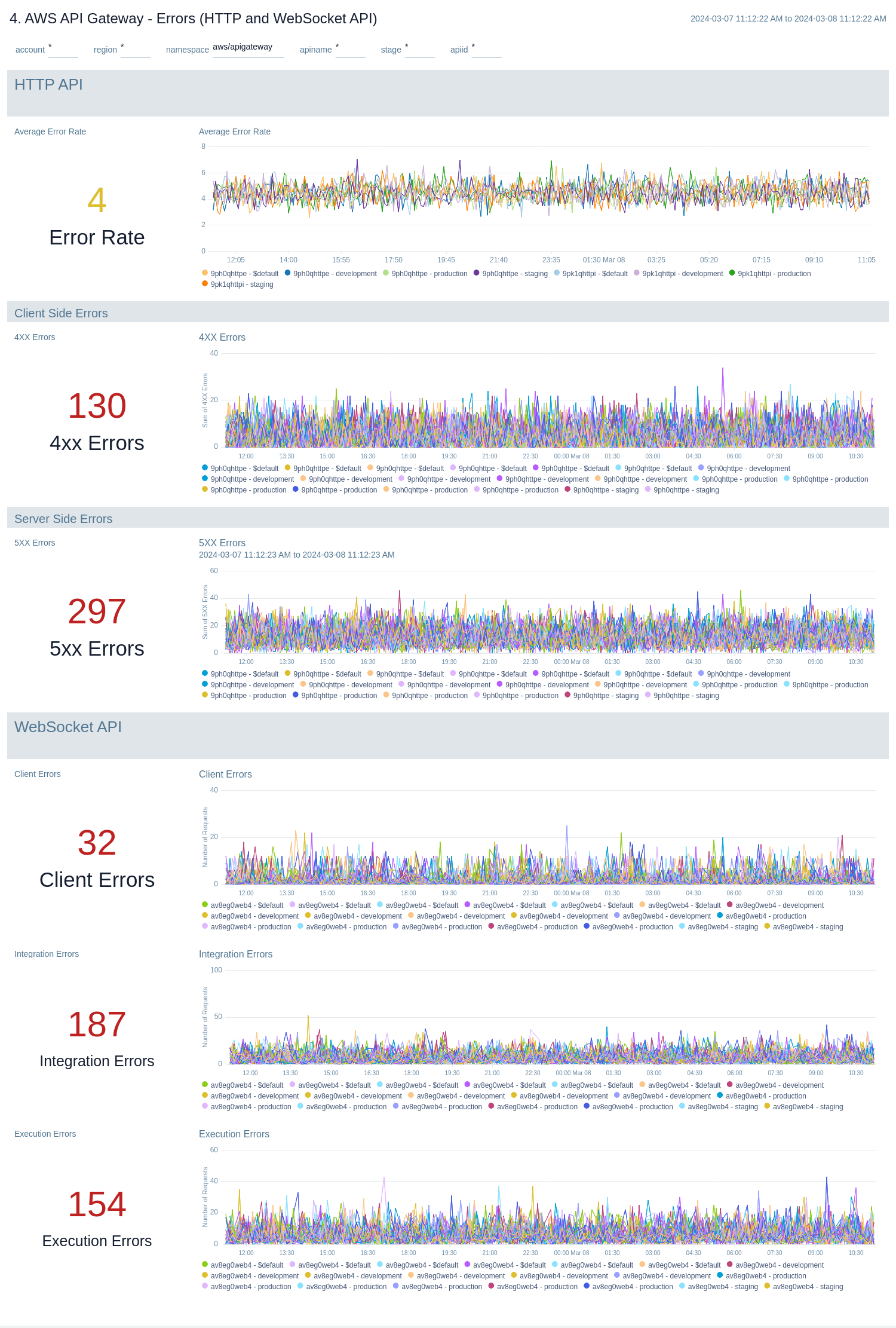
The **AWS API Gateway - Errors** dashboards provides insights into API Gateway HTTP 4xx and 5xx code errors throughout your infrastructure, including API requests, client errors, integration errors, execution errors, client-side errors, and server-side errors.
There are two dashboards related to errors: **AWS API Gateway - Errors (REST API)** and **AWS API Gateway - Errors (HTTP and WebSocket API)**.
Use these dashboards to:
* Monitor the total number of client-side errors based on API name and region across your infrastructure.
* Monitor the total number of server-side errors based on API name and region across your infrastructure.
* Monitor the total number of client, integration and execution errors based on API name and region across your infrastructure.
* Compare API requests made today, yesterday, and last week to identify any abnormal deviations.
#### AWS API Gateway - Errors (REST API)
### Errors
The **AWS API Gateway - Errors** dashboards provides insights into API Gateway HTTP 4xx and 5xx code errors throughout your infrastructure, including API requests, client errors, integration errors, execution errors, client-side errors, and server-side errors.
There are two dashboards related to errors: **AWS API Gateway - Errors (REST API)** and **AWS API Gateway - Errors (HTTP and WebSocket API)**.
Use these dashboards to:
* Monitor the total number of client-side errors based on API name and region across your infrastructure.
* Monitor the total number of server-side errors based on API name and region across your infrastructure.
* Monitor the total number of client, integration and execution errors based on API name and region across your infrastructure.
* Compare API requests made today, yesterday, and last week to identify any abnormal deviations.
#### AWS API Gateway - Errors (REST API)
 #### AWS API Gateway - Errors (HTTP and WebSocket API)
 ### Enhanced Monitoring
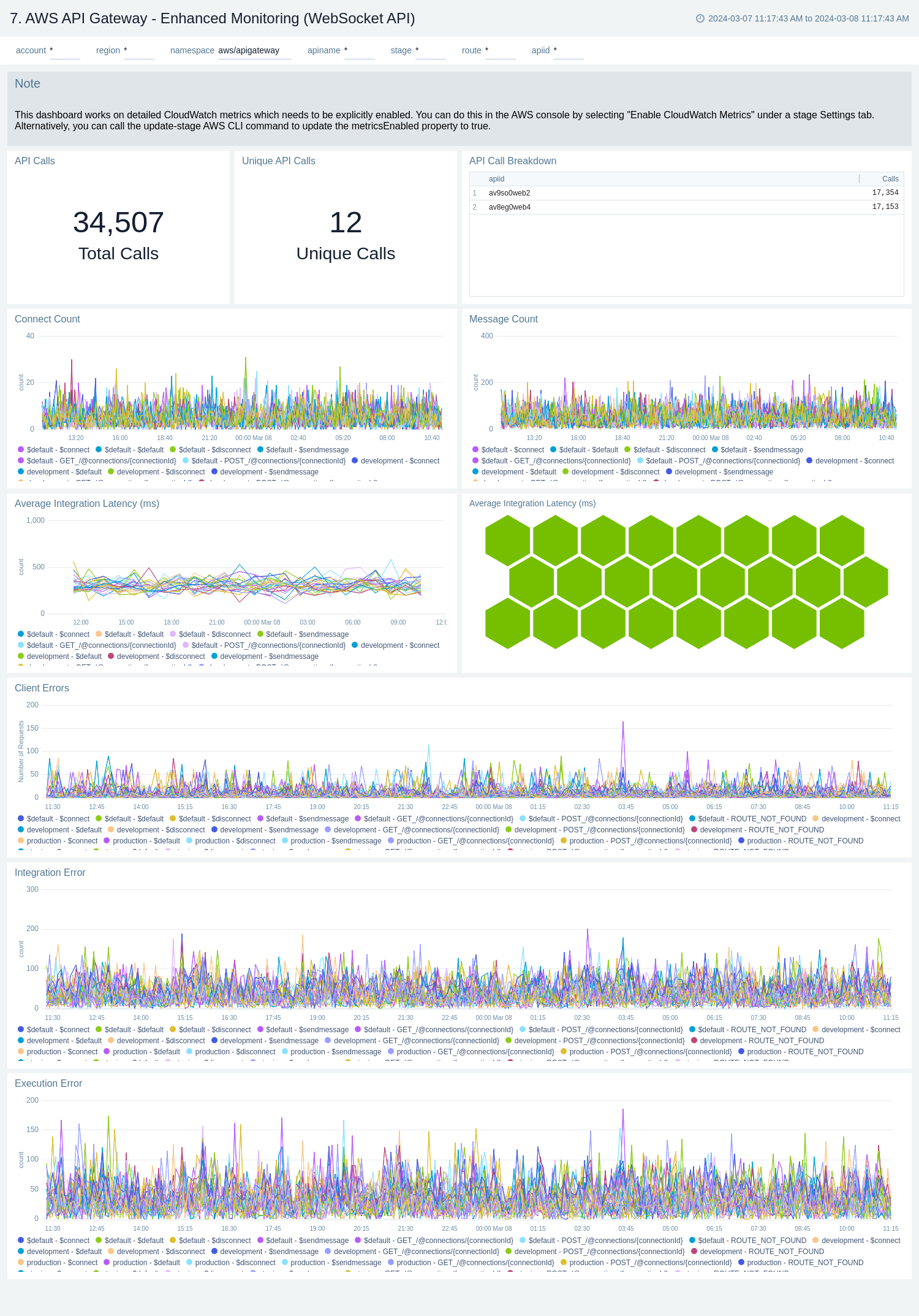
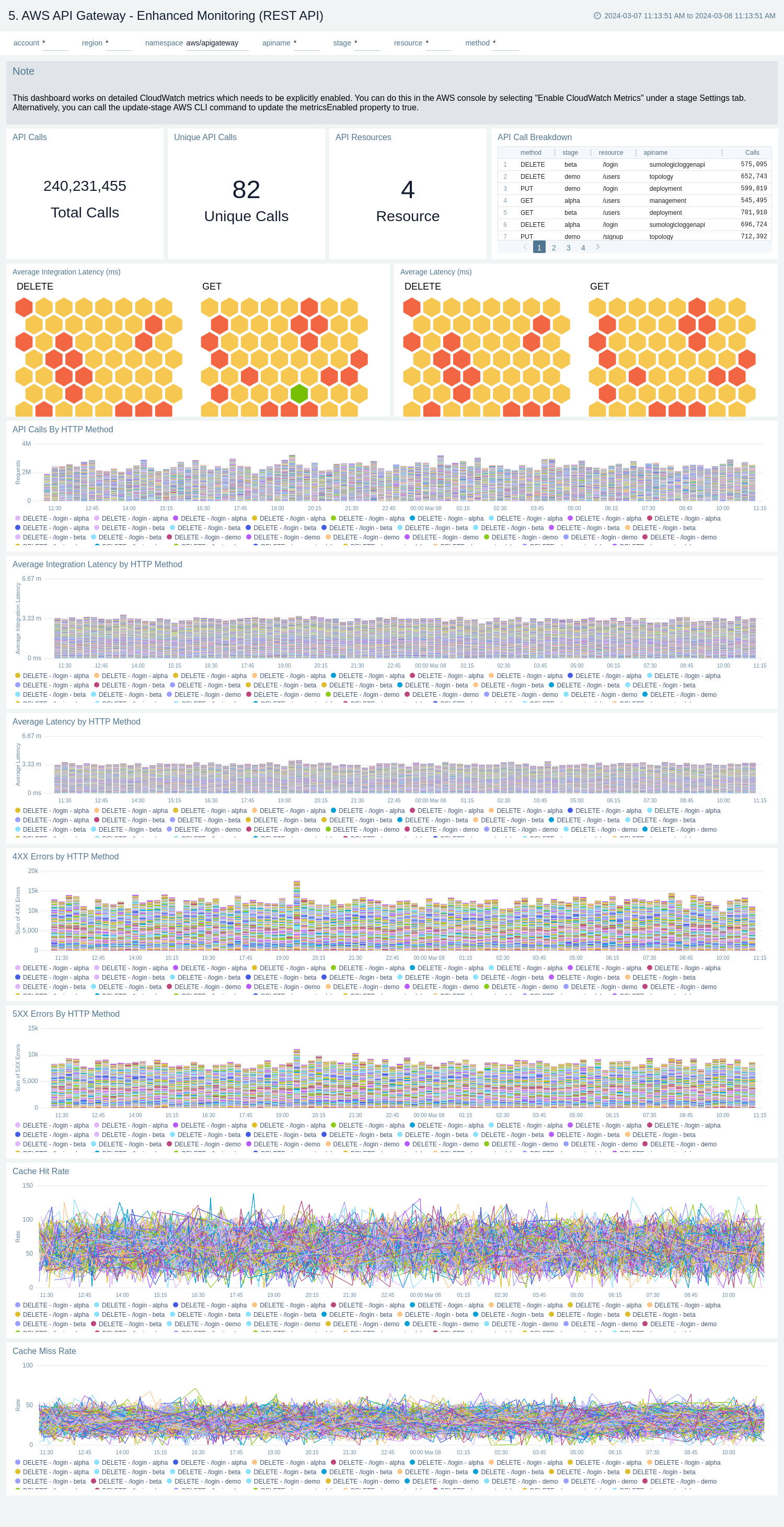
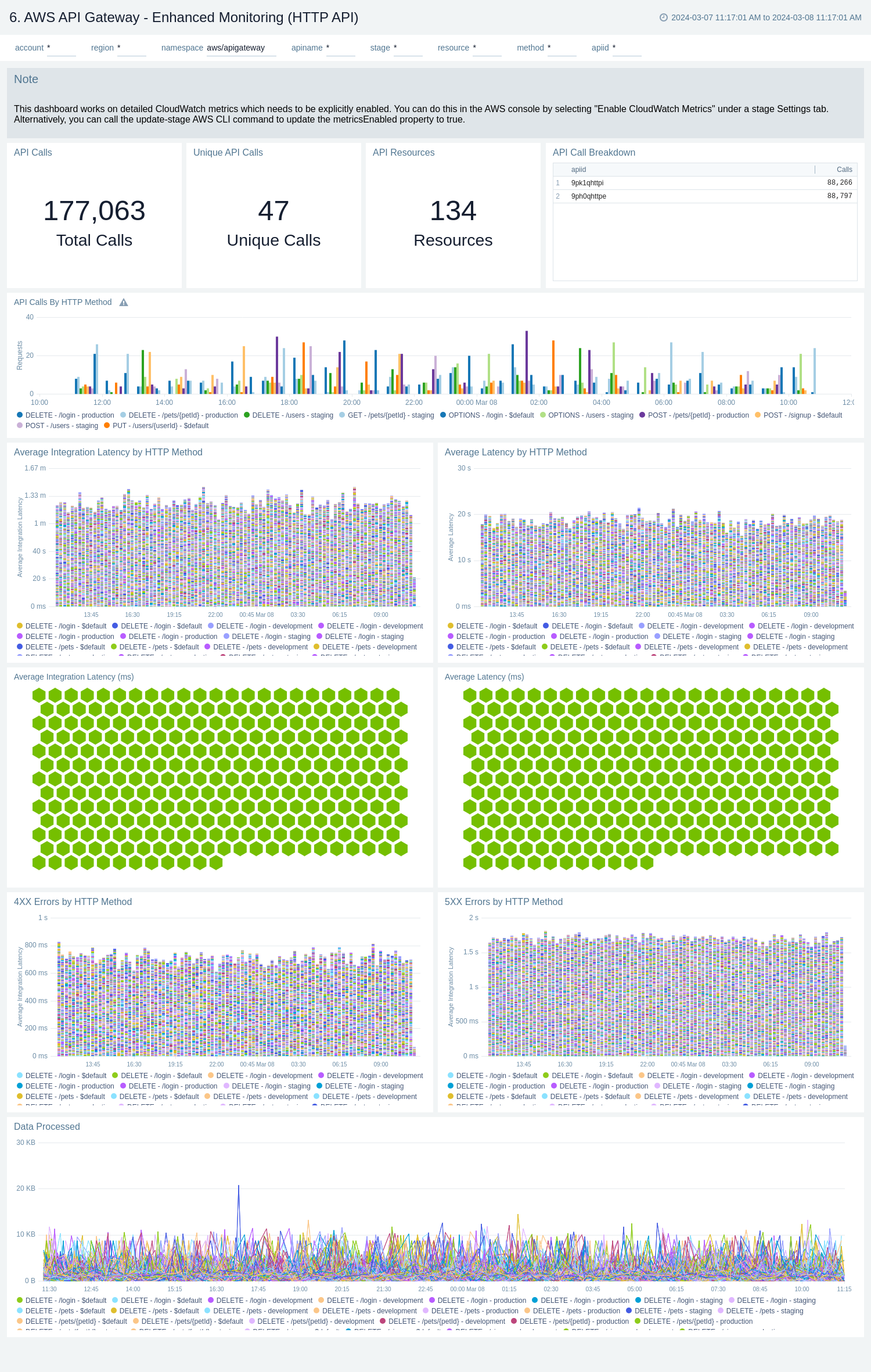
The **AWS API Gateway - Enhanced Monitoring** dashboards provides detailed insights into API Gateway performance throughout your infrastructure, including the number and types of API calls, API resources, cache hits, and misses, latency averages, data processed, and errors by HTTP method, resource and stage.
To populate the dashboards, you must explicitly [enable detailed CloudWatch metrics](#enable-enhanced-metrics).
There are three dashboards related to enhanced monitoring: **AWS API Gateway - Enhanced Monitoring (REST API)**, **AWS API Gateway - Enhanced Monitoring (HTTP API)**, and **AWS API Gateway - Enhanced Monitoring (WebSocket API)**.
Use these dashboards to:
* Monitor API Gateways across your infrastructure using enhanced metrics.
* Monitor API requests trend by resource, HTTP method, and deployment stage.
* Monitor API cache hits and misses to optimize cache capacities to achieve desired performance.
* Monitor the overall responsiveness of API calls and the backend origin servers
* Monitor the total number of client-side and server-side errors based on HTTP methods
#### AWS API Gateway - Enhanced Monitoring (REST API)
### Enhanced Monitoring
The **AWS API Gateway - Enhanced Monitoring** dashboards provides detailed insights into API Gateway performance throughout your infrastructure, including the number and types of API calls, API resources, cache hits, and misses, latency averages, data processed, and errors by HTTP method, resource and stage.
To populate the dashboards, you must explicitly [enable detailed CloudWatch metrics](#enable-enhanced-metrics).
There are three dashboards related to enhanced monitoring: **AWS API Gateway - Enhanced Monitoring (REST API)**, **AWS API Gateway - Enhanced Monitoring (HTTP API)**, and **AWS API Gateway - Enhanced Monitoring (WebSocket API)**.
Use these dashboards to:
* Monitor API Gateways across your infrastructure using enhanced metrics.
* Monitor API requests trend by resource, HTTP method, and deployment stage.
* Monitor API cache hits and misses to optimize cache capacities to achieve desired performance.
* Monitor the overall responsiveness of API calls and the backend origin servers
* Monitor the total number of client-side and server-side errors based on HTTP methods
#### AWS API Gateway - Enhanced Monitoring (REST API)
 #### AWS API Gateway - Enhanced Monitoring (HTTP API)
 #### AWS API Gateway - Enhanced Monitoring (WebSocket API)