---
title: Gmail
description: ''
slug: /help/docs/integrations/automation-integrations/gmail/
canonical: https://www.sumologic.com/help/docs/integrations/automation-integrations/gmail/
---
import useBaseUrl from '@docusaurus/useBaseUrl';
 **Version: 1.5
Updated: June 26, 2024**
Interact with filters, mail messages, and attachments in Google Mail.
## Actions
* **Add Filter** (*Containment*) - Creates a filter. Note: you can only create a maximum of 1,000 filters.
* **Authorize DO NOT USE IN PLAYBOOK** (*Enrichment*) - Authorize access to Gmail. This should only be run once and not from Playbook.
* **Confirm DO NOT USE IN PLAYBOOK** (*Enrichment*) - Confirm access to Gmail. This should only be run once and not from Playbook.
* **Delete Filter** (*Containment*) - Immediately and permanently deletes the specified filter.
* **Delete Mail** *(Containment)* - Immediately and permanently deletes the specified message. This operation cannot be undone.
* **Get Attachment** (*Enrichment*) - Gets the specified message attachment.
* **Get Mail** (*Enrichment*) - Gets the specified message.
* **Get Thread** (*Enrichment*) - Gets the specified thread.
* **Gmail Daemon** (*Daemon*) - Automatically retrieve all unread messages in the inbox and mark them as read.
* **List Filters** (*Enrichment*) - Lists the message filters of a Gmail user.
* **List Labels** (*Enrichment*) - Lists all labels in the user's mailbox.
* **Move Mail** (*Enrichment*) - Modifies the labels on the specified message.
* **Search Engine** (*Enrichment*) - Search all items using the specified query.
* **Search Mail** (*Enrichment*) - Lists the messages in the user's mailbox.
* **Send Email \*** (*Notification*) - Sends the specified message.
* **Send Email V2** (*Notification*) - Sends the specified message without any attachments.
\* Only available for Cloud SOAR
## Gmail configuration
1. Create a new project in the [Developer Console](https://console.developers.google.com/).
1. In the **APIs & Services** section, navigate to **Credentials** and select [**Create Credentials**](https://developers.google.com/workspace/guides/create-credentials): [https://console.cloud.google.com/apis/api](https://console.cloud.google.com/apis/api).
1. Select **OAuth Client ID** as the credential type and set the following inputs:
* **Application Type**. Web Application.
* **Authorized redirect URIs > Add URI**. `http://localhost/`
:::note
Will only be used to generate a refresh token.
:::
1. Copy the resulting Client ID and Client Secret Key values, as these will be used later.
**Version: 1.5
Updated: June 26, 2024**
Interact with filters, mail messages, and attachments in Google Mail.
## Actions
* **Add Filter** (*Containment*) - Creates a filter. Note: you can only create a maximum of 1,000 filters.
* **Authorize DO NOT USE IN PLAYBOOK** (*Enrichment*) - Authorize access to Gmail. This should only be run once and not from Playbook.
* **Confirm DO NOT USE IN PLAYBOOK** (*Enrichment*) - Confirm access to Gmail. This should only be run once and not from Playbook.
* **Delete Filter** (*Containment*) - Immediately and permanently deletes the specified filter.
* **Delete Mail** *(Containment)* - Immediately and permanently deletes the specified message. This operation cannot be undone.
* **Get Attachment** (*Enrichment*) - Gets the specified message attachment.
* **Get Mail** (*Enrichment*) - Gets the specified message.
* **Get Thread** (*Enrichment*) - Gets the specified thread.
* **Gmail Daemon** (*Daemon*) - Automatically retrieve all unread messages in the inbox and mark them as read.
* **List Filters** (*Enrichment*) - Lists the message filters of a Gmail user.
* **List Labels** (*Enrichment*) - Lists all labels in the user's mailbox.
* **Move Mail** (*Enrichment*) - Modifies the labels on the specified message.
* **Search Engine** (*Enrichment*) - Search all items using the specified query.
* **Search Mail** (*Enrichment*) - Lists the messages in the user's mailbox.
* **Send Email \*** (*Notification*) - Sends the specified message.
* **Send Email V2** (*Notification*) - Sends the specified message without any attachments.
\* Only available for Cloud SOAR
## Gmail configuration
1. Create a new project in the [Developer Console](https://console.developers.google.com/).
1. In the **APIs & Services** section, navigate to **Credentials** and select [**Create Credentials**](https://developers.google.com/workspace/guides/create-credentials): [https://console.cloud.google.com/apis/api](https://console.cloud.google.com/apis/api).
1. Select **OAuth Client ID** as the credential type and set the following inputs:
* **Application Type**. Web Application.
* **Authorized redirect URIs > Add URI**. `http://localhost/`
:::note
Will only be used to generate a refresh token.
:::
1. Copy the resulting Client ID and Client Secret Key values, as these will be used later.
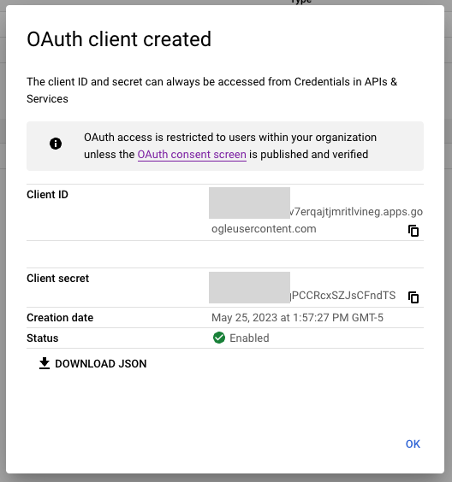 1. Navigate to the **OAuth Consent Screen** section and set the following inputs:
* **App Name**
* **User Support Email**: Set to an email that you have access to.
* **Developer Contact Information**: Set to an email that you have access to.
1. The following xcopes are needed:
* `https://mail.google.com`
* `https://www.googleapis.com/auth/gmail.modify`
* `https://www.googleapis.com/auth/gmail.readonly`
* `https://www.googleapis.com/auth/admin.directory.user`
* `https://www.googleapis.com/auth/gmail.compose`
* `https://www.googleapis.com/auth/gmail.send`
* `https://www.googleapis.com/auth/gmail.settings.basic`
* `https://www.googleapis.com/auth/gmail.settings.sharing`
1. In Cloud SOAR, navigate to **Settings > Integrations > Gmail**, add a new Resource and provide the following inputs:
* Client ID (generated in step 4)
* Client Secret Key (generated in step 4)
1. Save and close the Resource.
1. Click and execute the **Authorize DO NOT USE IN PLAYBOOK** action. If successful, a URL will be returned.
1. Navigate to the **OAuth Consent Screen** section and set the following inputs:
* **App Name**
* **User Support Email**: Set to an email that you have access to.
* **Developer Contact Information**: Set to an email that you have access to.
1. The following xcopes are needed:
* `https://mail.google.com`
* `https://www.googleapis.com/auth/gmail.modify`
* `https://www.googleapis.com/auth/gmail.readonly`
* `https://www.googleapis.com/auth/admin.directory.user`
* `https://www.googleapis.com/auth/gmail.compose`
* `https://www.googleapis.com/auth/gmail.send`
* `https://www.googleapis.com/auth/gmail.settings.basic`
* `https://www.googleapis.com/auth/gmail.settings.sharing`
1. In Cloud SOAR, navigate to **Settings > Integrations > Gmail**, add a new Resource and provide the following inputs:
* Client ID (generated in step 4)
* Client Secret Key (generated in step 4)
1. Save and close the Resource.
1. Click and execute the **Authorize DO NOT USE IN PLAYBOOK** action. If successful, a URL will be returned.
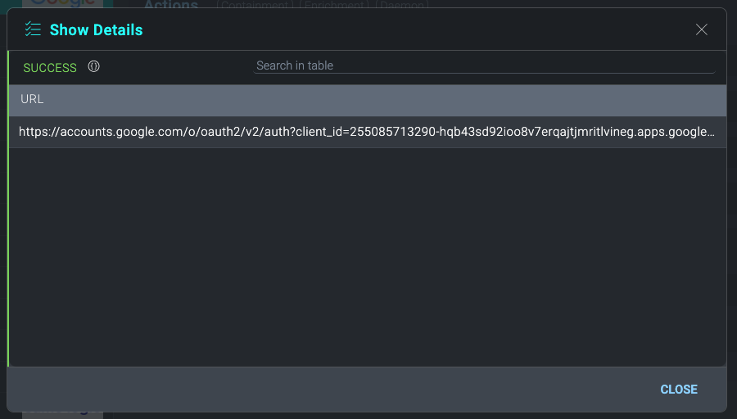 1. Open a new browser tab, and navigate to the URL generated in the previous step.
1. Provide consent for this developer project to access the Gmail API.
1. The response to this consent flow is the localhost redirect specified earlier. Copy this URL.
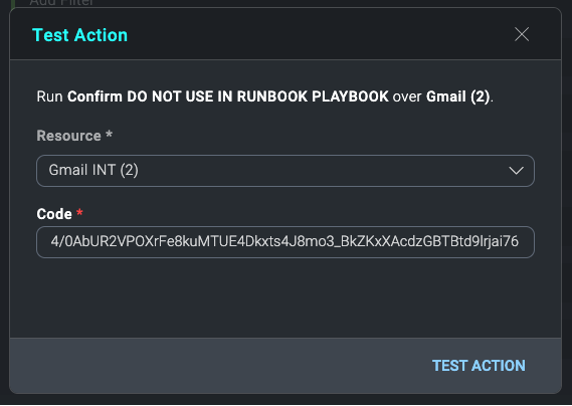
1. Within this URL, copy the code nested in this URL:
```
http://localhost/?code=4/0AbUR2VXXXXFe8kuMTUE4Dkxts4J8mo3\_BkZKxXAcdzXXXXtd9lrjai00pEuG0YXWtWjimg&scope=https://mail.google.com/%20https://www.googleapis.com/auth/gmail.settings.basic
```
1. Open a new browser tab, and navigate to the URL generated in the previous step.
1. Provide consent for this developer project to access the Gmail API.
1. The response to this consent flow is the localhost redirect specified earlier. Copy this URL.
1. Within this URL, copy the code nested in this URL:
```
http://localhost/?code=4/0AbUR2VXXXXFe8kuMTUE4Dkxts4J8mo3\_BkZKxXAcdzXXXXtd9lrjai00pEuG0YXWtWjimg&scope=https://mail.google.com/%20https://www.googleapis.com/auth/gmail.settings.basic
```
 1. In Cloud SOAR, click and run the **Confirm DO NOT USE IN PLAYBOOK** action, providing the code generated above in the Code input.
 1. This will return a JSON result with a "**credentials**" key. Copy the value of this key, which is a base64-encoded string JSON credential we will use in the next and final step.
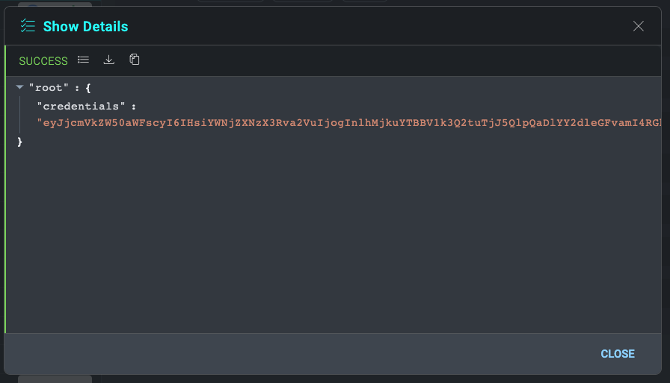 1. Paste the base64 string in the "**Credentials**" field of the Integration Resource created in step 7. Save and close the resource window.
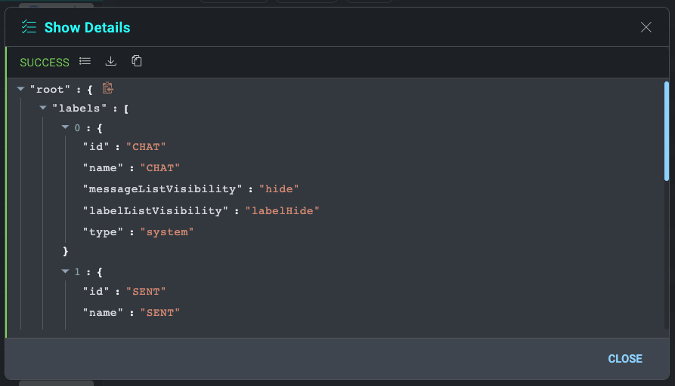
1. You can test that the integration credentials are working by running the "**Get Labels**" action (no inputs are needed). If successful, it will return a JSON result of mail labels.
1. Paste the base64 string in the "**Credentials**" field of the Integration Resource created in step 7. Save and close the resource window.
1. You can test that the integration credentials are working by running the "**Get Labels**" action (no inputs are needed). If successful, it will return a JSON result of mail labels.
 ## External Libraries
* [Gmail (python)](https://github.com/googleapis/google-auth-library-python/blob/master/LICENSE)
* [Gmail (Google API)](https://github.com/googleapis/google-api-python-client/blob/master/LICENSE)
## Configure Gmail in Automation Service and Cloud SOAR
import IntegrationsAuth from '../../reuse/integrations-authentication.md';
import IntegrationCertificate from '../../reuse/automation-service/integration-certificate.md';
import IntegrationEngine from '../../reuse/automation-service/integration-engine.md';
import IntegrationLabel from '../../reuse/automation-service/integration-label.md';
import IntegrationProxy from '../../reuse/automation-service/integration-proxy.md';
import IntegrationTimeout from '../../reuse/automation-service/integration-timeout.md';
import CloudSOARAPIURL from '../../reuse/automation-service/cloud-soar-api-url.md';
import AccessID from '../../reuse/automation-service/access-id.md';
import AccessKey from '../../reuse/automation-service/access-key.md';
*
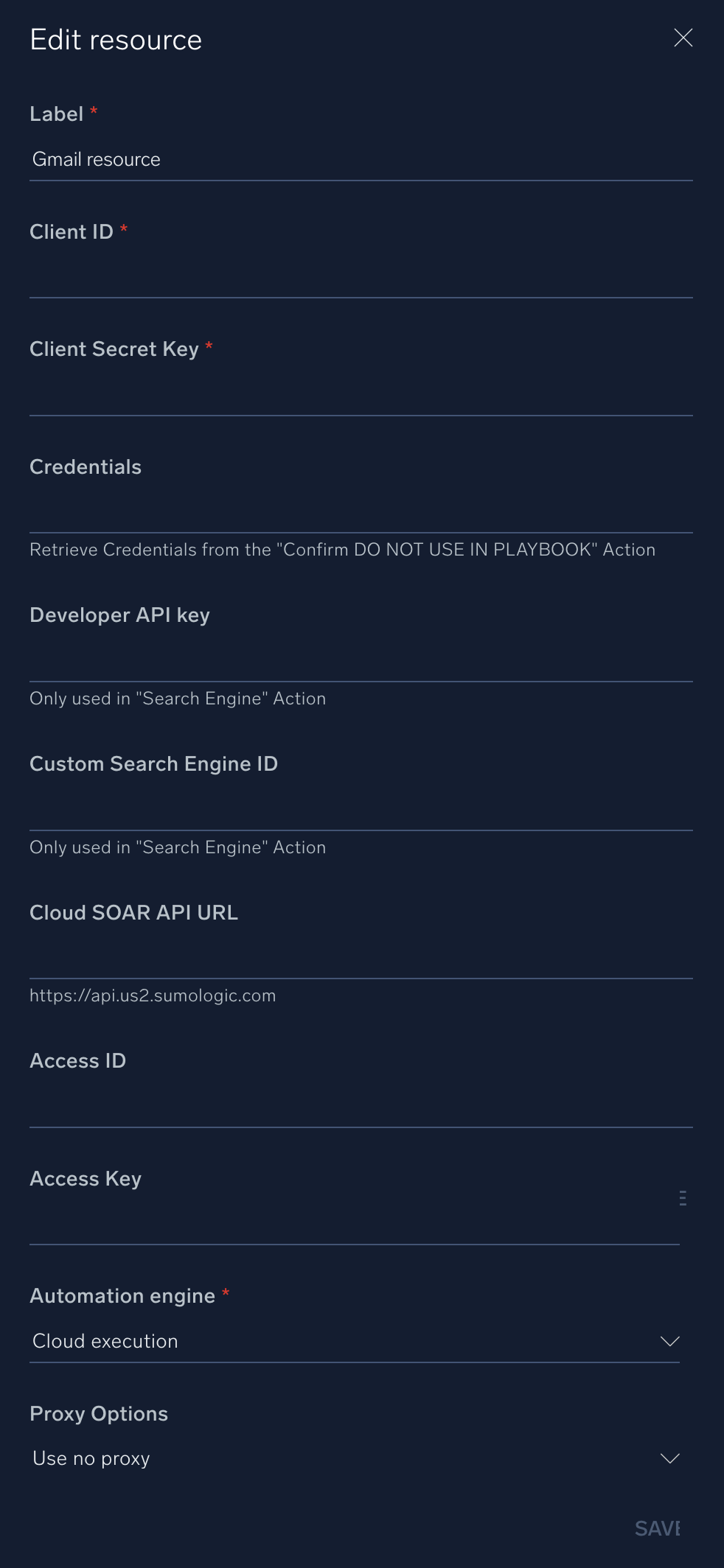
* **Client ID**. Enter the client ID [copied earlier](#gmail-configuration).
* **Client Secret Key**. Enter the secret for the client ID.
* **Credentials**. Enter the credentials retrieved from the "Confirm DO NOT USE IN PLAYBOOK" action above.
* **Developer API Key**. Enter your developer API key. This is only used in the "Search Engine" action.
* **Custom Search Engine ID**. Enter your search ending ID. This is only used in the "Search Engine" action.
*
*
*
*
*
## External Libraries
* [Gmail (python)](https://github.com/googleapis/google-auth-library-python/blob/master/LICENSE)
* [Gmail (Google API)](https://github.com/googleapis/google-api-python-client/blob/master/LICENSE)
## Configure Gmail in Automation Service and Cloud SOAR
import IntegrationsAuth from '../../reuse/integrations-authentication.md';
import IntegrationCertificate from '../../reuse/automation-service/integration-certificate.md';
import IntegrationEngine from '../../reuse/automation-service/integration-engine.md';
import IntegrationLabel from '../../reuse/automation-service/integration-label.md';
import IntegrationProxy from '../../reuse/automation-service/integration-proxy.md';
import IntegrationTimeout from '../../reuse/automation-service/integration-timeout.md';
import CloudSOARAPIURL from '../../reuse/automation-service/cloud-soar-api-url.md';
import AccessID from '../../reuse/automation-service/access-id.md';
import AccessKey from '../../reuse/automation-service/access-key.md';
*
* **Client ID**. Enter the client ID [copied earlier](#gmail-configuration).
* **Client Secret Key**. Enter the secret for the client ID.
* **Credentials**. Enter the credentials retrieved from the "Confirm DO NOT USE IN PLAYBOOK" action above.
* **Developer API Key**. Enter your developer API key. This is only used in the "Search Engine" action.
* **Custom Search Engine ID**. Enter your search ending ID. This is only used in the "Search Engine" action.
*
*
*
*
*
 For information about the Gmail API, see [Gmail API documentation](https://developers.google.com/workspace/gmail/api/guides).
## Change Log
| Version | Date | Description |
|:--|:--|:--|
| v1.5 | June 26, 2024 | The **Send Email** action now supports the new Cloud SOAR API, letting you send incident attachments directly through the email action. |
| v1.4 | October 26, 2023 |
For information about the Gmail API, see [Gmail API documentation](https://developers.google.com/workspace/gmail/api/guides).
## Change Log
| Version | Date | Description |
|:--|:--|:--|
| v1.5 | June 26, 2024 | The **Send Email** action now supports the new Cloud SOAR API, letting you send incident attachments directly through the email action. |
| v1.4 | October 26, 2023 | - **Add Filter**: changed the action type to Containment; changed the field type to tag for **Add Label IDs** and **Remove Label IDs**; changed the field type to textarea for **Subject**, **Query**, and **Negated Query**; changed the field type to list for **Size Comparison**; and enabled the Incident Artifacts feature flag for **Add Label IDs**, **Remove Label IDs**, **From**, and **To**.
- **Delete Mail**: enabled the Incident Artifacts feature flag for **Message ID**.
- **Get Attachment**: enabled the Incident Artifacts feature flag for **Message ID** and **Attachment ID**, and changed the output path **size** to type text.
- **List Filters** (formerly Get Filters): renamed the action from Get Filters to List Filters, added a table view, and extended output mappings.
- **List Labels** (formerly Get Labels): renamed the action from Get Labels to List Labels and added a table view.
- **Get Mail**: enabled the Incident Artifacts feature flag for **Message ID**, added a table view, and extended output mappings.
- **Get Thread**: enabled the Incident Artifacts feature flag for **Thread ID**, added a table view, and extended output mappings.
- **Gmail Daemon**: extended the table view for action results.
- **Move Mail**: enabled the Incident Artifacts feature flag for **Message ID**, **Add Label IDs**, and **Remove Label IDs**; changed the field type to tag for **Add Label IDs** and **Remove Label IDs**; added a table view; and extended output mappings.
- **Search Mail**: added support for viewing a list of emails without providing a search keyword, changed the label from Search (Query) to Search, and extended output mappings.
- **Send Email**: enabled the Incident Artifacts feature flag for **From** and **Final Report ID**, added a table view, and added output mappings.
- **Send Email V2**: enabled the Incident Artifacts feature flag for **From**, added a table view, and added output mappings.
- Refactored the code.
|
| v1.2 | August 18, 2023 | Refactored the integration. |
| | March 10, 2022 | Updated the logo. |
| | June 19, 2020 | Added a Gmail daemon. |
| | September 6, 2019 | Added a link to the Gmail external libraries. |
| | February 28, 2019 | First upload. |