---
title: Google Drive
description: ''
slug: /help/docs/integrations/automation-integrations/google-drive/
canonical: https://www.sumologic.com/help/docs/integrations/automation-integrations/google-drive/
---
import useBaseUrl from '@docusaurus/useBaseUrl';
 ***Version: 1.1
Updated: Mar 5, 2025***
Google Drive is Google's cloud-based storage and file-sharing service, enabling users to store, sync, and collaborate on files from any device.
## Actions
* **Create Permission** *(Containment)* - Creates a permission for a file or shared drive.
* **Delete Permission** *(Containment)* - Deletes a permission.
* **Get File** *(Enrichment)* - Gets a file's metadata or content by ID.
* **List Files** *(Enrichment)* - Lists the user's files.
* **List Permissions** *(Enrichment)* - Lists a file's or shared drive's permissions.
## Google Drive configuration
To [create service account credentials](https://developers.google.com/workspace/guides/create-credentials) in Google Workspace and generate the JSON file needed to configure the Google Drive integration, follow these steps:
1. Log in to the [Google Cloud](https://console.cloud.google.com) portal.
2. Select a Google Cloud project (or create a new one).
3. Go to the **API&Services** > **Credentials** page.
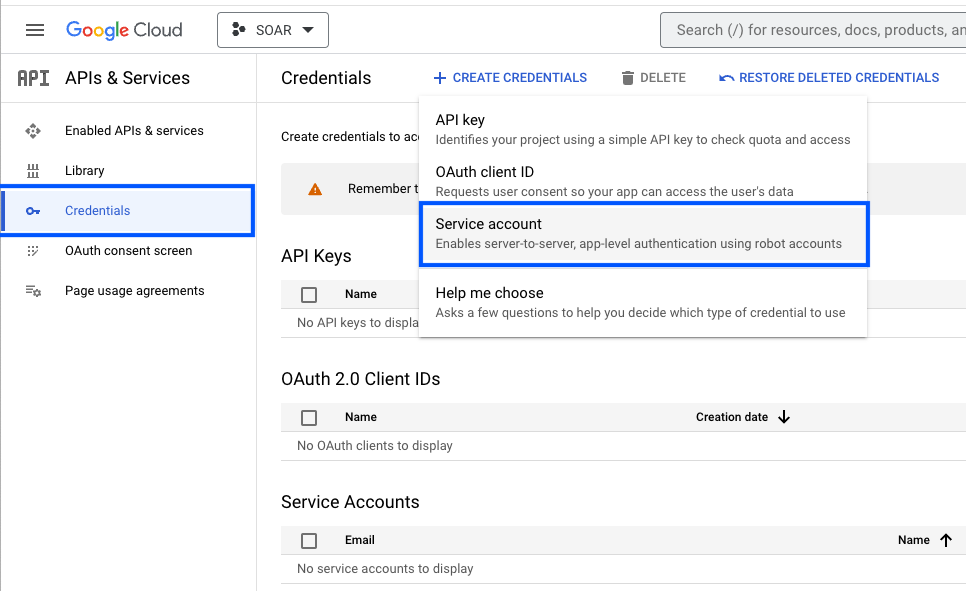
4. Click **CREATE CREDENTIALS** and select **Service Account**.
***Version: 1.1
Updated: Mar 5, 2025***
Google Drive is Google's cloud-based storage and file-sharing service, enabling users to store, sync, and collaborate on files from any device.
## Actions
* **Create Permission** *(Containment)* - Creates a permission for a file or shared drive.
* **Delete Permission** *(Containment)* - Deletes a permission.
* **Get File** *(Enrichment)* - Gets a file's metadata or content by ID.
* **List Files** *(Enrichment)* - Lists the user's files.
* **List Permissions** *(Enrichment)* - Lists a file's or shared drive's permissions.
## Google Drive configuration
To [create service account credentials](https://developers.google.com/workspace/guides/create-credentials) in Google Workspace and generate the JSON file needed to configure the Google Drive integration, follow these steps:
1. Log in to the [Google Cloud](https://console.cloud.google.com) portal.
2. Select a Google Cloud project (or create a new one).
3. Go to the **API&Services** > **Credentials** page.
4. Click **CREATE CREDENTIALS** and select **Service Account**.
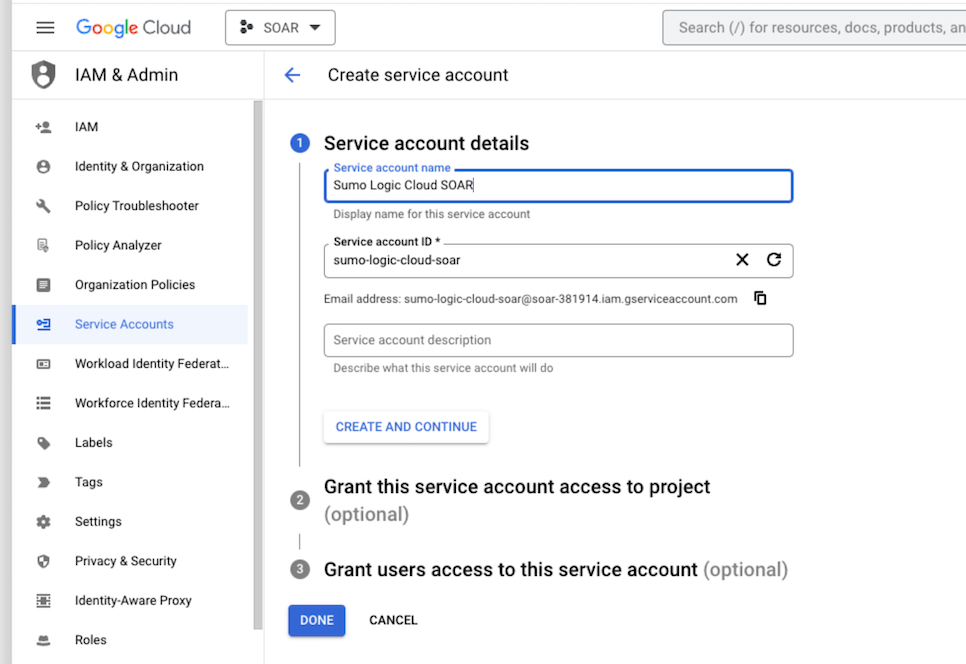
 5. Enter a Service account name to display in the Google Cloud console. The Google Cloud console generates a service account ID based on this name.
6. Optional: Enter a description of the service account.
7. Skip two optional grant permissions steps and click **Done** to complete the service account creation.
5. Enter a Service account name to display in the Google Cloud console. The Google Cloud console generates a service account ID based on this name.
6. Optional: Enter a description of the service account.
7. Skip two optional grant permissions steps and click **Done** to complete the service account creation.
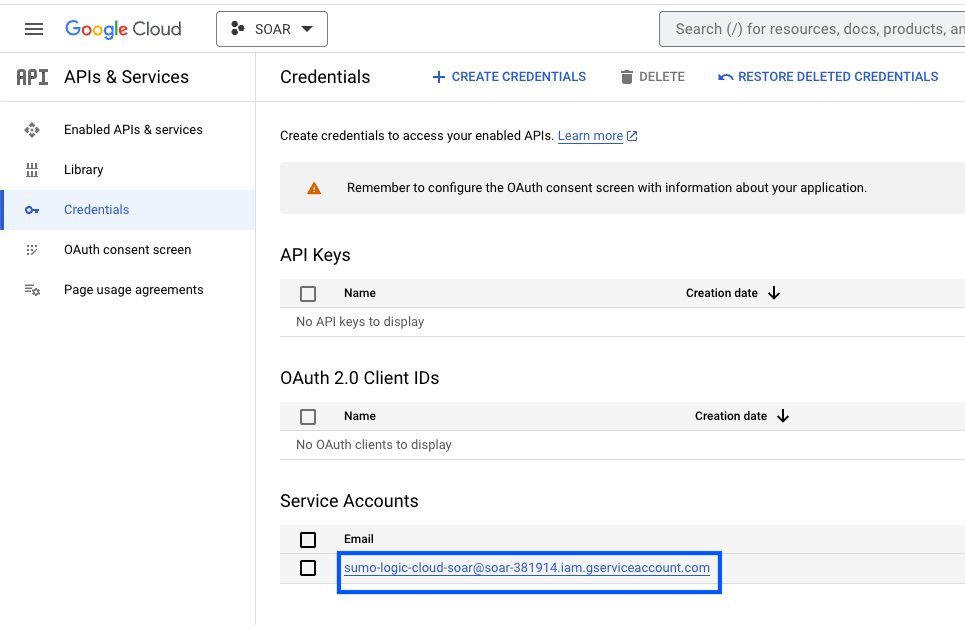
 8. Click on the generated service account to open the details.
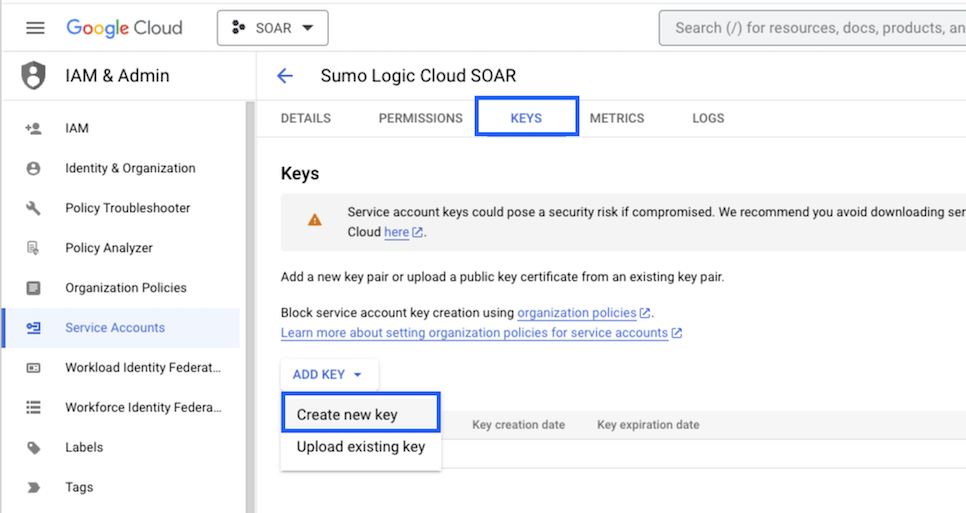
 9. Under the **KEYS** tab, Click **ADD KEY** and choose **Create new key**.
 10. Click on **CREATE** (make sure **JSON** is selected).
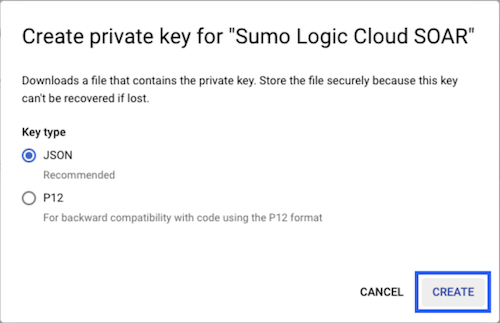 11. The JSON file is downloaded. Make sure you save it in a safe place
12. Enable the Admin SDK API for the project at [https://console.cloud.google.com/flows/enableapi?apiid=admin.googleapis.com](https://console.cloud.google.com/flows/enableapi?apiid=admin.googleapis.com).
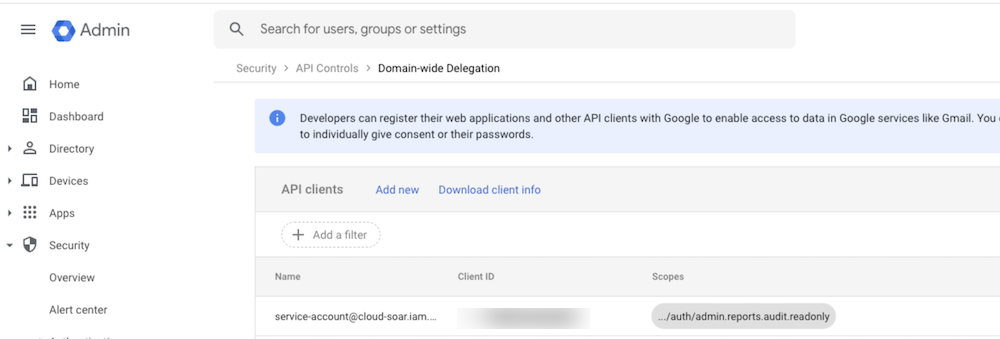
13. Go to [https://admin.google.com/ac/owl/domainwidedelegation](https://admin.google.com/ac/owl/domainwidedelegation) to open the Domain-Wide delegation settings in the Google Admin portal
14. Click on Add new.
11. The JSON file is downloaded. Make sure you save it in a safe place
12. Enable the Admin SDK API for the project at [https://console.cloud.google.com/flows/enableapi?apiid=admin.googleapis.com](https://console.cloud.google.com/flows/enableapi?apiid=admin.googleapis.com).
13. Go to [https://admin.google.com/ac/owl/domainwidedelegation](https://admin.google.com/ac/owl/domainwidedelegation) to open the Domain-Wide delegation settings in the Google Admin portal
14. Click on Add new.
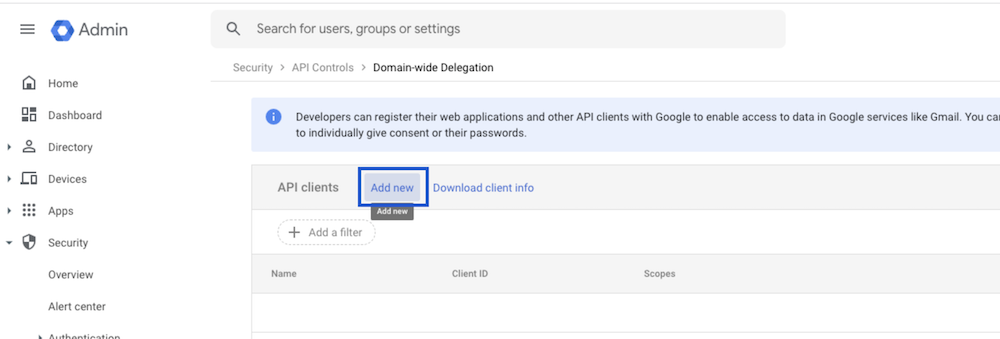 15. In the Client ID field, provide the client ID from the JSON file.
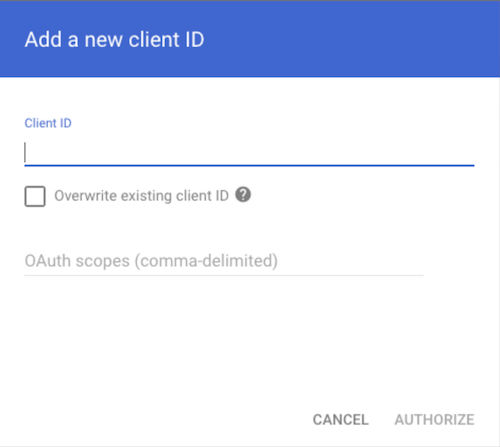
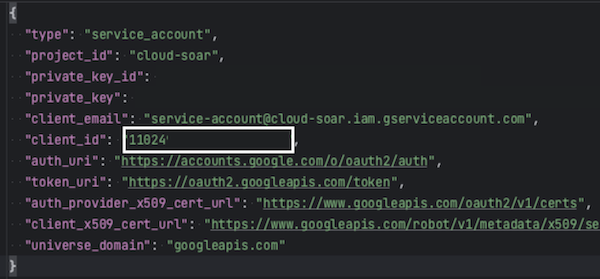 16. In the OAuth scopes (comma-delimited) field, provide the following scopes:
'https://www.googleapis.com/auth/drive'
17. Click Authorize.
16. In the OAuth scopes (comma-delimited) field, provide the following scopes:
'https://www.googleapis.com/auth/drive'
17. Click Authorize.
 ## Configure Google Drive in Automation Service and Cloud SOAR
import IntegrationsAuth from '../../reuse/integrations-authentication.md';
import IntegrationCertificate from '../../reuse/automation-service/integration-certificate.md';
import IntegrationEngine from '../../reuse/automation-service/integration-engine.md';
import IntegrationLabel from '../../reuse/automation-service/integration-label.md';
import IntegrationProxy from '../../reuse/automation-service/integration-proxy.md';
import IntegrationTimeout from '../../reuse/automation-service/integration-timeout.md';
*
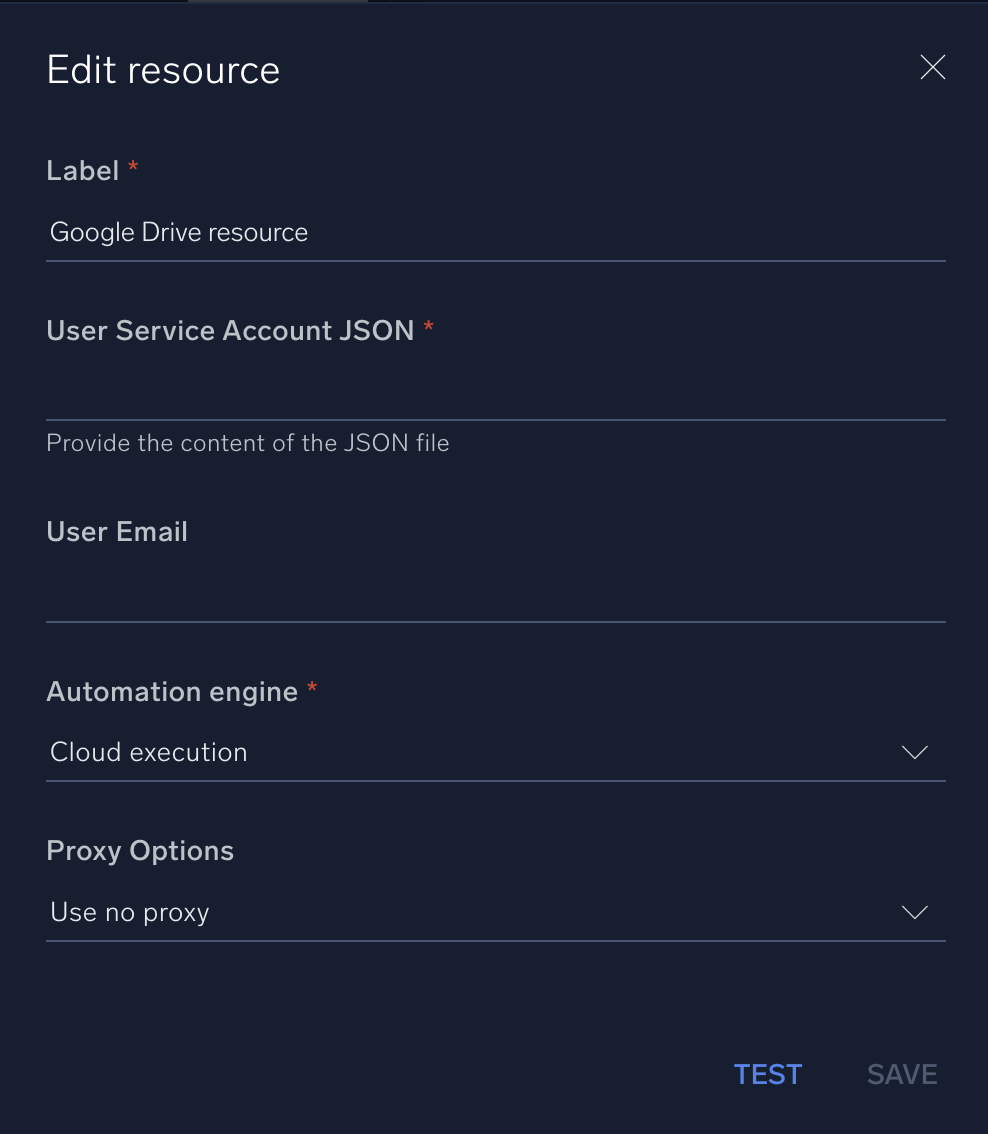
* **User Service Account JSON**. Provide the content of the JSON file generated [above](#google-drive-configuration). Open the file and copy-paste the whole content in the field.
* **User Email**. Enter the email address of an admin user.
*
*
## Configure Google Drive in Automation Service and Cloud SOAR
import IntegrationsAuth from '../../reuse/integrations-authentication.md';
import IntegrationCertificate from '../../reuse/automation-service/integration-certificate.md';
import IntegrationEngine from '../../reuse/automation-service/integration-engine.md';
import IntegrationLabel from '../../reuse/automation-service/integration-label.md';
import IntegrationProxy from '../../reuse/automation-service/integration-proxy.md';
import IntegrationTimeout from '../../reuse/automation-service/integration-timeout.md';
*
* **User Service Account JSON**. Provide the content of the JSON file generated [above](#google-drive-configuration). Open the file and copy-paste the whole content in the field.
* **User Email**. Enter the email address of an admin user.
*
*
 For information about Google Drive, see [Google Drive API documentation](https://developers.google.com/workspace/drive/api/guides/about-sdk).
## Change Log
| Version | Date | Description |
|:--|:--|:--|
| v1.1 | March 05, 2025 | Updated the **List Permissions** and **Delete Permission** actions. |
| v1.0 | October 13, 2023 | Initial release of the Google Drive integration. |
For information about Google Drive, see [Google Drive API documentation](https://developers.google.com/workspace/drive/api/guides/about-sdk).
## Change Log
| Version | Date | Description |
|:--|:--|:--|
| v1.1 | March 05, 2025 | Updated the **List Permissions** and **Delete Permission** actions. |
| v1.0 | October 13, 2023 | Initial release of the Google Drive integration. |