---
id: install-automation-integrations
title: Installing and Upgrading Automation Integrations
sidebar_label: Installation
description: Learn how to install and upgrade automation integrations from the App Catalog.
slug: /help/docs/integrations/automation-integrations/install-automation-integrations/
canonical: https://www.sumologic.com/help/docs/integrations/automation-integrations/install-automation-integrations/
---
import useBaseUrl from '@docusaurus/useBaseUrl';
Integrations are connectors to applications from industry-leading network and security vendors. Resources in the integrations provide the actions run by Playbooks. While the [**Integrations**](/docs/platform-services/automation-service/automation-service-integrations/) menu in the Automation page shows the integrations installed to your environment, the **Integrations** tab in App Catalog shows you [integrations](/docs/integrations/automation-integrations/) that you can install.
## Install an integration from App Catalog
1. [**New UI**](/docs/get-started/sumo-logic-ui). To access the integrations, in the main Sumo Logic menu select **App Catalog > Integrations**.
[**Classic UI**](/docs/get-started/sumo-logic-ui-classic). In the main Sumo Logic menu select **App Catalog > Integrations**.
 1. Select the integration you want to install. For example, Atlassian Jira Cloud.
 1. Click **Install Integration**. Once installed, the integration card displays a green colored **Installed** tag in the top-right corner.
:::note
Find the article for the integration in [Automation Integrations in App Catalog](/docs/integrations/automation-integrations/) to see if there are additional steps you need to follow to configure the installed integration. Failure to perform these additional steps may result in the integration not working properly.
:::
## Upgrade an integration from App Catalog
If a newer version of an installed integration is available, an **Upgrade Available** tag appears in the top-right corner of the card.
Follow the steps below to upgrade the integration:
1. [**New UI**](/docs/get-started/sumo-logic-ui). To access the integrations, in the main Sumo Logic menu select **App Catalog > Integrations**.
1. Click **Install Integration**. Once installed, the integration card displays a green colored **Installed** tag in the top-right corner.
:::note
Find the article for the integration in [Automation Integrations in App Catalog](/docs/integrations/automation-integrations/) to see if there are additional steps you need to follow to configure the installed integration. Failure to perform these additional steps may result in the integration not working properly.
:::
## Upgrade an integration from App Catalog
If a newer version of an installed integration is available, an **Upgrade Available** tag appears in the top-right corner of the card.
Follow the steps below to upgrade the integration:
1. [**New UI**](/docs/get-started/sumo-logic-ui). To access the integrations, in the main Sumo Logic menu select **App Catalog > Integrations**.
[**Classic UI**](/docs/get-started/sumo-logic-ui-classic). In the main Sumo Logic menu select **App Catalog > Integrations**.
1. Select the integration you want to upgrade.
1. Click **Upgrade**. Once upgraded, the integration card displays a green colored **Installed** tag in the top-right corner which indicates that the integration is installed with the latest upgrades.
### When to upgrade an integration
#### When integrations are installed through playbooks
Integrations installed through playbooks may not include all available actions, such as Containment, Custom, and Scheduled, and so on. These integrations display an **i** icon.
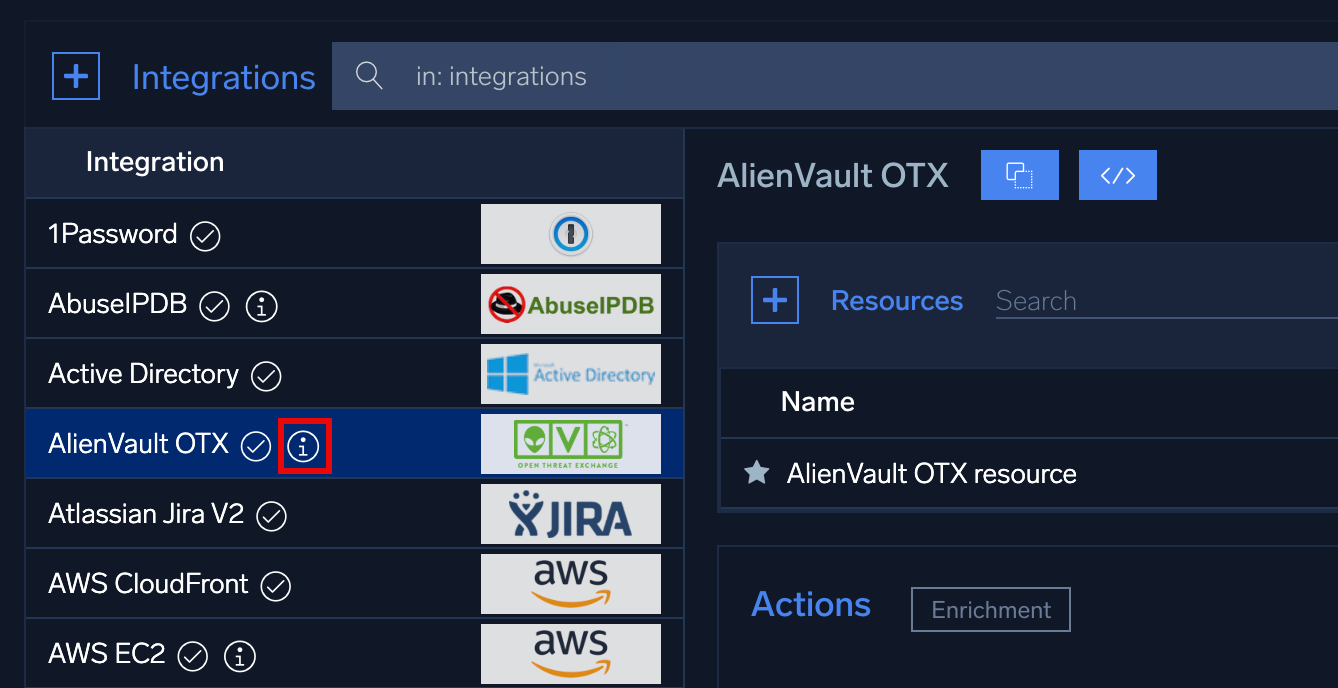 Click the icon to open the integration's page in the App Catalog, where you can [upgrade](#upgrade-an-integration-from-app-catalog) it to include all available actions.
#### When installed integration version differs from the version in the App Catalog
If the installed integration version differs from the version in the App Catalog, you can upgrade to the latest version.
1. [**New UI**](/docs/get-started/sumo-logic-ui). In the main Sumo Logic menu, select **Automation > Integrations**. You can also click the **Go To...** menu at the top of the screen and select **Integrations**.
Click the icon to open the integration's page in the App Catalog, where you can [upgrade](#upgrade-an-integration-from-app-catalog) it to include all available actions.
#### When installed integration version differs from the version in the App Catalog
If the installed integration version differs from the version in the App Catalog, you can upgrade to the latest version.
1. [**New UI**](/docs/get-started/sumo-logic-ui). In the main Sumo Logic menu, select **Automation > Integrations**. You can also click the **Go To...** menu at the top of the screen and select **Integrations**.
[**Classic UI**](/docs/get-started/sumo-logic-ui-classic). In the main Sumo Logic menu, select **Automation > Integrations**.
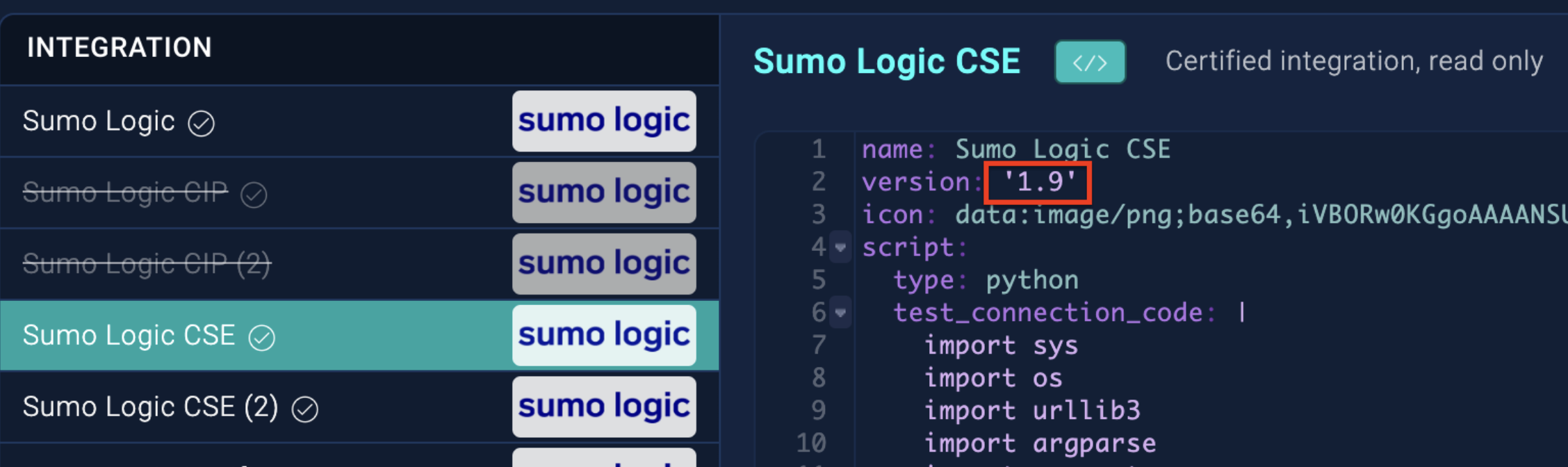
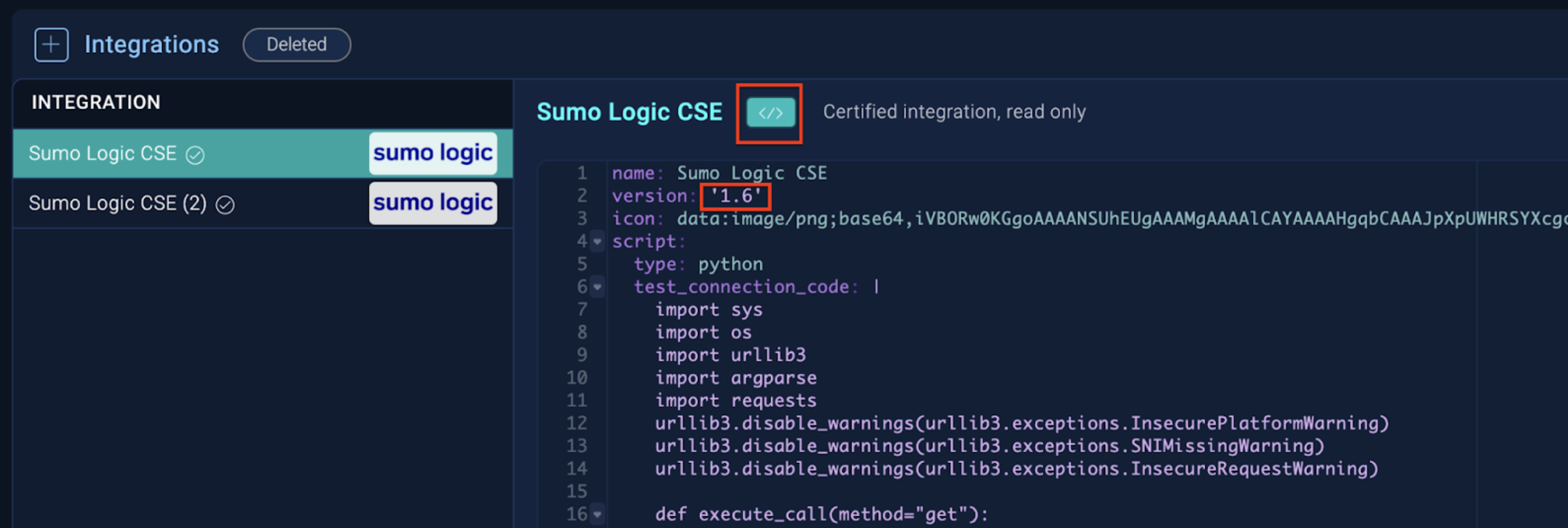
1. In the Integrations section, open the installed integration in code mode to view the version.
 1. Navigate to **App Catalog > Integrations** in the main Sumo Logic menu and select the same integration. Click **Upgrade**.
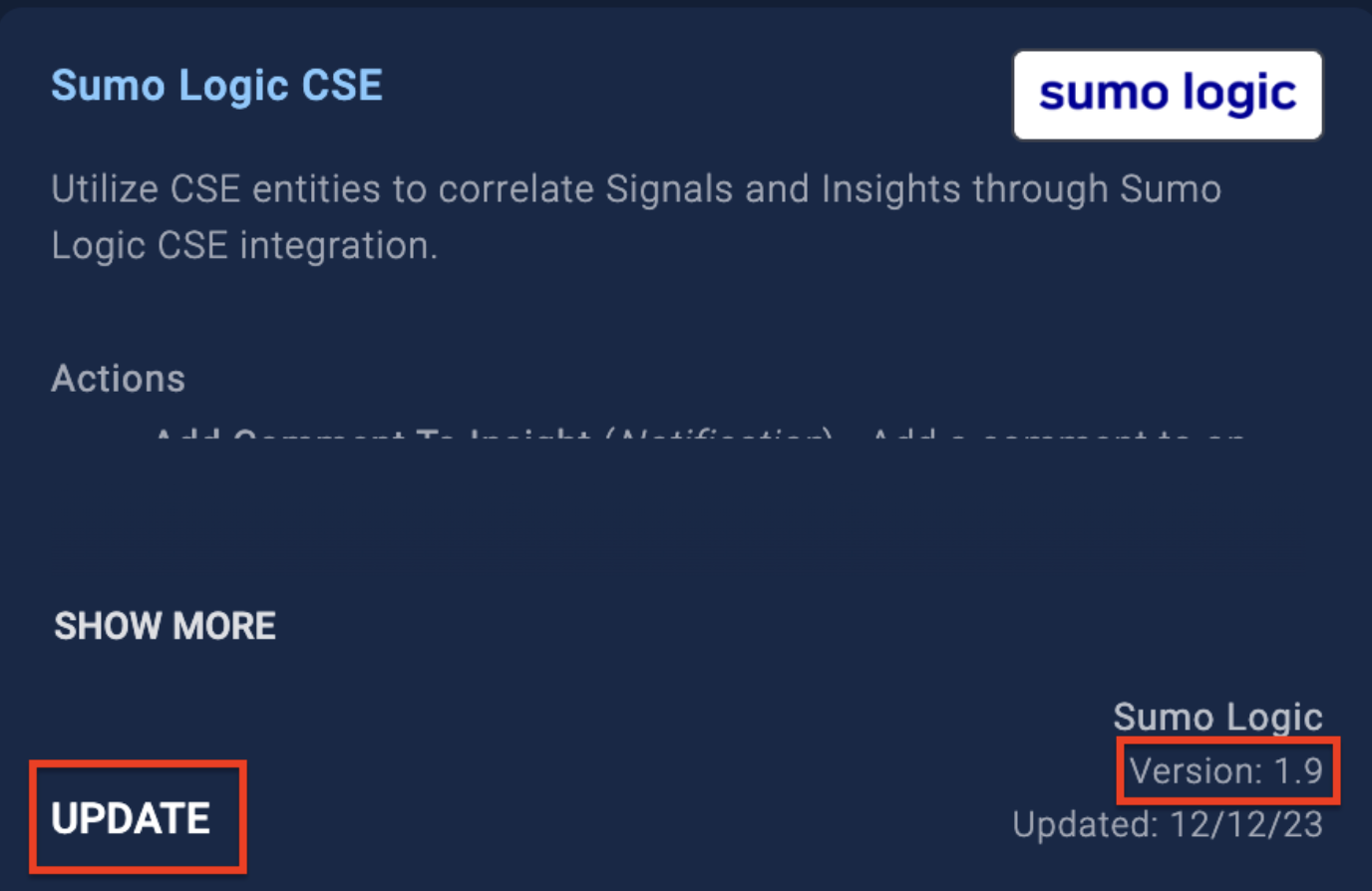 1. Once the integration is upgraded, go back to **Automation > Integrations** in the main Sumo Logic menu to verify if the version of that integration upgraded.