---
id: linux-opentelemetry
title: Linux - Cloud Security Monitoring and Analytics - OpenTelemetry
sidebar_label: Linux - OTel Collector
description: The Sumo Logic app for Linux Cloud Security Monitoring and Analytics - OpenTelemetry provides better understanding of your production environments, and surfaces relevant insights by tuning out-of-the-box content to align with your security team’s focus.
slug: /help/docs/integrations/cloud-security-monitoring-analytics/opentelemetry/linux-opentelemetry/
canonical: https://www.sumologic.com/help/docs/integrations/cloud-security-monitoring-analytics/opentelemetry/linux-opentelemetry/
---
import useBaseUrl from '@docusaurus/useBaseUrl';
import Tabs from '@theme/Tabs';
import TabItem from '@theme/TabItem';
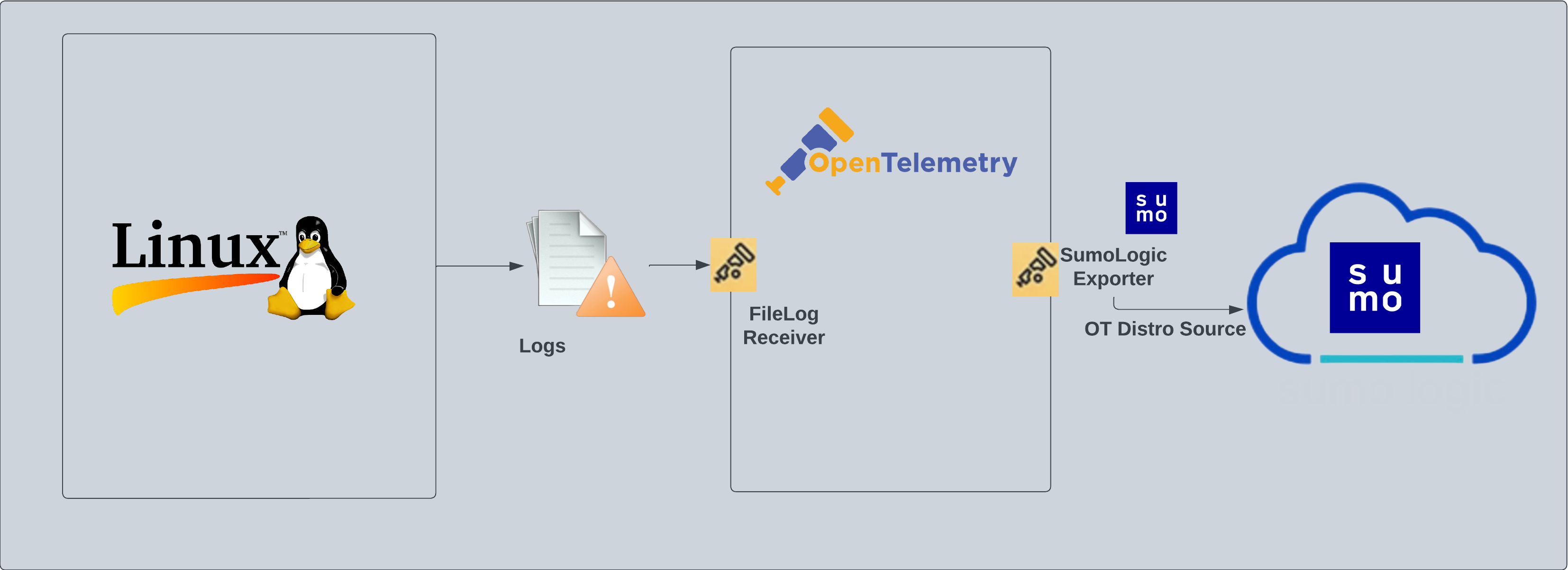
}) Linux - Cloud Security Monitoring and Analytics - OpenTelemetry is a unified log app that ingests distribution of Linux data to Sumo Logic via OpenTelemetry [filelog receiver](https://github.com/open-telemetry/opentelemetry-collector-contrib/tree/main/receiver/filelogreceiver). The app's preconfigured dashboards provide insight into user, service, systems, login, and privilege activity, providing a better understanding of your production environments and surface relevant insights by tuning out-of-the-box content to align with your security team's focus.
Linux - Cloud Security Monitoring and Analytics - OpenTelemetry is a unified log app that ingests distribution of Linux data to Sumo Logic via OpenTelemetry [filelog receiver](https://github.com/open-telemetry/opentelemetry-collector-contrib/tree/main/receiver/filelogreceiver). The app's preconfigured dashboards provide insight into user, service, systems, login, and privilege activity, providing a better understanding of your production environments and surface relevant insights by tuning out-of-the-box content to align with your security team's focus.
 ## Fields created in Sumo Logic for Linux - Security Analytics
The following tag will be created as part of Linux app installation, if not already present.
- `sumo.datasource`. Has a fixed value of **linux**.
## Prereqisites
This app is based on the following log files from the Ubuntu Linux machine.
- auth.log
- syslog
- daemon.log
- dpkg.log
- kern.log
- CentOS, Amazon Linux, and Red Hat
- audit/audit.log
- secure
- messages
- yum.log
:::note
If you've already configured collection of these log files (for example, during Linux or Linux - PCI app setup), then no additional log file collection is required. If any of the log files are missing, you can configure the missing file collection in the next step.
:::
import LogsCollectionPrereqisites from '../../../reuse/apps/logs-collection-prereqisites.md';
## Collection configuration and app installation
:::note
You can skip this section if you have already set up the logs collection through [Linux](/docs/integrations/hosts-operating-systems/opentelemetry/linux-opentelemetry/) or [Linux PCI](/docs/integrations/pci-compliance/opentelemetry/linux-opentelemetry) app installation. Additional collection is not required as the logs used by this app are already ingested into Sumo Logic.
:::
import ConfigAppInstall from '../../../reuse/apps/opentelemetry/config-app-install.md';
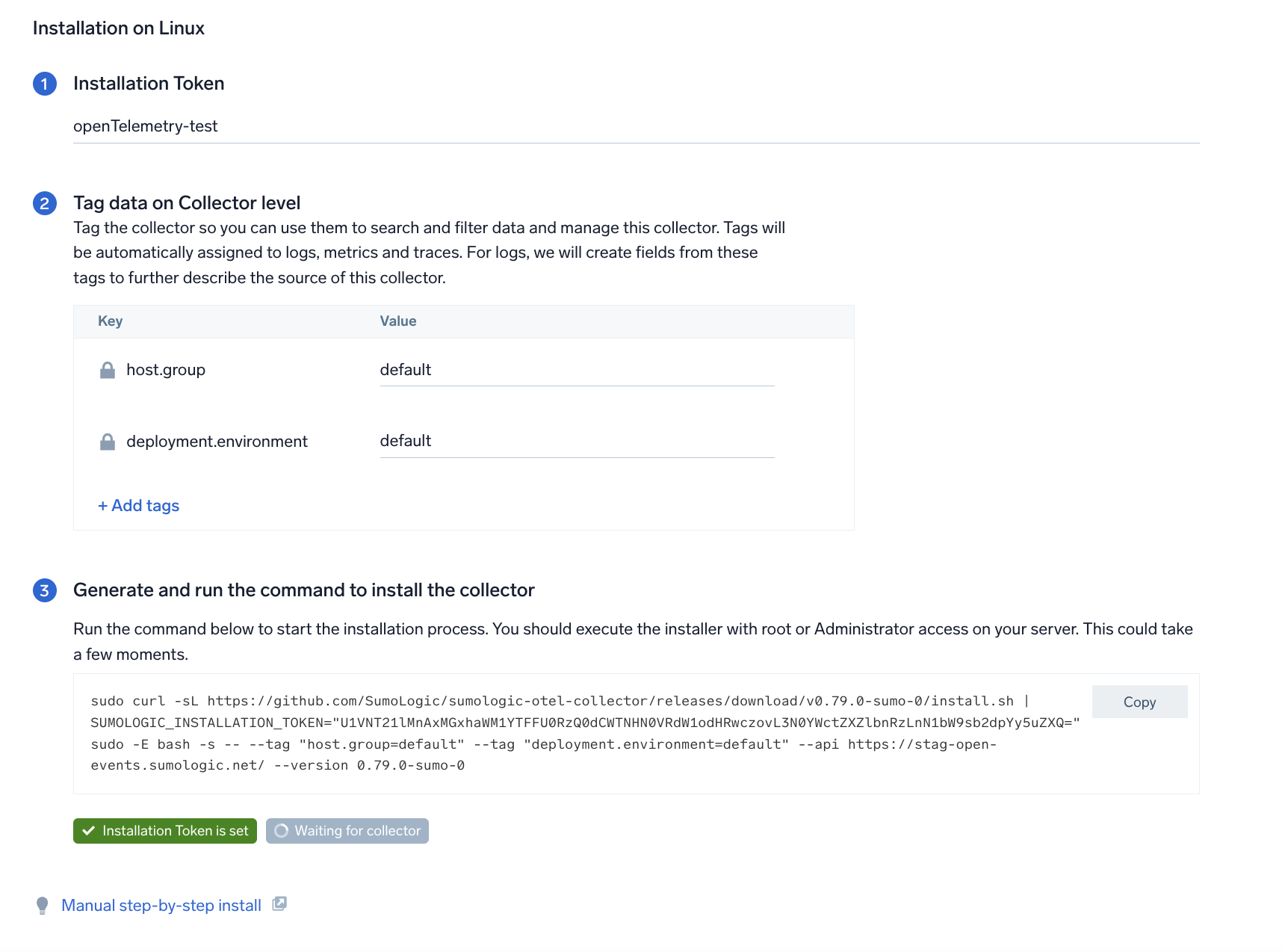
### Step 1: Set up Collector
import SetupColl from '../../../reuse/apps/opentelemetry/set-up-collector.md';
## Fields created in Sumo Logic for Linux - Security Analytics
The following tag will be created as part of Linux app installation, if not already present.
- `sumo.datasource`. Has a fixed value of **linux**.
## Prereqisites
This app is based on the following log files from the Ubuntu Linux machine.
- auth.log
- syslog
- daemon.log
- dpkg.log
- kern.log
- CentOS, Amazon Linux, and Red Hat
- audit/audit.log
- secure
- messages
- yum.log
:::note
If you've already configured collection of these log files (for example, during Linux or Linux - PCI app setup), then no additional log file collection is required. If any of the log files are missing, you can configure the missing file collection in the next step.
:::
import LogsCollectionPrereqisites from '../../../reuse/apps/logs-collection-prereqisites.md';
## Collection configuration and app installation
:::note
You can skip this section if you have already set up the logs collection through [Linux](/docs/integrations/hosts-operating-systems/opentelemetry/linux-opentelemetry/) or [Linux PCI](/docs/integrations/pci-compliance/opentelemetry/linux-opentelemetry) app installation. Additional collection is not required as the logs used by this app are already ingested into Sumo Logic.
:::
import ConfigAppInstall from '../../../reuse/apps/opentelemetry/config-app-install.md';
### Step 1: Set up Collector
import SetupColl from '../../../reuse/apps/opentelemetry/set-up-collector.md';
 ### Step 2: Configure integration
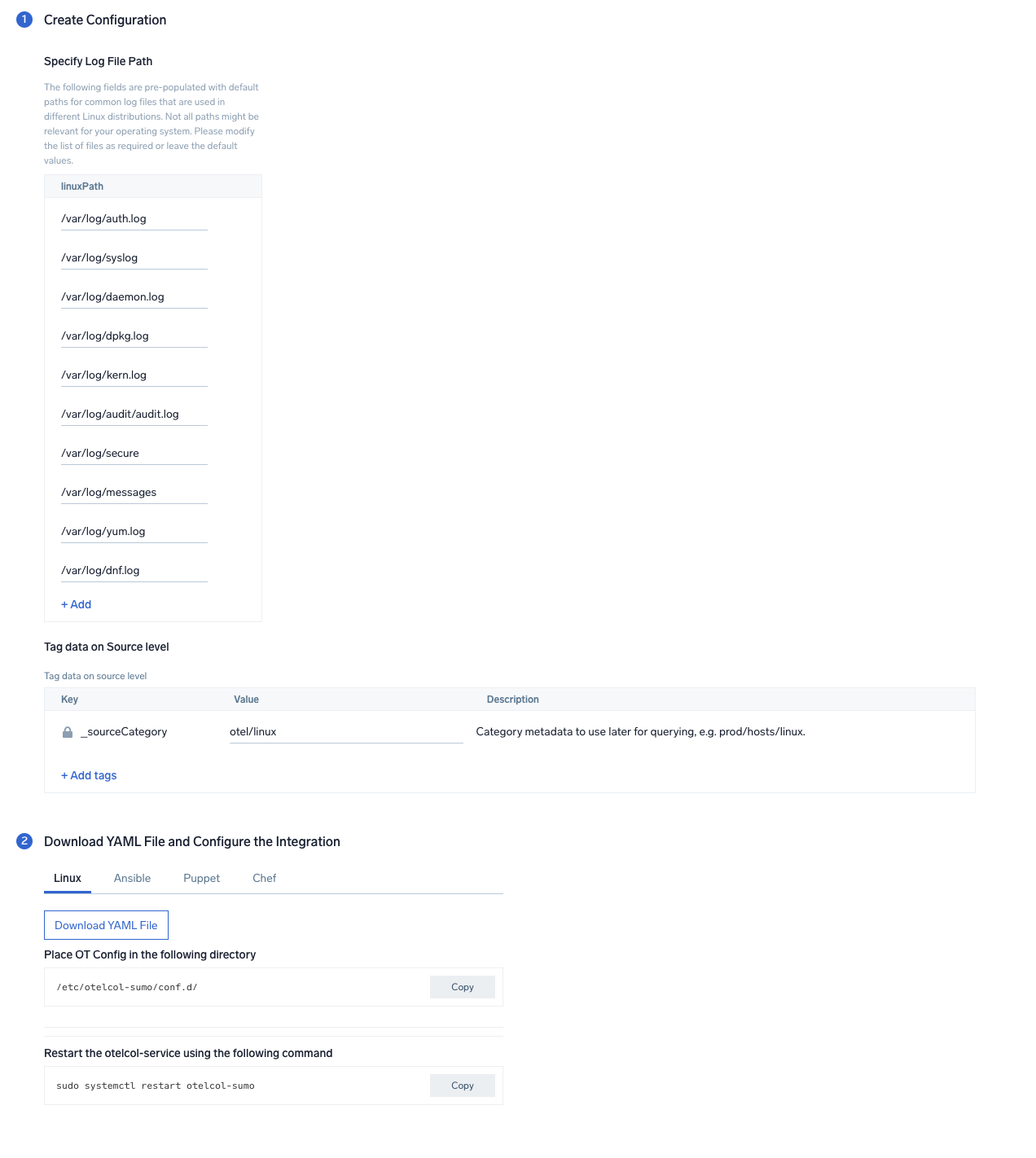
In this step, you will configure the YAML required for Linux collection. The app requires path for system log file based on the Linux version used.
#### Required Logs for Ubuntu
The following logs, located in the `/var/log` folder, are required for using the Sumo Logic app for Cloud Security Monitoring and Analytics for Linux with Ubuntu.
- auth.log
- syslog
- daemon.log
- dpkg.log
- kern.log
#### Required Logs for CentOS, Amazon Linux, and Red Hat
The following logs, located in the `/var/log` folder, are required for using the Sumo Logic app for Cloud Security Monitoring and Analytics for Linux with CentOS, Amazon Linux, and Red Hat.
- audit/audit.log
- secure
- Messages
- yum.log
Click on the **Download YAML File** button to get the YAML file.
import CollectorVersionNote from '../../../reuse/apps/opentelemetry/collector-version-note.md';
### Step 2: Configure integration
In this step, you will configure the YAML required for Linux collection. The app requires path for system log file based on the Linux version used.
#### Required Logs for Ubuntu
The following logs, located in the `/var/log` folder, are required for using the Sumo Logic app for Cloud Security Monitoring and Analytics for Linux with Ubuntu.
- auth.log
- syslog
- daemon.log
- dpkg.log
- kern.log
#### Required Logs for CentOS, Amazon Linux, and Red Hat
The following logs, located in the `/var/log` folder, are required for using the Sumo Logic app for Cloud Security Monitoring and Analytics for Linux with CentOS, Amazon Linux, and Red Hat.
- audit/audit.log
- secure
- Messages
- yum.log
Click on the **Download YAML File** button to get the YAML file.
import CollectorVersionNote from '../../../reuse/apps/opentelemetry/collector-version-note.md';
 :::note
By default, the path for Linux log files required for all the distros are pre-populated in the UI. (Optional) Unwanted file paths can be removed from the list if the files are not available on your Linux distribution. The collection will work even if not all the files are present in your system.
:::
### Step 3: Send logs to Sumo Logic
import LogsIntro from '../../../reuse/apps/opentelemetry/send-logs-intro.md';
1. Copy the yaml file to `/etc/otelcol-sumo/conf.d/` folder in the Artifactory instance that needs to be monitored.
2. Restart the collector using:
```sh
sudo systemctl restart otelcol-sumo
```
import ChefNoEnv from '../../../reuse/apps/opentelemetry/chef-without-env.md';
import AnsibleNoEnv from '../../../reuse/apps/opentelemetry/ansible-without-env.md';
import PuppetNoEnv from '../../../reuse/apps/opentelemetry/puppet-without-env.md';
import LogsOutro from '../../../reuse/apps/opentelemetry/send-logs-outro.md';
## Sample log messages
```
Dec 13 04:44:00 <1> [zypper++] Summary.cc(readPool):133 I_TsU(27372)Mesa-libGL1-8.0.4-20.4.1.i586(@System)
```
## Sample queries
```sql
sumo.datasource=linux deployment.environment=* host.group=* host.name=*
| parse regex "\S*\s+\d+\s+\d+:\d+:\d+\s+(?\S*)\s+(?\w*)(?:\[\d+\]:|:)\s*(?.+)$" nodrop
| if (isEmpty(dest_host), _sourceHost, dest_host) as dest_host
| parse regex "(?\w*)\[\d+\]:\s+"
| where !isEmpty(service)
| where dest_host matches "*"
| where process matches "*"
| count as eventCount, first(_messagetime) as latest, last(_messagetime) as earliest by service, dest_host
| formatDate(fromMillis(latest),"MM/dd/yyyy HH:mm:ss Z") as %"LatestTime"
| formatDate(fromMillis(earliest),"MM/dd/yyyy HH:mm:ss Z") as %"EarliestTime"
| fields -latest, earliest, eventCount
| sort by %"LatestTime"
```
## Viewing Linux - Cloud Security Monitoring and Analytics dashboards
import FilterDashboards from '../../../reuse/filter-dashboards.md';
### Overview
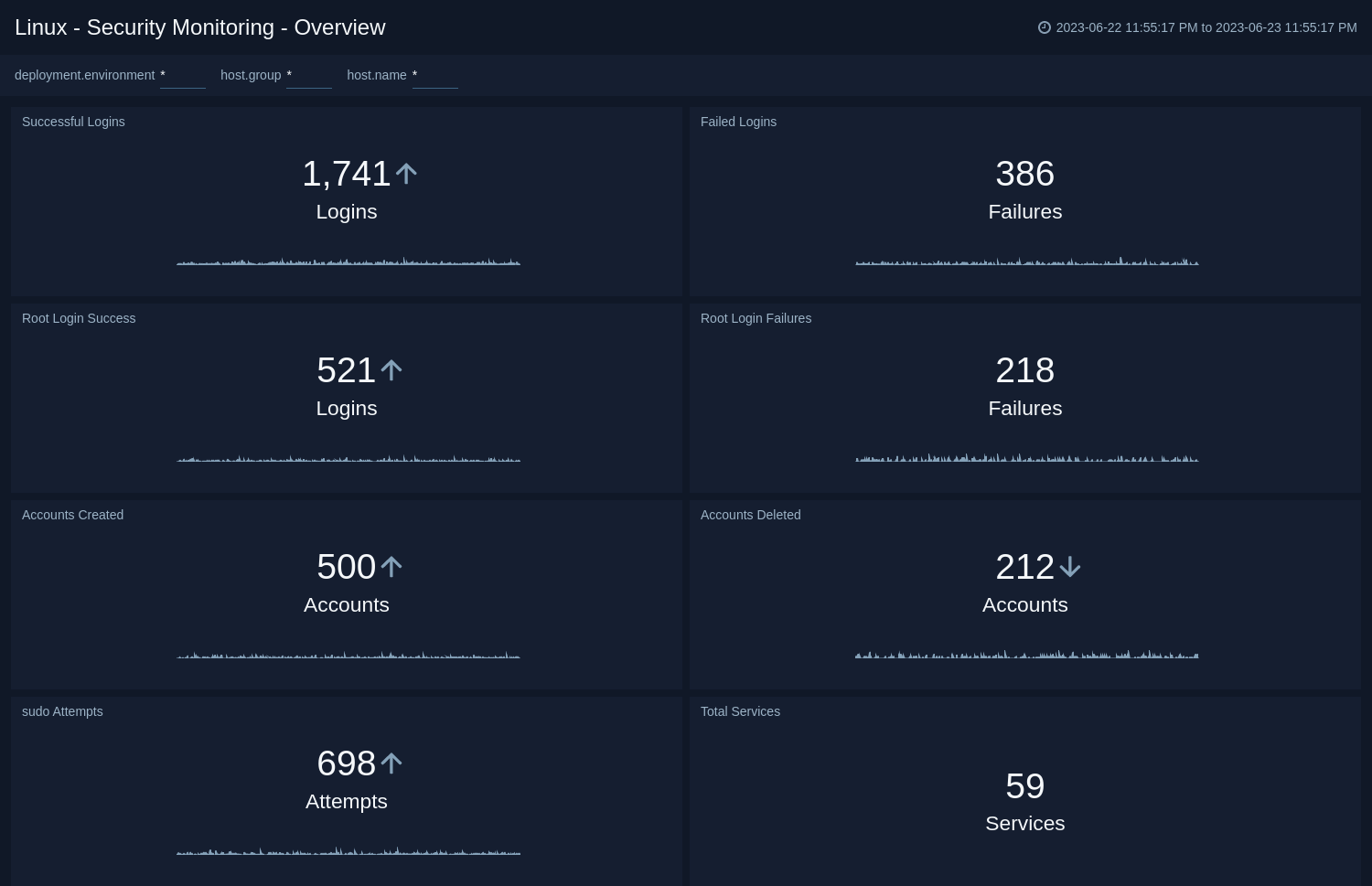
The **Linux - Security Analytics - Overview** dashboard provides an overview of security statistics relevant for Linux systems and presents information about successful and failed logins, root login successes and failures, user accounts created and deleted, sudo attempts, and total services.
Use this dashboard to:
- Monitor administrative actions (create, delete users) performed by end users.
- Ensure proper services are running on all systems.
- Detect attempts to change the system time.
- Verify the status of critical systems.
- Monitor excessive failed login attempts and detect total number of attempts to break into the system.
:::note
By default, the path for Linux log files required for all the distros are pre-populated in the UI. (Optional) Unwanted file paths can be removed from the list if the files are not available on your Linux distribution. The collection will work even if not all the files are present in your system.
:::
### Step 3: Send logs to Sumo Logic
import LogsIntro from '../../../reuse/apps/opentelemetry/send-logs-intro.md';
1. Copy the yaml file to `/etc/otelcol-sumo/conf.d/` folder in the Artifactory instance that needs to be monitored.
2. Restart the collector using:
```sh
sudo systemctl restart otelcol-sumo
```
import ChefNoEnv from '../../../reuse/apps/opentelemetry/chef-without-env.md';
import AnsibleNoEnv from '../../../reuse/apps/opentelemetry/ansible-without-env.md';
import PuppetNoEnv from '../../../reuse/apps/opentelemetry/puppet-without-env.md';
import LogsOutro from '../../../reuse/apps/opentelemetry/send-logs-outro.md';
## Sample log messages
```
Dec 13 04:44:00 <1> [zypper++] Summary.cc(readPool):133 I_TsU(27372)Mesa-libGL1-8.0.4-20.4.1.i586(@System)
```
## Sample queries
```sql
sumo.datasource=linux deployment.environment=* host.group=* host.name=*
| parse regex "\S*\s+\d+\s+\d+:\d+:\d+\s+(?\S*)\s+(?\w*)(?:\[\d+\]:|:)\s*(?.+)$" nodrop
| if (isEmpty(dest_host), _sourceHost, dest_host) as dest_host
| parse regex "(?\w*)\[\d+\]:\s+"
| where !isEmpty(service)
| where dest_host matches "*"
| where process matches "*"
| count as eventCount, first(_messagetime) as latest, last(_messagetime) as earliest by service, dest_host
| formatDate(fromMillis(latest),"MM/dd/yyyy HH:mm:ss Z") as %"LatestTime"
| formatDate(fromMillis(earliest),"MM/dd/yyyy HH:mm:ss Z") as %"EarliestTime"
| fields -latest, earliest, eventCount
| sort by %"LatestTime"
```
## Viewing Linux - Cloud Security Monitoring and Analytics dashboards
import FilterDashboards from '../../../reuse/filter-dashboards.md';
### Overview
The **Linux - Security Analytics - Overview** dashboard provides an overview of security statistics relevant for Linux systems and presents information about successful and failed logins, root login successes and failures, user accounts created and deleted, sudo attempts, and total services.
Use this dashboard to:
- Monitor administrative actions (create, delete users) performed by end users.
- Ensure proper services are running on all systems.
- Detect attempts to change the system time.
- Verify the status of critical systems.
- Monitor excessive failed login attempts and detect total number of attempts to break into the system.
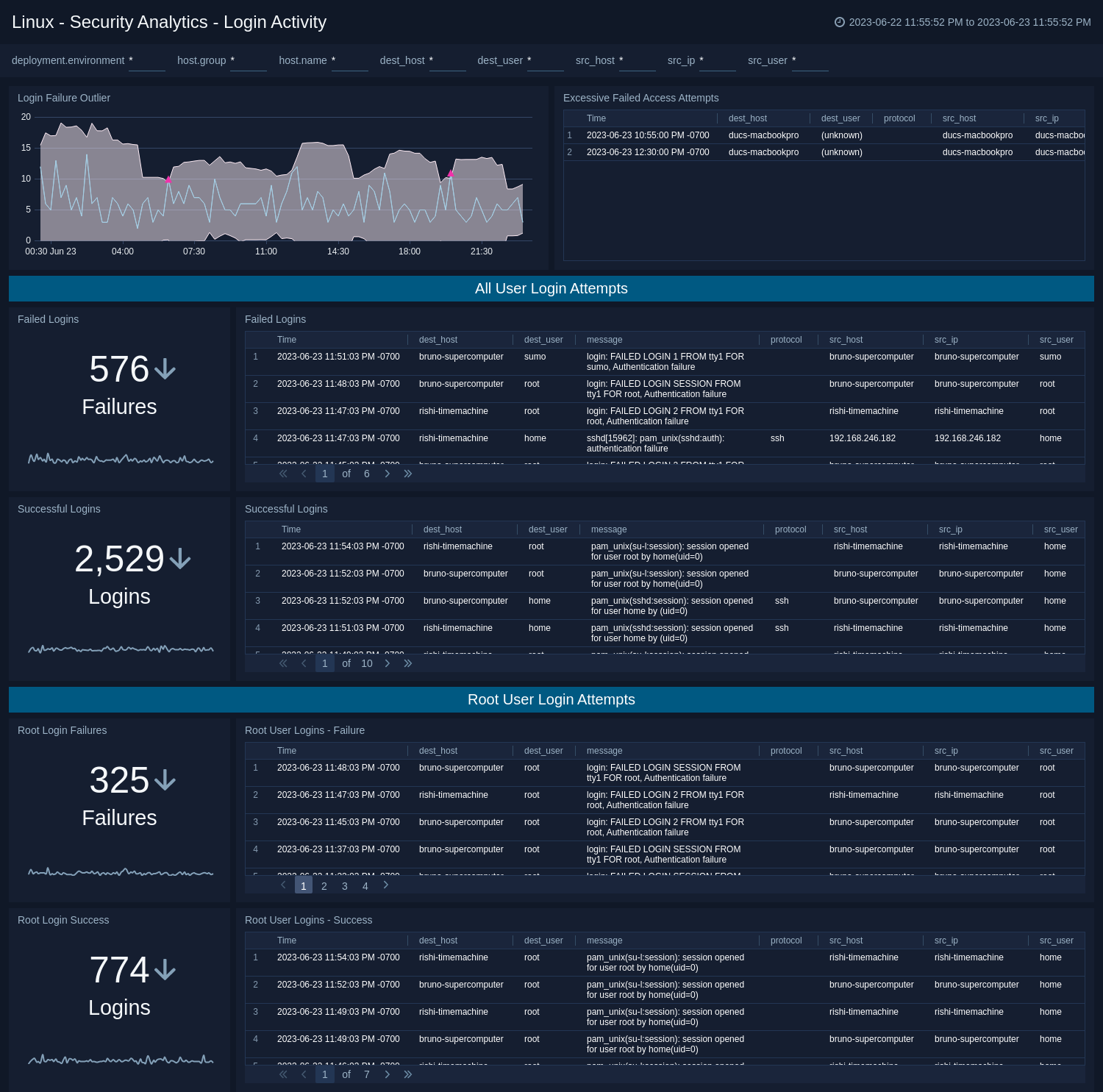
 ### Login Activity
The **Linux - Security Analytics - Login Activity** dashboard tracks the login activity and provides information about failed and successful user and root logins.
Use this dashboard to:
- Monitor access to the Linux computing environment.
- Monitor failed and successful user logins.
### Login Activity
The **Linux - Security Analytics - Login Activity** dashboard tracks the login activity and provides information about failed and successful user and root logins.
Use this dashboard to:
- Monitor access to the Linux computing environment.
- Monitor failed and successful user logins.
 ### Privileged Activity
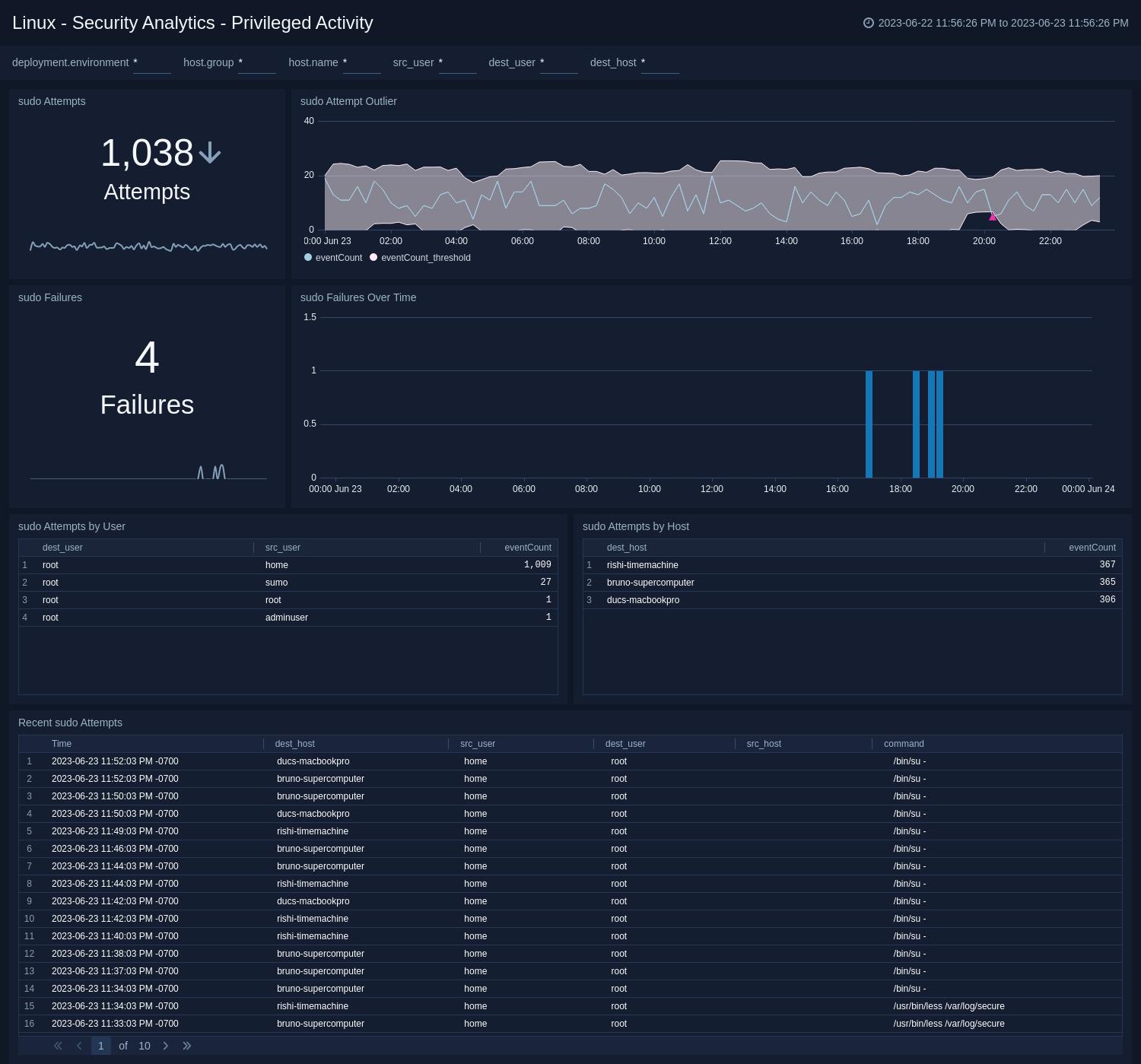
The **Linux - Security Analytics - Privileged Activity** dashboard provides information about total sudo attempts, failed sudo attempts, top 10 users and hosts that have issued sudo attempts, recent sudo attempts, and sudo attempts over time.
Use this dashboard to:
- Monitor successful and failed access attempts to systemswith administrative privileges.
- Monitor actions performed by users with administrative privileges.
### Privileged Activity
The **Linux - Security Analytics - Privileged Activity** dashboard provides information about total sudo attempts, failed sudo attempts, top 10 users and hosts that have issued sudo attempts, recent sudo attempts, and sudo attempts over time.
Use this dashboard to:
- Monitor successful and failed access attempts to systemswith administrative privileges.
- Monitor actions performed by users with administrative privileges.
 ### User, Service, and System Monitoring
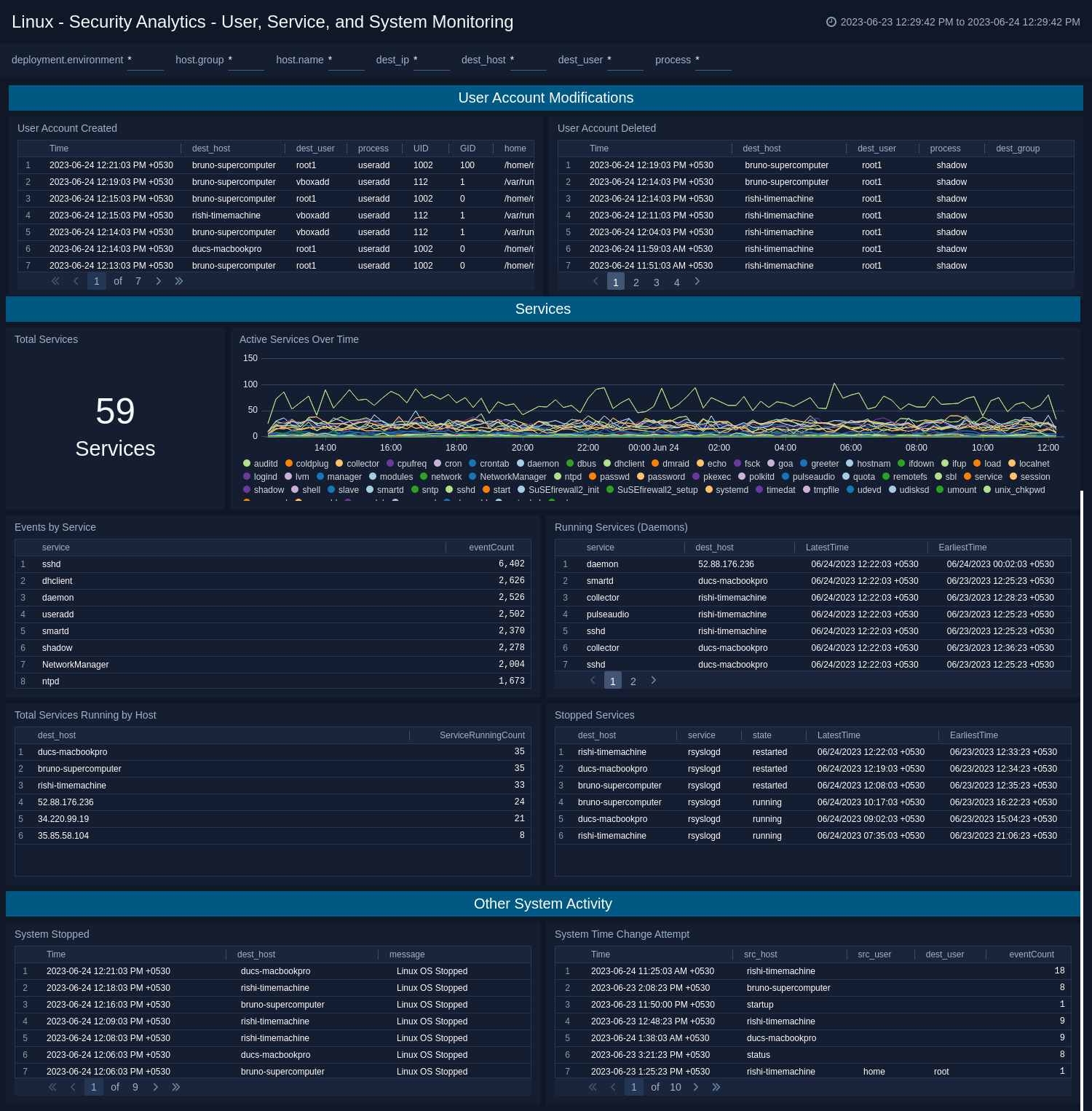
The **Linux - Security Analytics - User, Service, and System Monitoring** dashboard provides information about total sudo attempts, failed sudo attempts, top 10 users and hosts that have issued sudo attempts, recent sudo attempts, and sudo attempts over time.
Use this dashboard to:
- Monitor accounts created and deleted.
- Monitor service usage and other system activity.
### User, Service, and System Monitoring
The **Linux - Security Analytics - User, Service, and System Monitoring** dashboard provides information about total sudo attempts, failed sudo attempts, top 10 users and hosts that have issued sudo attempts, recent sudo attempts, and sudo attempts over time.
Use this dashboard to:
- Monitor accounts created and deleted.
- Monitor service usage and other system activity.
 ## Create monitors for Linux - Cloud Security Monitoring and Analytics app
import CreateMonitors from '../../../reuse/apps/create-monitors.md';
### Linux - Cloud Security Monitoring and Analytics alerts
| Name | Description | Alert Condition | Recover Condition |
|:--|:--|:--|:--|
| `Linux CSMA - Excessive Failed Authentication` | This alert is triggered when multiple failed login attempts from the same source are detected, indicating potential brute force attempts. | Count > 10 | Count \<= 10 |
| `Linux CSMA - Root Login Detection` | This alert is triggered when direct login attempts using the root account are detected, indicating a potential security concern since root logins should typically be disabled. | Count \>= 1 | Count < 1 |
| `Linux CSMA - System Shutdown Detection` | This alert is triggered when unexpected system shutdown events are detected through kernel stop messages, which may indicate unauthorized access, malicious activity, power issues, or system failures. | Count > 0 | Count \<= 0 |
| `Linux CSMA - User Account Creation Spike` | This alert is triggered when multiple user accounts are created in a short time period, which may indicate automated account creation, compromised systems, or unauthorized bulk user provisioning. | Count > 3 | Count \<= 3 |
## Create monitors for Linux - Cloud Security Monitoring and Analytics app
import CreateMonitors from '../../../reuse/apps/create-monitors.md';
### Linux - Cloud Security Monitoring and Analytics alerts
| Name | Description | Alert Condition | Recover Condition |
|:--|:--|:--|:--|
| `Linux CSMA - Excessive Failed Authentication` | This alert is triggered when multiple failed login attempts from the same source are detected, indicating potential brute force attempts. | Count > 10 | Count \<= 10 |
| `Linux CSMA - Root Login Detection` | This alert is triggered when direct login attempts using the root account are detected, indicating a potential security concern since root logins should typically be disabled. | Count \>= 1 | Count < 1 |
| `Linux CSMA - System Shutdown Detection` | This alert is triggered when unexpected system shutdown events are detected through kernel stop messages, which may indicate unauthorized access, malicious activity, power issues, or system failures. | Count > 0 | Count \<= 0 |
| `Linux CSMA - User Account Creation Spike` | This alert is triggered when multiple user accounts are created in a short time period, which may indicate automated account creation, compromised systems, or unauthorized bulk user provisioning. | Count > 3 | Count \<= 3 |