---
id: windows-json-opentelemetry
title: PCI Compliance for Windows JSON - OpenTelemetry
sidebar_label: Windows JSON - OTel Collector
dashboard: The Sumo Logic App for Payment Card Industry (PCI) Compliance for Windows offers dashboards to monitor systems, account and users activity to ensure that login activity and privileged users are within the expected ranges.
slug: /help/docs/integrations/pci-compliance/opentelemetry/windows-json-opentelemetry/
canonical: https://www.sumologic.com/help/docs/integrations/pci-compliance/opentelemetry/windows-json-opentelemetry/
---
import useBaseUrl from '@docusaurus/useBaseUrl';
import Tabs from '@theme/Tabs';
import TabItem from '@theme/TabItem';
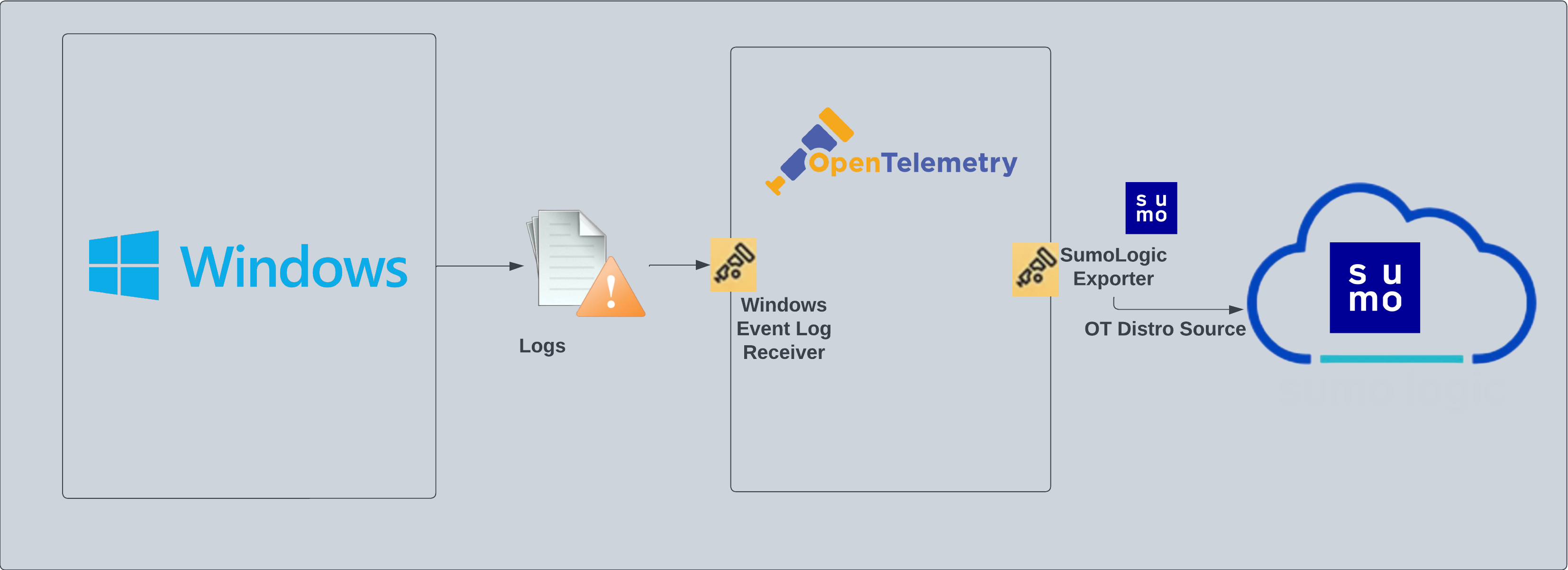
}) The PCI Compliance for Windows JSON - OpenTelemetry is a log app that sends Windows log data to Sumo Logic via OpenTelemetry [windows event log receiver](https://github.com/open-telemetry/opentelemetry-collector-contrib/tree/main/receiver/windowseventlogreceiver#readme). The app's preconfigured dashboards help you to monitor system, account, and user activity to ensure that login activity and privileged users are within the expected ranges.
:::info
The PCI Compliance for Windows JSON app covers PCI requirements 02, 06, 08, and 10.
:::
The PCI Compliance for Windows JSON - OpenTelemetry is a log app that sends Windows log data to Sumo Logic via OpenTelemetry [windows event log receiver](https://github.com/open-telemetry/opentelemetry-collector-contrib/tree/main/receiver/windowseventlogreceiver#readme). The app's preconfigured dashboards help you to monitor system, account, and user activity to ensure that login activity and privileged users are within the expected ranges.
:::info
The PCI Compliance for Windows JSON app covers PCI requirements 02, 06, 08, and 10.
:::
 ## Fields created in Sumo Logic for PCI Compliance Windows JSON App
Following tags will be created as part of PCI Compliance Windows JSON app installation, if not already present.
- `sumo.datasource`: has the fixed value of **windows**.
- `host.group`: user configured tag which signifies a group of hosts for the operating system.
- `deployment.environment`: user configured tag which identifies the environment where the windows system resides. For example: dev, prod or qa.
## Log types
The Windows App assumes events are coming from Windows Event Log receiver in JSON format. It does not work with third party logs.
Standard Windows event channels include:
- Security
- System
## Collection configuration and app installation
:::note
You can skip this section if you have already set up the logs collection through [Windows](/docs/integrations/hosts-operating-systems/opentelemetry/windows-opentelemetry), [Windows - Cloud Security Monitoring and Analytics](/docs/integrations/cloud-security-monitoring-analytics/opentelemetry/windows-opentelemetry), or [Active Directory](/docs/integrations/microsoft-azure/opentelemetry/active-directory-json-opentelemetry) app installation. Additional collection is not required as the logs used by this app are already ingested into Sumo Logic.
:::
import ConfigAppInstall from '../../../reuse/apps/opentelemetry/config-app-install.md';
### Step 1: Set up Collector
:::note
If you want to use an existing OpenTelemetry Collector, you can skip this step by selecting the **Use an existing Collector** option.
:::
To create a new Collector:
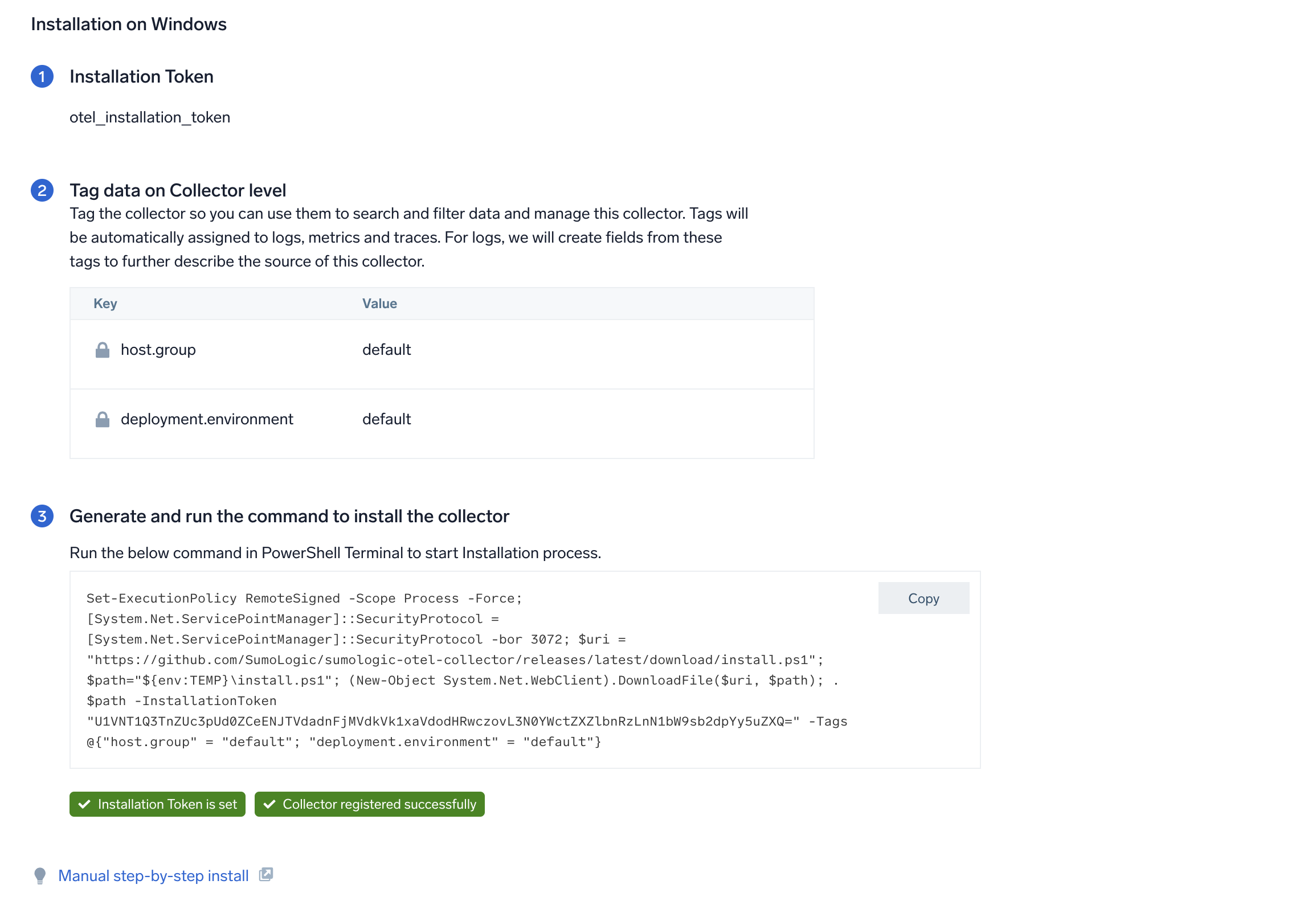
1. Select the **Add a new Collector** option.
2. Select the platform where you want to install the Sumo Logic OpenTelemetry Collector.
This will generate a command that you can execute in the machine environment you need to monitor. Once executed, it will install the Sumo Logic OpenTelemetry Collector.
## Fields created in Sumo Logic for PCI Compliance Windows JSON App
Following tags will be created as part of PCI Compliance Windows JSON app installation, if not already present.
- `sumo.datasource`: has the fixed value of **windows**.
- `host.group`: user configured tag which signifies a group of hosts for the operating system.
- `deployment.environment`: user configured tag which identifies the environment where the windows system resides. For example: dev, prod or qa.
## Log types
The Windows App assumes events are coming from Windows Event Log receiver in JSON format. It does not work with third party logs.
Standard Windows event channels include:
- Security
- System
## Collection configuration and app installation
:::note
You can skip this section if you have already set up the logs collection through [Windows](/docs/integrations/hosts-operating-systems/opentelemetry/windows-opentelemetry), [Windows - Cloud Security Monitoring and Analytics](/docs/integrations/cloud-security-monitoring-analytics/opentelemetry/windows-opentelemetry), or [Active Directory](/docs/integrations/microsoft-azure/opentelemetry/active-directory-json-opentelemetry) app installation. Additional collection is not required as the logs used by this app are already ingested into Sumo Logic.
:::
import ConfigAppInstall from '../../../reuse/apps/opentelemetry/config-app-install.md';
### Step 1: Set up Collector
:::note
If you want to use an existing OpenTelemetry Collector, you can skip this step by selecting the **Use an existing Collector** option.
:::
To create a new Collector:
1. Select the **Add a new Collector** option.
2. Select the platform where you want to install the Sumo Logic OpenTelemetry Collector.
This will generate a command that you can execute in the machine environment you need to monitor. Once executed, it will install the Sumo Logic OpenTelemetry Collector.
 ### Step 2: Configure integration
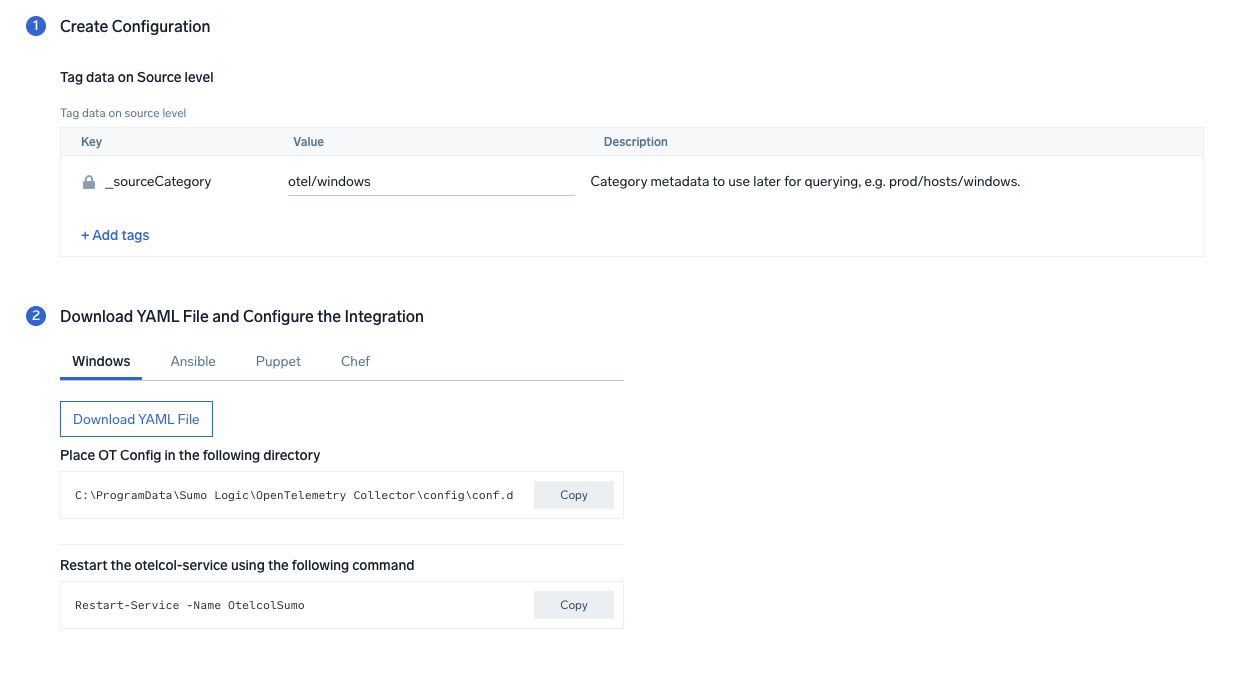
In this step, you will configure the yaml file required for Windows event logs collection.
Any custom fields can be tagged along with the data in this step.
Once the details are filled in, click on the **Download YAML File** button to get the yaml file.
import CollectorVersionNote from '../../../reuse/apps/opentelemetry/collector-version-note.md';
### Step 2: Configure integration
In this step, you will configure the yaml file required for Windows event logs collection.
Any custom fields can be tagged along with the data in this step.
Once the details are filled in, click on the **Download YAML File** button to get the yaml file.
import CollectorVersionNote from '../../../reuse/apps/opentelemetry/collector-version-note.md';
 ### Step 3: Send logs to Sumo Logic
import LogsIntro from '../../../reuse/apps/opentelemetry/send-logs-intro.md';
1. Copy the yaml file to `C:\ProgramData\Sumo Logic\OpenTelemetry Collector\config\conf.d` folder in the machine which needs to be monitored.
2. Restart the collector using:
```sh
Restart-Service -Name OtelcolSumo
```
import ChefNoEnv from '../../../reuse/apps/opentelemetry/chef-without-env.md';
import AnsibleNoEnv from '../../../reuse/apps/opentelemetry/ansible-without-env.md';
import PuppetNoEnv from '../../../reuse/apps/opentelemetry/puppet-without-env.md';
import LogsOutro from '../../../reuse/apps/opentelemetry/send-logs-outro.md';
## Sample queries
This sample log query is from the **Windows - PCI Req 02, 08, 10 - Account, User, System Monitoring** dashboard > **User Account Created** panel.
```sql title="Log Query String"
sumo.datasource=windows deployment.environment={{deployment.environment}} host.group={{host.group}} "\"channel\":\"Security\"" 4720
| json "event_id.id", "computer", "message", "event_data.SubjectUserName", "event_data.SubjectDomainName", "event_data.TargetUserName", "event_data.TargetDomainName" as event_id, host, msg_summary, src_user, src_domain, dest_user, dest_domain nodrop
| if(isBlank(src_user), "Unknown", src_user) as src_user
| if(isBlank(src_domain), "Unknown", src_domain) as src_domain
| if(isBlank(dest_user), "Unknown", dest_user) as dest_user
| if(isBlank(dest_domain), "Unknown", dest_domain) as dest_domain
| where event_id = "4720" and host matches "{{host.name}}" and _collector matches "{{collector}}" and _sourceHost matches "{{sourcehost}}" and src_user matches "{{src_user}}" and src_domain matches "{{src_domain}}" and dest_user matches "{{dest_user}}" and dest_domain matches "{{dest_domain}}"
| fields host, dest_user, dest_domain, src_user, src_domain, event_id, msg_summary
| timeslice 1s
| count as event_count by _timeslice, host, dest_user, dest_domain, src_user, src_domain, event_id, msg_summary
| sort by _timeslice
```
## Sample log messages
```json
{
"record_id":161812,
"channel":"Security",
"event_data":{
"WorkstationName":"-",
"TargetDomainName":"",
"SubjectUserSid":"S-1-0-0",
"LogonProcessName":"NtLmSsp ",
"TargetUserName":"ADMINISTRATOR",
"TargetUserSid":"S-1-0-0",
"IpAddress":"3.137.149.192",
"ProcessId":"0x0",
"KeyLength":"0",
"ProcessName":"-",
"SubjectUserName":"-",
"LogonType":"3",
"TransmittedServices":"-",
"FailureReason":"%%2313",
"SubjectLogonId":"0x0",
"IpPort":"0",
"AuthenticationPackageName":"NTLM",
"Status":"0xc000006d",
"LmPackageName":"-",
"SubStatus":"0xc000006a",
"SubjectDomainName":"-"
},
"task":"Logon",
"provider":{
"name":"Microsoft-Windows-Security-Auditing",
"guid":"{54849625-5478-4994-a5ba-3e3b0328c30d}",
"event_source":""
},
"system_time":"2023-07-11T14:14:51.1731050Z",
"computer":"EC2AMAZ-V57A85N",
"opcode":"Info",
"keywords":[
"Audit Failure"
],
"details":{
"Account For Which Logon Failed":{
"Security ID":"S-1-0-0",
"Account Name":"ADMINISTRATOR",
"Account Domain":"-"
},
"Network Information":{
"Workstation Name":"-",
"Source Network Address":"3.137.149.192",
"Source Port":"0"
},
"Failure Information":{
"Failure Reason":"Unknown user name or bad password.",
"Status":"0xC000006D",
"Sub Status":"0xC000006A"
},
"Detailed Authentication Information":{
"Transited Services":"-",
"Key Length":"0",
"Logon Process":"NtLmSsp",
"Authentication Package":"NTLM",
"Package Name (NTLM only)":"-"
},
"Subject":{
"Security ID":"S-1-0-0",
"Account Name":"-",
"Account Domain":"-",
"Logon ID":"0x0"
},
"Process Information":{
"Caller Process ID":"0x0",
"Caller Process Name":"-"
},
"Logon Type":"3",
"Additional Context":[
"This event is generated when a logon request fails. It is generated on the computer where access was attempted.",
"The Subject fields indicate the account on the local system which requested the logon. This is most commonly a service such as the Server service, or a local process such as Winlogon.exe or Services.exe.",
"The Logon Type field indicates the kind of logon that was requested. The most common types are 2 (interactive) and 3 (network).",
"The Process Information fields indicate which account and process on the system requested the logon.",
"The Network Information fields indicate where a remote logon request originated. Workstation name is not always available and may be left blank in some cases.",
"The authentication information fields provide detailed information about this specific logon request.",
"- Transited services indicate which intermediate services have participated in this logon request.",
"- Package name indicates which sub-protocol was used among the NTLM protocols.",
"- Key length indicates the length of the generated session key. This will be 0 if no session key was requested."
]
},
"message":"An account failed to log on.",
"event_id":{
"qualifiers":0,
"id":4625
},
"level":"Information"
}
```
## Viewing Windows Event Log-Based Dashboards
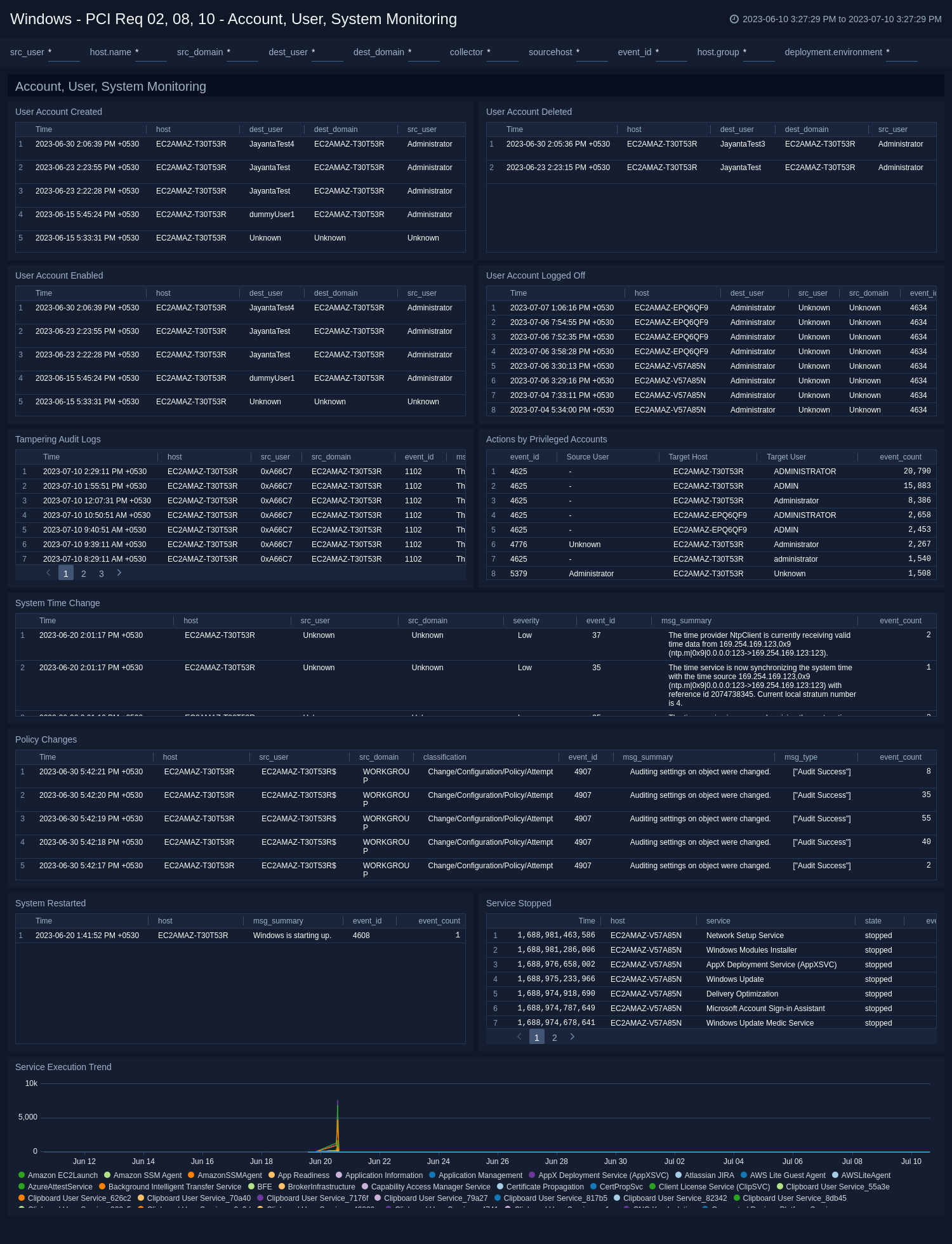
### Windows - PCI Req 02, 08, 10 - Account, User, System Monitoring
Track your user accounts and recent system changes.
### Step 3: Send logs to Sumo Logic
import LogsIntro from '../../../reuse/apps/opentelemetry/send-logs-intro.md';
1. Copy the yaml file to `C:\ProgramData\Sumo Logic\OpenTelemetry Collector\config\conf.d` folder in the machine which needs to be monitored.
2. Restart the collector using:
```sh
Restart-Service -Name OtelcolSumo
```
import ChefNoEnv from '../../../reuse/apps/opentelemetry/chef-without-env.md';
import AnsibleNoEnv from '../../../reuse/apps/opentelemetry/ansible-without-env.md';
import PuppetNoEnv from '../../../reuse/apps/opentelemetry/puppet-without-env.md';
import LogsOutro from '../../../reuse/apps/opentelemetry/send-logs-outro.md';
## Sample queries
This sample log query is from the **Windows - PCI Req 02, 08, 10 - Account, User, System Monitoring** dashboard > **User Account Created** panel.
```sql title="Log Query String"
sumo.datasource=windows deployment.environment={{deployment.environment}} host.group={{host.group}} "\"channel\":\"Security\"" 4720
| json "event_id.id", "computer", "message", "event_data.SubjectUserName", "event_data.SubjectDomainName", "event_data.TargetUserName", "event_data.TargetDomainName" as event_id, host, msg_summary, src_user, src_domain, dest_user, dest_domain nodrop
| if(isBlank(src_user), "Unknown", src_user) as src_user
| if(isBlank(src_domain), "Unknown", src_domain) as src_domain
| if(isBlank(dest_user), "Unknown", dest_user) as dest_user
| if(isBlank(dest_domain), "Unknown", dest_domain) as dest_domain
| where event_id = "4720" and host matches "{{host.name}}" and _collector matches "{{collector}}" and _sourceHost matches "{{sourcehost}}" and src_user matches "{{src_user}}" and src_domain matches "{{src_domain}}" and dest_user matches "{{dest_user}}" and dest_domain matches "{{dest_domain}}"
| fields host, dest_user, dest_domain, src_user, src_domain, event_id, msg_summary
| timeslice 1s
| count as event_count by _timeslice, host, dest_user, dest_domain, src_user, src_domain, event_id, msg_summary
| sort by _timeslice
```
## Sample log messages
```json
{
"record_id":161812,
"channel":"Security",
"event_data":{
"WorkstationName":"-",
"TargetDomainName":"",
"SubjectUserSid":"S-1-0-0",
"LogonProcessName":"NtLmSsp ",
"TargetUserName":"ADMINISTRATOR",
"TargetUserSid":"S-1-0-0",
"IpAddress":"3.137.149.192",
"ProcessId":"0x0",
"KeyLength":"0",
"ProcessName":"-",
"SubjectUserName":"-",
"LogonType":"3",
"TransmittedServices":"-",
"FailureReason":"%%2313",
"SubjectLogonId":"0x0",
"IpPort":"0",
"AuthenticationPackageName":"NTLM",
"Status":"0xc000006d",
"LmPackageName":"-",
"SubStatus":"0xc000006a",
"SubjectDomainName":"-"
},
"task":"Logon",
"provider":{
"name":"Microsoft-Windows-Security-Auditing",
"guid":"{54849625-5478-4994-a5ba-3e3b0328c30d}",
"event_source":""
},
"system_time":"2023-07-11T14:14:51.1731050Z",
"computer":"EC2AMAZ-V57A85N",
"opcode":"Info",
"keywords":[
"Audit Failure"
],
"details":{
"Account For Which Logon Failed":{
"Security ID":"S-1-0-0",
"Account Name":"ADMINISTRATOR",
"Account Domain":"-"
},
"Network Information":{
"Workstation Name":"-",
"Source Network Address":"3.137.149.192",
"Source Port":"0"
},
"Failure Information":{
"Failure Reason":"Unknown user name or bad password.",
"Status":"0xC000006D",
"Sub Status":"0xC000006A"
},
"Detailed Authentication Information":{
"Transited Services":"-",
"Key Length":"0",
"Logon Process":"NtLmSsp",
"Authentication Package":"NTLM",
"Package Name (NTLM only)":"-"
},
"Subject":{
"Security ID":"S-1-0-0",
"Account Name":"-",
"Account Domain":"-",
"Logon ID":"0x0"
},
"Process Information":{
"Caller Process ID":"0x0",
"Caller Process Name":"-"
},
"Logon Type":"3",
"Additional Context":[
"This event is generated when a logon request fails. It is generated on the computer where access was attempted.",
"The Subject fields indicate the account on the local system which requested the logon. This is most commonly a service such as the Server service, or a local process such as Winlogon.exe or Services.exe.",
"The Logon Type field indicates the kind of logon that was requested. The most common types are 2 (interactive) and 3 (network).",
"The Process Information fields indicate which account and process on the system requested the logon.",
"The Network Information fields indicate where a remote logon request originated. Workstation name is not always available and may be left blank in some cases.",
"The authentication information fields provide detailed information about this specific logon request.",
"- Transited services indicate which intermediate services have participated in this logon request.",
"- Package name indicates which sub-protocol was used among the NTLM protocols.",
"- Key length indicates the length of the generated session key. This will be 0 if no session key was requested."
]
},
"message":"An account failed to log on.",
"event_id":{
"qualifiers":0,
"id":4625
},
"level":"Information"
}
```
## Viewing Windows Event Log-Based Dashboards
### Windows - PCI Req 02, 08, 10 - Account, User, System Monitoring
Track your user accounts and recent system changes.
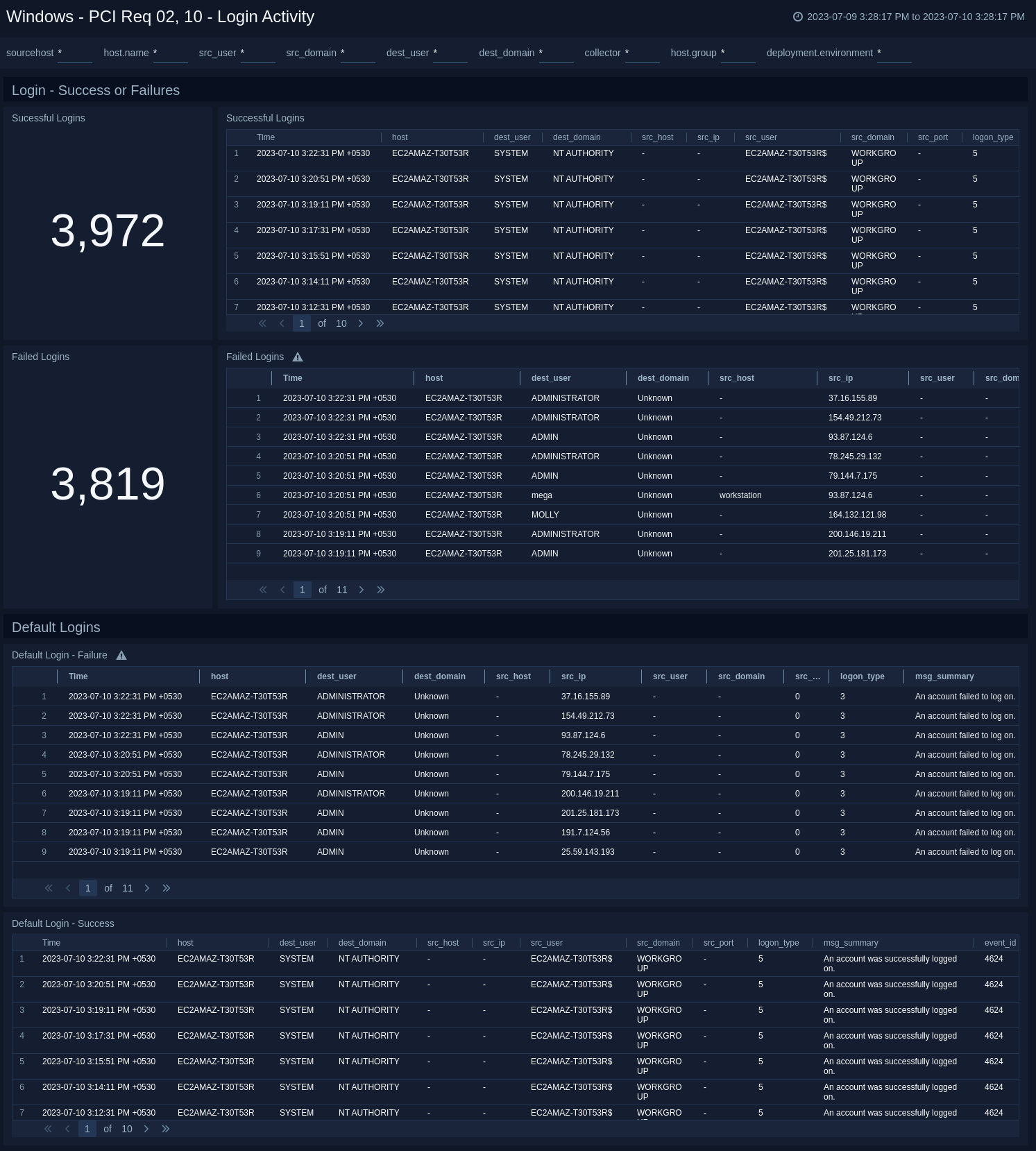
 ### Windows - PCI Req 02, 10 - Login Activity
Track login successes and failures.
### Windows - PCI Req 02, 10 - Login Activity
Track login successes and failures.
 ### Windows - PCI Req 08 - Other User Activity
Track user activities such as password changes, password resets, excessive failed access attempts, unlocked accounts, and changed accounts.
### Windows - PCI Req 08 - Other User Activity
Track user activities such as password changes, password resets, excessive failed access attempts, unlocked accounts, and changed accounts.
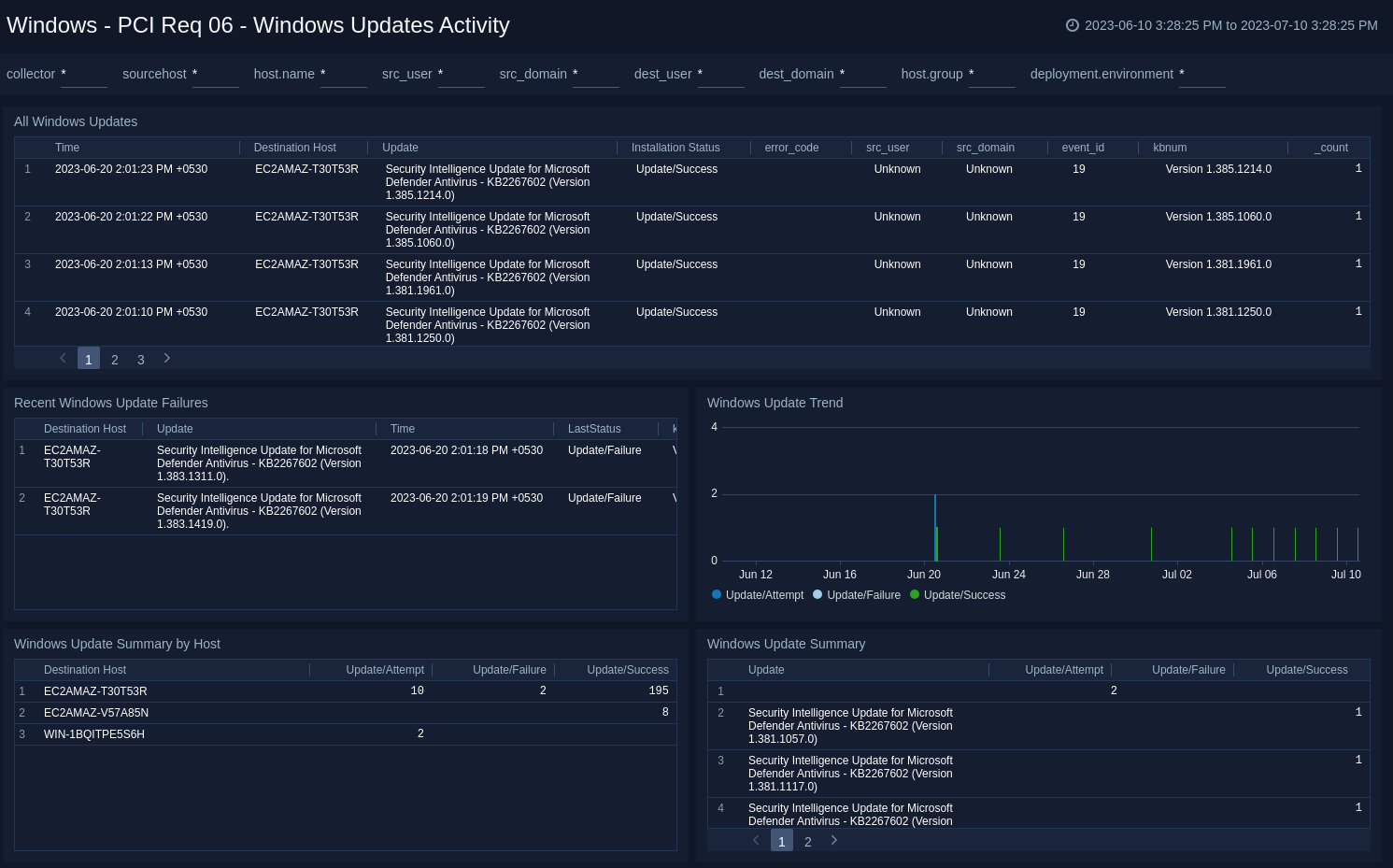 ### Windows - PCI Req 06 - Windows Updates Activity
Track your Windows Update activities.
## Create monitors for PCI Compliance For Windows JSON app
import CreateMonitors from '../../../reuse/apps/create-monitors.md';
### PCI Compliance For Windows JSON alerts
| Name | Description | Alert Condition | Recover Condition |
|:--|:--|:--|:--|
| `Windows PCI - Critical Policy Changes` | This alert is triggered when modifications to security policies or audit policies are detected, indicating potential changes to the system's security posture. It supports PCI DSS Requirements `10.2.2` (track changes to system-level objects) and `10.2.5.b` (track use of identification and authentication mechanisms). | Count >= 1 | Count < 1 |
| `Windows PCI - Excessive Failed Login Attempts` | This alert is triggered when there are multiple authentication failures detected across Windows environments. These are monitored across different authentication mechanisms like local Windows authentication, Kerberos, and network logons. It correlates failure patterns with specific error codes to identify potential security threats such as password guessing, account enumeration, or attempts to access disabled accounts. This helps security teams differentiate between benign issues and malicious activities. | Count >= 5 | Count < 5 |
| `Windows PCI - Failed Windows Updates` | This alert is triggered when Windows update failures are detected, which could leave systems vulnerable to known exploits. It aligns with PCI DSS Requirement `6.2.0` for installing critical security patches within one month of release. | Count > = 3 | Count < 3 |
| `Windows PCI - Security Audit Log Tampering` | This alert is triggered when attempt is detected to clear or tamper with Windows security audit logs, indicating potential attempts to hide malicious activities. It supports PCI DSS Requirements `10.2.0` (implement automated audit trails) and `10.3.0` (record audit trail entries). | Count > = 1 | Count < 1 |
| `Windows PCI - User Account State Change` | This alert is triggered when critical user account state changes are detected, including account creation, deletion, enablement, and disablement. This supports PCI DSS Requirement 8.1.3 for immediately revoking access for terminated users. | Count > = 1 | Count < 1 |
### Windows - PCI Req 06 - Windows Updates Activity
Track your Windows Update activities.
## Create monitors for PCI Compliance For Windows JSON app
import CreateMonitors from '../../../reuse/apps/create-monitors.md';
### PCI Compliance For Windows JSON alerts
| Name | Description | Alert Condition | Recover Condition |
|:--|:--|:--|:--|
| `Windows PCI - Critical Policy Changes` | This alert is triggered when modifications to security policies or audit policies are detected, indicating potential changes to the system's security posture. It supports PCI DSS Requirements `10.2.2` (track changes to system-level objects) and `10.2.5.b` (track use of identification and authentication mechanisms). | Count >= 1 | Count < 1 |
| `Windows PCI - Excessive Failed Login Attempts` | This alert is triggered when there are multiple authentication failures detected across Windows environments. These are monitored across different authentication mechanisms like local Windows authentication, Kerberos, and network logons. It correlates failure patterns with specific error codes to identify potential security threats such as password guessing, account enumeration, or attempts to access disabled accounts. This helps security teams differentiate between benign issues and malicious activities. | Count >= 5 | Count < 5 |
| `Windows PCI - Failed Windows Updates` | This alert is triggered when Windows update failures are detected, which could leave systems vulnerable to known exploits. It aligns with PCI DSS Requirement `6.2.0` for installing critical security patches within one month of release. | Count > = 3 | Count < 3 |
| `Windows PCI - Security Audit Log Tampering` | This alert is triggered when attempt is detected to clear or tamper with Windows security audit logs, indicating potential attempts to hide malicious activities. It supports PCI DSS Requirements `10.2.0` (implement automated audit trails) and `10.3.0` (record audit trail entries). | Count > = 1 | Count < 1 |
| `Windows PCI - User Account State Change` | This alert is triggered when critical user account state changes are detected, including account creation, deletion, enablement, and disablement. This supports PCI DSS Requirement 8.1.3 for immediately revoking access for terminated users. | Count > = 1 | Count < 1 |