---
id: opentelemetry-collector-insights
title: OpenTelemetry Collector Insights
sidebar_label: OpenTelemetry Collector Insights
description: Learn about the Sumo Logic OpenTelemetry Collector Insights app.
slug: /help/docs/integrations/sumo-apps/opentelemetry-collector-insights/
canonical: https://www.sumologic.com/help/docs/integrations/sumo-apps/opentelemetry-collector-insights/
---
import useBaseUrl from '@docusaurus/useBaseUrl';
import Tabs from '@theme/Tabs';
import TabItem from '@theme/TabItem';
}) The Sumo Logic OpenTelemetry Collector Insights app provides comprehensive monitoring and observability for your OpenTelemetry Collector instances. Monitor collector performance, telemetry data flow, resource utilization, and troubleshoot data collection issues with preconfigured dashboards and alerts. Track metrics and logs to ensure your telemetry pipeline is running smoothly and efficiently.
This app supports OpenTelemetry Collector version `0.130.1-sumo-0` and later versions.
We use the OpenTelemetry collector's built-in internal telemetry capabilities to collect metrics and logs about the collector itself. By default, the Collector exposes its own telemetry through internal metrics (via Prometheus interface on port 8888) and logs (emitted to stderr). The collector can also be configured to export its own telemetry data (metrics and logs) to Sumo Logic through OTLP/HTTP endpoints.
## Fields creation in Sumo Logic for OpenTelemetry Collector Insights
Following are the [fields](/docs/manage/fields/) which will be created as part of OpenTelemetry Collector Insights app installation, if not already present.
- `sumo.datasource`. Has fixed value of `otel_collector`.
- `_contentType`. Has fixed value of `OpenTelemetry`.
- `deployment.environment`. User configured. Enter a name to identify your deployment environment.
## Prerequisites
### For OTLP endpoint configuration
Before configuring the OTEL Collector integration, you need to create an OTLP source in your Sumo Logic hosted collector. The OTLP source will provide the endpoint URL that the OTEL Collector will use to send telemetry data. Learn more at [Creating a Sumo Logic OTLP Source](/docs/send-data/hosted-collectors/http-source/otlp/).
### For metrics collection
The OpenTelemetry Collector must be configured to export its own metrics using the built-in telemetry capabilities. This requires:
- OpenTelemetry Collector version 0.130.1-sumo-0 or later
- Collector configured with telemetry metrics enabled at `detailed` level
- Access to OTLP endpoint for metrics export
- Internal metrics exposed on port 8888 (default)
### For logs collection
The OpenTelemetry Collector must be configured to export its own logs using the built-in telemetry capabilities. This requires:
- Collector configured with telemetry logs enabled at `debug` level (automatically configured in the provided template)
- JSON encoding for structured log output (automatically configured in the provided template)
- Access to OTLP endpoint for logs export
### System Requirements
- OTEL Collector v0.130.1-sumo-0 or later
- Sufficient system resources (CPU, memory) for data processing
- Proper permissions for the collector service to access configured resources
## Collection configuration and app installation
import ConfigAppInstall from '../../reuse/apps/opentelemetry/config-app-install.md';
### Step 1: Set up collector
import SetupColl from '../../reuse/apps/opentelemetry/set-up-collector.md';
### Step 2: Configure integration
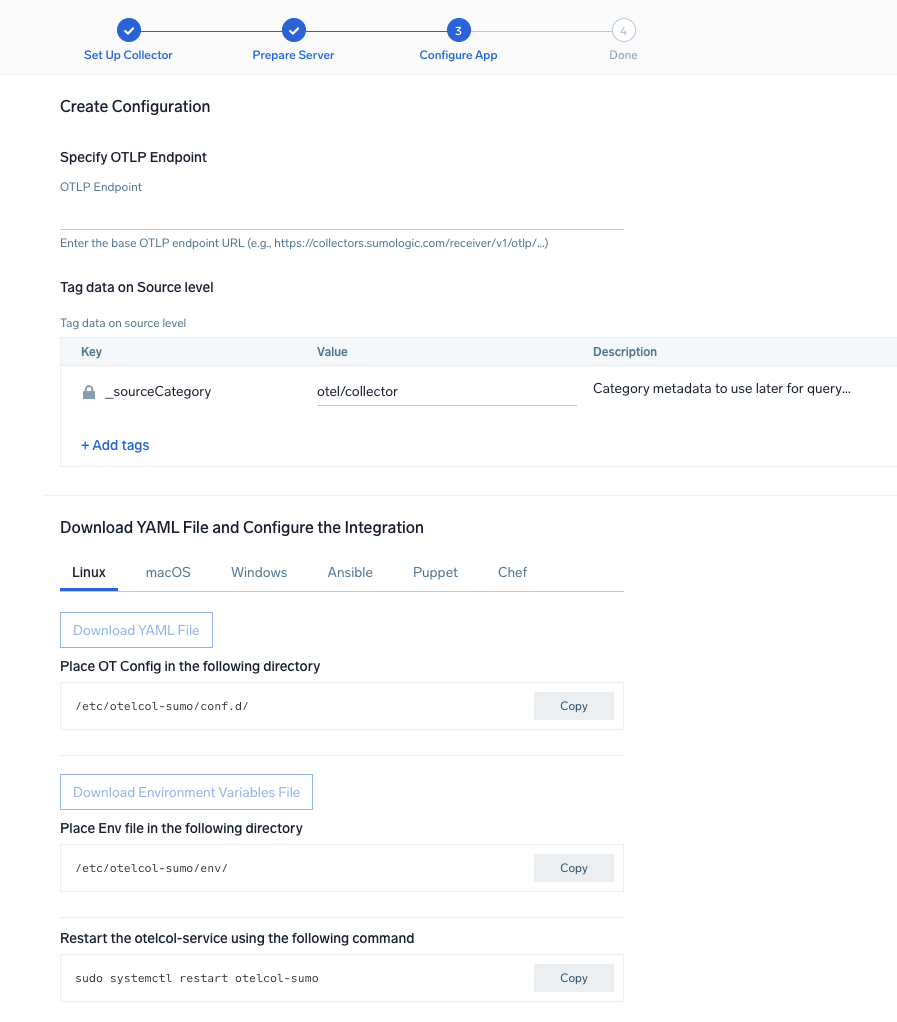
OpenTelemetry works with a [configuration](https://opentelemetry.io/docs/collector/configuration/) YAML file with all the details concerning the data that needs to be collected.
In this step, you will configure the OpenTelemetry Collector's built-in telemetry to monitor itself.
Below are the inputs required:
- **OTLP Endpoint**. Your Sumo Logic OTLP endpoint URL.
```yaml
service:
telemetry:
logs:
level: debug
development: false
encoding: json
processors:
- batch:
exporter:
otlp:
protocol: http/protobuf
endpoint: ${OTLP_ENDPOINT}/v1/logs
metrics:
level: detailed
readers:
- periodic:
exporter:
otlp:
protocol: http/protobuf
endpoint: ${OTLP_ENDPOINT}/v1/metrics
resource:
_contentType: OpenTelemetry
sumo.datasource: otel_collector
deployment.environment: ${DEPLOYMENT_ENVIRONMENT}
```
You can add any custom fields which you want to tag along with the data ingested in Sumo Logic.
import EnvVar from '../../reuse/apps/opentelemetry/env-var-required.md';
The Sumo Logic OpenTelemetry Collector Insights app provides comprehensive monitoring and observability for your OpenTelemetry Collector instances. Monitor collector performance, telemetry data flow, resource utilization, and troubleshoot data collection issues with preconfigured dashboards and alerts. Track metrics and logs to ensure your telemetry pipeline is running smoothly and efficiently.
This app supports OpenTelemetry Collector version `0.130.1-sumo-0` and later versions.
We use the OpenTelemetry collector's built-in internal telemetry capabilities to collect metrics and logs about the collector itself. By default, the Collector exposes its own telemetry through internal metrics (via Prometheus interface on port 8888) and logs (emitted to stderr). The collector can also be configured to export its own telemetry data (metrics and logs) to Sumo Logic through OTLP/HTTP endpoints.
## Fields creation in Sumo Logic for OpenTelemetry Collector Insights
Following are the [fields](/docs/manage/fields/) which will be created as part of OpenTelemetry Collector Insights app installation, if not already present.
- `sumo.datasource`. Has fixed value of `otel_collector`.
- `_contentType`. Has fixed value of `OpenTelemetry`.
- `deployment.environment`. User configured. Enter a name to identify your deployment environment.
## Prerequisites
### For OTLP endpoint configuration
Before configuring the OTEL Collector integration, you need to create an OTLP source in your Sumo Logic hosted collector. The OTLP source will provide the endpoint URL that the OTEL Collector will use to send telemetry data. Learn more at [Creating a Sumo Logic OTLP Source](/docs/send-data/hosted-collectors/http-source/otlp/).
### For metrics collection
The OpenTelemetry Collector must be configured to export its own metrics using the built-in telemetry capabilities. This requires:
- OpenTelemetry Collector version 0.130.1-sumo-0 or later
- Collector configured with telemetry metrics enabled at `detailed` level
- Access to OTLP endpoint for metrics export
- Internal metrics exposed on port 8888 (default)
### For logs collection
The OpenTelemetry Collector must be configured to export its own logs using the built-in telemetry capabilities. This requires:
- Collector configured with telemetry logs enabled at `debug` level (automatically configured in the provided template)
- JSON encoding for structured log output (automatically configured in the provided template)
- Access to OTLP endpoint for logs export
### System Requirements
- OTEL Collector v0.130.1-sumo-0 or later
- Sufficient system resources (CPU, memory) for data processing
- Proper permissions for the collector service to access configured resources
## Collection configuration and app installation
import ConfigAppInstall from '../../reuse/apps/opentelemetry/config-app-install.md';
### Step 1: Set up collector
import SetupColl from '../../reuse/apps/opentelemetry/set-up-collector.md';
### Step 2: Configure integration
OpenTelemetry works with a [configuration](https://opentelemetry.io/docs/collector/configuration/) YAML file with all the details concerning the data that needs to be collected.
In this step, you will configure the OpenTelemetry Collector's built-in telemetry to monitor itself.
Below are the inputs required:
- **OTLP Endpoint**. Your Sumo Logic OTLP endpoint URL.
```yaml
service:
telemetry:
logs:
level: debug
development: false
encoding: json
processors:
- batch:
exporter:
otlp:
protocol: http/protobuf
endpoint: ${OTLP_ENDPOINT}/v1/logs
metrics:
level: detailed
readers:
- periodic:
exporter:
otlp:
protocol: http/protobuf
endpoint: ${OTLP_ENDPOINT}/v1/metrics
resource:
_contentType: OpenTelemetry
sumo.datasource: otel_collector
deployment.environment: ${DEPLOYMENT_ENVIRONMENT}
```
You can add any custom fields which you want to tag along with the data ingested in Sumo Logic.
import EnvVar from '../../reuse/apps/opentelemetry/env-var-required.md';
 ### Step 3: Send logs and metrics to Sumo Logic
import LogsIntro from '../../reuse/apps/opentelemetry/send-logs-intro.md';
1. Add the telemetry configuration to your existing collector configuration file in `/etc/otelcol-sumo/conf.d/` or directly in the main configuration file.
2. Place Env file in the following directory:
```sh
/etc/otelcol-sumo/env/
```
3. Restart the collector using:
```sh
sudo systemctl restart otelcol-sumo
```
1. Add the telemetry configuration to your existing collector configuration file in `C:\ProgramData\Sumo Logic\OpenTelemetry Collector\config\conf.d` or the main configuration file.
2. Restart the collector using:
```sh
Restart-Service -Name OtelcolSumo
```
1. Add the telemetry configuration to your existing collector configuration file in `/etc/otelcol-sumo/conf.d/` or the main configuration file.
2. Restart the otelcol-sumo process using:
```sh
otelcol-sumo --config /etc/otelcol-sumo/sumologic.yaml --config "glob:/etc/otelcol-sumo/conf.d/*.yaml"
```
import ChefEnv from '../../reuse/apps/opentelemetry/chef-with-env.md';
import AnsEnv from '../../reuse/apps/opentelemetry/ansible-with-env.md';
import PuppetEnv from '../../reuse/apps/opentelemetry/puppet-with-env.md';
import LogsOutro from '../../reuse/apps/opentelemetry/send-logs-outro.md';
### Validation
After installation, verify that:
1. The OTEL Collector service is running.
2. The configured base endpoint is reachable.
3. Data is being successfully sent to both the logs (`/v1/logs`) and metrics (`/v1/metrics`) endpoints.
4. Resource attributes are properly applied to the telemetry data.
5. Internal metrics are accessible at `http://localhost:8888/metrics`.
## Remote collector management via source templates
You can now remotely configure and manage OpenTelemetry Collectors for the following applications using source templates. This capability eliminates manual setup and provides a unified experience across both local and remote collector workflows.
- [Apache](/docs/send-data/opentelemetry-collector/remote-management/source-templates/apache/)
- [Docker](/docs/send-data/opentelemetry-collector/remote-management/source-templates/docker/)
- [ElasticSearch](/docs/send-data/opentelemetry-collector/remote-management/source-templates/elasticsearch/)
- [Kafka](/docs/send-data/opentelemetry-collector/remote-management/source-templates/kafka/)
- [Linux](/docs/send-data/opentelemetry-collector/remote-management/source-templates/linux/)
- [Mac](/docs/send-data/opentelemetry-collector/remote-management/source-templates/mac/)
- [MySql](/docs/send-data/opentelemetry-collector/remote-management/source-templates/mysql/)
- [Nginx](/docs/send-data/opentelemetry-collector/remote-management/source-templates/nginx/)
- [PostgreSql](/docs/send-data/opentelemetry-collector/remote-management/source-templates/postgresql/)
- [RabbitMQ](/docs/send-data/opentelemetry-collector/remote-management/source-templates/rabbitmq/)
- [Redis](/docs/send-data/opentelemetry-collector/remote-management/source-templates/redis/)
- [Windows](/docs/send-data/opentelemetry-collector/remote-management/source-templates/windows/)
:::note
If you want to configure your source locally, you can do so by downloading the YAML file. For details, see [Configure OpenTelemetry collectors locally](#configure-opentelemetry-collectors-locally).
:::
### Step 1: Set up OpenTelemetry collector
To get started, set up a remotely managed collector on your system by following the instructions in [Step 1: Set up collector](#step-1-set-up-collector).
### Step 3: Send logs and metrics to Sumo Logic
import LogsIntro from '../../reuse/apps/opentelemetry/send-logs-intro.md';
1. Add the telemetry configuration to your existing collector configuration file in `/etc/otelcol-sumo/conf.d/` or directly in the main configuration file.
2. Place Env file in the following directory:
```sh
/etc/otelcol-sumo/env/
```
3. Restart the collector using:
```sh
sudo systemctl restart otelcol-sumo
```
1. Add the telemetry configuration to your existing collector configuration file in `C:\ProgramData\Sumo Logic\OpenTelemetry Collector\config\conf.d` or the main configuration file.
2. Restart the collector using:
```sh
Restart-Service -Name OtelcolSumo
```
1. Add the telemetry configuration to your existing collector configuration file in `/etc/otelcol-sumo/conf.d/` or the main configuration file.
2. Restart the otelcol-sumo process using:
```sh
otelcol-sumo --config /etc/otelcol-sumo/sumologic.yaml --config "glob:/etc/otelcol-sumo/conf.d/*.yaml"
```
import ChefEnv from '../../reuse/apps/opentelemetry/chef-with-env.md';
import AnsEnv from '../../reuse/apps/opentelemetry/ansible-with-env.md';
import PuppetEnv from '../../reuse/apps/opentelemetry/puppet-with-env.md';
import LogsOutro from '../../reuse/apps/opentelemetry/send-logs-outro.md';
### Validation
After installation, verify that:
1. The OTEL Collector service is running.
2. The configured base endpoint is reachable.
3. Data is being successfully sent to both the logs (`/v1/logs`) and metrics (`/v1/metrics`) endpoints.
4. Resource attributes are properly applied to the telemetry data.
5. Internal metrics are accessible at `http://localhost:8888/metrics`.
## Remote collector management via source templates
You can now remotely configure and manage OpenTelemetry Collectors for the following applications using source templates. This capability eliminates manual setup and provides a unified experience across both local and remote collector workflows.
- [Apache](/docs/send-data/opentelemetry-collector/remote-management/source-templates/apache/)
- [Docker](/docs/send-data/opentelemetry-collector/remote-management/source-templates/docker/)
- [ElasticSearch](/docs/send-data/opentelemetry-collector/remote-management/source-templates/elasticsearch/)
- [Kafka](/docs/send-data/opentelemetry-collector/remote-management/source-templates/kafka/)
- [Linux](/docs/send-data/opentelemetry-collector/remote-management/source-templates/linux/)
- [Mac](/docs/send-data/opentelemetry-collector/remote-management/source-templates/mac/)
- [MySql](/docs/send-data/opentelemetry-collector/remote-management/source-templates/mysql/)
- [Nginx](/docs/send-data/opentelemetry-collector/remote-management/source-templates/nginx/)
- [PostgreSql](/docs/send-data/opentelemetry-collector/remote-management/source-templates/postgresql/)
- [RabbitMQ](/docs/send-data/opentelemetry-collector/remote-management/source-templates/rabbitmq/)
- [Redis](/docs/send-data/opentelemetry-collector/remote-management/source-templates/redis/)
- [Windows](/docs/send-data/opentelemetry-collector/remote-management/source-templates/windows/)
:::note
If you want to configure your source locally, you can do so by downloading the YAML file. For details, see [Configure OpenTelemetry collectors locally](#configure-opentelemetry-collectors-locally).
:::
### Step 1: Set up OpenTelemetry collector
To get started, set up a remotely managed collector on your system by following the instructions in [Step 1: Set up collector](#step-1-set-up-collector).
}) For the apps listed above, the installation commands now include a `--remotely-managed` flag. When this flag is used, a remotely managed collector is installed automatically instead of a locally managed one. If you prefer to use a locally managed collector, simply remove the flag from the installation command.
### Step 2: Configure app integration
Configure the source template for the above mentioned apps to ingest logs or metrics, or both. [Learn more](/docs/send-data/opentelemetry-collector/remote-management/source-templates/).
For the apps listed above, the installation commands now include a `--remotely-managed` flag. When this flag is used, a remotely managed collector is installed automatically instead of a locally managed one. If you prefer to use a locally managed collector, simply remove the flag from the installation command.
### Step 2: Configure app integration
Configure the source template for the above mentioned apps to ingest logs or metrics, or both. [Learn more](/docs/send-data/opentelemetry-collector/remote-management/source-templates/).
}) ### Step 3: Link Collectors
1. Link the remotely managed OpenTelemetry collector by name or tags to associate it with the configured source template. If you already provided tags in [Step 1](#step-1-set-up-opentelemetry-collector), they will be automatically populated at this stage.
### Step 3: Link Collectors
1. Link the remotely managed OpenTelemetry collector by name or tags to associate it with the configured source template. If you already provided tags in [Step 1](#step-1-set-up-opentelemetry-collector), they will be automatically populated at this stage.
}) 2. Once the source template is created, you can [edit](/docs/send-data/opentelemetry-collector/remote-management/source-templates/manage-source-templates/#edit-a-source-template) it anytime as needed.
2. Once the source template is created, you can [edit](/docs/send-data/opentelemetry-collector/remote-management/source-templates/manage-source-templates/#edit-a-source-template) it anytime as needed.
}) ### Configure OpenTelemetry collectors locally
You can configure your source locally by downloading the YAML file.
To download the YAML file, follow the steps below:
1. [**New UI**](/docs/get-started/sumo-logic-ui). Go to the main Sumo Logic menu and select **Data Management**, and under **Data Collection** select **Source Template**.
### Configure OpenTelemetry collectors locally
You can configure your source locally by downloading the YAML file.
To download the YAML file, follow the steps below:
1. [**New UI**](/docs/get-started/sumo-logic-ui). Go to the main Sumo Logic menu and select **Data Management**, and under **Data Collection** select **Source Template**.
[**Classic UI**](/docs/get-started/sumo-logic-ui-classic). In the main Sumo Logic menu, select **Manage Data > Collection > Source Template**.
1. Select the source template whose YAML configuration you want to download. If the required source template is not available, create a new one by clicking **+ Add Source**.
1. In the right pane, under **Source Configuration**, click **Copy** or **Download YAML File** to download and manage the configuration locally.
}) ## Sample log messages
```json
{
"timestamp": "2024-01-15T10:30:45.123Z",
"level": "info",
"msg": "Batch processor started",
"component": "batch",
"pipeline": "metrics"
}
```
```json
{
"timestamp": "2024-01-15T10:30:46.456Z",
"level": "warn",
"msg": "Dropping data because sending_queue is full",
"component": "sumologicexporter",
"pipeline": "logs"
}
```
## Sample metrics
```json
{
"metric": "otelcol_processor_batch_batch_send_size",
"sumo.datasource": "otel_collector",
"_contentType": "OpenTelemetry",
"deployment.environment": "production",
"processor": "batch",
"value": 100,
"timestamp": "2024-01-15T10:30:45.123Z"
}
```
```json
{
"metric": "otelcol_exporter_queue_size",
"sumo.datasource": "otel_collector",
"_contentType": "OpenTelemetry",
"deployment.environment": "production",
"exporter": "sumologic",
"value": 150,
"timestamp": "2024-01-15T10:30:45.123Z"
}
```
## Key Internal Metrics
The OpenTelemetry Collector emits comprehensive internal metrics categorized by verbosity levels. For a complete list of internal metrics and their descriptions, see the [OpenTelemetry Collector Internal Telemetry documentation](https://opentelemetry.io/docs/collector/internal-telemetry/#lists-of-internal-metrics).
## Sample queries
This sample query is from the **Pipeline Health Overview** panel.
```sql
sumo.datasource=otel_collector
| json auto maxdepth 1 nodrop
| if (isEmpty(log), _raw, log) as _raw
| parse "* * * *" as timestamp, level, component, msg
| where level in ("error", "warn", "info", "debug")
| count by level, component
| transpose row component column level
```
This sample metrics query is from the **Collector Resource Usage** panel.
```sql title="Sample metrics query"
sumo.datasource=otel_collector metric=otelcol_process_memory_rss deployment.environment=* | avg by deployment.environment
```
This sample query monitors queue health from the **Exporter Queue Health** panel.
```sql
sumo.datasource=otel_collector metric=otelcol_exporter_queue_size deployment.environment=*
| avg by exporter, deployment.environment
```
## Viewing OpenTelemetry Collector Insights dashboards
All dashboards have a set of filters that you can apply to the entire dashboard. Use these filters to drill down and examine the data to a granular level.
- You can change the time range for a dashboard or panel by selecting a predefined interval from a drop-down list, choosing a recently used time range, or specifying custom dates and times. [Learn more](/docs/dashboards/set-custom-time-ranges/).
- You can use template variables to drill down and examine the data on a granular level. For more information, see [Filtering Dashboards with Template Variables](/docs/dashboards/filter-template-variables/).
- **Log-based dashboards** use the `_sourceHost` filter to identify specific collector instances.
- **Metrics-based dashboards** use the `service.instance.id` filter to identify specific collector instances.
### Overview
The **OpenTelemetry Collector Insights - Overview** dashboard provides a high-level view of your OpenTelemetry Collector fleet's health and performance. This is your starting point for monitoring collector instances.
Use this dashboard to:
- Monitor the overall health of your collector fleet.
- Identify performance bottlenecks and resource constraints.
- Track data flow and processing rates across collectors.
- Quickly spot collectors experiencing issues.
## Sample log messages
```json
{
"timestamp": "2024-01-15T10:30:45.123Z",
"level": "info",
"msg": "Batch processor started",
"component": "batch",
"pipeline": "metrics"
}
```
```json
{
"timestamp": "2024-01-15T10:30:46.456Z",
"level": "warn",
"msg": "Dropping data because sending_queue is full",
"component": "sumologicexporter",
"pipeline": "logs"
}
```
## Sample metrics
```json
{
"metric": "otelcol_processor_batch_batch_send_size",
"sumo.datasource": "otel_collector",
"_contentType": "OpenTelemetry",
"deployment.environment": "production",
"processor": "batch",
"value": 100,
"timestamp": "2024-01-15T10:30:45.123Z"
}
```
```json
{
"metric": "otelcol_exporter_queue_size",
"sumo.datasource": "otel_collector",
"_contentType": "OpenTelemetry",
"deployment.environment": "production",
"exporter": "sumologic",
"value": 150,
"timestamp": "2024-01-15T10:30:45.123Z"
}
```
## Key Internal Metrics
The OpenTelemetry Collector emits comprehensive internal metrics categorized by verbosity levels. For a complete list of internal metrics and their descriptions, see the [OpenTelemetry Collector Internal Telemetry documentation](https://opentelemetry.io/docs/collector/internal-telemetry/#lists-of-internal-metrics).
## Sample queries
This sample query is from the **Pipeline Health Overview** panel.
```sql
sumo.datasource=otel_collector
| json auto maxdepth 1 nodrop
| if (isEmpty(log), _raw, log) as _raw
| parse "* * * *" as timestamp, level, component, msg
| where level in ("error", "warn", "info", "debug")
| count by level, component
| transpose row component column level
```
This sample metrics query is from the **Collector Resource Usage** panel.
```sql title="Sample metrics query"
sumo.datasource=otel_collector metric=otelcol_process_memory_rss deployment.environment=* | avg by deployment.environment
```
This sample query monitors queue health from the **Exporter Queue Health** panel.
```sql
sumo.datasource=otel_collector metric=otelcol_exporter_queue_size deployment.environment=*
| avg by exporter, deployment.environment
```
## Viewing OpenTelemetry Collector Insights dashboards
All dashboards have a set of filters that you can apply to the entire dashboard. Use these filters to drill down and examine the data to a granular level.
- You can change the time range for a dashboard or panel by selecting a predefined interval from a drop-down list, choosing a recently used time range, or specifying custom dates and times. [Learn more](/docs/dashboards/set-custom-time-ranges/).
- You can use template variables to drill down and examine the data on a granular level. For more information, see [Filtering Dashboards with Template Variables](/docs/dashboards/filter-template-variables/).
- **Log-based dashboards** use the `_sourceHost` filter to identify specific collector instances.
- **Metrics-based dashboards** use the `service.instance.id` filter to identify specific collector instances.
### Overview
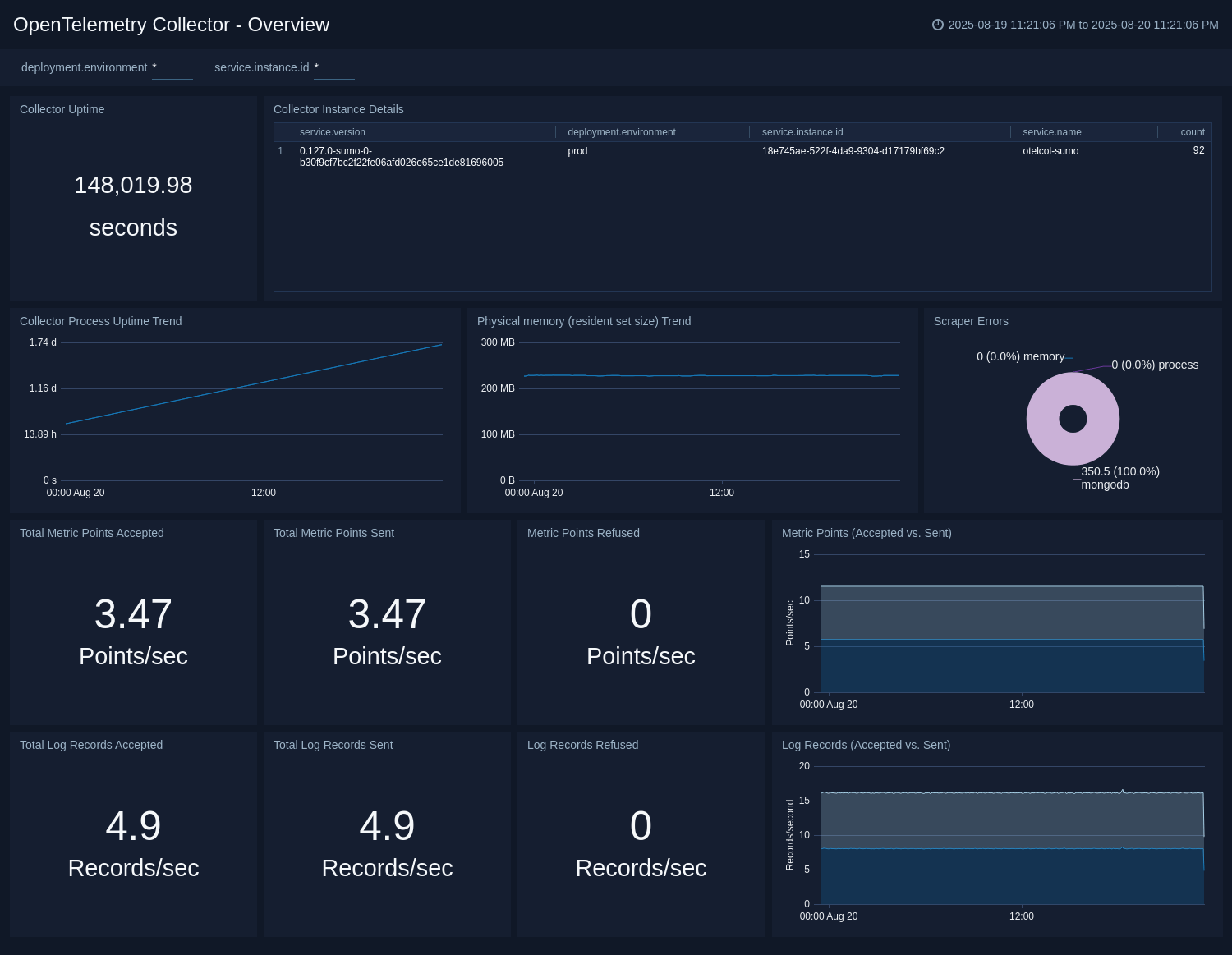
The **OpenTelemetry Collector Insights - Overview** dashboard provides a high-level view of your OpenTelemetry Collector fleet's health and performance. This is your starting point for monitoring collector instances.
Use this dashboard to:
- Monitor the overall health of your collector fleet.
- Identify performance bottlenecks and resource constraints.
- Track data flow and processing rates across collectors.
- Quickly spot collectors experiencing issues.
 ### Logs
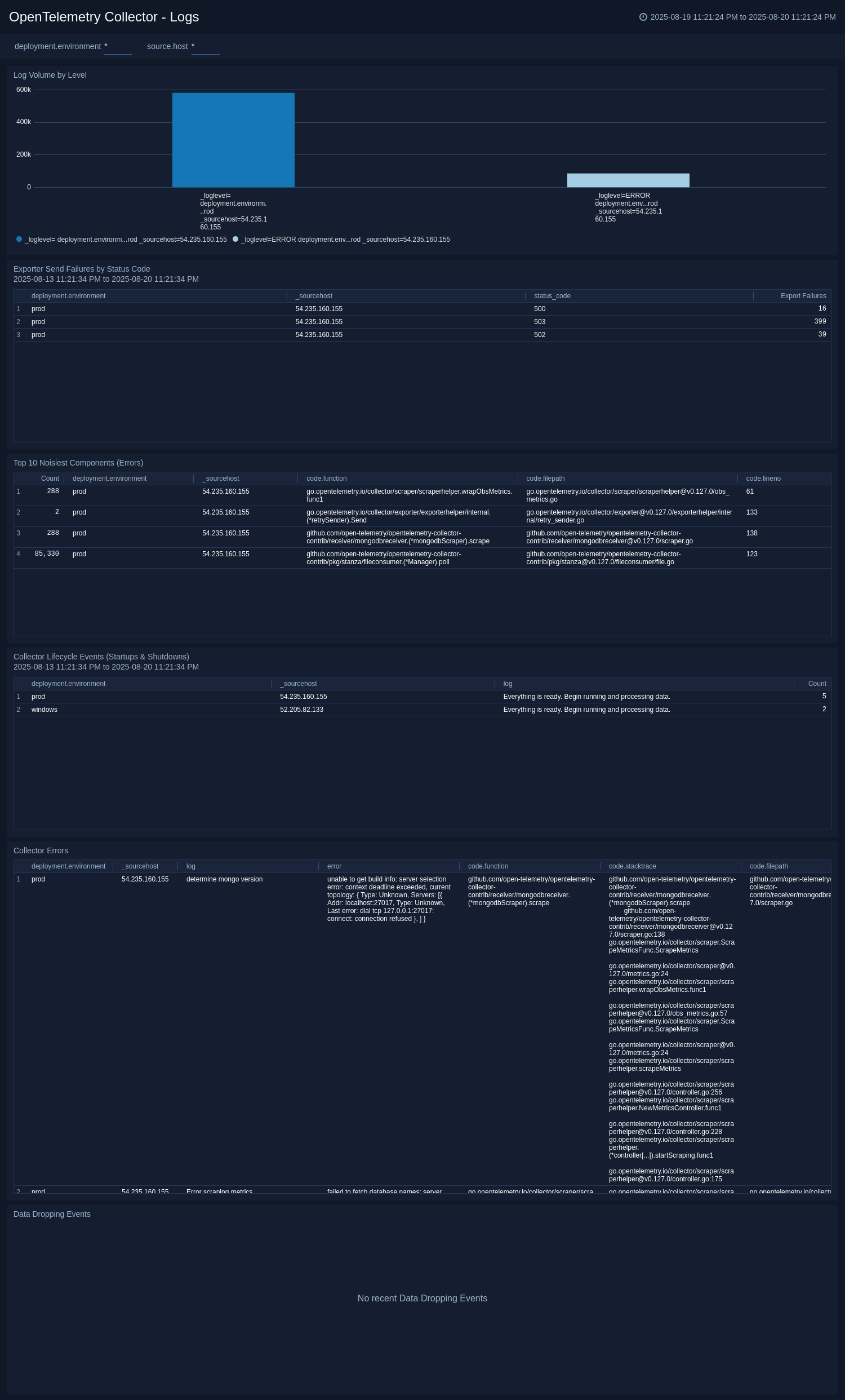
The **OpenTelemetry Collector Insights - Logs** dashboard provides detailed insights into collector log output for root-cause analysis of errors, data dropping events, and restarts.
Use this dashboard to:
- Analyze error patterns and troubleshoot issues.
- Monitor collector startup and shutdown events.
- Identify data loss or processing problems.
- Track log severity trends across your collector fleet.
### Logs
The **OpenTelemetry Collector Insights - Logs** dashboard provides detailed insights into collector log output for root-cause analysis of errors, data dropping events, and restarts.
Use this dashboard to:
- Analyze error patterns and troubleshoot issues.
- Monitor collector startup and shutdown events.
- Identify data loss or processing problems.
- Track log severity trends across your collector fleet.
 ### Pipeline: Receiver Health
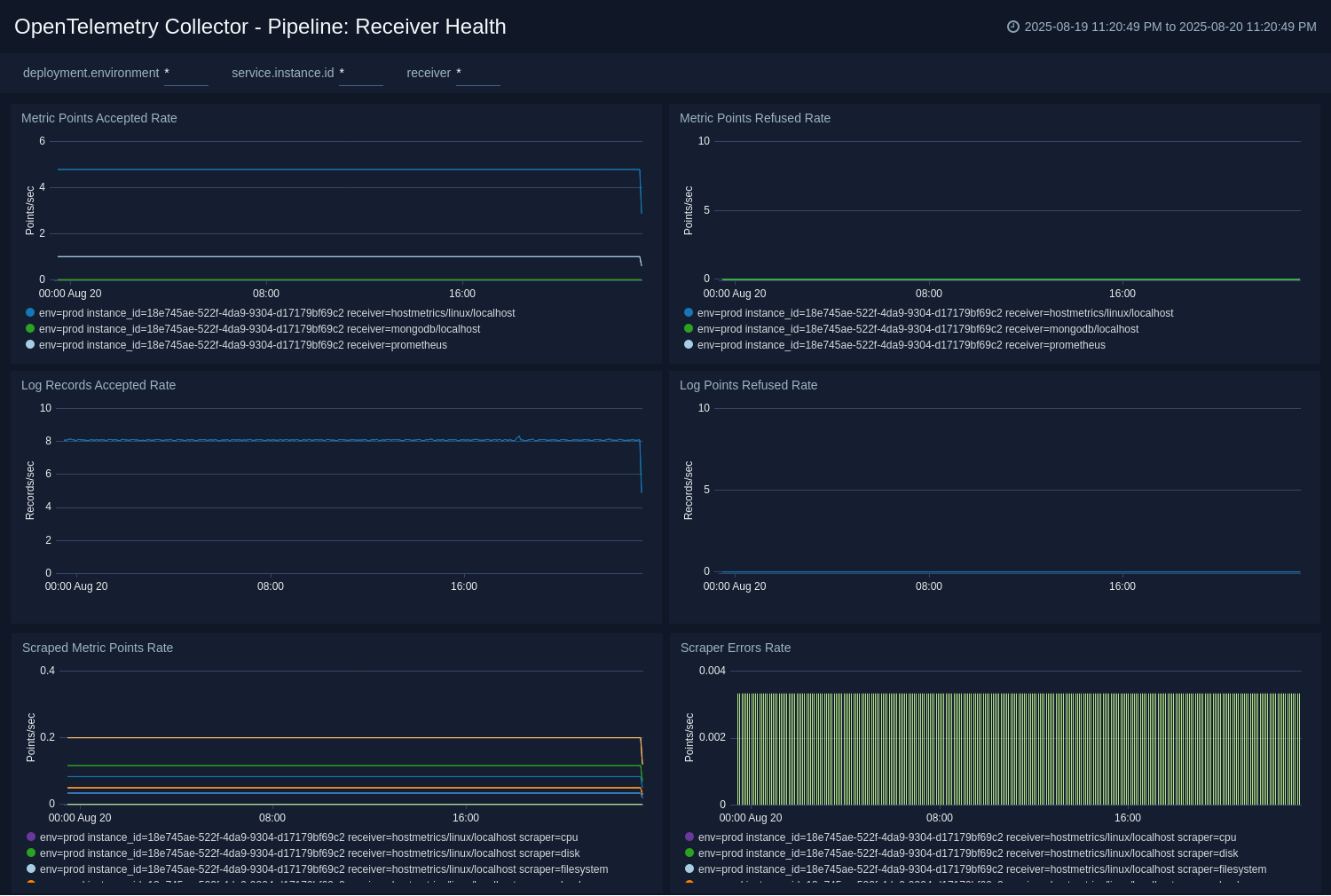
The **OpenTelemetry Collector Insights - Pipeline: Receiver Health** dashboard focuses exclusively on the data ingestion stage of the pipeline to monitor data sources and receiver performance.
Use this dashboard to:
- Monitor receiver performance and data ingestion rates.
- Identify issues with data sources and input connections.
- Track receiver-specific errors and failures.
- Analyze accepted vs refused data points.
### Pipeline: Receiver Health
The **OpenTelemetry Collector Insights - Pipeline: Receiver Health** dashboard focuses exclusively on the data ingestion stage of the pipeline to monitor data sources and receiver performance.
Use this dashboard to:
- Monitor receiver performance and data ingestion rates.
- Identify issues with data sources and input connections.
- Track receiver-specific errors and failures.
- Analyze accepted vs refused data points.
 ### Pipeline: Processor Health
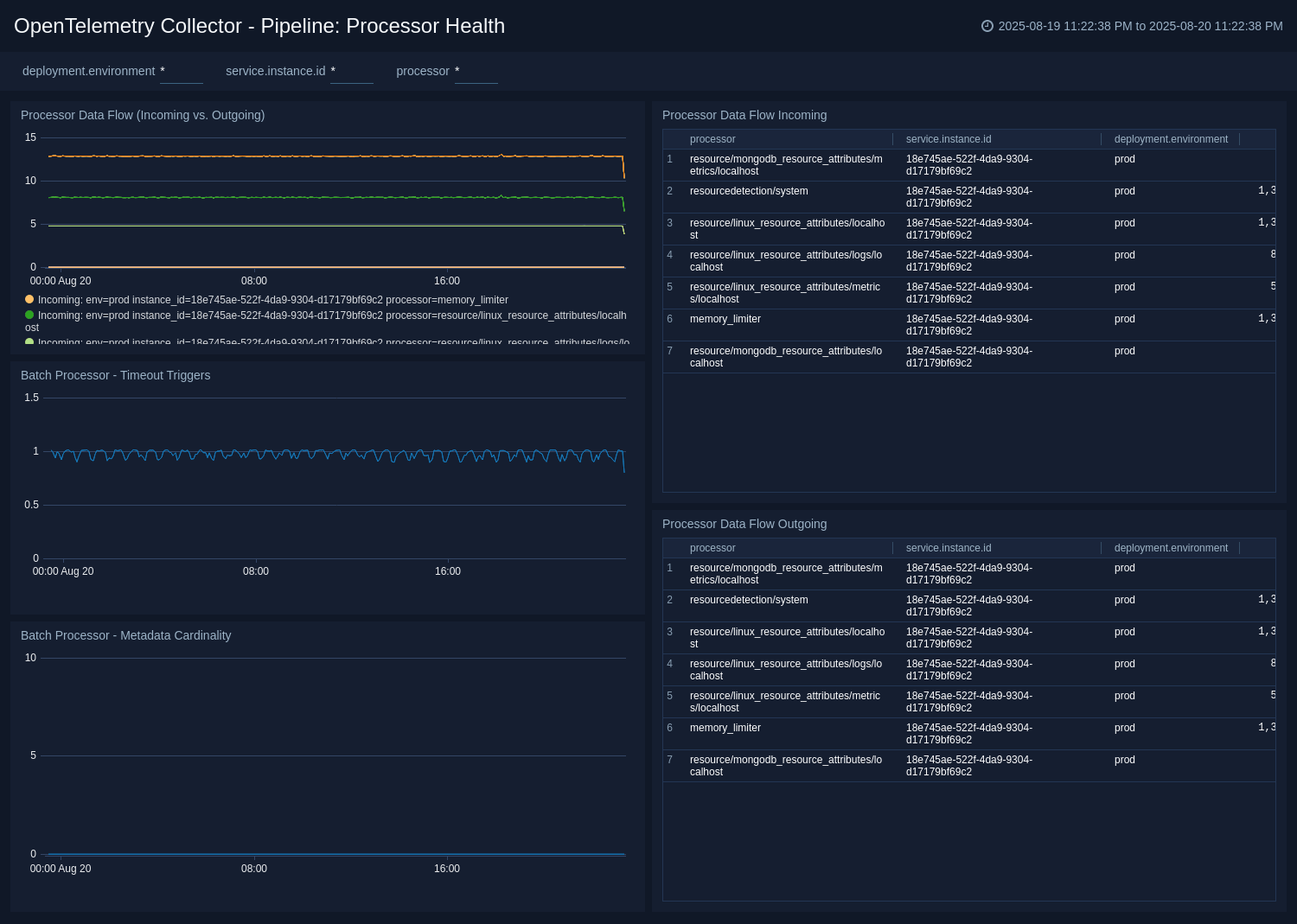
The **OpenTelemetry Collector Insights - Pipeline: Processor Health** dashboard is crucial for understanding if any processors (like batch, memory_limiter, or resourcedetection) are dropping data or causing performance issues.
Use this dashboard to:
- Monitor processor performance and throughput.
- Identify data drops or processing bottlenecks.
- Track processor-specific configurations and health.
- Analyze batch processing efficiency and triggers.
### Pipeline: Processor Health
The **OpenTelemetry Collector Insights - Pipeline: Processor Health** dashboard is crucial for understanding if any processors (like batch, memory_limiter, or resourcedetection) are dropping data or causing performance issues.
Use this dashboard to:
- Monitor processor performance and throughput.
- Identify data drops or processing bottlenecks.
- Track processor-specific configurations and health.
- Analyze batch processing efficiency and triggers.
 ### Pipeline: Exporter Health
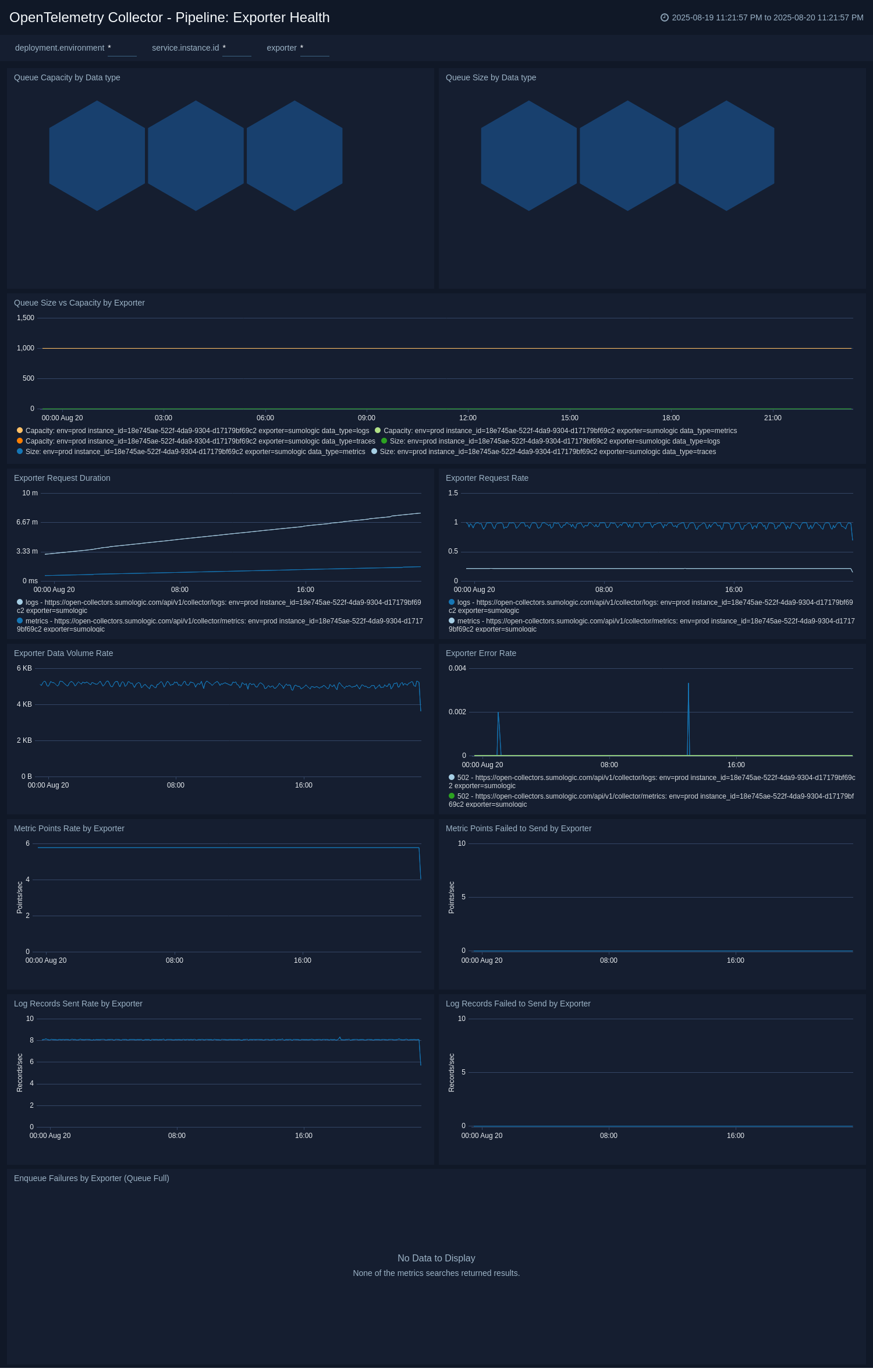
The **OpenTelemetry Collector Insights - Pipeline: Exporter Health** dashboard is the most critical dashboard for diagnosing backpressure and data loss at the egress stage of the pipeline.
Use this dashboard to:
- Monitor exporter performance and success rates.
- Identify backpressure issues and export failures.
- Track data delivery to downstream systems.
- Analyze queue utilization and capacity.
### Pipeline: Exporter Health
The **OpenTelemetry Collector Insights - Pipeline: Exporter Health** dashboard is the most critical dashboard for diagnosing backpressure and data loss at the egress stage of the pipeline.
Use this dashboard to:
- Monitor exporter performance and success rates.
- Identify backpressure issues and export failures.
- Track data delivery to downstream systems.
- Analyze queue utilization and capacity.
 ### Resource Utilization
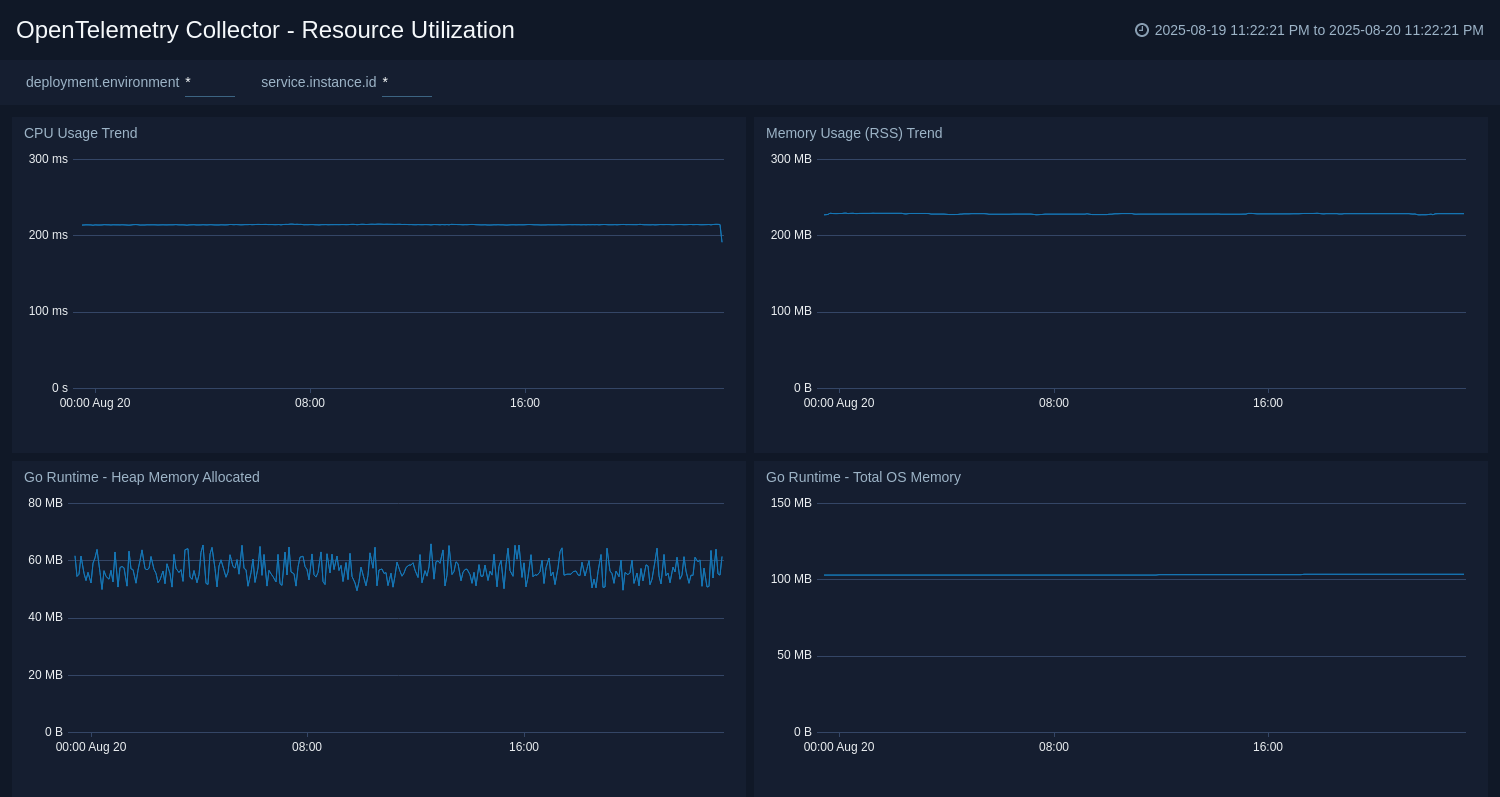
The **OpenTelemetry Collector Insights - Resource Utilization** dashboard provides a deep dive into the collector's own resource consumption to diagnose performance issues and plan for capacity.
Use this dashboard to:
- Monitor CPU, memory, and disk usage by collectors.
- Plan capacity and resource allocation.
- Identify resource constraints and optimization opportunities.
- Track heap allocation and garbage collection patterns.
### Resource Utilization
The **OpenTelemetry Collector Insights - Resource Utilization** dashboard provides a deep dive into the collector's own resource consumption to diagnose performance issues and plan for capacity.
Use this dashboard to:
- Monitor CPU, memory, and disk usage by collectors.
- Plan capacity and resource allocation.
- Identify resource constraints and optimization opportunities.
- Track heap allocation and garbage collection patterns.
 ## Troubleshooting
### Common issues
##### Collector connection failure
If your collector fails to connect to Sumo Logic, you may need to configure proxy settings. Check the collector's logs for connection errors:
```bash
# On systemd systems
journalctl --unit otelcol-sumo
# Look for errors like "Unable to get a heartbeat"
```
##### High queue utilization
Monitor the `otelcol_exporter_queue_size` and `otelcol_exporter_queue_capacity` metrics. If the queue is consistently full, you may need to:
- Reduce data ingestion rate
- Increase queue capacity
- Scale horizontally with more collectors
##### Data dropping
Watch for logs containing "Dropping data because sending_queue is full" and monitor failed enqueue metrics:
- `otelcol_exporter_enqueue_failed_spans`
- `otelcol_exporter_enqueue_failed_metric_points`
- `otelcol_exporter_enqueue_failed_log_records`
### Accessing collector metrics directly
By default, the collector's internal metrics are available in Prometheus format at `http://localhost:8888/metrics`. You can access them using:
```bash
curl http://localhost:8888/metrics
```
### Log levels and configuration
Configure different log levels for troubleshooting:
- **DEBUG**. Most verbose, includes detailed trace information
- **INFO**. Standard operational information (default)
- **WARN**. Warning messages about potential issues
- **ERROR**. Error conditions that need attention
## Create monitors for OpenTelemetry Collector Insights app
import CreateMonitors from '../../reuse/apps/create-monitors.md';
### OpenTelemetry Collector Insights Alerts
| Name | Description | Alert Condition | Recover Condition |
|:--|:--|:--|:--|
| `OpenTelemetry Collector Insights - Collector Instance is Down` | This alert fires when a Collector instance stops sending telemetry for more than 10 minutes, indicating it is down or has a connectivity issue. | Missing Data | Data Found |
| `OpenTelemetry Collector Insights - Exporter Queue Nearing Capacity` | This alert fires when an exporter's sending queue is over 90% full. This is a strong leading indicator of back pressure and imminent data loss. | Count > = 90 | Count < 90 |
| `OpenTelemetry Collector Insights - High Memory Usage (RSS)` | This alert fires when a Collector's memory usage (RSS) exceeds 2GB. This could be an early indicator of a memory leak or an under-provisioned host. | Count > 2000000000 | Count < = 2000000000 |
| `OpenTelemetry Collector Insights - High Metadata Cardinality` | This alert fires when the batch processor is handling more than 1000 unique combinations of metadata. This is a known cause of performance degradation, high CPU, and high memory usage. | Count > 1000 | Count < = 1000 |
## Troubleshooting
### Common issues
##### Collector connection failure
If your collector fails to connect to Sumo Logic, you may need to configure proxy settings. Check the collector's logs for connection errors:
```bash
# On systemd systems
journalctl --unit otelcol-sumo
# Look for errors like "Unable to get a heartbeat"
```
##### High queue utilization
Monitor the `otelcol_exporter_queue_size` and `otelcol_exporter_queue_capacity` metrics. If the queue is consistently full, you may need to:
- Reduce data ingestion rate
- Increase queue capacity
- Scale horizontally with more collectors
##### Data dropping
Watch for logs containing "Dropping data because sending_queue is full" and monitor failed enqueue metrics:
- `otelcol_exporter_enqueue_failed_spans`
- `otelcol_exporter_enqueue_failed_metric_points`
- `otelcol_exporter_enqueue_failed_log_records`
### Accessing collector metrics directly
By default, the collector's internal metrics are available in Prometheus format at `http://localhost:8888/metrics`. You can access them using:
```bash
curl http://localhost:8888/metrics
```
### Log levels and configuration
Configure different log levels for troubleshooting:
- **DEBUG**. Most verbose, includes detailed trace information
- **INFO**. Standard operational information (default)
- **WARN**. Warning messages about potential issues
- **ERROR**. Error conditions that need attention
## Create monitors for OpenTelemetry Collector Insights app
import CreateMonitors from '../../reuse/apps/create-monitors.md';
### OpenTelemetry Collector Insights Alerts
| Name | Description | Alert Condition | Recover Condition |
|:--|:--|:--|:--|
| `OpenTelemetry Collector Insights - Collector Instance is Down` | This alert fires when a Collector instance stops sending telemetry for more than 10 minutes, indicating it is down or has a connectivity issue. | Missing Data | Data Found |
| `OpenTelemetry Collector Insights - Exporter Queue Nearing Capacity` | This alert fires when an exporter's sending queue is over 90% full. This is a strong leading indicator of back pressure and imminent data loss. | Count > = 90 | Count < 90 |
| `OpenTelemetry Collector Insights - High Memory Usage (RSS)` | This alert fires when a Collector's memory usage (RSS) exceeds 2GB. This could be an early indicator of a memory leak or an under-provisioned host. | Count > 2000000000 | Count < = 2000000000 |
| `OpenTelemetry Collector Insights - High Metadata Cardinality` | This alert fires when the batch processor is handling more than 1000 unique combinations of metadata. This is a known cause of performance degradation, high CPU, and high memory usage. | Count > 1000 | Count < = 1000 |