---
id: varnish-opentelemetry
title: Varnish - OpenTelemetry Collector
sidebar_label: Varnish - OTel Collector
description: Learn about the Sumo Logic OpenTelemetry app for Varnish.
slug: /help/docs/integrations/web-servers/opentelemetry/varnish-opentelemetry/
canonical: https://www.sumologic.com/help/docs/integrations/web-servers/opentelemetry/varnish-opentelemetry/
---
import useBaseUrl from '@docusaurus/useBaseUrl';
import Tabs from '@theme/Tabs';
import TabItem from '@theme/TabItem';
})
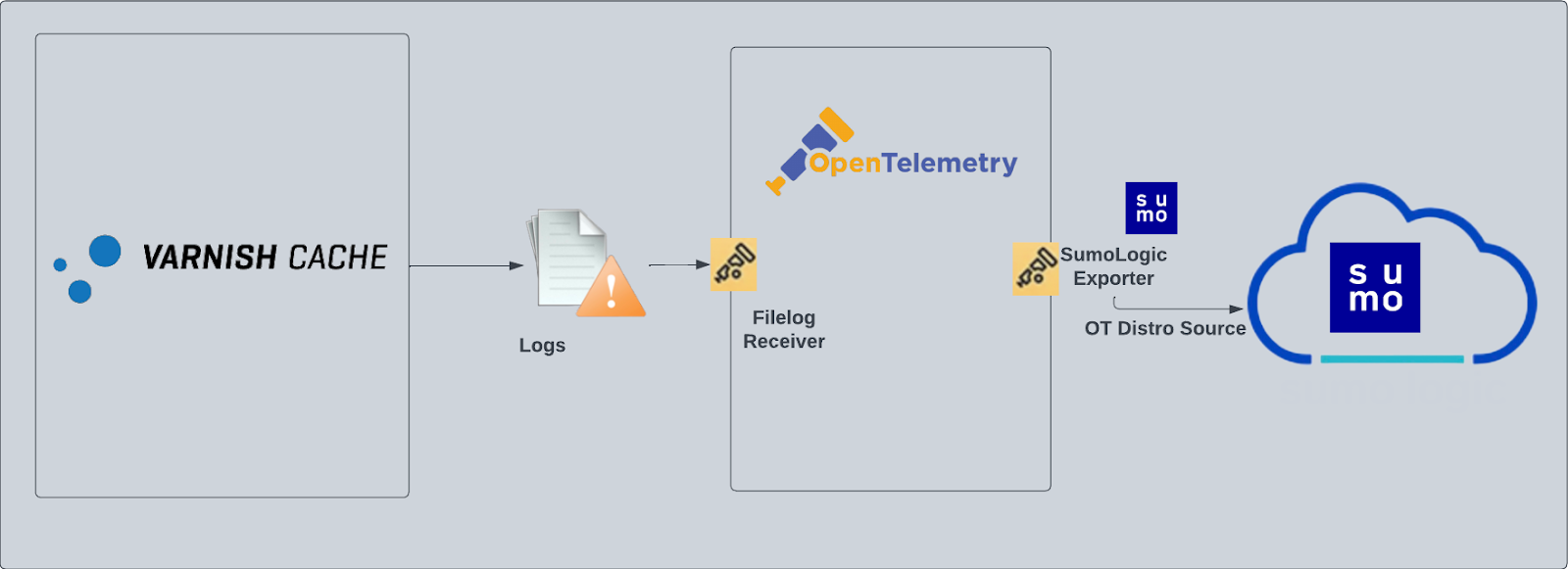
}) The Sumo Logic app for [Varnish](https://varnish-cache.org/intro/) provides dashboards that help you analyze logs generated by Varnish servers. This app allows you to identify traffic sources, improve application and website workflows, and understand how customers use your product.
Varnish logs are sent to Sumo Logic through OpenTelemetry [filelog receiver](https://github.com/open-telemetry/opentelemetry-collector-contrib/tree/main/receiver/filelogreceiver).
The Sumo Logic app for [Varnish](https://varnish-cache.org/intro/) provides dashboards that help you analyze logs generated by Varnish servers. This app allows you to identify traffic sources, improve application and website workflows, and understand how customers use your product.
Varnish logs are sent to Sumo Logic through OpenTelemetry [filelog receiver](https://github.com/open-telemetry/opentelemetry-collector-contrib/tree/main/receiver/filelogreceiver).
 ## Fields creation in Sumo Logic for Varnish
- `webengine.cluster.name`. User configured. Enter a name to identify this Varnish cluster. This cluster name will be shown in the Sumo Logic dashboards.
- `webengine.system`. Has a fixed value of **varnish**.
- `sumo.datasource`. Has a fixed value of **varnish**.
## Prerequisites
* Configure logging in Varnish. Varnish supports logging via local text log files. For details visit this [page](https://docs.varnish-software.com/tutorials/enabling-logging-with-varnishncsa/). For the dashboards to work properly, set the Varnish log format as explained [here](https://docs.varnish-software.com/tutorials/enabling-logging-with-varnishncsa/#step-3-customise-options-1):
```bash
%h %l %u %t \"%r\" %s %b \"%{Referer}i\" \"%{User-agent}i\"
```
* Configure Varnish to log to a local file. By default, any installation of varnishd will not write any request logs to disk. Instead, Varnish has an in-memory log, and supplies tools to tap into this log and write to disk. To configure logging to a local file, follow the steps [here](https://docs.varnish-software.com/tutorials/enabling-logging-with-varnishncsa/#enable-varnishncsa-logging). By default, Varnish logs are stored in `/var/log/varnish/varnishncsa.log`. For customized options, visit this [page](https://docs.varnish-software.com/tutorials/enabling-logging-with-varnishncsa/#step-3-customise-options-1).
import LogsCollectionPrereqisites from '../../../reuse/apps/logs-collection-prereqisites.md';
## Collection configuration and app installation
import ConfigAppInstall from '../../../reuse/apps/opentelemetry/config-app-install.md';
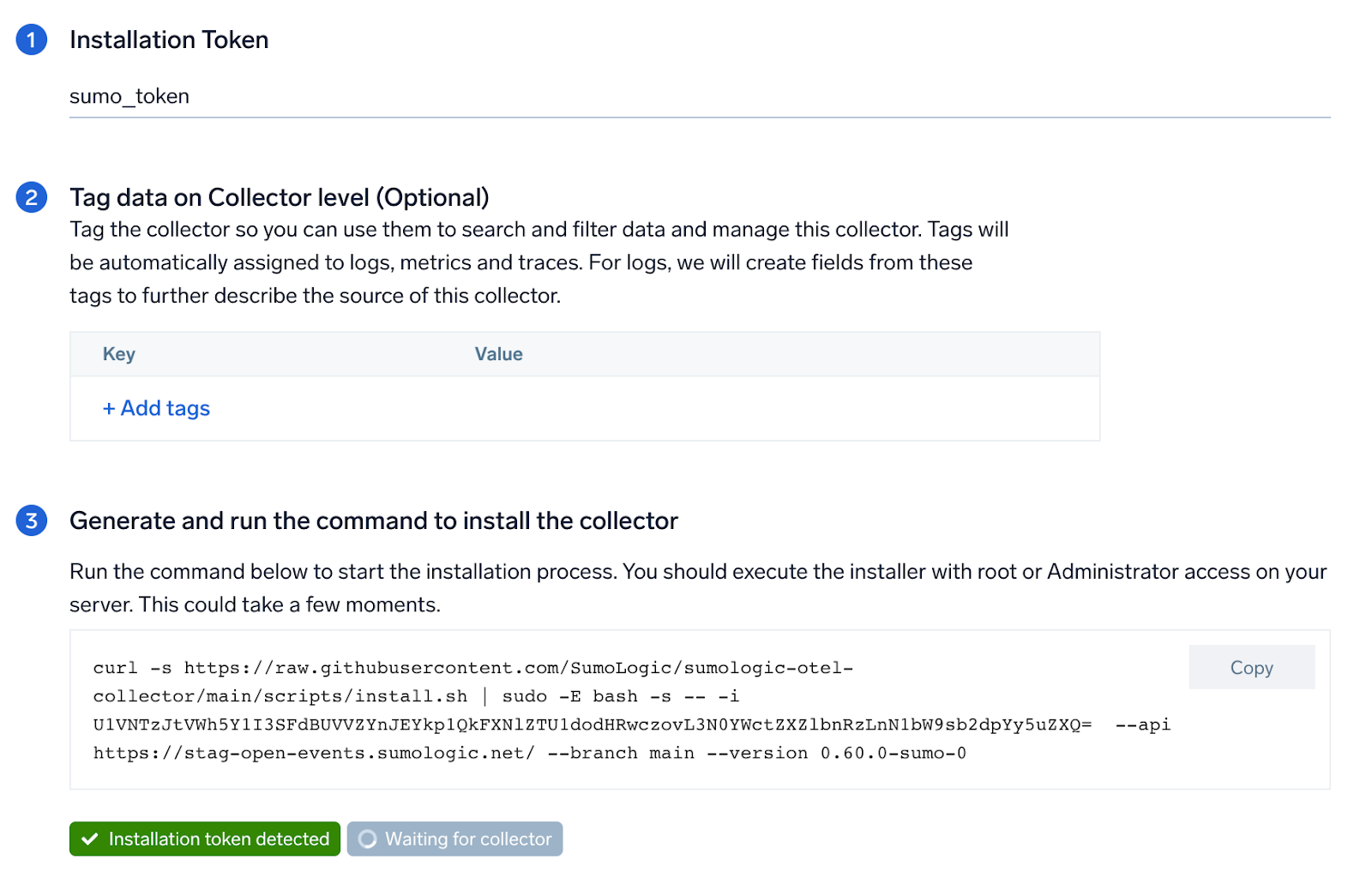
### Step 1: Set up Collector
import SetupColl from '../../../reuse/apps/opentelemetry/set-up-collector.md';
## Fields creation in Sumo Logic for Varnish
- `webengine.cluster.name`. User configured. Enter a name to identify this Varnish cluster. This cluster name will be shown in the Sumo Logic dashboards.
- `webengine.system`. Has a fixed value of **varnish**.
- `sumo.datasource`. Has a fixed value of **varnish**.
## Prerequisites
* Configure logging in Varnish. Varnish supports logging via local text log files. For details visit this [page](https://docs.varnish-software.com/tutorials/enabling-logging-with-varnishncsa/). For the dashboards to work properly, set the Varnish log format as explained [here](https://docs.varnish-software.com/tutorials/enabling-logging-with-varnishncsa/#step-3-customise-options-1):
```bash
%h %l %u %t \"%r\" %s %b \"%{Referer}i\" \"%{User-agent}i\"
```
* Configure Varnish to log to a local file. By default, any installation of varnishd will not write any request logs to disk. Instead, Varnish has an in-memory log, and supplies tools to tap into this log and write to disk. To configure logging to a local file, follow the steps [here](https://docs.varnish-software.com/tutorials/enabling-logging-with-varnishncsa/#enable-varnishncsa-logging). By default, Varnish logs are stored in `/var/log/varnish/varnishncsa.log`. For customized options, visit this [page](https://docs.varnish-software.com/tutorials/enabling-logging-with-varnishncsa/#step-3-customise-options-1).
import LogsCollectionPrereqisites from '../../../reuse/apps/logs-collection-prereqisites.md';
## Collection configuration and app installation
import ConfigAppInstall from '../../../reuse/apps/opentelemetry/config-app-install.md';
### Step 1: Set up Collector
import SetupColl from '../../../reuse/apps/opentelemetry/set-up-collector.md';
 ### Step 2: Configure integration
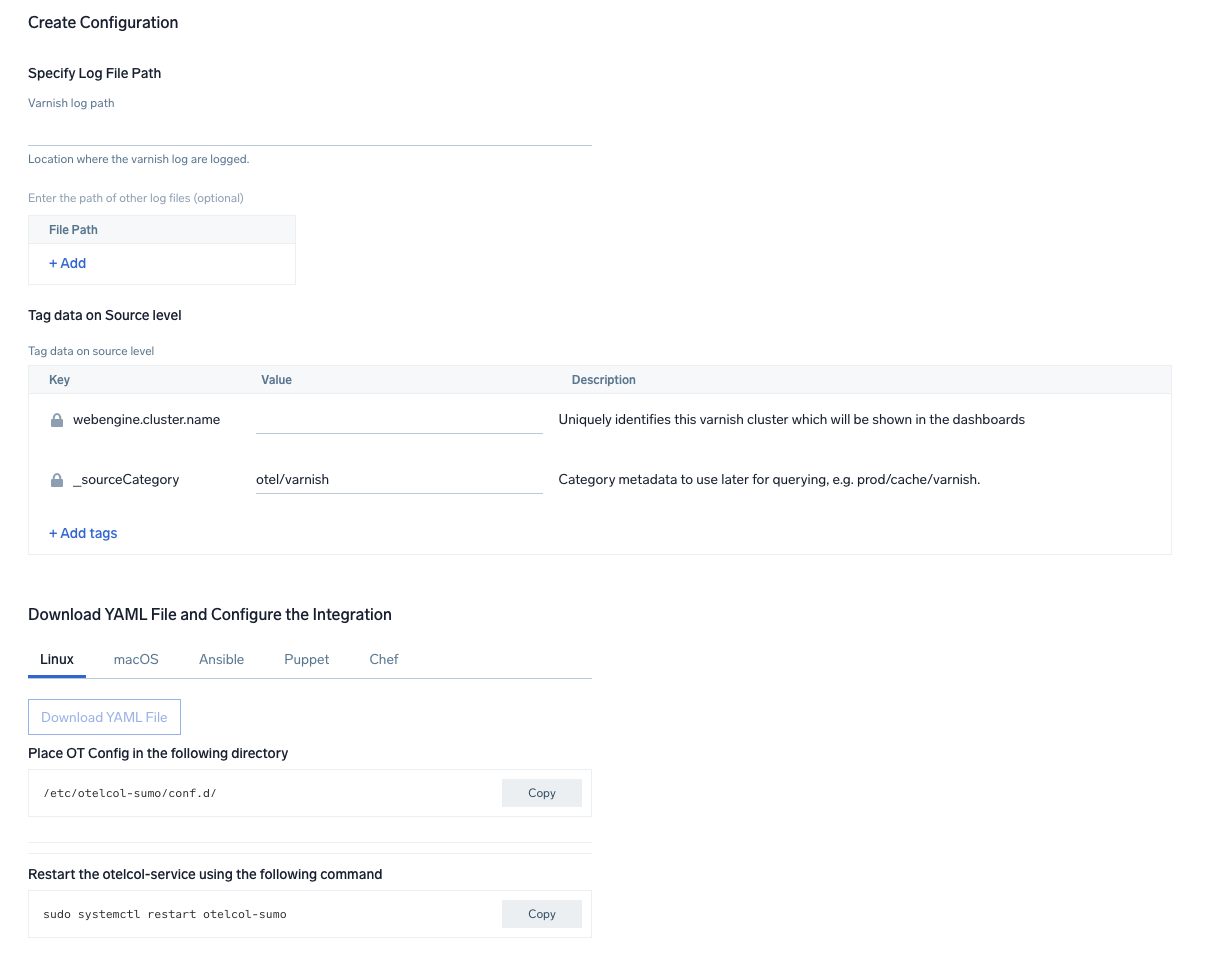
OpenTelemetry works with a [configuration](https://opentelemetry.io/docs/collector/configuration/) yaml file which has all the details with respect to the data which needs to be collected. For example, it specifies the location of a log file that is read and sent to the Sumo Logic platform.
In this step, you will configure the yaml required for Varnish Collection. You'll need to provide the path of the log file configured to capture Varnish logs.
The files are located in `/var/log/varnish/varnishncsa.log` by default. For more details, refer the the [Prerequisites](#prerequisites) section of this page. You can add any custom fields which you want to tag along with the data ingested in Sumo. Click on the **Download YAML File** button to get the yaml file.
import CollectorVersionNote from '../../../reuse/apps/opentelemetry/collector-version-note.md';
### Step 2: Configure integration
OpenTelemetry works with a [configuration](https://opentelemetry.io/docs/collector/configuration/) yaml file which has all the details with respect to the data which needs to be collected. For example, it specifies the location of a log file that is read and sent to the Sumo Logic platform.
In this step, you will configure the yaml required for Varnish Collection. You'll need to provide the path of the log file configured to capture Varnish logs.
The files are located in `/var/log/varnish/varnishncsa.log` by default. For more details, refer the the [Prerequisites](#prerequisites) section of this page. You can add any custom fields which you want to tag along with the data ingested in Sumo. Click on the **Download YAML File** button to get the yaml file.
import CollectorVersionNote from '../../../reuse/apps/opentelemetry/collector-version-note.md';
 ### Step 3: Send logs to Sumo Logic
import LogsIntro from '../../../reuse/apps/opentelemetry/send-logs-intro.md';
1. Copy the yaml at `/etc/otelcol-sumo/conf.d/` folder in the Varnish instance which needs to be monitored.
2. Restart the otelcol-sumo process using the below command
```sh
sudo systemctl restart otelcol-sumo
```
1. Copy the yaml at `/etc/otelcol-sumo/conf.d/` folder in the Varnish instance which needs to be monitored.
2. Restart the otelcol-sumo process using the below command.
```sh
otelcol-sumo --config /etc/otelcol-sumo/sumologic.yaml --conf "glob:/etc/otelcol-sumo/conf.d/*.yaml"
```
import ChefNoEnv from '../../../reuse/apps/opentelemetry/chef-without-env.md';
import AnsibleNoEnv from '../../../reuse/apps/opentelemetry/ansible-without-env.md';
import PuppetNoEnv from '../../../reuse/apps/opentelemetry/puppet-without-env.md';
import LogsOutro from '../../../reuse/apps/opentelemetry/send-logs-outro.md';
### Sample log messages in Non-Kubernetes environments
```sql
175.120.107.250 - - [24/Jan/2023:14:37:44 +0530] "POST /_media/resource_thumb_video_my_v2_homepage.jpg HTTP/1.1" 404 99737883 "http://yahoo.com/5.0 (iPad; CPU OS 6_0 like Mac OS X) AppleWebKit/536.26 (KHTML, like Gecko) Version/6.0 Mobile/10A5355d Safari/8536.25"
```
### Sample queries
This sample query is from the **Varnish Overview - Traffic Volume** dashboard > **MB Served Over Time** panel.
```sumo title="Query String"
%"sumo.datasource"=varnish %"webengine.system"=varnish %"webengine.cluster.name"=* | json "log" as _rawlog nodrop
| if (isEmpty(_rawlog), _raw, _rawlog) as _raw
| parse regex "(?\d{1,3}\.\d{1,3}\.\d{1,3}\.\d{1,3})\s+(?\S+)\s+(?[\S]+)\s+\[" nodrop
| parse regex "(?\d{1,3}\.\d{1,3}\.\d{1,3}\.\d{1,3})\s+(?\d{1,3}\.\d{1,3}\.\d{1,3}\.\d{1,3})\s+(?\S+)\s+(?[\S]+)\s+\[" nodrop
| parse regex "\s+\[(?[^\]]+)\]\s+\"(?\w+)\s+(?\S+)\s+(?\S+)\"\s+(?\d+)\s+(?[\d-]+)" nodrop
| parse regex "\"(?http[s]{0,1}:[^\"\?]+?)(?:\"|\?)"
| where size != "-"
| timeslice 5m
| (size/(1024*1024)) as Megabytes
| count as hits, sum(Megabytes) as Megabytes by _timeslice
| sort _timeslice asc
```
## Viewing Varnish dashboards
### Overview
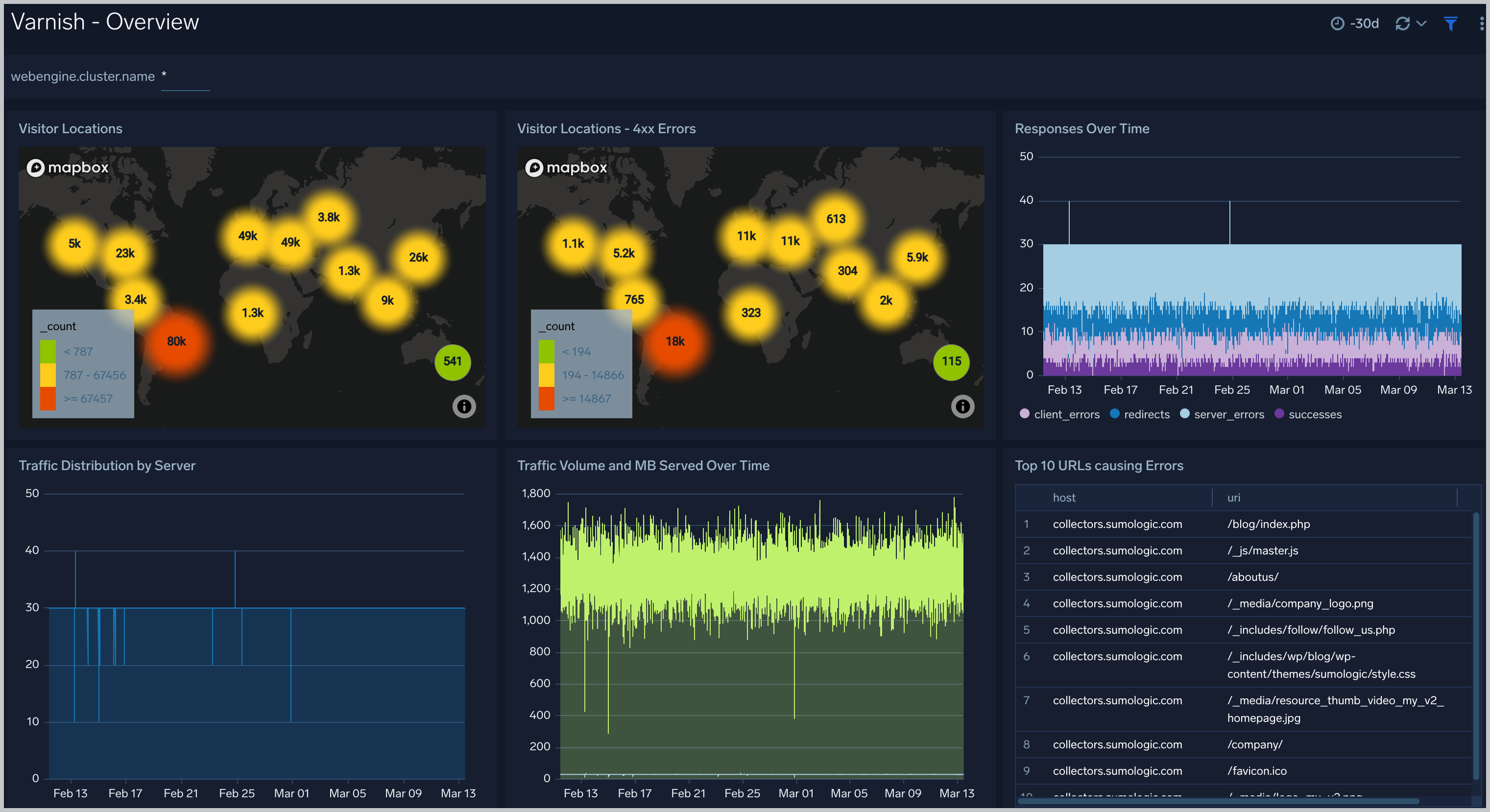
The **Varnish - Overview** dashboard provides a high-level view of the activity and health of Varnish servers on your network. Dashboard panels display visual graphs and detailed information on visitor geographic locations, traffic volume and distribution, responses over time, as well as time comparisons for visitor locations and uptime, cache hit, requests, and VLC.
### Step 3: Send logs to Sumo Logic
import LogsIntro from '../../../reuse/apps/opentelemetry/send-logs-intro.md';
1. Copy the yaml at `/etc/otelcol-sumo/conf.d/` folder in the Varnish instance which needs to be monitored.
2. Restart the otelcol-sumo process using the below command
```sh
sudo systemctl restart otelcol-sumo
```
1. Copy the yaml at `/etc/otelcol-sumo/conf.d/` folder in the Varnish instance which needs to be monitored.
2. Restart the otelcol-sumo process using the below command.
```sh
otelcol-sumo --config /etc/otelcol-sumo/sumologic.yaml --conf "glob:/etc/otelcol-sumo/conf.d/*.yaml"
```
import ChefNoEnv from '../../../reuse/apps/opentelemetry/chef-without-env.md';
import AnsibleNoEnv from '../../../reuse/apps/opentelemetry/ansible-without-env.md';
import PuppetNoEnv from '../../../reuse/apps/opentelemetry/puppet-without-env.md';
import LogsOutro from '../../../reuse/apps/opentelemetry/send-logs-outro.md';
### Sample log messages in Non-Kubernetes environments
```sql
175.120.107.250 - - [24/Jan/2023:14:37:44 +0530] "POST /_media/resource_thumb_video_my_v2_homepage.jpg HTTP/1.1" 404 99737883 "http://yahoo.com/5.0 (iPad; CPU OS 6_0 like Mac OS X) AppleWebKit/536.26 (KHTML, like Gecko) Version/6.0 Mobile/10A5355d Safari/8536.25"
```
### Sample queries
This sample query is from the **Varnish Overview - Traffic Volume** dashboard > **MB Served Over Time** panel.
```sumo title="Query String"
%"sumo.datasource"=varnish %"webengine.system"=varnish %"webengine.cluster.name"=* | json "log" as _rawlog nodrop
| if (isEmpty(_rawlog), _raw, _rawlog) as _raw
| parse regex "(?\d{1,3}\.\d{1,3}\.\d{1,3}\.\d{1,3})\s+(?\S+)\s+(?[\S]+)\s+\[" nodrop
| parse regex "(?\d{1,3}\.\d{1,3}\.\d{1,3}\.\d{1,3})\s+(?\d{1,3}\.\d{1,3}\.\d{1,3}\.\d{1,3})\s+(?\S+)\s+(?[\S]+)\s+\[" nodrop
| parse regex "\s+\[(?[^\]]+)\]\s+\"(?\w+)\s+(?\S+)\s+(?\S+)\"\s+(?\d+)\s+(?[\d-]+)" nodrop
| parse regex "\"(?http[s]{0,1}:[^\"\?]+?)(?:\"|\?)"
| where size != "-"
| timeslice 5m
| (size/(1024*1024)) as Megabytes
| count as hits, sum(Megabytes) as Megabytes by _timeslice
| sort _timeslice asc
```
## Viewing Varnish dashboards
### Overview
The **Varnish - Overview** dashboard provides a high-level view of the activity and health of Varnish servers on your network. Dashboard panels display visual graphs and detailed information on visitor geographic locations, traffic volume and distribution, responses over time, as well as time comparisons for visitor locations and uptime, cache hit, requests, and VLC.
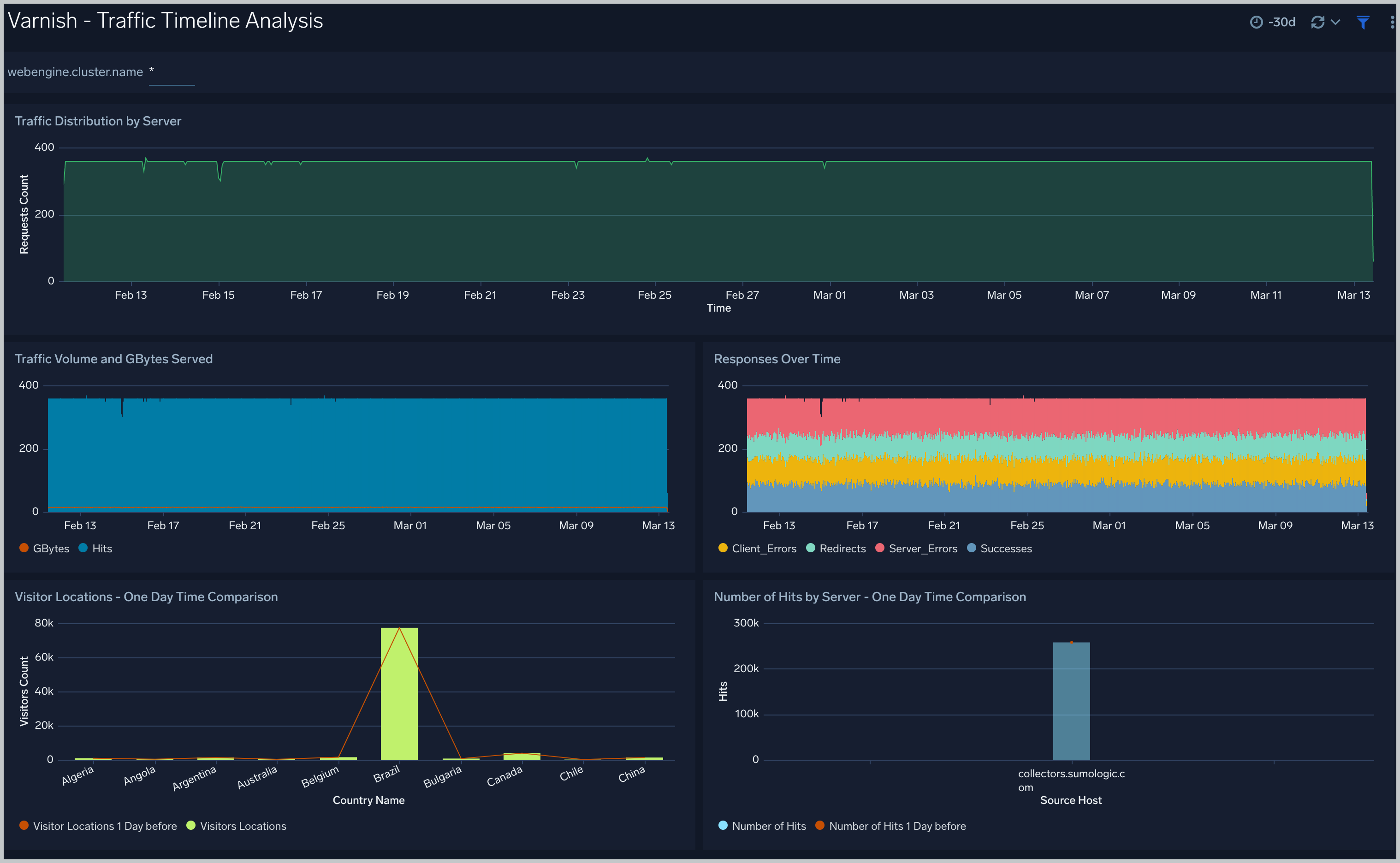
 ### Traffic Timeline Analysis
The **Varnish - Logs Timeline Analysis** dashboard provides a high-level view of the activity and health of Varnish servers on your network. Dashboard panels display visual graphs and detailed information on traffic volume and distribution, responses over time, as well as time comparisons for visitor locations and server hits.
### Traffic Timeline Analysis
The **Varnish - Logs Timeline Analysis** dashboard provides a high-level view of the activity and health of Varnish servers on your network. Dashboard panels display visual graphs and detailed information on traffic volume and distribution, responses over time, as well as time comparisons for visitor locations and server hits.
 ### Outlier Analysis
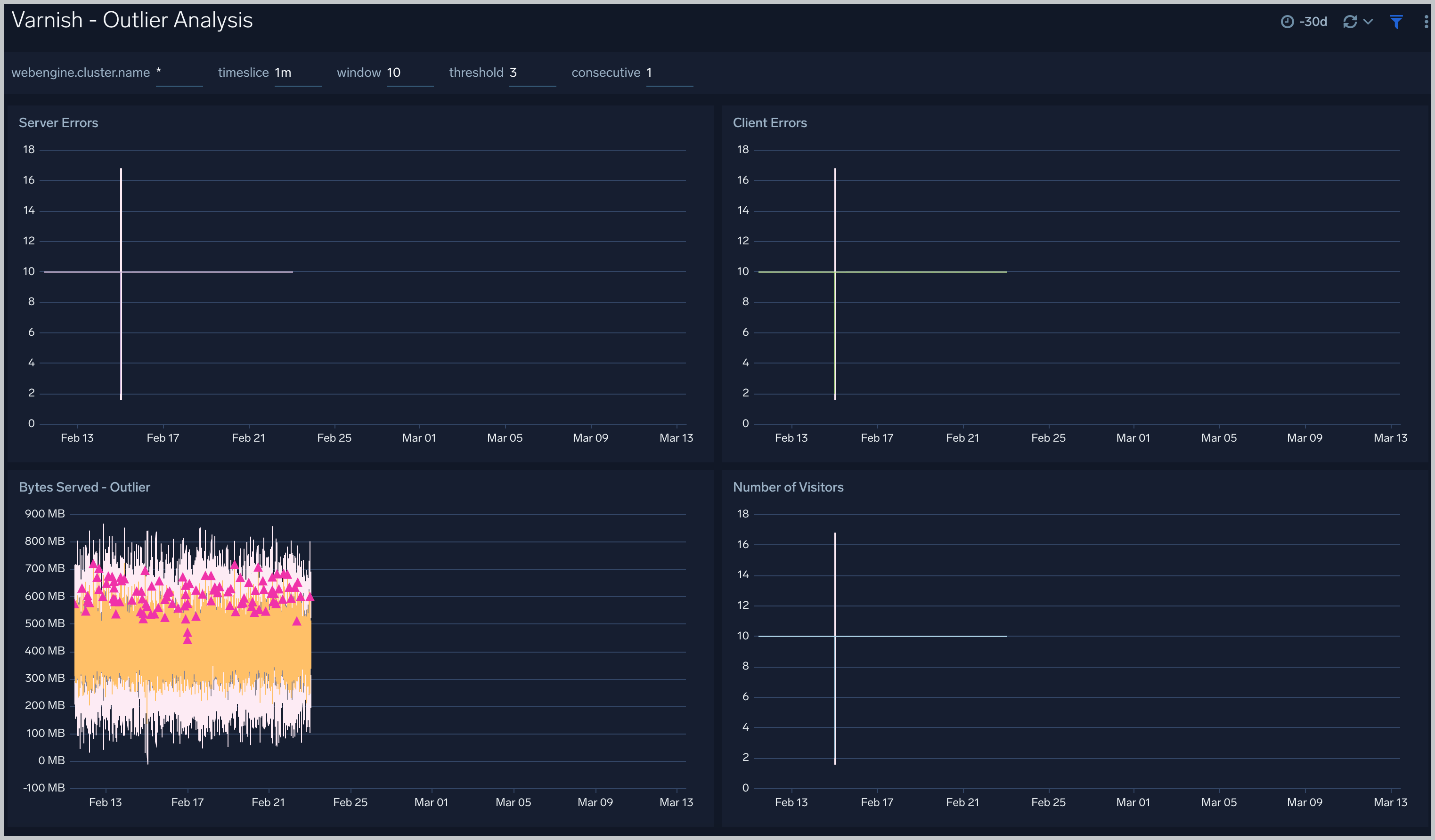
The **Varnish - Outlier Analysis** dashboard provides a high-level view of Varnish server outlier metrics for bytes served, number of visitors, and server errors. You can select the time interval over which outliers are aggregated, then hover the cursor over the graph to display detailed information for that point in time.
### Outlier Analysis
The **Varnish - Outlier Analysis** dashboard provides a high-level view of Varnish server outlier metrics for bytes served, number of visitors, and server errors. You can select the time interval over which outliers are aggregated, then hover the cursor over the graph to display detailed information for that point in time.
 ### Threat Intel
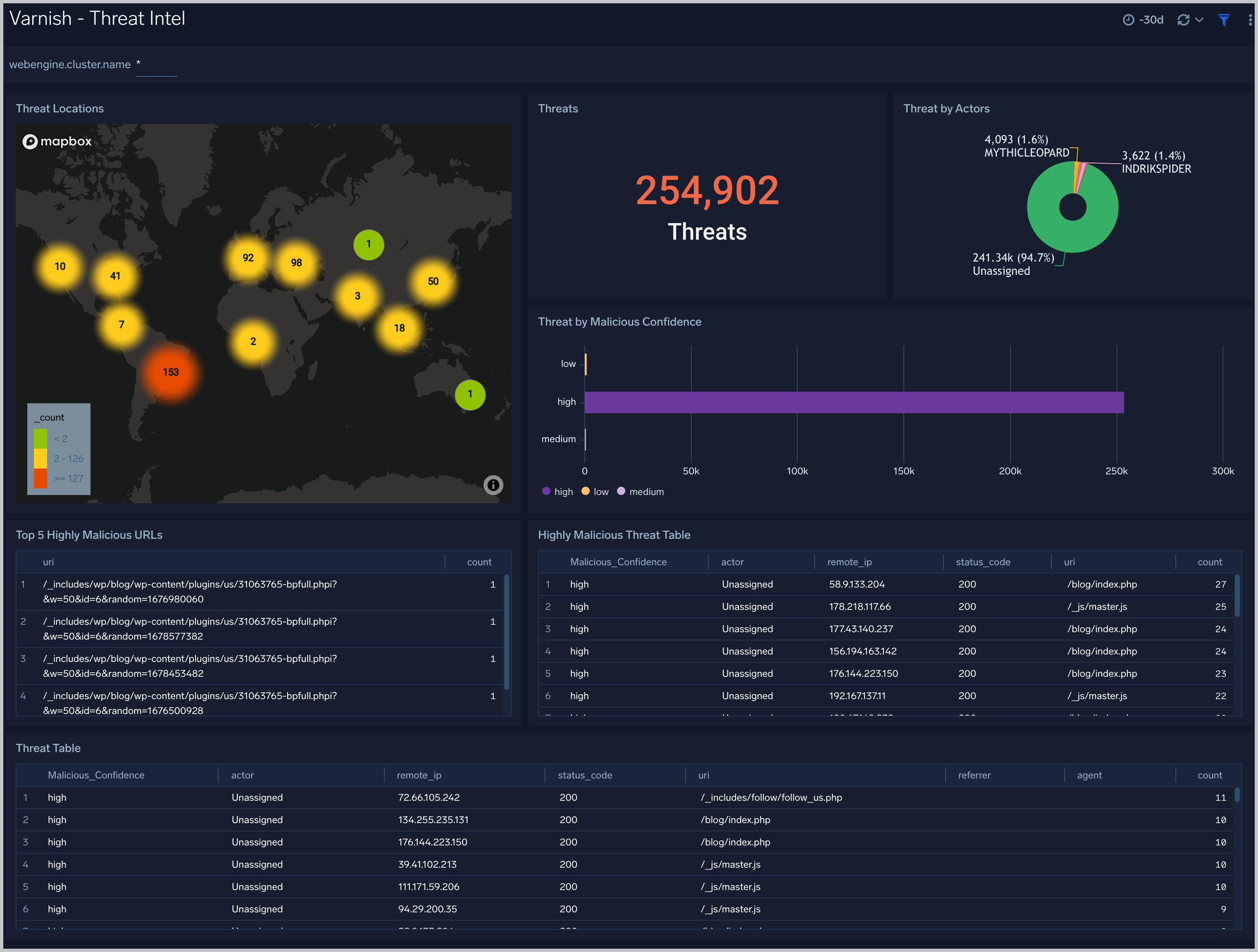
The **Varnish - Threat Intel** dashboard provides an at-a-glance view of threats to Varnish servers on your network. Dashboard panels display threat count over a selected time period, geographic locations where threats occurred, source breakdown, actors responsible for threats, severity, and a correlation of IP addresses, method, and status code of threats.
### Threat Intel
The **Varnish - Threat Intel** dashboard provides an at-a-glance view of threats to Varnish servers on your network. Dashboard panels display threat count over a selected time period, geographic locations where threats occurred, source breakdown, actors responsible for threats, severity, and a correlation of IP addresses, method, and status code of threats.
 ### Visitor Traffic Insight
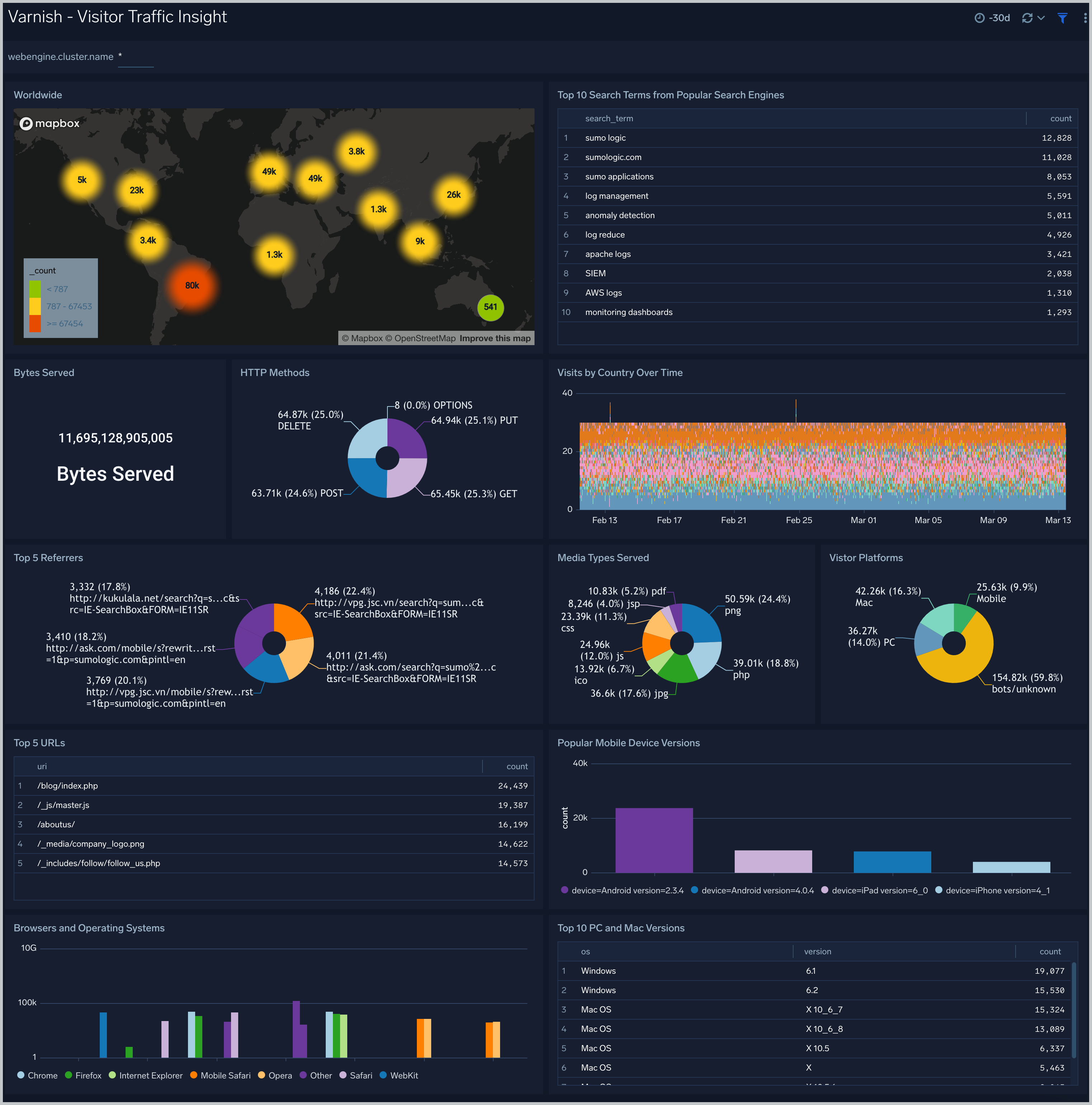
The **Varnish - Visitor Traffic Insight** dashboard provides detailed information on the top documents accessed, top referrers, top search terms from popular search engines, and the media types served.
### Visitor Traffic Insight
The **Varnish - Visitor Traffic Insight** dashboard provides detailed information on the top documents accessed, top referrers, top search terms from popular search engines, and the media types served.
 ### Web Server Operations
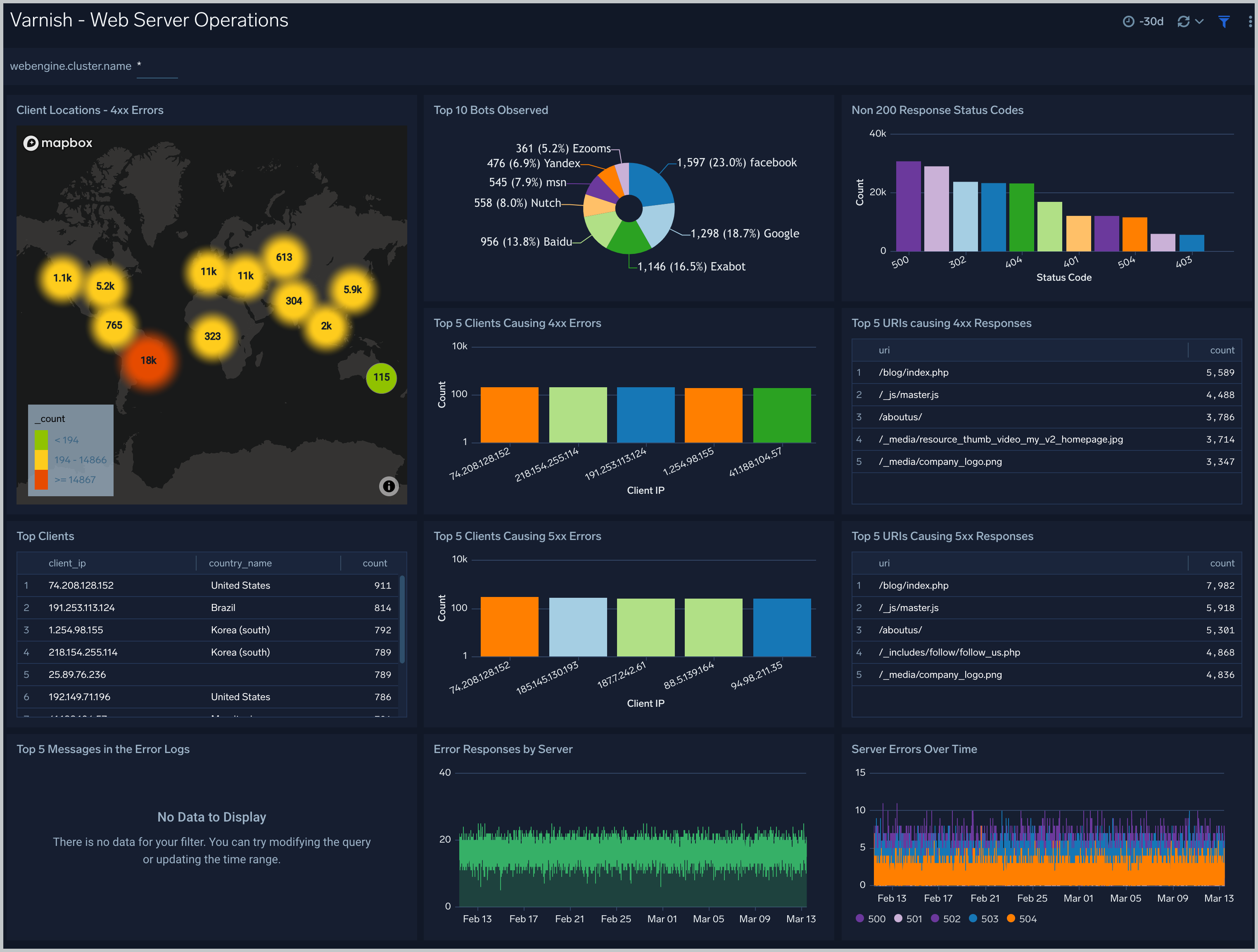
The **Varnish - Web Server Operations** dashboard provides a high-level view combined with detailed information on the top ten bots, geographic locations and data for clients with high error rates, server errors over time, and non 200 response code status codes. Dashboard panels also show information on server error logs, error log levels, error responses by server, and the top URIs responsible for 404 responses.
### Web Server Operations
The **Varnish - Web Server Operations** dashboard provides a high-level view combined with detailed information on the top ten bots, geographic locations and data for clients with high error rates, server errors over time, and non 200 response code status codes. Dashboard panels also show information on server error logs, error log levels, error responses by server, and the top URIs responsible for 404 responses.
 ## Create monitors for Varnish app
import CreateMonitors from '../../../reuse/apps/create-monitors.md';
### Varnish alerts
| Name | Description | Alert Condition | Recover Condition |
|:--|:--|:--|:--|
| `Varnish - Access from Highly Malicious Sources` | This alert is triggered when Varnish is accessed from highly malicious IP addresses. | Count `>` 0 | Count `<=` 0 |
| `Varnish - High 4XX Error Rate` | This alert is triggered when there are too many HTTP requests (>5%) with a response status of 4xx. | Count `>` 5 | Count `<=` 5 |
| `Varnish - High 5XX Error Rate` | This alert is triggered when there are too many HTTP requests (>5%) with a response status of 5xx. | Count `>` 5 | Count `<=` 5 |
## Create monitors for Varnish app
import CreateMonitors from '../../../reuse/apps/create-monitors.md';
### Varnish alerts
| Name | Description | Alert Condition | Recover Condition |
|:--|:--|:--|:--|
| `Varnish - Access from Highly Malicious Sources` | This alert is triggered when Varnish is accessed from highly malicious IP addresses. | Count `>` 0 | Count `<=` 0 |
| `Varnish - High 4XX Error Rate` | This alert is triggered when there are too many HTTP requests (>5%) with a response status of 4xx. | Count `>` 5 | Count `<=` 5 |
| `Varnish - High 5XX Error Rate` | This alert is triggered when there are too many HTTP requests (>5%) with a response status of 5xx. | Count `>` 5 | Count `<=` 5 |